DBbrain provides the Performance Trends feature. It not only supports the selection of multiple performance metrics, including key metrics, all metrics, and custom metrics, but also supports multiple ways to view performance trends, such as a fine-grained view of the trend of a single performance metric, a linked comparison view of the trends of multiple performance metrics, and a time comparison view of the trends of multiple performance metrics.
Supported Performance Metrics
Category
Subcategory
Metric Name
Resource Monitoring
CPU
CPU
Storage Space
Available Log Disk Space
Available Data Disk Space
Data Disk Usages
Data Disk Utilization
MySQL Server
Transaction
Submissions
Rollbacks
Connect
Connection Utilization
Max Connections
Note:
Shard dimension: The maximum number of connections is the sum of the maximum number of connections of the primary and secondary nodes.
Node dimension: The maximum number of connections is the maximum connections of the node.
2. In the left sidebar, select Performance Optimization.
3. Select the Performance Trends tab, and at the top of the page, select the database type, instance ID, or shard ID.
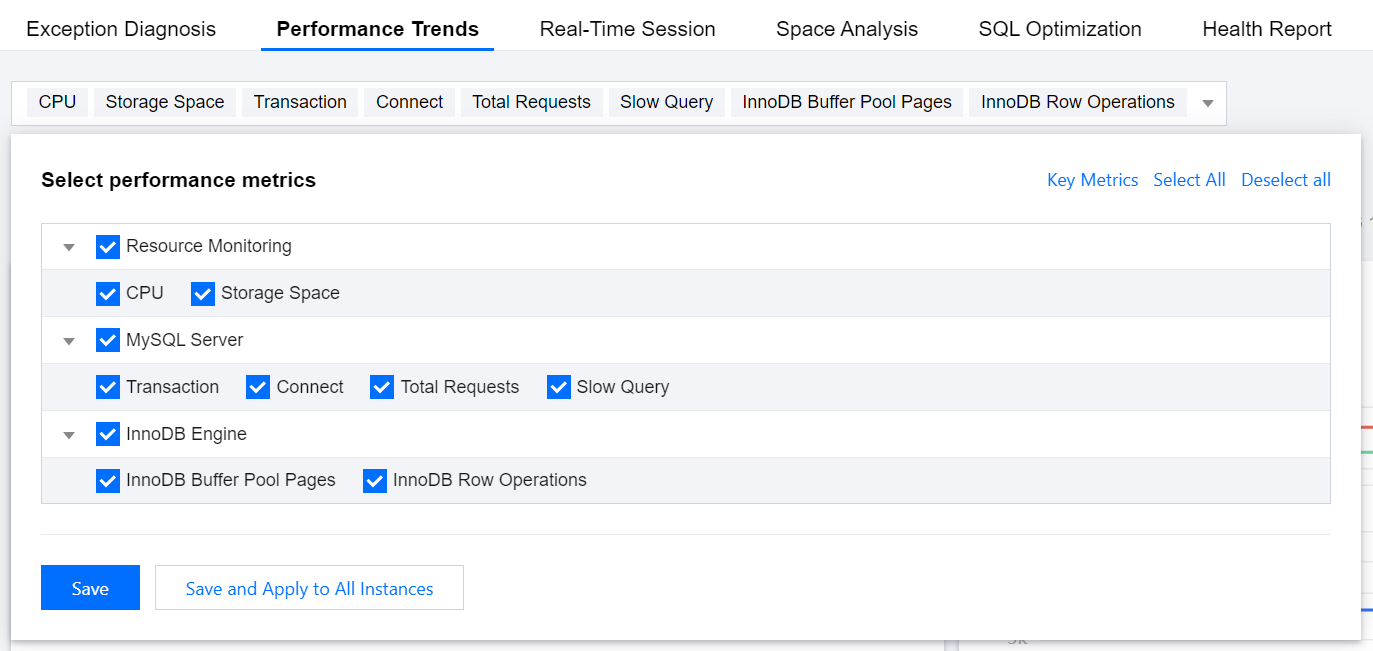
4. In the dropdown list, select the performance metrics. You can also quickly select Key Metrics, Select All, or Deselect all in the upper right corner. After selecting the metrics, click Save.
Note:
Click Save to apply the selected metrics to the current instance. Click Save and Apply to All Instances to apply the selected metrics to all database instances.
5. Select the object to be viewed.
View shards or instances: For TDSQL for MySQL, click Shard. For MariaDB, click Instance.
View nodes: Click Node and select the node to be viewed.
6. Select the time range for viewing.
Real-time: Select Real-Time to view the performance trends of the instance. By default, it is automatically refreshed. Click Stop Refreshing to stop real-time refresh.
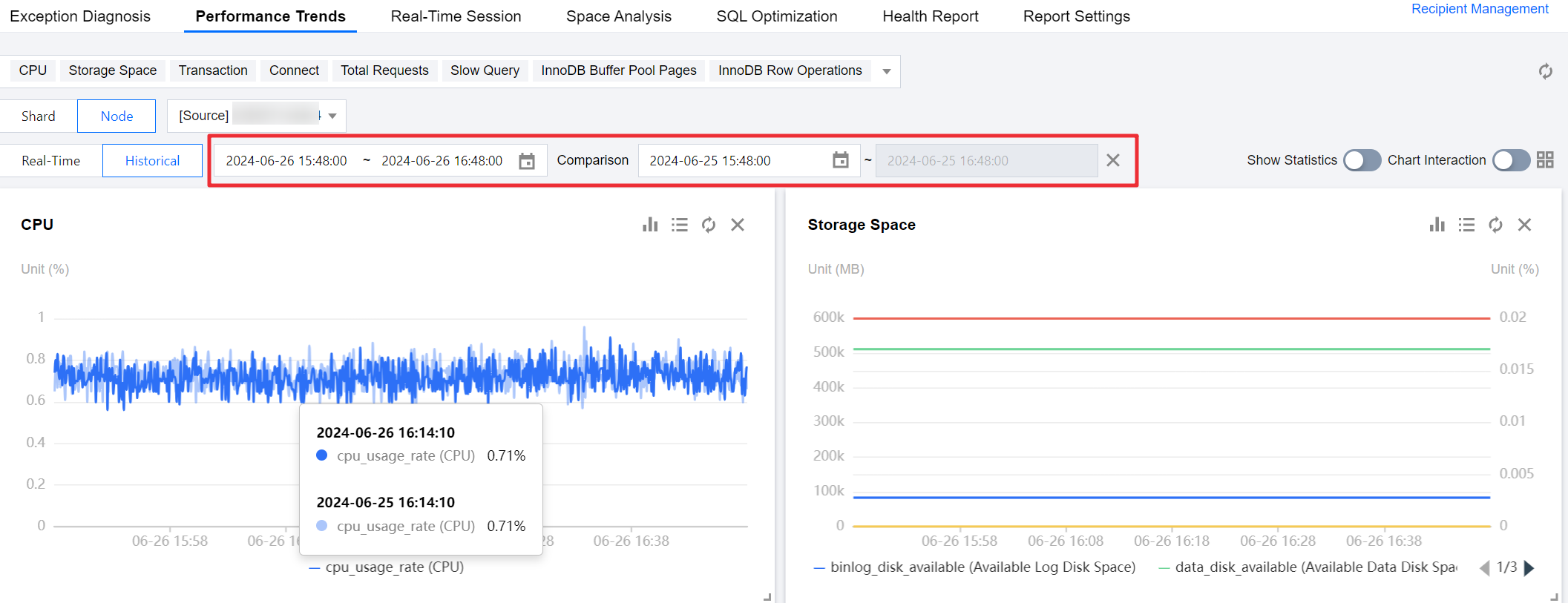
History: Select Historical to view the performance trends in the last 1 hour, last 3 hours, last 24 hours, last 7 days, and custom time periods. You can also click Add Time Comparison to compare performance trends between two periods.
7. View the performance trend chart. The following view methods are supported:
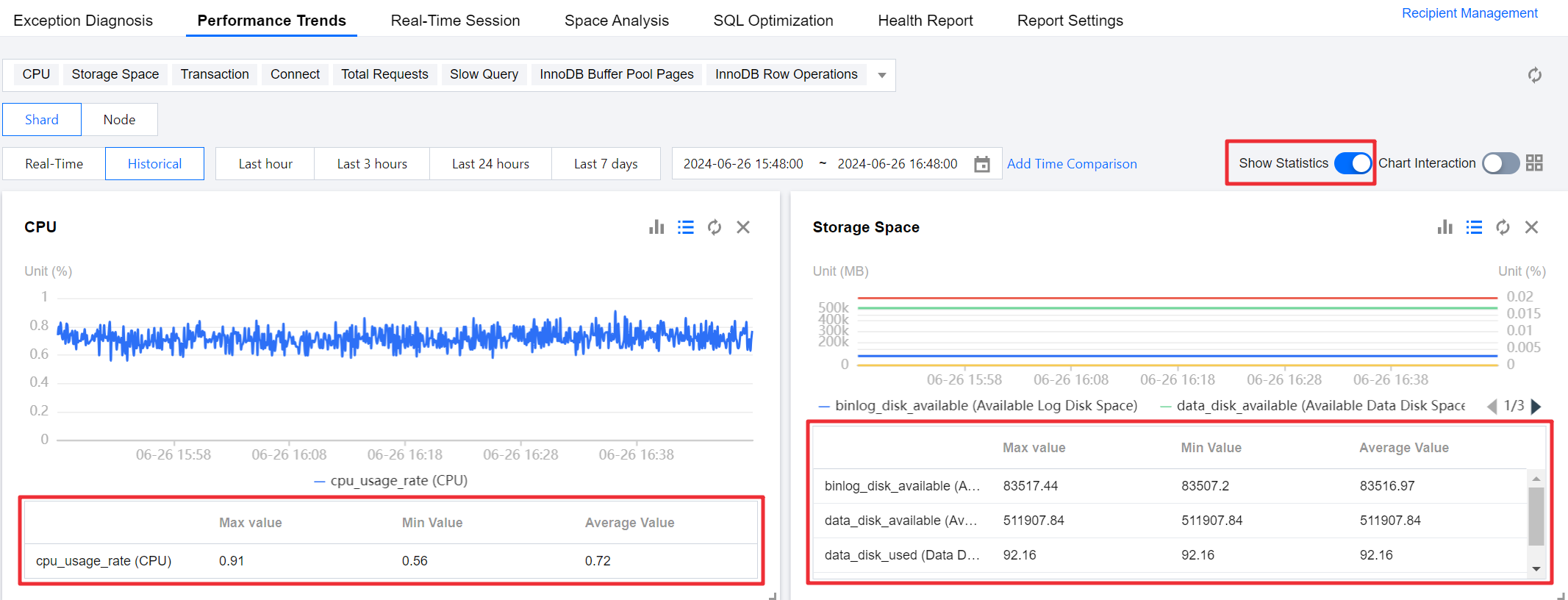
Show Statistics: Click the Show Statistics button on the right side to display the performance metric statistical list below the trend chart.
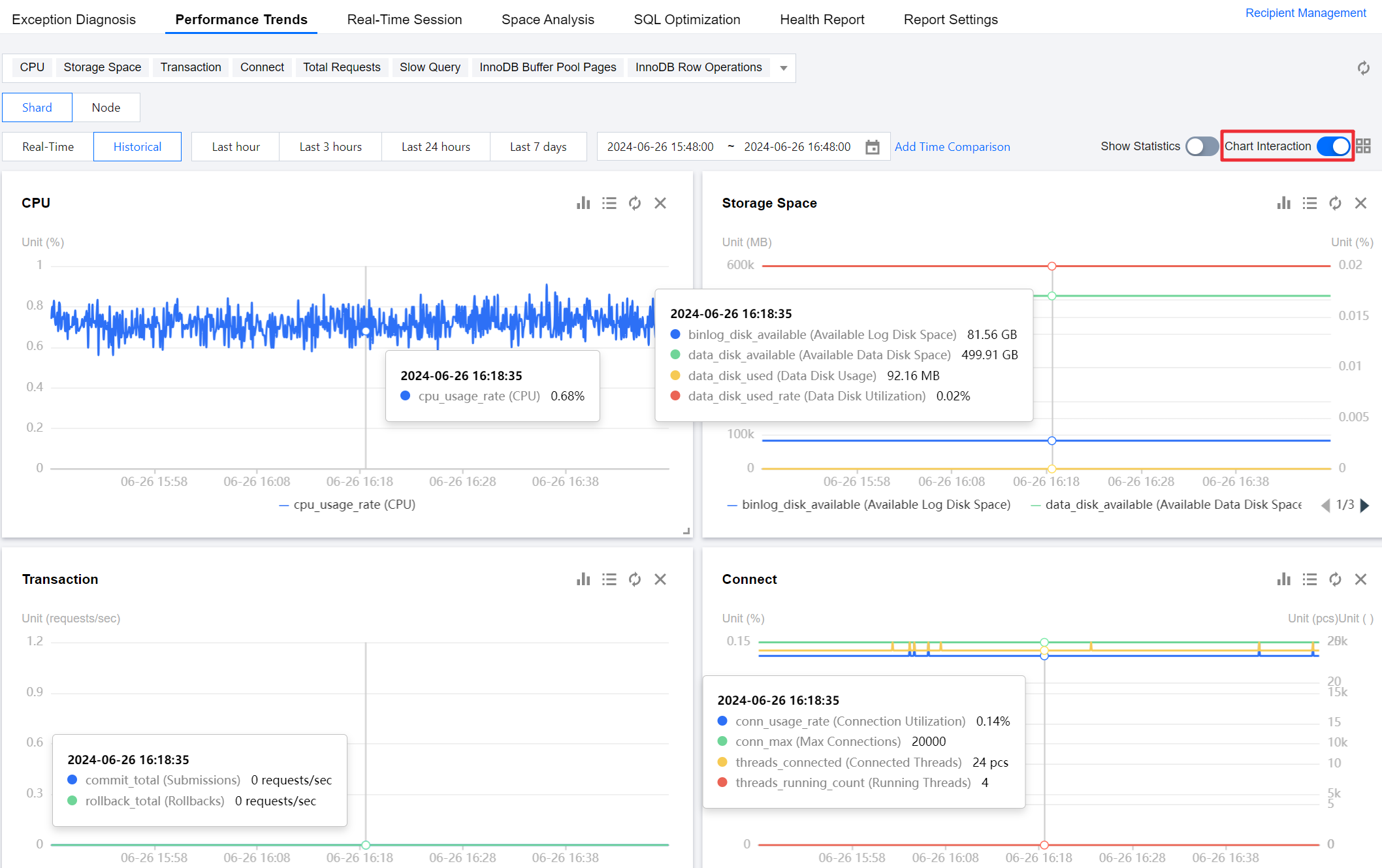
Chart Interaction: Click the Chart Interaction button on the right side to view associated comparisons of the monitoring views of multiple instances and multiple metrics.
Hover over any data point in a monitoring chart to display the data at the same time in other monitoring views. Click to fix the data display, and click Deselect the Time Point to cancel.
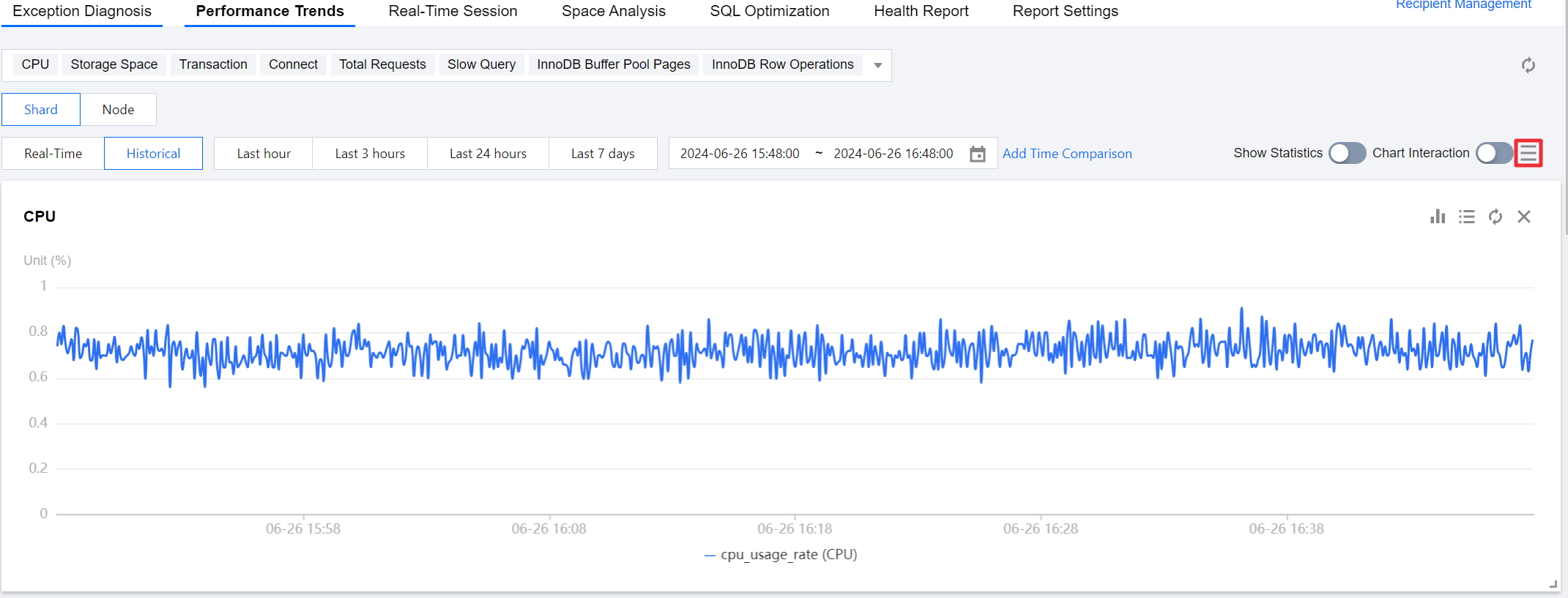
Switch between single-column and double-column display modes: Click the icon on the upper right corner to switch between single-column and double-column display modes.
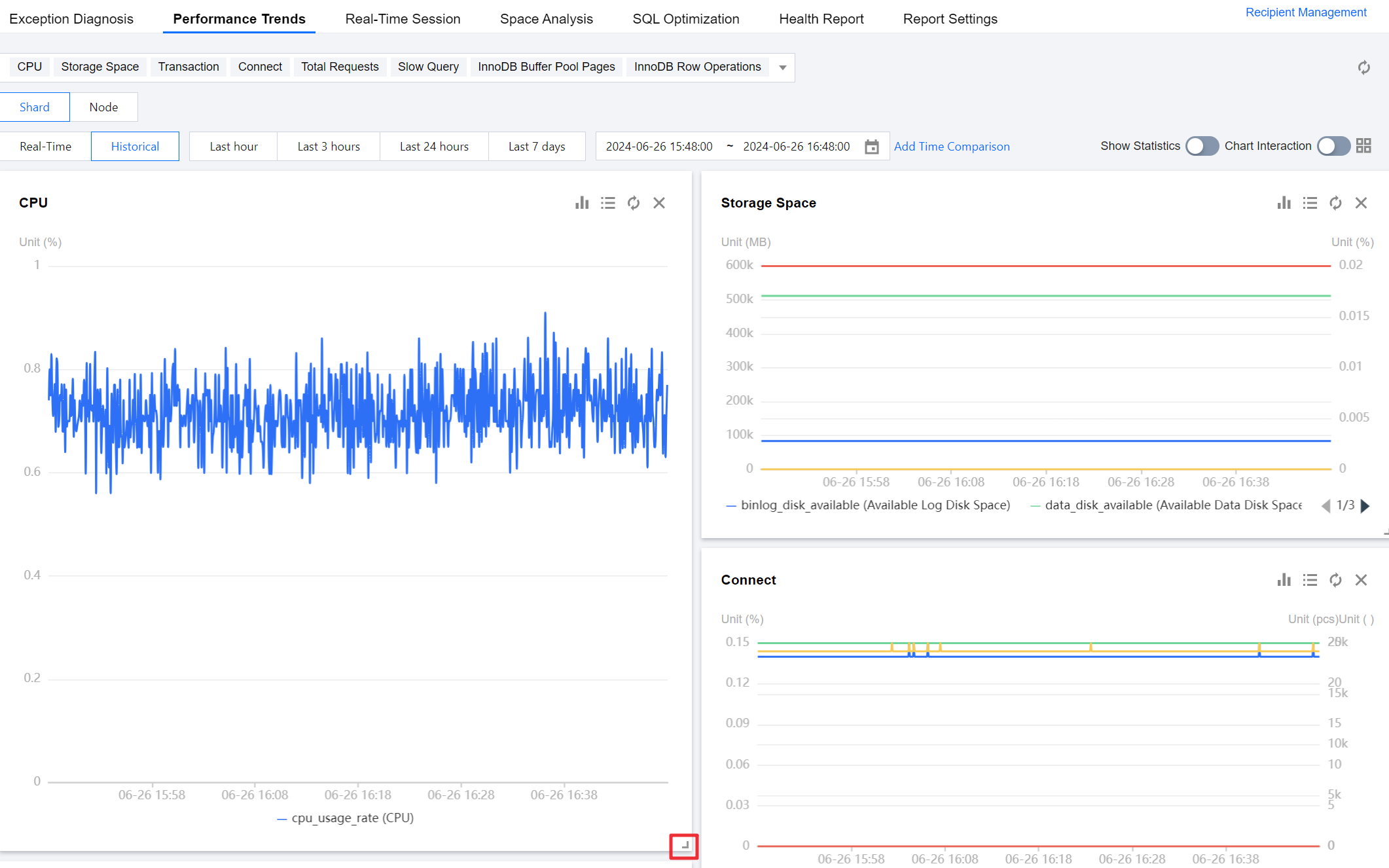
Freely drag the monitoring chart: You can freely drag the position of different monitoring charts. Click the border of the trend chart to drag it.
Zoom in the monitoring chart: Drag the icon at the bottom-right corner of the trend chart to zoom in for a clearer fine-grained view of the trend of a single performance metric.
Single metric card operations
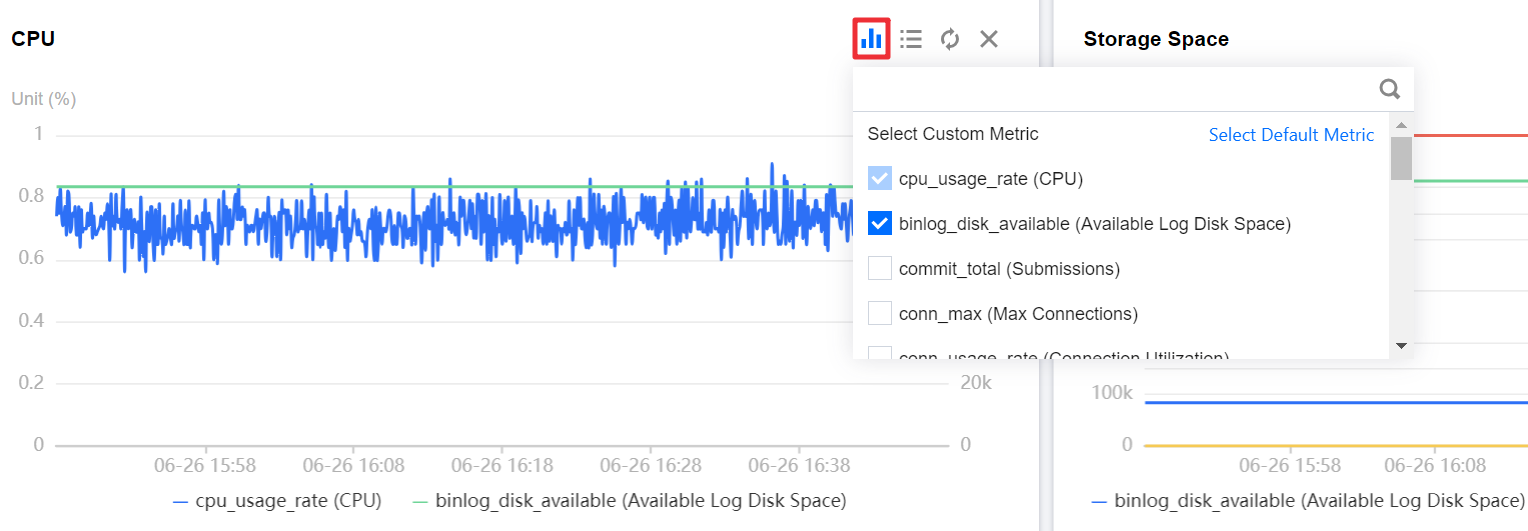
Custom monitoring metrics: Click
in the upper right corner of the card to select custom metrics. Click Select Default Metric to restore the metrics displayed by default on the single metric card.
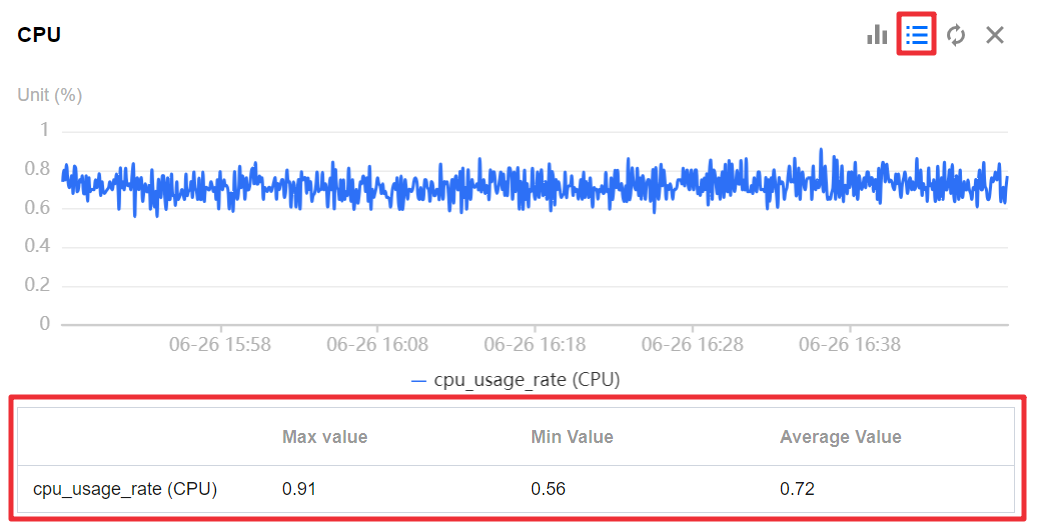
Metric value statistical analysis: Click
in the upper right corner of the card to display the performance metric statistical list.