Offline Task Management
Unduh
Mode fokus
Ukuran font
Operation Scenarios
After you initiate a media processing task through file upload to COS bucket, running manual transcoding scripts, or API calls, you can view and manage the task in the VOD module.
Operation Descriptions
Task List
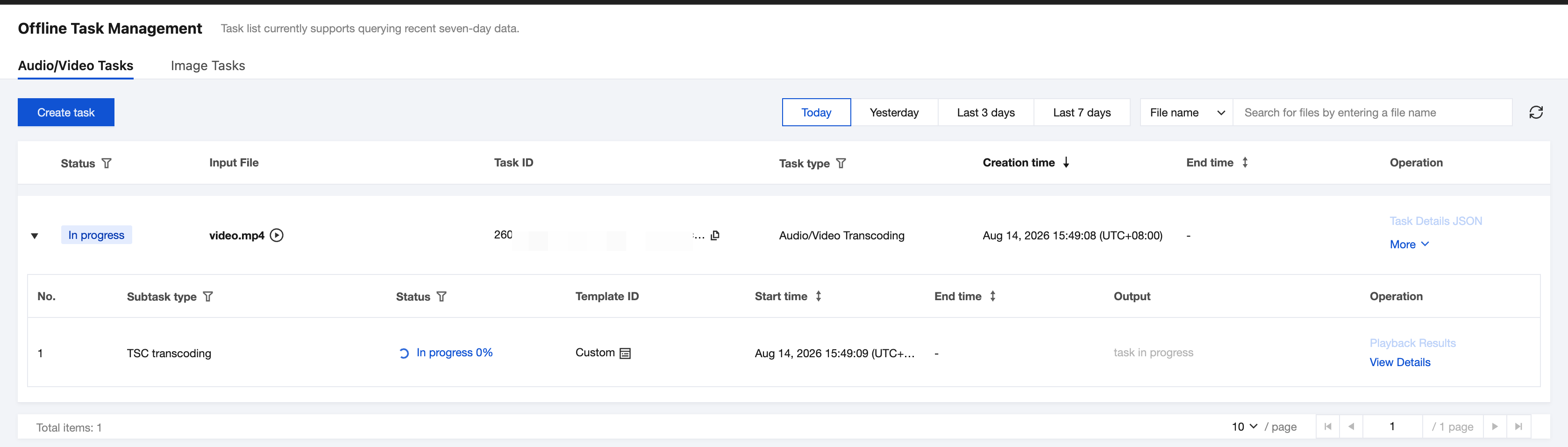
Column Name | Description |
Status | Current status of the master task. The task status is categorized as: Pending, In Progress, Success, Exception. Queuing: The task is queued and waiting to be processed. In Progress: The main task status is In Progress as long as one of its subtasks is in progress. Success: All subtasks under this task are in a successful state. Exception: The main task status is Exception if any of its subtasks are in a failed state. |
Input file | Task input file. |
Task ID | ID of the initiated master task. |
Task type | Type of the initiated task. |
Creation time | Time point when the task is initiated. |
End time | Time point when the task ends. |
Operation |
Task Query
1. Click VOD to go to the task management page. The list on this page displays the record of primary tasks initiated by this account.
2. You can filter the required primary task by entering a task ID in the search box in the upper right corner of the list or selecting the task status in the list.
Task Creation
1. Go to the VOD page and click Create task to enter the task creation page.
2. Select the video file to be processed, specify the output path, transcoding template, and other necessary information, and initiate the task.
Task Operation
Task Details JSON: View the returned JSON from the Query Task Details API, which supports copying.
More: Click More to Restart Task, Terminate Task, or Play Input Video.
Subtask List
In the task list, you can click Details to display the information about all subtasks of the primary task. Detailed information is as follows:
Column Name | Description |
No. | Auto-incrementing sequence number of subtasks under the master task, used to distinguish between different subtasks. |
Subtask type | Information about the subtask type, including: audio/video transcoding, audio/video enhancement, capturing a screenshot, and so on. |
Status | Information about the subtask status, including: Pending, In Progress, Success, Failure. |
Template ID | Details of the template/custom parameters used to initiate the task. |
Start time | Start time of the subtask. |
End time | End time of the subtask. |
Output | No Output File: Task types such as Media AI-Intelligent Analysis, Media AI-Intelligent Recognition, Media AI-Intelligent Auditing, and Media Quality Inspection do not have output files. Single Output File: The output file path is displayed, supporting operations such as Copy File Path, Navigate to COS Bucket, and Download File. Multiple Output Files: Task types such as Screenshot, Smart Erasing, and Video Evaluation generate multiple outputs. The console displays the path of the first output file and supports operations such as View Output File List and Navigate to COS Bucket. |
Operation |
Subtask Operations
Supported subtask operations include Details, Play/View, and Download.
Operation Name | Description |
Play/View | View subtask results and play the video processed by the subtask. |
Details | View subtask details. |
Bantuan dan Dukungan
Apakah halaman ini membantu?
Anda juga dapat Menghubungi Penjualan atau Mengirimkan Tiket untuk meminta bantuan.
masukan