tencent cloud

Cloud Infinite

Release Notes and Announcements
Release Notes
Announcements
Product Introduction
Product Overview
Product Strengths
Use Cases
Feature Overview
Regions and Domains
Specifications and Limits
Billing
Billing Overview
Billing Mode
Billable Items
Free Tier
Payment Overdue
Viewing Bill Details
FAQs
Getting Started
Registering and Logging In
Bind Bucket
Uploading and Processing File
Downloading and Deleting Images
Unbinding Buckets
Using CI via COS
Features
Image Processing
Media Processing
Content Moderation
AI Content Recognition
File Processing
Smart Voice
File processing
User Guide
Overview
Bucket Management
Smart Toolbox
Job and Workflow
Data Monitoring
Usage statistics
Use Cases
Copyright Protection Solutions
Image Processing Practices
Working with API Authorization Policies
Workflow Practices
API Documentation
API Overview
Structure
Common Request Headers
Common Response Headers
Activate Vast Service
Image Processing
AI-Based Content Recognition
Smart Audio
Media Processing
Content Moderation
Document Processing
File Processing
Job and Workflow
Cloud Virus Detection
Error Codes
Request Signature
SDK Documentation
SDK Overview
Android SDK
iOS SDK
COS Android SDK
C SDK
C++ SDK
.NET(C#) SDK
Go SDK
COS iOS SDK
Java SDK
JavaScript SDK
Node.js SDK
PHP SDK
Python SDK
Mini Program SDK
Personal Information Protection Policy for SDK
Security and Compliance
Permission ‍Management
FAQs
Basic Settings
Document Processing
Media Processing
Content Recognition
Smart Audio
Agreements
Service Level Agreement
Contact Us
Glossary

Smart Audio

PDF
Focus Mode
Font Size
Last updated: 2025-12-04 10:30:08

Feature Overview

Intelligent Voice includes Voice Separation, TTS, Audio Noise Reduction, and ASR features. For files already existing in the Bucket, you can create tasks to perform Intelligent Voice-related operations. Task creation is based on the Template feature, and you can directly use custom templates. For template details, see Custom Template.
Note:
When initiating an Intelligent Voice task, please be sure to enter the complete file name and file format; otherwise, format recognition and processing cannot be performed.
Audio and video support outputting files encoded in AV1, H264, H265, VP8, and VP9 formats.
Currently, the task feature can only operate on existing files. If you need to process files during upload, use the Workflow feature.
After creating a task, corresponding feature fees will be incurred. For billing details, see Smart Audio Billing Documentation.
When using services, ensure resource availability by not enabling access restriction features such as Original Image Protection and Hotlink Protection.
When using the intelligent voice service, please first confirm the relevant limitations and Region. For details, see Usage Limitations.

Voice Separation

Voice separation can separate the human voice from background noise in the same material to generate new independent audio files, facilitating your subsequent artistic processing of the material stripped of accompaniment and noise in other styles.

Operation Steps

1. Log in to the Cloud Infinite console.
2. In the left sidebar, click Bucket Management to go to the Bucket Management page.
3. Click the Bucket Name or Manage in the right operation bar to go to the corresponding Bucket page.
4. In the left sidebar, select Tasks and Workflows > Task Management, and select the ISmart Audio tab at the top of the page.
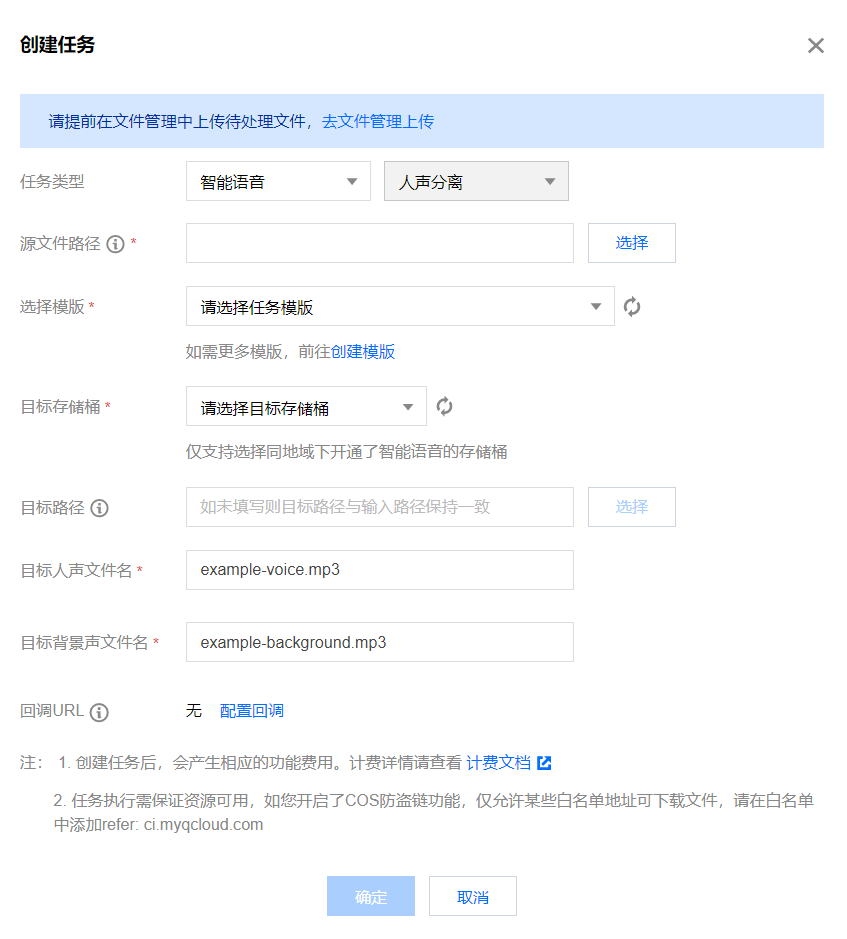
5. Select Voice Separation for Task Type, click Create Task, configure according to the following settings, and then click OK.


Task Type: Select Intelligent Voice - Voice Separation.
Source file path: Enter the path of the file to be processed. Note that the file path must not begin or end with /.
Select Template: You can choose a custom template. If none exists, go to create a template.
Target Bucket: Supports selecting Buckets in the same Region with the Intelligent Voice feature enabled.
Target Path: The storage path for voice-separated files.
Target Voice File Name: You can specify the file name of the target voice file here.
Target Background Audio File Name: You can specify the file name of the target background audio file here.
Callback URL: the callback address information bound to the Queue. For details, see Queue and Callback.

TTS

TTS converts text into natural and smooth speech, applicable to scenarios such as intelligent customer service and audiobooks.

Operation Steps

1. Log in to the Cloud Infinite console.
2. In the left sidebar, click Bucket Management to go to the Bucket Management page.
3. Click the Bucket Name or Manage in the right operation bar to go to the corresponding Bucket page.
4. In the left sidebar, select Tasks and Workflows > Task Management, and select the Smart Audio tab at the top of the page.
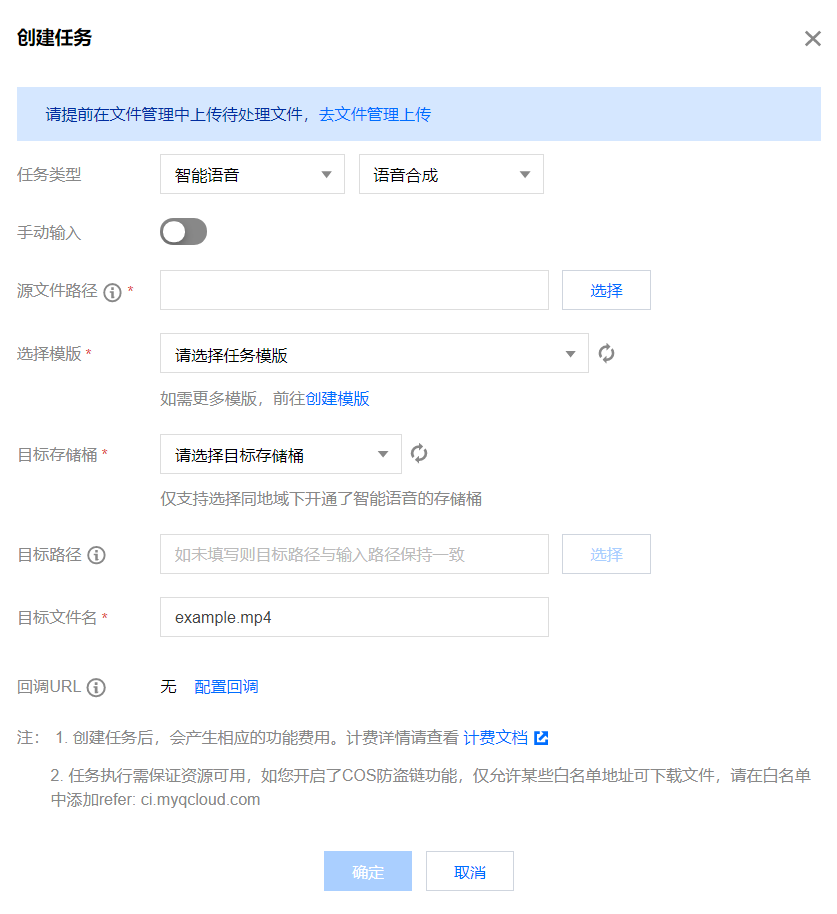
5. Select TTS for Task Type, click Create Task, configure according to the following settings, and then click OK.


Task Type: Select Intelligent Voice - TTS.
Manual Input: You can input the text to be converted here.
Source file path: Enter the path of the file to be processed. Note that the file path must not begin or end with /.
Select Template: You can choose a custom template. If none exists, go to create a template.
Target Bucket: Supports selecting Buckets in the same Region with the Intelligent Voice feature enabled.
Target Path: The storage path for TTS-processed files.
Target File Name: You may specify the file name of the target file here.
Callback URL: the callback address information bound to the Queue. For details, see Queue and Callback.

Audio Noise Reduction

Audio noise reduction eliminates noise and background sounds in audio and video files, improving audio and video quality.

Operation Steps

1. Log in to the Cloud Infinite console.
2. In the left sidebar, click Bucket Management to go to the Bucket Management page.
3. Click the Bucket Name or Manage in the right operation bar to go to the corresponding Bucket page.
4. In the left sidebar, select Tasks and Workflows > Task Management, and select the Smart Audio tab at the top of the page.
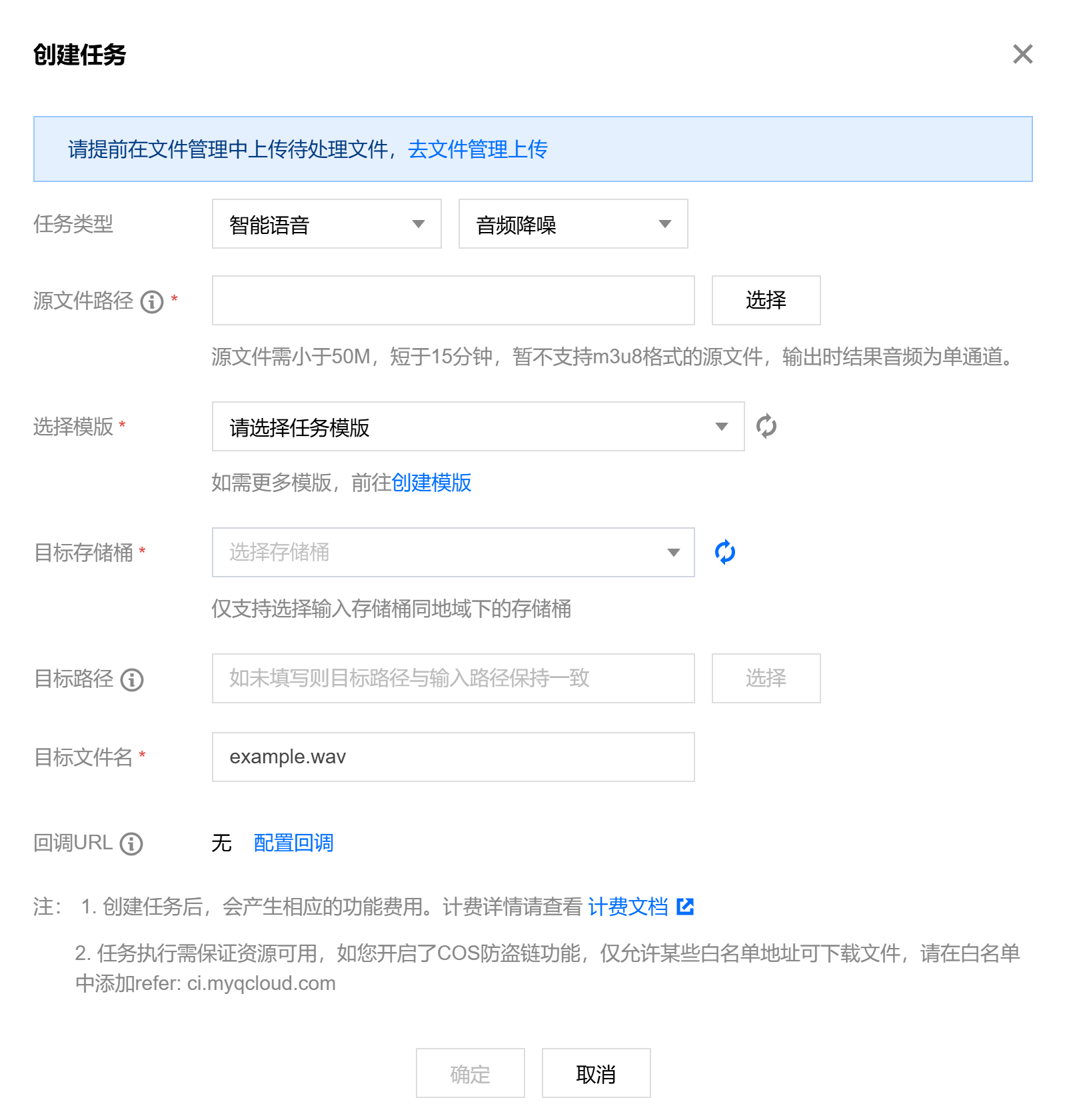
5. Select Audio Noise Reduction for Task Type, click Create Task, configure according to the following settings, and then click OK.

Task Type: Select Intelligent Voice - Audio Noise Reduction.
Source file path: Enter the path of the file to be processed. Note that the file path must not begin or end with /.
Select Template: You can choose a custom template. If none exists, go to create a template.
Target Bucket: Supports selecting Buckets in the same Region with the Intelligent Voice feature enabled.
Target Path: The storage path for files after audio noise reduction.
Target file name: You can specify the target file name here.
Callback URL: the callback address information bound to the Queue. For details, see Queue and Callback.

Speech Recognition

Operation Steps

1. Log in to the Cloud Infinite console.
2. In the left sidebar, click Bucket Management to go to the Bucket Management page.
3. Click the Bucket Name or Manage in the right operation bar to go to the corresponding Bucket page.
4. In the left sidebar, select Data Workflow > Task Management, and select the Smart Audio tab at the top of the page.
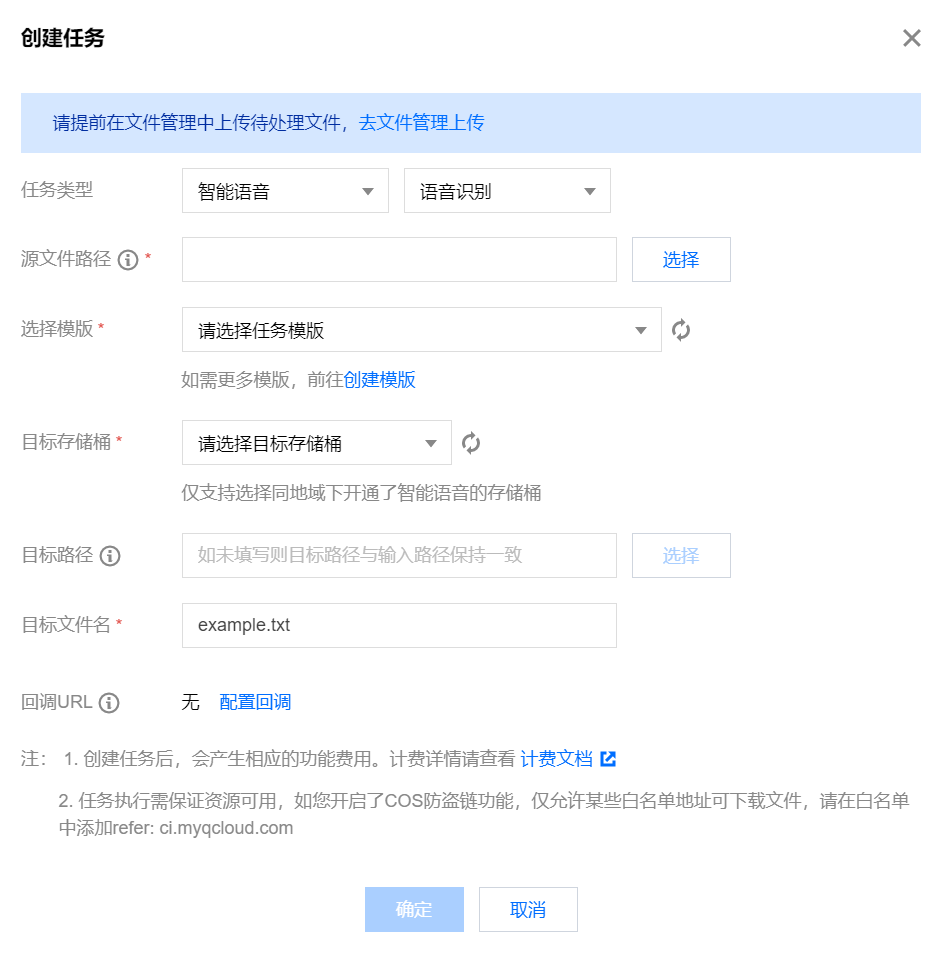
5. Select ASR for Task Type, click Create Task, configure according to the following settings, and then click OK.


Task Type: Select Intelligent Voice - ASR.
Source file path: Enter the path of the file to be processed. Note that the file path must not begin or end with /.
Select Template: You can choose a custom template. If none exists, go to create a template.
Target Bucket: Supports selecting Buckets in the same Region with the Intelligent Voice feature enabled.
Target Path: The storage path for files after ASR processing.
Target file name: You can specify the target file name here.
Callback URL: the callback address information bound to the Queue. For details, see Queue and Callback.

Help and Support

Was this page helpful?

Help us improve! Rate your documentation experience in 5 mins.

Feedback