Cloud Infinite (CI) provides data processing services, and its storage feature is based on Cloud Object Storage (COS). Therefore, sub-accounts accessing Cloud Infinite services must configure both CI read and write permissions and COS-related read and write permissions.
Note:
When a sub-account accesses the Cloud Infinite console to view or change configurations, it needs to be granted corresponding permissions, as detailed in the following table:
|
| cos:PutBucket permission for the COS Bucket |
| cos:DeleteBucket permission for the COS Bucket |
View feature configuration | cos:GetBucket permission for the COS Bucket |
Modify feature configuration | cos:PutObject permission for the COS Bucket |
Step 1: Create Sub-Accounts and Configure CI Permissions
In the CAM (Cloud Access Management) console, you can create sub-accounts and configure access permissions granted to sub-accounts. The specific operations are as follows:
1. Log in to the CAM console, select the left menu bar Users > User List. 2. Go to the User List page and click Create User.
3. On the Create User page, click Custom Create to go to the Select User Type page.
4. On the Select User Type page, select Can access resources and receive messages > Next to go to the Fill in User Information page.
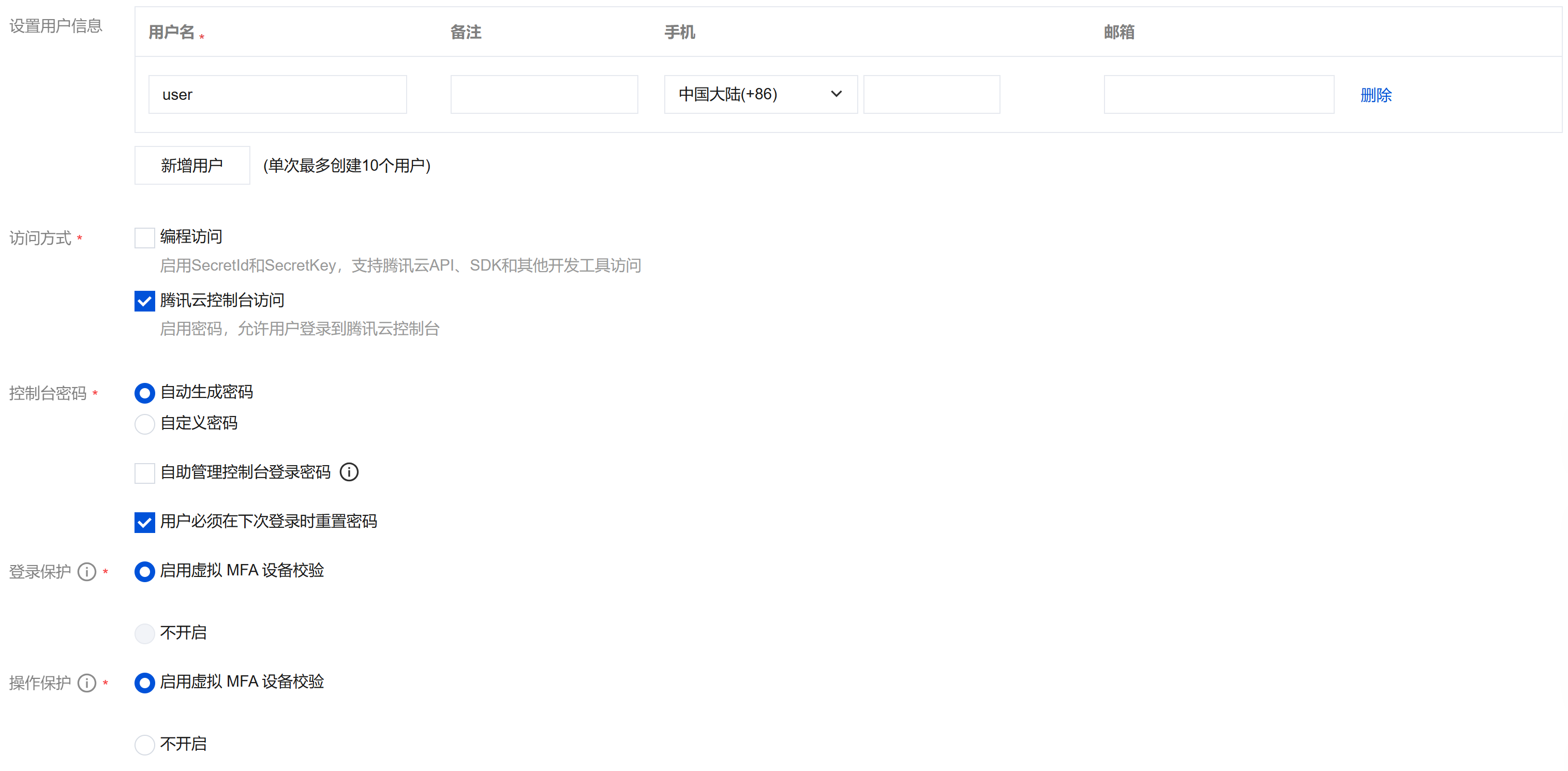
5. Fill in user information. In this process, you can batch create sub-users, set access types and console login passwords, etc., as shown in the figure below.
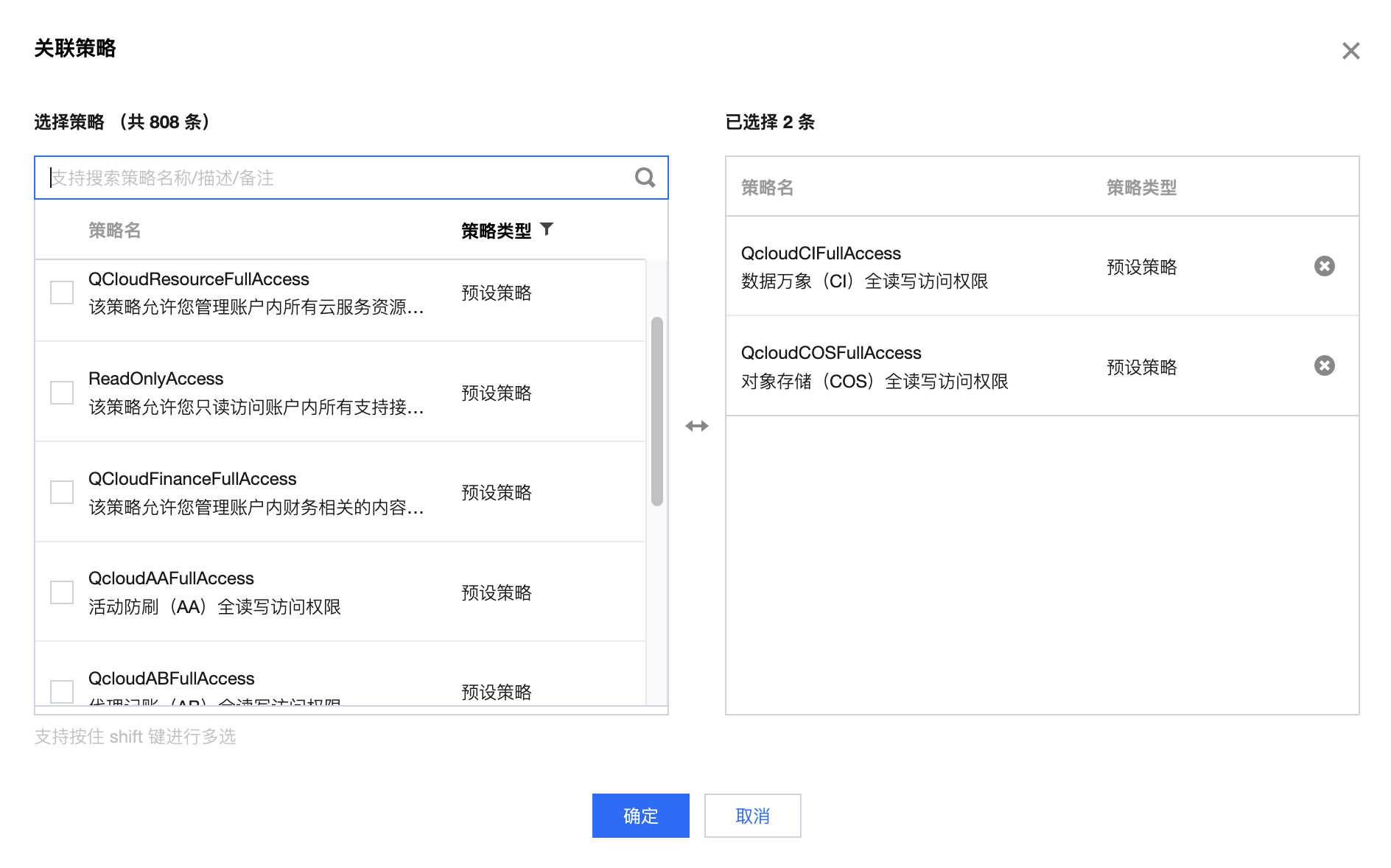
6. Click Next to go to the Set User Permissions step. Select the Associate by Selecting from Policy List tab, then choose the CI Full Access policy QcloudCIFullAccess from the policy list.
7. Click Next to go to the Set User Tags step. You can set Tags in different dimensions for sub-users. For details, see the Tag Usage Guide. 8. After confirming that the entered information is correct, click Complete to create the sub-account.
Step 2: Granting Permissions to the Sub Account
Grant COS resource permissions and CI resource permissions to sub-accounts by directly associating preset policies:
1. Log in to the CAM console, select the left menu bar Users > User List. 2. Go to the User List page, find the sub-user that requires authorization to associate policies, and click Authorize on the right side of the account.
3. When configuring operational permissions for Cloud Infinite for a sub-account, you must grant both COS resource read and write access and CI resource read and write access. Select the policies to be authorized in the list, then click OK to complete the authorization of policy associations for the sub-user, as shown below:
4. Alternatively, you can authorize sub-accounts by writing custom policies. For details, see the Authorization Management documentation and policy examples. Step 3: Use a Sub-Account for Data Processing
When using a sub-account for data processing, you need to use the root account's APPID, and the sub-account's SecretId and SecretKey.
1. Use the root account to log in to the CAM console, select the left menu bar Users > User List. 2. Go to the User List page, click the sub-account name for which you need to view the SecretId and SecretKey, and go to the User Details page.
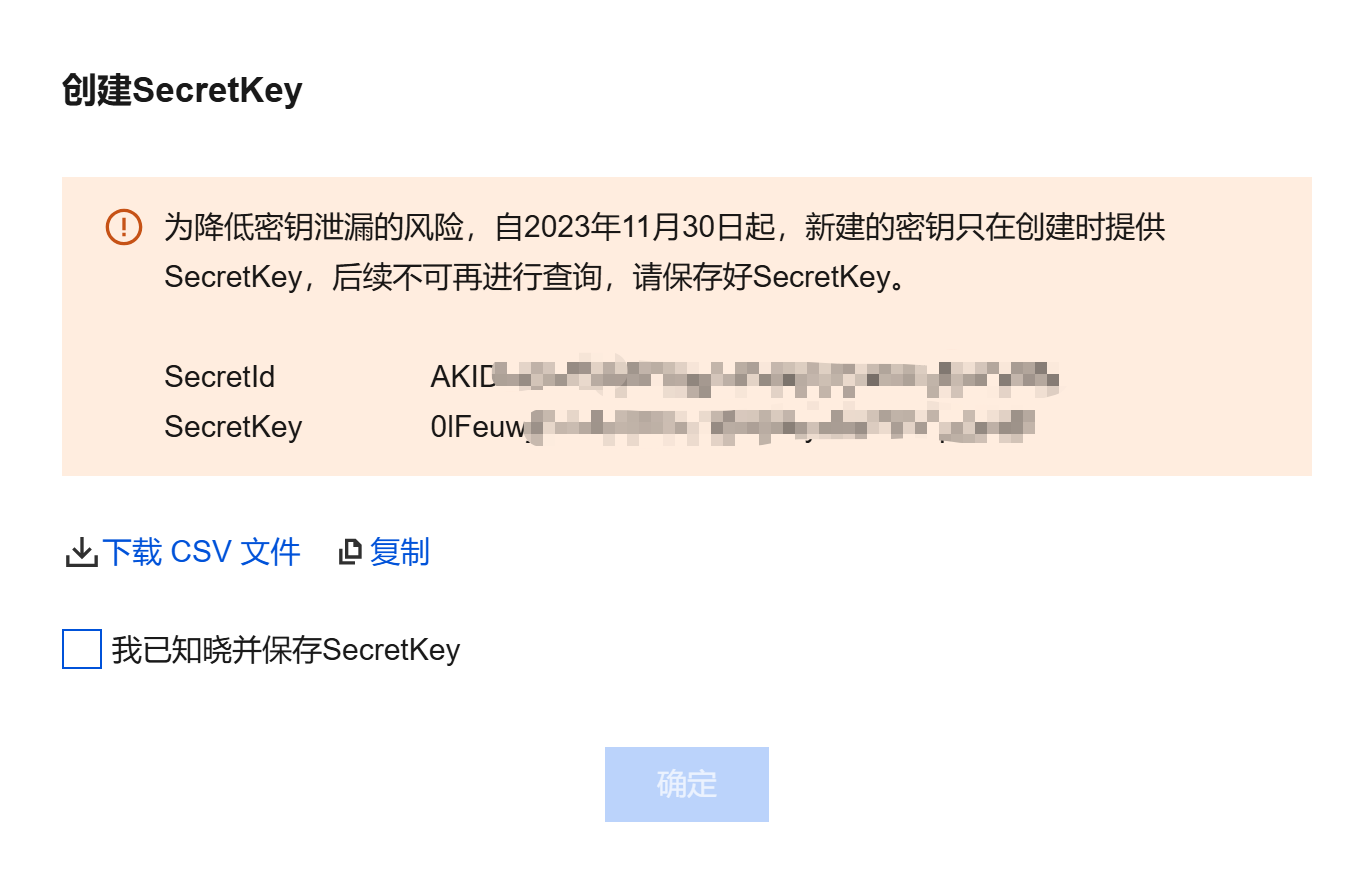
3. Click the API Key tab, click New Key, and you can obtain the SecretId and SecretKey here, as shown below:
Alternatively, you can grant CAM read permissions to sub-accounts, allowing them to log in to the console to view API key information.