This article aims to introduce the various statistics pages for push statistics data, enabling users to quickly query statistical data.
Note:
The Statistics feature only records push data for the most recently logged-in device and does not support multi-device login scenarios.
Regular Push
Push Records
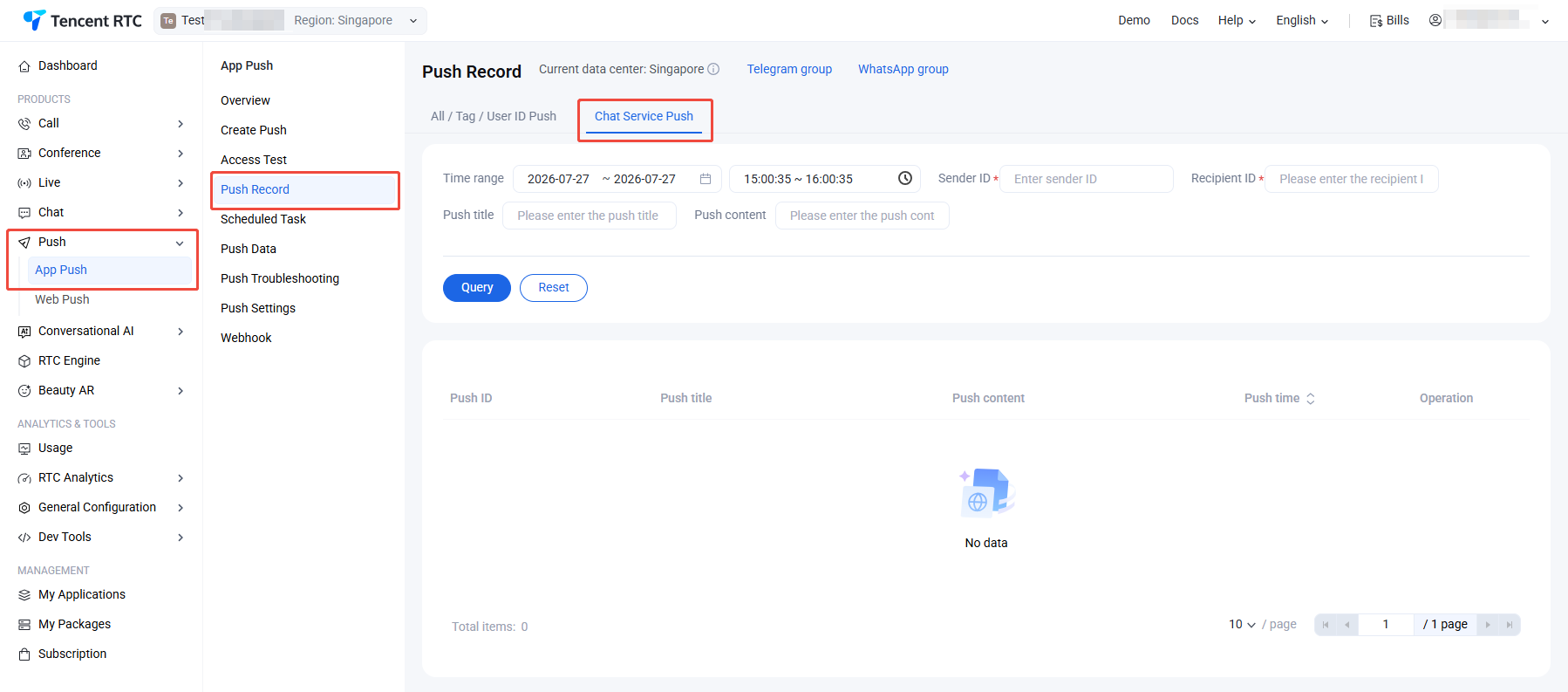
Navigate to Console > Push > App Push > Push Record. You can query all push record data for users under this application. It is necessary to specify the time window, Sender ID, and Recipient ID. Querying user push data includes push time, Push ID, push title, and push content; it also supports locating specific push records by searching for push titles or push content.
Query conditions
Time window: A specific time period within a specified date, maximum one hour, precise to minutes and seconds, required.
Sender ID: Required.
Recipient ID: Required.
Push Title: Optional.
Push Content: Optional.
Query results (Recorded in the last 7 days)
Push Time: The exact time of push reach.
Push ID: The unique ID of the push message, which can be used to locate the full push link situation of this push in the troubleshooting tool.
Push Title: Push display title.
Push Content: Push display content.
Push Data
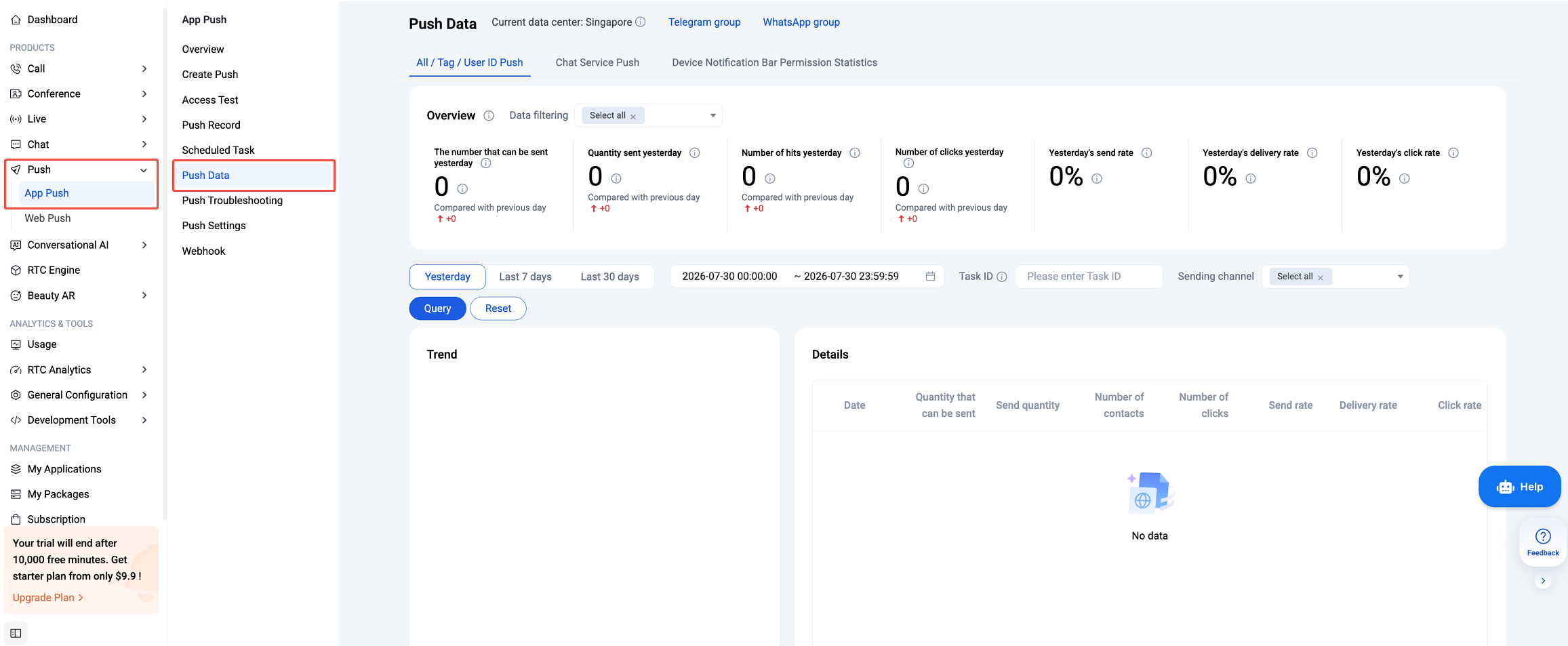
Navigate to Console > Push > App Push > Push Data. The statistics display various push metrics data of the application in recent days, mainly including an overview of yesterday's push, push data conversion funnel for multi-type time intervals, supports viewing classified by vendor dimensions, and details of daily push metrics data.
Yesterday's Push Overview Metrics Data
Includes the number that can be sent, the number sent, the number reached, the number of clicks, the actual delivery rate, the reach rate, the click-through rate.
Time Range
Supports yesterday, the last 7 days, the last 30 days, and specified time window types.
Push Data Conversion Funnel
Includes the dimensions of quantity that can be sent, send quantity, number of contacts, display quantity, and number of clicks.
Viewing by a vendor dimension
Support viewing by all vendor categories.
Push to all users/tags/specified UserIDs
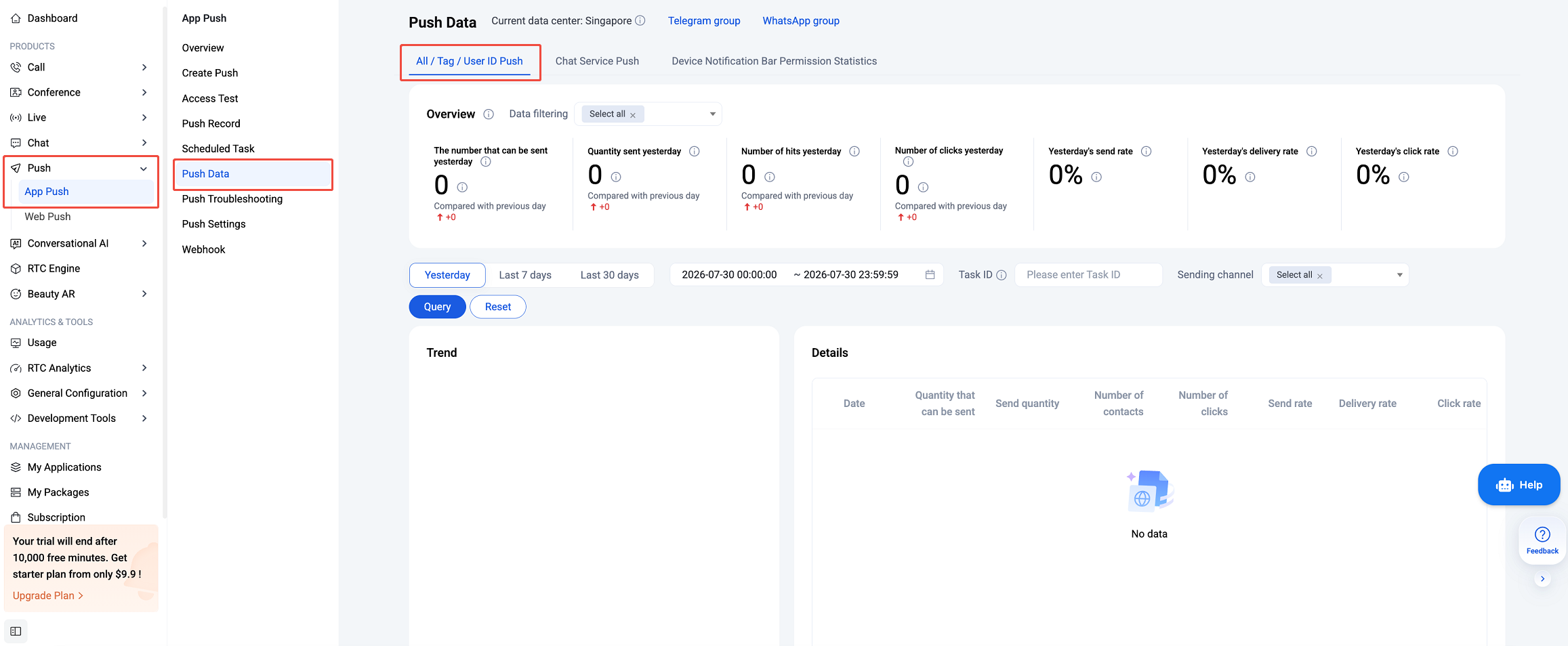
You can query all push record data sent to users under the application, including all users/tags/designated UserIDs. It requires specifying the query time window. Query user push data includes push time, task ID, and push request content. It also supports locating specific push records based on push content.
Push Conversion Funnel
Include quantity that can be sent, number of messages sent, number of reaches, number of clicks, send rate, reach rate, click rate.
Query Condition
Time window: a specific time period within the specified date, maximum 30 days, accurate to the minute and second, required.
Task ID: unique ID of the push message, optional.
Send channel: Supports category view based on vendor dimension.
Query Result
Push data conversion funnel displays the quantity that can be sent, send quantity, number of contacts, display quantity, and number of clicks for all pushes within the time interval.
Data details: include the date, quantity that can be sent. sent quantity, number of contacts, number of clicks, actual send rate, reach rate, and click rate.
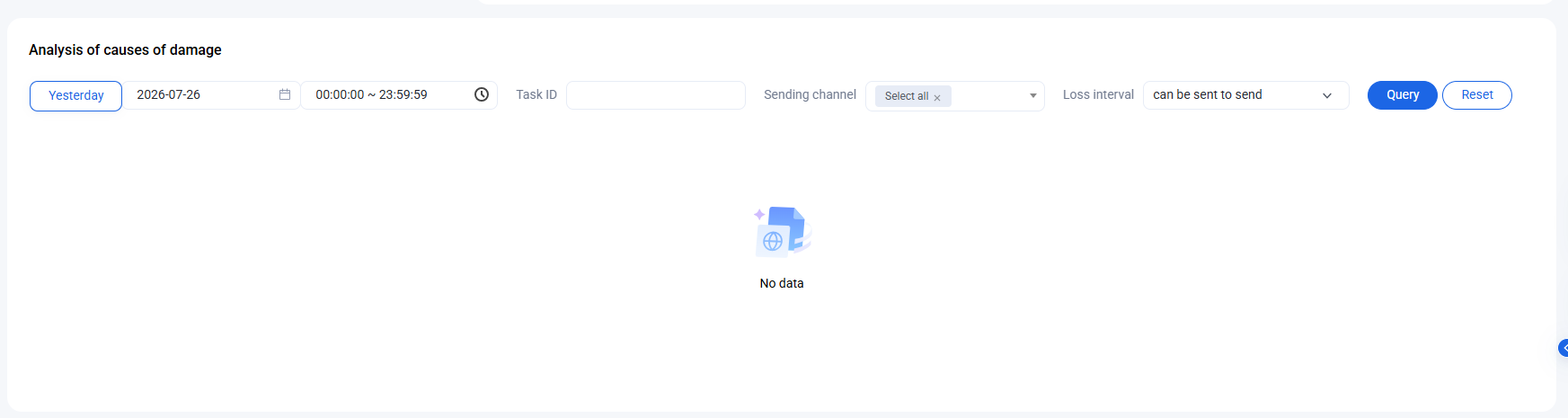
Analysis of causes of damage
Based on the conversion funnel, further analyze the cause of damage.
Query Condition
Time window: A certain time period within a specified date, maximum 7 days, accurate to the minute and second, required.
Task ID: unique ID of the push message, optional.
Send channel: categorized viewing based on vendor dimension.
Loss interval: categorized viewing of sent intervals and intervals sent to reach.
Query Result
Reasons and proportions of loss.
Message Service Push
Query ALL push record data of the user under the application requires specifying the query time window, sender ID and recipient ID. Query user push data includes push time, Push ID, push title and push content. It supports locating specific push records based on push title or push content.
Metrics Data Calculation Method
Term
Description
Sendable Count
The total number of valid devices eligible to receive push messages, filtered from the selected target audience for the push task.
Note:
Devices that have been uninstalled, have invalid tokens, are invalid, have not registered the app, or have been offline for an extended period are excluded, as they cannot receive push notifications.
Sent Count
The total number of valid devices from the sendable pool that have successfully received the message via the TIMPush online channel or Vendor Channel.
Note:
Devices are excluded if restricted by vendor quota or frequency limits, if the notification bar is disabled, or if the device is invalid and cannot properly receive or display push notifications.
Delivered Count
The total number of messages that have reached the user's device after being sent through the TIMPush online channel or Vendor Channel.
Two statistical methods are used based on vendor receipt characteristics:
For TIMPush online channel and Xiaomi Vendor Channel, the count is based on successful delivery receipts from the vendor.
For Huawei, FCM, Meizu, OPPO, vivo, HONOR, APNs, and other Vendor Channels, the calculation is "vendor successful sent count − explicit delivery failure count".
Click Count
The total number of click receipts recorded after the push notification is successfully displayed on the user's device.