tencent cloud

Chat

News and Announcements
Release Notes
Announcements
Product Introduction
Overview
Basic Concepts
Scenarios
Features
Account System
User Profile and Relationship Chain
Message Management
Group Related
Official Account
Audio/Video Call
Use Limits
Purchase Guide
Billing Overview
Pricing
Purchase Instructions
Renewal Guide
Service Suspension Explanation
Refund Policy
Development Guidelines
Demo Zone
Activate Service
Free Demos
Quick Run
Download
SDK and Demo Source Code
Update Log
Chat Interaction (UI Included)
TUIKit Introduction
Getting Started
Full-feature Integration
Single-function Integration
Build with AI
Build Basic Interfaces
More Features
Customizing Appearance
Internationalization
Push Service
Overview
Noun explanation
Activate the Service
Quick Start
Manufacturer Channel
Statistics
Troubleshooting Tool
Client APIs
REST API
Push Callback
Advanced Features
Release Notes
Error Codes
FAQS
Desk
Overview
Quick Start
Integration Guide
Admin Operation Manual
Agent Manual
More Practices
Live Streaming Setup Guide
AI Chatbot
Super Large Entertainment and Collaboration Community
Discord Implementation Guide
How to Integrate Chat into Games
WhatsApp Channel-style Official Account Integration Solution
Send Red Packet
Firewall Restrictions
No UI Integration
Quick Start
SDK Integration
Initialization
Login and Logout
Message
Conversation
Group
Community Topic
User Profile and Relationship Chain
Offline Push
Cloud Search
Local Search
Official Channel Management
Client APIs
JavaScript
Android
iOS & macOS
Swift
Flutter
Electron
Unity
React Native
C APIs
C++
Server APIs
Secure authentication with UserSig
RESTful APIs
Webhooks
Console Guide
New Console Introduction
Creating and Upgrading an Application
Basic Configuration
Feature Configuration
Account Management
Group Management
Official Channel Management
Webhook Configuration
Usage
Viewing Guide for Resource Packages
Real-Time Monitor
Auxiliary Development Tools
Access Management
Advanced Features
FAQs
uni-app FAQs
Purchase
SDK
Account Authentication
User Profile and Relationship Chain
Message
Group
Audio-Video Group
Nickname and Profile Photo
Security Compliance Certification
Service Level Agreement
Security Compliance Certification
Chat Policies
Privacy Policy
Data Privacy and Security Agreement
Migration
Migration Solutions
Migration Solutions Lite
Error Codes
Contact Us

Custom Definition Ringtone

PDF
Focus Mode
Font Size
Last updated: 2025-04-16 10:32:18
Notes:
1. If the offline push message ringtone is not set, it will follow the system notification settings of the device by default. Take Huawei as an example. See "Phone Settings > Notifications > App Notification Management > Notification Sound".
2. Customizing ringtone needs to be set one by one according to the vendor platform support. See the following method summary: The methods of customizing ringtone on different platforms of different vendors are different. Android 8.0 supporting vendors also need to be set through channel. Ring duration is related to ringtone resource duration.
Android
iOS
Flutter

Systems below Android 8.0

1. Custom ringtone resource files for Android should be added to the project's raw directory; for iOS, link them into the Xcode project.
2. Send messages with specified custom ringtone.
restAPI
SDK API
Please refer to the restAPI interface, such as single push interface, with the following field example:
{
// ...
"OfflinePushInfo": {
"AndroidInfo": {
"Sound": "shake", // without suffix
},
"ApnsInfo": {
"Sound": "apns.mp3",
}
}
}
If you have integrated Chat related products, please send messages using the setAndroidSound() and setIOSSound() interfaces.
V2TIMOfflinePushInfo v2TIMOfflinePushInfo = new V2TIMOfflinePushInfo();
v2TIMOfflinePushInfo.setAndroidSound("Ringtone Name");
v2TIMOfflinePushInfo.setIOSSound("Ringtone Name.mp3");

String msgID = V2TIMManager.getMessageManager().sendMessage(v2TIMMessage, isGroup ? null : userID, isGroup ? groupID : null,
V2TIMMessage.V2TIM_PRIORITY_DEFAULT, false, v2TIMOfflinePushInfo, new V2TIMSendCallback<V2TIMMessage>() {
@Override
public void onProgress(int progress) {

}

@Override
public void onError(int code, String desc) {

}

@Override
public void onSuccess(V2TIMMessage v2TIMMessage) {

}
});
Note:
Supported in ChatSDK v6.1.2155 or above.
The interface supports Huawei, Xiaomi, FCM, and APNS.

Android 8.0 and later versions

Huawei and APNs

Huawei and APNS can use the above interfaces to set offline push ringtone prompt.

OPPO

1 Place the customized ring tone resource file in the raw directory of the project resources, then create a notification channel as follows.
// Custom creation example
if (Build.VERSION.SDK_INT >= Build.VERSION_CODES.O) {
NotificationManager nm = (NotificationManager) context.getSystemService(Context.NOTIFICATION_SERVICE);
NotificationChannel notificationChannel =
new NotificationChannel("channelId", "channelName", NotificationManager.IMPORTANCE_HIGH);
notificationChannel.enableLights(true);
notificationChannel.enableVibration(true);
notificationChannel.setShowBadge(true);
notificationChannel.setLockscreenVisibility(Notification.VISIBILITY_PUBLIC);
// "android.resource://package_name/raw/private_ring"
notificationChannel.setSound(Uri.parse("sound"), null);
nm.createNotificationChannel(notificationChannel);
}
2 Use the created channel.
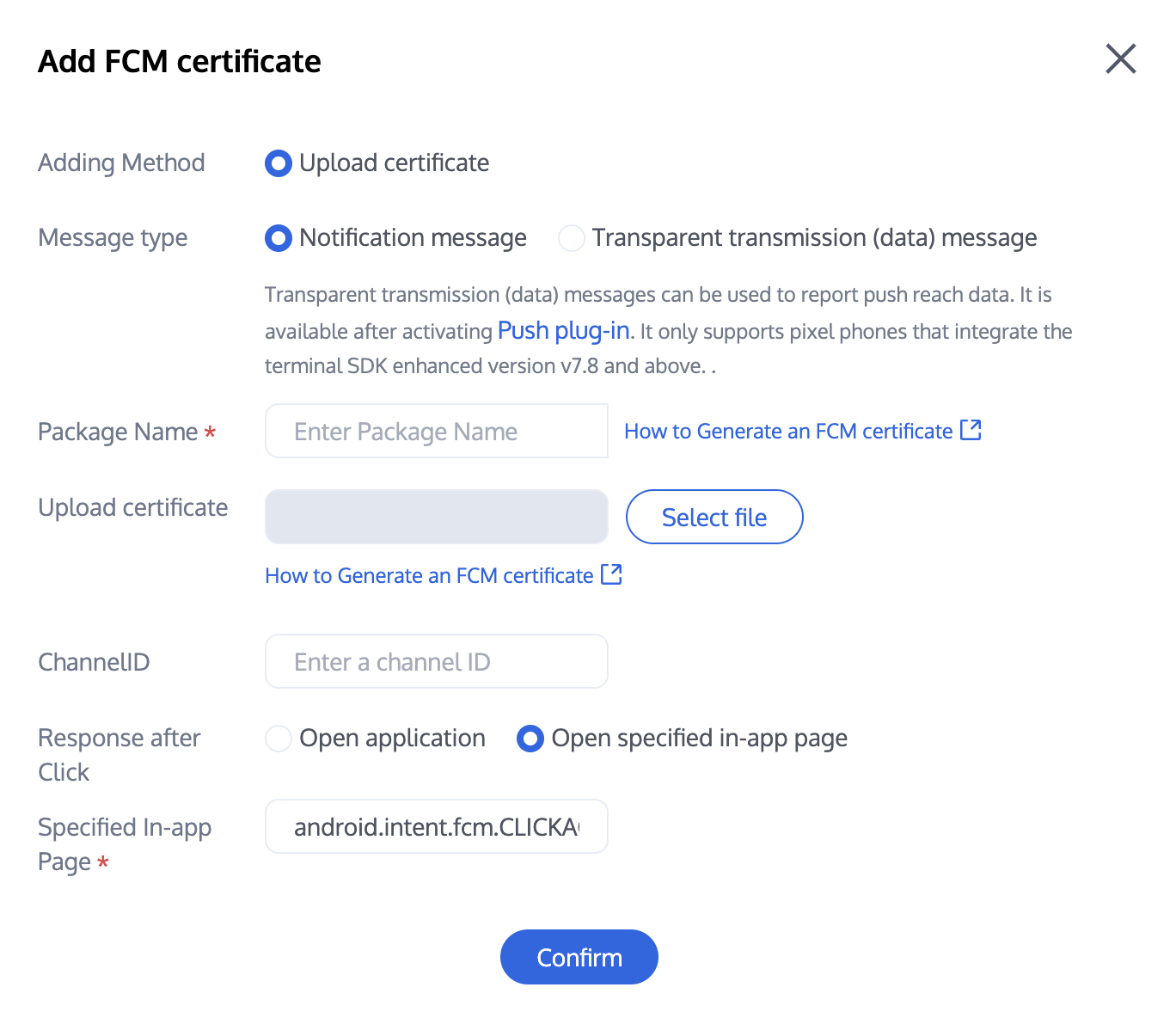
Send messages specifying the channelID to take effect with the custom ring tone. Refer to the following interface settings. For console settings, see the channelID field in the certificate. Only one of the two settings is needed.
restAPI
SDK API
Please refer to the restAPI interface, such as single push interface, with the following field example:
{
// ...
"OfflinePushInfo": {
"AndroidInfo": {
"OPPOChannelID": "test_OPPO_channel_id",
}
}
}
If you have integrated IM related products, please send messages using the setAndroidOPPOChannelID interface.

Mi

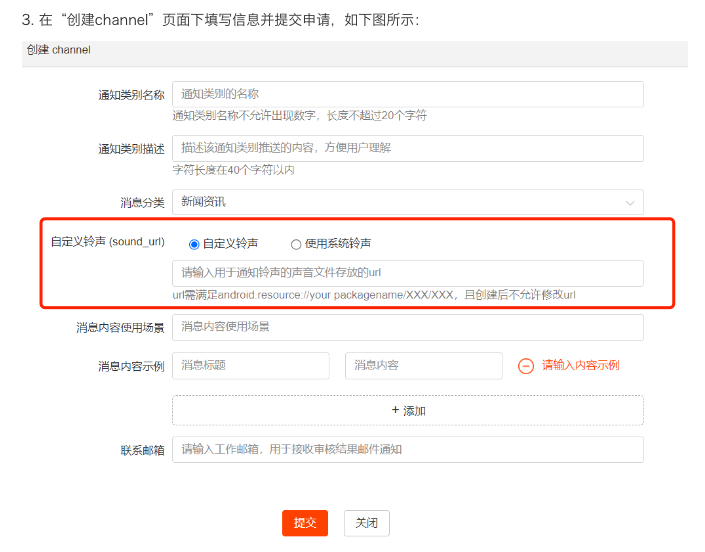
1 Log in to the manufacturer console to create channel and configuration, where the ring tone file needs to be added to the raw directory of your local Android Studio project.

Send messages specifying the channelID to take effect with the custom ring tone. Refer to the following interface settings. For console settings, see the channelID field in the certificate. Only one of the two settings is needed.
restAPI
SDK API
Please refer to the restAPI interface, such as single push interface, with the following field example:
{
// ...
"OfflinePushInfo": {
"AndroidInfo": {
"XiaoMiChannelID": "test_XiaoMi_channel_id",
}
}
}
If you have integrated IM related products, see setAndroidXiaoMiChannelID for details.
V2TIMOfflinePushInfo v2TIMOfflinePushInfo = new V2TIMOfflinePushInfo();
v2TIMOfflinePushInfo.setAndroidXiaoMiChannelID("Channel ID Applied by Manufacturer");

String msgID = V2TIMManager.getMessageManager().sendMessage(v2TIMMessage, isGroup ? null : userID, isGroup ? groupID : null,
V2TIMMessage.V2TIM_PRIORITY_DEFAULT, false, v2TIMOfflinePushInfo, new V2TIMSendCallback<V2TIMMessage>() {
@Override
public void onProgress(int progress) {
TUIChatUtils.callbackOnProgress(callBack, progress);
}

@Override
public void onError(int code, String desc) {
TUIChatUtils.callbackOnError(callBack, TAG, code, desc);
}

@Override
public void onSuccess(V2TIMMessage v2TIMMessage) {

}
});

FCM

1 Place the customized ring tone resource file in the raw directory of the project resources, then create a notification channel as follows.
// Custom creation example
if (Build.VERSION.SDK_INT >= Build.VERSION_CODES.O) {
NotificationManager nm = (NotificationManager) context.getSystemService(context.NOTIFICATION_SERVICE);
NotificationChannel notificationChannel =
new NotificationChannel("channelId", "channelName", NotificationManager.IMPORTANCE_HIGH);
notificationChannel.enableLights(true);
notificationChannel.enableVibration(true);
notificationChannel.setShowBadge(true);
notificationChannel.setLockscreenVisibility(Notification.VISIBILITY_PUBLIC);
// "android.resource://package_name/raw/private_ring"
notificationChannel.setSound(Uri.parse("sound"), null);
nm.createNotificationChannel(notificationChannel);
}
Send messages specifying the channelID with a custom ringtone.
restAPI
SDK API
Please refer to the restAPI interface, such as single push interface, with the following field example:
{
// ...
"OfflinePushInfo": {
"AndroidInfo": {
"GoogleChannelID": "test_Google_channel_id",
}
}
}
If you have integrated IM related products, see setAndroidFCMChannelID for details.
V2TIMOfflinePushInfo v2TIMOfflinePushInfo = new V2TIMOfflinePushInfo();
v2TIMOfflinePushInfo.setAndroidFCMChannelID(PrivateConstants.fcmPushChannelId);

String msgID = V2TIMManager.getMessageManager().sendMessage(v2TIMMessage, isGroup ? null : userID, isGroup ? groupID : null,
V2TIMMessage.V2TIM_PRIORITY_DEFAULT, false, v2TIMOfflinePushInfo, new V2TIMSendCallback<V2TIMMessage>() {
@Override
public void onProgress(int progress) {
TUIChatUtils.callbackOnProgress(callBack, progress);
}

@Override
public void onError(int code, String desc) {
TUIChatUtils.callbackOnError(callBack, TAG, code, desc);
}

@Override
public void onSuccess(V2TIMMessage v2TIMMessage) {

}
});
Note:
Supported in ChatSDK v7.0.3754 or above.
FCM custom alert tones or setting ChannelID are only supported in certificate mode.


1. Set the iOSSound field of OfflinePushInfo when sending messages. Pass the voice file name to iOSSound.
restAPI
SDK API
Please refer to the restAPI interface, such as single push interface, with the following field example:
{
// ...
"OfflinePushInfo": {
"ApnsInfo": {
"Sound": "apns.mp3",
}
}
}
If you have integrated IM related products, please refer to sending messages.
V2TIMOfflinePushInfo *pushInfo = [[V2TIMOfflinePushInfo alloc] init];
pushInfo.title = @"push title";
pushInfo.iOSSound = @"phone_ringing.mp3"; // your voice file's name
[[V2TIMManager sharedInstance] sendMessage:msg receiver:receiver groupID:groupID priority:V2TIM_PRIORITY_DEFAULT onlineUserOnly:NO offlinePushInfo:pushInfo progress:nil succ:^{

} fail:^(int code, NSString *msg) {

}];
Note:
Offline push notification sound settings (effective only for iOS), when `iOSSound = kIOSOfflinePushNoSound`, it indicates no sound will be played upon receiving.
When `iOSSound = kIOSOfflinePushDefaultSound`, it indicates the system sound will be played upon receiving.
To customize `iOSSound`, you first need to link the audio file into the Xcode project, and then set the audio filename (including the extension) to `iOSSound`.
iOS Custom Ringtone length cannot exceed 30s.
2. Set the AndroidSound field of OfflinePushInfo when sending messages. Pass the voice file name to AndroidSound.
restAPI
SDK API
Please refer to the restAPI interface, such as single push interface, with the following field example:
{
"OfflinePushInfo": {
"AndroidInfo": {
"Sound": "shake", // without suffix
"OPPOChannelID": "test_OPPO_channel_id",
"XiaoMiChannelID": "test_XiaoMi_channel_id",
"OPPOChannelID": "test_OPPO_channel_id",
"GoogleChannelID": "test_Google_channel_id"
},
"ApnsInfo": {
"Sound": "apns.mp3"
}
}
}
If you have integrated IM related products, please refer to sending messages.
V2TIMOfflinePushInfo *pushInfo = [[V2TIMOfflinePushInfo alloc] init];
pushInfo.title = @"push title";
pushInfo.AndroidSound = @"phone_ringing"; // your voice file's name
[[V2TIMManager sharedInstance] sendMessage:msg receiver:receiver groupID:groupID priority:V2TIM_PRIORITY_DEFAULT onlineUserOnly:NO offlinePushInfo:pushInfo progress:nil succ:^{

} fail:^(int code, NSString *msg) {

}];
Note:
Offline push notification sound settings (effective only for Android, supported only in imsdk 6.1 and above) are supported only on Huawei and Google phones for setting ringtone prompts.
For Xiaomi ringtone settings, please refer to: Server-side Java SDK documentation.
To customize `AndroidSound`, you first need to place the audio file in the raw directory of the Android project, and then set the `AndroidSound` with the audio filename (without the extension).
Note:
The interface supports Huawei, Xiaomi, FCM, and APNS.
Custom ringtone resource files for Android should be added to the project's raw directory; for iOS, link them into the Xcode project.
Set the iOSSound and androidSound fields of offlinePushInfo when sending messages.
restAPI
SDK API
Please refer to the restAPI interface, such as single push interface, with the following field example:
{
// ...
"OfflinePushInfo": {
"AndroidInfo": {
"Sound": "shake", // without suffix
"OPPOChannelID": "test_OPPO_channel_id",
"XiaoMiChannelID": "test_XiaoMi_channel_id",
"OPPOChannelID": "test_OPPO_channel_id",
"GoogleChannelID": "test_Google_channel_id"
},
"ApnsInfo": {
"Sound": "apns.mp3"
}
}
}
If you have integrated im related products, set the offlinePushInfo's iOSSound and androidSound fields when calling sendMessage to send messages.
For specific manufacturer configurations, refer to the content of the Android and iOS modules. The methods to call are all named the same in the Flutter version of the IM SDK.
Help and Support

Was this page helpful?

Help us improve! Rate your documentation experience in 5 mins.

Feedback