Android(View)
Download
Focus Mode
Font Size
This article will guide you through building a chat interface.
Demo
The effect of sending messages in the chat interface is as follows:
One-to-one Chat Interface | Group Chat Interface |
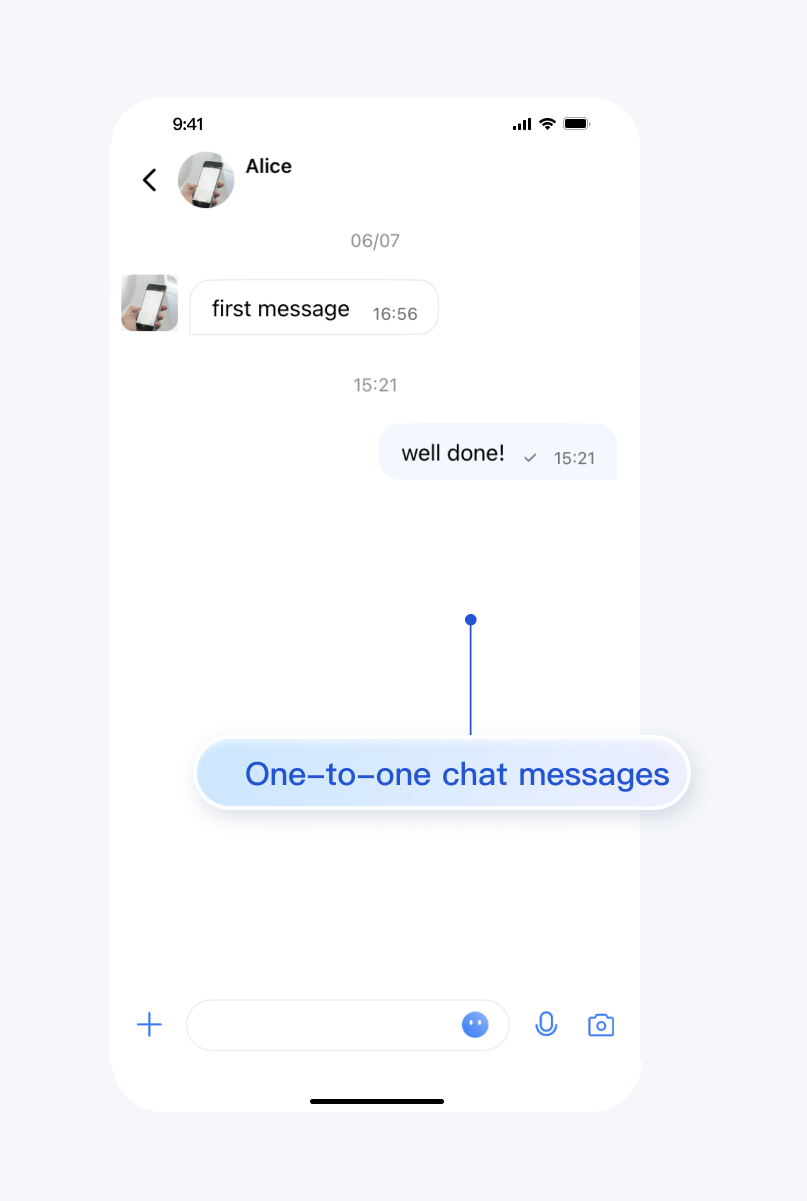 | 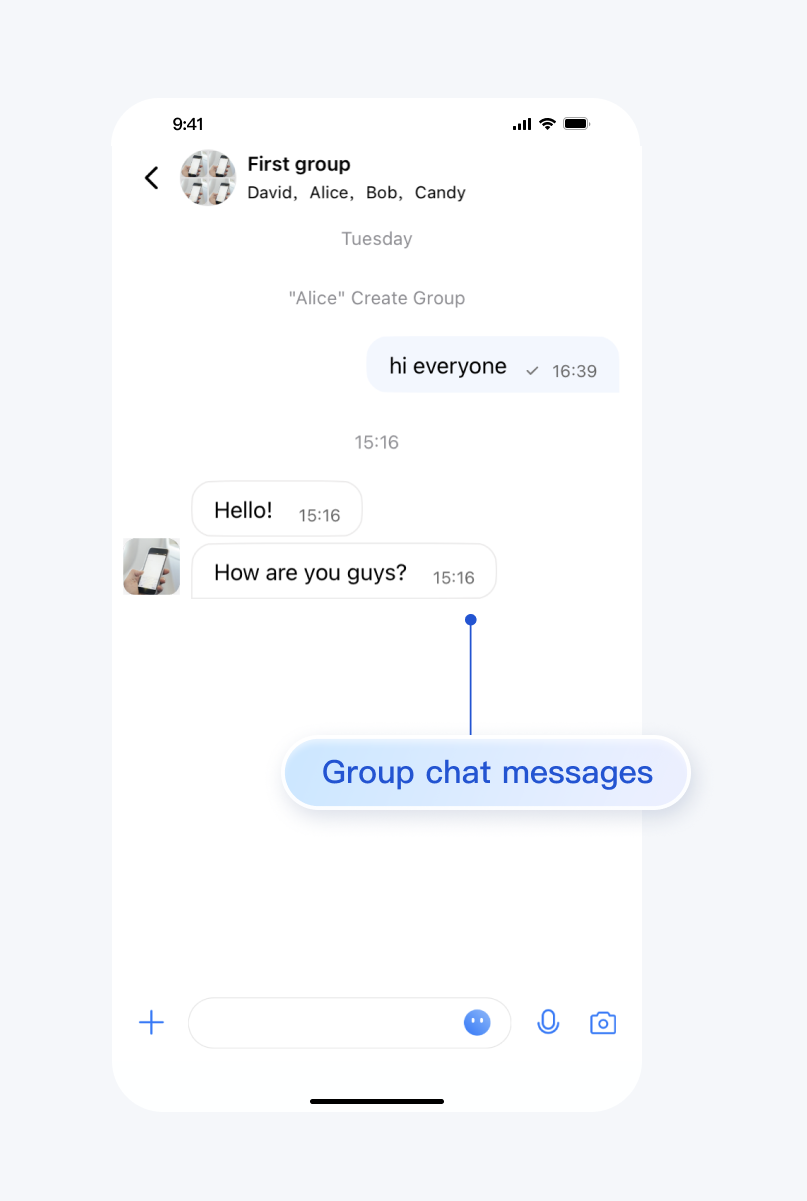 |
Development Environment Requirements
Android Studio-Giraffe
Gradle-7.2
Android Gradle Plugin Version-7.0.0
kotlin-gradle-plugin-1.5.31
Preconditions
Before building the interface, please ensure that you have completed the following 4 things:
1. Created an application in the console.
2. Created some user accounts in the console.
3. Integrated
TUIKit or TUIChat.4. Called the
login API in TUILogin to log in to the component.Note:
1. All components use this API to log in. You can log in once every time you start the application.
2. Please make sure that the login is successful, and we recommend that you do the following in the callback of successful login.
If you haven't completed the above 4 steps, please refer to the corresponding steps in Getting Started first, otherwise you may encounter obstacles when implementing the following features.
If you have already completed them, please continue reading below.
Step Instructions
If you wish to jump to the One-to-one Chat Message Interface, you can directly refer to Getting Started, which we won't repeat in this article.
To navigate to the Group Chat Interface, you need to provide a valid groupID. This presupposes that you have an existing groupID of a valid group. There are two convenient ways to obtain it:
1. Go to Console to create a group, the operation path is: Applications > Your App > Chat > Groups > Group Management > Add Group. After successful creation, you can directly see the groupID on the current page.
2. Follow the guide on Creating a Group, manually create a group in TUIKit, where the groupID will be displayed on the group details page.
Sample code:
Intent intent;
if (isGroup) {
    intent = new Intent(this, TUIGroupChatMinimalistActivity.class);
} else {
    intent = new Intent(this, TUIC2CChatMinimalistActivity.class);
}
// If it's a C2C chat, chatID is the other person's UserID; if it's a Group chat, chatID is the GroupID.
intent.putExtra(TUIConstants.TUIChat.CHAT_ID, "chatID");
intent.putExtra(TUIConstants.TUIChat.CHAT_TYPE, isGroup ? V2TIMConversation.V2TIM_GROUP : V2TIMConversation.V2TIM_C2C);
startActivity(intent);
Intent intent;
if (isGroup) {
    intent = new Intent(this, TUIGroupChatActivity.class);
} else {
    intent = new Intent(this, TUIC2CChatActivity.class);
}
// If it's a C2C chat, chatID is the other person's UserID; if it's a Group chat, chatID is the GroupID.
intent.putExtra(TUIConstants.TUIChat.CHAT_ID, "chatID");
intent.putExtra(TUIConstants.TUIChat.CHAT_TYPE, isGroup ? V2TIMConversation.V2TIM_GROUP : V2TIMConversation.V2TIM_C2C);
startActivity(intent);
You may also embed the TUIChat chat interface into your own Activity.
Sample code:
Fragment fragment;// If it's a C2C chat, chatID is the other person's UserID; if it's a Group chat, chatID is the GroupID.if (isGroup) { GroupChatInfo groupChatInfo = new GroupChatInfo();groupChatInfo.setId(chatID);TUIGroupChatMinimalistFragment tuiGroupChatFragment = new TUIGroupChatMinimalistFragment();tuiGroupChatFragment.setChatInfo(groupChatInfo);fragment = tuiGroupChatFragment; } else { C2CChatInfo c2cChatInfo = new C2CChatInfo();c2cChatInfo.setId(chatID);TUIC2CChatMinimalistFragment tuic2CChatFragment = new TUIC2CChatMinimalistFragment();tuic2CChatFragment.setChatInfo(c2cChatInfo);fragment = tuic2CChatFragment; }getSupportFragmentManager().beginTransaction() .add(R.id.chat_fragment_container, fragment).commitAllowingStateLoss();
Fragment fragment;// If it's a C2C chat, chatID is the other person's UserID; if it's a Group chat, chatID is the GroupID.if (isGroup) { GroupChatInfo groupChatInfo = new GroupChatInfo();groupChatInfo.setId(chatID);TUIGroupChatFragment tuiGroupChatFragment = new TUIGroupChatFragment();tuiGroupChatFragment.setChatInfo(groupChatInfo); fragment = tuiGroupChatFragment; } else { C2CChatInfo c2cChatInfo = new C2CChatInfo();c2cChatInfo.setId(chatID);TUIC2CChatFragment tuic2CChatFragment = new TUIC2CChatFragment();tuic2CChatFragment.setChatInfo(c2cChatInfo); fragment = tuic2CChatFragment; }getSupportFragmentManager().beginTransaction() .add(R.id.chat_fragment_container, fragment).commitAllowingStateLoss();
More practices
Contact Us
If you have any questions about this article, feel free to join the Telegram Tech Support Group, where you will receive reliable technical support.
Help and Support
Was this page helpful?
You can also Contact sales or Submit a Ticket for help.
Help us improve! Rate your documentation experience in 5 mins.
Feedback