tencent cloud

Chat

News and Announcements
Release Notes
Announcements
Product Introduction
Overview
Basic Concepts
Scenarios
Features
Account System
User Profile and Relationship Chain
Message Management
Group Related
Official Account
Audio/Video Call
Use Limits
Purchase Guide
Billing Overview
Pricing
Purchase Instructions
Renewal Guide
Service Suspension Explanation
Refund Policy
Development Guidelines
Demo Zone
Activate Service
Free Demos
Quick Run
Download
SDK and Demo Source Code
Update Log
Chat Interaction (UI Included)
TUIKit Introduction
Getting Started
Full-feature Integration
Single-function Integration
Build with AI
Build Basic Interfaces
More Features
Customizing Appearance
Internationalization
Push Service
Overview
Noun explanation
Activate the Service
Quick Start
Manufacturer Channel
Statistics
Troubleshooting Tool
Client APIs
REST API
Push Callback
Advanced Features
Release Notes
Error Codes
FAQS
Desk
Overview
Quick Start
Integration Guide
Admin Operation Manual
Agent Manual
More Practices
Live Streaming Setup Guide
AI Chatbot
Super Large Entertainment and Collaboration Community
Discord Implementation Guide
How to Integrate Chat into Games
WhatsApp Channel-style Official Account Integration Solution
Send Red Packet
Firewall Restrictions
No UI Integration
Quick Start
SDK Integration
Initialization
Login and Logout
Message
Conversation
Group
Community Topic
User Profile and Relationship Chain
Offline Push
Cloud Search
Local Search
Official Channel Management
Client APIs
JavaScript
Android
iOS & macOS
Swift
Flutter
Electron
Unity
React Native
C APIs
C++
Server APIs
Secure authentication with UserSig
RESTful APIs
Webhooks
Console Guide
New Console Introduction
Creating and Upgrading an Application
Basic Configuration
Feature Configuration
Account Management
Group Management
Official Channel Management
Webhook Configuration
Usage
Viewing Guide for Resource Packages
Real-Time Monitor
Auxiliary Development Tools
Access Management
Advanced Features
FAQs
uni-app FAQs
Purchase
SDK
Account Authentication
User Profile and Relationship Chain
Message
Group
Audio-Video Group
Nickname and Profile Photo
Security Compliance Certification
Service Level Agreement
Security Compliance Certification
Chat Policies
Privacy Policy
Data Privacy and Security Agreement
Migration
Migration Solutions
Migration Solutions Lite
Error Codes
Contact Us
DocumentationChatConsole GuideNew Console Introduction

New Console Introduction

PDF
Focus Mode
Font Size
Last updated: 2025-12-12 16:49:22
This document provides an operation guide for the new Chat console to help you quickly understand the usage method of the console and ensure a smooth transition.
Note:
1. The new Chat console retains the account system and CAM authentication capabilities of the Tencent Cloud official website, allowing you to log in with your original account and manage your Chat resources.
2. The new Chat console supports multiple languages, including English, Chinese, Japanese, and Korean. If you encounter any issues during use, please contact us.

Introduction to the New Console Interface

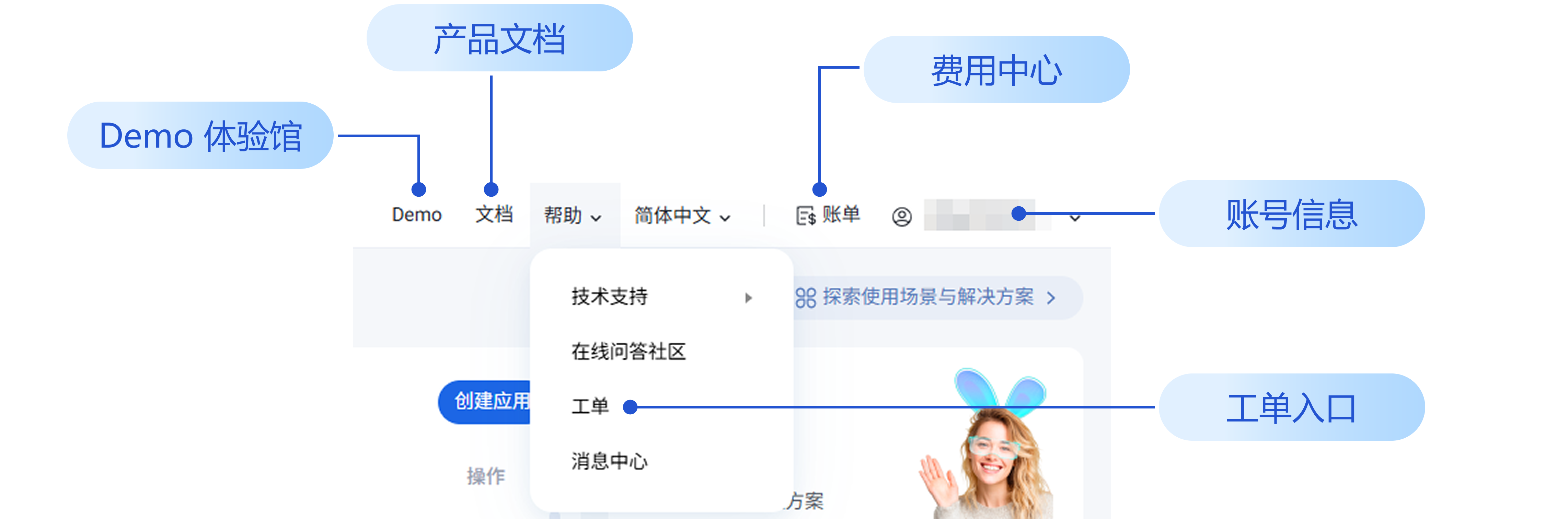
1. Top Navigation

Includes Account Information, Billing Center,Ticket, Docs, and Demo experience gallery.


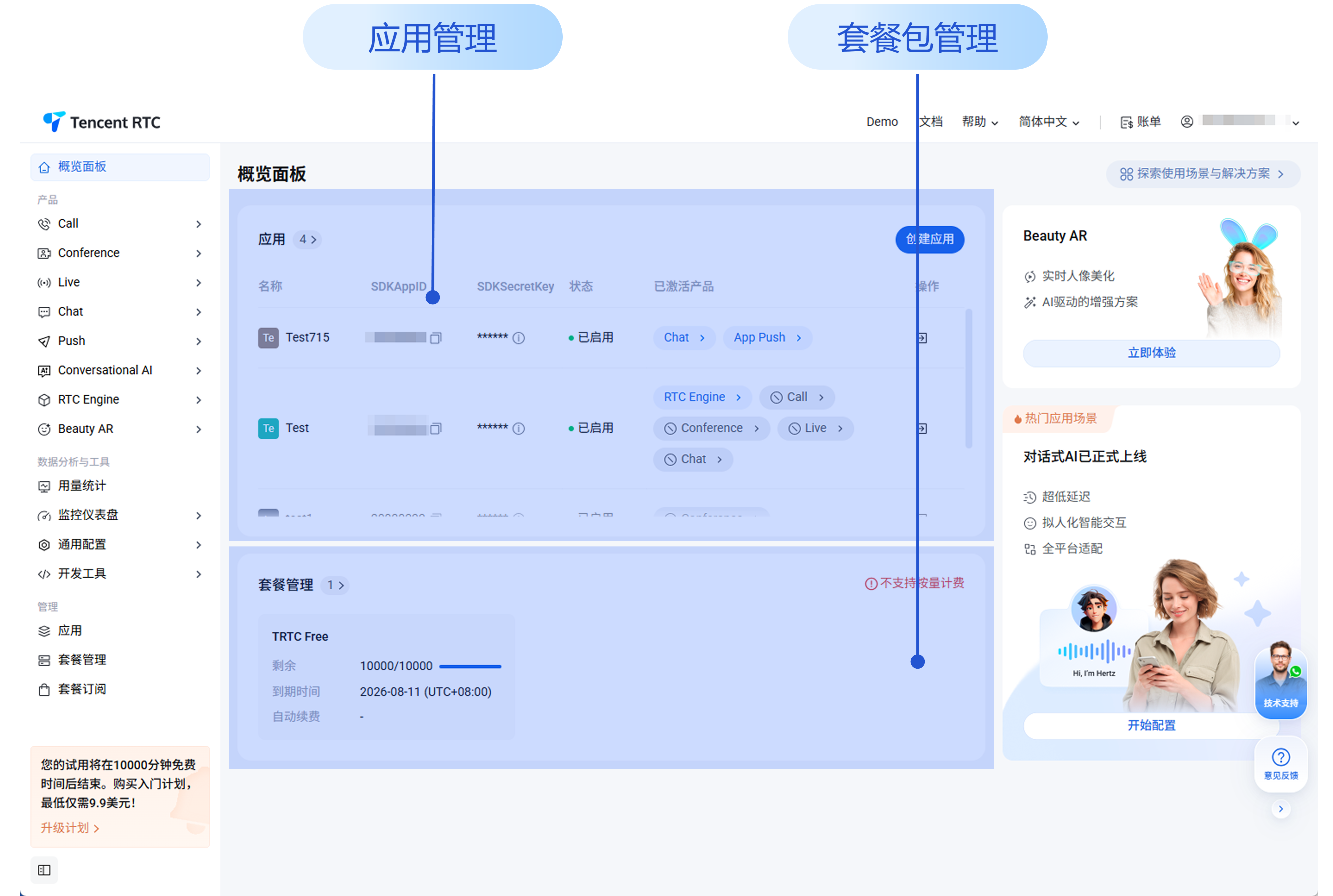
2. New Layout of the Overview Page

The console overview includes common modules such as Application Management and Package Management. The new console can manage both Chat and RTC Engine, Call, Conference, Live, Beauty AR, and other product apps, eliminating the need to repeatedly jump around within multiple consoles for users who use multiple products at the same time.


Note:
The current package management page only displays usage-related packages. If you want to view the prepaid billing information and all postpaid billing information for Chat and Beauty AR, please go to Expense Center > Billing Center to view.

3. Application

Chat manages different services and programs through Applications. You need to create an application and open Chat service (receive any version) to access Chat service.
Under the new console, multiple services can be opened under each application. In addition to Chat, Call, Conference, Live, RTC Engine, In-game Voice Chat, etc. can also be managed and opened.
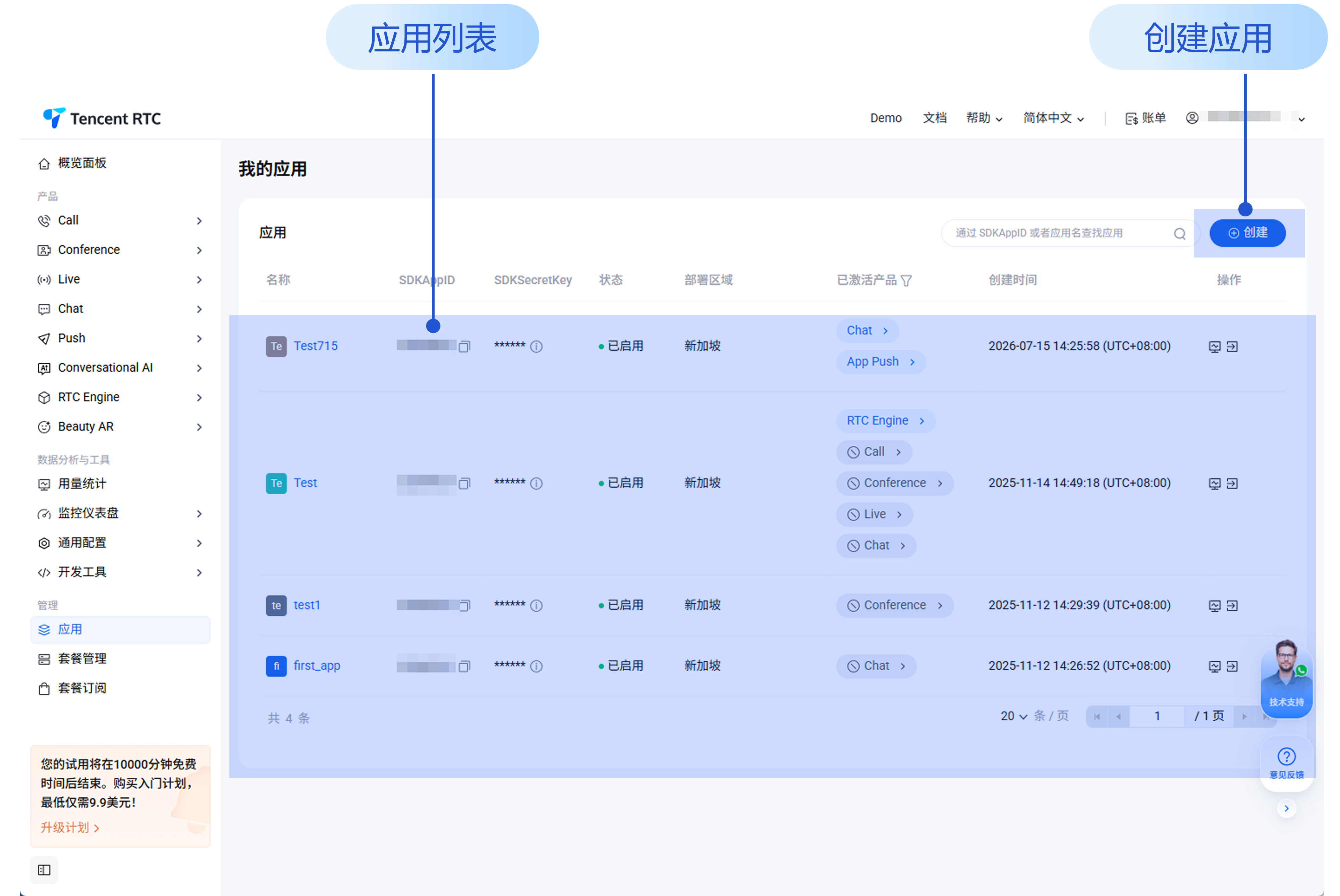
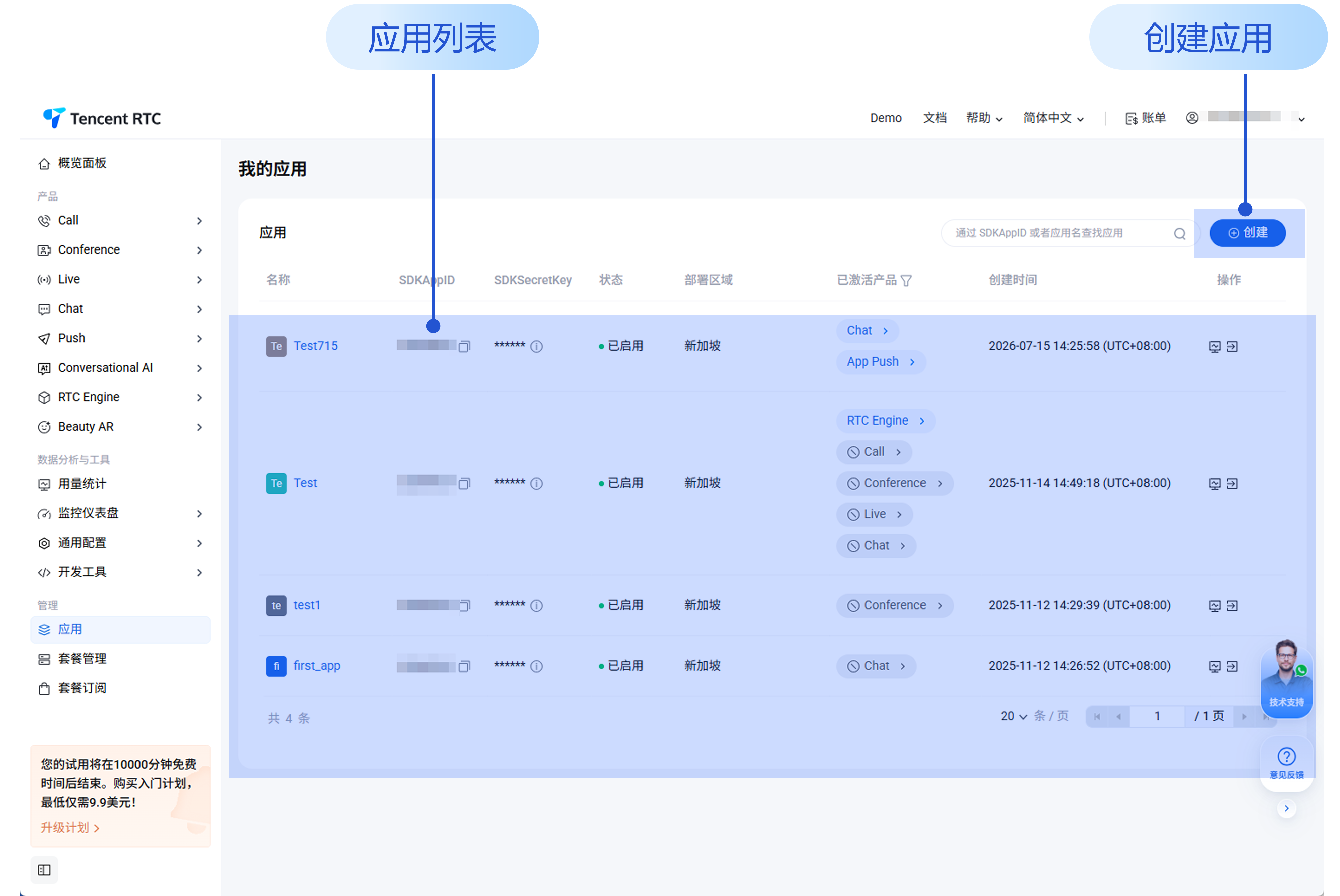
3.1 Application List
You can create new apps here and view the basic information of all apps created, including SDKAppID, Status, Deployment Region, etc.


3.2 Application Management Detail
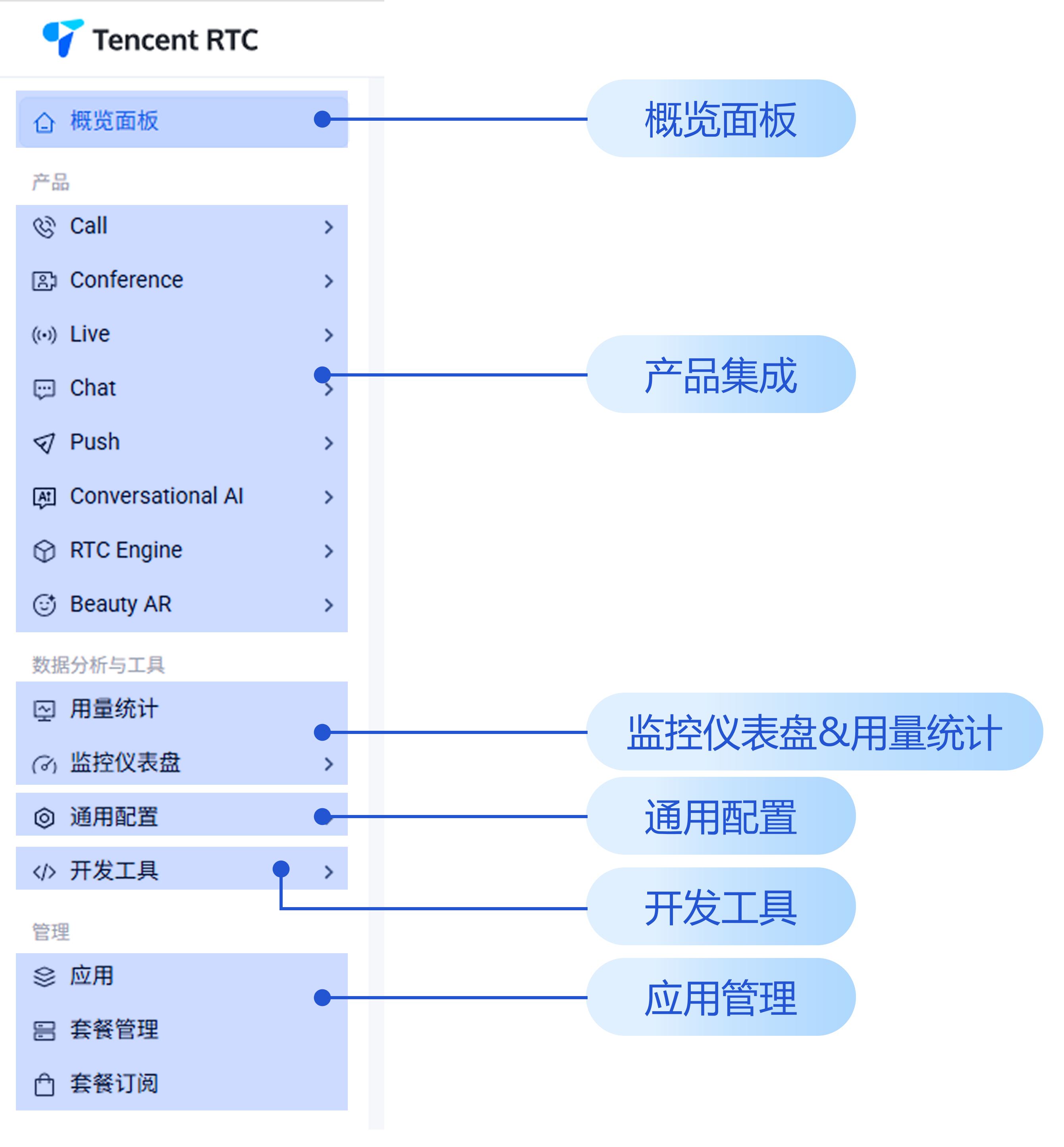
Click on the application name in the application list to access the application management details page.
Overview panel: Basic information about the application.
Product integration: You can enable multiple services under each application. In addition to Chat, you can also manage and enable Call, Conference, Live, RTC Engine, In-game Voice Chat, etc. The details page can be used to view the version information of the service in use, configure related options, and perform upgrade operations.
Advanced function: Common advanced service settings for this application.
Development tool: Provides tools to generate and verify UserSig, and generate publishing addresses for the live stream publishing (RTMP+RTC) feature.
Application management: View application list, manage application info and status, and purchase as well as manage packages.
Monitoring dashboard & usage statistics: Query real-time call data information and track feature usage.


3.3 Chat Service Configuration
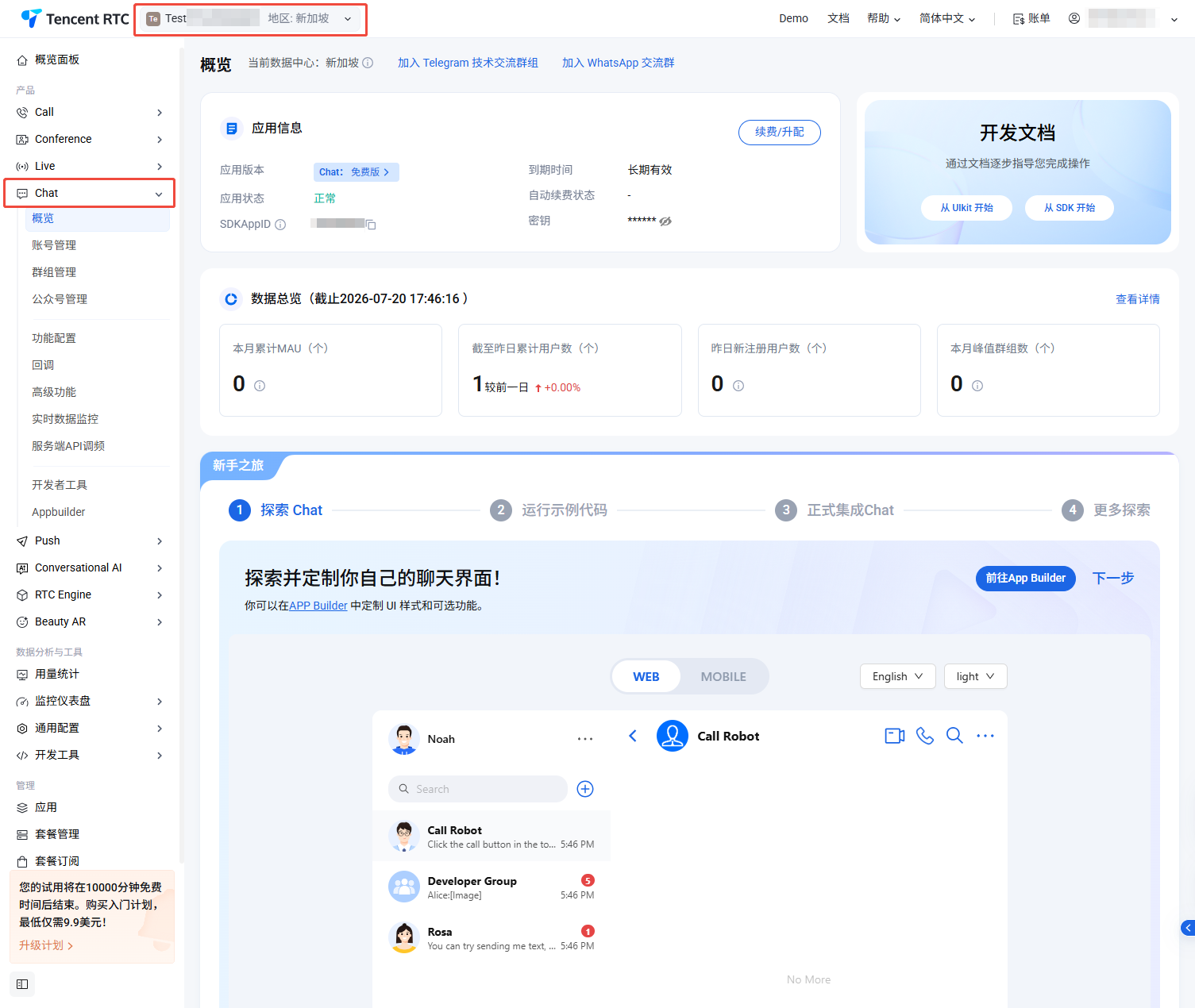
Select Chat in the left sidebar, select target application at the top. Here you can separately configure the chat service for each application.


4. Usage Statistics

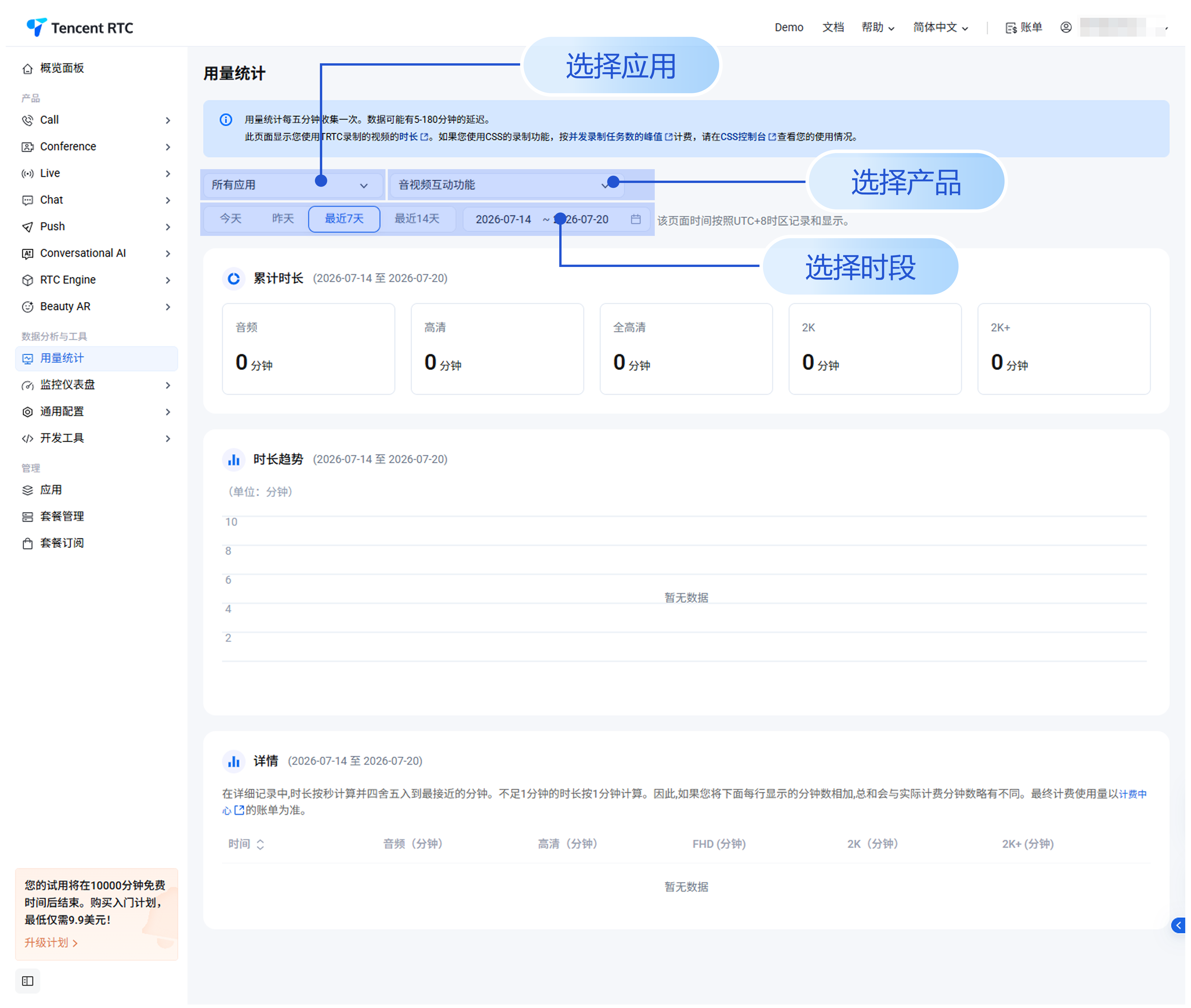
The usage generated by all services used can be checked in Usage Statistics. In our Usage Statistics panel, you can obtain diverse usage statistics by selecting different applications, features, scenarios, and periods.


5. Data Monitoring

Optionally, you can subscribe to our Data Monitoring service, which supports room call survey functionality, real-time monitoring, and data dashboard functionality. Learn more.

6. Package Management

6.1 Package Subscription
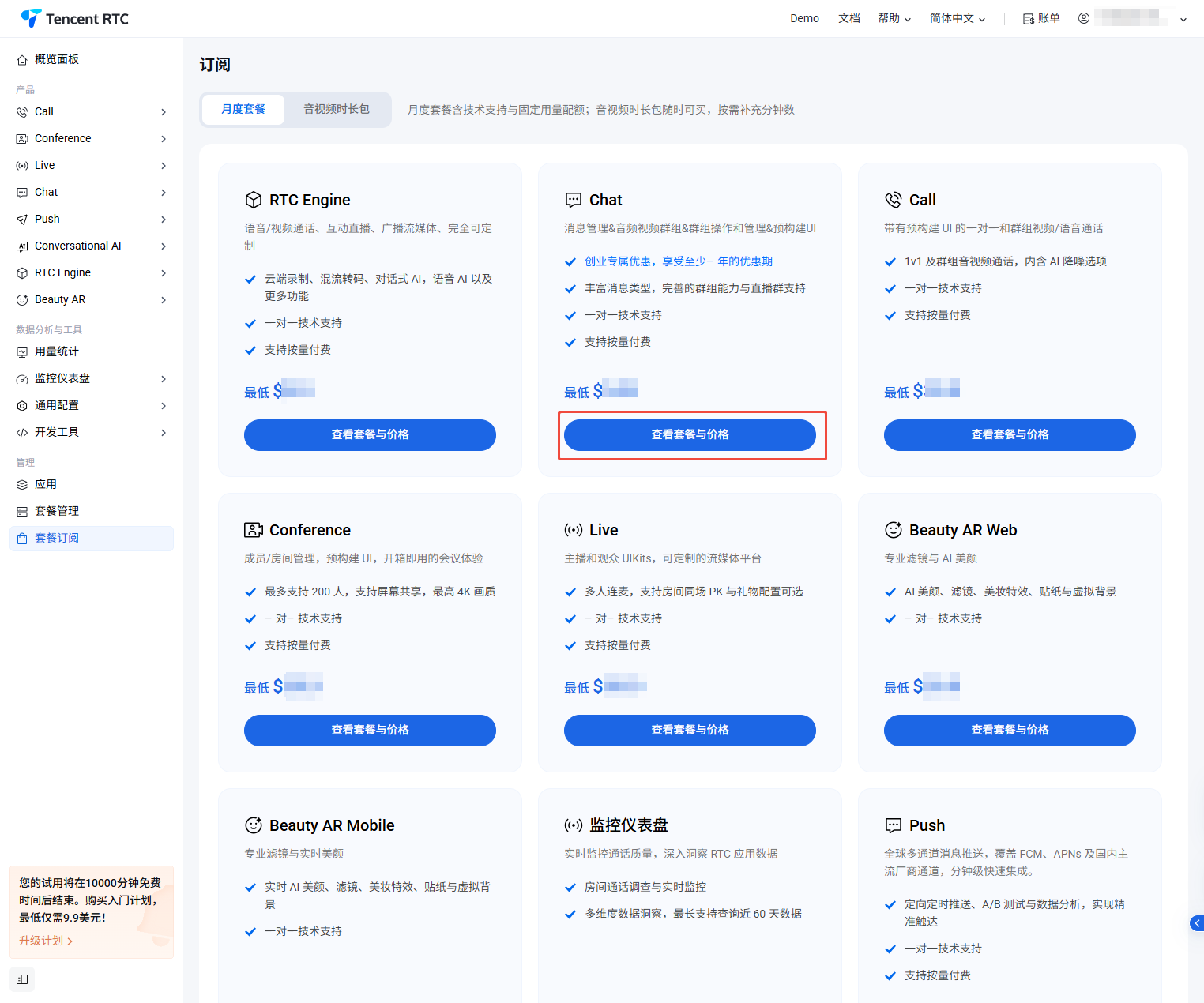
Each of our products offers a wide range of package options, here is a detailed description of the contents of each package, you can choose the right product and package for your project.


6.2 My Packages
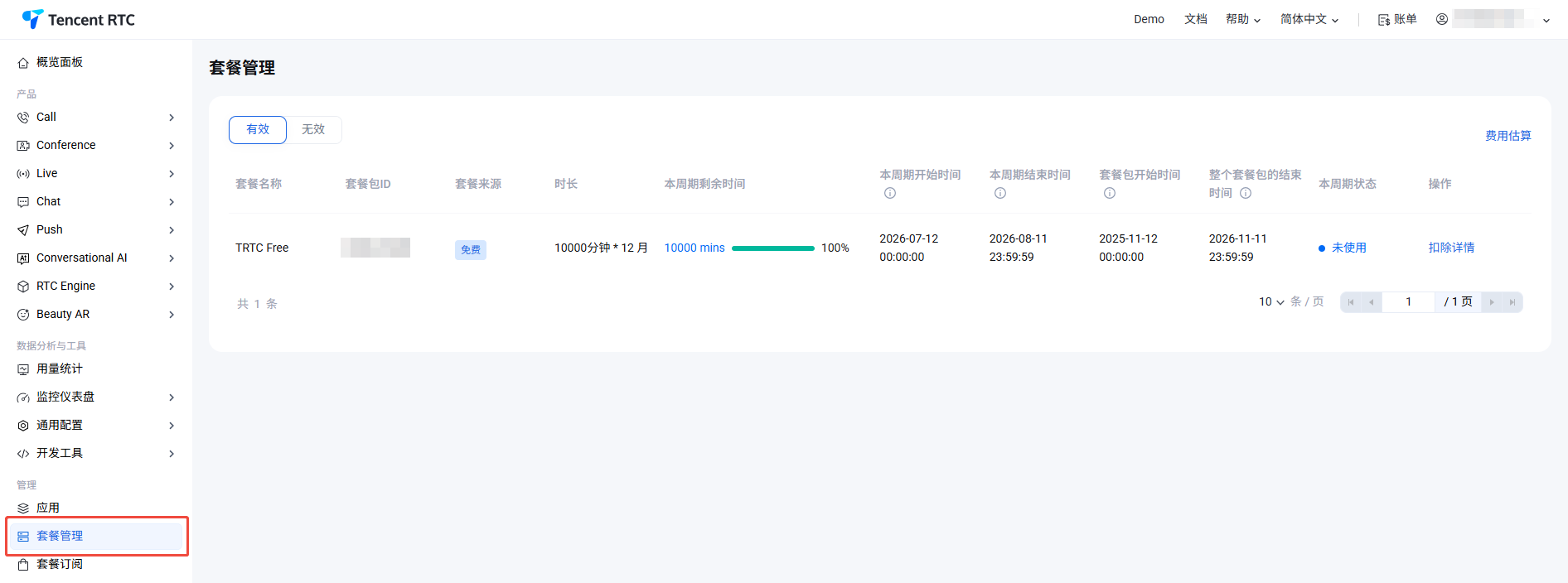
Here you can learn the basic information of the subscribed package, including the start time, end time, remaining time, and deduction details of the package.


Note:
The current package management page only displays usage-related packages. If you want to view the prepaid billing information and all postpaid billing information for Chat and Beauty AR, please go to Expense Center > Billing Center to view.

7. Related Services - Beauty AR

Beauty AR products can be managed and configured here.Learn about Beauty AR.

8. Development tools

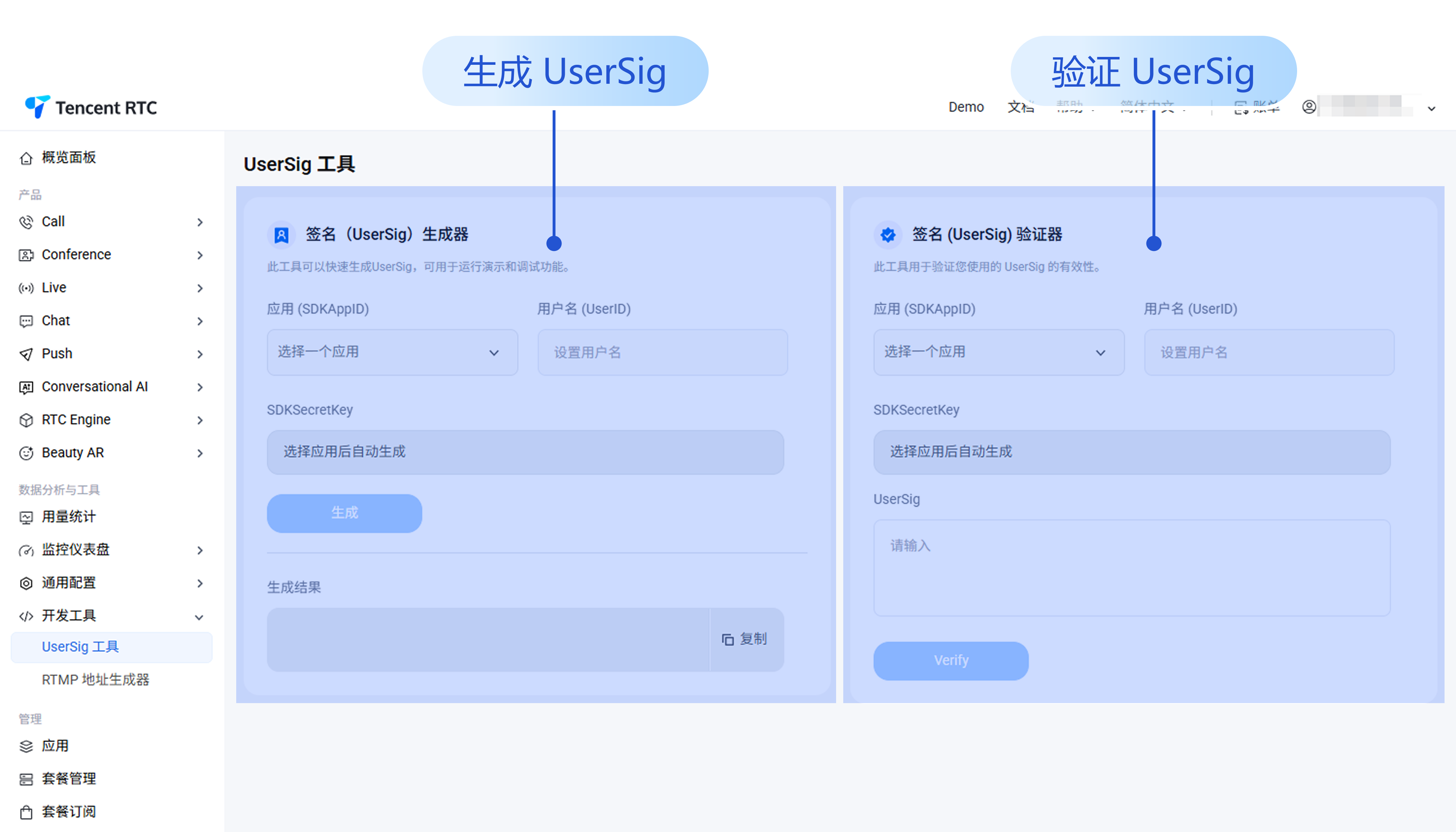
8.1 UserSig Tools
UserSig generation and verify are performed on this page.


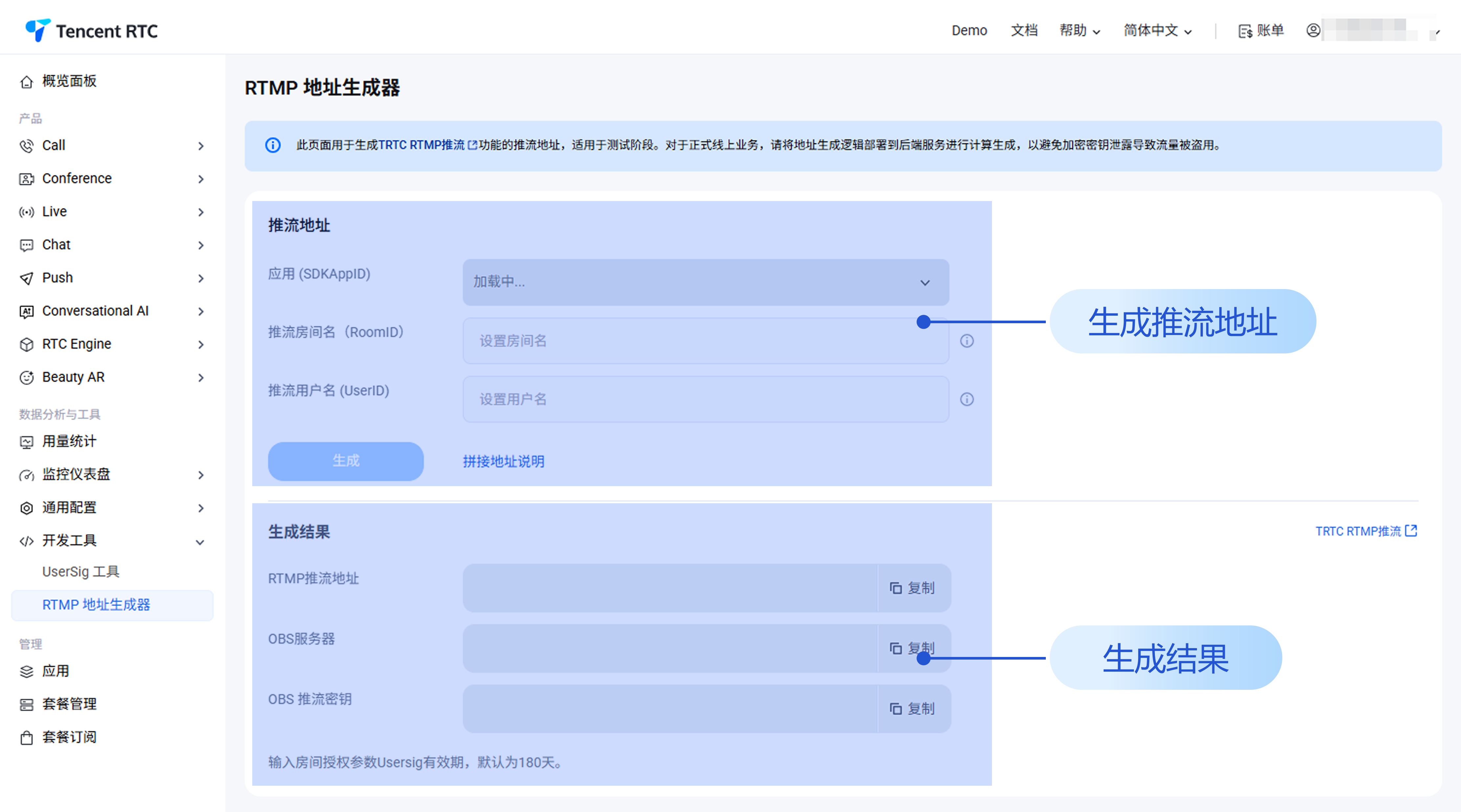
8.2 RTMP Address Generator
This page is used to generate the push stream address for the RTMP push stream function.


Chat Application Creation Process and Configuration Page Location Adjustment

Chat Application Creation Process

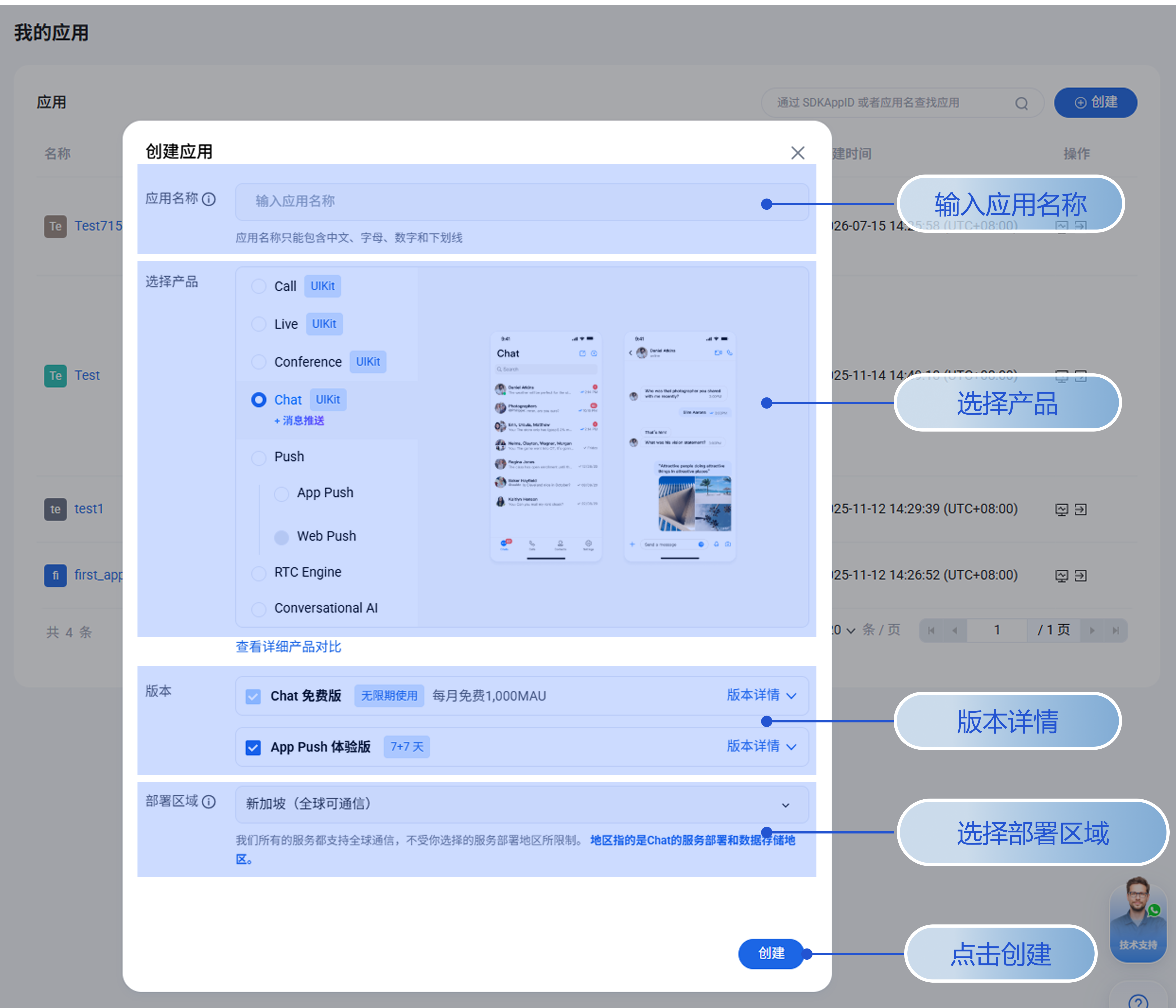
1. In My Applications, click Create Application.


2. In the pop-up window, enter application name, select product, version and deployment region, then click create.


Note:
Regarding deployment region options.
1. Chat deploys multiple data centers around the world, all of which support global access, but users between different data centers cannot interoperate. Please carefully select the data center that best suits your business based on the distribution of major users or compliance requirements. Once selected, no subsequent changes will be possible.
2. TRTC's data center is Singapore by default and does not support users to choose their own. The data and privacy terms related to international sites can be found in the Privacy Policy.
3. We support global access and are not limited by deployment regions. We have deployed nearly 3,000 acceleration nodes in various countries around the world. When the terminal is logged in, Chat SDK and TRTC SDK will visit the nearest access point or acceleration point to realize accelerated transmission through the optimal scheduling strategy.

Configure a Chat Application in the Console

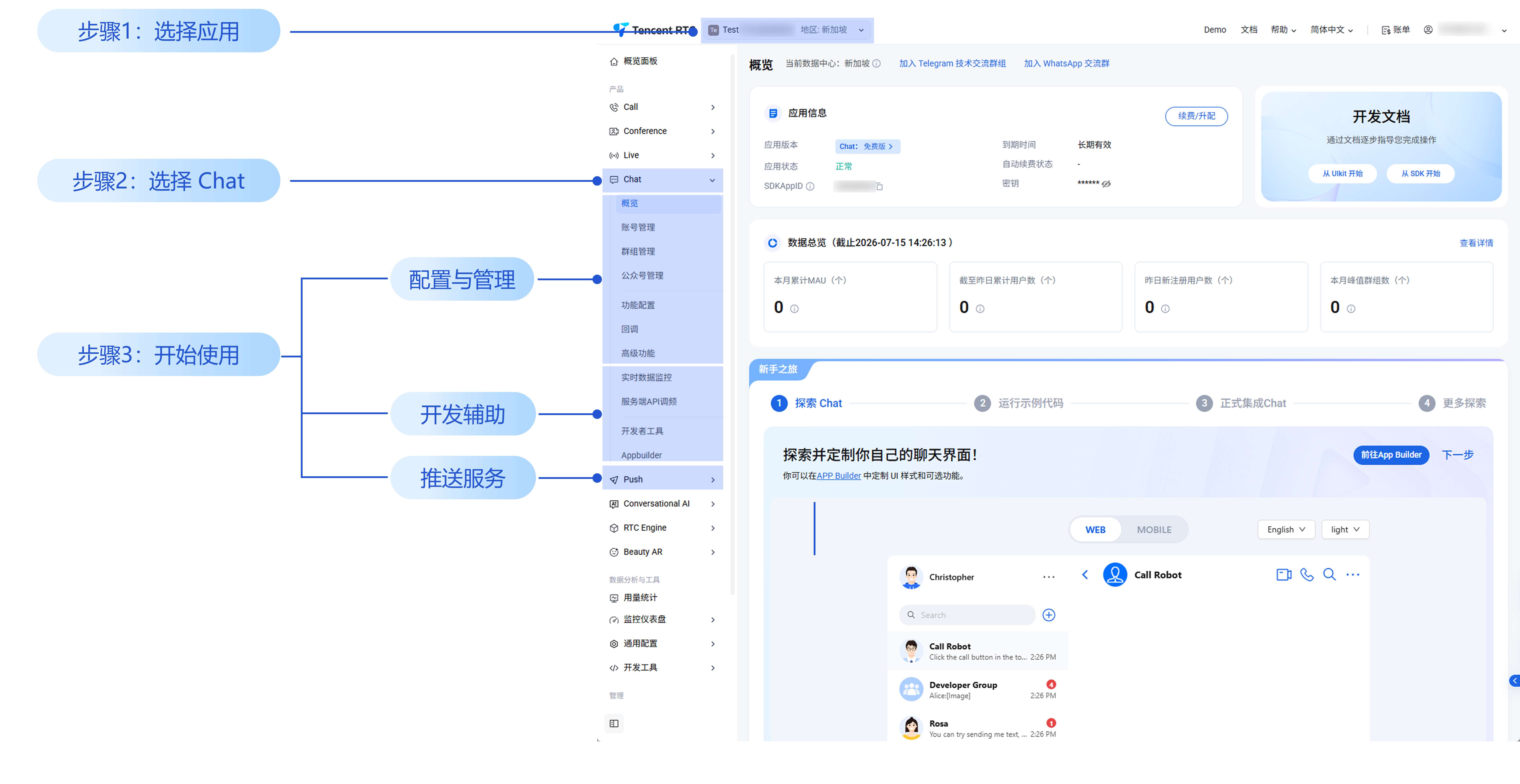
Log in to the Console > Chat Product Details Page, select the target application at the top. The three management modules of the Legacy Console: Configuration & Management, Plugin Service, Development Assistance, are all shown herein.
Configuration & Management: Overview, Account Management, Group Management, Feature Configuration, Webhook Configuration, and Data Statistics.
Push Service: Push and plug-in marketplace.
Development Assistance: Real-time monitoring, development tool, and integration guide.


FAQs

Should I Choose to Use the International Site or Domestic Site

A: If you are a non-Chinese mainland entity and need to settle with Tencent Cloud in USD, it is advisable to use the products and services on the international site.

Q: Are the Services and Features Different

A: The services and features of the domestic site (product named "IM") and the international site (product named "Chat"), as well as their integration and usage, are consistent. Use with confidence.

If you have any questions during the process, please feel free to give us feedback. Click here to submit a ticket or contact us.

Help and Support

Was this page helpful?

Help us improve! Rate your documentation experience in 5 mins.

Feedback