To push/pull container images, you need to log in to the instance first with the access credential. TCR supports credentials of user accounts and service accounts. This document describes how to manage user accounts.
If you want to use multiple sub-accounts to manage and operate your TCR Enterprise Edition instance, such as pushing or pulling images, you must first log in as the account admin and grant each sub-account permissions. For more information, see TCR Enterprise Authorization Management. When a user logs in to the TCR console by using a sub-account, a user account is generated. This user account is a Docker Registry access credential associated with the user’s identity, because the username of the access credential is the same as the ID of the Tencent Cloud sub-account. The user uses this user account to log in to the repository, and push and pull images. Operations of this user account on images are recorded and can be traced back to the user for internal auditing.
When you create a user account, you can create a temporary login token or long-term access credential. We recommend that you create a temporary login token for temporary image push or pull to avoid data security risks due to unexpected credential leakage.
Long-term access credential: A long-term access credential is permanently valid, and can be disabled or deleted. You can use the long-term access credential in scenarios such as early-stage testing, continuous integration and continuous deployment (CI/CD), and image pull in a container cluster.
Note:
Keep the access credential properly. If it is lost, disable or delete it promptly.
Temporary login token: A temporary login token is valid for 1 hour and cannot be disabled or terminated. You can use the temporary login token in scenarios such as one-time external authorization, or in a production cluster with high security requirements by regular refreshing.
To obtain the access credential through an API, you must obtain the API key that is required for calling v3.0 APIs.
Directions
Obtaining a long-term access credential
1. Log in to the TCR console and choose Access credential > User accounts in the left sidebar.
2. On the User accounts page, select a region and an instance, and click Create.
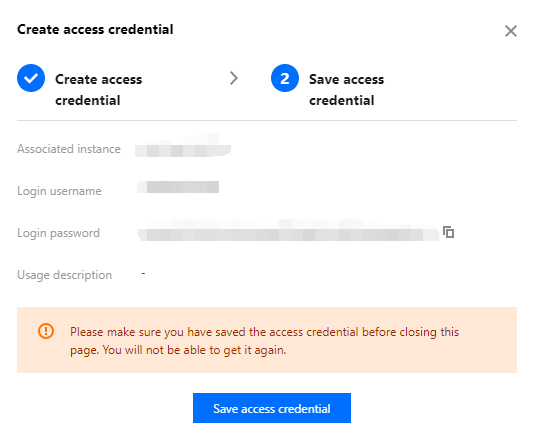
3. On the Create Access Credential page, perform the following steps:
3.1 In the Create Access Credential step, specify the purpose of the credential in Usage Description, and click Next.
3.2 In the Save Access Credential step, click Save Access Credential to download the access credential. This is your only chance to download the access credential. Save it properly.
4. You can view, disable, or delete a created access credential on the Access credential tab.
Obtaining a temporary login token
1. Log in to the TCR console and choose Access credential > User accounts in the left sidebar.
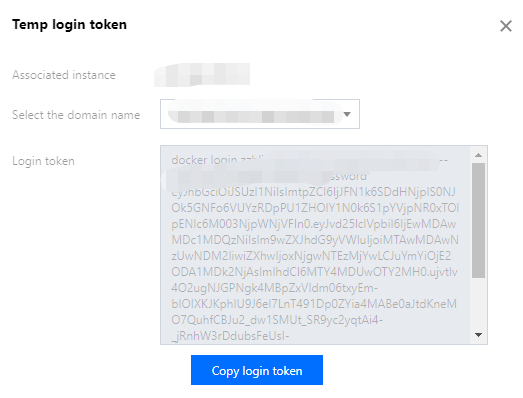
2. On the User accounts page, select a region and an instance. Click Generate Temp Login Token.
3. On the Temp login token page, click Copy login token to obtain a temporary access credential.
Creating via API
You can also create an instance access credential by calling the CreateInstanceToken API. For more information, see CreateInstanceToken.
A long-term access credential will be created automatically in some scenarios:
1. When you install the TCR add-on in a TKE cluster, a long-term access credential is automatically created for the selected instance. This credential will not be automatically terminated when the add-on is deleted. If you do not want to use it any more, you need to manually delete it.
2. When you use the image building or delivery pipeline feature, a dedicated access credential is automatically created and provided to the CODING DevOps service to push the auto-built images. Do not delete the access credential directly. Otherwise, the build configurations of the existing images become invalid.