Scenarios
When you need to count whether emails are opened or links in emails are clicked, you can enable tracking for these two events via the Simple Email Service (SES) console. This document introduces how to configure tracking settings.
Prerequisites
You must have activated the email push service. Operation Steps
Step 1: Create and Verify a Trace Domain Name
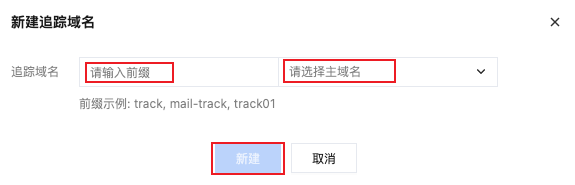
1. Log in to the SES console, select Email Configuration > Tracking Settings, enter the Trace Domain Name configuration page, and click Create Trace Domain Name. 2. Select a primary domain name, enter a prefix, and click Create. A trace domain name is successfully created.
Primary domain name: The list contains the primary domain names of verified sender domain names.
Prefix: The format should meet 3-63 characters. Only letters (a-z, A-Z), digits (0-9), and hyphens (-) are supported. It cannot start or end with a hyphen (-) and cannot be purely numeric. It is advisable to start with a letter.
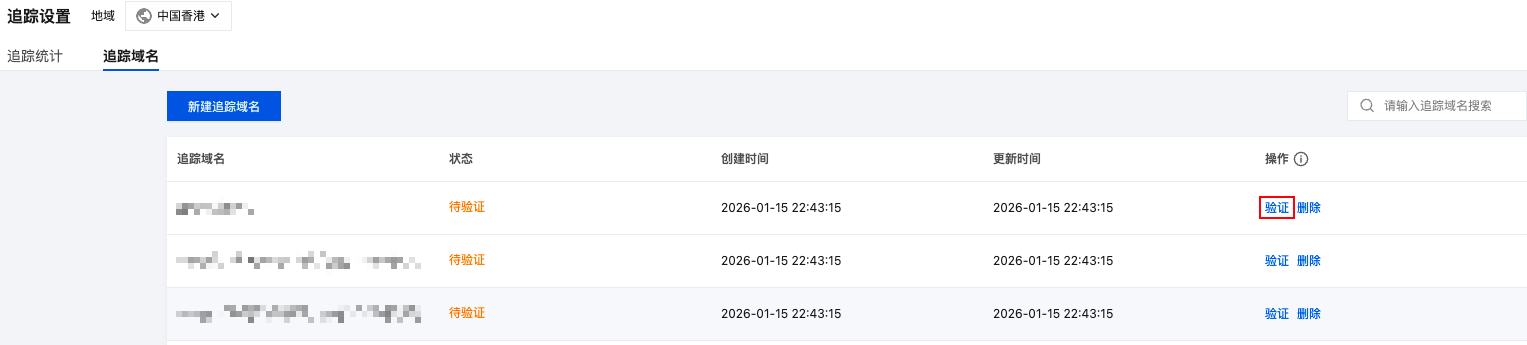
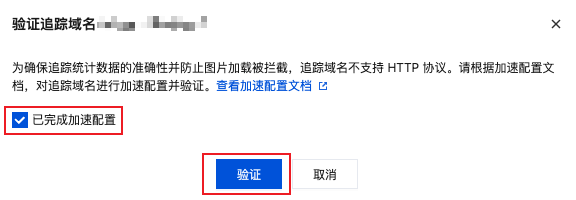
3. For a successfully created trace domain name, click Verify in the operation list. Configure acceleration as per the Acceleration Configuration Guide. The trace domain name becomes usable upon verification success. Procedure 2: Set Trace
Enable Trace
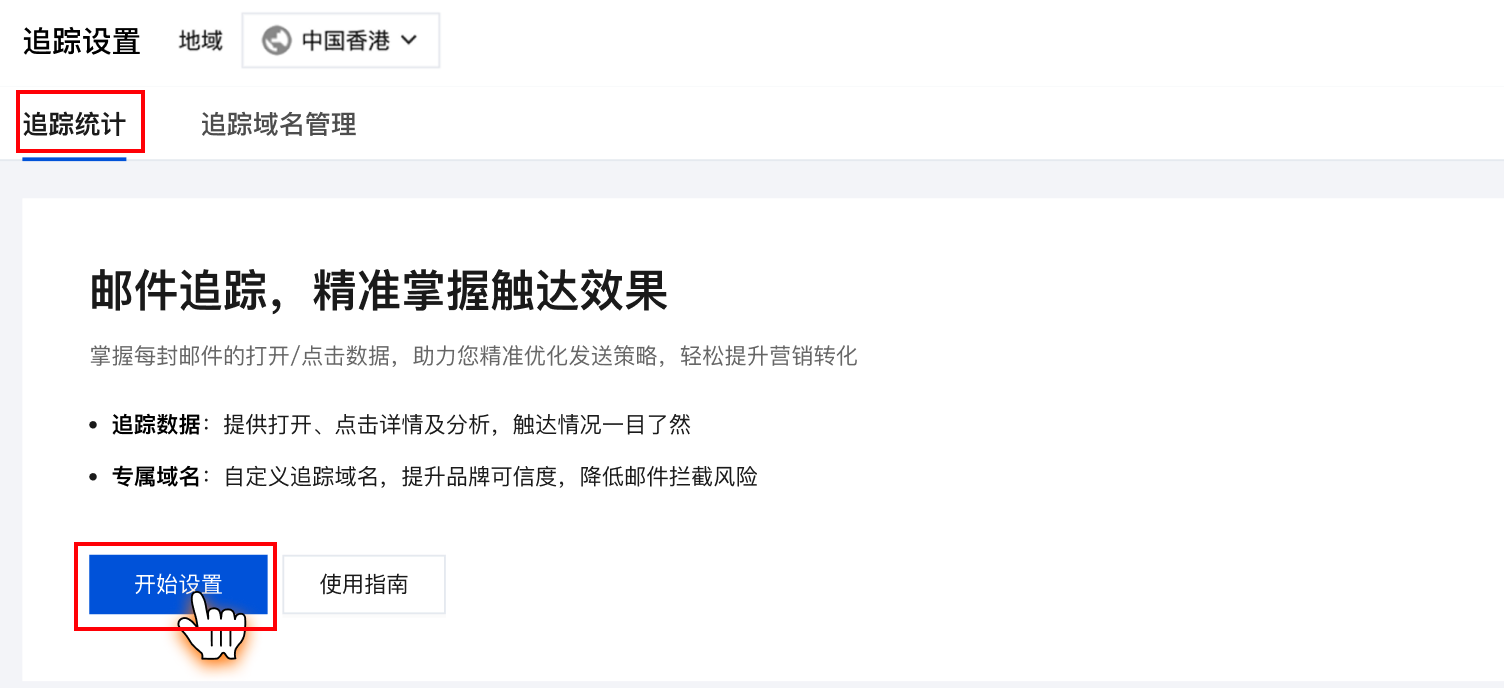
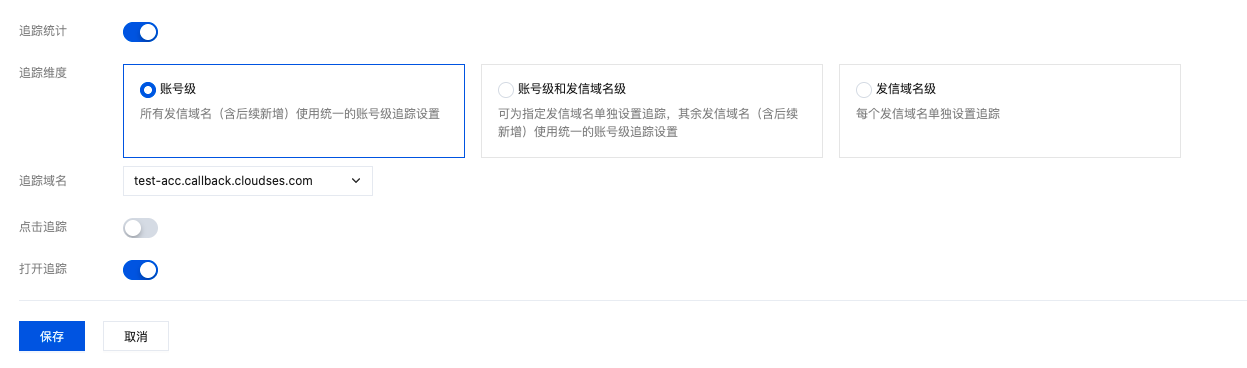
1. Enter the tracking statistics configuration page, click start setting, and enable tracking.
2. Select tracking Dimension and Tracking Domain, then enable at least one of "Click Tracking" and "Open Tracking" based on actual business needs.
Account-level: ALL sending domain names (including subsequent addition) use unified account-level tracking settings.
Account-level and domain name level: You can set trace individually for specified sender domain names, while other sending domain names (including subsequent addition) use unified account-level tracking settings.
Domain name level: Set trace individually for each sending domain name.
Note:
Event tracking principle: "Tracking pixel" technology.
When sending an email, the system inserts an image tag (<img>) into the HTML code of the email. However, the source file (src) address of this image is not a regular image, but a specific URL pointing to the Tencent Cloud SES tracking server. When the recipient opens the email and their email client is set to automatically load images, the client will initiate a request to this specific URL address, attempting to download the "invisible" image. Upon receiving this image loading request, the tracking server does not actually return an image, but records the request. The recorded information usually includes the recipient email, opening time, IP address (possibly inferring approximate location), device type, and marks this event as an "open".
Click event tracking principle: "Packaging" or "redirection" of original URLs in emails.
When you insert a link (such as https://example.com) in the email editor, SES automatically replaces the original link with a special tracking link. This tracking link points to the SES own redirection server. When the recipient clicks the replaced link, the request first reaches the SES tracking server. The tracking server immediately records the click event (including who clicked, when clicked, etc.), then uses HTTP/HTTPS redirection technology to quickly jump the user's browser to the initial true target URL.
Modify Trace
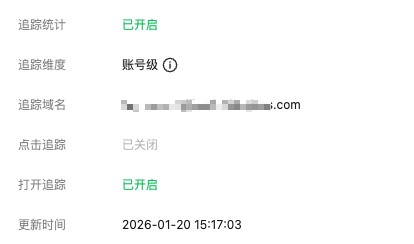
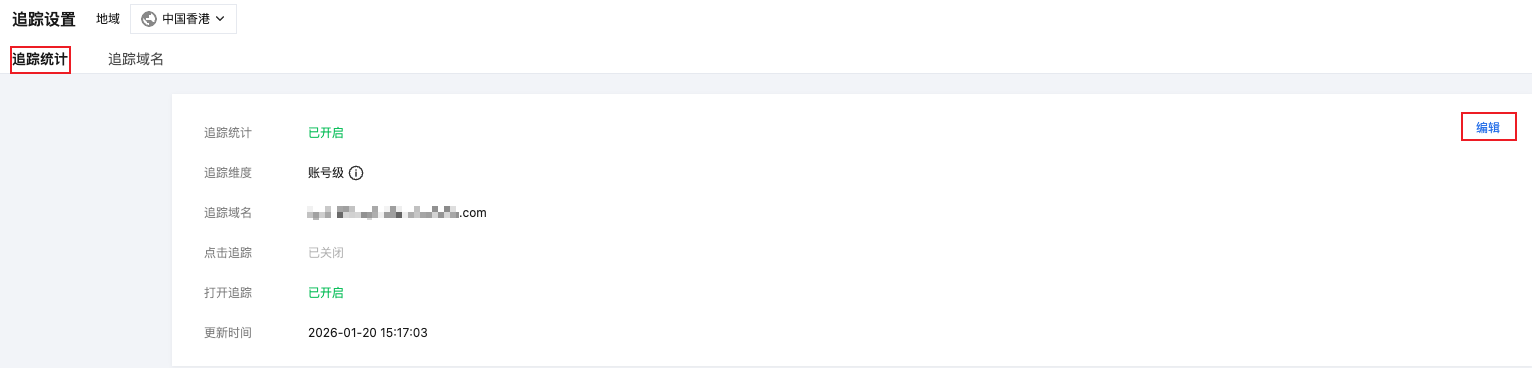
1. Log in to the SES Console, navigate to Tracking Settings > Tracking Statistics, and click Edit to modify your tracking settings. 2. After modifying the tracking statistics settings, click Save, and the modification will take effect after saving succeeds.
Disable Trace
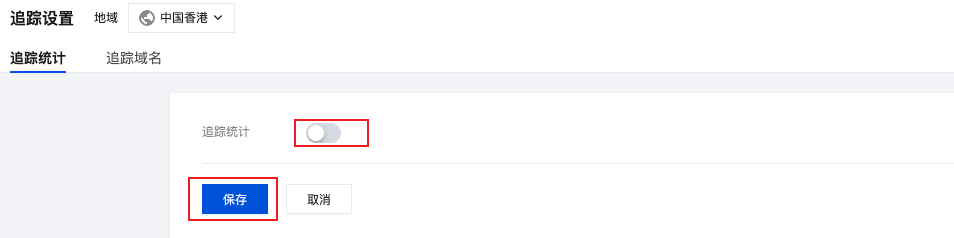
1. Log in to the SES Console, navigate to Tracking Settings > Tracking Statistics, and click Edit to modify your tracking settings. 2. Disable the tracking statistics icon, click Save, and the trace will be disabled after saving succeeds. The tracking statistics status updates to "Not Enabled".