This document is suitable for resellers and first-level distributors to read. The copywriting uses "reseller" for description.
Voucher Categorization and Scenario Description
Voucher Type
Description
Usage Scenario Example
Partner Voucher (Type 1)
Partner Voucher (Type 1) is used to offset the fees that a reseller pays on behalf of all end customers. Its cost is borne by Tencent Cloud, and it is issued by a business manager. Self-service application by partners is not supported.
Business compensates resellers with vouchers in scenarios.
Partner Voucher (Type II)
Partner Voucher (Type II Voucher) is used to offset the fees that a reseller pays on behalf of specified end customers. Its cost is borne by Tencent Cloud. Both business managers and partners can apply for it. It is not visible to end customers.
Note: For a Type II voucher with the application purpose of "Product Trial", the system will simultaneously issue a Type III voucher to the end customer and offset the end customer fees. The Type III voucher is visible to the end customer. If the end customer is billed at the list price, the total offset amount of the Type III voucher = total amount of the Type II voucher / partner discount rate.
When a specified end customer incurs fees during a product trial, the reseller needs to pay the fees to Tencent Cloud on behalf of the end customer. The reseller can apply for a Type II voucher to offset these fees in the reseller bill. The system automatically issues the associated Type III voucher to the end customer to offset these fees in the end customer bill. If the Type II voucher offsets 90 USD, the partner discount is 10% off, and the end customer settles at the list price, the Type III voucher offset amount is 90/0.9 = 100 USD.
Customer Voucher (Type III)
Customer Voucher (Type III Voucher) is used to offset end customer fees. Its cost is borne by the reseller. It can be issued by the partner directly, or automatically by the system when the partner obtains a "Product Trial" Type II voucher.
1. When a specified end customer incurs fees during a Product Trial, the reseller can apply for a Type II voucher to offset the fees paid to Tencent Cloud on behalf of the end customer. The system will automatically issue the associated Type III voucher to that end customer to offset these fees in the end customer bill.
2. Partners conduct promotional activities for end customers. Note that customer vouchers with the purpose of "Customer offer" cannot be issued to group end customers.
Type I vouchers are applied for resellers by the channel manager, with no need for independent operation by the reseller. This document describes the method of applying for Type II vouchers and issuing Type III vouchers.
Prerequisites
The identity of reseller or first-level distributor is already available.
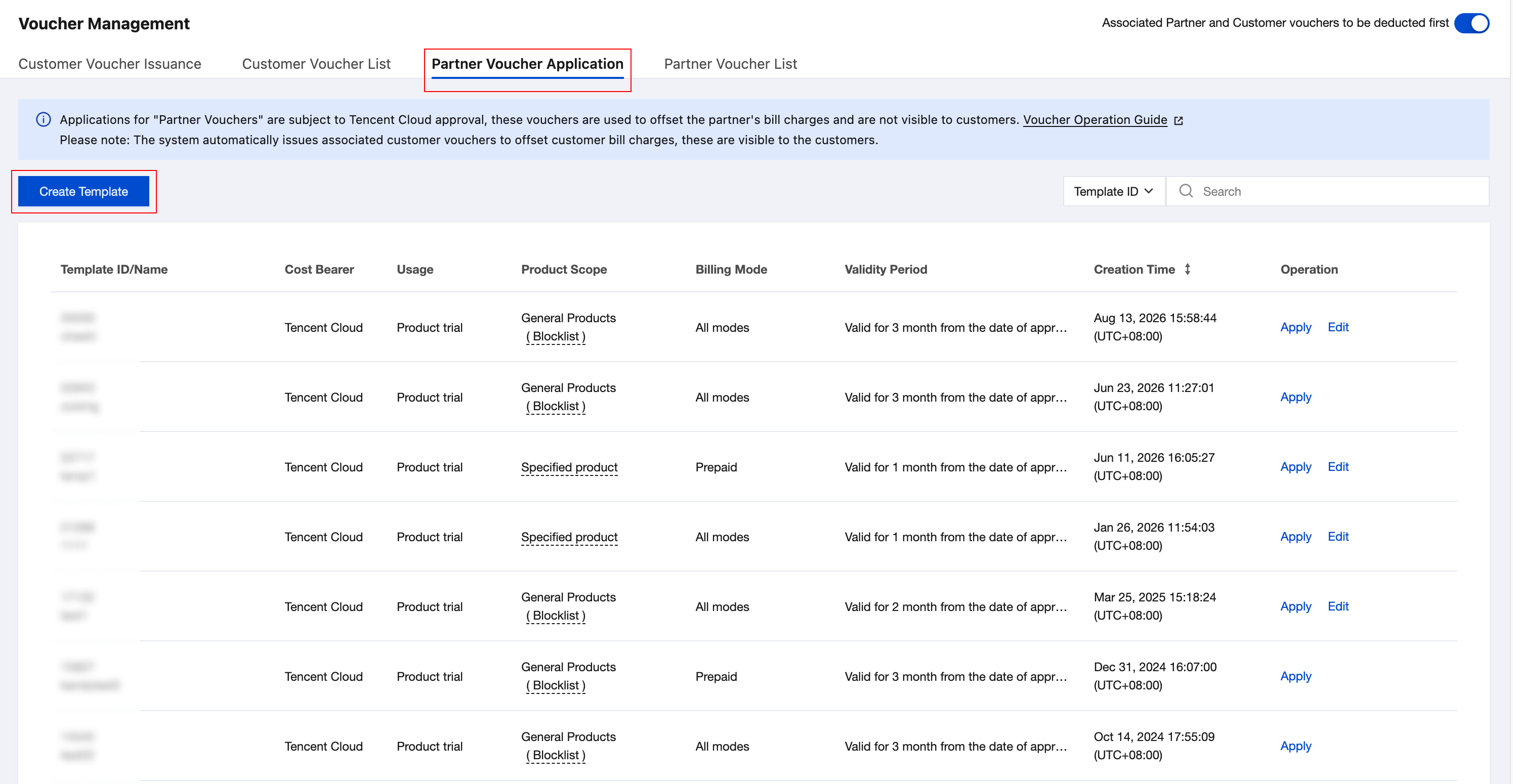
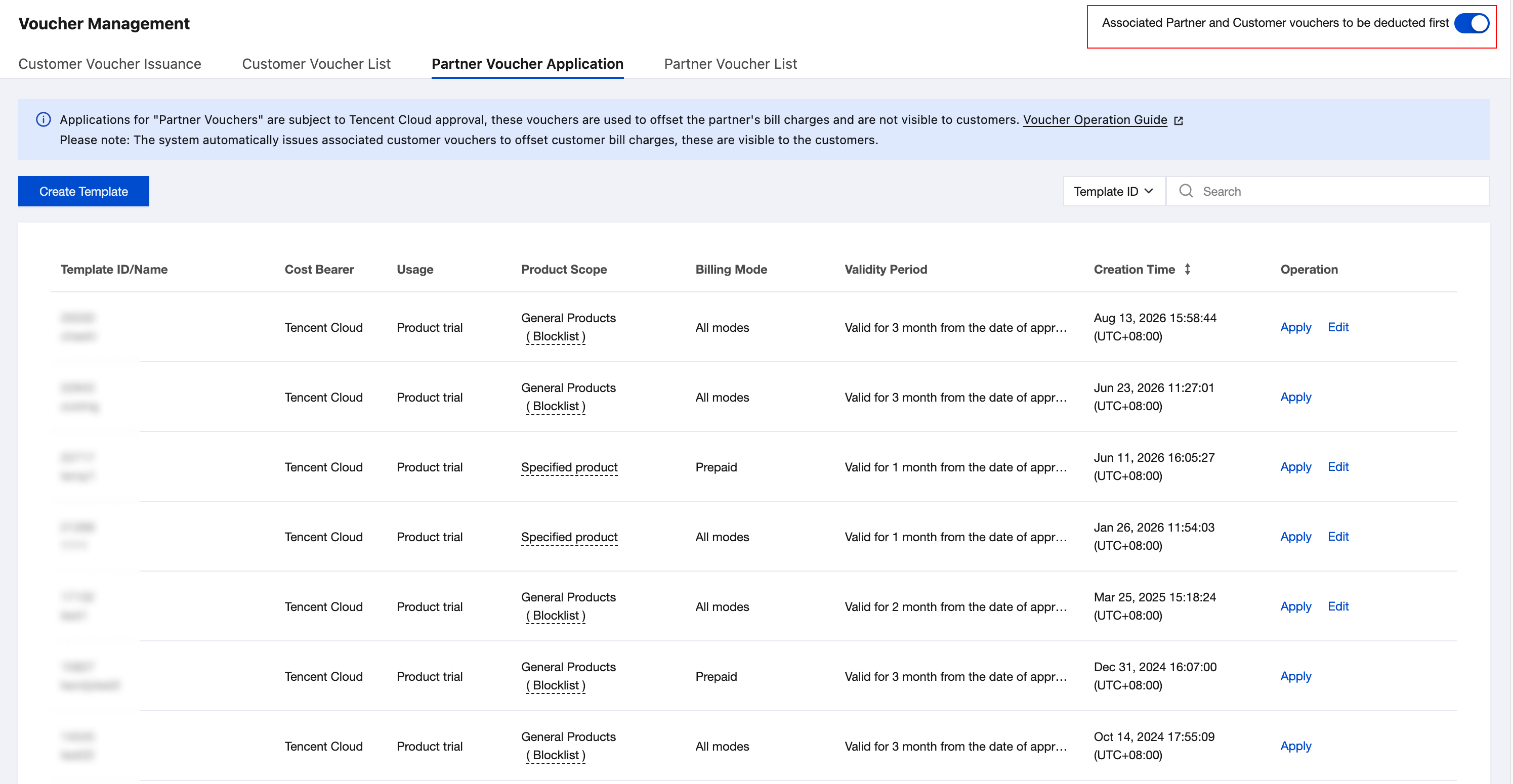
2. Select Sales > Voucher Management in the left sidebar to enter the Partner Voucher Application page. This page allows you to view previously used templates.
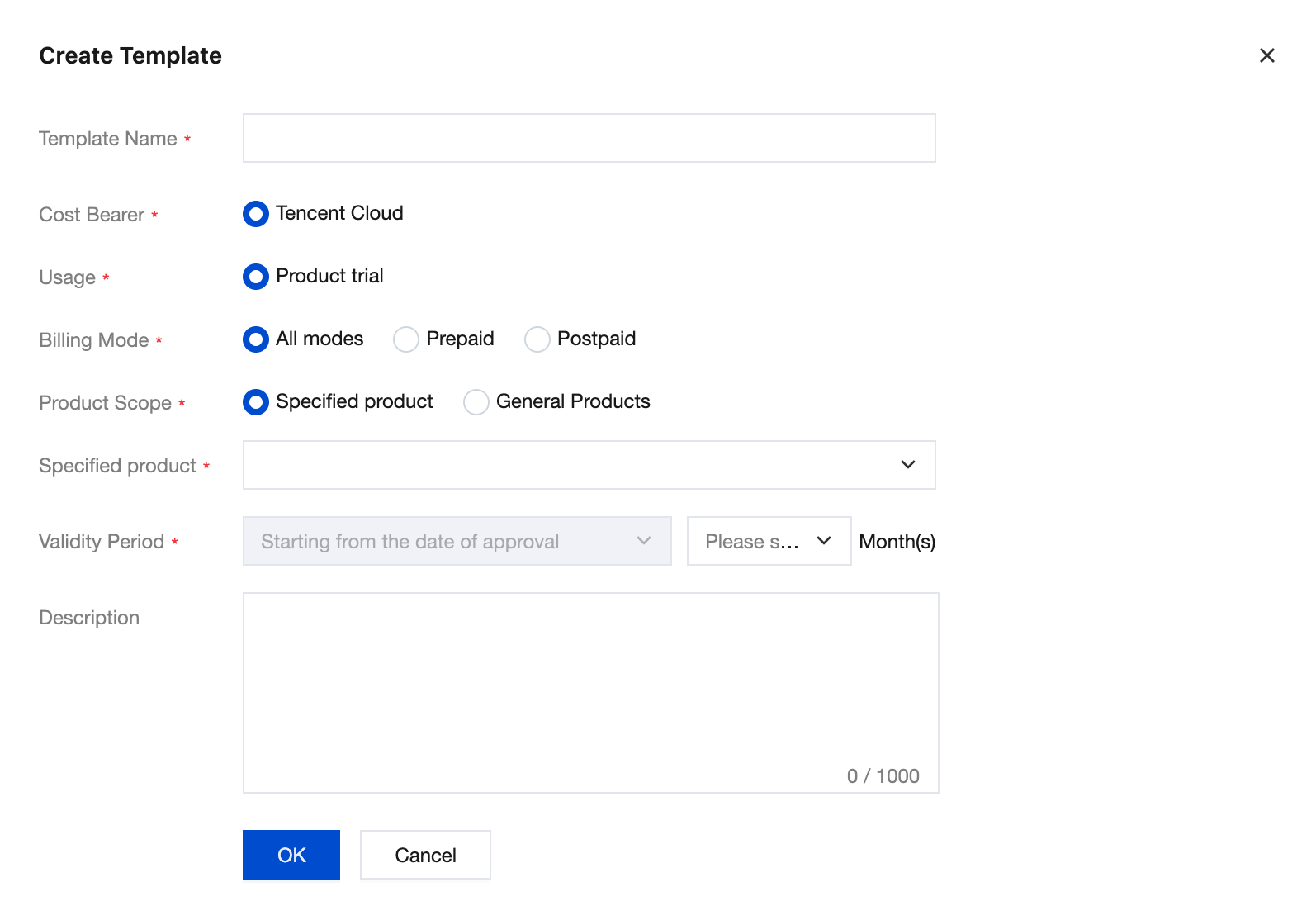
3. Click Create Template and fill in the voucher template info in the pop-up window.
Note:
Specific product voucher: It applies to specific individual or multiple products. Only products listed in the applicable product list can be used.
General product voucher: It applies to all products except those on the product blocklist. (Hover over the "blocklist" text to view the list of inapplicable products, subject to the voucher's approval status.)
4. After completing, click OK to save the voucher template.
5. After creation, you can view created voucher templates. Query by condition supported.
Note:
After a voucher template is created, you can still edit it if it has not been used to issue vouchers. If vouchers have been issued, the template cannot be edited again.
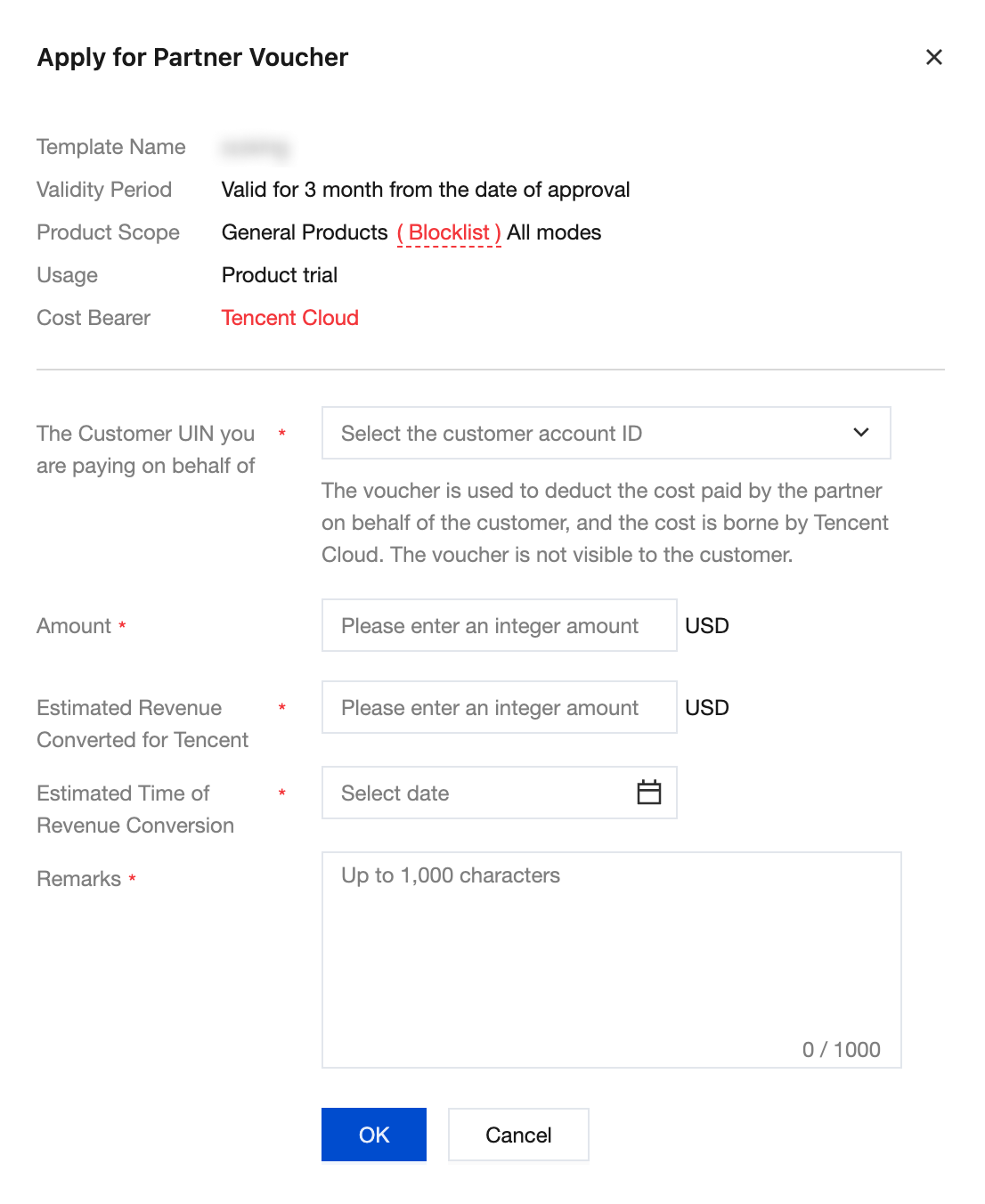
6. Click Apply in the operation list of the template, select the customer UIN in the pop-up window, fill in the amount which can differ from the template amount, then click OK to complete.
Note:
Partner vouchers require Tencent Cloud approval before they can be used for deduction. The voucher validity period starts from the approval time, and the approval process takes approximately 1-3 business days.
In multi-level distribution mode, the Customer UIN filled in should be the actual customer UIN that consumes resources.
In organization mode, the customer UIN filled in should be the actual customer UIN that consumes resources. If you need to batch-select multiple sucustomer UINs, contact your business manager for assistance.
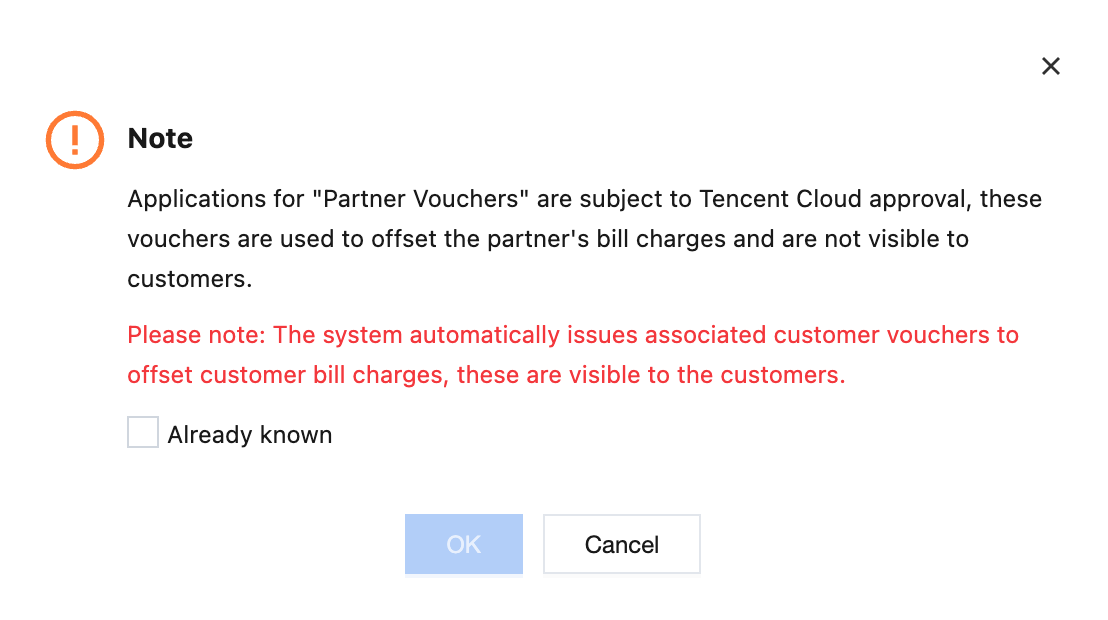
7. Confirm the prompt content, select Already known, and click OK to submit the application.
Note:
After approval, the reseller will receive a partner voucher (Type II voucher), and the system will automatically issue an associated customer voucher (Type III voucher) to the end customer. When the Type II voucher is used to deduct the trial fees that the reseller needs to pay to Tencent Cloud on behalf of the end customer, the associated Type III voucher will also be automatically used to deduct the fees that the end customer needs to pay to the reseller.
In organization mode, the associated customer vouchers automatically issued by the system will be credited to the administrator account, for deduction when the administrator pays on behalf of members.
Product Trial Voucher Priority
To ensure that reseller vouchers and customer vouchers usage for "Product Trial" are prioritized for deduction, the system enables the "Associated Partner and Customer vouchers to be deducted first" switch by default.
If you do not need to prioritize the use of "Product Trial" vouchers, you can disable this switch. Please note that disabling it may cause the associated customer product trial vouchers to become unusable, which could prevent customers from placing orders or result in outstanding balances.
Querying Partner Vouchers
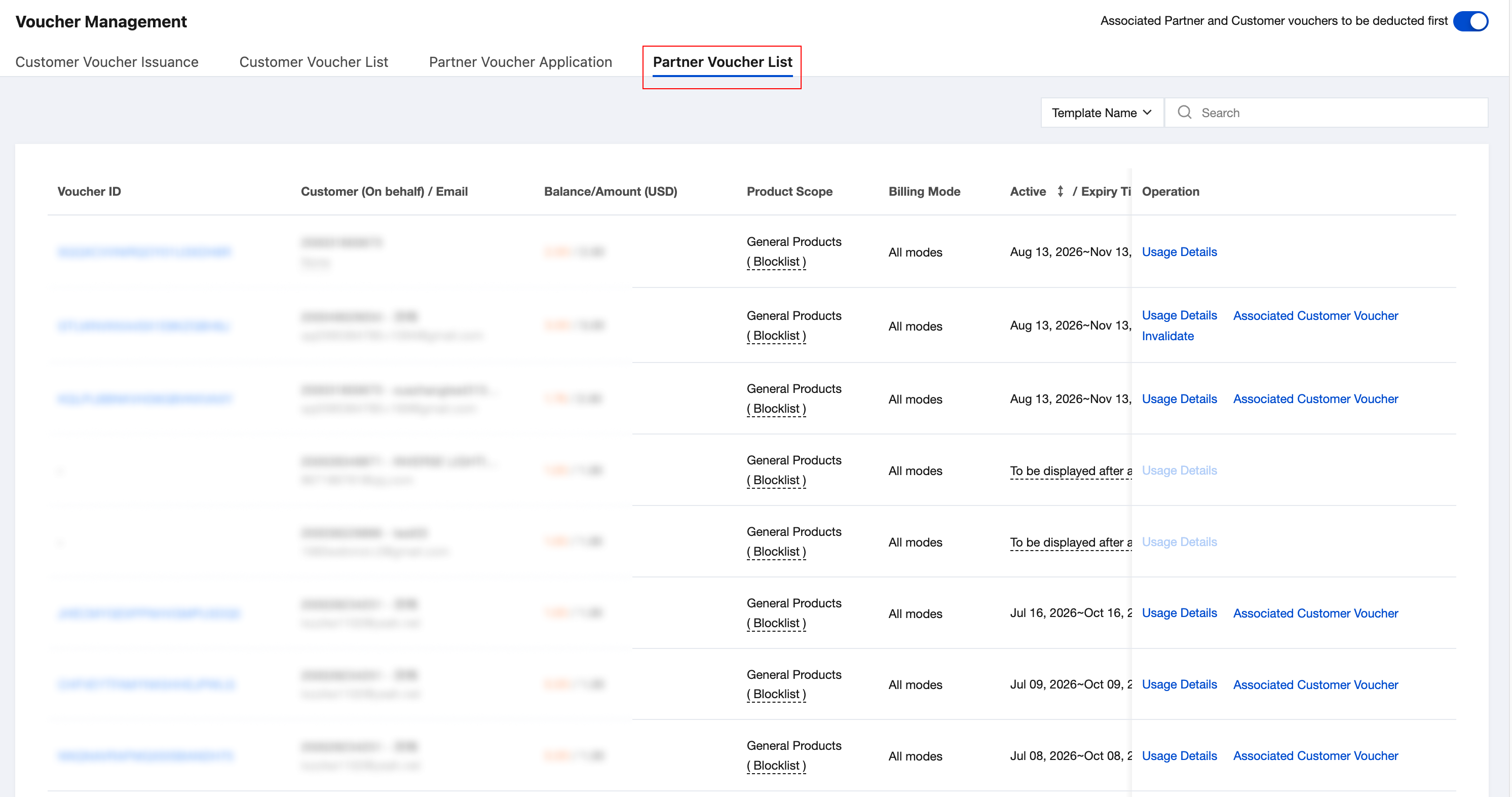
On the Partner Voucher List webpage, you can query the approval status, balance, and details of all partner vouchers. Full support for queries or enter specific conditions to query.
For vouchers under Pending Approval, click Cancel Review to cancel the approval process.
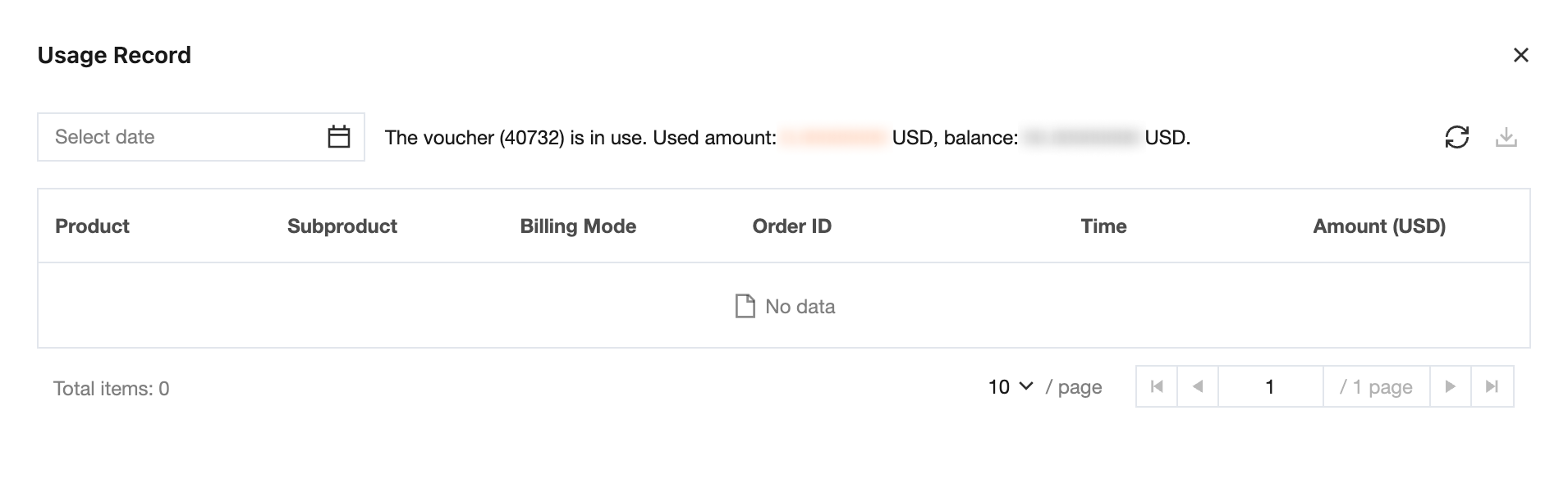
Click Usage Details to view or download the voucher's deduction details.
For single-level associated customer vouchers, you can view the customer vouchers (Type III vouchers) that are issued and associated with the partner voucher (Type II voucher).
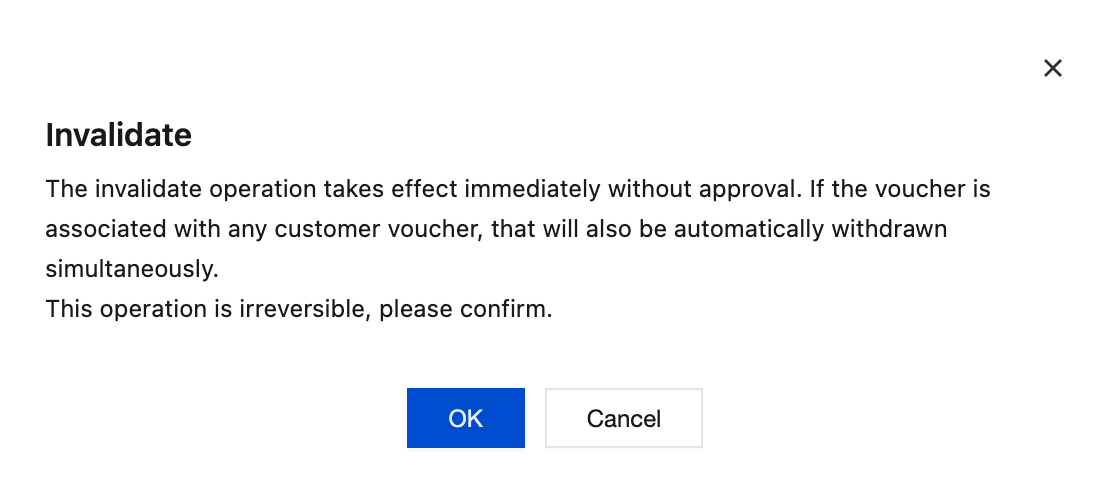
Click Invalidate to invalidate the voucher without approval. The operation is irreversible.
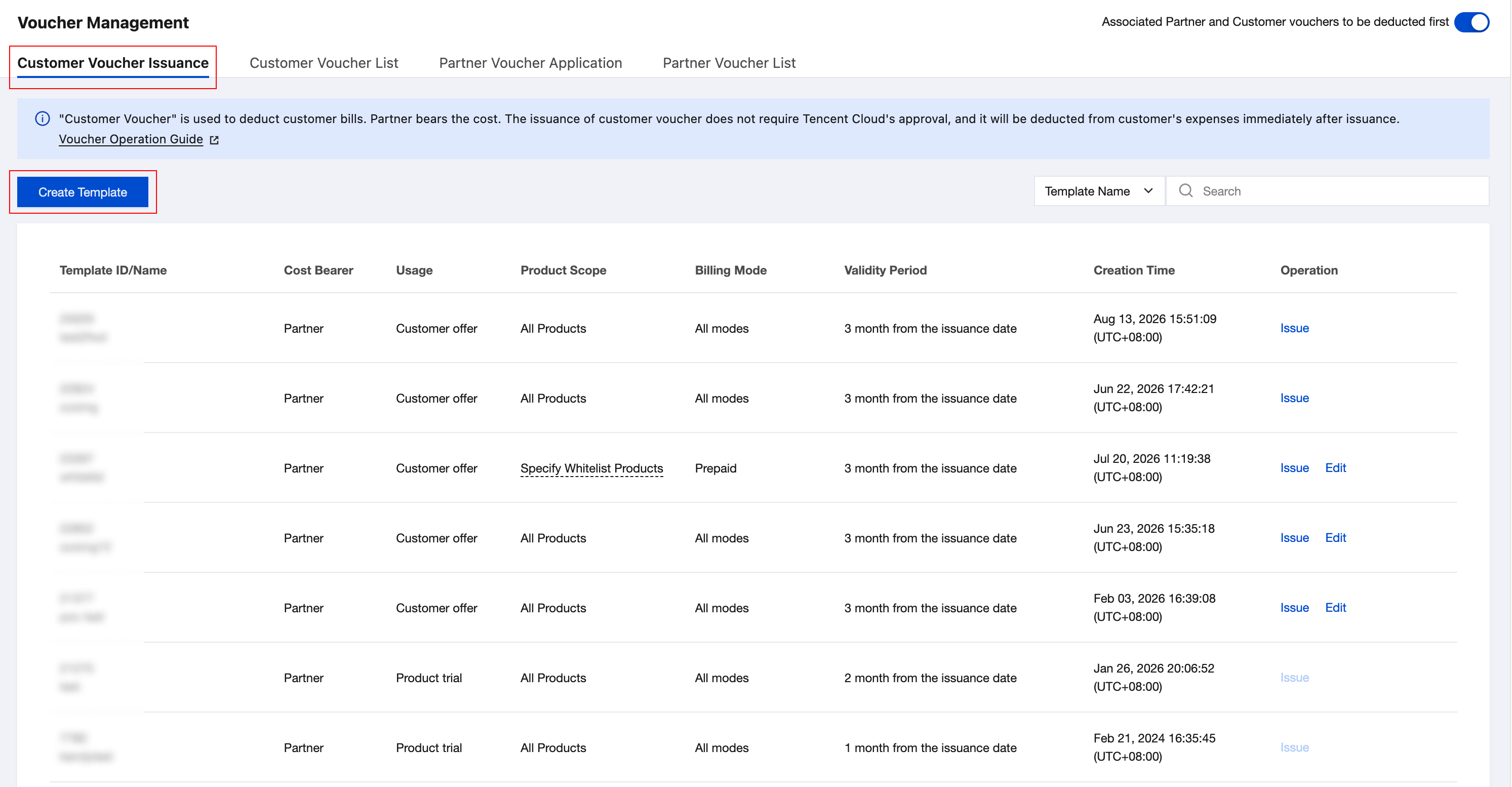
2. Select Sales > Voucher Management in the left sidebar to enter the Customer Voucher Issuance page. This page displays past used templates. Click Create Template.
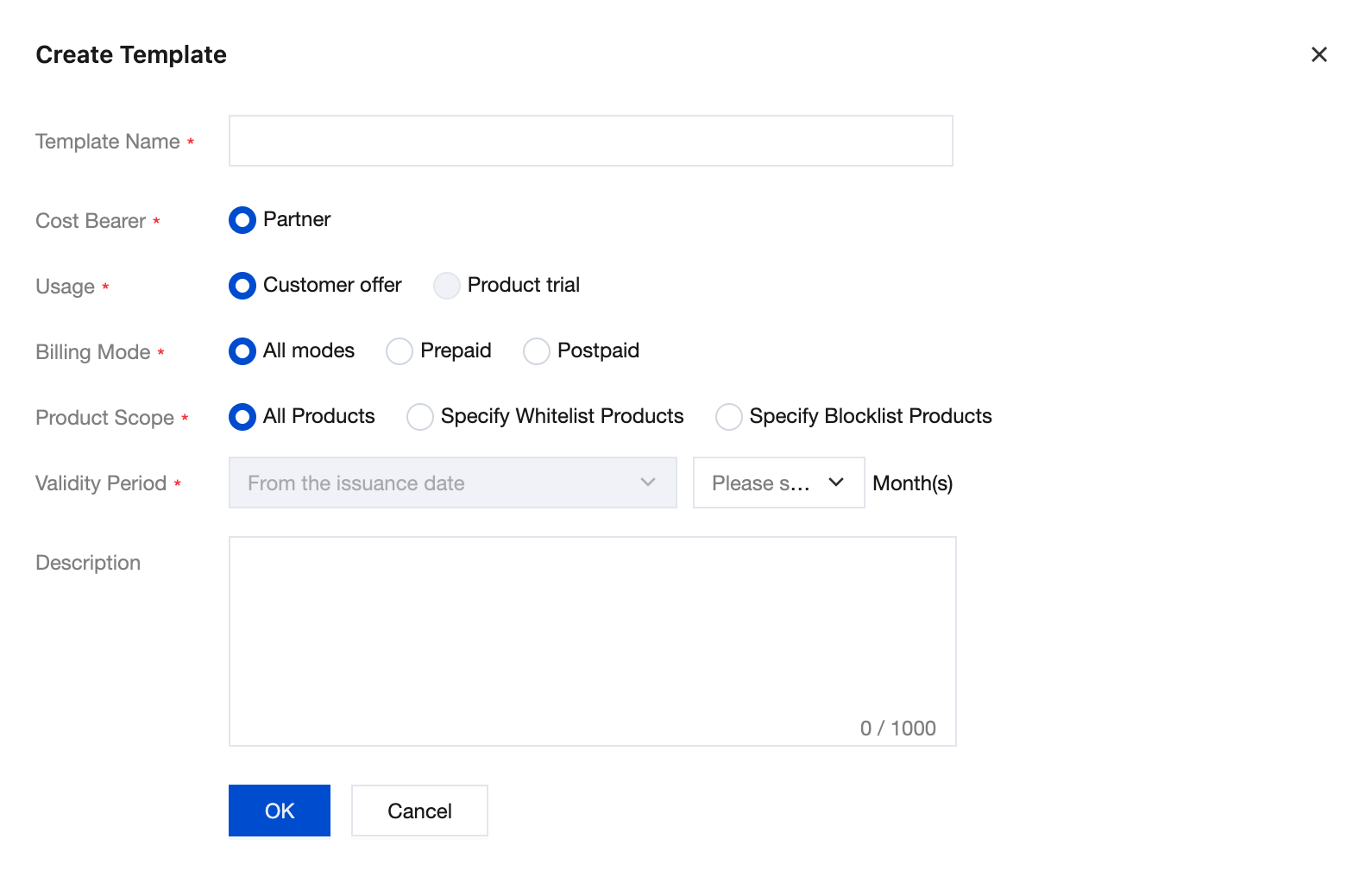
3. Fill in the voucher template info in the pop-up window.
Note:
Usage: Only vouchers designated for "Customer Discount" are supported. To issue a customer voucher for "Product Trial", first apply for a "Product Trial" partner voucher following the process described above in this document. After the partner voucher is approved, the system automatically issues the associated product trial customer voucher to the end customer.
All product voucher: Can be used to deduct any product.
Specified product voucher: Can only be used to deduct selected products.
Specific Product Blacklist Voucher: Specified products cannot be deducted.
4. After completing, click OK to save the voucher template.
5. After creation, you can view created voucher templates. Query by condition supported.
Note:
After a voucher template is created, you can still edit it if it has not been used to issue vouchers. If vouchers have been issued, the template cannot be edited again.
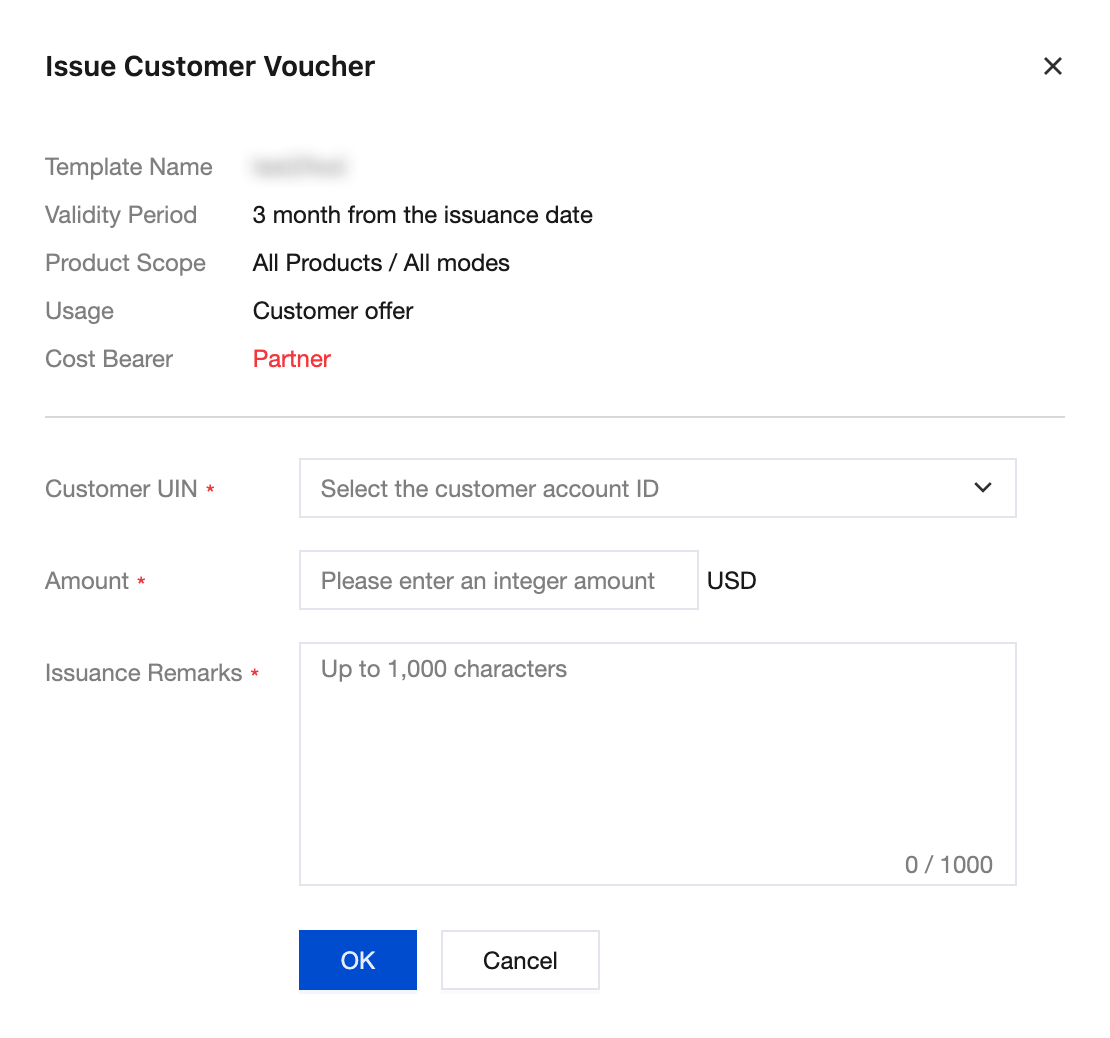
6. Click Issue in the operation list of the template, select the customer UIN to issue the promo voucher in the pop-up window, fill in the issuance amount which can differ from the template amount, then click OK to complete.
Note:
Issue customer vouchers without requiring Tencent approval. Once confirmed, they can start deducting customer expenses.
In group mode, issuing customer vouchers designated for "Customer offer" to group administrators or group members is not supported.
Templates created in the past for the purpose of "product trial" no longer support issuance operations.
Querying Customer Vouchers
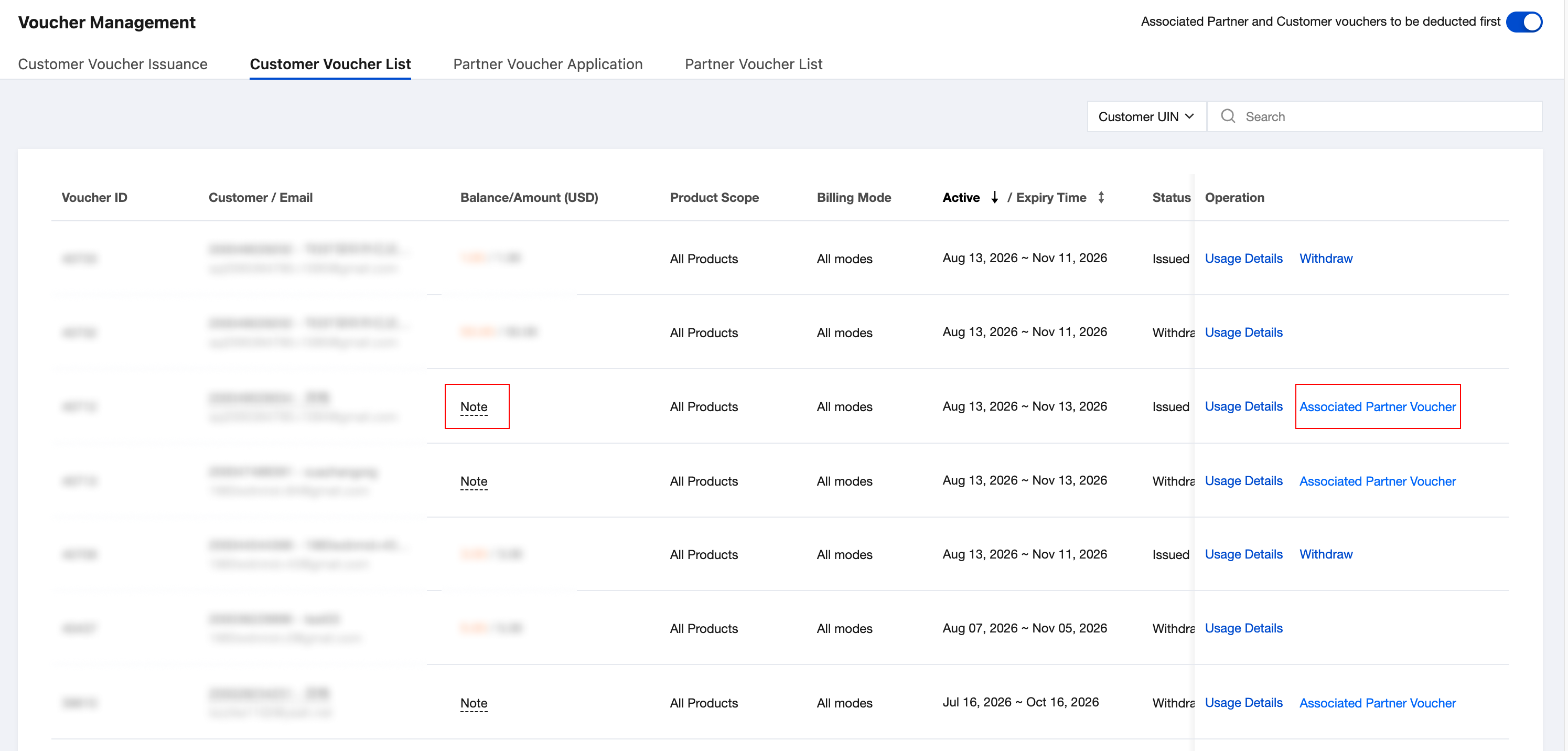
On the Customer Voucher List page, you can query the status, balance, and details of all customer vouchers. It supports full query or entering specific conditions to query.
For system-issued associated customer vouchers, the balance and total amount are not displayed, as they change dynamically based on the partner voucher total. Click Associated Partner Voucher to view the associated partner voucher.
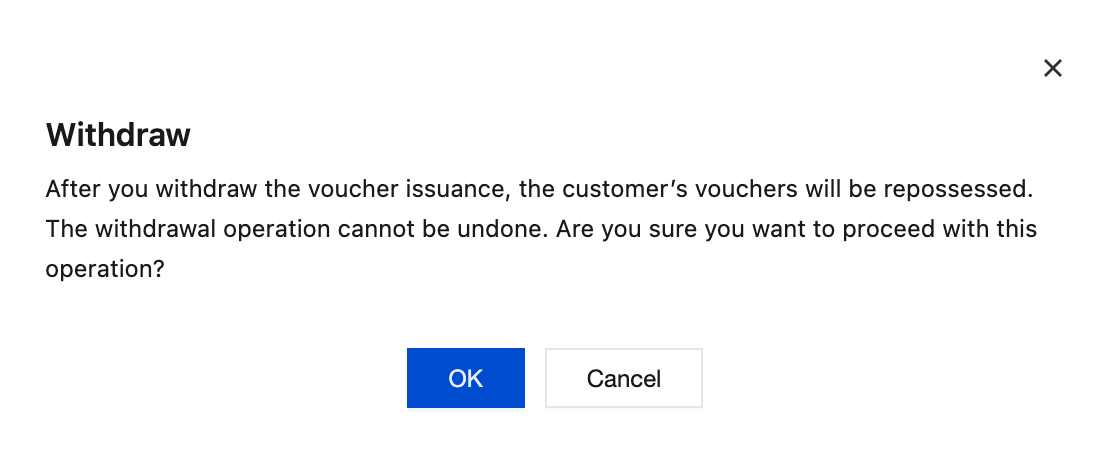
For vouchers with the purpose of "Customer offer" that are unused and unexpired, you can withdraw them by clicking Withdraw in the operation column. After withdrawal, the voucher cannot be used to offset subsequent expenses, while already deducted amounts remain unaffected. This operation is irreversible.
Vouchers with the purpose of "Product Trial" cannot be withdrawn individually. To withdraw them, first click the Associated Partner Voucher to navigate to the partner voucher list, then Invalidate the partner voucher. The system will synchronously withdraw the associated customer vouchers.
Click Usage Details in the operation column to view or download the voucher's specific deduction details.