Using the Shared Subscription Mode to Consume Messages
Unduh
Mode fokus
Ukuran font
Overview
To meet the needs of different scenarios, Pulsar supports four subscription modes: Exclusive, Shared, Failover, and Key_Shared.
1. Exclusive mode (default): A subscription can only be associated with one consumer, and only this consumer can receive all messages from the topic. If this consumer fails, consumption stops.
2. Shared mode: Messages are distributed to different consumers through a round-robin scheduling mechanism (customizable), and each message is sent to only one consumer. If a consumer disconnects, all messages that were sent to the consumer but have not been acknowledged will be reallocated and distributed to other active consumers.
3. Failover mode: When multiple consumers exist, they are ordered lexicographically, and the first consumer is initialized as the sole receiver of messages. If the first consumer disconnects, all messages (both unacknowledged and new ones) are distributed to the next consumer in the queue.
4. Key_Shared mode: When multiple consumers exist, messages are distributed based on their keys. Messages with the same key are distributed to the same consumer.
This document uses the demo provided on the official website as an example to introduce the features and usage of the Shared subscription mode.
Prerequisites
You have enabled public network access for the Pulsar instance or have purchased Cloud Virtual Machine (CVM).
Note:
Operation Steps
Step 1. Creating Pulsar Resources in the Console
1. Log in to the TDMQ for Apache Pulsar console and create a cluster and namespace.
2. In the left sidebar, choose the Topic tab, and select the created cluster and namespace for the current cluster and namespace respectively.
3. Click Create, enter the topic name and description, keep the other options as default, and click Save to create a topic.

4. Click Add Subscription in the operation column to create two subscription relationships for the created topic. Note: Only one subscription relationship is used in Shared subscription mode.
5. Choose More > View Subscriptions/Consumer in the operation column to view the created subscriptions.

Step 2. Downloading the Demo and Configuring the Related Parameters
1. Download the official demo and decompress it.
2. Modify the parameters in Constant.java.
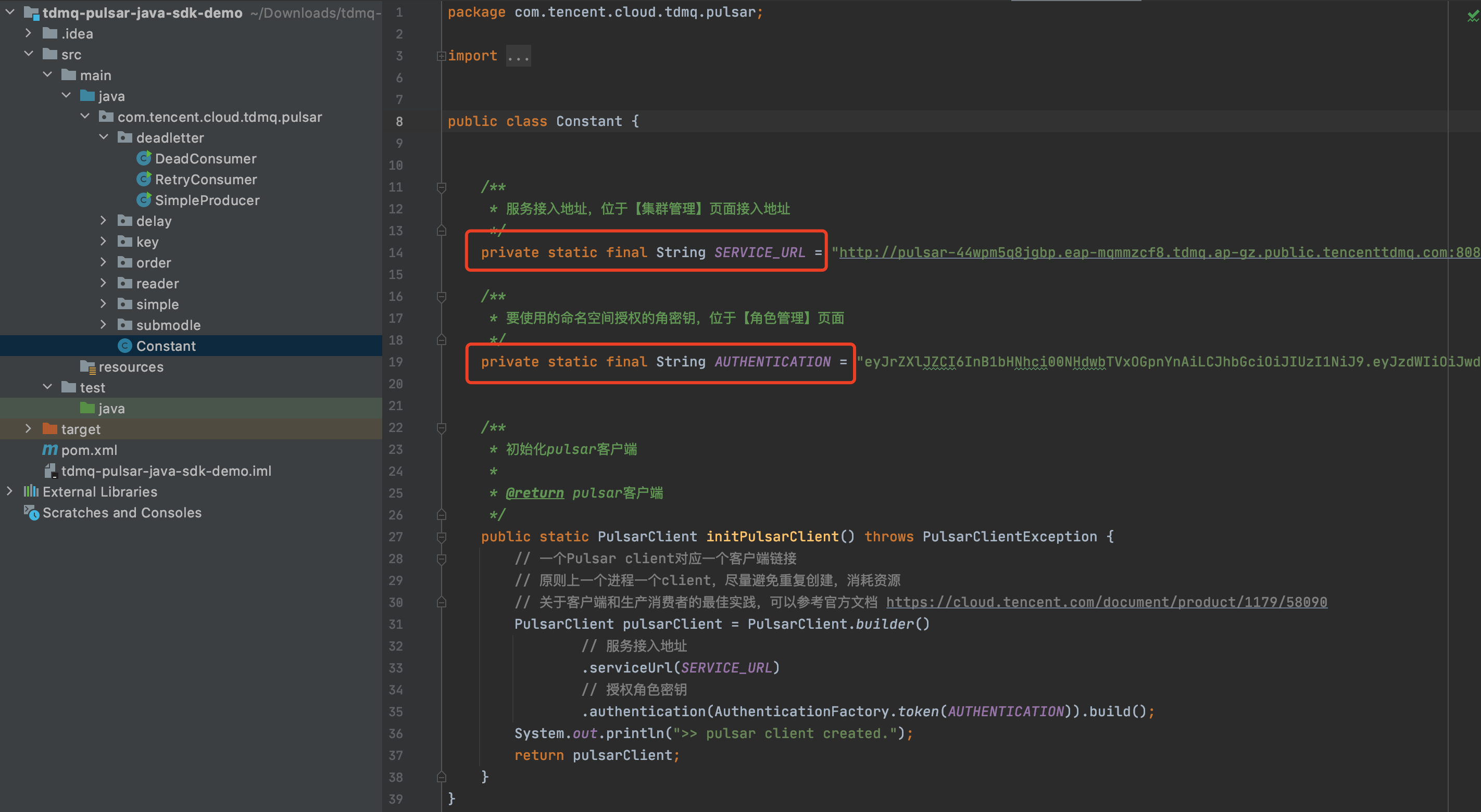
Parameter | Description |
SERVICE_URL | Address used to access a cluster. You can view and copy the address from the Cluster page in the console.  |
AUTHENTICATION | Role token. You can copy the role token from the Role Management page.  |
Step 3. Producing Messages
1. Go to the /simple directory and modify the parameters in SimpleProducer.java.
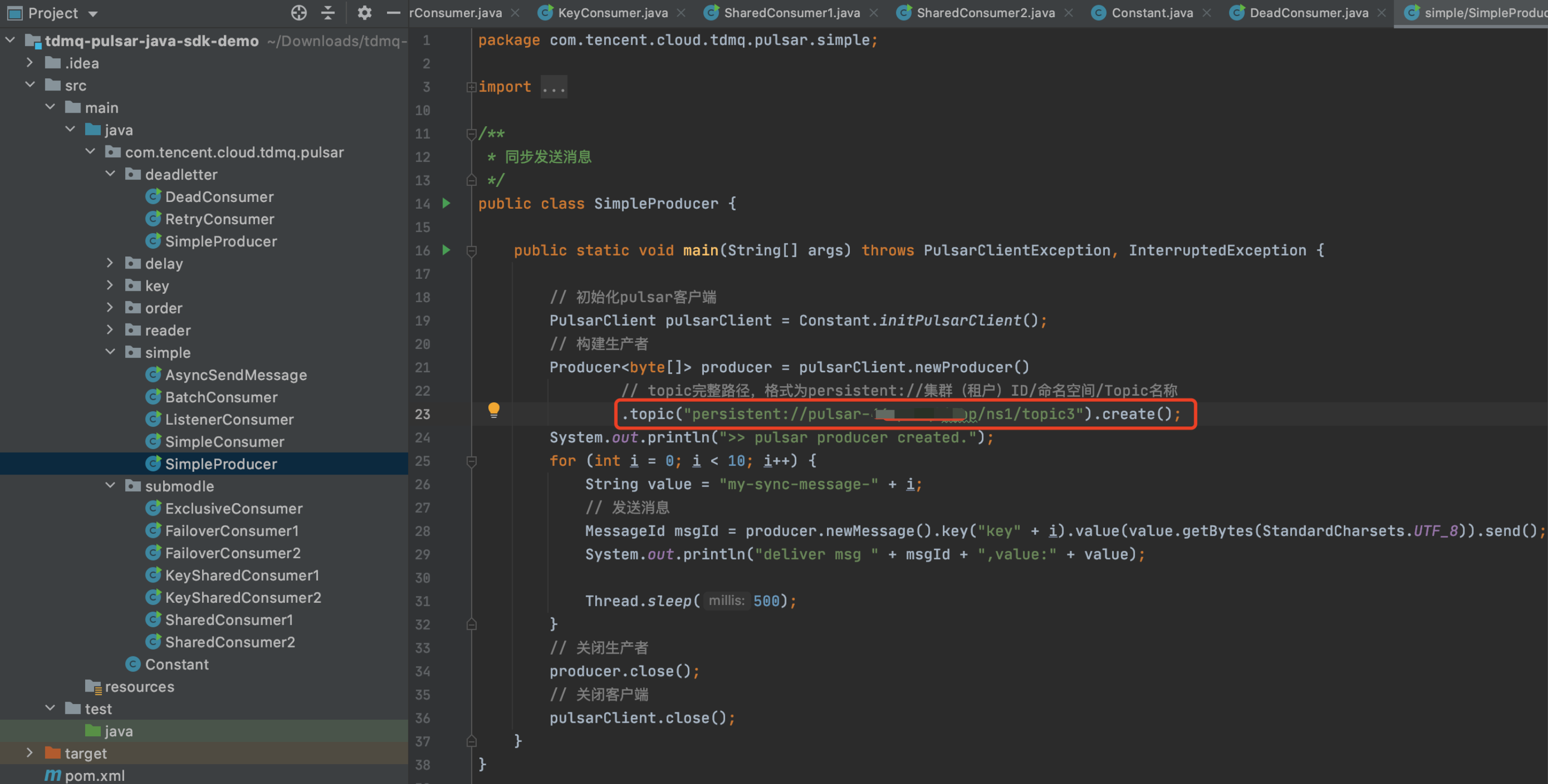
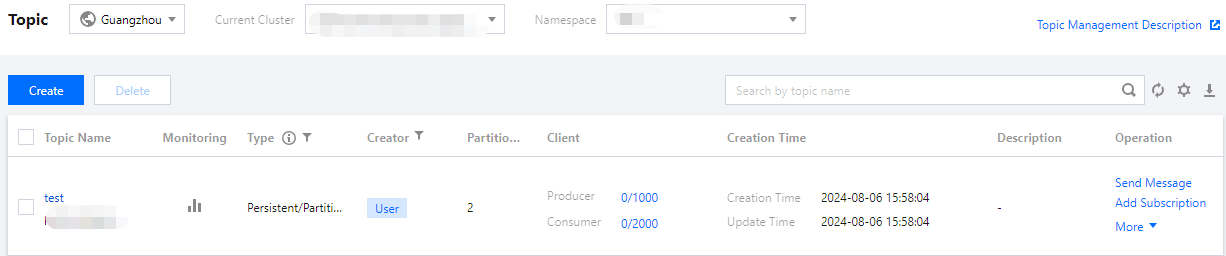
.topic: Enter the name of the created Topic3. You need to provide the full path in the format of persistent://clusterid/namespace/topic. You can copy the clusterid/namespace/topic part from the Topic page in the console.
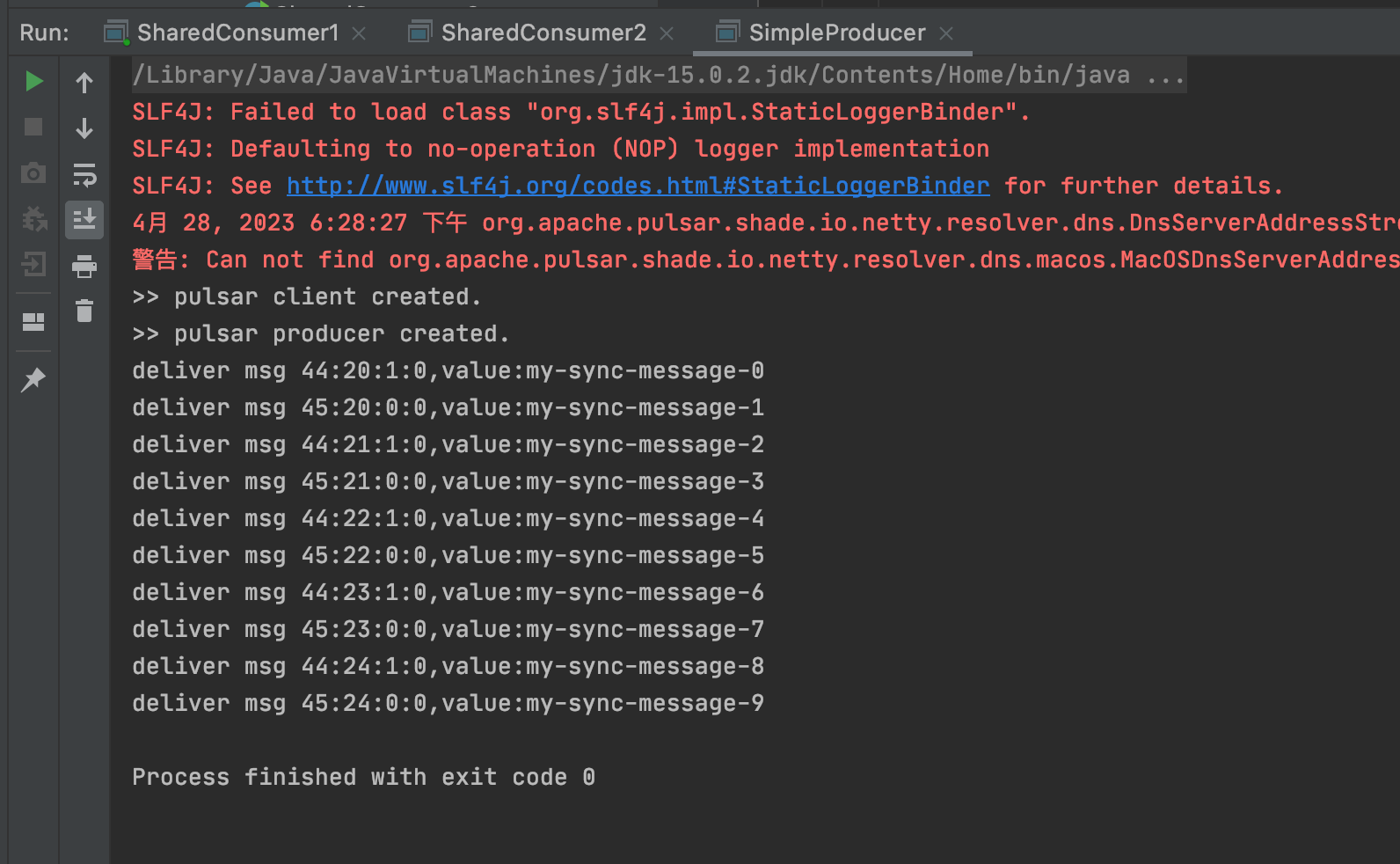
2. Compile and run the SimpleProducer.java program to send messages. The result is as follows, showing that the producer has delivered 10 messages to the topic.
Step 4. Consuming Messages
1. Go to the /submodule directory and modify the parameters in the SharedConsumer1.java and SharedConsumer2.java programs.
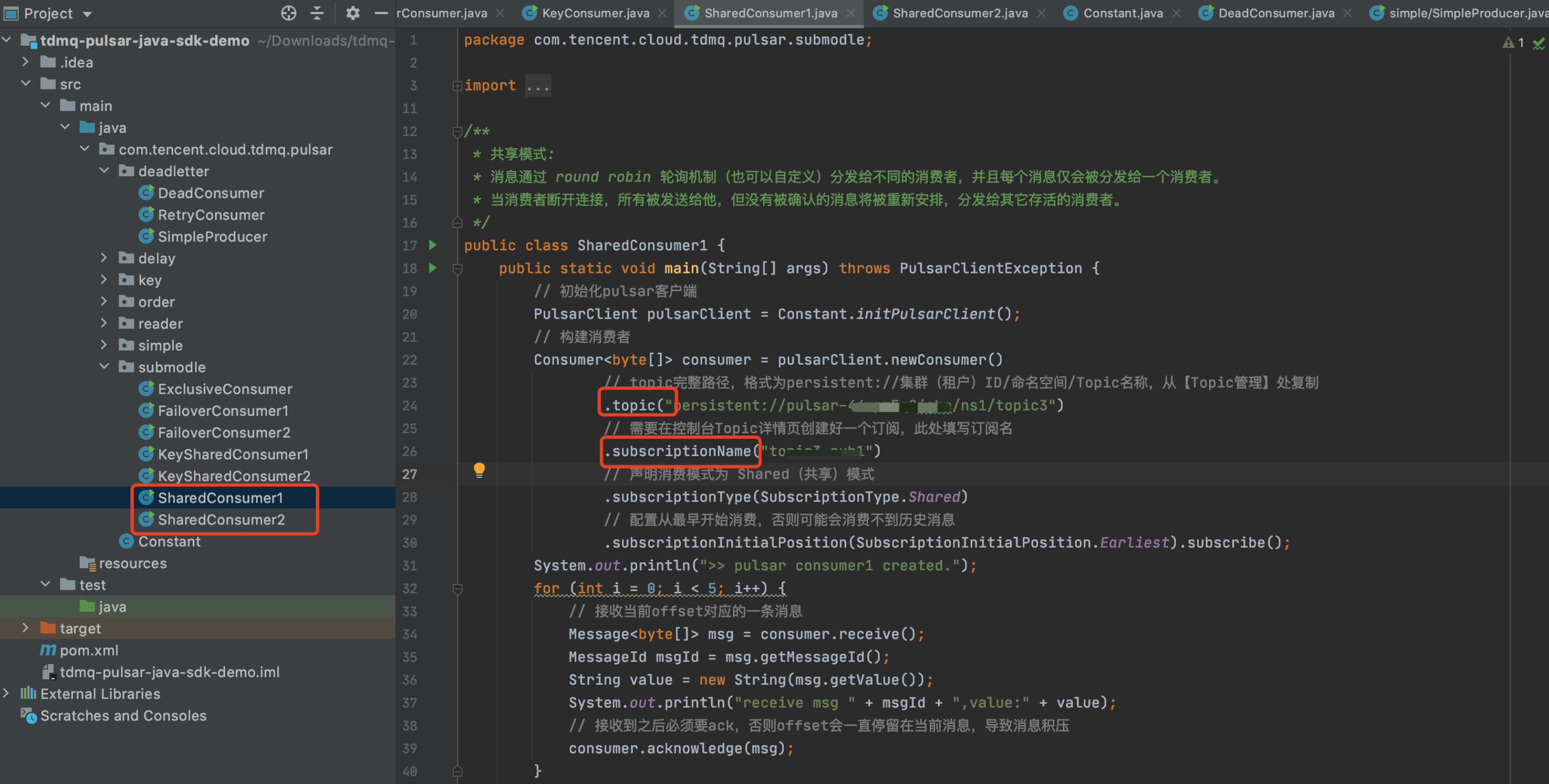
.topic: Enter the name of the created topic. You need to provide the full path in the format of persistent://clusterid/namespace/topic. You can copy the
clusterid/namespace/topic part from the Topic page in the console.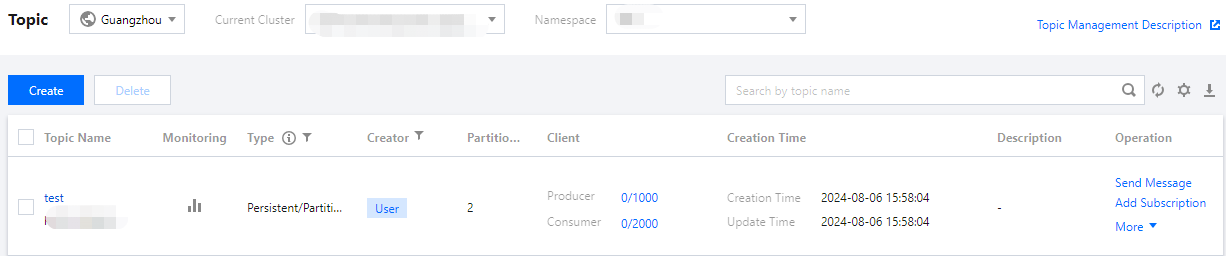
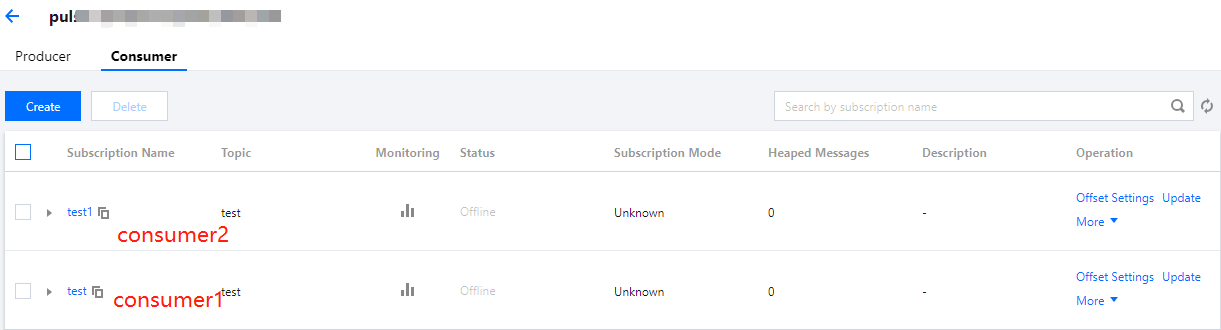
.subscriptionName: Enter the subscription name for the topic. You can view the subscription name on the Consumer tab of the topic. Enter the subscription name sub1 for both SharedConsumer1 and SharedConsumer2.
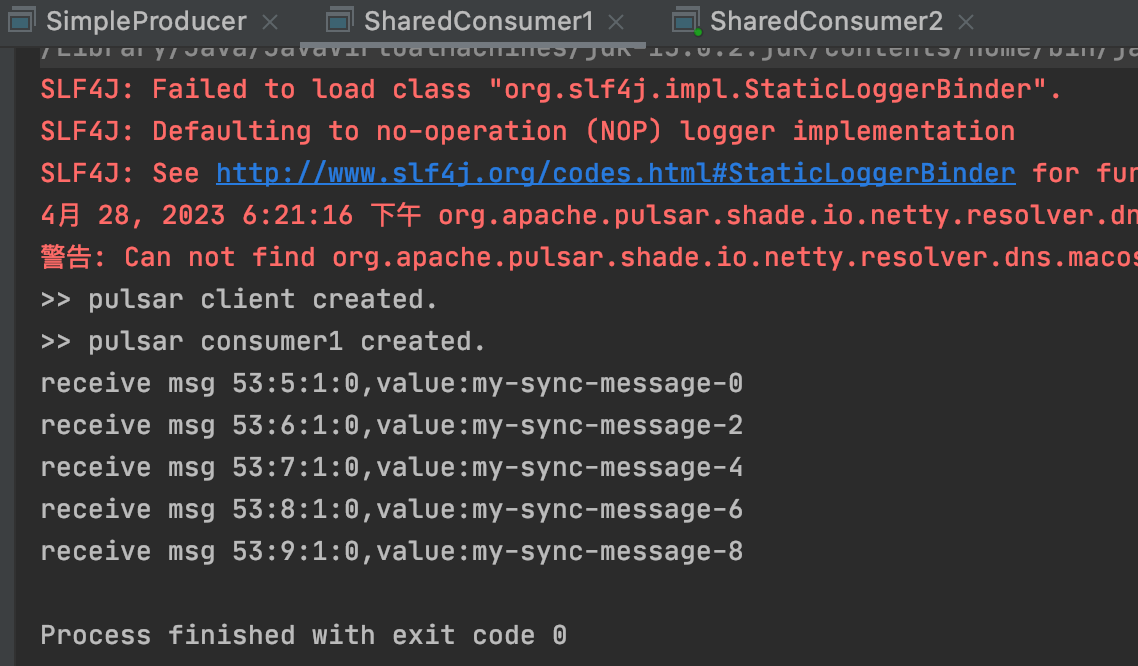
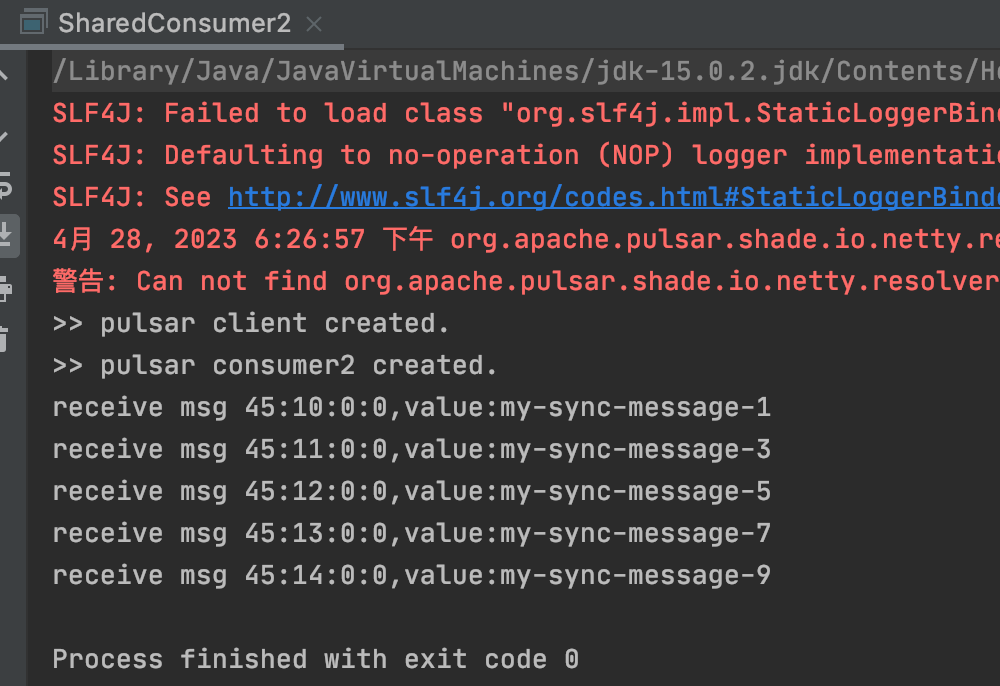
2. Compile and run the message retry programs SharedConsumer1.java and SharedConsumer2.java. The result is as follows:
Bantuan dan Dukungan
Apakah halaman ini membantu?
Anda juga dapat Menghubungi Penjualan atau Mengirimkan Tiket untuk meminta bantuan.
masukan