Associating HBase Dimension Table Data to TCHouse-C Using MySQL
ダウンロード
フォーカスモード
フォントサイズ
最終更新日: 2026-06-18 17:33:45
AI翻訳
This document provides a comprehensive guide on building a real-time data warehouse by integrating MySQL, SCS, HBase, and Tencent Cloud TCHouse-C. It details the full workflow, which involves using SCS to read data from MySQL, join it with dimension tables in HBase, and finally load the data into Tencent Cloud TCHouse-C for metric analysis.
Environment Setup
Creating an Oceanus Cluster
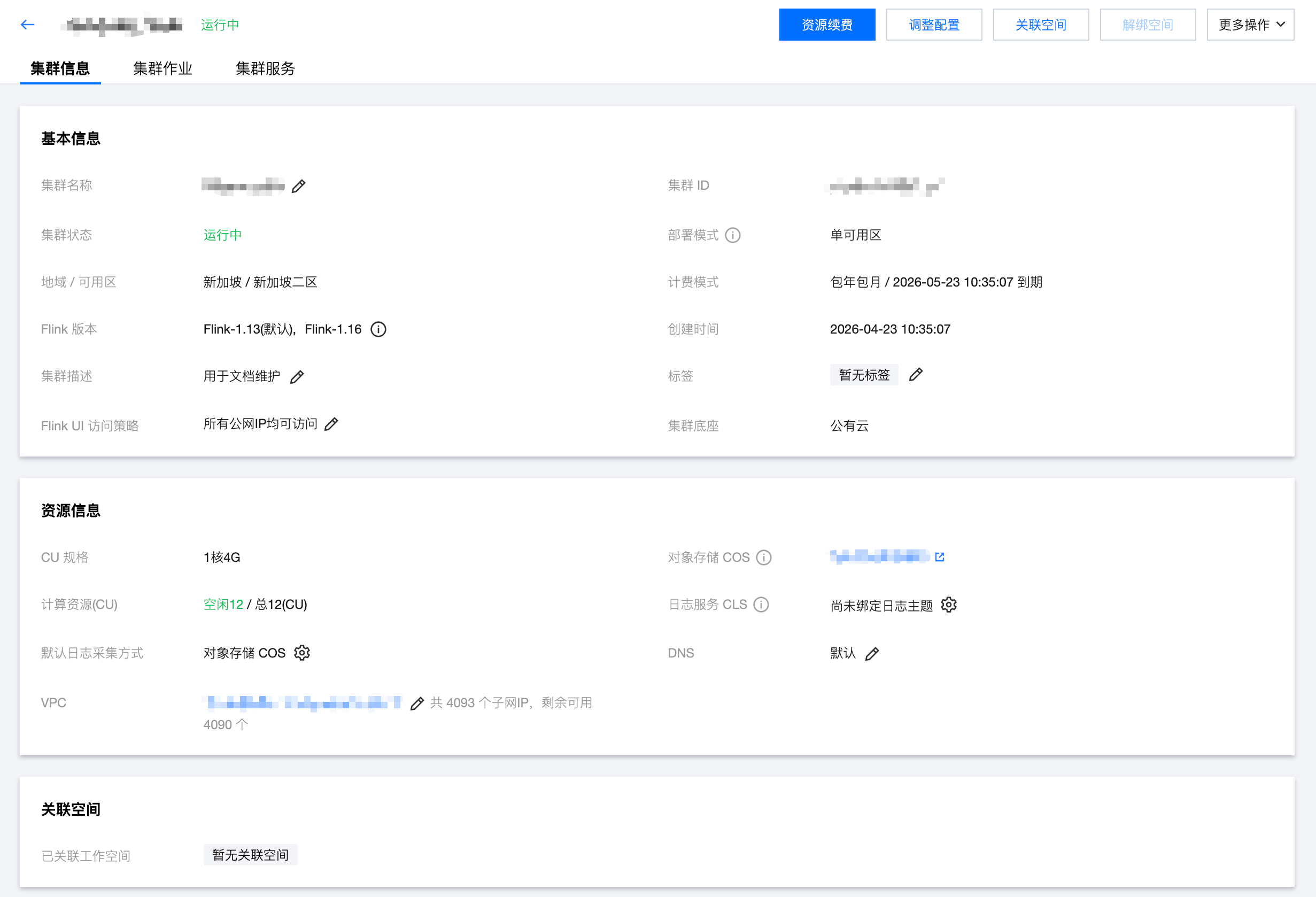
Create a cluster by navigating to Compute Resources > Create in the SCS console. Select the region, AZ, VPC, storage, logging options, and set the initial password. The created cluster appears as follows:
Note
If you have not used components such as VPC, logging, and storage, you need to create them first.
The VPC and subnet must be configured to be the same as those used by the MySQL and EMR clusters below. Otherwise, you need to manually establish connectivity, for example, by creating a Peering Connection.
Creating a VPC
A VPC is a logically isolated network space that you customize on Tencent Cloud. When building services such as MySQL, EMR, and TCHouse-C clusters, you must select the same network for them to communicate. Otherwise, you need to establish network connectivity using methods like Peering Connection or VPN.
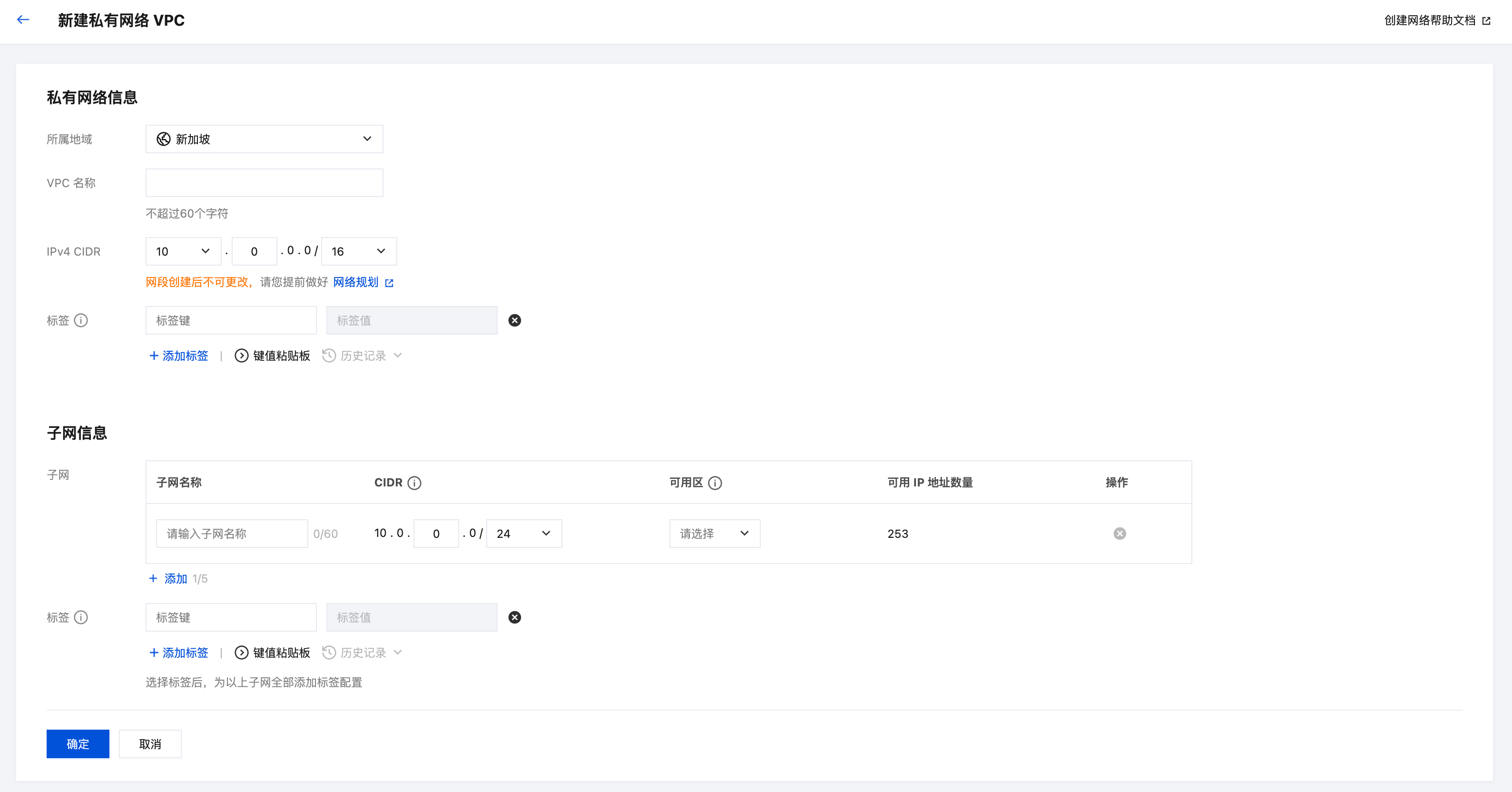
Log in to the VPC console, select VPC > +Create, and create a VPC.
Creating a TencentDB for MySQL Instance
TencentDB for MySQL is a high-performance, distributed data storage service professionally built by Tencent Cloud based on the open-source MySQL database. It enables users to set up, operate, and scale relational databases more easily in the cloud.
1. Log in to the TencentDB console, choose Instance List > Create, and create an instance.
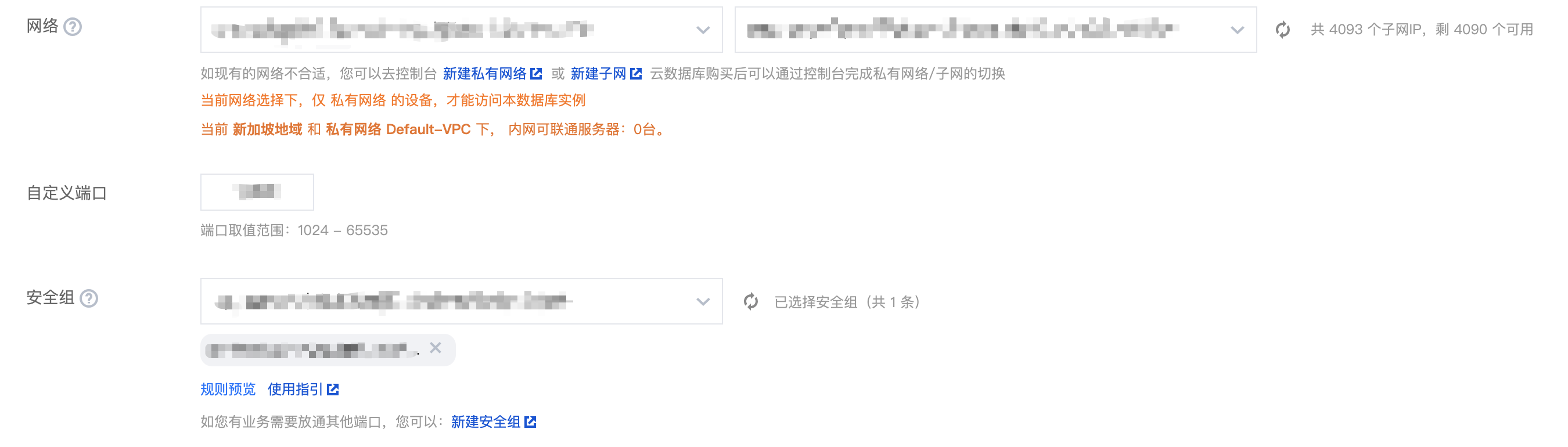
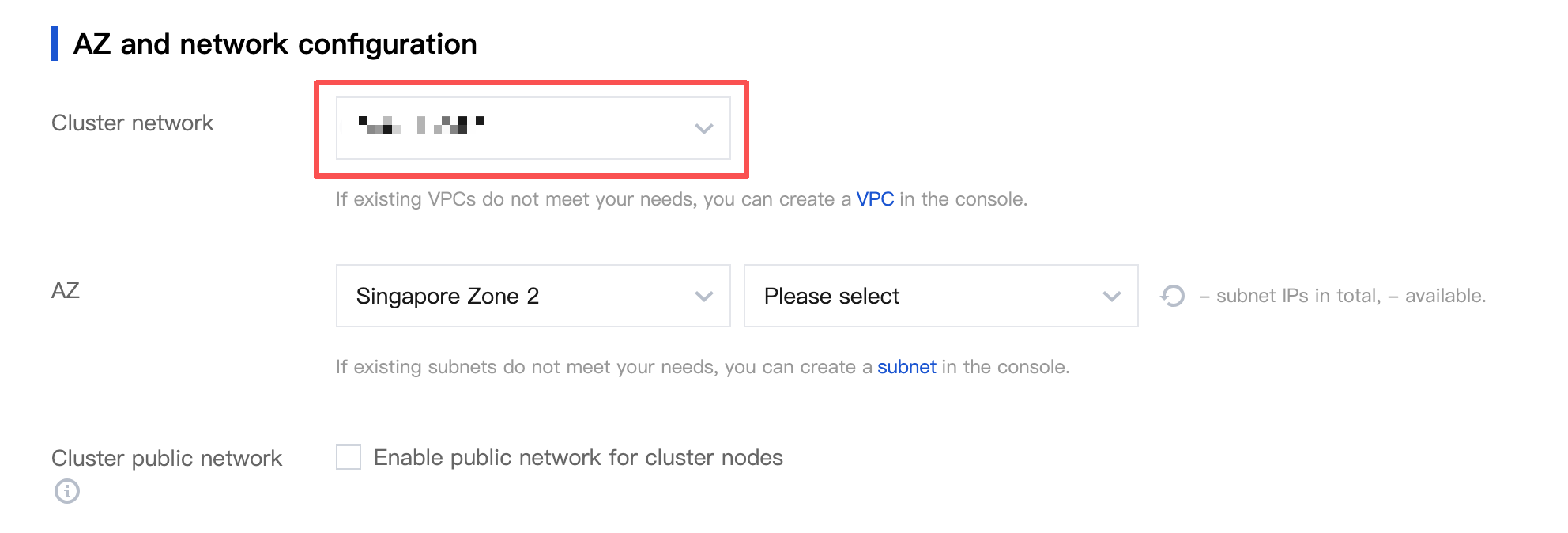
2. When a MySQL service is created, you must select the network that was previously created.
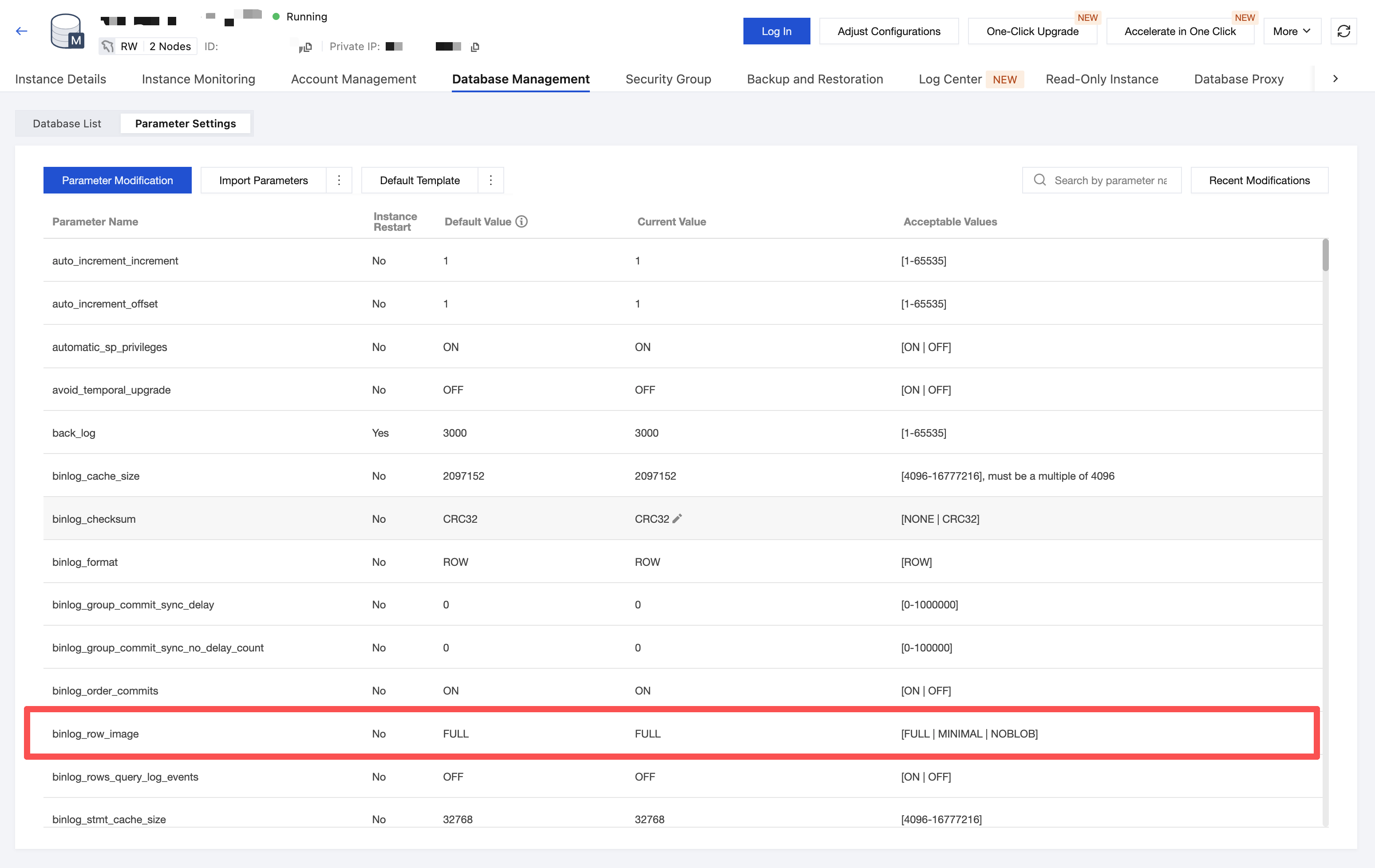
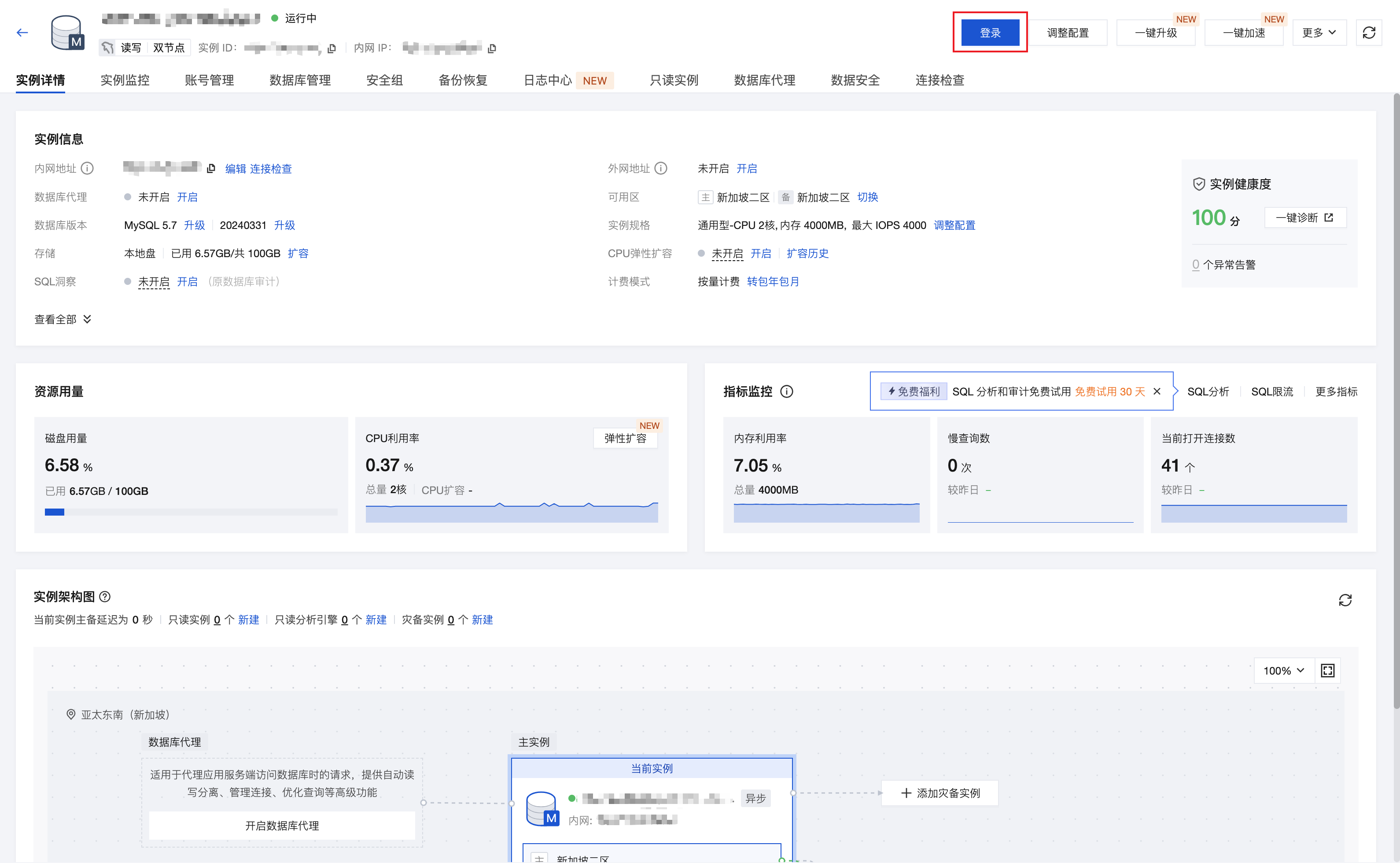
3. After creating the MySQL service, you need to modify the binlog parameter. As shown in the figure, change it to FULL (the default value is MINIMAL).
4. After modifying the parameters, log in to MySQL and create the databases and tables required for the example.
Creating a Database
1. Log in to MySQL and create the database required for the example.
2. Open the SQL window or click the visualization page to create the database and tables.
Creating a Database
create database mysqltestdb;
Create the table `student` in the newly created database:
create table `student`(
`id` int(11) not null auto_increment comment 'Primary key id',
insert into mysqltestdb.student(id,name,age) values(1,"xiaomin",20);
Creating an EMR Cluster
EMR is a cloud-hosted, elastic, open-source, general-purpose Hadoop service that supports big data frameworks such as Spark, HBase, Presto, Flink, and Druid. This example primarily requires the use of the HBase component.
1. Log in to the EMR console, select Cluster List > Create Cluster, and start creating a cluster. For details, refer to Create an EMR Cluster. When creating the cluster, you need to select and install the HBase component.
For a production environment, you can select server configurations based on actual requirements. For the network, select the VPC network you created earlier, and ensure that all service components remain within the same VPC.
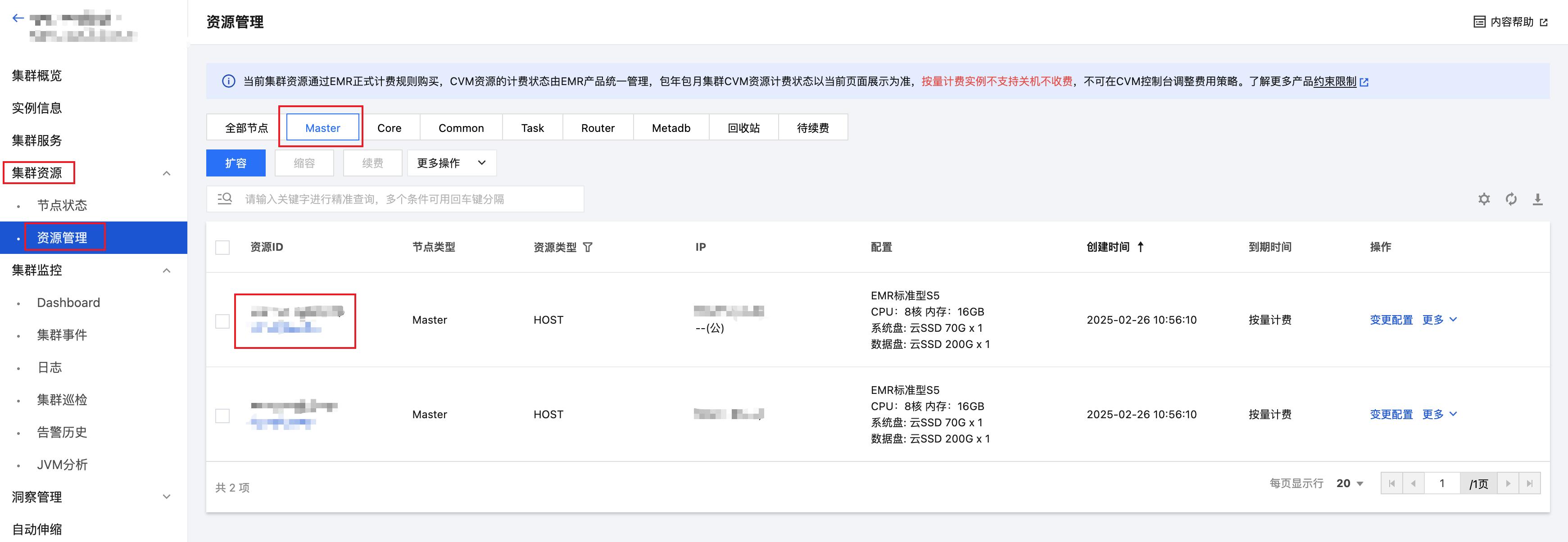
2. In the cluster list, click the ID/Name of the newly created cluster to go to the cluster details page. Select Cluster Resources > Resource Management to enter the HBase Master node.
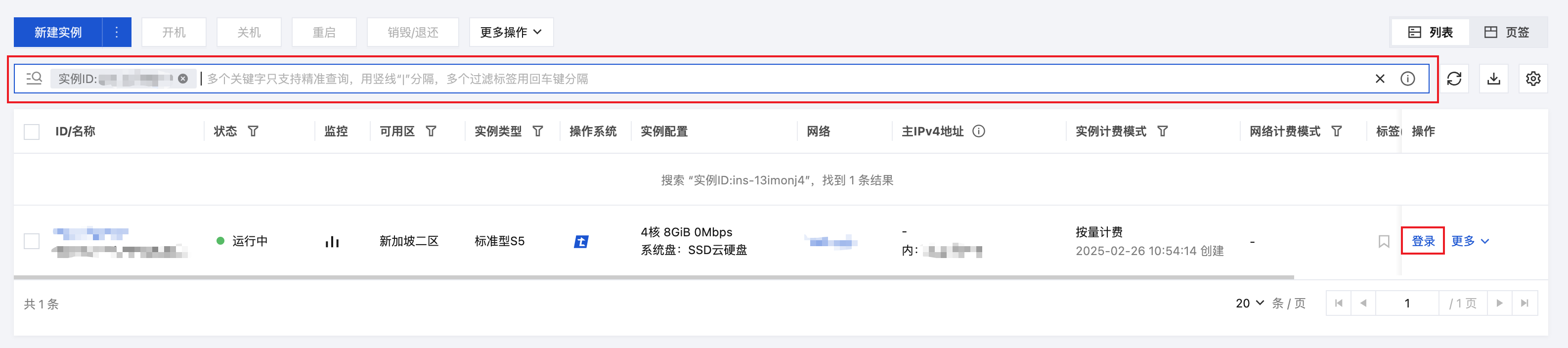
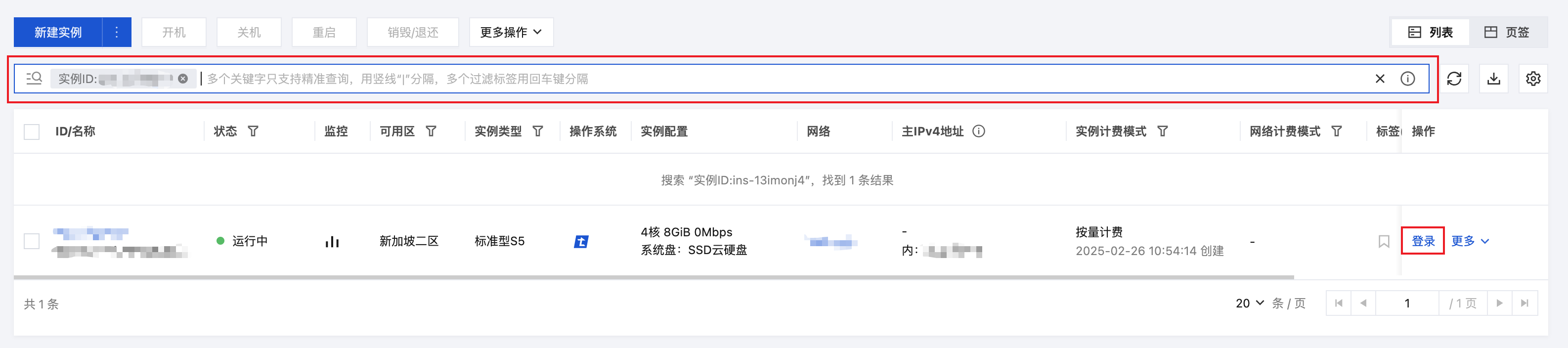
3. Go to the CVM console, search for the EMR instance ID, and then click Log In to enter the server.
4. Create an Hbase table.
# Enter the HBase command.
root@172~# hbase shell
Enter the hbase shell and create a table:
# Table creation statement  create ‘dim_hbase’, ‘cf’
# Insert the data.  put ‘dim_hbase’,’1’,’cf:name’,’MingDeSchool’
Creating a TCHouse-C Cloud Data Warehouse
New Clusters
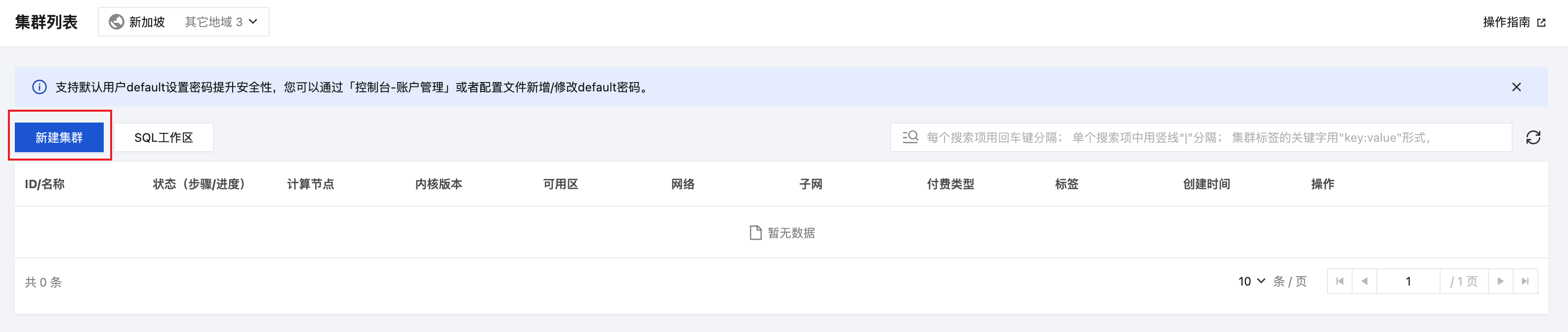
1. Log in to the TCHouse-C console, select Cluster List > Create Cluster, and create a cluster.
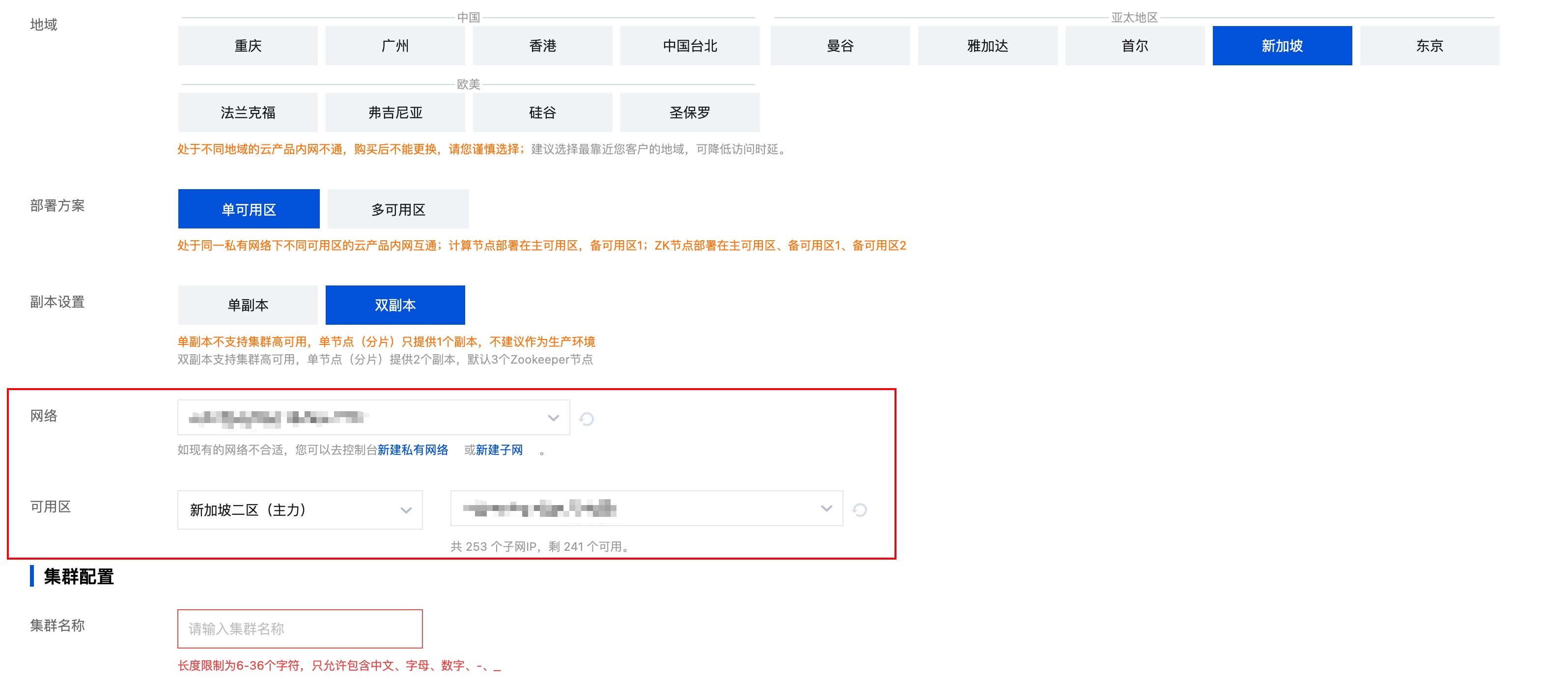
2. Select the VPC network you created earlier (ensuring that all services remain within the same network).
Logging in to TCHouse-C
Under the previously created EMR, select a CVM and click Log In. It is recommended to select a node with a public IP address.
Installing the ClickHouse Client
Install the ClickHouse client on this machine. For the clickhouse-client installation, see Quick Start.
Logging in to the Client
The client login example is as follows:
clickhouse-client -h <Your ClickHouse service IP> --port 9000
Create a database:
create database testdb on cluster default_cluster;
Create a table:
CREATE TABLE testdb.student_school on cluster default_cluster (
`id` Int32,
`name` Nullable(String),
`school_name` Nullable(String),
`Sign` Int8
) ENGINE = ReplicatedCollapsingMergeTree('/clickhouse/tables/{layer}-{shard}/testdb/ student_school, '{replica}', Sign) ORDER BY id;
Data Cleaning and Processing
Data preparation
Create a table as described above, and insert data into the MySQL and HBase tables.
Creating a Flink SQL Job
Create an SQL job in the SCS console and select the corresponding built-in Connector.
Source End
MySQL-CDC Source:
-- Student information as the cdc source table
CREATE TABLE `student`(
`id` INT NOT NULL,
`name` varchar,
`age` INT,
proc_time AS PROCTIME(),
PRIMARY KEY (`ID`) NOT ENFORCED
) WITH (
'connector'='mysql-cdc',
-- Must be 'mysql-cdc'
'hostname'='YoursIp',
-- Database IP
'port'='3306',
-- Database access port
'username'='username',
-- Username for database access (requires SHOW DATABASES, REPLICATION SLAVE, REPLICATION CLIENT, SELECT, RELOAD privileges)
'password'='YoursPassword,
-- Password for database access
'database-name' = 'mysqltestdb',
-- Database to be synchronized
'table-name' = 'student' -- Name of the data table to be synchronized
);
HBase dimension table:
-- Example: Using school information as the dimension table
CREATE TABLE dim_hbase (
rowkey STRING,
cf ROW <school_name STRING>, -- If there are multiple column families, use the format cf Row<age INT, name String>
PRIMARY KEY (rowkey) NOT ENFORCED
) WITH (
'connector'='hbase-1.4',
'table-name'='dim_hbase',
'zookeeper.quorum'='The zookeeper address of the user's own hbase server, with multiple addresses separated by commas'
);
Sink End
Create the CREATE TABLE statement for TCHouse-C.
-- Store the associated data in the clickhouse table.
CREATE TABLE `student_school`(
stu_id INT,
stu_name STRING,
school_name STRING,
PRIMARY KEY (`id`) NOT ENFORCED
) WITH (
-- Specify database connection parameters.
'connector'='clickhouse',
'url'='clickhouse://yourIP:8123',
-- You can omit this if the TCHouse-C cluster is not configured with a username and password.
--'username'='root',
--'password'='root',
'database-name'='testdb',
'table-name'=' student_school ',
'table.collapsing.field'='Sign'
);
Performing Logical Operations
In this example, only a simple Join is performed without complex computations. For detailed computational logic, refer to Oceanus Operators and Built-in Functions.
INSERT INTO
student_school
SELECT
student.id as stu_id,
student.name as stu_name,
dim_hbase.cf.school_name
FROM
student
JOIN dim_hbase for SYSTEM_TIME as of student.proc_time
ON CAST(student.id AS STRING)= dim_hbase.rowkey;
Verifying the Result
Query the database to verify whether the data is correct.