Online Service Deployment
Download
Focus Mode
Font Size
After completing the training of the model or the development of the custom image, you can use the model service module to deploy it as an online service.
Prerequisites
Upload the custom image to the Tencent Container Registry (TCR).
Directions
1. Log in to the TI-ONE console. Select Model Service > Online Service in the left navigation bar to enter the online service list page.
2. On the service list page, click create service to enter the service startup page.
3. On the service startup page, configure relevant parameters of the online services.
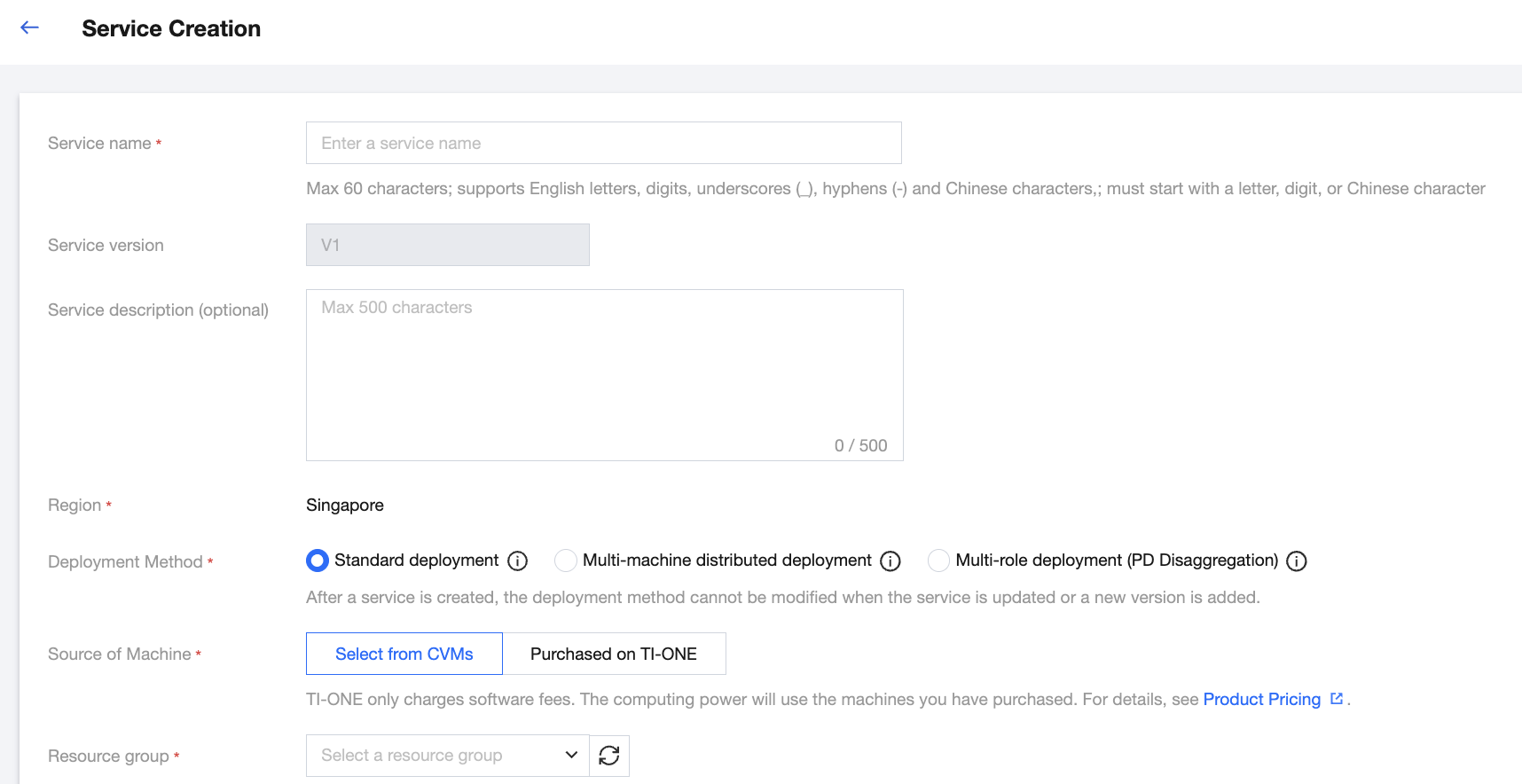
3.1 Basic service information
Parameter | Description |
Service Name | Fill in the service name as per the UI prompts. |
Service Version | Version No. is automatically generated by the system. |
Service Description | Configure service configuration description on demand. |
Region | Services under the same account are isolated by region. The value of the region field is automatically populated according to the region you select on the service list page. |
Deployment Mode | Select standard deployment or multi-machine distributed deployment. (a) In the standard deployment mode, there is 1 node running under a single replica, suitable for most standard scenarios. (b) In the multi-machine distributed deployment mode, multiple nodes operate in a coordinated manner under a single replica, suitable for scenarios where the model requires multi-machine parallel processing. Note: After a service is created, you cannot modify the deployment method for updating the service or adding a new version. Please choose carefully when creating a new service. |
Machine source | Selectable: "Select from CVMs" or "Purchased on TI-ONE": (A) In "Select from CVMs" mode, you can use the resource group of the CVM instances purchased in the resource group management module to deploy services. The computing fees have been paid when purchasing the resource group, and no fees will be deducted when starting the service. (B) In the "Purchased from the TI-ONE" mode, users do not need to pre - purchase resource groups. According to the computing power specifications required by the service, the fees for two hours will be frozen when starting the service. Then, fees will be deducted hourly based on the number of running instances. |
Resource group | If you select the "select from CVM instances" mode, you can select a resource group from the resource group management module. |
3.2 Instance container information
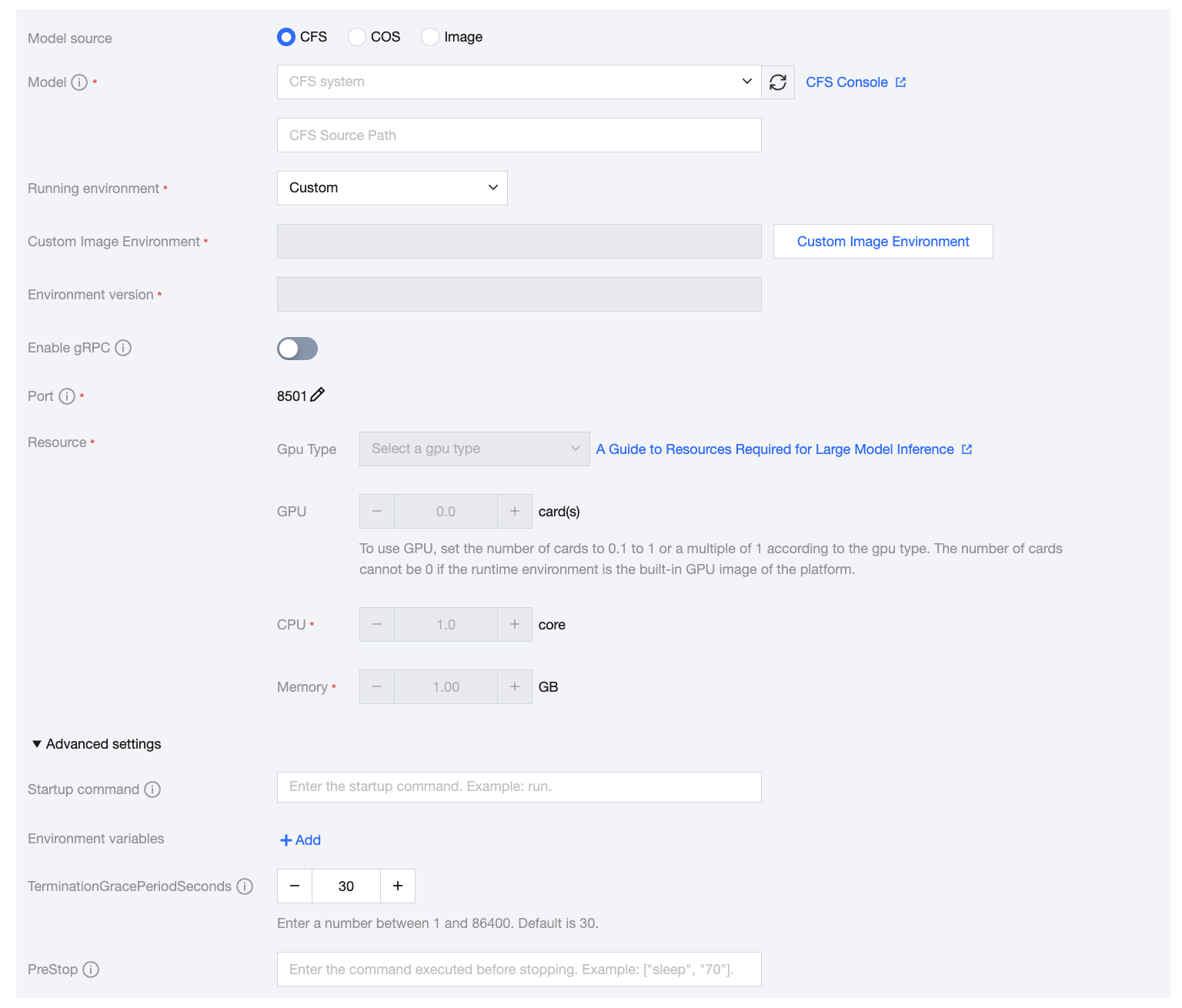
Parameter | Description |
Model Source | Select whether a model file is required when starting the service. (A) Select CFS scenarios where the model files required for deploying services have been placed in the CFS file system. Select the CFS instance where the model is located, and enter the path up to the level of the model's location (for example, if the model is a fine-tuned checkpoint500, enter the path up to the /a/b/checkpoint500 level). Turbo CFS only supports usage in the yearly/monthly subscription mode. (B) Select COS scenarios where the model files required for deploying services have been placed in the COS file system. Select the bucket instance where the model is located and the level of the path where it is located. COS is only supported in the yearly/monthly subscription mode. (C) Select image scenarios where the custom image required for deploying services has encapsulated the model files, making it unnecessary to proceed with model file mounting, and the custom image has been uploaded to Tencent Container Registry (TCR); or scenarios with a built-in large model. |
Running Environment | (A) If selecting a model from CFS, the runtime environment needs to select the corresponding built-in image based on the model file. (B) If selecting a model from COS, the runtime environment needs to select the corresponding built-in image based on the model file in COS. (C) If selecting a model from an image, the runtime environment can choose a custom image uploaded to Tencent Container Registry (TCR), input an image address, or use a built-in large model image. |
Storage Mounting | In pay-as-you-go mode, the total size of model packages supported by the local disk is about 45 GB by default. In yearly/monthly subscription (resource group) mode, model packages will be stored on the disks mounted on resource group nodes (the total size of a single-node disk of the resource group is about 50 GB). When the size of your model package exceeds the limit, you need to additionally configure a CFS file system. The platform will automatically use the CFS file system to store models. When the service stops or is updated, the platform will automatically help users clean up the files in the CFS source path by default. Please ensure that there is no other data in this path. Turbo CFS is only supported in the yearly/monthly subscription mode. |
Model Hot Update | After the automatic hot update of the model is configured, the model service will automatically synchronize the model files to the local disk of the service. In pay-as-you-go mode, the total size of the model package supported by the local disk is about 45 GB by default. In yearly/monthly subscription (resource group) mode, the model package will be stored on the disks mounted to resource group nodes (the total size of a single-node disk of the resource group is about 110 GB). Please reasonably configure the model cleanup cycle. The current version only supports hot updates of models with the inference image of tfserving. In addition, since the model hot update will continuously download models to the local disk of the service, the model package needs to be configured with an automatic model cleanup policy, or the model service has an external CFS file system mounted before starting the model hot update. |
Resource Application/Compute Specifications | (a) In yearly/monthly subscription (resource group) mode, you can set the quantity of resources to be applied from the selected resource group for starting up the current service. (b) In pay-as-you-go mode, you can select the required computing power specifications to start the current service as needed. |
Startup Command | Optional. You can configure the startup command of a container. |
Environment Variables | Optional. You can configure the environment variables of a container. |
3.3 Advanced service configurations
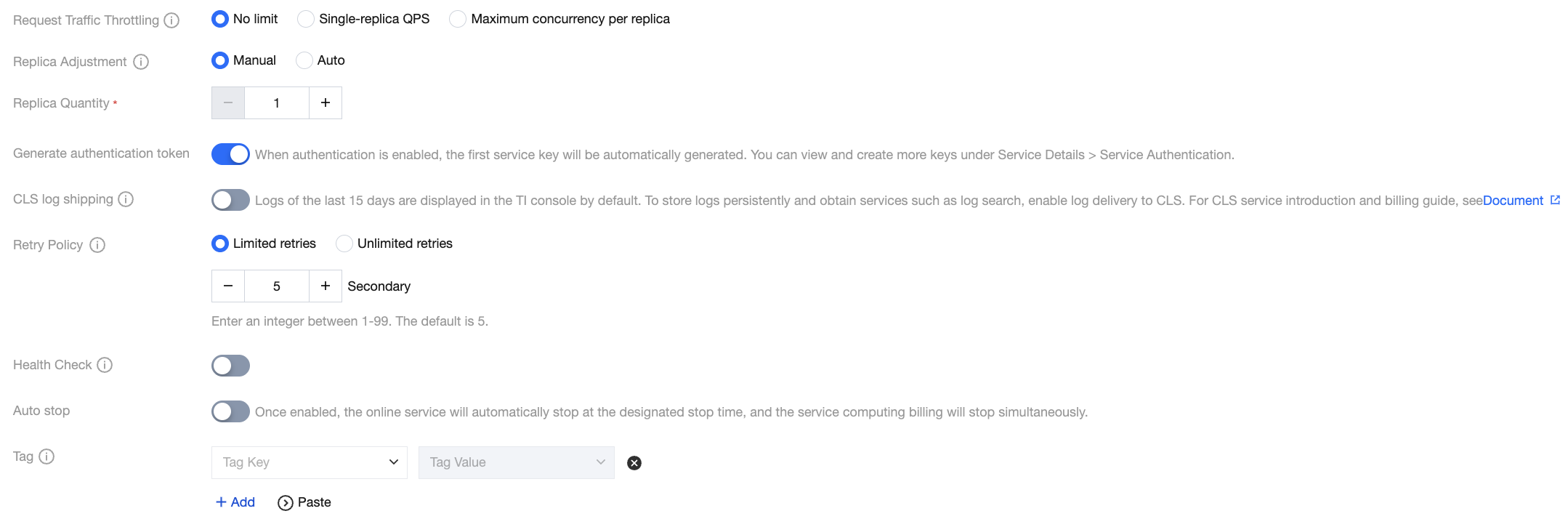
Parameter | Description |
Request Throttling | You can configure service throttling values: 1. This throttling value is the value for a single replica. When the service performs scaling, the overall service throttling value will be updated according to the sum of Set value x Number of replicas; 2. The maximum QPS of a service group is 500. When the total service throttling value set under the service group is more than 500, throttling will be carried out using 500. |
Replica adjustment | (a) In the manual adjustment mode, you can customize the number of service instances. The minimum number of instances is 1. (b) In the automatic adjustment mode, you can choose a time-based or HPA-based adjustment policy. For details, please view Online Service Operation. |
Whether to Generate Authentication | If authentication is enabled, signature authentication will be performed during service invocation. For started services, you can view the signature key and signature calculation guide on the service invocation page. |
CLS Log Shipping | The platform provides users with free storage of service logs in the past 15 days. You can enable CLS Log Shipping for persistent log storage, as well as more flexible log retrieval and log monitoring and alarm. Once the feature is enabled, service logs will be shipped to Tencent Cloud Log Service (CLS) according to log sets and log topics. |
retry policy | Configure the retry logic to be used when service deployment fails. It supports "limited retries" or "unlimited retries". This logic is only used when deploying a new service; when updating a service or starting a stopped service, the system will use "unlimited retries". |
Health Check | Kubernetes' health check mechanism supports automatically detecting and recovering failed containers to ensure smooth traffic distribution to healthy instances. |
Request Throttling | You can configure service throttling values: 1. This throttling value is the value for a single replica. When the service performs scaling, the overall service throttling value will be updated according to the sum of Set value x Number of replicas; 2. The maximum QPS of a service group is 500. When the total service throttling value set under the service group is more than 500, throttling will be carried out using 500. |
Automatic Stop | The platform supports the automatic stop of the model service. After Automatic Stop is enabled, the online services will stop automatically at the specified stop time, and the computing power service charges will also stop simultaneously. |
Tag | You can add tags to services for authorization or billing by tag. |
4. Confirm that the service configuration information is correct. Click Start Service to deploy the service. During service deployment, a gateway will be created for you, and computing resources will be scheduled. This will take some time. After the service has been successfully deployed, the service status will become Running.
Help and Support
Was this page helpful?
You can also Contact sales or Submit a Ticket for help.
Help us improve! Rate your documentation experience in 5 mins.
Feedback