Importing and Deploying Custom LLM Large Models (User-Customized Inference Images)
Download
Focus Mode
Font Size
Last updated: 2026-06-03 18:32:10
AI-Translated
Overview
This document uses the [Qwen2-7B-Instruct] model as an example to guide how to import a customized large model into the TI-ONE platform and deploy a large model dialogue inference service using a custom inference image (vllm/openai:latest).
Log in to Tencent Cloud TI-ONE consoleTraining Workshop > Development Machine, click Create. The instructions for filling in each field are as follows:
Mirror: Select any built-in image.
Billing Mode: You can select either pay-as-you-go mode or yearly/monthly Subscription. Please check Billing Overview for platform support billing rules.
Storage Configuration: Select the CFS file system. The path defaults to the root directory /, used to specify the location for saving the customized large model.
Other Settings: By default, does not need to be filled in.
Note:
This development instance is only for uploading or downloading large model files.
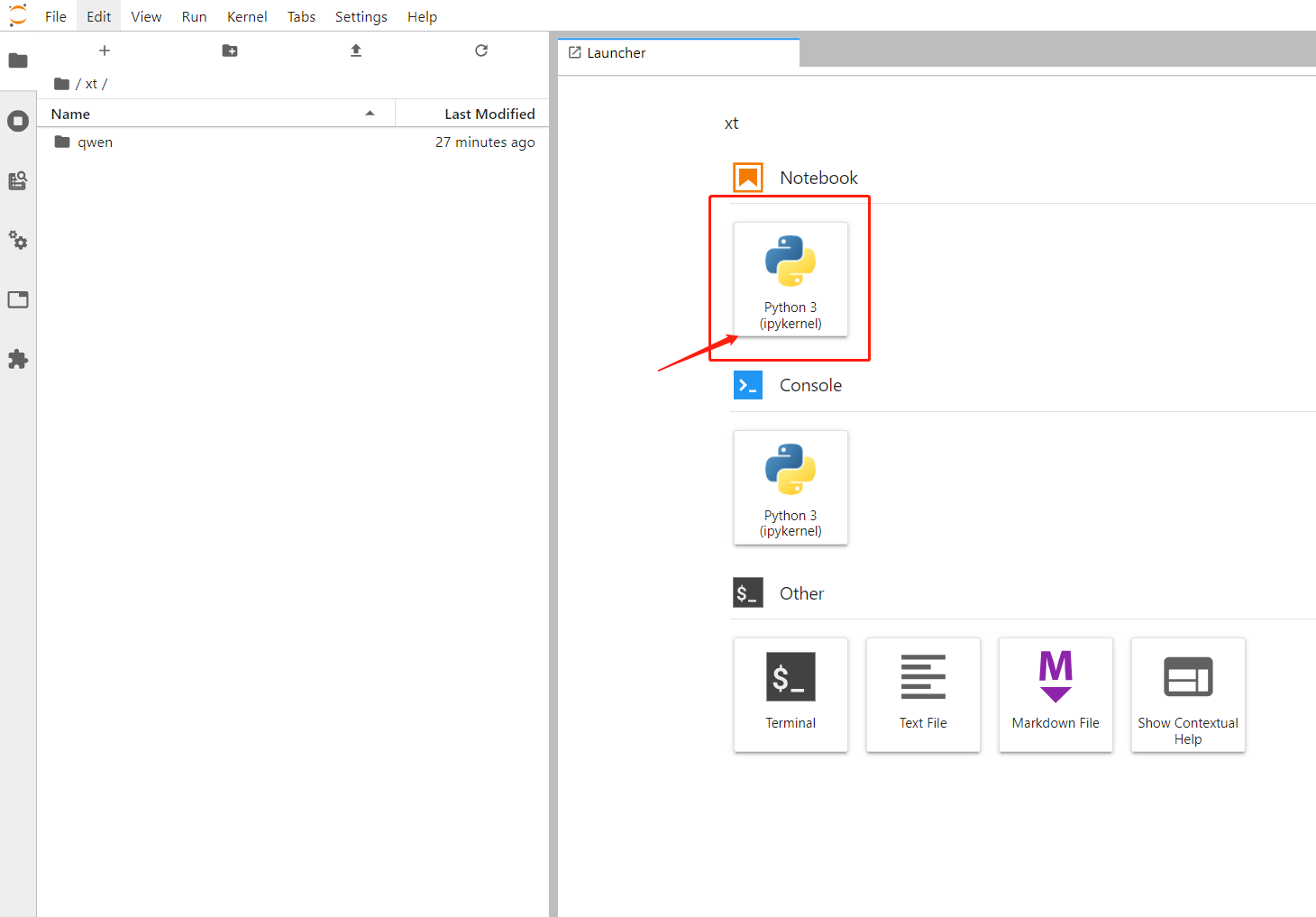
After successful creation, start up the development machine. Click Development Machine > Python3(ipykernel) to download the required model using scripts.
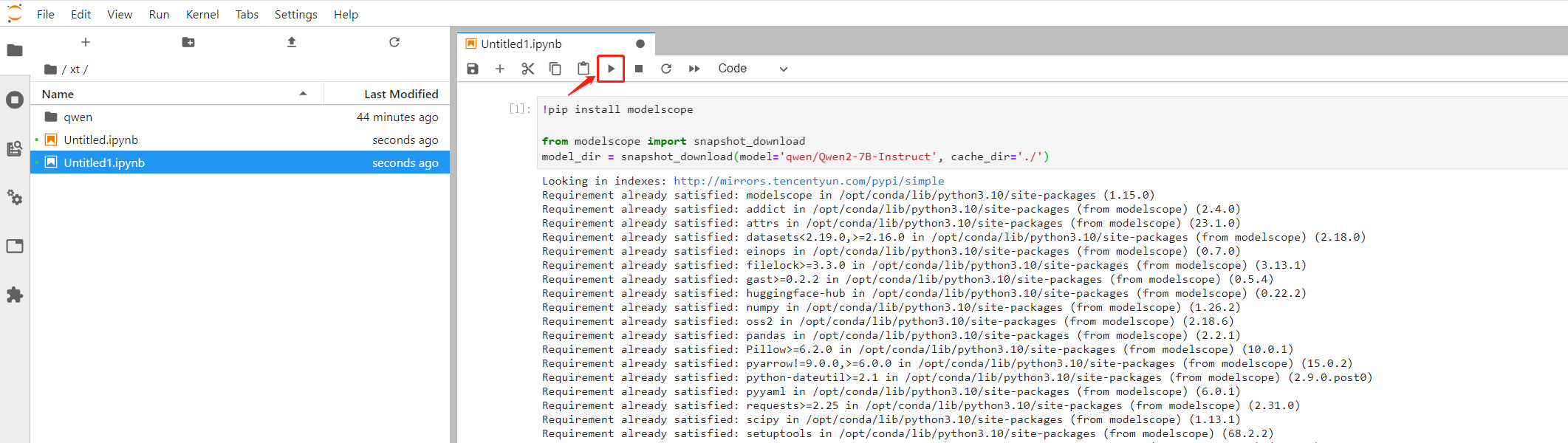
You may retrieve the needed large model in MagicHub Community or Hugging Face. Download the model via the Python script in the community and save it to CFS. This document uses the Qwen2-7B-Instruct model as an example. The download code is as follows:
!pip install modelscope
from modelscope import snapshot_download
qwen/qwen2-7B-Instruct is the model name to be downloaded. cache_dir is the domain names or IP addresses where the downloaded model will be saved. Here,'./' indicates saving the downloaded model in the root directory of CFS.
Specify the model address cache_dir (for example, path/to/local/dir) for downloading the model. Subsequently, specify the model address as /path/to/local/dir/qwen/Qwen2-7B-Instruct in the online service CFS.
Copy the above download script, replace the model to be downloaded, paste it into the newly created ipynb file, and click Run button to start downloading the model.
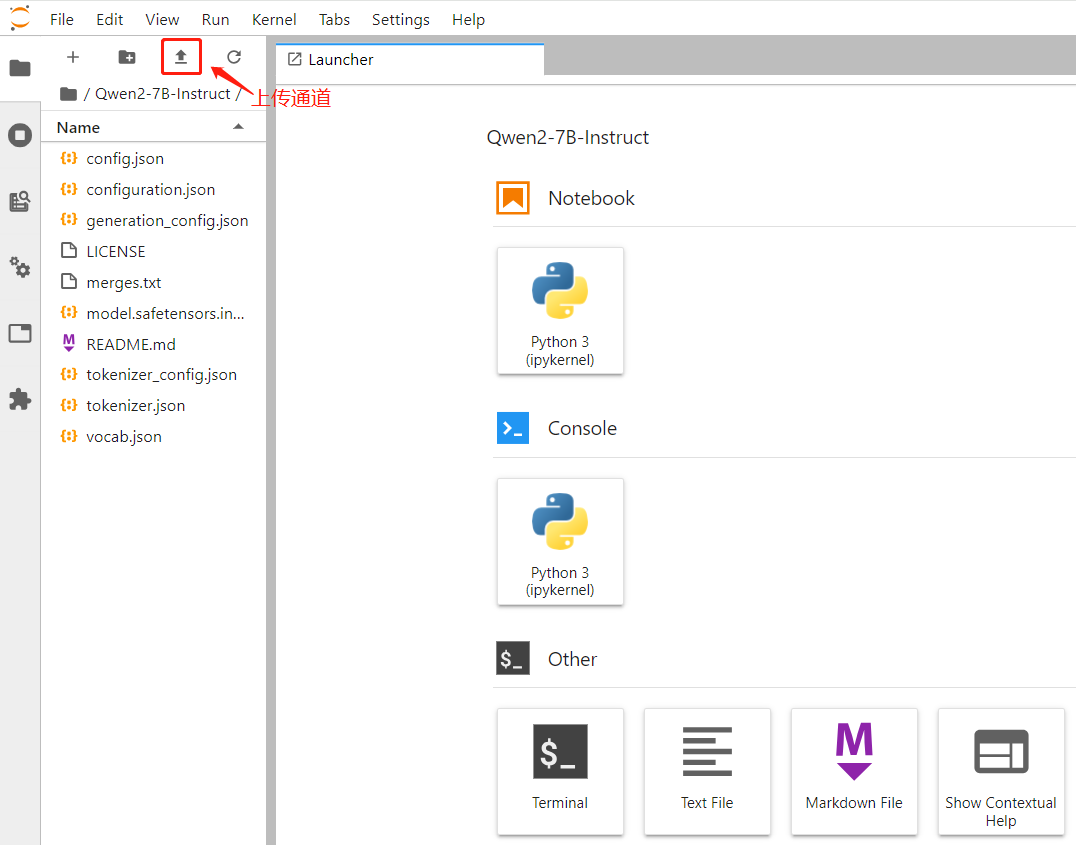
In addition, you can also perform a local download or fine-tune the model, and then save the model file to CFS through the development machine's upload channel. The upload interface is as shown below:
2. Create Custom Image
We plan to use the docker.io/vllm/vllm-openai:latest mirror to deploy services. First, according to the docker hub Documentation, the startup Entrypoint command of the mirror is:
python3 -m vllm.entrypoints.openai.api_server
Then, we find via vLLM's official Docker deployment document that the recommended docker deployment command is:
Based on the above two documents, we can summarize that the native image starts the service in this way:
1. Use the token specified by the environment variable HUGGING_FACE_HUB_TOKEN to download mistralai/Mistral-7B-v0.1 from Hugging Face to the /root/.cache/huggingface directory.
1. Reasoning online service port is limited to 8501.
2. The service must accept requests via the HTTP protocol and only support the POST method.
3. Use CFS or COS as the model source. The platform, by default, will place the model files (including subdirectories) under the source path into the /data/model directory of the service instance. Therefore, custom code and data cannot be placed in the /data/model directory; otherwise, they will be overwritten by the platform.
A comparison between the platform's constraint conditions and the native image's operating status reveals two difficulties:
1. The native mirror listens on port 8000, while the platform requires listening on port 8501.
2. The native mirror searches for models under /root/.cache/huggingface, while the platform only mounts models from CFS to the /data/model directory.
Fortunately, these two difficulties can be resolved through some settings on the page without the need to redo the mirror.
The platform supports specifying a listening port.
Change the startup command to python3 -m vllm.entrypoints.openai.api_server --model /data/model. The model under /data/model can be used directly.
3. Create an Online Service
Through Model Service > Online Service on TI-ONE Platform, click Create Service to start the inference service. The following is the guideline for service instance configuration.
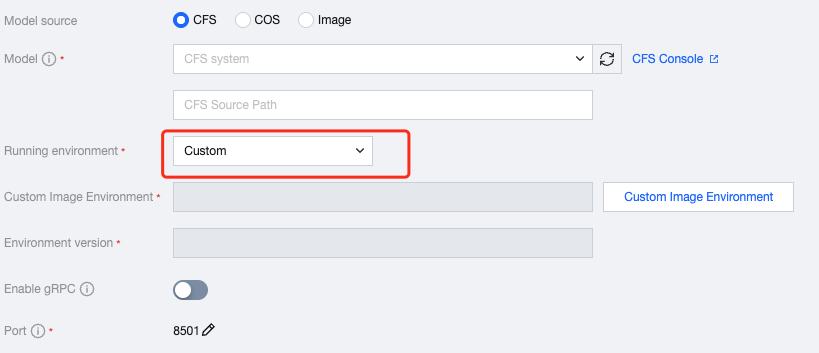
Model source: Select CFS.
Select model: Specify the applied CFS. The model path is the path of the model downloaded or uploaded in CFS. Here it is [/qwen/Qwen2-7B-Instruct].
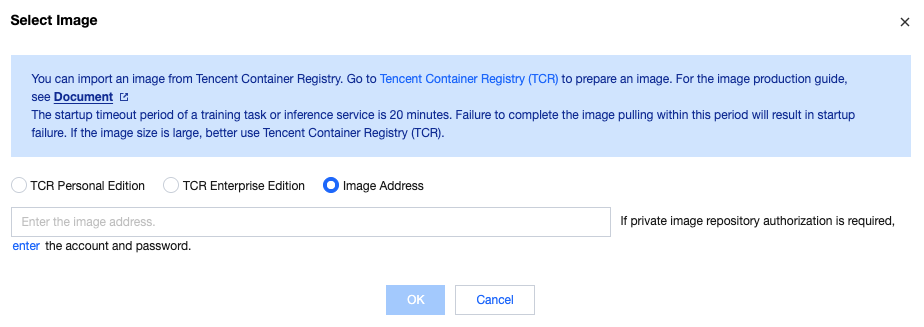
Runtime environment: Select [Custom/Image address], and fill in the image address docker.io/vllm/vllm-openai:latest.
Calculation specification: Select based on the actual model size or resource availability. The machine resources required for large model inference are related to the parameter quantity of the model. It is recommended to configure the inference service resources according to the following rules.
Number of Model Parameters
GPU Card Type and Quantity
6 ~ 8B
PNV5b * 1 / A10 * 1 / A100 * 1
12 ~ 14B
PNV5b * 1 / A10 * 2 / A100 * 1
65 ~ 72B
PNV5b * 8 / A100 * 8
[Advanced setting > Port]: Change to 8000.
[Advanced setting > Startup command]: Fill in python3 -m vllm.entrypoints.openai.api_server --model /data/model --served-model-name Qwen2-7B-Instruct --max-model-len=2048. Here, specifying --max-model-len=2048 is because the maximum length of the Qwen2-7B-Instruct model is 128K, to prevent excessive resource consumption when vLLM initializes the KV Cache.
The instance configuration for creating an online service is as follows:
4. Service Invocation of APIs
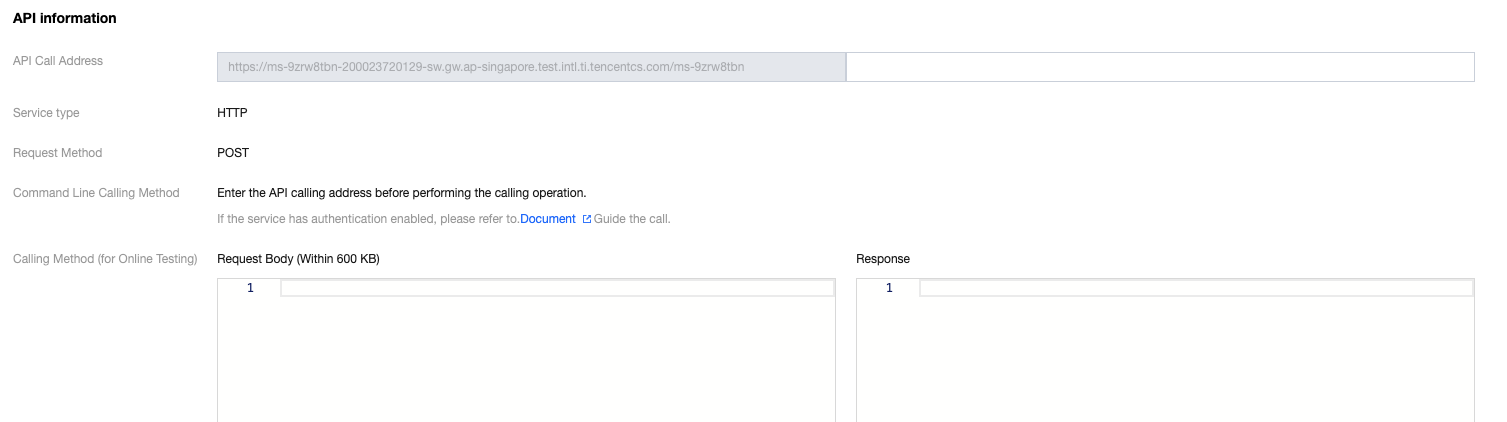
You can access it through API information > API call method (online test) on the Service Invocation Tab. The API call address is ${SERVER_URL}/v1/completions. The format of the request body:
{
"model":"Qwen2-7B-Instruct",
Hello
"max_tokens":50,
"temperature":0
}
The field content is the specific message content.
The public network access address can be obtained from the Service Invocation of the online service instance. The API call example is as follows:
{"id":"cmpl-f2bec3ca2ded4b518fb8e73dc3461202","object":"text_completion","created":1719890717,"model":"Qwen2-7B-Instruct","choices":[{"index":0,"text":",I've been feeling very anxious recently. What methods can I use to ease it? Hello! Anxiety is a common emotional response, but it can be mitigated by some methods. You can try deep breathing, meditation, exercise, listening to music, chatting with friends and other methods to relax yourself. Meanwhile","logprobs":null,"finish_reason":"length","stop_reason":null}],"usage":{"prompt_tokens":1,"total_tokens":51,"completion_tokens":50}}