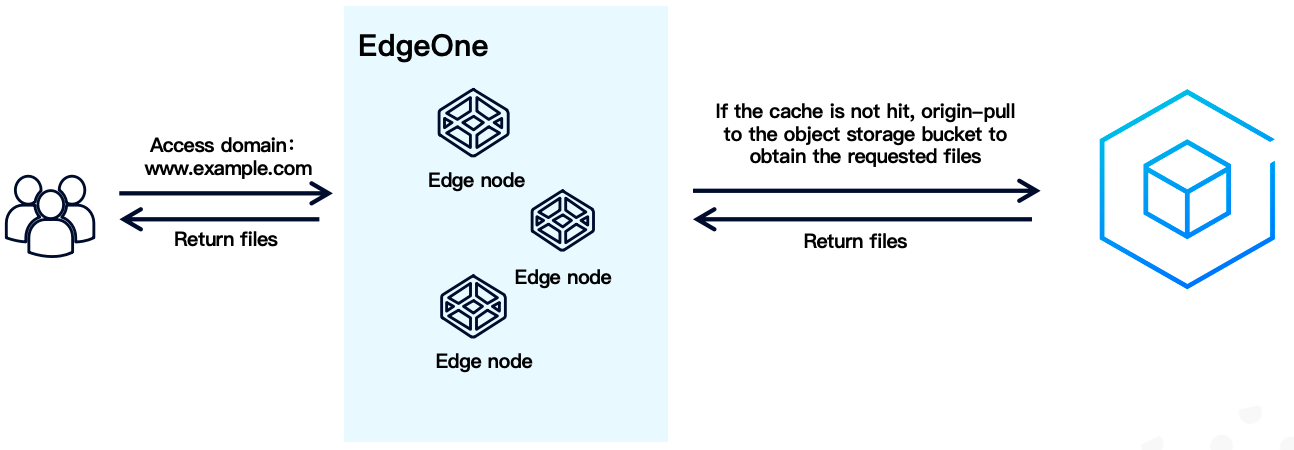
An origin server for object storage refers to a hosting platform provided by third-party object storage service providers based on object-based storage. object storage inherently offers advantages such as high scalability, low cost, reliability, and security, meeting the demands of static resource hosting, file upload and backup, and mass storage and access needs for audio, video, and images. With users expecting enhanced access experience, relying solely on object storage for global data distribution can no longer match increasing business requirements.
Tencent Cloud EdgeOne, as a next-generation Secure Content Delivery Network platform, supports configuring the origin server as a storage type, including Tencent Cloud COS as well as mainstream object storage compatible with AWS Signature V4 and AWS Signature V2 authorization. By combining object storage with EdgeOne, you can fully leverage the advantages of both to achieve better data distribution and management capability.
1. Combined with EdgeOne's edge nodes covering global availability zones. When a user accesses static resources, images, videos, and other data, EdgeOne caches the content from object storage to the nearest edge node. This way, users do not need to fetch resources from the origin every time, significantly reducing access delay and improving access speed and experience.
2. Static files can be cached on edge nodes, allowing users to retrieve them directly within the same node, drastically reducing downstream traffic for object storage.
3. Provide more security protection capability for access domains with the aid of EdgeOne, including DDoS protection, WAF protection, and Bot management, filtering malicious traffic at the edge to protect website secure operation.
4. Access object storage bucket resources through a custom domain name to enhance brand image for your website.
Note:
When back-to-origin is directed to a specified object storage bucket, downstream traffic will occur within object storage. The traffic charges for downstream traffic can be referred to the corresponding cloud service provider's billing rules. For example: Tencent Cloud COS traffic fee.
Configuration Guide
Preparations
1. Prepare a domain name for integration with EdgeOne. After access, you can subsequently use that domain name to access resources related to object storage bucket. Please refer to the Quick access to website security acceleration section for site connected to Tencent Cloud EdgeOne.
2. The bucket access address that needs to be connected currently, for example: test-1234567890.cos.ap-guangzhou.myqcloud.com.
Directions
Step 1: Add Acceleration Domain Name and Configure Bucket
1. Log in to the EdgeOne console, enter Service Overview in the left menu bar, and click the site that requires configuration under Website Security Acceleration.
2. In the left navigation bar, click Domain Name Service > Domain Management to enter the domain name management details page.
3. Click Add Domain, and fill in the domain configuration information by referring to Configuration Item Description. For different types of object storage origin server setting methods, see the following:
Tencent Cloud COS Origin Server under the Same Account
Tencent Cloud COS Origin Server under Other Accounts
Object Storage Origin Servers From Other Manufacturers
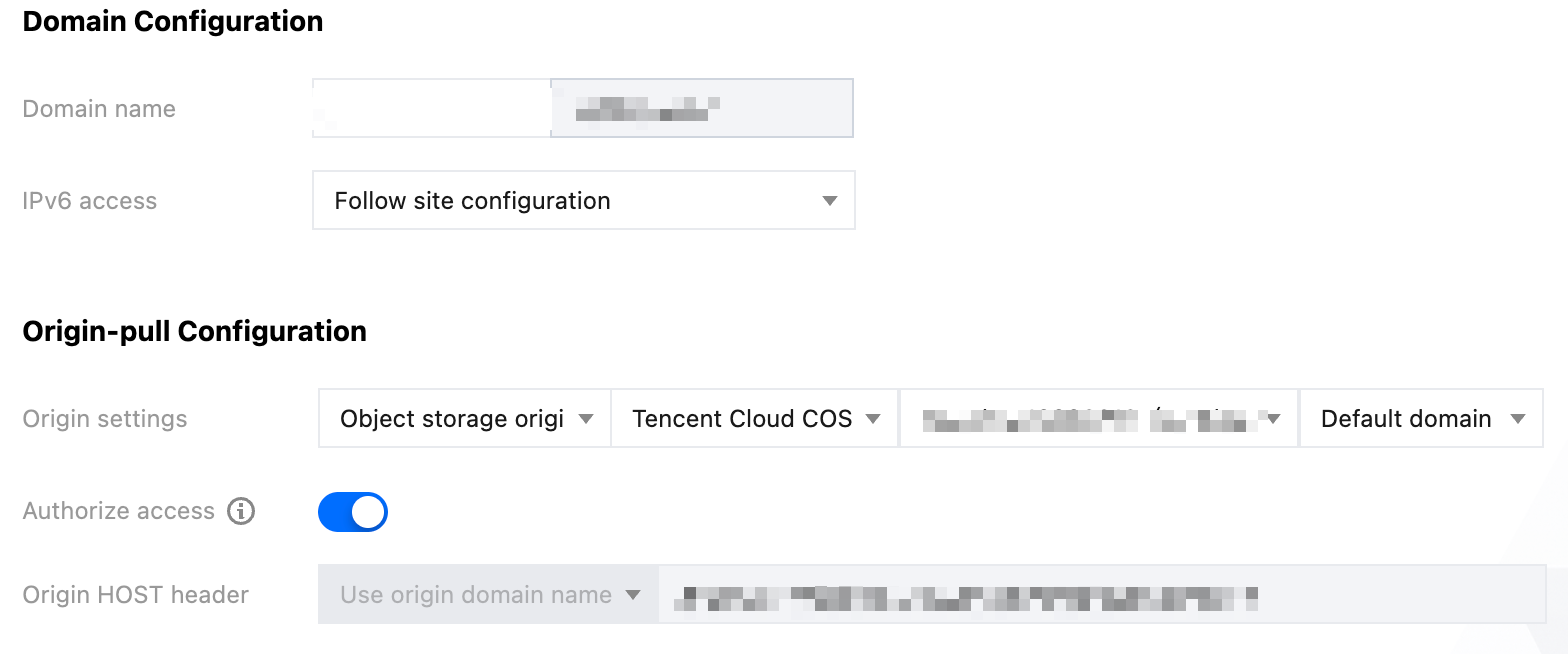
For Tencent Cloud COS origin server under the same account, the following origin-pull configuration is recommended:
Origin-pull Configuration: Select Origin settings > Tencent Cloud COS, then select the bucket to be used from the list.
Note:
If you currently configure through a sub-account, please ensure the sub-account has relevant permissions to read the COS bucket list (API cos:GetService).
By default, EdgeOne automatically uses the default storage bucket domain name of Tencent Cloud COS for origin pull. If you set the COS as a static website, you can switch to the static website type for origin pull. If your current COS domain name has global acceleration enabled and you need to use the global acceleration domain for origin pull, configure it in the EdgeOne console by referring to the configuration of Tencent Cloud COS origin server under other accounts.
Authorize access (off by default): If the COS permission is private read/write, toggle on private access authorization. EdgeOne will request Policy permission authorization. Once authorized, it will synchronously add a policy under the COS bucket's Policy permission, granting EdgeOne read-only permission for all files in the bucket, including HeadObject, OptionsObject, and GetObject operations.
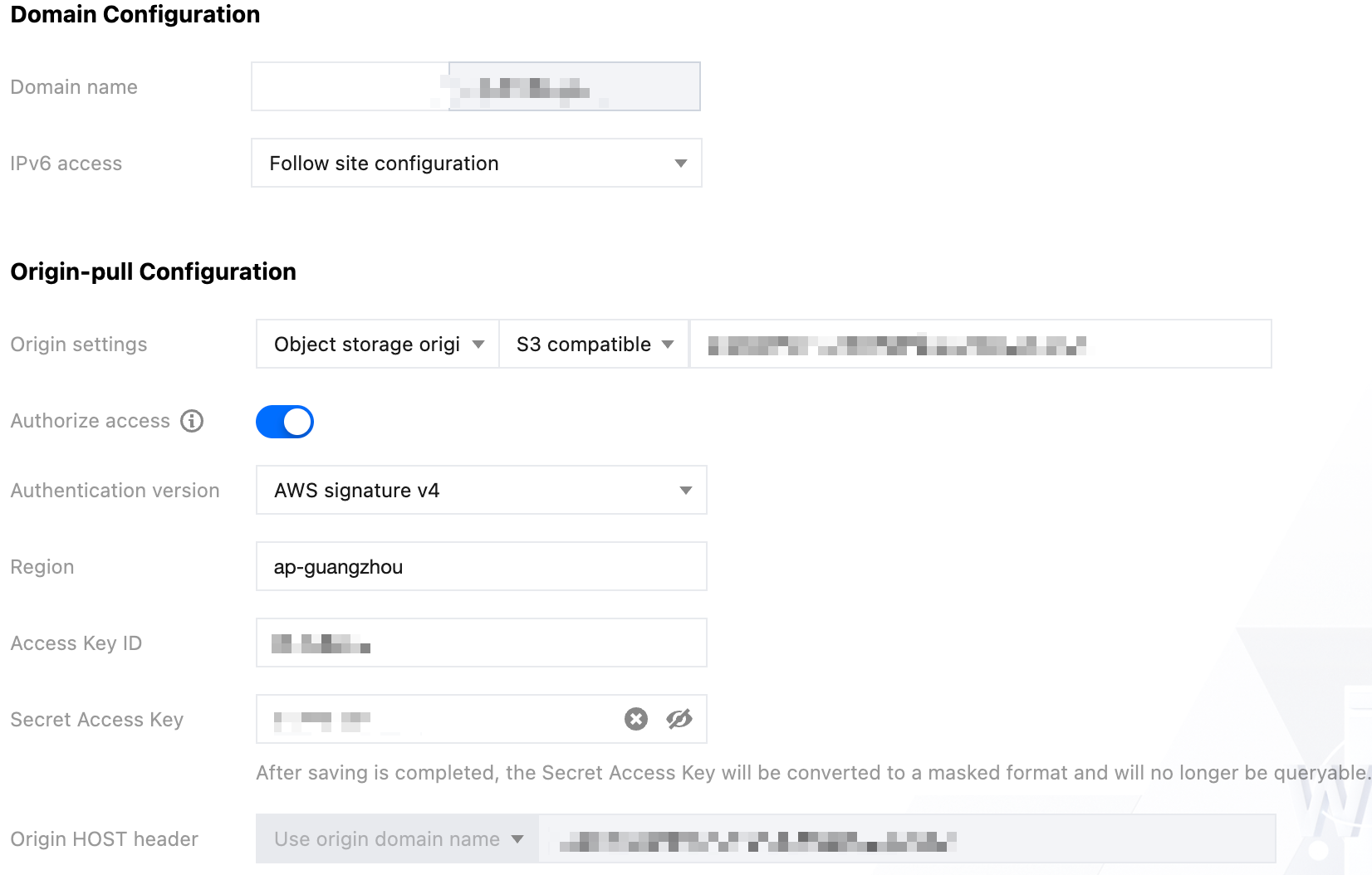
If the Tencent Cloud COS bucket to be added is not in the current account but belongs to another Tencent Cloud account, see the following configuration to add it:
Origin settings configuration: Select Origin Server > S3 compatible, then enter your current Tencent Cloud COS Access domain.
Authorize access (off by default): If your COS bucket has private read/write enabled, you need to enable private access authorization. After enabling, fill in the authentication version, region, Access Key ID, and Secret Access Key.
Authentication version: Support two versions: AWS Signature V4 (recommended) and AWS Signature V2. Select any one, and Tencent Cloud COS supports both.
Region: Fill in the current COS bucket region. For example: ap-shanghai.
Access Key ID and Secret Access Key: These are the SecretID and SecretKey of the current COS bucket's account. You can view them in API Key Management.
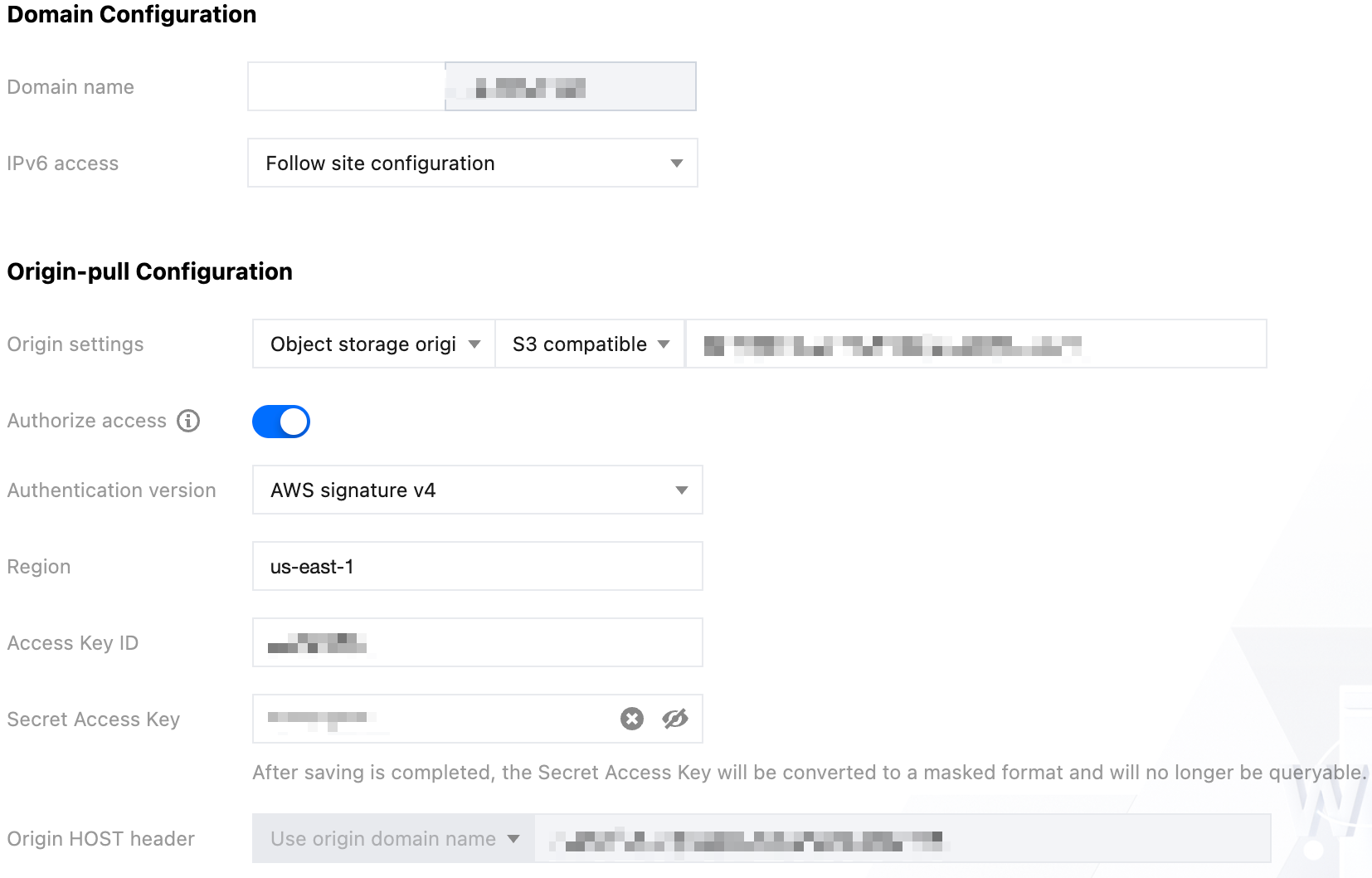
If necessary for origin servers from other cloud vendors, see the following configuration to add:
Origin settings: Select Object Storage Origin Server > S3 compatible, and enter your current object storage origin server access domain that needs to be configured.
Authorize access (off by default): If your object storage bucket has private read/write enabled, you need to enable private access authorization. After enabling, fill in the authentication version, region, Access Key ID, and Secret Access Key.
Authentication version: Support two versions: AWS Signature V4 and AWS Signature V2. Select the signature algorithm version currently supported by your object storage bucket.
Region: Fill in the current bucket location of your cloud service provider's object storage. Example: us-east-1.
Access Key ID and Secret Access Key: The key ID and key information currently used by the object storage bucket.
5.Click Next to proceed with domain configuration. For the subsequent configuration process, see Add Acceleration Domain Name.
Step 2: (Optional) Complete Other Configuration Items
After using EdgeOne to accelerate your bucket resources, users can directly access all resources in the bucket path via the currently configured acceleration domain name. To prevent malicious misappropriation of access links, which may lead to increased traffic costs, you can overlay a hotlink protection policy after configuring the acceleration domain name to prevent abuse of current domain name access. For more details, see EdgeOne Hotlink Protection Practical Tutorial.
Configure cross-origin response
If you have previously configured a Cross-Origin Resource Sharing (CORS) policy in object storage, after accelerating via EdgeOne, you need to configure the same cross-origin rules in EdgeOne to allow other application services to access the current acceleration domain name via cross-origin requests. For more information, see Cross-Origin Response Configuration.
Configure caching policy
After acceleration via EdgeOne, by default, if no node cache policy is configured, EdgeOne will follow the Default Caching Policy to cache static file resources. For resources in object storage buckets, to further enhance the cache hit rate, save downstream costs of the origin server to the maximum extent, and improve user access experience, it is advisable to configure custom cache rules in the rule engine based on file suffixes or other conditions. For more details, see Node Cache TTL.
Configure security protection policy
After accelerated domain access, EdgeOne provides further security protection by default. If needed, customize security protection policy rules. For more information, see Web Protection.
Step 3: Testing and Verification
After completing all the above configurations, for example, the original link of the Bucket file is: https://test-1234567890.cos.ap-guangzhou.myqcloud.com/test.jpg. The acceleration domain name you currently integrated with EdgeOne uses www.example.com. You can replace the access domain of the bucket by accessing: https://www.example.com/test.jpg to verify whether the file content in the original object storage can be accessed normally. For the access test verification steps of the domain, see Verify Business Access.
After verification is completed, refer to Modify CNAME Records and point the domain name CNAME to EdgeOne to achieve access acceleration.