The allowlist policies module displays the option to configure the allowlist and the configured allowlist.
Filtering and Refreshing Allowed Images
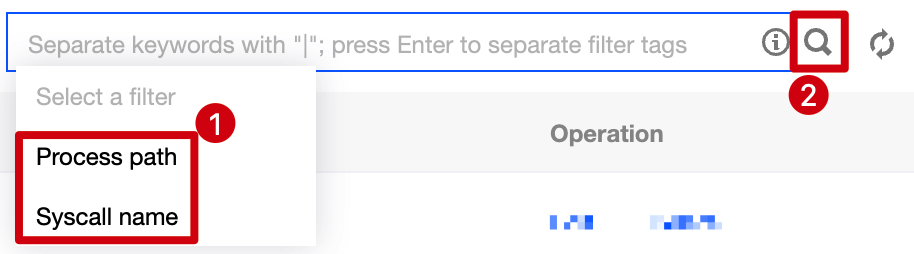
1. Log in to the TCSS console and click Advanced Prevention > High-risk Syscalls > Allowlist policies on the left sidebar. 2. On the Allowlist policies tab, click the search box and search the configured allowlist by process path or syscall name.
3. On the Allowlist policies tab, click on the right of the Operation column to refresh the allowlist. Adding an Allowlist Policy
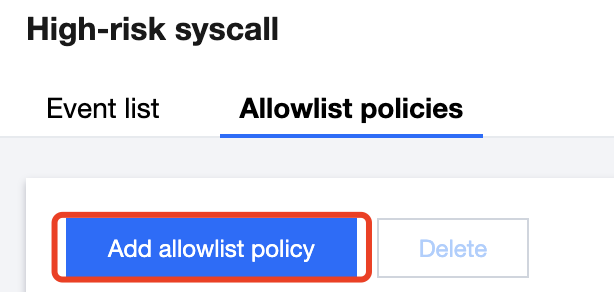
1. Log in to the TCSS console and click Advanced Prevention > High-risk Syscalls > Allowlist policies on the left sidebar. 2. On the Allowlist policies tab, click Add allowlist policy.
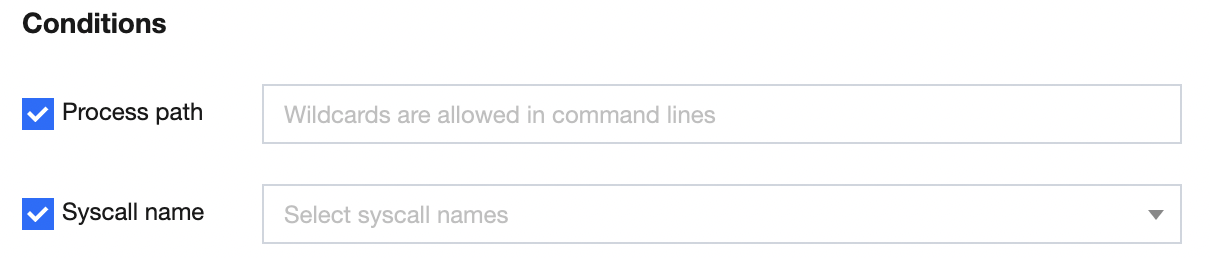
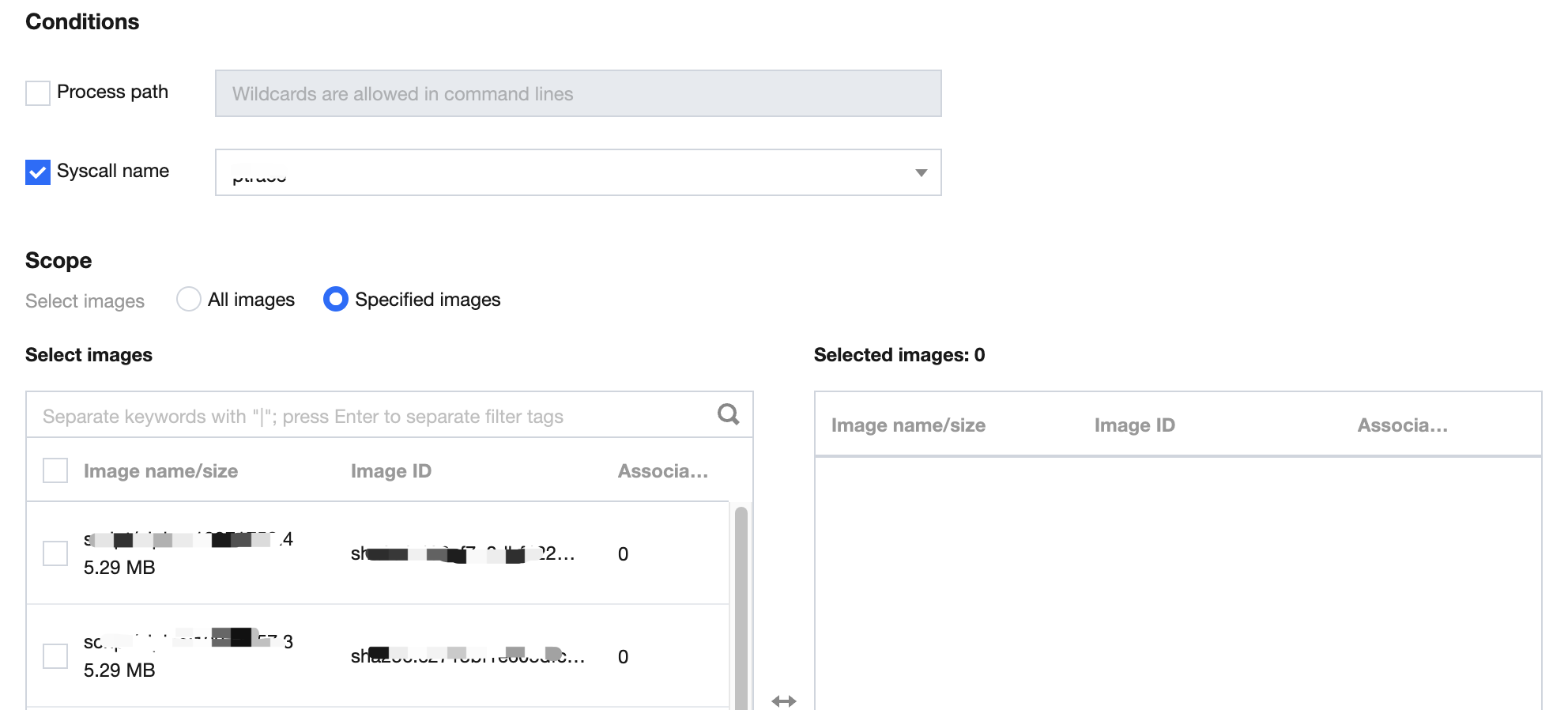
3. On the Add allowlist policy page, configure the target process path, syscall name, and scope.
Click on the left of the Process path and Syscall name, enter the process path, and select the syscall name. Note:
The process path is required.
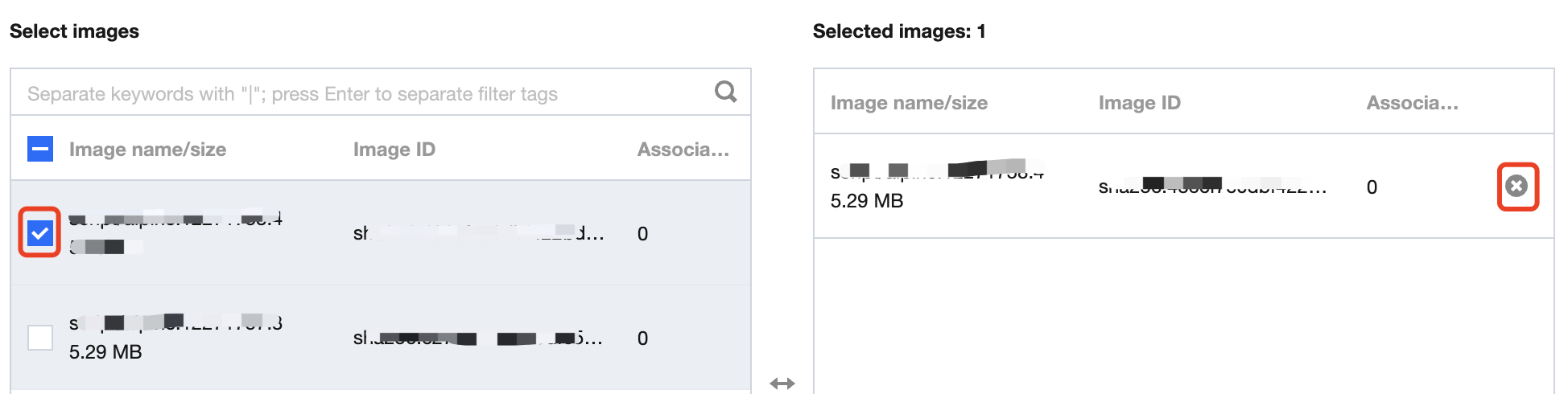
The scope of the allowlist is All images or Specified images. Click or to select or delete the target specified image. Note:
You can press Shift to select multiple ones.
4. After selecting the target content, click OK or Cancel.
Editing the Allowlist
1. Log in to the TCSS console and click Advanced Prevention > High-risk Syscalls > Allowlist policies on the left sidebar. 2. On the Allowlist policies tab, click Edit on the right.
3. On the Edit allowlist page, modify the target process path, syscall name, and scope. 4. After selecting the target content, click OK or Cancel.
Deleting the Allowlist
1. Log in to the TCSS console and click Advanced Prevention > High-risk Syscalls > Allowlist policies on the left sidebar. 2. On the Allowlist policies tab, click Delete on the right.
3. In the pop-up window, click Delete or Cancel.
Note:
The allowlist cannot be recovered once deleted, and alerts will be generated when images associated with the allowlist trigger the preset policy.
Custom List Management
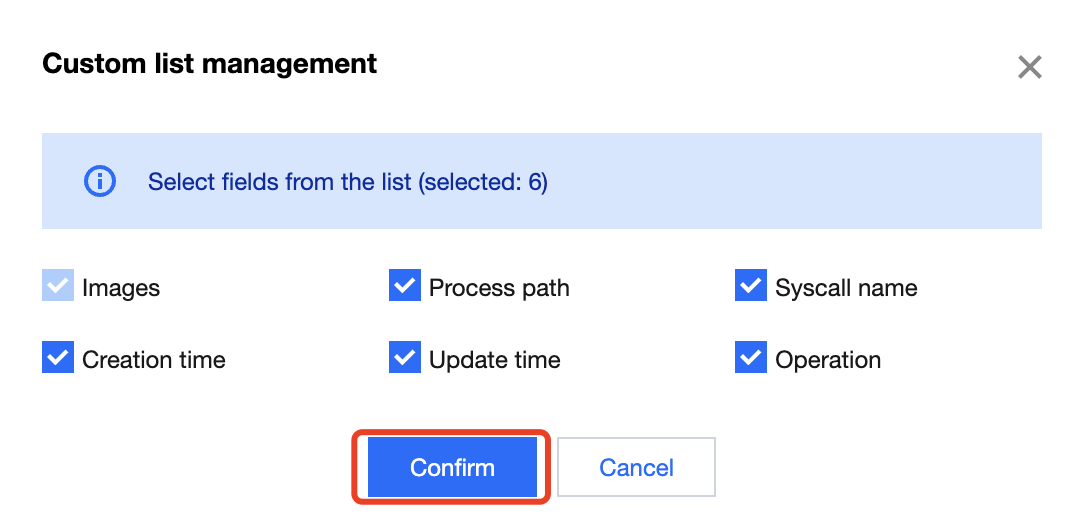
1. Log in to the TCSS console and click Advanced Prevention > High-risk Syscalls > Allowlist policies on the left sidebar. 2. On the Allowlist policies tab, click to pop up the Custom List Management window. 3. In the pop-up window, select the target type and click OK.
Key fields in the list
1. Images: Images for which the allowlist takes effect.
2. Process path: Process path for which the allowlist takes effect.
3. Syscall name: Syscall name for which the allowlist takes effect.
4. Operation: Editing or deleting the allowlist.