Text, Avatar and Sound Setting
Download
Focus Mode
Font Size
Digital Human can be used to create videos (including audio). This guide helps you create an audio and video project and edit text, avatar, and sound in the project.
Creates a project.
Before editing text, avatar, and sound setting, you need to create project and choose image category.
1. Log in to the Digital Human platform.
2. In Scenario Application > Audio and Video Production, click Create Audio/Video Broadcast Projects to create a new project.
3. Select an image category as the project association avatar.
Note:
If your view has no selectable categories or fewer categories, the primary reason is: your account does not have images of the corresponding image category. You need to possess the corresponding images first to see the associated entry.
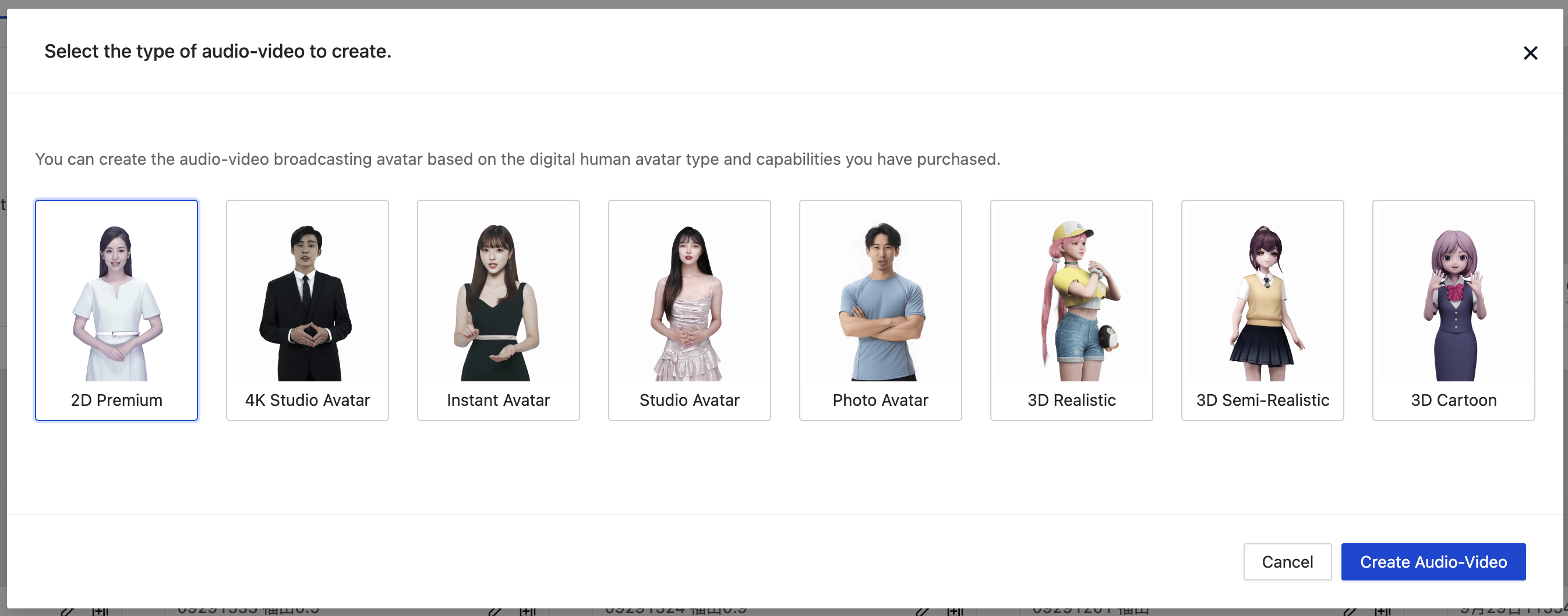
Each image category invokes a different model behind the scenes, so you need to select the image category at the beginning. We offer multiple image categories, as shown in the figure below.
Edit Operation
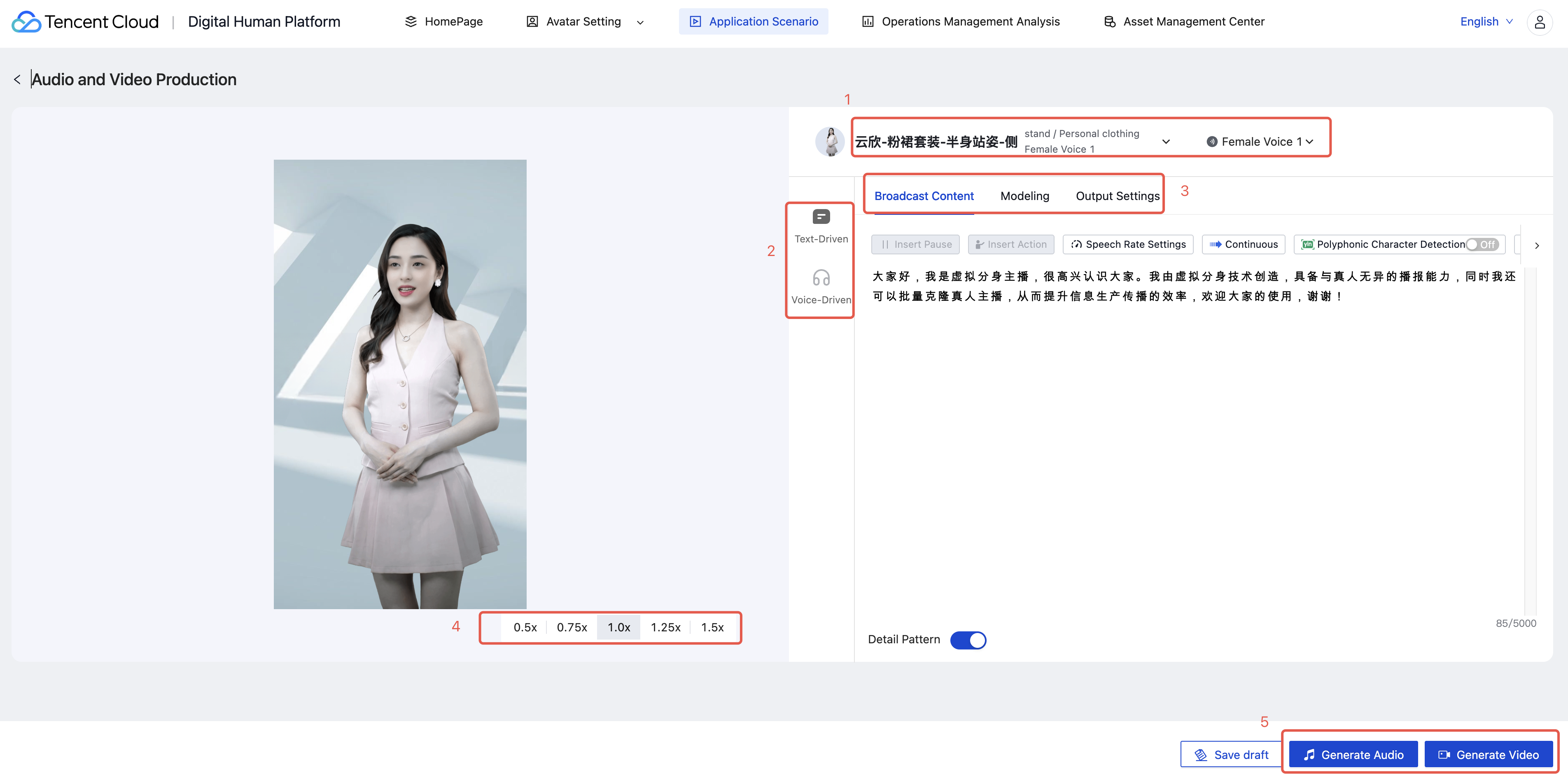
After creating the project, there are 5 places where you can perform edits, as shown in the figure below.
Changing Image or Voice
After clicking, you can enter the avatar library under your account to query a suitable avatar to replace the one provided by default. Click next to the voice type to replace it with another.
Adjust Image | Adjust Voice Type |
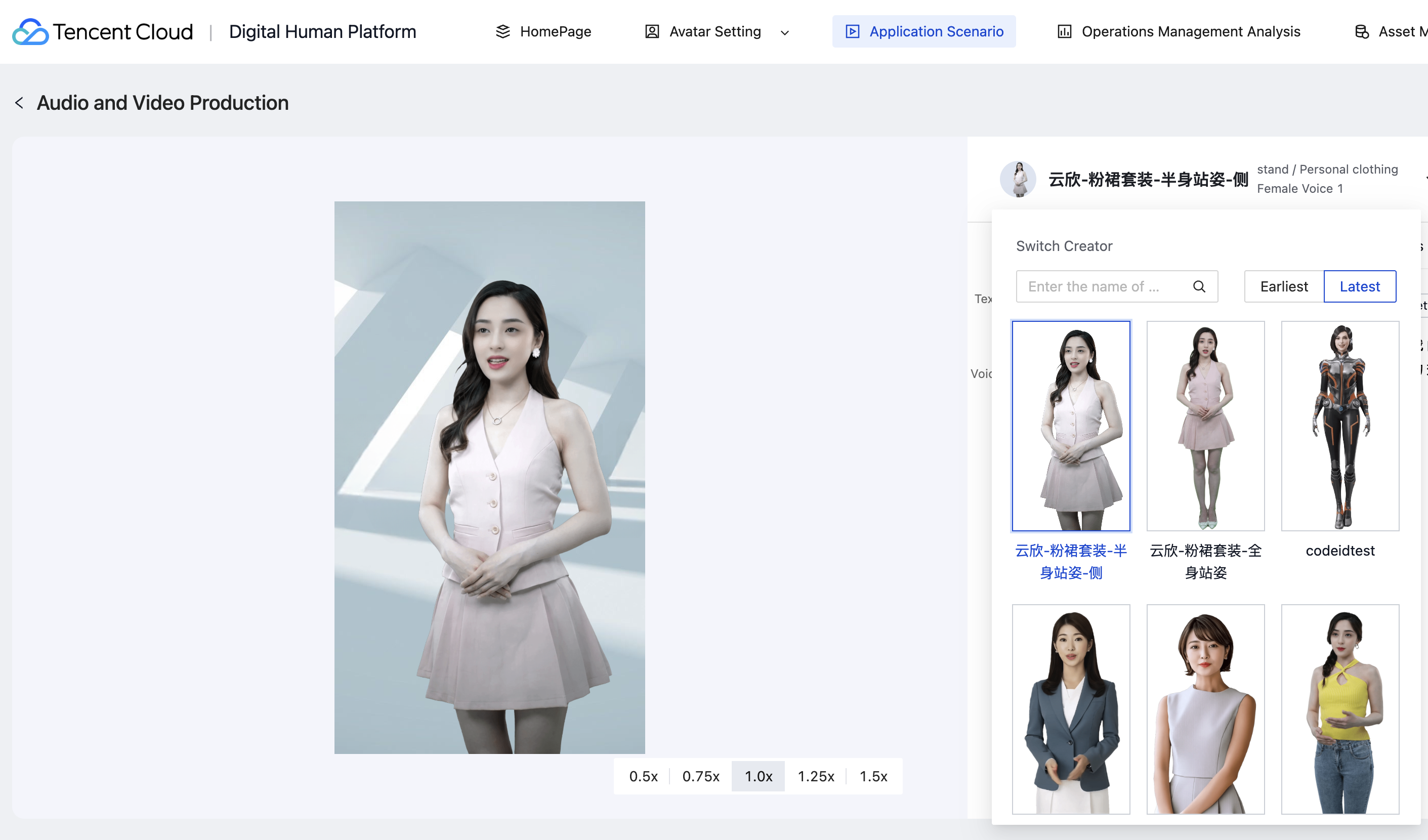 | 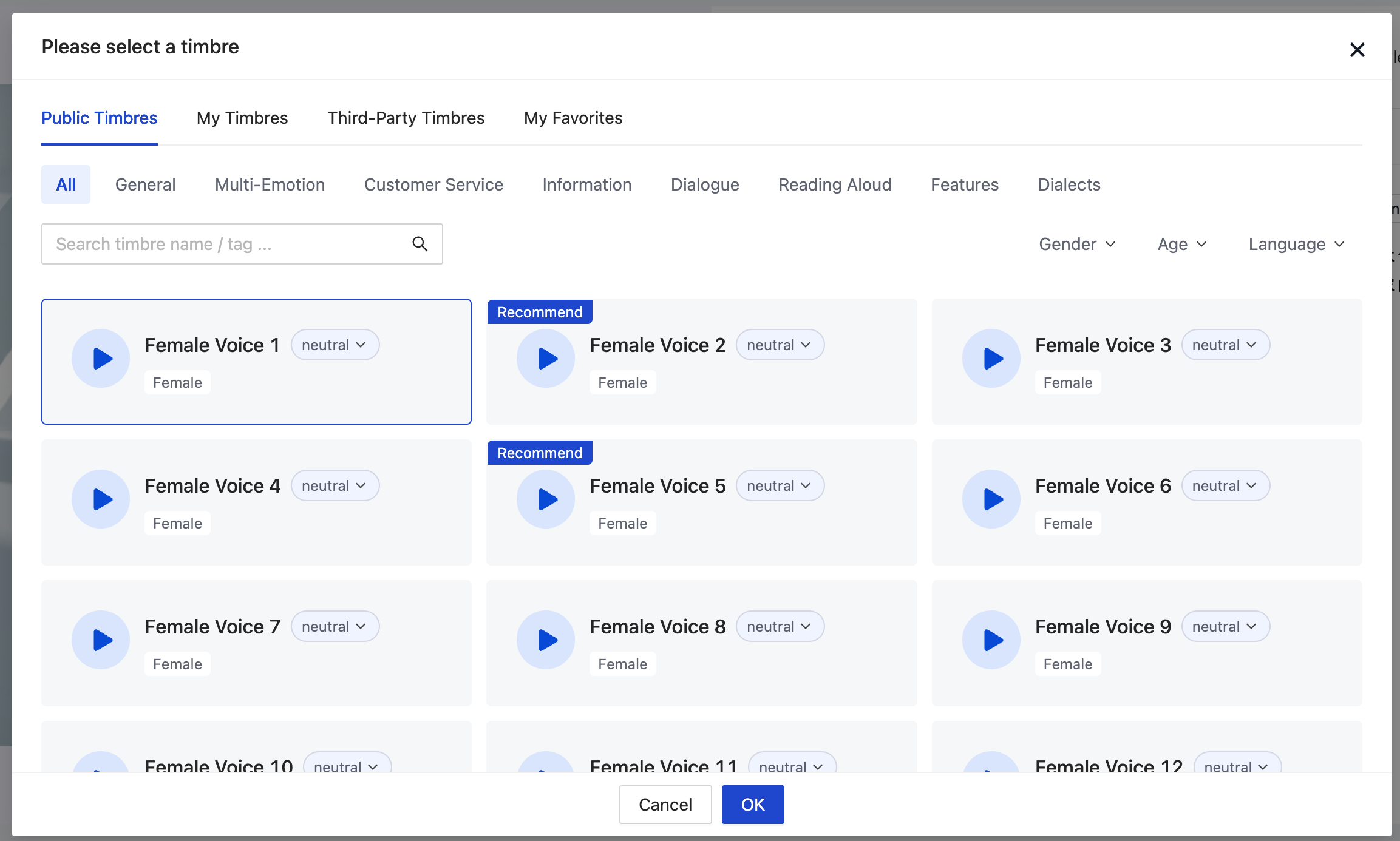 |
Select the desired avatar to complete the replacement. Avatars are sorted based on "earliest". and "latest" the time when they were created. | Tags with diverse image categories help users quickly filter selected voice types and support audition. Public timbre: public timbre library provided by Digital Human My timbre: customized timbre created by users on the digital human platform. Third-party timbre: Supports user import of third-party timbre. Currently supports: Microsoft Azure and Google TTS. Click "Import TTS" to input the related ID and complete the import. |
Generating Video Via Text-Driven or Audio-Driven
Text-driven mode generates videos that play back based on the input text. Audio-driven mode generates videos that play back the uploaded audio. Both modes support editing avatar materials and adjusting the output avatar action effects.
Text-driven | Voice-Driven |
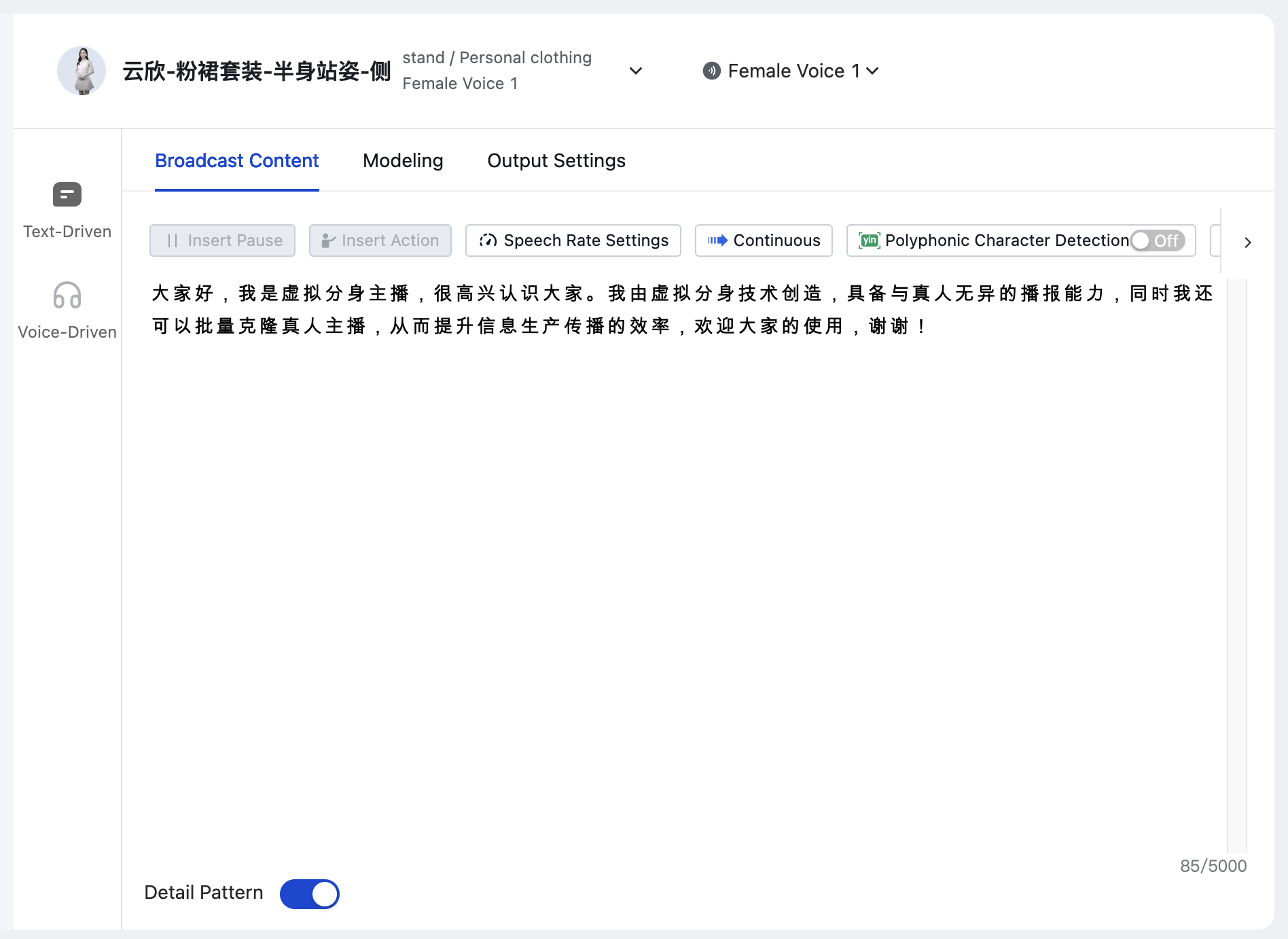 | 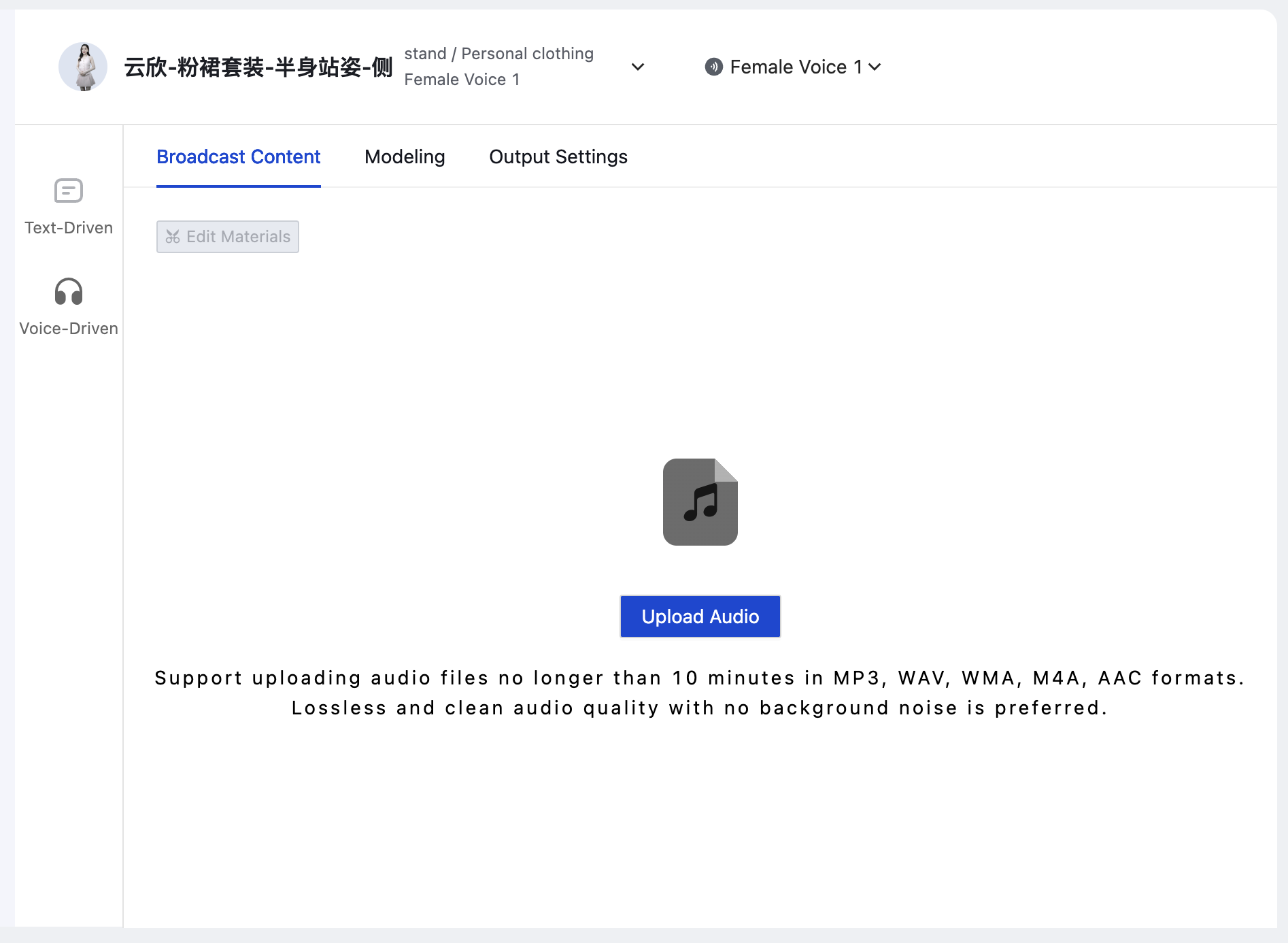 |
In text-driven mode, multiple tools are provided to edit text, targeting the match between avatar actions and sound broadcast. Specific tools relate to the currently selected avatar and are only usable with specific figures. | In audio-driven mode, the video output produced plays the uploaded audio. |
Support More Edit Features
For example, broadcast content in text-driven mode supports various features such as inserting pauses, inserting actions, speech rate settings, consecutive vocabulary, polyphonic character detection, and text replacement. Some features are associated with the image category and will be disabled when switching to other categories.
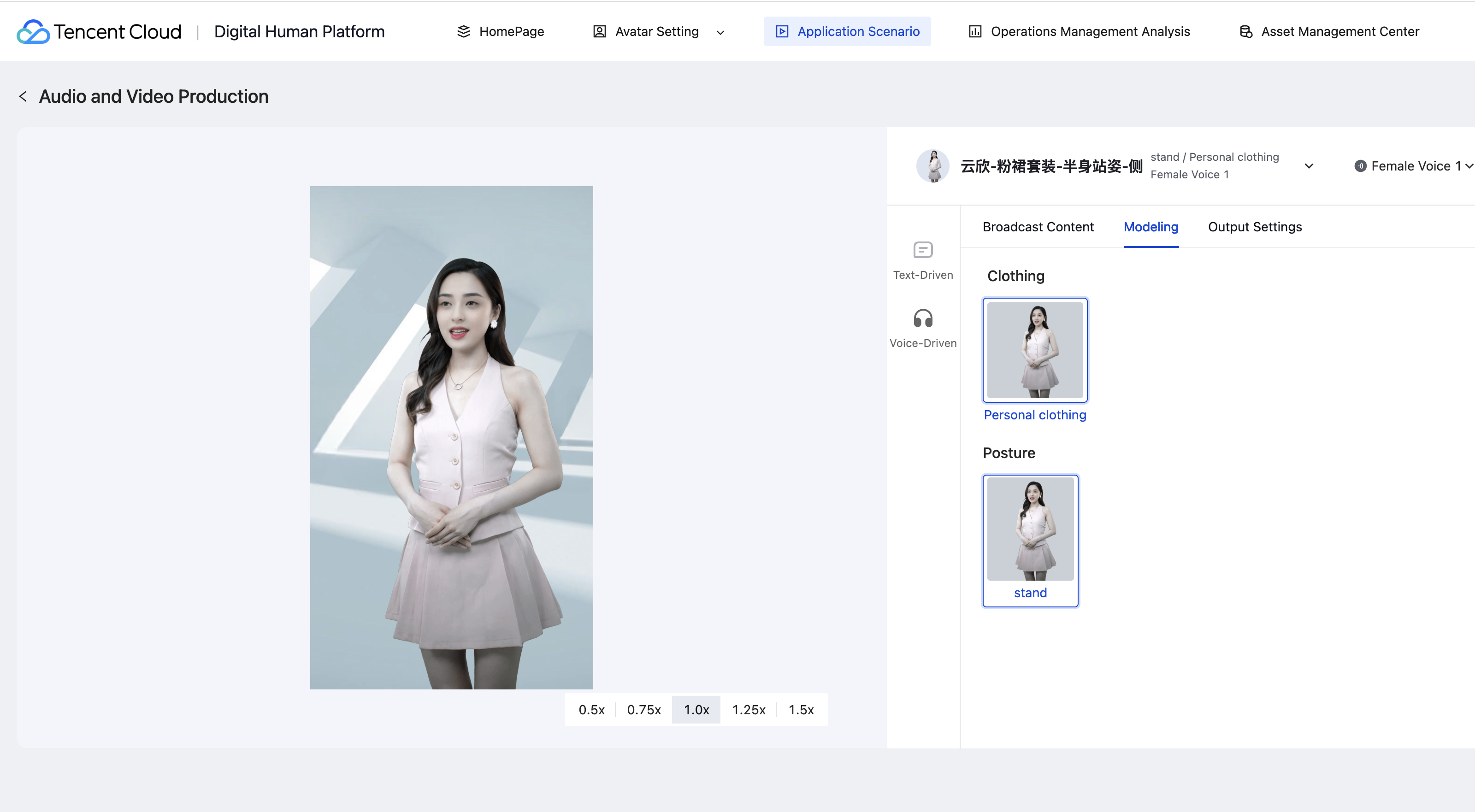
Style: Freely mix and match clothing and hairstyles based on the current avatar's available items (premise: the avatar must possess multiple clothing accessories).
Output settings
Support various parameter configurations, including: output type (landscape or portrait), output resolution, subtitle settings, position adjustment, adding opening/ending scenes, background replacement, and more.
Output type: supports landscape or portrait output. 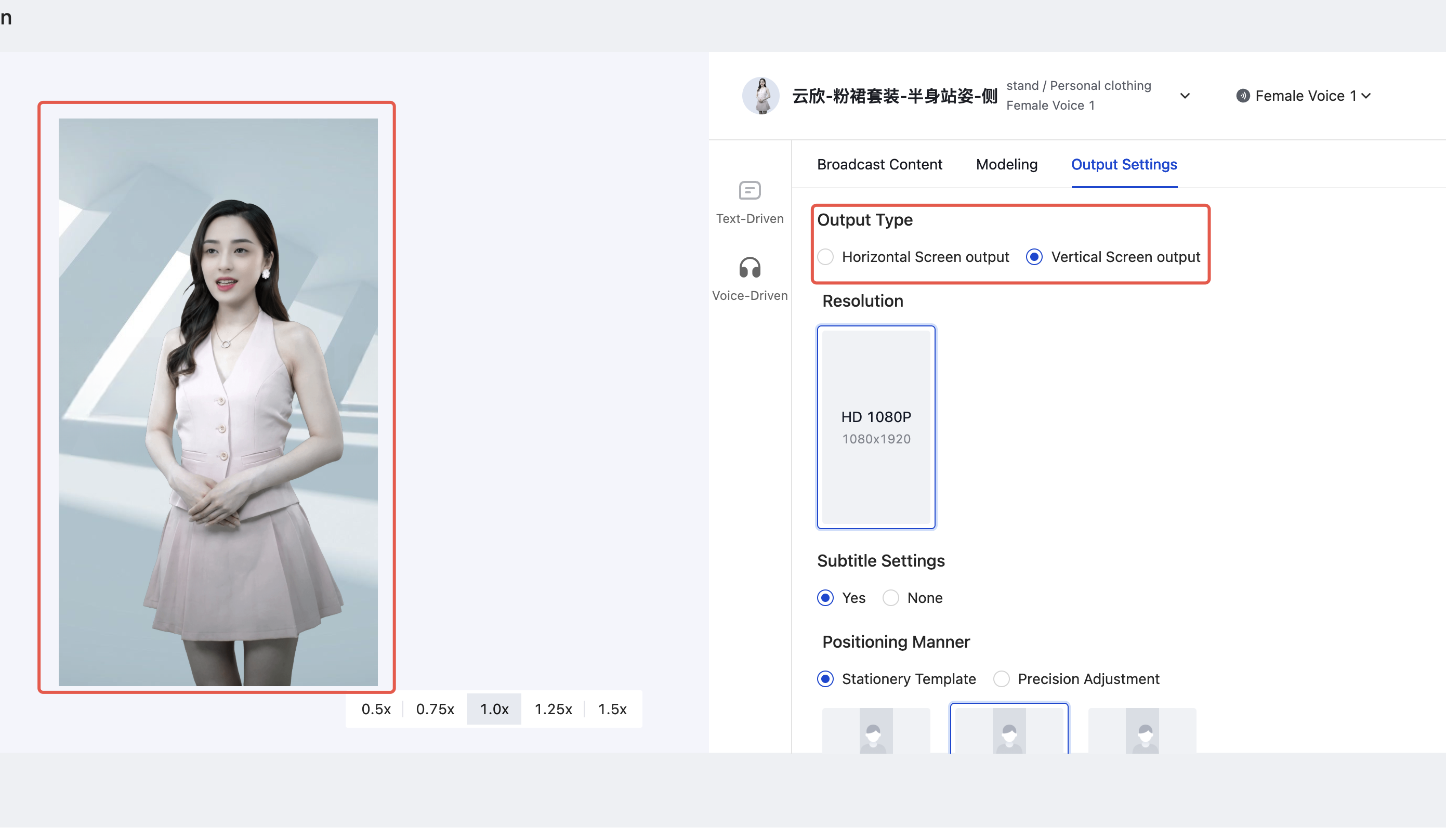 | Adjust resolution: switch between multiple resolutions if available. 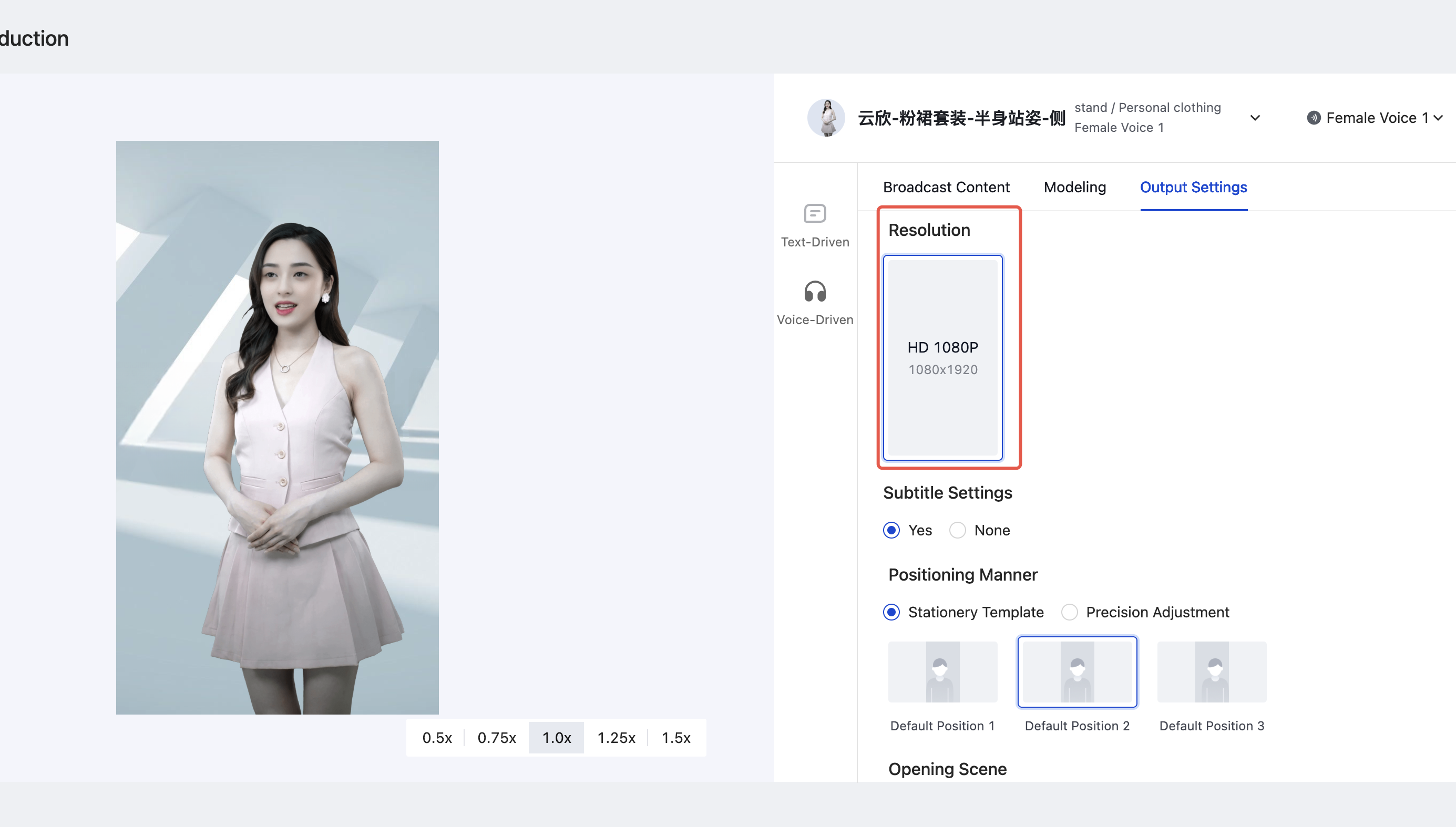 | Subtitle settings: choose whether to attach subtitles when generating video. 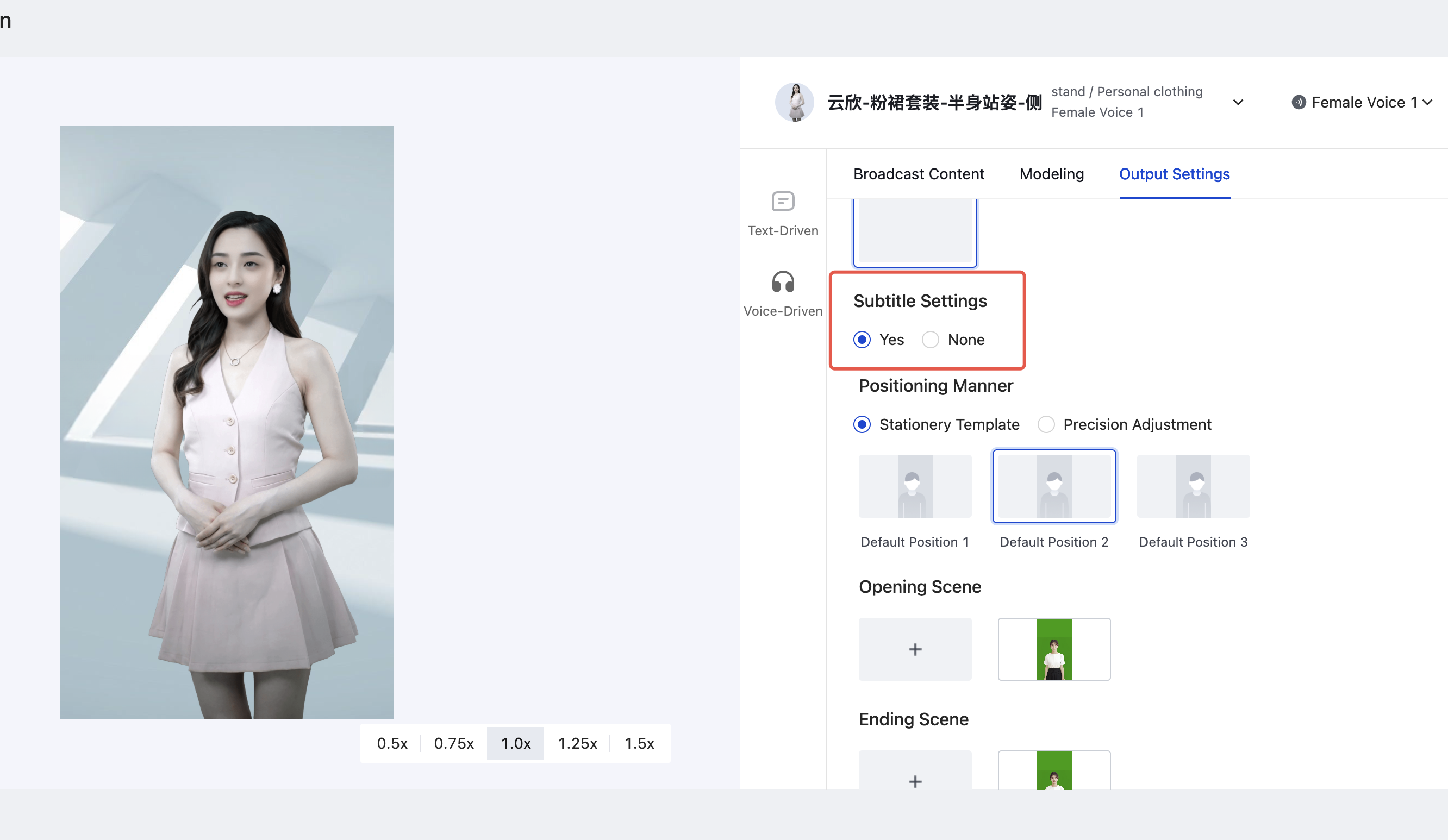 |
Opening or ending: support importing a short video as the opening or ending scene. 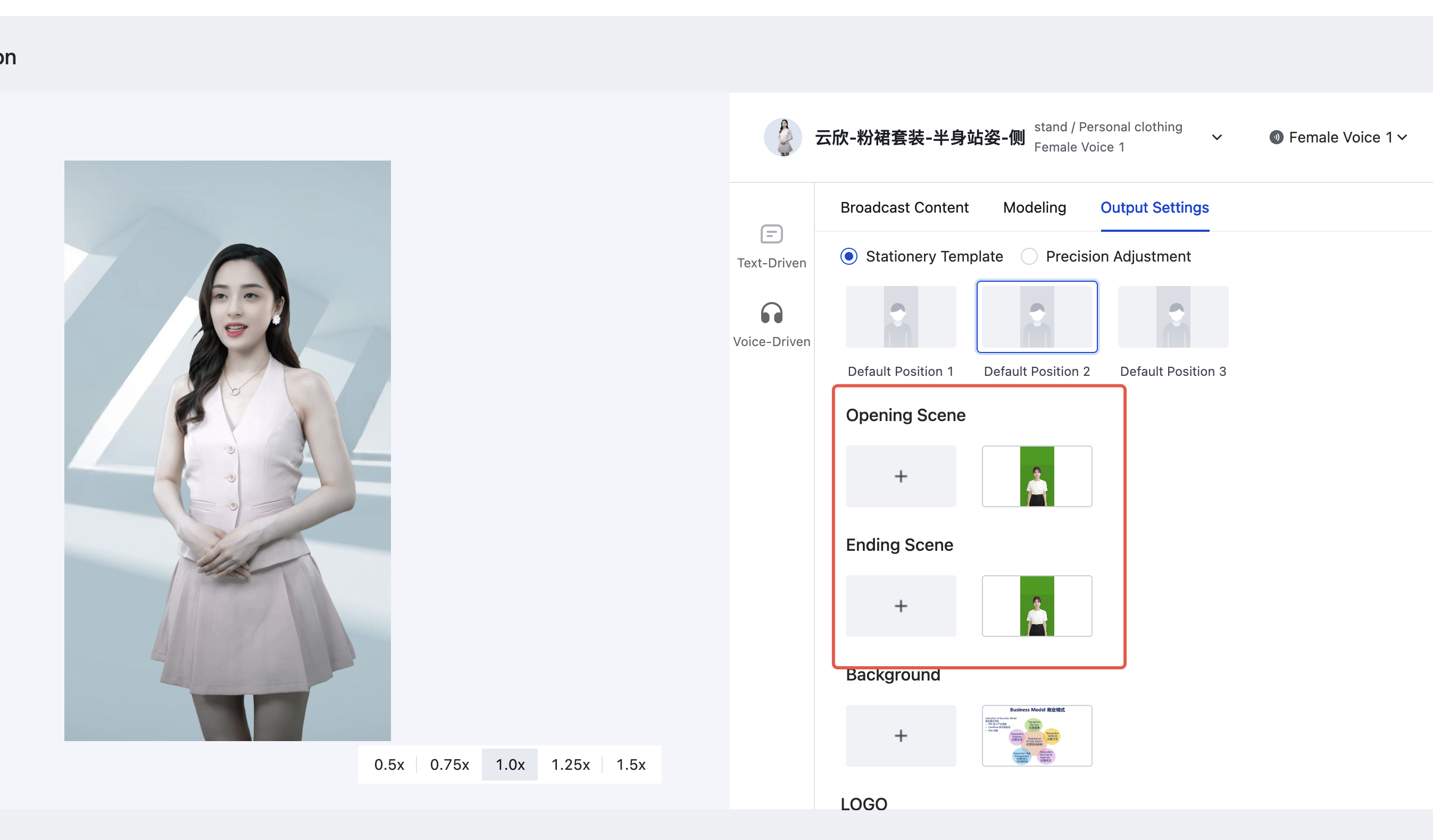 | Background replacement: Click to change background. Support adding background image. 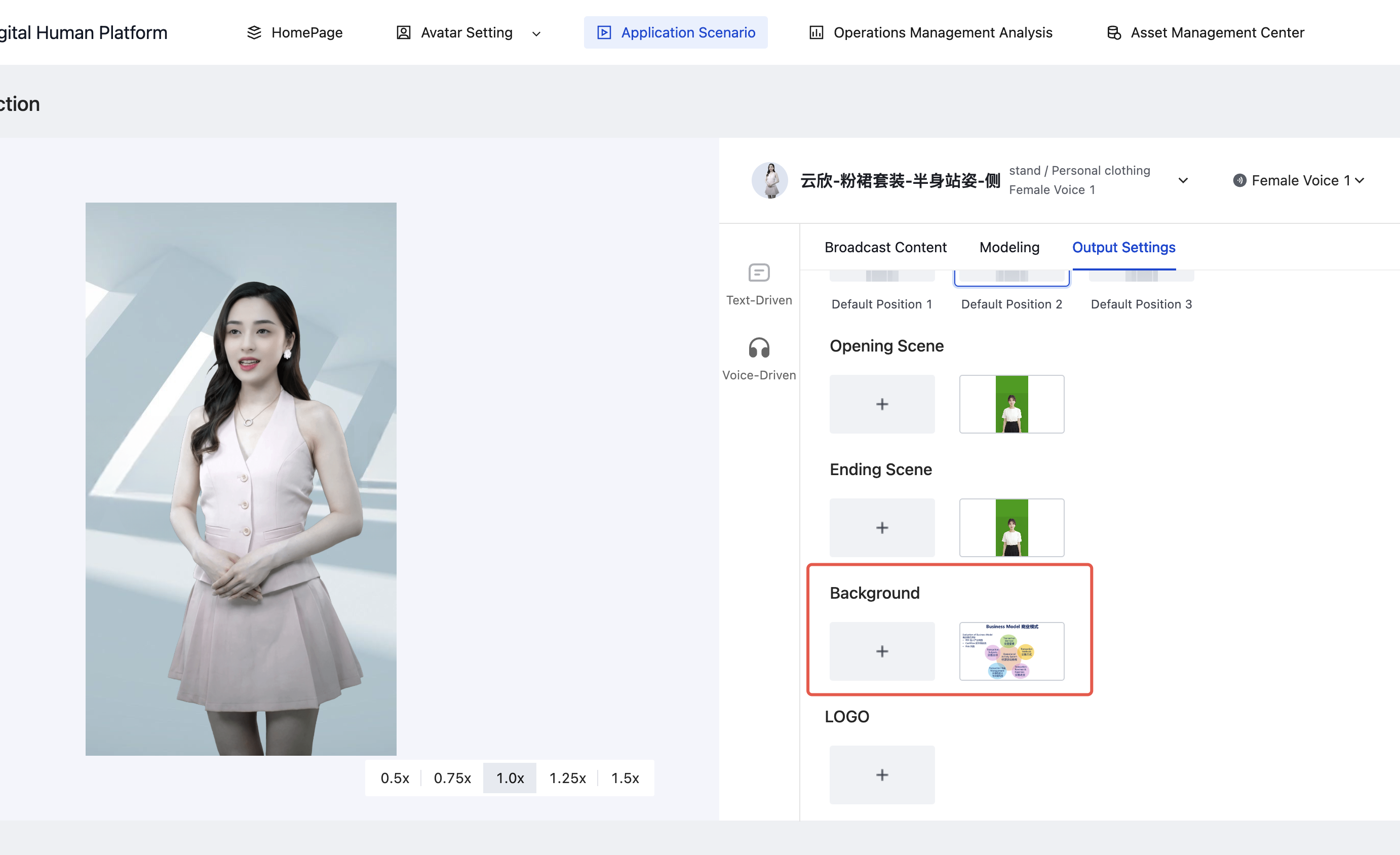 | Add LOGO: You can add a LOGO to the video. The LOGO image must be added by yourself. 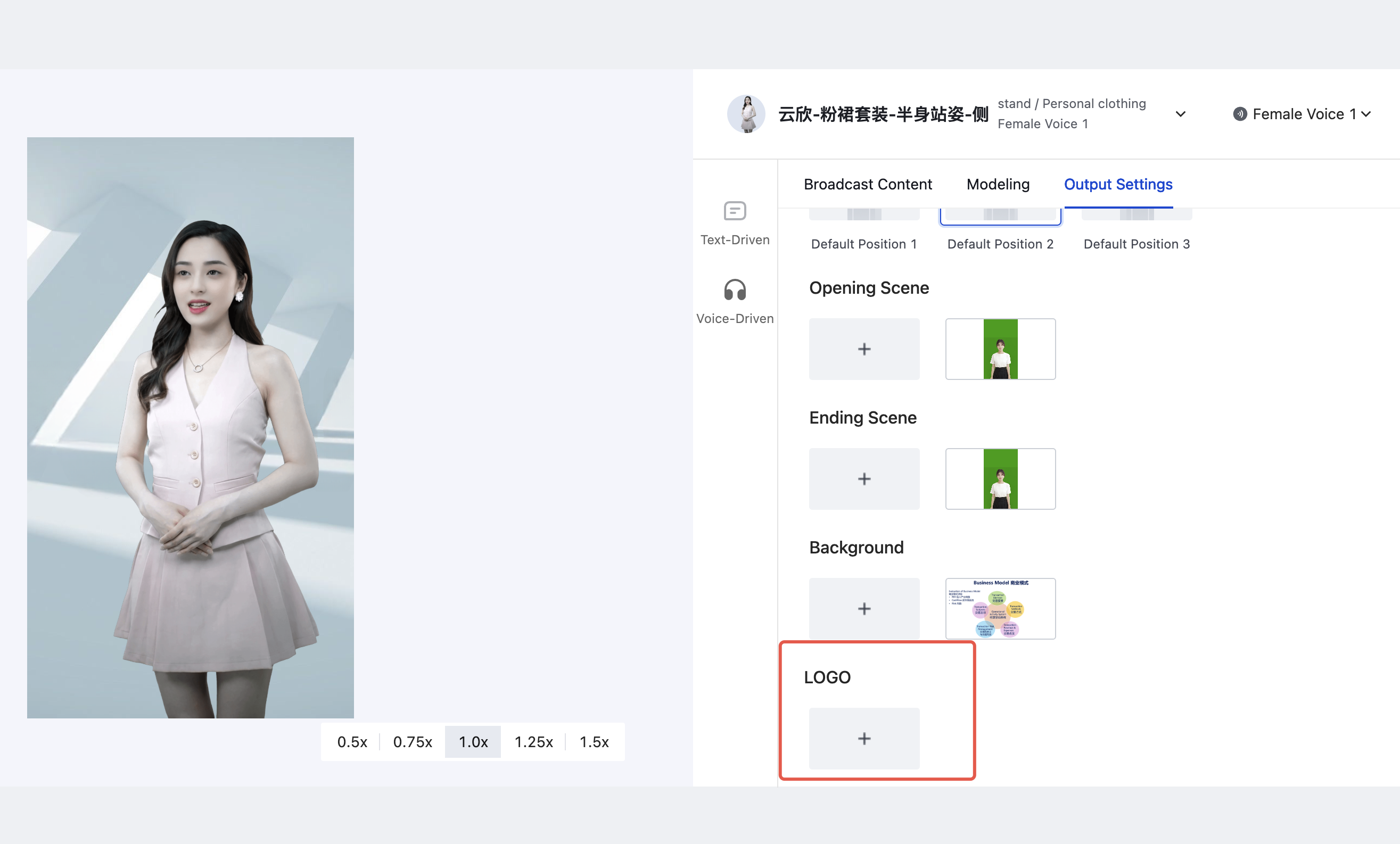 |
Adjusting Image Proportion Size
You can quickly adjust the avatar size by selecting the specified ratio.
0.5x | 0.75x | 1.0x | 1.25x | 1.5x |
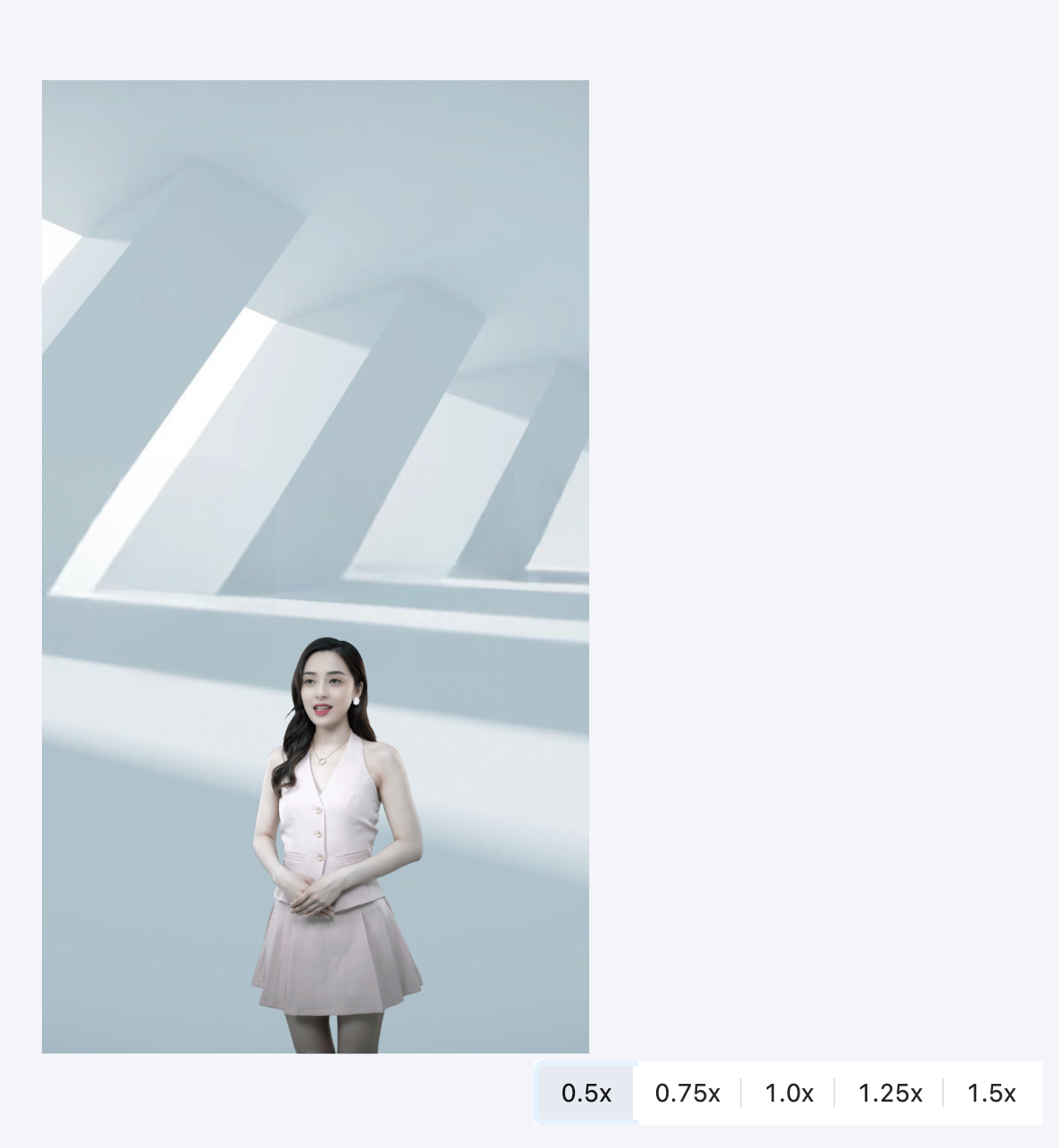 | 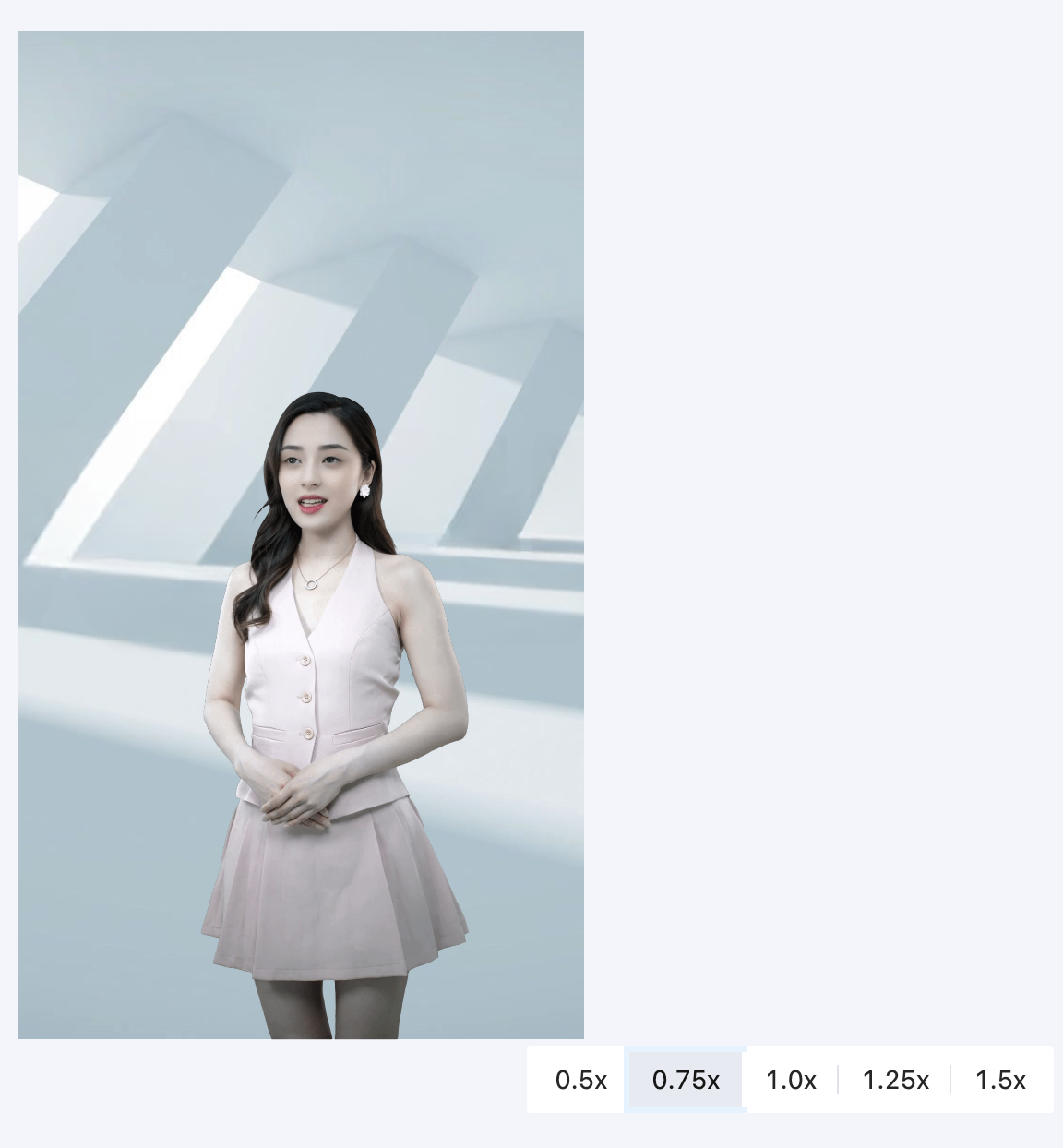 | 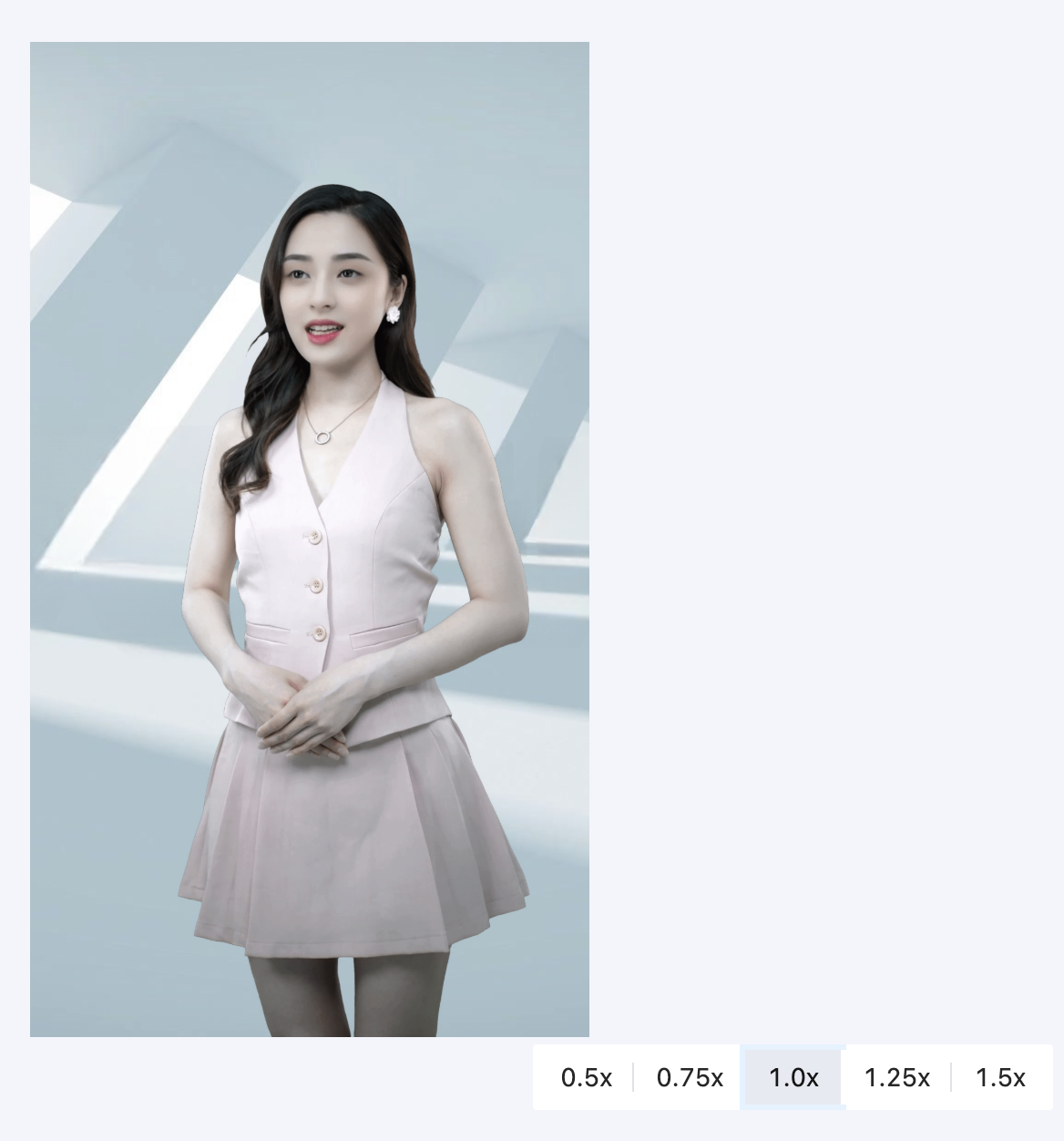 | 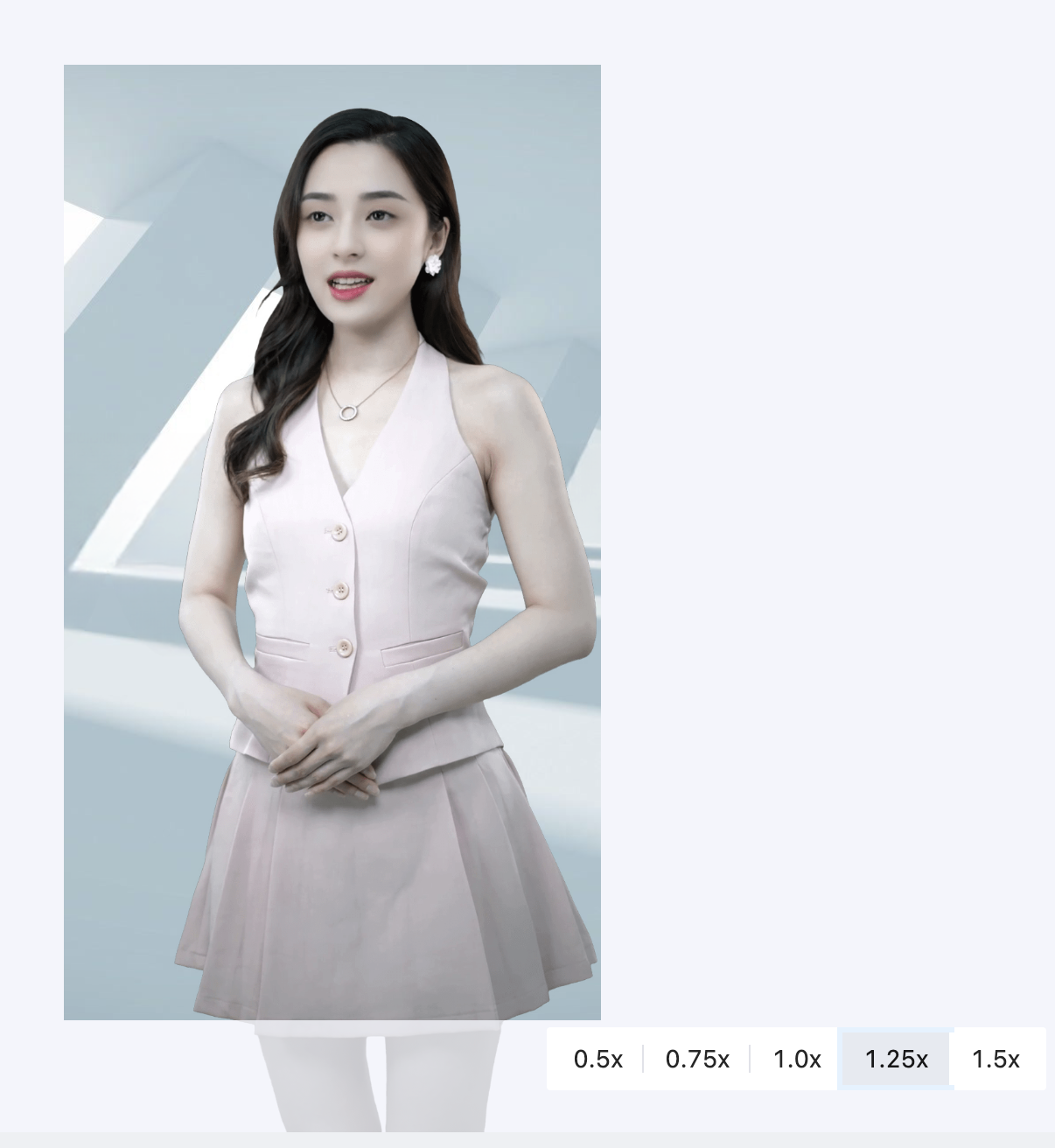 | 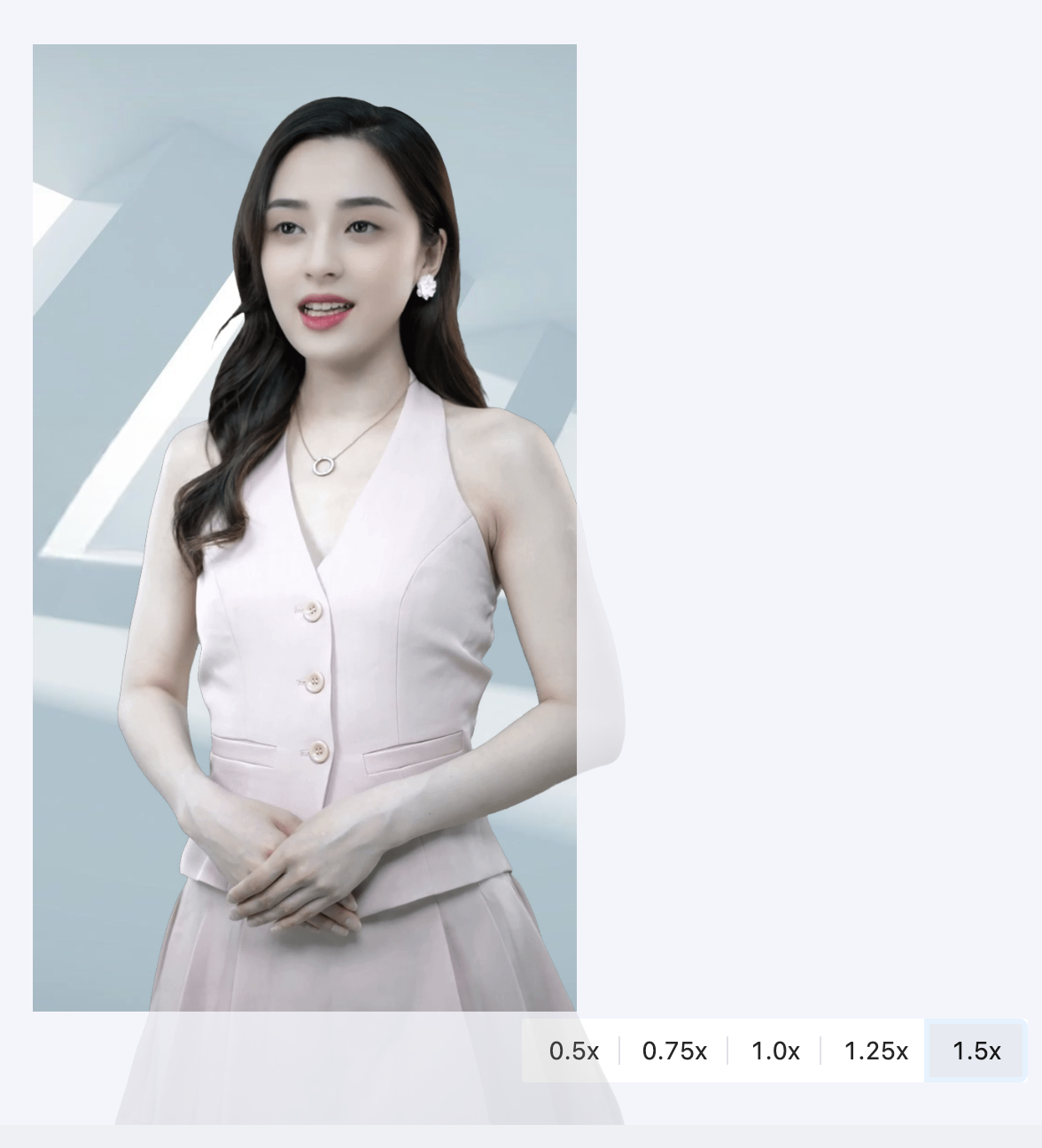 |
Selecting Generation Result
Supported output video or audio only. When generating video, supported output in different formats, select depending on the actual situation.
Generate Video | Generate Audio |
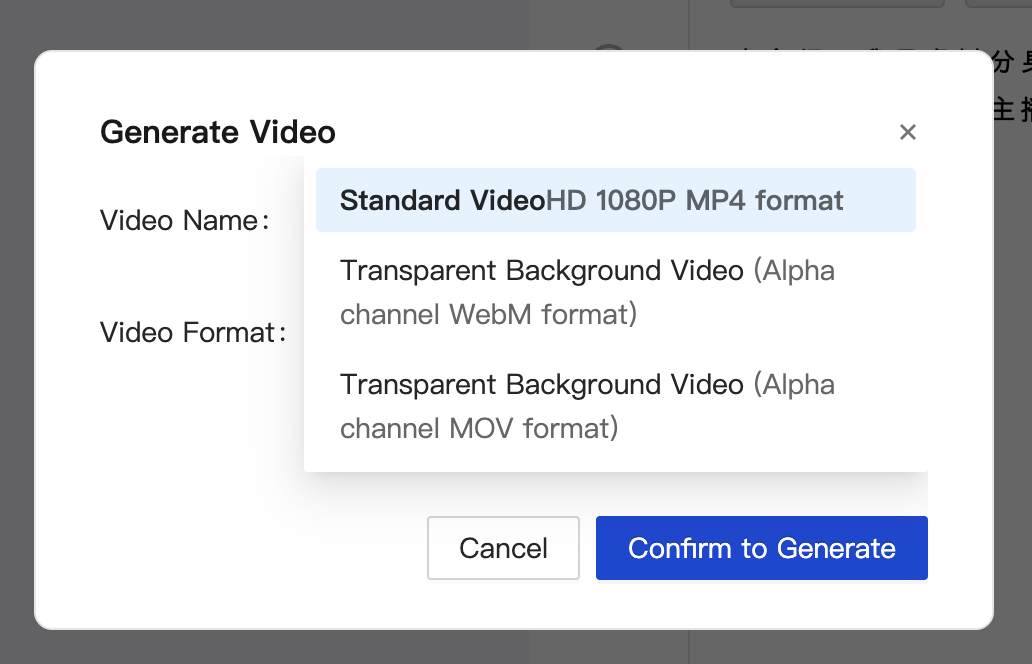 | 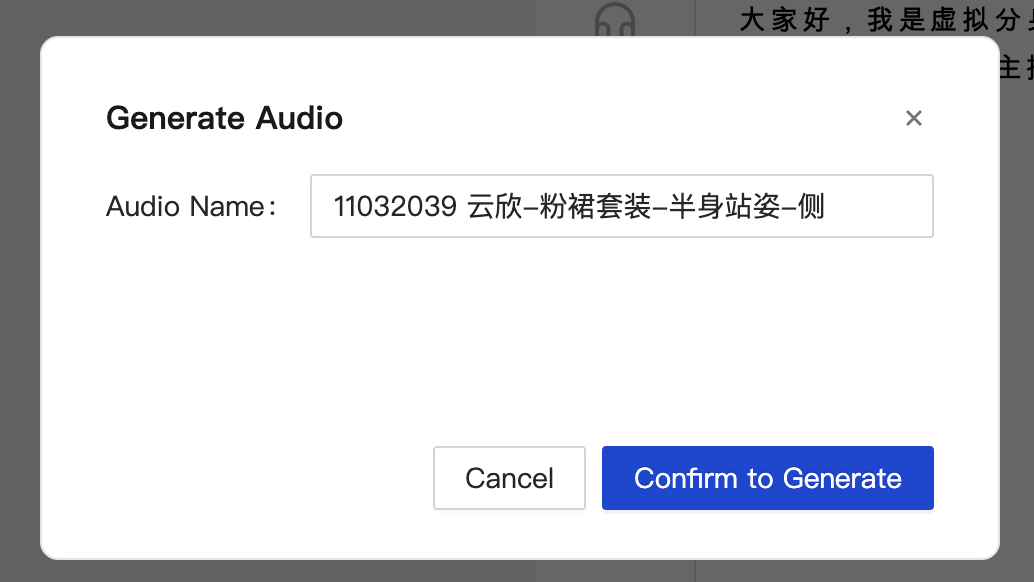 |
Help and Support
Was this page helpful?
You can also Contact sales or Submit a Ticket for help.
Help us improve! Rate your documentation experience in 5 mins.
Feedback