Overview
To ensure that your users can quickly access files stored in COS (similar to picking up a package from a nearby pickup point rather than traveling to a distant central warehouse), we recommend configuring an acceleration service. This will enable faster, more stable, and more secure access to COS resources for users.
Prerequisites
1. Purchase acceleration service
We recommend using Tencent Cloud EdgeOne. If you are already using this service, please refer to the following process for configuration. If you want to purchase the EdgeOne service, please go to Tencent Cloud EdgeOne. 2. Prepare or purchase a domain
Before configuring EdgeOne, you need to prepare or purchase a second-level domain and create a subdomain under it as an acceleration domain. If you need to purchase a domain, refer to Registration Guide for details. EdgeOne configuration
1. Log in to the EdgeOne console
Log in to the EdgeOne console with the Tencent Cloud account that purchased the EdgeOne service.
2. Add a domain name
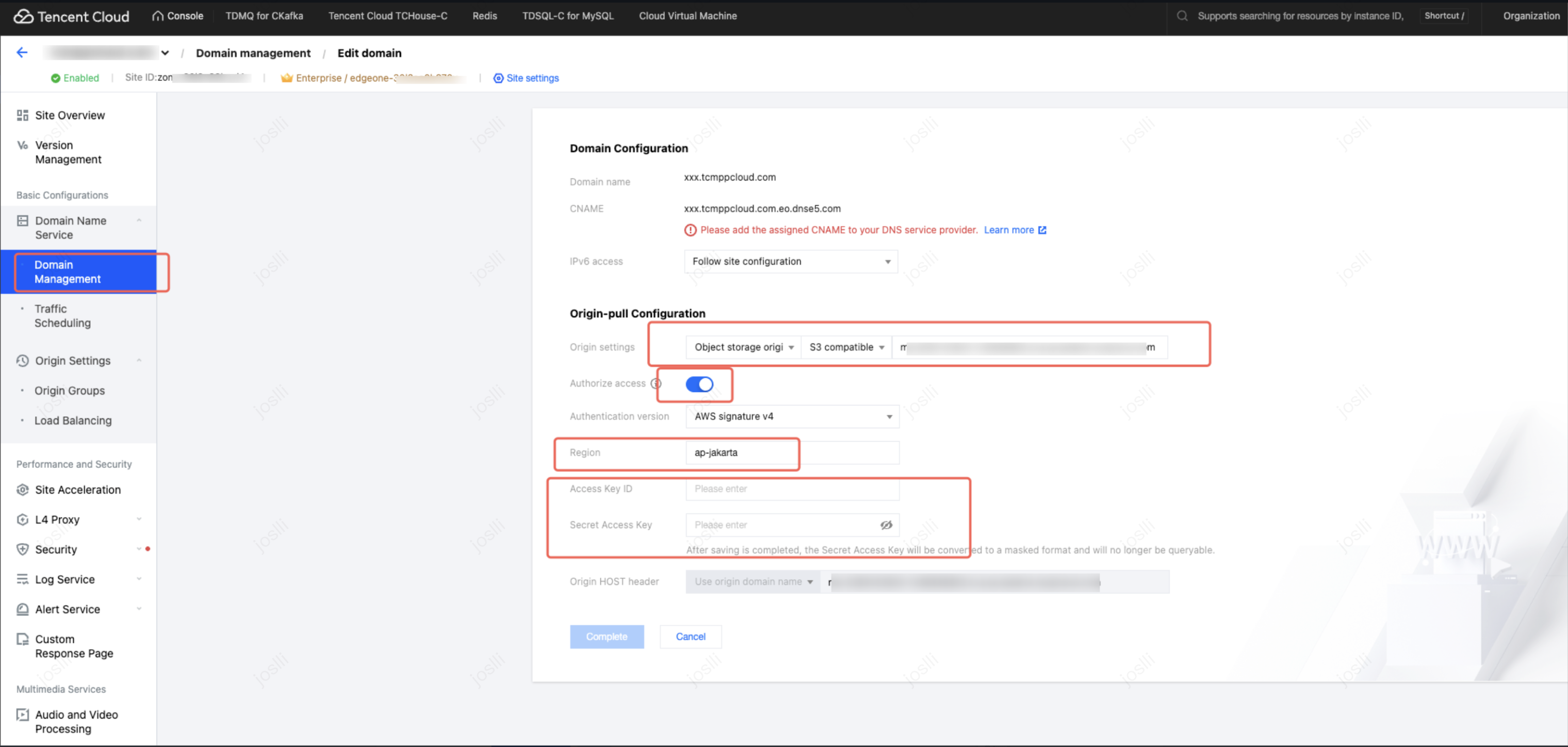
On the left sidebar, click Domain management, add a domain name and configure it according to the image below.
The configuration items are as follows:
2.1 Domain name
Fill in the domain name you requested, i.e., the acceleration domain mentioned in the prerequisites.
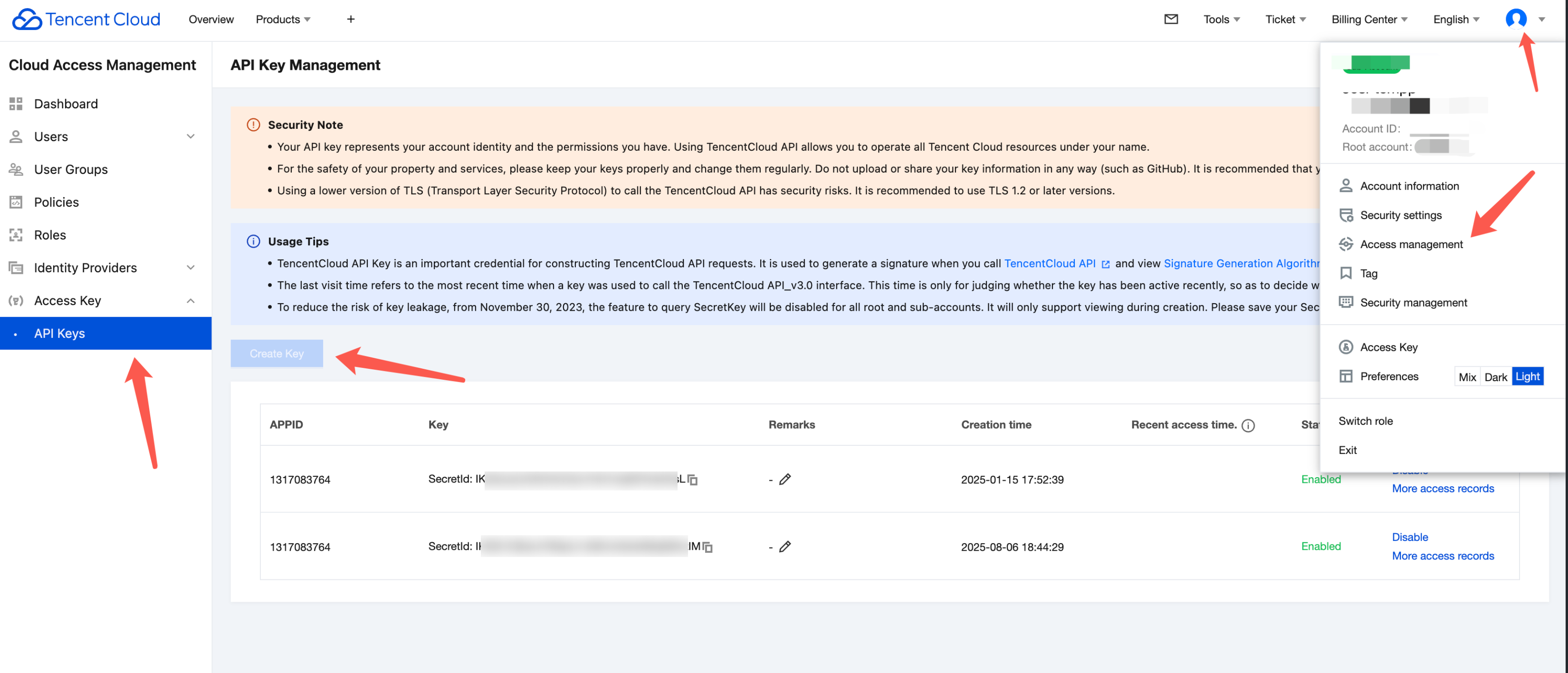
2.2 Access key ID and Secret access key
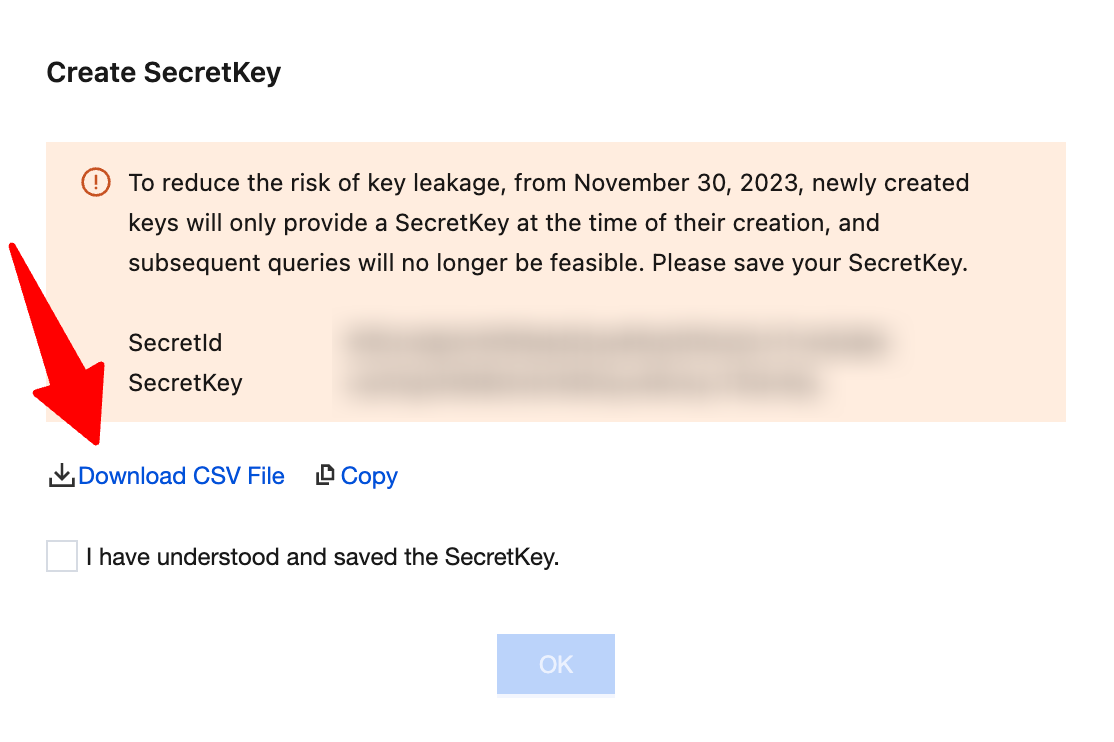
Fill in the SecretKey and SecretId for the Tencent Cloud account that activated the COS bucket (the account that purchased the TCSAS plan), which can be obtained via Access management - API keys.
2.3 Origin settings
Configure the COS access domain as the EdgeOne origin.
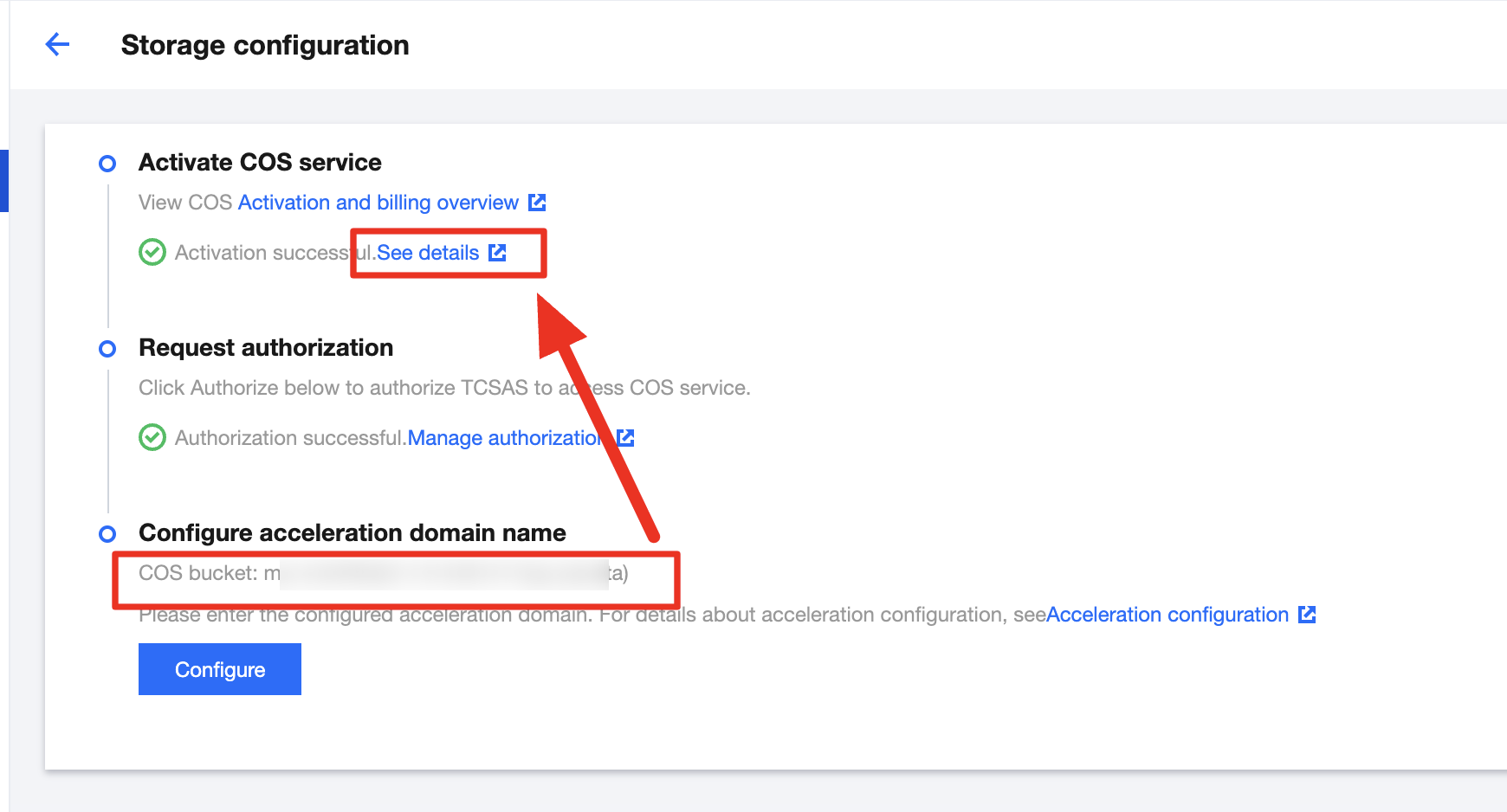
How to obtain the COS origin server domain name:
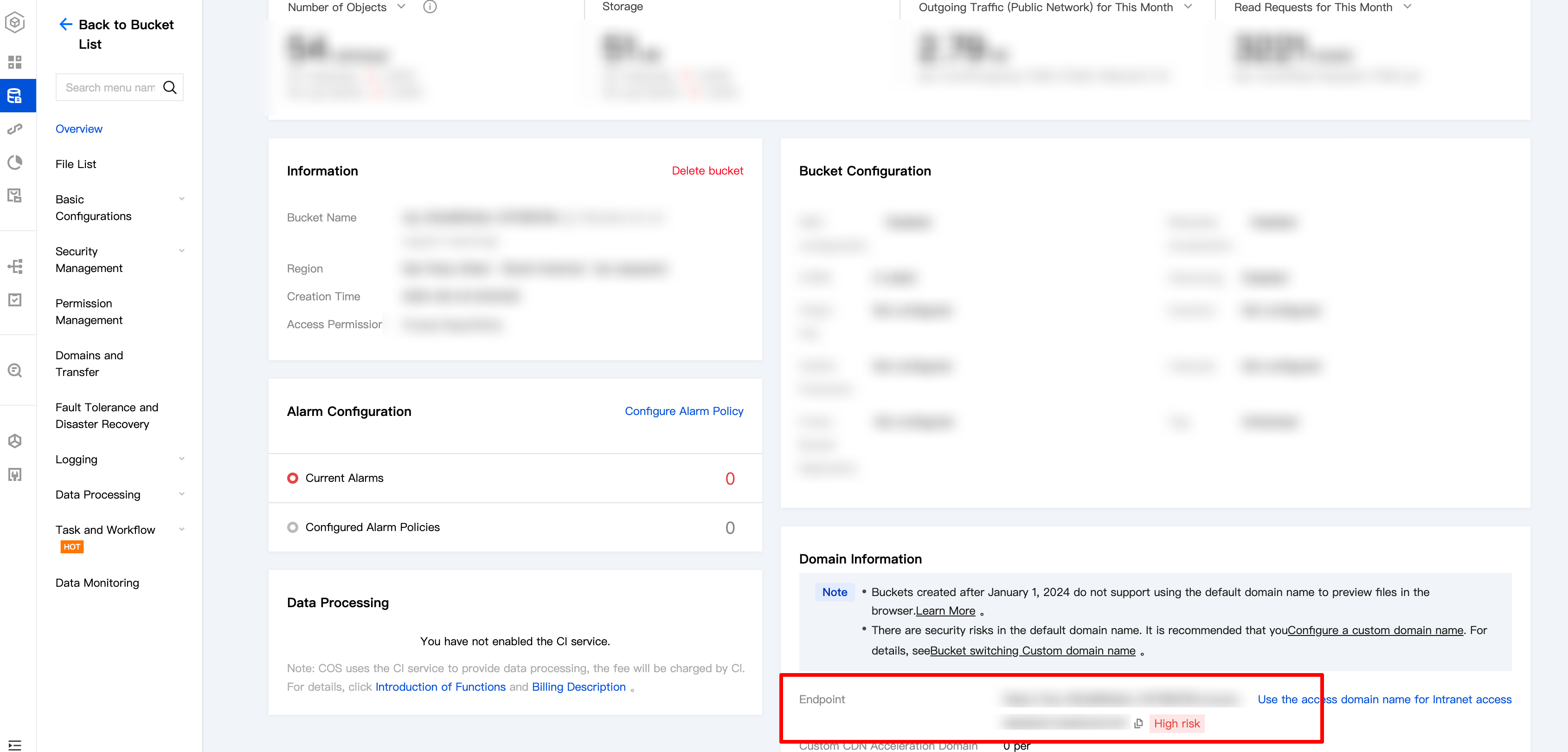
On the TCSAS storage configuration page, copy the COS bucket under Configure acceleration domain name, then click See details under Activate COS service to go to the COS console. Navigate to the COS configuration page, click Bucket list on the left sidebar, and find the target bucket (you can search the COS bucket in the search box).
Find the access domain name in the lower right corner, copy and paste it into the "Origin settings" field.
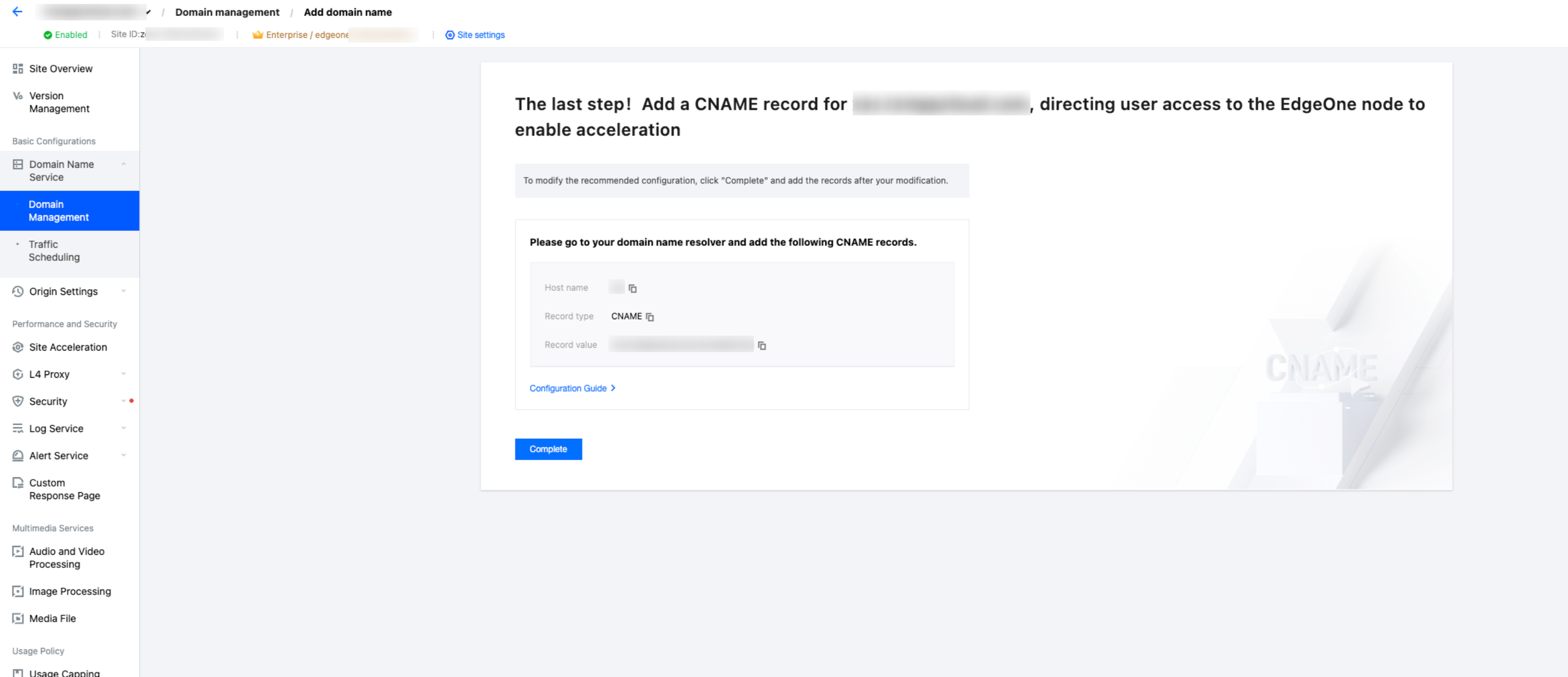
2.4 Configure DNS resolution
Configure DNS resolution, and click Complete.
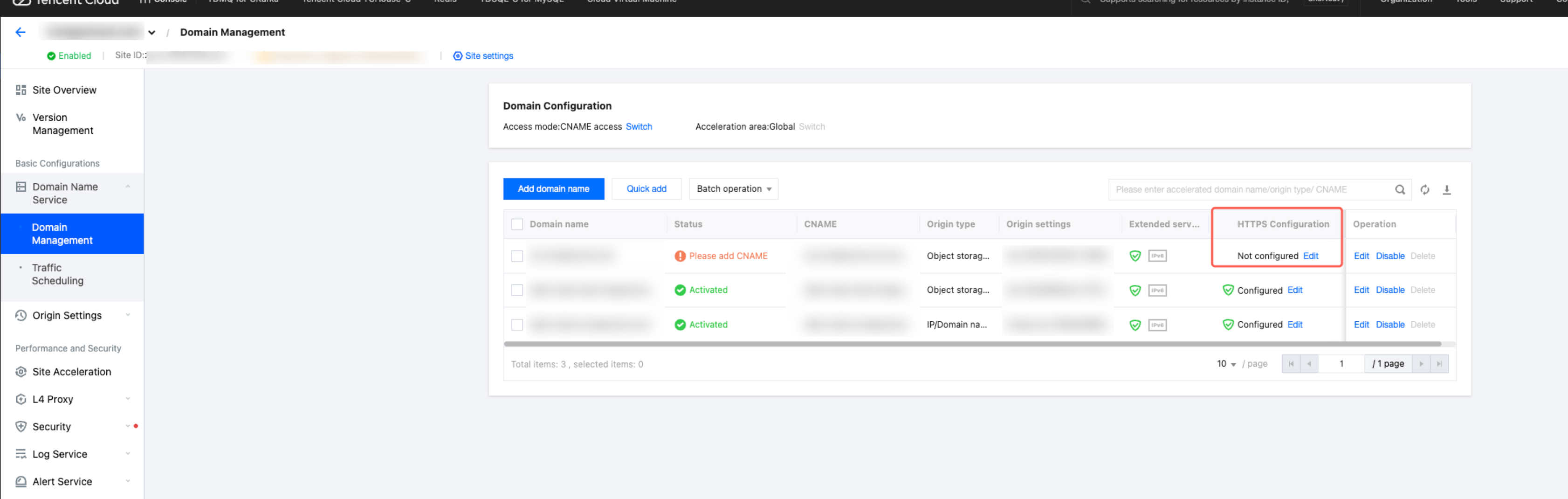
3. Configure an HTTPS certificate
On the Domain management page, click Edit in the HTTPS configuration column, and configure the HTTPS certificate.
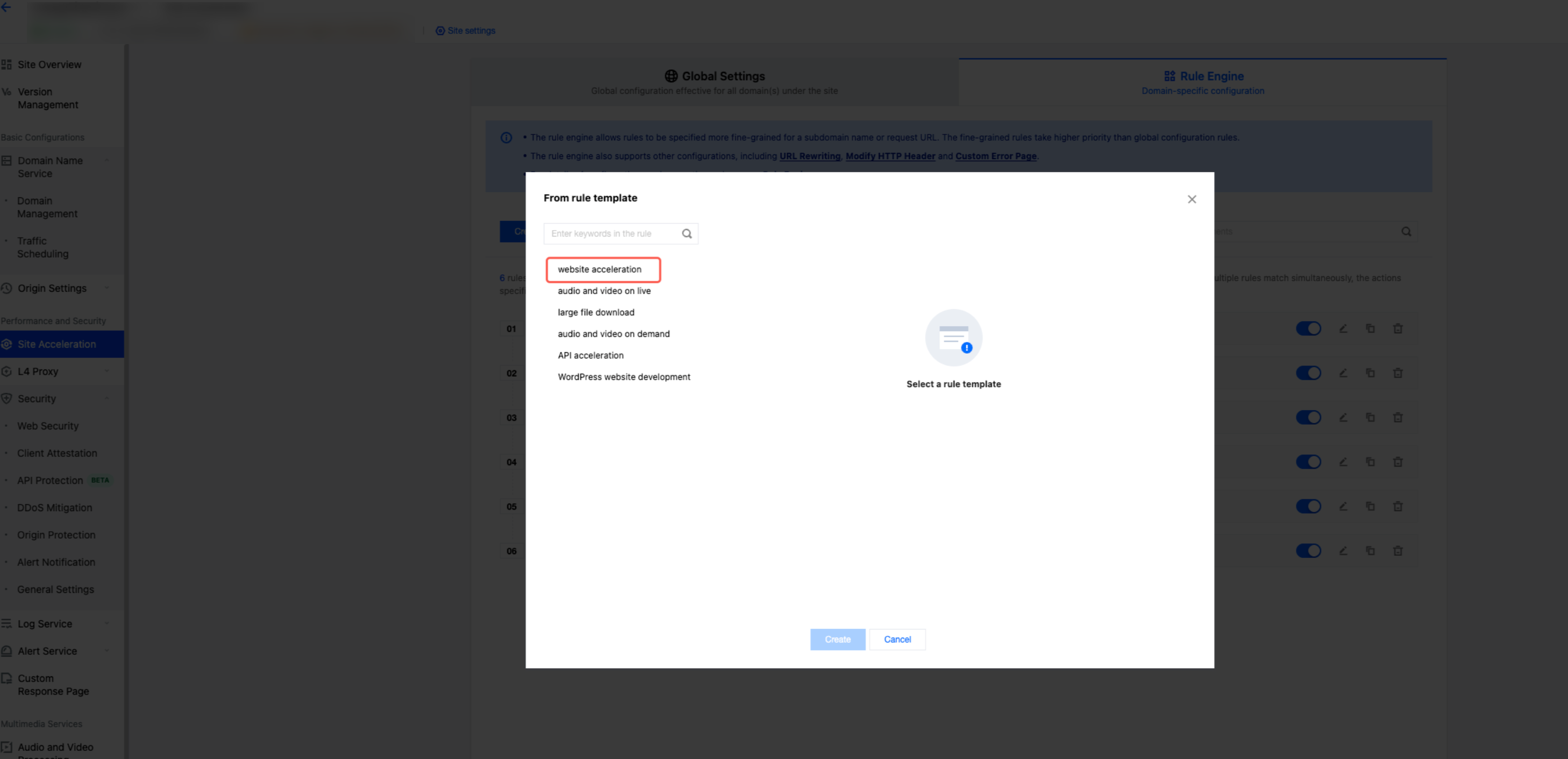
4. Configure TypeB authentication
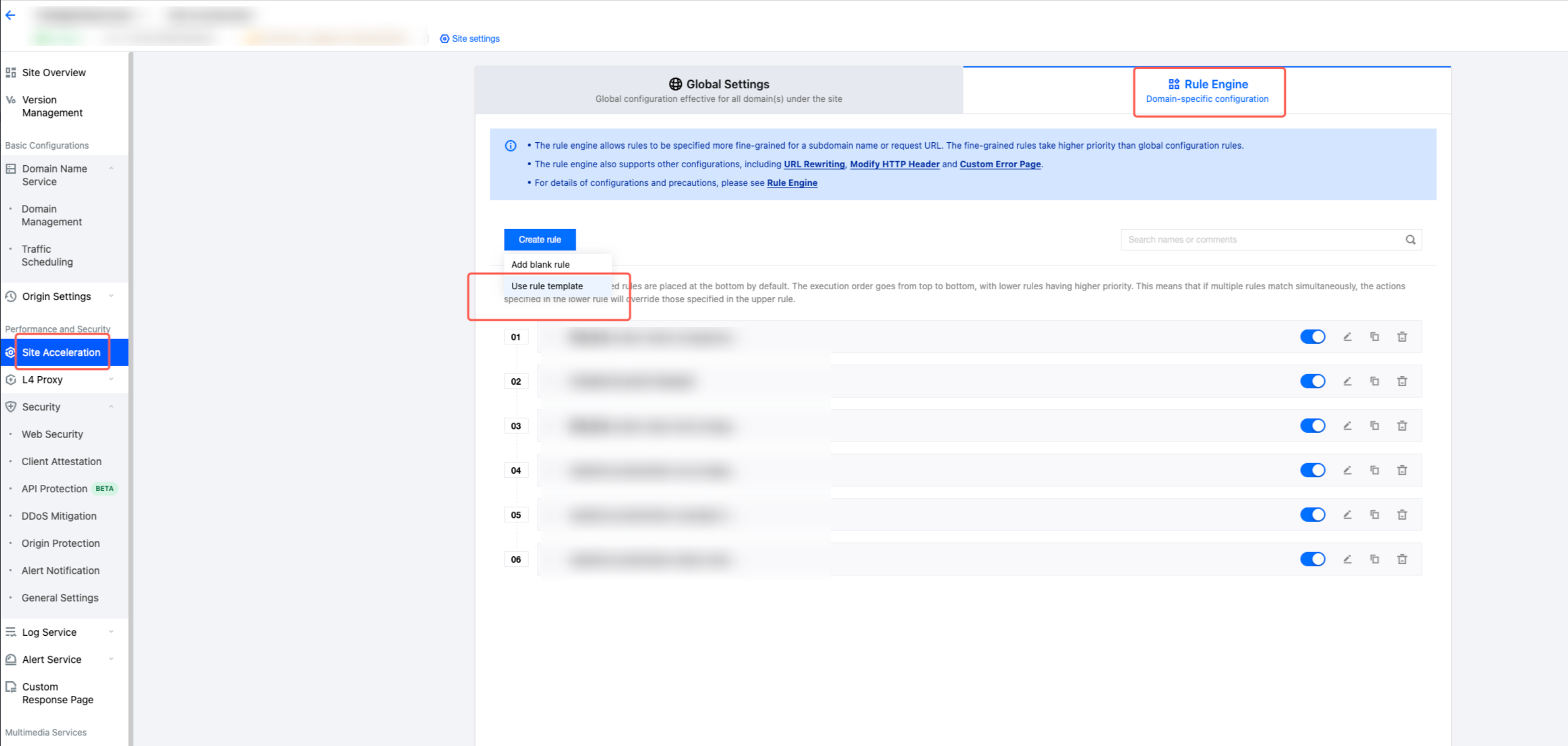
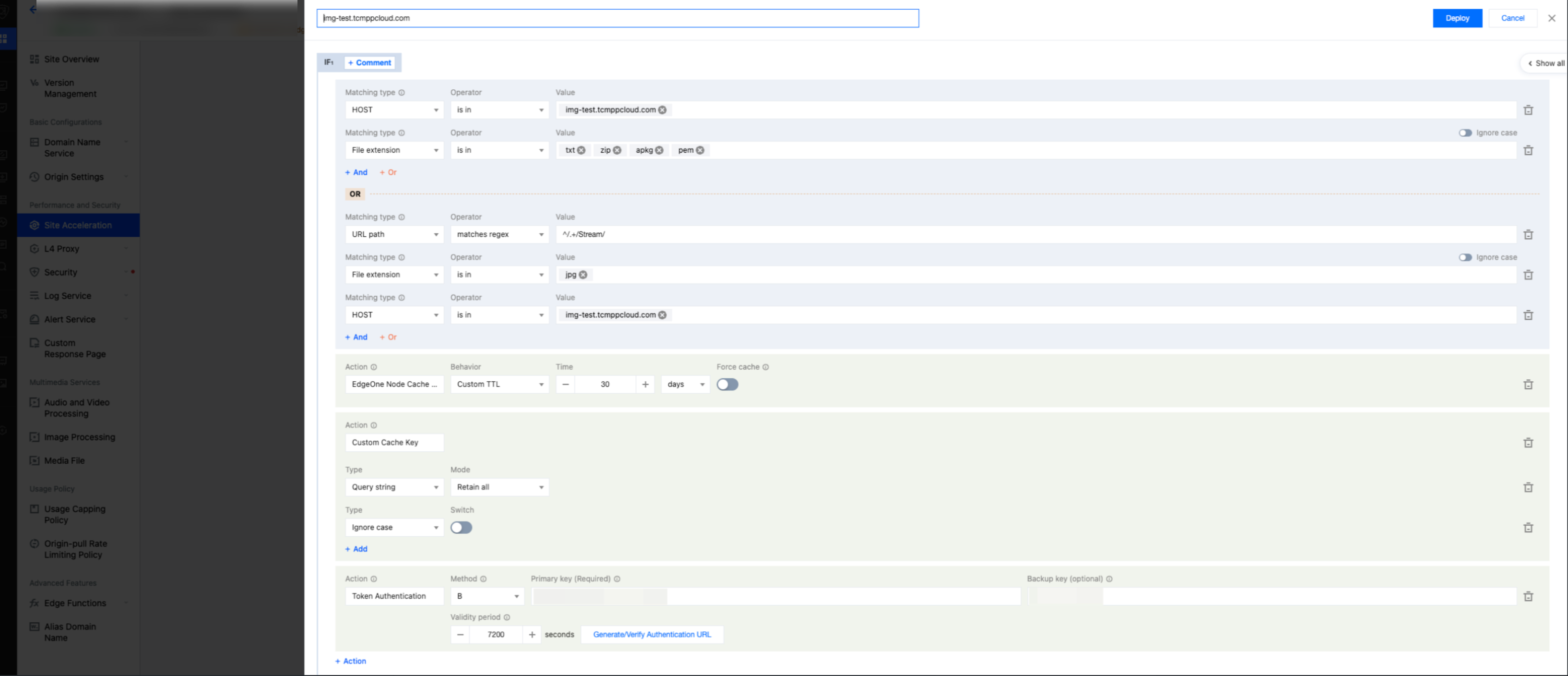
On the left sidebar, select Site acceleration, click Rule engine, and configure TypeB authentication.
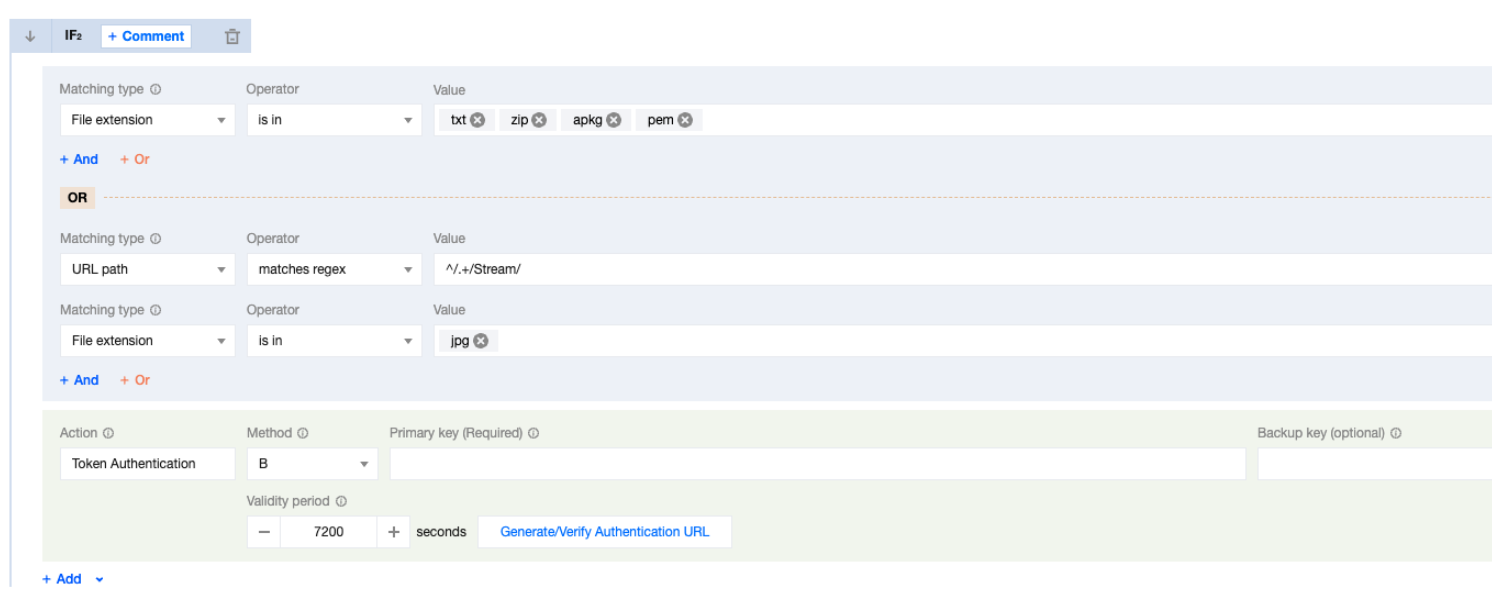
Add Token authentication as an action, configure your specified key, and click Deploy in the upper right corner to return to the domain management page.
Note:
TypeB requires authentication for specified file types (with extensions zip, txt, apkg, pem, jpg). The expiration time must be configured to 7200 seconds.
5. Security configuration
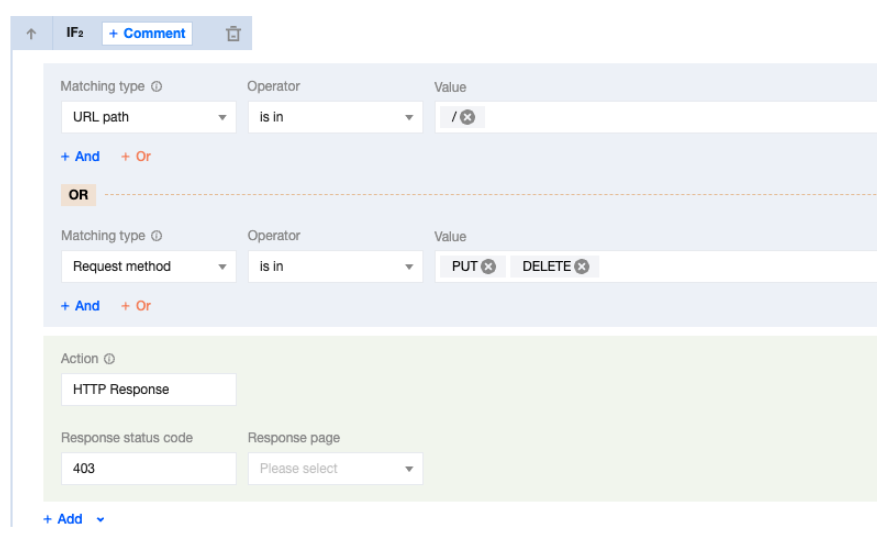
To ensure the security of your data and prevent security vulnerabilities related to PUT and DELETE operations on the accelerated domain, we recommend using the web protection feature in the EdgeOne configuration to block these actions.
To prevent directory listing at the root path of the acceleration domain, block access to “/” on the Web security settings in the EdgeOne configuration.
6. Final configuration
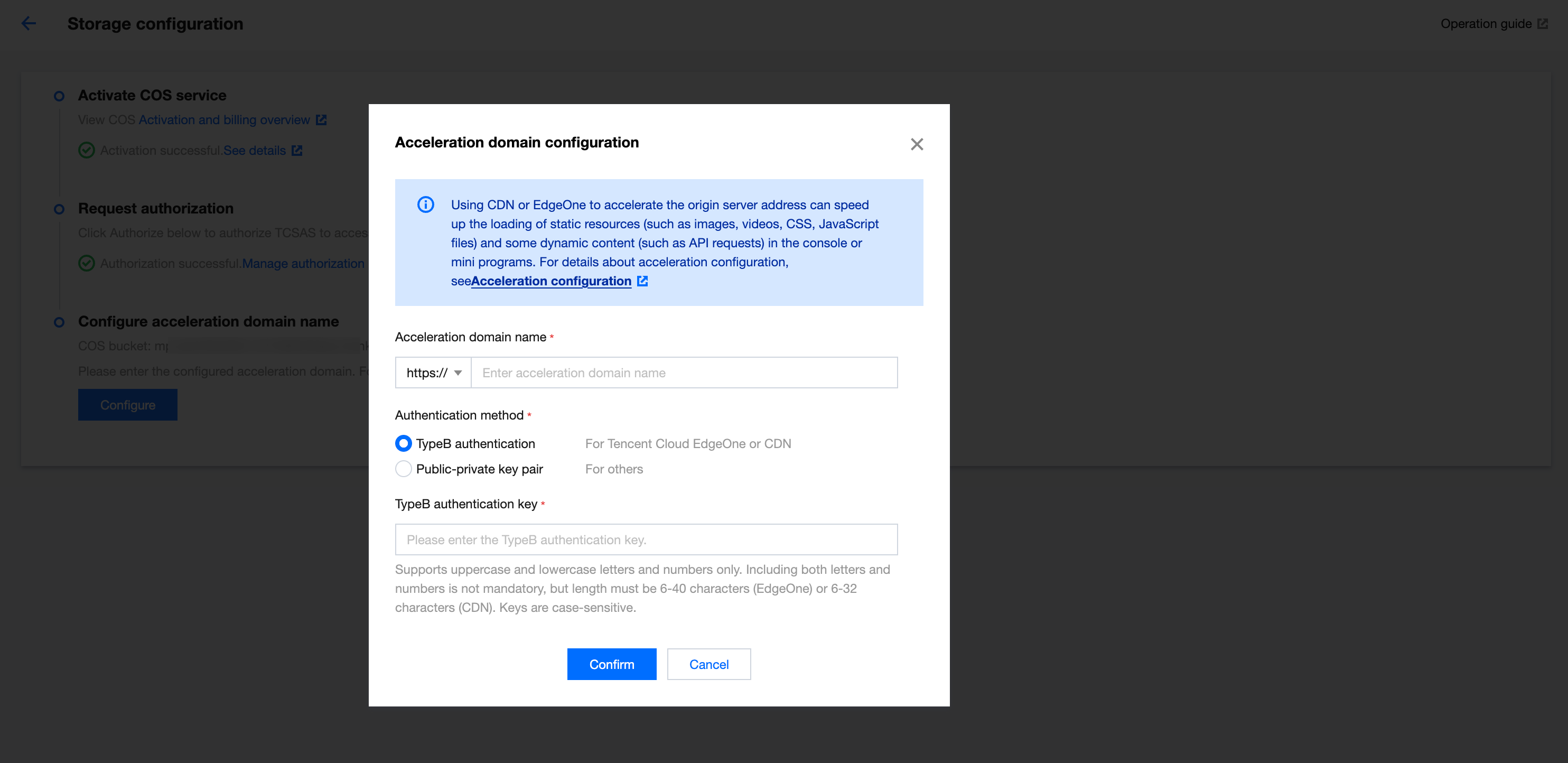
After adding the domain name and completing TypeB authentication configuration, return to the TCSAS storage configuration page. Fill in the added domain for Acceleration domain name and enter the "Primary key" from the TypeB authentication configuration in the TypeB authentication key field. Click Confirm and wait for the system test to complete. A successful test indicates that the configuration is effective.
Note:
There will be a delay of a few minutes before the configuration becomes effective.