tencent cloud

Best Practices for Web3 and FinTech Solutions

Download
Modo Foco
Tamanho da Fonte
Última atualização: 2026-07-10 09:39:00

Solution Overview

This solution targets the Web3 and broader financial industry, focusing on core real-time interaction scenarios such as live streaming, message push, and community operations. It provides capabilities including TRTC, instant messaging, transcription, and translation based on the Tencent RTC product suite (Live, Chat, Push), meeting demands for global user access, real-time market data delivery, and multilingual communication. The solution encapsulates best practices for building real-time interaction systems, abstracting cross-industry common requirements into a standardized reference architecture to help developers quickly construct live streaming and instant messaging systems. It also provides integration guides for advanced capabilities such as Real-Time Live Caption Transcription & Translation and Bot Streaming & Digital Human Live Streaming, addressing high-frequency needs for global operations, digital content production, and compliance management. The solution is applicable to business scenarios including crypto exchanges, investment advisory communities, online brokerages, and social wallets.


Industry Insights and Architecture Design

This section outlines several typical interactive game modes and reusable engineering practices in the Web3 and broader financial industry, helping you clarify technology selection and business scope before you start coding. It also delineates the complete system boundaries and core subsystems, providing an overall system architecture design and a breakdown of the core subsystems.

Typical Game Modes

Scenario
Game Mode Summary
Key Capability
AMA(Ask Me Anything)
1:N interaction between project team and community; mic connection, voting, text transcription, and screen sharing for co-reading whitepaper
Video streaming, mic connection interaction, voting card, subtitle transcription, screen sharing
Community Management and Decentralized Collaboration
KOL group chat, rich media (images/voice/files/emojis), group permission management, message search/reference/history roaming
Large-scale community (Community), message card, file transfer
Market Alert Market Alert System
Market anomaly, airdrop preheating, and risk control alarm delivered within seconds; push notifications grouped by language / Tag / holding position
High-concurrency push, Tag-based group push, offline message push
Live Investment Advisory and Market Analysis
Market co-reading, social copy trading (Social/Copy Trading), on-chain reputation/licensed qualification, tipping conversion
Video streaming, screen sharing, gift system, copy trading card, order write-back
MemeFi Live Interaction
The anchor initiates on-chain interactions, and the audience participates via on-chain contracts or token staking; gamified trading (GameFi game mode)
Interactive live streaming, on-chain event callback, smart contract, gift system
Note:
Forms such as Meme Coin live interaction, MemeFi, and LiveFi involve on-chain transactions, token incentives, and high-volatility speculative risks. This solution only describes the technical forms and required capabilities, without providing specific contract designs, game modes, or tokenomics parameters (Tokenomics). If you plan to launch such a business, consult your local financial regulatory and legal teams regarding specific compliance requirements.

Overall Architecture Design

A complete Web3 and broader financial real-time interaction business system involves at least six major business domains, each with its own independent technical foundation and data model.
Business Domain
Core Responsibility
Technology Base
Provider
Live streaming domain
Room management, audio/video communication, mic connection interaction, bullet screen and gifts, transcription and translation
Live AtomicXCore + AI Transcription/Translation
Tencent Cloud
Instant messaging domain
One-on-one chat, group chat, community (Community), official account, intelligent customer service
Chat
Tencent Cloud
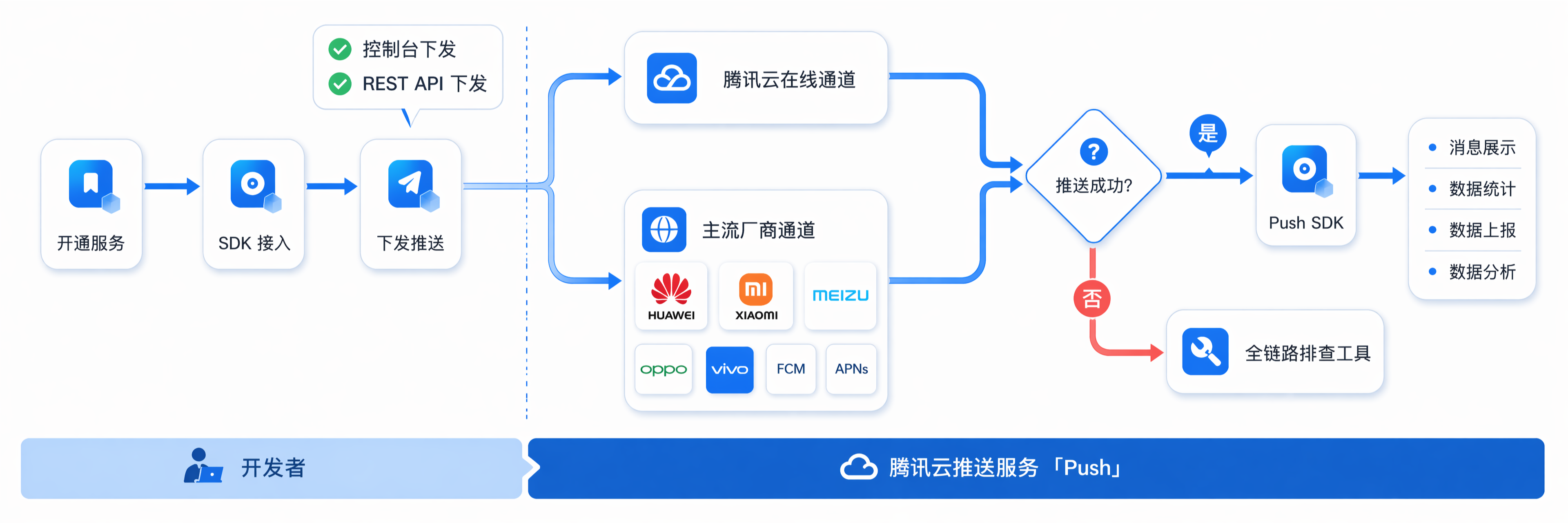
Reach and push domain
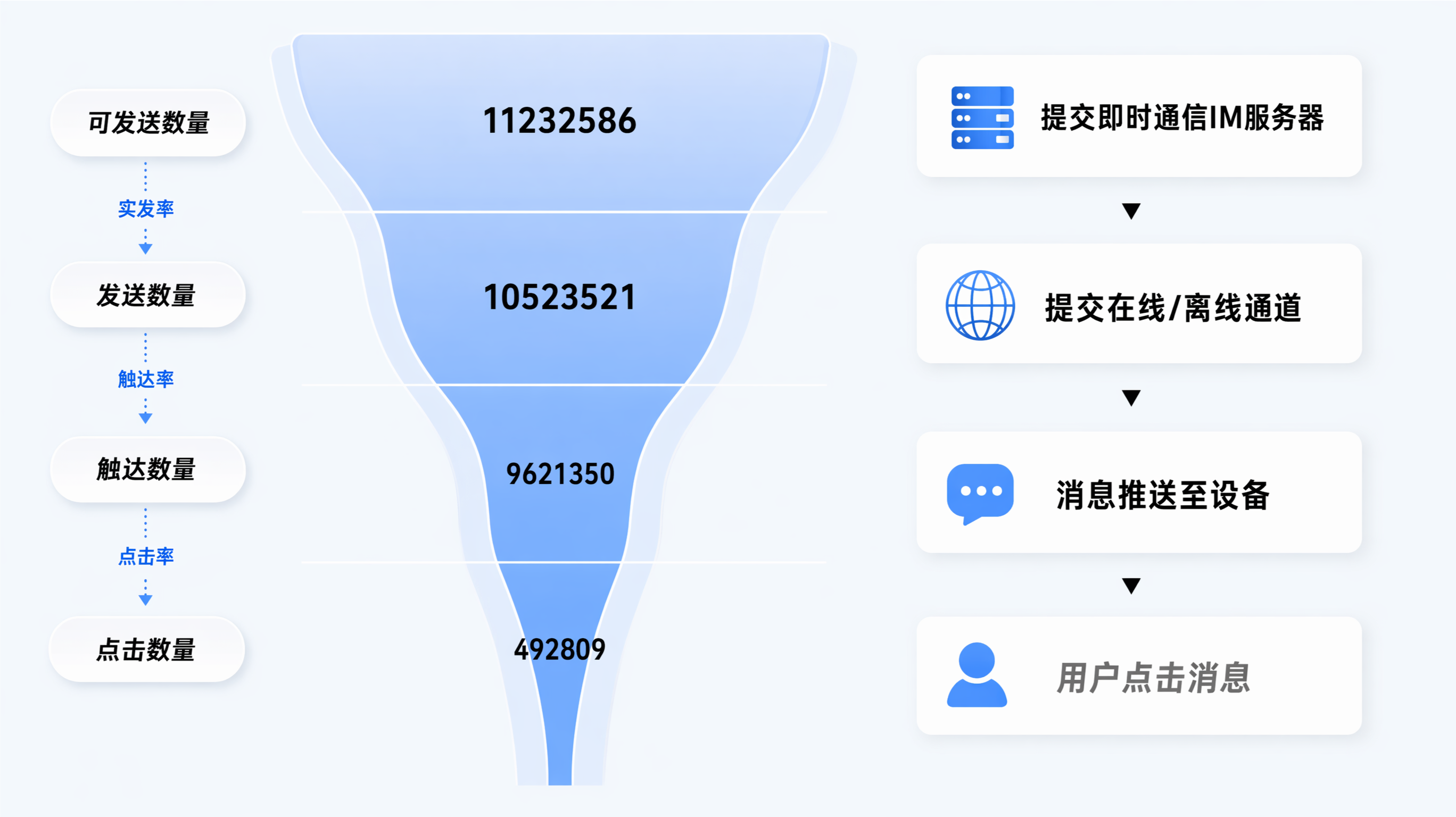
Real-time market push, marketing notifications, order reminders, offline message delivery
Push
Tencent Cloud
Asset trading domain
Wallet, copy trading, order, on-chain settlement, red packet/transfer
Self-built by the business (wallet/payment/on-chain service)
Customer Side
Risk control and compliance domain
KYC, content review, risk alert, CloudAudit
Cloud-based content understanding + self-built business risk control
Tencent Cloud + Customer Side
Customer service domain
Pre-sales consultation, dispute group creation, agent routing, chatbot FAQ
Desk
Tencent Cloud

Client Layered Architecture

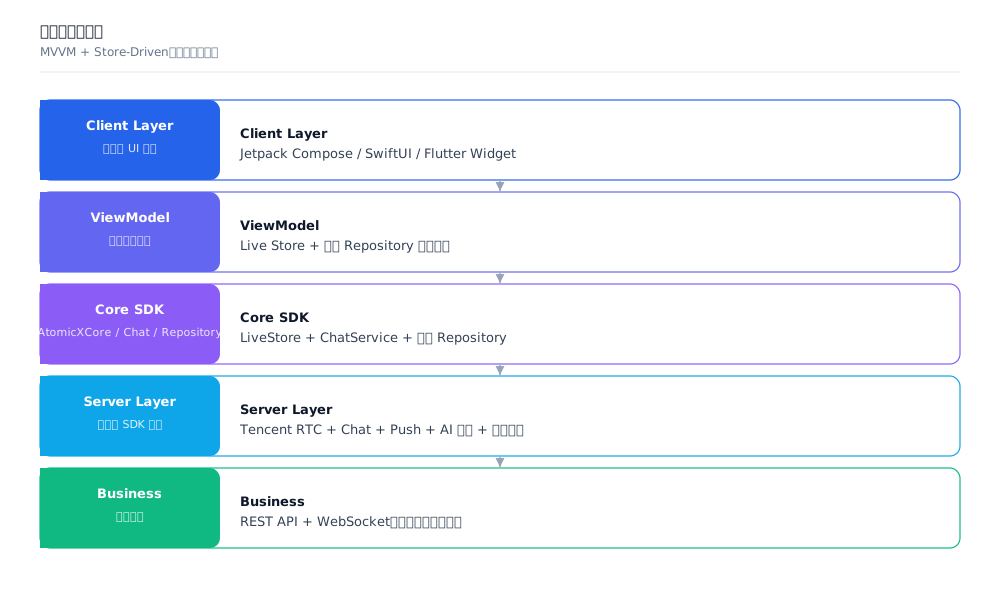
From a client-side perspective, a Web3 and broader financial industry App is generally organized into the following five layers:

Responsibilities of Each Layer:
Client Layer: Built on declarative frameworks (for example, Jetpack Compose for Android, SwiftUI for iOS, and the Widget system for Flutter), it is responsible for the responsive rendering of all pages. The live room page is the most complex UI scenario, requiring the overlay of multiple interactive layers such as bullet screens, market cards, copy-trading cards, gift animations, mic connection floating windows, and subtitle bars on top of the video stream.
ViewModel: It follows the MVVM architecture, with each page corresponding to an independent ViewModel. The core work of a ViewModel is to combine states from different data sources. For example, a live room ViewModel needs to simultaneously subscribe to the live streaming state (room information, mic connection status, bullet screen list, and so on) from the AtomicXCore Store and the financial data (market quotes, positions, copy-trading status, and so on) from the business Repository.
Core SDK: Live streaming capabilities are provided by the Store system of the AtomicXCore SDK (such as LoginStore, DeviceStore, BarrageStore, GiftStore, and so on). Chat capabilities are provided by the Chat SDK. Business capabilities are provided by the developer-built Repository layer, where each Repository encapsulates the network calls, data caching, and error handling for the corresponding server-side APIs (for example, MarketRepository encapsulates the market quote API, and WalletRepository encapsulates the wallet API).
Server Layer: It integrates underlying Tencent Cloud capabilities such as Tencent RTC, Chat, Push, AI real-time transcription and translation, and content understanding, as well as third-party SDKs for on-chain services and payments. Developers typically do not need to operate this layer directly but instead access it indirectly through the L3 Store and Repository.
Business: It hosts all server-side business logic, and clients communicate with it via REST API or WebSocket.

Server-Side Architecture Overview

It is recommended to organize the server side in a microservices or modular manner. The core services are split as follows:
Service
Core Responsibility
External Interface
Dependency
Live streaming service
Room management, member management, mic connection management, message management, subtitle service
REST API
Live REST API + AI transcription
Authentication service
UserSig generation and refresh, STS temporary credential issuance, Role authorization
REST API
RTC Engine / Chat authentication service + STS
Wallet/Asset service
Account system, on-chain custody, on-chain withdrawal, transfer, risk control
REST API
Payment system + on-chain service
Red packet service
Red packet campaign management, red packet grabbing, refund, idempotency control
REST API
Payment system + wallet service + Chat custom messages
Copy trading/Order service
Copy trading card distribution, one-click copy trading, order write-back, matching engine integration
REST API
Business transaction system
Push orchestration service
Multilingual push orchestration, Tag-based audience segmentation, conversion statistics
REST API
Push service
Review and compliance service
Content review callback, KYC, forced muting, risk event
REST API + Webhook
Content understanding + business risk control
User service
Account system, KYC level, follower relationship, on-chain identity
REST API
Chat account system
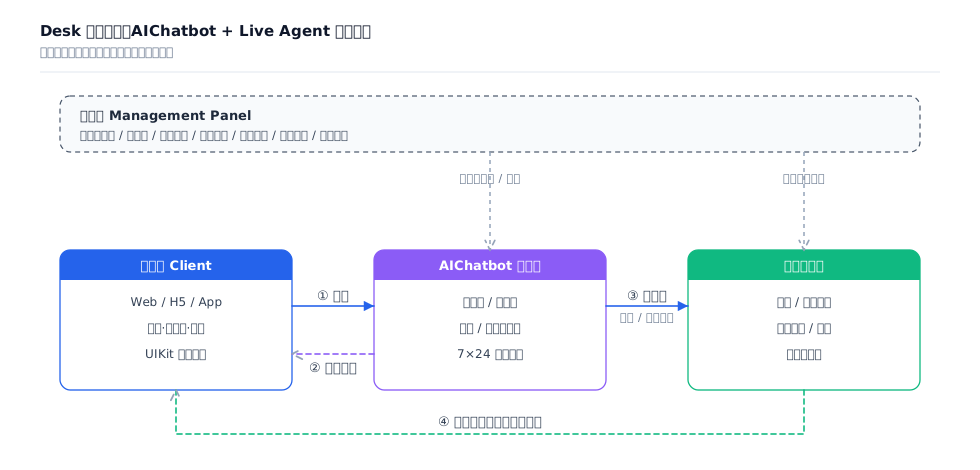
Customer service
Session routing, bot reception, intelligent response
REST API + Webhook
Desk / Intelligent Customer Service
Data service
Live streaming data statistics, conversion analysis, user profile
Asynchronous Messaging + Batch Processing
Data Warehouse

Core Subsystem Breakdown

Live Streaming Subsystem

The live streaming subsystem serves as the technical foundation for the entire Web3 and broader financial interaction business, with its core capabilities provided by the AtomicXCore SDK. Understanding the internal design of the SDK is a prerequisite for accessing live streaming capabilities.
Store-Driven Architecture
The AtomicXCore SDK adopts a Store-Driven architecture, where business capabilities are split into multiple Stores by domain. States are exposed reactively via StateFlow, and events are distributed via Listener callbacks. Global Stores are shared at the application level, while the lifecycle of room-level Stores is managed by liveID. When leaving the current room, you must actively release listeners and resources.
Store Module Categories
The Store modules in the SDK can be categorized into two types based on their lifecycle:
Global Singleton Store: It is shared throughout the application lifecycle and is suitable for managing cross-room general capabilities.
Room Dimension Store: It is obtained via create(liveID). Internally, the same instance is returned for the same liveID.
Store/Component
Feature Description
API Reference
LiveCoreView
The core view component for live video stream display and interaction: responsible for video stream rendering and view widget processing, supporting scenarios such as anchor live streaming, audience mic connection, and anchor cross-room connection.
LiveListStore
Full lifecycle management of live rooms: create / join / leave / terminate rooms; query room lists; modify live streaming information (name, announcement, and so on); and monitor live streaming status (such as being kicked out and ended).
DeviceStore
Audio and video device control: microphone (on/off, volume), camera (on/off, switch, quality), screen sharing, and real-time device status monitoring.
CoGuestStore
Audience mic connection management: mic connection request / invitation / acceptance / rejection, mic connection member permission control (microphone / camera), and status synchronization.
CoHostStore
Cross-room anchor connection: supports multiple layout templates (such as dynamic grid, and so on), initiates / accepts / rejects connections, and manages interactions among connected anchors.
BattleStore
Anchor PK competition: initiate PK (configure duration / opponent), manage PK status (start / end), synchronize scores, and monitor competition results.
GiftStore
Gift interaction: obtain gift lists, send / receive gifts, and monitor gift events (including sender and gift details).
BarrageStore
Bullet screen feature: send text / custom bullet screens, maintain bullet screen lists, and monitor bullet screen status in real time.
LikeStore
Like interaction: send likes, monitor like events, and synchronize total like counts.
LiveAudienceStore
Audience management: obtain real-time audience lists (ID / name / avatar), count audience numbers, and monitor audience entry and exit events.
AudioEffectStore
Audio effects: voice changing (child voice / male voice), reverb (KTV, and so on), earphone monitoring adjustment, and real-time effect switching.
BaseBeautyStore
Basic beauty effects: adjust skin smoothing / whitening / rosiness (0-9 levels), reset beauty effect status, and synchronize effect parameters.

Asset/Trading Subsystem

The asset/trading subsystem is typically built by the business layer, and the AtomicXCore SDK does not provide a dedicated Store for it. However, you can still reuse the AtomicXCore room custom information (MetaData) capability to store and synchronize any business-related information within the room (such as the currency currently being explained or the policy ID currently being broadcast). You can also reuse the custom message (CustomMessage) capability to broadcast any business-related messages within the room (such as copy-trading cards, market quote cards, or order execution receipts).
Functional Module
Core Capabilities
Interaction with Live Room
Wallet / Account
Balance inquiry, on-chain custody, withdrawal, transfer
Display asset card upon entering a room; deduction link for mic connection / tipping / red packets
Market data service
Multi-currency quotes, K-line charts, market depth
Stores and synchronizes via room custom messages when the anchor switches the explained currency.
Copy trading / Policy
Policy publishing, copy trading subscription, net value settlement
Publishes trading policies / copy trading cards in the live room via custom messages.
Order / Matching
Order placement, order cancellation, trade confirmation receipt
Order cards are written back to the live room and displayed as system messages in the bullet screen area.

Risk Control and Compliance Subsystem

Functional Module
Core Capabilities
Interaction with Live Room
Live Stream Moderation
Video + audio content understanding, violation detection
Triggering stream termination / warning / banning upon review hit
Message Moderation
One-on-one chat / group chat / group member profile review
Live room bullet screen content review, live room user profile review
KYC
Identity verification, identity tiering
Pre-validation for operations such as mic connection, withdrawal, and order following
Audit Trail
Message retention, operation logs, dual recording system
Live streaming on-cloud recording, compliance credentials and traceability

User and Community Subsystem

Functional Module
Core Capabilities
Interaction with Live Room
Account System
Registration, login, relationship chain, user profile
Providing an identity foundation for live viewing, transactions, and mic connection
Member Level
VIP, points, on-chain reputation score (On-chain Reputation)
Affecting mic connection priority, customer service level, and order following weight
Fans Community
Community (Community), grouping, topics, announcements
Live stream preheating, benefit distribution, and user retention
Official Account
Broadcast posts, subscription, interaction
Brand information, project/agency information, platform announcements

Reach and Push Subsystem

Functional Module
Core Capabilities
Interaction with Live Room
Real-time market data push
High-concurrency 30-second-level delivery, classification by Tag / specified user
Deliver price anomalies within seconds and immediately wake up the App.
Live Broadcast Preview
Live stream reservation and start notification
Automatically wake up followers before the live stream starts.
Marketing push
Airdrop preheating, event notification, and community benefits
Increase DAU and user engagement.
Transaction Notification
Order execution, withdrawal arrival, and risk control alarm
Notify users of important messages such as asset changes in real time.

Live Streaming Feature Development Practice

This chapter provides development practices for common live streaming features, helping you locate the corresponding documentation more quickly.
Basic Usage: Start live streaming and watch.
Live Streaming Interaction: Bullet screen messages, sending gifts and likes, audience mic connection, cross-room connection/competition, and screen sharing.
Globalization: Live captions, transcription and translation, and multilingual message push.
Advanced Scenarios: OBS stream pushing, digital human live streaming, and live streaming on-cloud recordings.
Risk Control and Compliance: Audio and video content understanding, bullet screen message content understanding, and material review.

Preparations

Before you begin, you need to complete preparatory tasks such as activating the service, importing AtomicXCore, and implementing the login logic.
1. Activate the Service: Log in to the Tencent RTC console, create a Live application, and simultaneously claim the trial version or purchase the official version.
2. Import AtomicXCore: Import AtomicXCore into your current project and add dependencies for the AtomicXCore SDK and the Chat SDK.
3. Implement the Login Logic: Call LoginStore in your project to complete the login. This is a key prerequisite for using all AtomicXCore features.
Note:
For more guidance and instructions on preparing for live streaming feature development, see Preparation.

Complete Implementation for the Anchor End

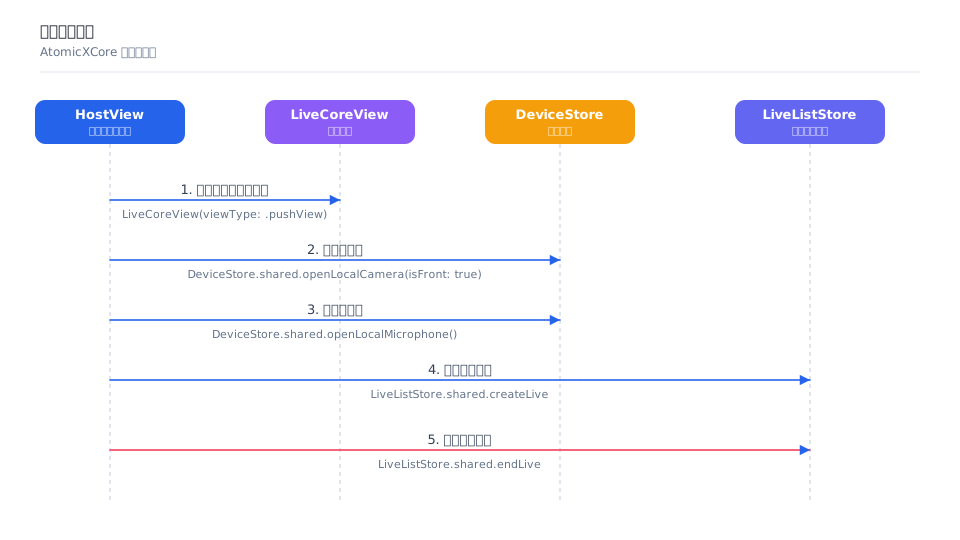
The process for an anchor to start live streaming is as follows. You only need to perform the following steps to quickly implement video live streaming for KOL investment advisors / project-side anchors.

Note:
For more implementation details on the anchor end, see Implement Host Video Streaming.

LiveCoreView Integration

LiveCoreView is the core rendering container shared by anchors and audience, which can be understood as the "carrier layer for live video." It is crucial to define its hierarchy and lifecycle within the page. In live streaming scenarios, it is recommended to organize the hierarchy as follows:
Layer
Feature
Description
Bottom Layer
LiveCoreView
Hosts local preview or remote video
Middle Layer
Anchor information, market quote cards, copy trading cards, subtitle display, online user quantity
Persistent light-interaction information
Upper Layer
Bullet screens, gifts, mic connection pop-up windows
High-frequency dynamic interaction
Top Layer
End live stream confirmation, risk control alarm, and compliance interception
Blocking operations and fallback prompts

Device management

DeviceStore provides a comprehensive set of APIs for managing audio and video devices, enabling anchors to maintain consistent device state management in scenarios such as starting live streaming, switching to the background, and exception recovery.
Management Item
Description
Microphone Management
Enable/disable the microphone, and configure the capture volume and output volume.
Camera Management
Enable/disable the camera, switch between front and rear cameras, and configure mirroring and video quality.
Audio Routing
Switch between the speaker and the earpiece.
Screen Sharing
Enable and disable the screen sharing feature (PC Stream Pushing Assistant, Market Sharing scenarios).
Network Status
Monitor network quality information in real time.

Creating a Live Streaming Room

Mode 1: Client-Side Room Creation
The anchor client directly calls LiveListStore.shared().createLive to create a room and automatically enters the room to start pushing the stream.
This mode is suitable for scenarios involving lightweight verification or minimal operational management, characterized by fast access and short links.
Mode 2: Server-Side Room Creation
The server side calls the REST API create_room to create an empty room. The anchor client must also call LiveListStore.shared().joinLive to enter the room and start pushing the stream.
The core value of this mode does not lie in making an extra API call, but in centrally managing room lifecycle, anchor qualifications, and compliance review status on the server side.

Ending a Live Streaming Room

Mode 1: Client-Side Live Streaming Termination
The anchor client directly calls LiveListStore.shared().endLive to end the live streaming.
This mode is suitable for general lightweight live streaming scenarios, where the client side alone can independently complete the live streaming termination action without server-side involvement.
Mode 2: Server-Side Room Termination
The anchor client triggers the termination action, and the server side uniformly calls the REST API destroy_room to dissolve the room.
This mode is suitable for more complex live streaming scenarios. The server side can centrally manage the lifecycle of live rooms and settle associated businesses (such as order follow-up settlement, gift settlement, and compliance record-keeping) when the streaming ends.

Complete Implementation for the Audience End

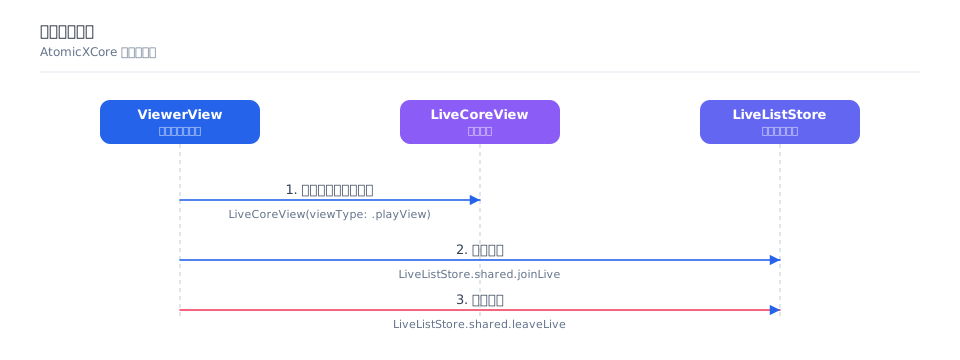
The audience viewing process is as follows. By following a few simple steps, the audience can watch the live stream.

Note:
For more implementation details on the audience end, see Implement Audience Join and Watch.

Entering a Live Streaming Room

The audience client calls LiveListStore.shared().joinLive to enter the room, and LiveCoreView automatically plays the video stream of the current room.
After successfully entering a live streaming room, you also need to ensure that business data synchronization is complete, such as for the bullet screen message area, market quote cards, order follow-up cards, and customer service entry.

Exiting a Live Streaming Room

The audience client calls LiveListStore.shared().leaveLive to leave the room. The SDK automatically stops pulling the stream and exits the room.
After successfully exiting the live room, you also need to stop room-related listeners and message subscriptions, clean up the room-level Store, and return to the live list or recommendation page.

Audience Mic Connection Interaction Implementation

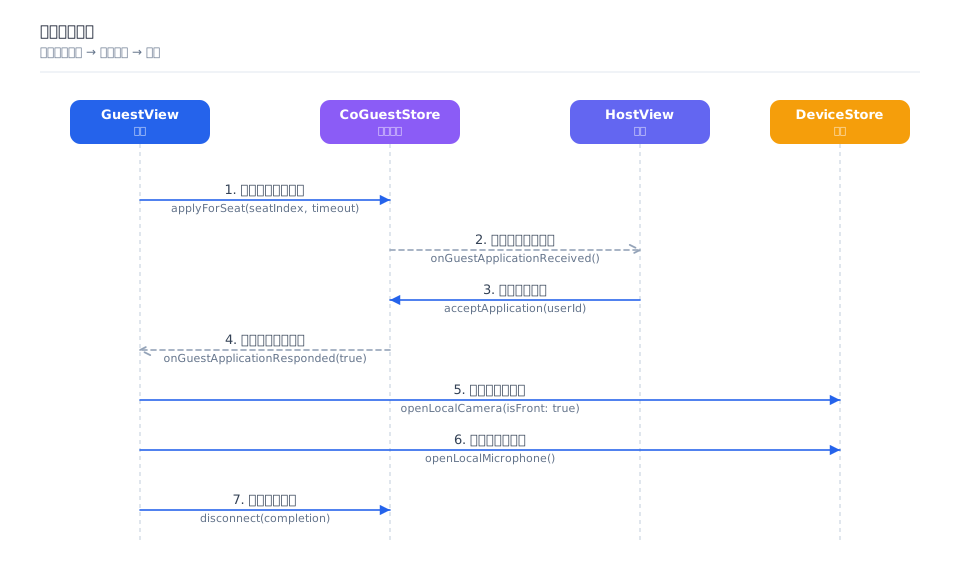
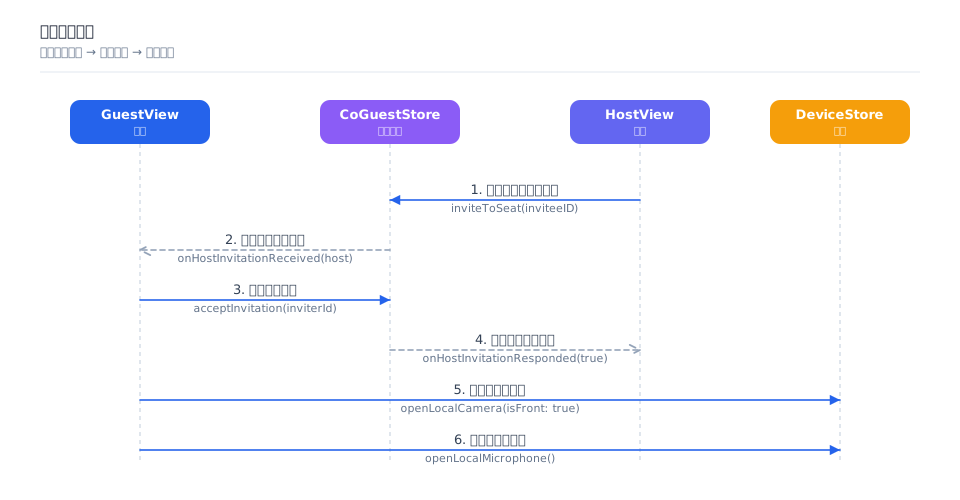
Mic connection is an important feature for enhancing interactivity in scenarios such as live investment advisory and AMA, allowing the audience to conduct real-time audio and video calls with the anchor. AtomicXCore provides the CoGuestStore module, which is specifically designed to manage the complete business process for audience mic connections. CoGuestStore supports the two most mainstream mic connection scenarios: audience request to join the mic and anchor invitation to join the mic. For more implementation details on the audience mic connection interaction feature, see Guest Connection.

Audience Requesting to Go on Mic

The audience actively initiates a mic connection request, and the anchor approves or rejects it upon receiving the request.


Anchor Inviting to Go on Mic

The anchor can actively initiate a mic connection invitation to any audience member in the live room. The audience member approves or rejects the invitation upon receiving it.


Anchor Cross-Room PK Implementation

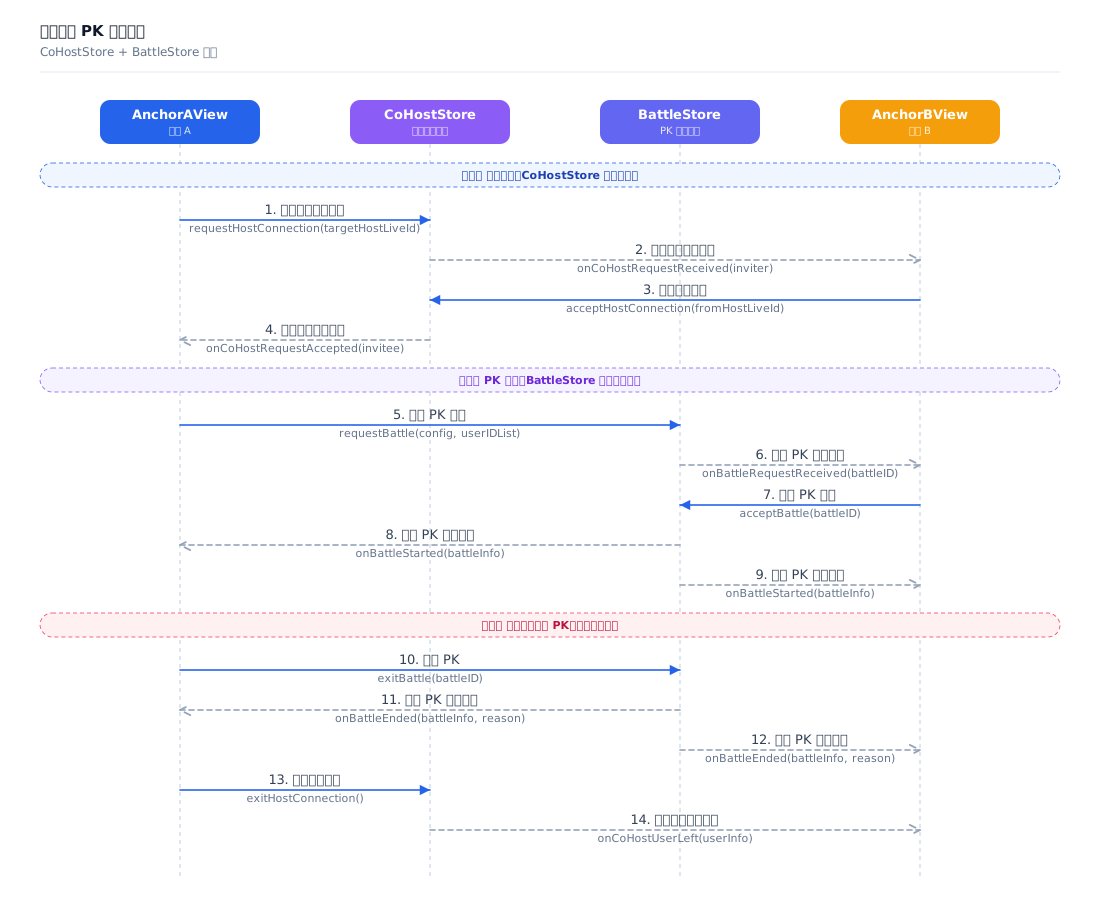
In the live investment advisory scenario, "Advisor PK" is a high-frequency game mode, such as bull-bear debates and strategy showdowns. AtomicXCore provides two core modules, CoHostStore and BattleStore, which are used to handle cross-room connections and PK battles, respectively.
A complete "Anchor Connection PK" typically consists of the following four phases:
1. Cross-Room Connection: Two anchors establish a connection, and their video feeds appear in the same view.
2. Initiate PK: After the connection is established, either party can initiate a PK challenge.
3. PK Battle: Both parties engage in a PK battle, with PK scores updated in real time (which can be linked to audience voting and gift tipping).
4. End PK Connection: After the interaction ends, the anchor needs to first end the PK status and then disconnect the cross-room connection, following the logical sequence.

Note:
For more implementation details on anchor connection PK, see Live Battles.

Real-Time Bullet Screen System Implementation

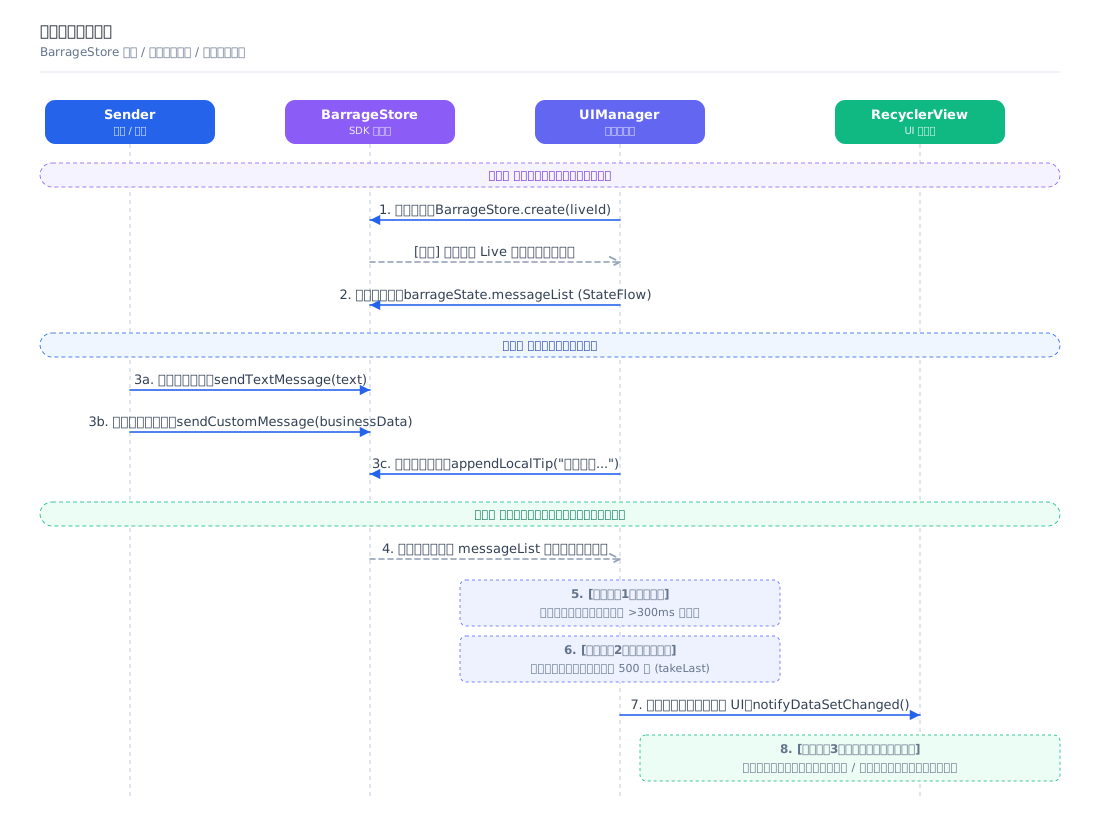
Bullet screen is one of the most common forms of interaction in a live room, carrying multiple user demands such as instant feedback, market inquiries, and on-chain interaction instructions. By using the BarrageStore module in the AtomicXCore framework, you can quickly integrate a feature-rich and high-performance bullet screen system into your live streaming application.


Message Layering

A live streaming room typically handles multiple message streams simultaneously, such as bullet screens, market quote instructions, and order follow-up receipts. The client is recommended to categorize messages by type: text messages, custom messages, local notifications, and so on.
Type
Purpose
Display Method
Plain text messages
Inquiry, interaction, and emotional expression
Floating screen / Bullet screen list
Custom Messages
Copy trading cards, trade confirmation receipts, special effect bullet screens
Special effects / Card messages
Local Notifications
Room entry, mic connection status, and risk control prompts
Local / System messages

User Level / Identity

The user level and identity feature is a crucial component in live interaction scenarios. It is used to distinguish different statuses, such as KOL verification, VIP membership, on-chain reputation score (On-chain Reputation), and whether KYC is completed. This enables differentiated page display, interaction permissions, and feature access control. Live does not provide a basic identity framework by default, but you can refer to the following methods for implementation:
Maintaining User Level / Identity Mapping
In your business backend, maintain and store the level/identity corresponding to each user's UserID, based on the user level/identity logic you require (such as on-chain identity, KOL verification, VIP, and so on).
Inserting User Level / Identity Information
Client-Side Solution: Use BarrageStore.sendCustomMessage() to send a bullet screen message, inserting the level/identity information obtained from the business backend into the data field. When a message is received, parse the level/identity information in the data field, and then render it on the bullet screen list independently.
Server-Side Solution: Enable the Before Speaking in Room callback. Your business backend can use this callback to view and intercept messages sent by users in the room in real time. During the callback response phase, you can modify the bullet screen messages sent by users (by adding custom messages). Based on this feature, the App backend can add special content to messages sent by users, such as user level, title, and other information.

Bullet Screen List UI Performance Optimization

Optimizing the performance of the bullet screen list is a key challenge in high-concurrency live streaming scenarios. The following strategies are recommended:
Tuning Policies
Implementation Method
Effect
List Length Limit
Keep the latest 500 messages and remove the excess from the head.
Control memory usage
Batch Rendering
Update the UI in batches every 300ms instead of refreshing it item by item.
Reduce UI redraw frequency
View Reuse
Use the recycling mechanism of RecyclerView/UITableView.
Reduce object creation overhead
Asynchronous Loading
Asynchronously draw views containing images, text, custom fonts, or complex layouts.
Avoid main thread blocking
Note:
For more implementation details and common issues regarding real-time bullet screen interaction, see Live Comments.

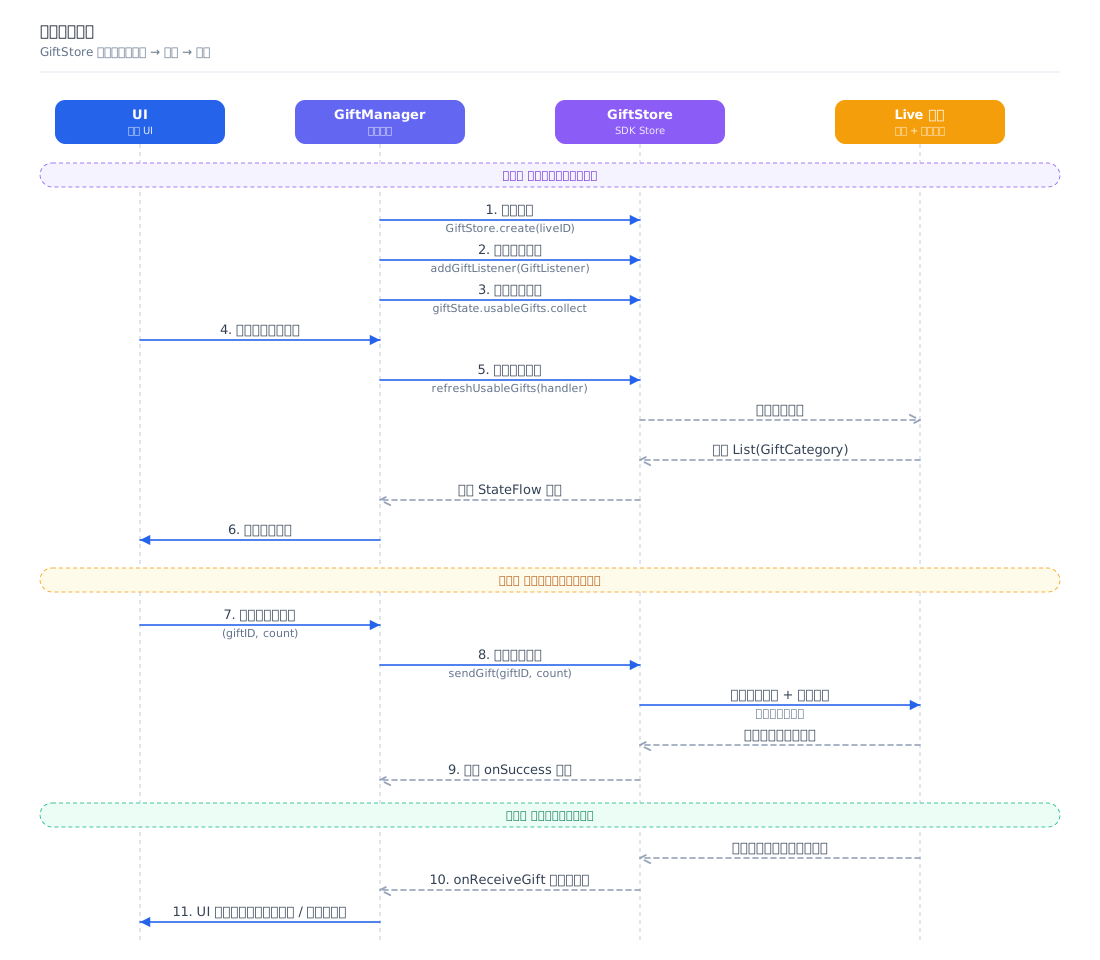
Gift Giving System Implementation

The gift system is a crucial channel for live streaming monetization and KOL incentives, as well as an effective means to energize the live room atmosphere. GiftStore is the module within AtomicXCore specifically responsible for managing the gift feature in live rooms. In Web3 and broader financial scenarios, gifts can take various asset forms, such as platform points, fiat currency tips, cryptocurrency (including stablecoin) tips, and NFT (Non-Fungible Token) gifts.


Gift Asset Configuration

You need to customize the types, categories, names, icons, prices, and animation effects of gifts available in the live room to meet operational requirements and brand characteristics.
1. Server-Side Configuration: Use the Live server-side REST API to manage gift information, categories, multilingual support, and more. See Gift System Configuration Guide.
2. Client-Side Pull: Call refreshUsableGifts on the client side to obtain configuration data.
3. UI Display: Populate the gift panel using the fetched List<GiftCategory> data.

For highly customized scenarios not covered by the SDK's built-in gift list (such as cryptocurrency tipping, NFT gifts, and on-chain credential issuance like SBT/POAP), you can send custom messages as a supplement via BarrageStore.sendCustomMessage(). The following is an example of a custom message structure for cryptocurrency tipping:
{
"type": "live_crypto_tip",
"tipId": "tip_20260604_001",
"asset": {
"symbol": "USDT", // Token symbol; the stablecoin USDT follows the ERC-20 standard on the Ethereum mainnet
"amount": "100.00", // String to avoid JavaScript number precision loss
"chain": "ethereum", // Blockchain network identifier (it is recommended to use chainId or a standard chain name)
"tokenContract": "0xdAC17F958D2ee...", // Token contract address; can be omitted for native tokens (e.g., ETH/SOL)
"txHash": "0xabc123..." // On-chain transaction hash, used for cross-end verification and auditing
},
"senderId": "user_123",
"senderName": "Alice",
"senderAvatar": "https://example.com/avatar.jpg",
"effectUrl": "https://example.com/effects/usdt-rain.json"
}

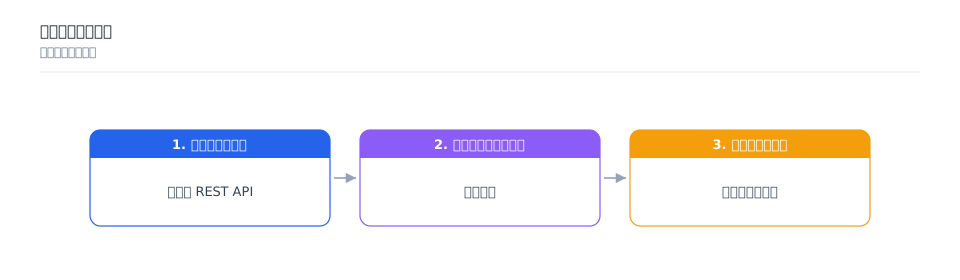
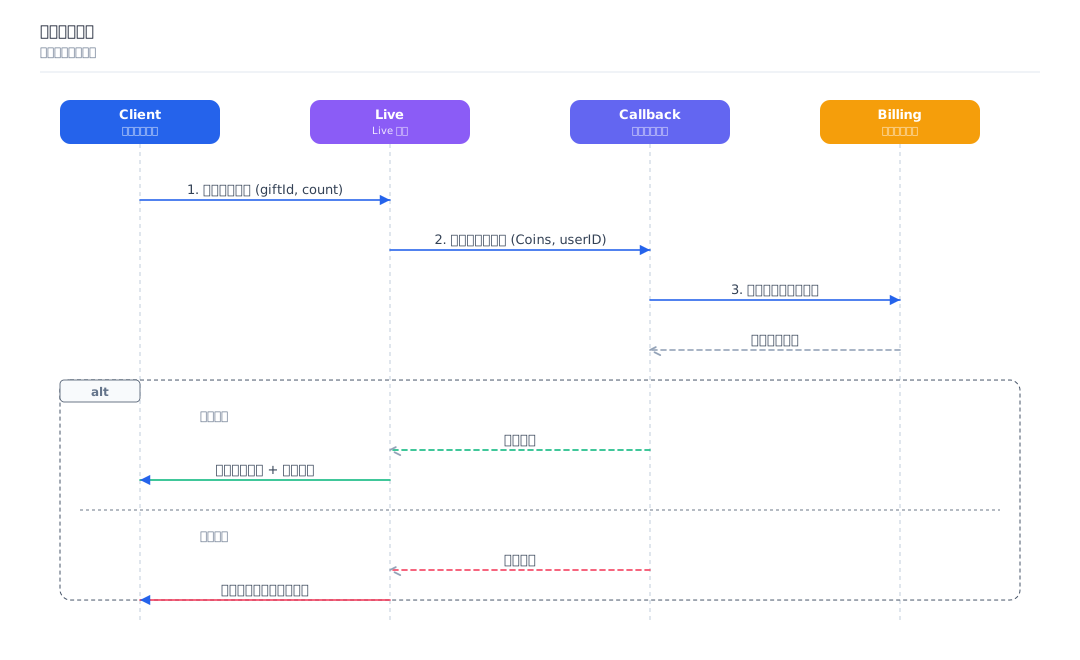
Billing and Gift Deduction Process

When a viewer sends a gift, the system must ensure that their platform account balance is sufficient or that the on-chain transaction is completed and has reached the target number of Confirmations. After the actual deduction is completed, the system can then trigger the playback and broadcast of the gift effect.
1. Backend Callback Configuration: Configure the callback URL for your self-built wallet / billing system in the Live console. See the Callback Configuration Documentation.
2. Client-Side Send: The client calls sendGift.
3. Backend Interaction: After the Live server side calls your callback URL, your wallet / billing system deducts the payment (or verifies the number of confirmations for the on-chain transaction) and returns the result.
4. Result Synchronization: If the deduction is successful, AtomicXCore broadcasts the onReceiveGift event. If the deduction fails, the completion of sendGift receives an error.


Live Recording Feature Implementation

Live Recording supports recording and storing the audio and video content within a live room. The recorded files can be used for scenarios such as playback, quality inspection, auditing, and archiving. The recording feature introduced in this section is implemented based on the TRTC On-Cloud Recording capability. Furthermore, it pre-configures typical recording scenario parameters for live rooms created by Live, helping you complete live recording configuration more simply and quickly. For more information, see Live Recording.

Step 1: Go to the Console to Configure the Recording File Storage Address

1. Go to TRTC Console > Live Configuration > Live Recording, and click Configure Now.
2. Configure the recording feature in the configuration pop-up window. For descriptions of the configuration items, see the table below.
Configuration Item
Description
Storage Location
Required. You can store files to VOD, COS, or AWS S3.
Full-room Recording
Used to enable recording for all rooms under the current SDKAppID with one click.
After you enable this feature, the system automatically enables recording for all live streaming rooms under the current SDKAppID that meet the following conditions:
The live room meets the Applicable Scope.
When creating a live room, set IsCloudRecordEnabled to empty (default) or explicitly to true. For details, see Step 2 below.
Note:
The default value of the IsCloudRecordEnabled parameter is empty. If you set it to false, the room will not be recorded even if full-room recording is enabled.

Step 2: Set Recording Parameters When Creating a Room

When creating a room (RoomInfo), you can decide whether to record the current room by setting IsCloudRecordEnabled. The specific behavior depends on the parameter value, as shown below:
Parameter Value
Description
Room Recording Behavior
Null
Default Value
Follows the all-room recording setting. That is, if the live streaming room meets the applicable conditions and you have enabled all-room recording in Step 1, the current room will be recorded; otherwise, it will not.
true
Explicitly Enable Recording
If the live streaming room meets the applicable conditions, the current room will be recorded regardless of the all-room recording setting.
false
Explicitly Disable Recording
Forcibly not recorded. Even if you have enabled all-room recording in Step 1, the room will not be recorded.

Screen Sharing Feature Implementation

This section describes how to integrate the screen sharing feature in Live. Using this feature, users can share their screen in real time with other members in the room after entering it. In Web3 and broader financial industry scenarios, screen sharing is often used to share presentation materials, collaboratively review whitepapers, and for similar purposes.
Note:
Video Stream Mutex Restriction: The camera cannot be turned on during Live screen sharing. In the Live architecture, you can only choose one between the camera-captured video stream and the screen sharing video stream; the two cannot be pushed simultaneously.

Environment Configuration

Before making formal API calls to start live streaming, ensure that you have completed the environment and parameter configuration for screen sharing according to the requirements of the respective platform. For configuration methods on different platforms, see: Environment Configuration.

Starting a Screen Sharing Live Stream

Step 1: SDK Integration and Anchor Going Live
First, refer to Preparations to complete the integration of the Core SDK. Then, refer to Complete Anchor End Implementation to integrate the anchor live streaming start page.
Step 2: Configure Screen Sharing for Going Live
Set the room parameter LiveInfo.seatTemplate for live streaming to videoLandscape4Seats (which enables the landscape multi-seat template suitable for screen sharing). After the LiveListStore.startLive callback succeeds, call DeviceStore.shared().startScreenShare() to start screen sharing.
Android(Kotlin)
iOS(Swift)
Flutter(Dart)
import io.trtc.tuikit.atomicxcore.api.live.LiveListStore
import io.trtc.tuikit.atomicxcore.api.live.LiveInfo
import io.trtc.tuikit.atomicxcore.api.live.SeatLayoutTemplate
import io.trtc.tuikit.atomicxcore.api.device.DeviceStore

private fun startLiveForScreenShare() {
val liveInfo = LiveInfo().apply {
// 1. Set the live room ID
liveID = "test_live_id"
// 2. Set the live room name
liveName = "Screen Sharing Live Stream"
// 3. Core step: Configure a layout template suitable for screen sharing
seatTemplate = SeatLayoutTemplate.VideoLandscape4Seats
}
// 4. Call LiveListStore to start live streaming and enter the room
LiveListStore.shared().startLive(liveInfo, object : LiveListStore.StartLiveCallback {
override fun onSuccess(roomInfo: Any) {
// 5. Call the API to start screen sharing. The system automatically triggers the foreground service and system pop-up window.
DeviceStore.shared().startScreenShare()
}

override fun onError(code: Int, message: String) {
// Handle live streaming start failure errors
}
})
}
import AtomicXCore

private func startLiveForScreenShare() {
var liveInfo = LiveInfo()
// 1. Set the live room ID
liveInfo.liveID = "test_live_id"
// 2. Set the live room name
liveInfo.liveName = "Screen Sharing Live Stream"
// 3. Core step: Configure a layout template suitable for screen sharing (landscape dynamic 1 video + 3 audio)
liveInfo.seatTemplate = .videoLandscape4Seats
// 4. Call the LiveListStore singleton to start live streaming and enter the room
LiveListStore.shared.startLive(liveInfo: liveInfo) { [weak self] roomInfo in
guard let self = self else { return }

// 5. Call startScreenShare to start screen sharing
DeviceStore.shared.startScreenShare(appGroup: "group.com.yourcompany.yourapp.screenshare")
} onError: { code, message in
// Handle live streaming start failure errors
}
}
import 'package:atomic_x_core/api/live/live_list_store.dart';
import 'package:atomic_x_core/api/device/device_store.dart';

Future<void> startLiveForScreenShare() async {
// 1. Build live streaming room parameters
LiveInfo liveInfo = LiveInfo();
liveInfo.liveID = "test_live_id";
liveInfo.liveName = "Screen Sharing Live Stream";
// 2. Core step: Configure a layout template suitable for screen sharing (landscape dynamic 1 video + 3 audio)
// Note: The specific enumeration name should match the landscape 4-seat template field defined in your current Flutter SDK.
liveInfo.seatTemplate = SeatLayoutTemplate.VideoLandscape4Seats;
try {
// 3. Call LiveListStore to start live streaming and enter the room
await LiveListStore.shared.startLive(liveInfo: liveInfo);
// 4. Call startScreenShare to start screen sharing
await DeviceStore.shared.startScreenShare(iOSAppGroup: 'group.com.yourcompany.yourapp.screenshare');
} catch (e) {
// Handle live streaming start or room entry failure errors
}
}

Ending a Screen Sharing Live Stream

When you need to stop screen sharing, select an option based on the following business scenarios:
Scenario 1: Ending Screen Sharing Only
If the anchor only wants to exit the screen sharing state and continue staying in the live room to stream, they can actively call the stopScreenShare() API for each platform.
Android(Kotlin)
iOS(Swift)
Flutter(Dart)
import io.trtc.tuikit.atomicxcore.api.device.DeviceStore

/**
* Stop Android screen sharing
*/
fun stopScreenShare() {
// Stop screen sharing. The underlying layer automatically terminates the foreground keep-alive service.
DeviceStore.shared().stopScreenShare()
// Recommendation: Reopen the local camera to resume face-to-camera live streaming
DeviceStore.shared().openLocalCamera(isFront: true)
}
import AtomicXCore

/**
* Stop iOS screen sharing
*/
func stopScreenCapture() {
// Stop screen sharing. The underlying layer automatically disconnects communication with the TUIKitReplay extension process.
DeviceStore.shared.stopScreenShare()
// Recommendation: Restore the local camera feed
DeviceStore.shared.openLocalCamera(isFront: true)
}
import 'package:atomic_x_core/api/device/device_store.dart';

/**
* Stop Flutter screen sharing
*/
Future<void> stopScreenShare() async {
// Stop Flutter cross-platform screen sharing
await DeviceStore.shared.stopScreenShare();
// Recommendation: Restore the local camera feed
await DeviceStore.shared.openLocalCamera(true);
}
Scenario 2: Ending the Live Stream Directly
If you choose to end the live stream directly after screen sharing, developers only need to call the LiveListStore.endLive API to end the live stream. The SDK underlying layer automatically executes all the logic for closing screen sharing.

Real-Time Live Caption Transcription & Translation

Globalization is an inherent attribute of Web3 and the broader financial industry, and cross-language interaction between hosts and audiences is the norm. The Tencent Cloud AI Real-time Transcription/Translation Solution provides end-to-end capabilities based on STT + LLM translation. It converts speaker audio in the live room into text in real time, with the option to enable multilingual translation, while the UI side renders subtitles independently. It also supports features such as multilingual recognition, temporary hot word lists, and filtering of profanity and filler words.

Two Initiation Methods

Client-Side Initiation Method:AITranscriberStore
The AITranscriberStore built into AtomicXCore provides the following three methods for starting, updating, and stopping AI real-time transcription/translation.
Methodology
Parameter
Feature
startTranscription
(myLanguage: SourceLanguage, config: TranscriptionConfig, completion: CompletionHandler?)
Start real-time transcription/translation
updateTranscription
(myLanguage: SourceLanguage, config: TranscriptionConfig, completion: CompletionHandler?)
Dynamically switch languages/toggle translation during transcription
stopTranscription
(completion: CompletionHandler?)
Stop real-time transcription/translation
Sample code for the client to start, update, and stop AI real-time transcription/translation:
Android(Kotlin)
iOS(Swift)
import io.trtc.tuikit.atomicxcore.api.ai.*

// 1. Create an instance
val store = AITranscriberStore.create(roomID)

// 2. Start transcription
store.startTranscription(
myLanguage = SourceLanguage.CHINESE,
config = TranscriptionConfig(enableTranslation = true)
) { code, message ->
if (code == 0) {
// Started successfully
} else {
// Failed to start: $message
}
}

// 3. Language Switching / Translation Toggle (Update During Runtime)
store.updateTranscription(
myLanguage = SourceLanguage.ENGLISH,
config = TranscriptionConfig(enableTranslation = true)
) { code, message ->
// handle result
}

// 4. Stop transcription
store.stopTranscription { code, message ->
// handle result
}
import AtomicXCore

// 1. Create an instance
let store = AITranscriberStore.create(roomID: roomID)

// 2. Start transcription
store.startTranscription(
myLanguage: .chinese,
config: TranscriptionConfig(enableTranslation: true)
) { result in
switch result {
case .success:
print("Transcription started successfully")
case .failure(let error):
print("Failed to start transcription: \\(error)")
}
}

// 3. Language Switching / Translation Toggle (Update During Runtime)
store.updateTranscription(
myLanguage: .english,
config: TranscriptionConfig(enableTranslation: true)
) { result in
// handle result
}

// 4. Stop transcription
store.stopTranscription { result in
// handle result
}
Note:
The client-side initiation method is user-based. This means all users (including anchors and audience) who wish to enable the transcription/translation feature must call startTranscription.
The audience end can receive transcription/translation results only if the anchor end has enabled the transcription/translation feature. If the feature is not enabled, the anchor's language setting defaults to the system language of their device.
If the translation feature is enabled, the client does not need to separately set the target language for translation. The target language for translation is automatically determined by each user's own myLanguage parameter.
Server-Side Initiation Method:CreateCloudTranscription
TRTC provides the following three server-side REST APIs for initiating, querying, and stopping AI real-time transcription/translation tasks.
API
Key Input Parameter
Feature
SdkAppId / RoomId / RoomIdType / TranscriptionParam / AsrParam / TranslationParam
Start a cloud transcription/translation task.
SdkAppId / TaskId
Query the status of a cloud transcription/translation task.
SdkAppId / TaskId
Stop a cloud transcription/translation task.
Sample code for the server side to initiate an AI real-time transcription/translation task:
{
"SdkAppId": 1400000000, // TRTC SdkAppId
"RoomId": "room_xxx", // The TRTC room ID to be transcribed
"RoomIdType": 1, // Room ID type: 0 = numeric Room ID, 1 = string Room ID. It must match the actual type.
"TranscriptionParam": {
"UserId": "transcriber_robot_001", // Robot UserId: It must be unique within the room and cannot duplicate the UserId of any anchor/audience.
"UserSig": "eJxNjs1uwjAQhN_F1xT...", // The signature for this UserId, generated by the backend (not recommended to be generated on the client side)
"SubscribeList": [ // The allowlist of users to be transcribed. If left empty or unspecified, all anchor audio will be transcribed.
{ "UserId": "anchor_001" }
],
"MaxIdleTime": 60 // The task is automatically terminated more than 60 seconds after all stream-pushing users have left the room.
},
"AsrParam": {
"Lang": "zh", // The STT model, for example: zh-TW / en / ja / ko / fr ...
"VadSilenceTime": 1000, // The VAD silence segmentation threshold in milliseconds. A smaller value makes ASR segmentation faster.
"VadLevel": 2 // The VAD far-field voice suppression capability. Its value ranges from 0 to 3, and a larger value indicates stronger suppression.
},
"TranslationParam": {
"TargetLang": ["en", "ja"] // The target language(s) for translation (optional, leave empty if translation is not needed), for example: en / ja / ko ...
}
}

Two Receiving Methods

Method 1: Receive via server-side event callback
The Speech-to-Text service provides server-side event callbacks, enabling your server to receive transcription/translation messages. This is suitable for archiving or auditing purposes. For details, see the AI Transcription and Translation Callback event.
Method 2: Receive via client-side SDK callback.
You can refer to the following code to listen for callbacks from the reactive data of AITranscriberStore to receive transcription/translation messages. This is suitable for client-side subtitle UI rendering and refreshing.
Android(Kotlin)
iOS(Swift)
Subscribe to the StateFlow of realtimeMessageList using the following code. Then, update the RecyclerView data source via DiffUtil or ListAdapter in the collect callback.
lifecycleScope.launch {
repeatOnLifecycle(Lifecycle.State.STARTED) {
store.transcriberState.realtimeMessageList.collect { messages ->
adapter.submitList(messages.toList()) // Using ListAdapter + DiffUtil
}
}
}
Here, messages is a list of TranscriberMessage objects. The TranscriberMessage parameters are described as follows:
Parameter Name
Type
Description
segmentId
String
Each user utterance corresponds to a unique segmentId.
speakerUserId
String
The ID of the speaking user.
speakerUserName
String
The nickname of the speaking user.
sourceText
String
The text transcribed from the user's speech.
translationTexts
Map<TranslationLanguage, String>
The translated text corresponding to the user's speech text, which can be translated into multiple languages.
timestamp
Long
The timestamp of the current sentence.
isCompleted
Boolean
Whether the current sentence is completed.
Listen for callbacks from the message list using the following code and update the corresponding UI. store.state is a StatePublisher<TranscriberState>. In SwiftUI, you can use it via @ObservedObject, or subscribe to it via Combine in UIKit.
// If you use a UITableView to display the message list, simply call reloadData after updating the messages.
store.state
.subscribe(StatePublisherSelector(keyPath: \\.realtimeMessageList))
.receive(on: RunLoop.main)
.sink { [weak self] in self?.updateMessages($0) }
.store(in: &cancellables)
Here, messages is a list of TranscriberMessage objects. The TranscriberMessage parameters are described as follows:
Parameter Name
Type
Description
segmentId
String
Each user utterance corresponds to a unique segmentId.
speakerUserId
String
The ID of the speaking user.
speakerUserName
String
The nickname of the speaking user.
sourceText
String
The text transcribed from the user's speech.
translationTexts
[TranslationLanguage: String]
The translated text corresponding to the user's speech text, which can be translated into multiple languages.
timestamp
Int64
The timestamp of the current sentence.
isCompleted
Bool
Whether the current sentence is completed.

Bot Streaming & Digital Human Live Streaming

The robot stream pushing feature is designed for diverse live streaming needs. It is typically used to push external media streams, such as pre-recorded videos or real-time generated graphics, Stream to Live via OBS Studio. This solution is suitable for scenarios like game live streaming, esports commentary, or playing local video files. In addition, you can implement the following application scenarios:
Scenario Type
Description
Content Replay
Restream popular live content or recorded videos to attract more viewers.
Virtual Anchor
Leverage digital human avatar technology and robot-based stream pushing to implement virtual anchor livestreaming.
Enterprise Live Streaming
Used for scenarios such as corporate meetings, product launches, and training, it pushes recorded videos to internal or external platforms.
Game Live Streaming
Push the game screen to the live room, combine it with commentary or background music, and enhance the live streaming effect.
Educational Live Streaming
Push recorded course videos to the education platform to achieve online teaching.
Live Shopping
Display product information, promotional activities, and so on, through robot-based stream pushing to enhance sales conversion rates.
More Scenarios
Any real-time interactive experience based on media streams can be implemented for you via RTMP stream pushing, with more game modes awaiting your exploration.
This guide uses the digital human live streaming scenario as an example, combined with the TCADH service, to demonstrate how to push digital human media streams to a Live room.

Step 1: Create a Room and a Bot

1. Call the REST API to Create Room.
2. Call the REST API to Add Room Robot. It is recommended to set the room owner's ID as the robot's UserID.

Step 2: Integrate Digital Human Conversational Interaction

1. Creating a New Live Stream Session: For the request parameters, select trtc for Protocol and fill in the TRTC room entry parameters for ProtocolOption.
2. Starting Session: After the session is ready, it is disabled by default. You need to call this API to enable the session so that the digital human can be driven by commands.
3. Instruction-driven: Send driving commands. For descriptions and requirements of various driving commands, see Instruction Sending Requirements.

Step 3: Enable the Bot to Join the Stage

The Live audience client pulls the on-mic anchor's stream by default. To simulate an anchor going on-mic, you need to call the REST API to Pick Robot on the Seat.
Note:
To implement robot stream pushing, follow these steps: Create a live room > Add a robot > Connect to the digital human session interaction > Pick robot on the seat.
To stop digital human stream pushing and end the digital human live stream, follow these steps:

Step 1: The Bot Becomes a Listener

You can use the REST API to Kick Robot off the Seat.

Step 2: Delete the Bot

You can use the REST API to Delete Room Robot.

Step 3: Destroy the Live Room

To disband a live room in advance, you can use the REST API to Destroy Room.

Step 4: Disable the Digital Human Conversation

After the session ends, you need to promptly call the Closing Live Session API to actively close the live streaming session.
Note:
To stop the robot from pushing streams, follow these steps: Kick robot off the seat > Delete the robot > Destroy the live room > Close the digital human session.

Business Core Feature Development Practices

This chapter focuses on the core conversion features of "Content-Driven Trading" within a live streaming room: market quote cards and currency switching, social copy trading and copy trading cards, live room bullet screen voting / AMA interactions. These features describe how to convert the anchor's market analysis, order guidance, Q&A, and other content into real-time trading and interactive behaviors for the audience. All these features fall under the category of business-layer self-development. Developers need to implement them collaboratively based on AtomicXCore + the business backend (market quotes / orders / copy trading / wallet accounts).

Market Cards and Currency Switching

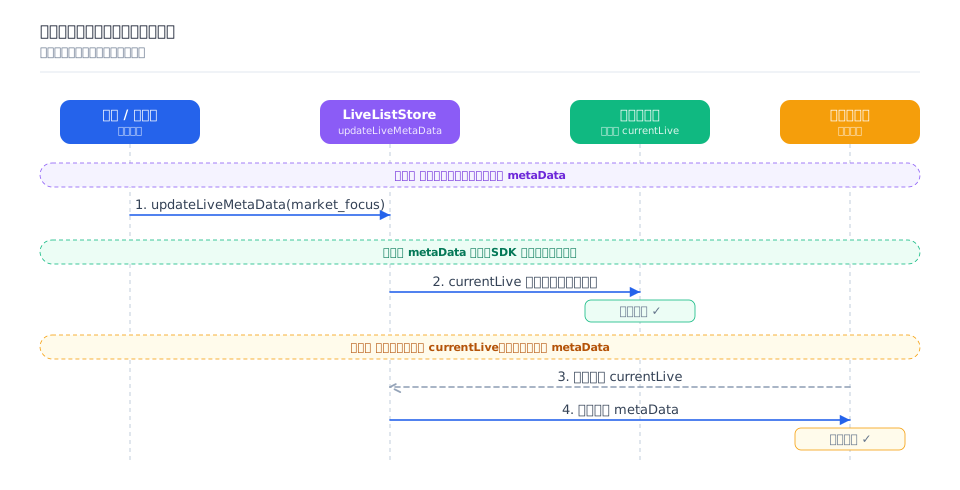
When an anchor switches the currency being explained during market analysis, the corresponding market quote card must be synchronously popped up on the audience client. Since the "currently explained currency" is essentially a globally unique state value, this solution uses Room Metadata for implementation. Room metadata is a subscribable, reactive state within AtomicXCore. After the anchor updates it, the change is pushed in real time to all online audience members. New audience members can also immediately read the current value upon entering the room and subscribing, thereby satisfying both real-time performance and reliability requirements.

Core Requirements

After an anchor switches the currency being explained during a live stream, the market quote information must be pushed to all audience clients and displayed as a card. This process must meet the following requirements:
Real-time Performance: Audience already in the live room receive the change notification immediately.
Reliability: Audience who join midway can also obtain the information about the currently explained currency.
Uniqueness: For each currency switch, the card is displayed only once per audience member and is not triggered repeatedly.

Implementation Mechanism

The market quote card is implemented based on the room metadata (LiveInfo.metaData, Map<String,String>) of AtomicXCore LiveListStore.

Note:
In addition to updating metadata via the client-side method updateLiveMetaData, you can also set room metadata using the server-side method set_room_metadata.
In addition to obtaining metadata through reactive subscription to liveState.currentLive, you can also actively query metadata using the client-side method queryMetaData.
Anchors / administrators write the data via the client-side method updateLiveMetaData. After the write operation, AtomicXCore synchronizes the data to all audience members in real time.
Android(Kotlin)
iOS(Swift)
// Android (Kotlin)
val metaData = hashMapOf("market_focus" to marketCardJson)
LiveListStore.shared().updateLiveMetaData(metaData, object : CompletionHandler {
override fun onSuccess() { /* Push succeeded */ }
override fun onFailure(code: Int, desc: String) { /* Failure handling */ }
})
// iOS (Swift)
let metaData = ["market_focus": marketCardJson]
LiveListStore.shared.updateLiveMetaData(metaData) { result in
if case .success = result { /* Push succeeded */ }
}
The audience side only needs to subscribe to the reactive state liveState.currentLive. Each time the anchor updates, the latest full metaData is automatically received.
Android(Kotlin)
iOS(Swift)
// Android: Subscribe to StateFlow
scope.launch {
LiveListStore.shared().liveState.currentLive
.map { it.metaData["market_focus"] }
.distinctUntilChanged()
.collect { json ->
if (json != null) renderMarketCard(json) else hideMarketCard()
}
}
// When exiting, call scope.cancel() to cancel subscriptions and avoid coroutine leaks.
// iOS: Subscribe to keyPath using Combine
LiveListStore.shared.state
.subscribe(StatePublisherSelector(keyPath: \\LiveListState.currentLive.metaData))
.removeDuplicates()
.receive(on: DispatchQueue.main)
.sink { metaData in
guard let json = metaData["market_focus"] else { hideMarketCard(); return }
renderMarketCard(json)
}
.store(in: &cancellables) // The cancellables collection centrally manages the subscription lifecycle.
The following is a structural example of the value (the JSON corresponding to market_focus) written into metaData by the market quote card.
{
"symbol": "BTC/USDT", // The currency pair currently being explained
"exchange": "binance", // The source of the market quote
"last_price": "67890.5", // Latest price (string to avoid precision loss)
"change_24h": "+3.21%", // 24-hour price change
"kline_url": "/kline/BTC-USDT?interval=15m", // Link to navigate to the market quote page
"deeplink": "myapp://market/btc", // In-app navigation
"start_timestamp": 1773321389000, // Switch timestamp (in milliseconds), used by the client for diff-based deduplication
"status": "active" // Status: active (explanation in progress) / ended (finished)
}

Social Copy Trading and Copy Trading Cards

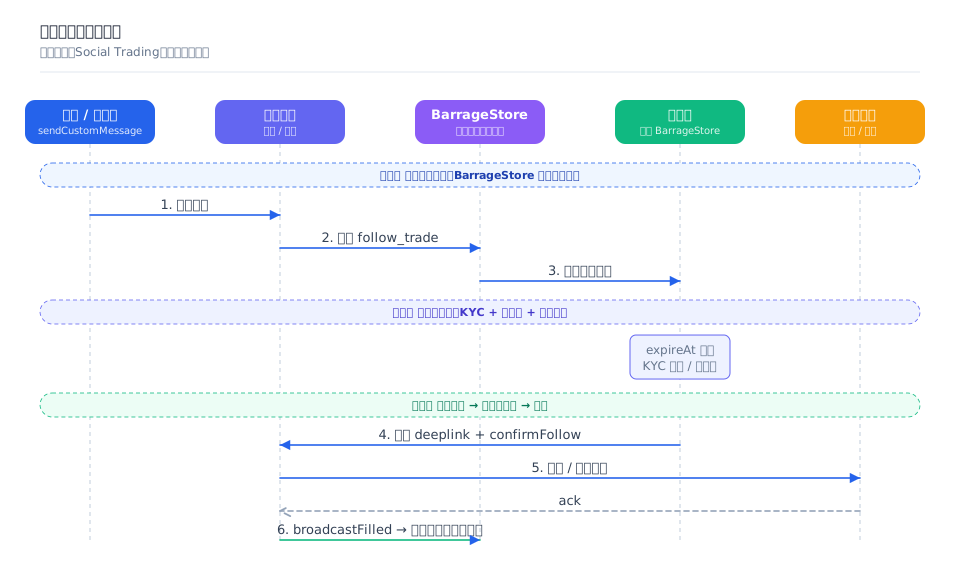
Social Trading / Copy Trading is the most critical conversion format in the live-streaming investment advisory scenario: Within the live room, viewers can use a copy trading card to one-click launch the business page to place an order or copy a trade. The order result is then broadcast back to the live room via a custom message, forming a closed loop and enabling "watch and trade simultaneously." This paradigm has been widely validated in both Web3 (one-click copy trading of crypto assets) and licensed online brokerage (one-click copy trading of stocks / funds) scenarios.

Core Requirements

The copy trading card carries a "trade signal issued by the anchor at a specific moment," which is a type of time-series event: Within the same live stream, the anchor can issue multiple cards consecutively. Each card corresponds to an independent opening position action and has an expireAt validity period. Once expired, it can no longer be followed. The following requirements must be met:
Real-time: After the anchor issues a trade signal, online viewers immediately receive and display the copy trading card.
Timeliness: Each card carries an expireAt field. After expiration, the client no longer displays the copy trading entry to prevent viewers from following a trade that has already ended.
Verifiable: Before a viewer clicks to copy a trade, conditions such as validity period, KYC level, and copy trading allowlist must be verified, and then the business page is launched for order placement.

Implementation Mechanism

The copy trading card is a time-series event, which is broadcast in real time via AtomicXCore BarrageStore.sendCustomMessage.

Anchor/Administrator Sends a Copy Trading Card
Android(Kotlin)
iOS(Swift)
// Android (Kotlin)
const val BUSINESS_ID = "follow_trade"

BarrageStore.create(liveId).sendCustomMessage(
BUSINESS_ID, // businessID, used by the receiver for filtering
followTradeJson, // data: copy trading card JSON string
object : CompletionHandler {
override fun onSuccess() { /* Broadcast succeeded */ }
override fun onFailure(code: Int, desc: String) { /* code / desc */ }
}
)
// iOS (Swift)
let barrageStore = BarrageStore.create(liveID: liveId)
barrageStore.sendCustomMessage(businessID: "follow_trade",
data: followTradeJson,
completion: nil)
Audience Subscribes to Messages and Parses/Renders Cards
Android(Kotlin)
iOS(Swift)
// Android (Kotlin): Subscribe to the custom message event stream
private val barrageStore = BarrageStore.create(liveId)
private val scope = CoroutineScope(Dispatchers.Main)

fun start() = scope.launch {
barrageStore.customMessageEvent.collect { event ->
if (event is CustomMessageEvent.CustomMessageReceived) {
val data = event.barrage.data ?: return@collect
val json = JSONObject(data)
if (json.optString("businessID") != "follow_trade") return@collect // Process only copy trading cards
// After verifying the expireAt / KYC level / allowlist, render the copy trading card UI.
renderFollowCard(json)
}
}
}
// When exiting the live room, call scope.cancel() to avoid coroutine leaks.
// iOS (Swift / Combine): Subscribe to the custom message publisher
private var cancellables = Set<AnyCancellable>()
private lazy var barrageStore = BarrageStore.create(liveID: liveId)

func startObserve() {
barrageStore.CustomMessageEventPublisher
.receive(on: RunLoop.main)
.sink { [weak self] event in
if case .customMessageReceived(barrage: let barrage) = event {
guard let d = barrage.data.data(using: .utf8),
let json = try? JSONSerialization.jsonObject(with: d) as? [String: Any],
json["businessID"] as? String == "follow_trade" else { return }
// After verifying the expireAt / KYC level / allowlist, render the copy trading card UI.
self?.renderFollowCard(json)
}
}
.store(in: &cancellables) // The cancellables collection centrally manages the subscription lifecycle.
}
The processing flow after the client receives the card is as follows:
1. Verify the card's expiration time (expireAt), the user's KYC level, and the copy trading allowlist.
2. After verification passes, render the card UI to display the anchor's win rate, number of followers, currency, and leverage.
3. When a user clicks the card, the deeplink is triggered to redirect to the business page for order confirmation, and the business system completes the matching.
4. After an order is successfully placed, the business system broadcasts the transaction receipt by sending a custom message and displays the copy trading result in the bullet screen area.
Example of the Body Structure for a Custom Copy Trading Card Message
{
"businessID": "follow_trade", // Message type, used by the receiver for filtering
"version": 1,
"extra": {
"trader": {
"uid": "trader_001",
"name": "Alice",
"winRate": 0.78,
"followerCount": 12030,
"kycLevel": 2
},
"trade": {
"symbol": "BTC/USDT",
"side": "long", // Long position opening; 'short' indicates short position opening.
"leverage": 10, // Perpetual contract leverage multiplier (applicable only to product types that support leverage)
"entryPrice": "67890.5",
"size": "0.5",
"openTime": 1717477200000
},
"deeplink": "myapp://trade/follow?orderId=xxx",
"expireAt": 1717481000000 // Card expiration time (millisecond timestamp). After expiration, the client no longer displays the copy trading button.
}
}

Bullet Screen Voting / AMA Interaction

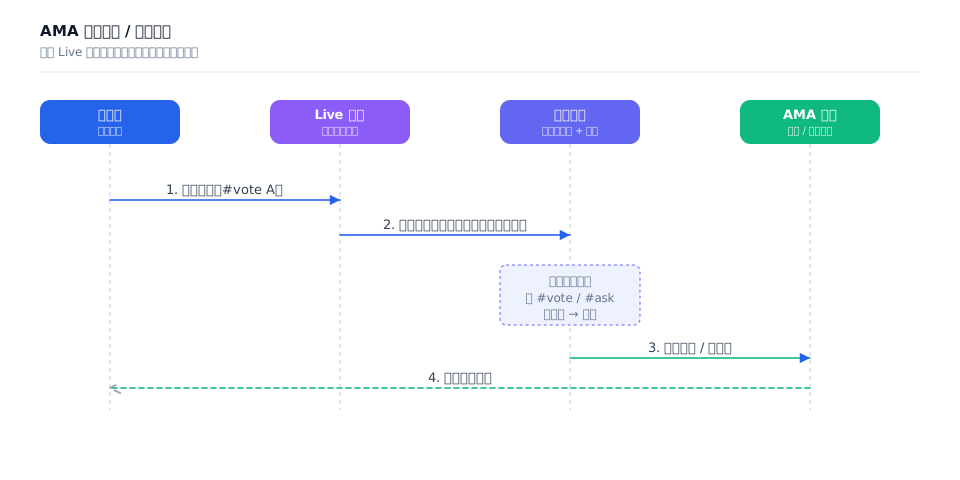
In AMA (Ask Me Anything) scenarios, project owners often need users to vote or ask questions via bullet screen. This capability is implemented based on Live's After Speaking in Room callback: bullet screen messages sent by viewers in the Live room are called back by the Live backend to the business backend. The business backend filters them by keywords or format, then adds them to the voting/question pool, and finally aggregates and displays them on the AMA large screen.

The overall process is as follows:
1. The viewer client sends bullet screen messages in the live room (for example, #vote A, #ask question content).
2. The Live backend calls back the bullet screen message content to the business backend via the After Speaking in Room callback.
3. The business backend filters messages by matching keywords or formats (for example, #vote / #ask). If a match is found, the message enters the voting/question pool; otherwise, it is discarded.
4. The business backend aggregates the voting statistics or question list and then displays them on the AMA large screen or the anchor end.

Content Understanding / Cloud-Based Review

Web3 and pan-financial businesses inherently operate in a heavily regulated, capital-intensive environment, where non-compliant content such as stock recommendation calls, phishing links, airdrop scams, and politically or sexually explicit material can easily proliferate. Consequently, it is often necessary to perform content understanding and review on live audio and video streams, live room bullet screen messages, and live room user profiles to comply with regulatory requirements, protect user assets, and maintain community trust.

Audio and Video Content Understanding

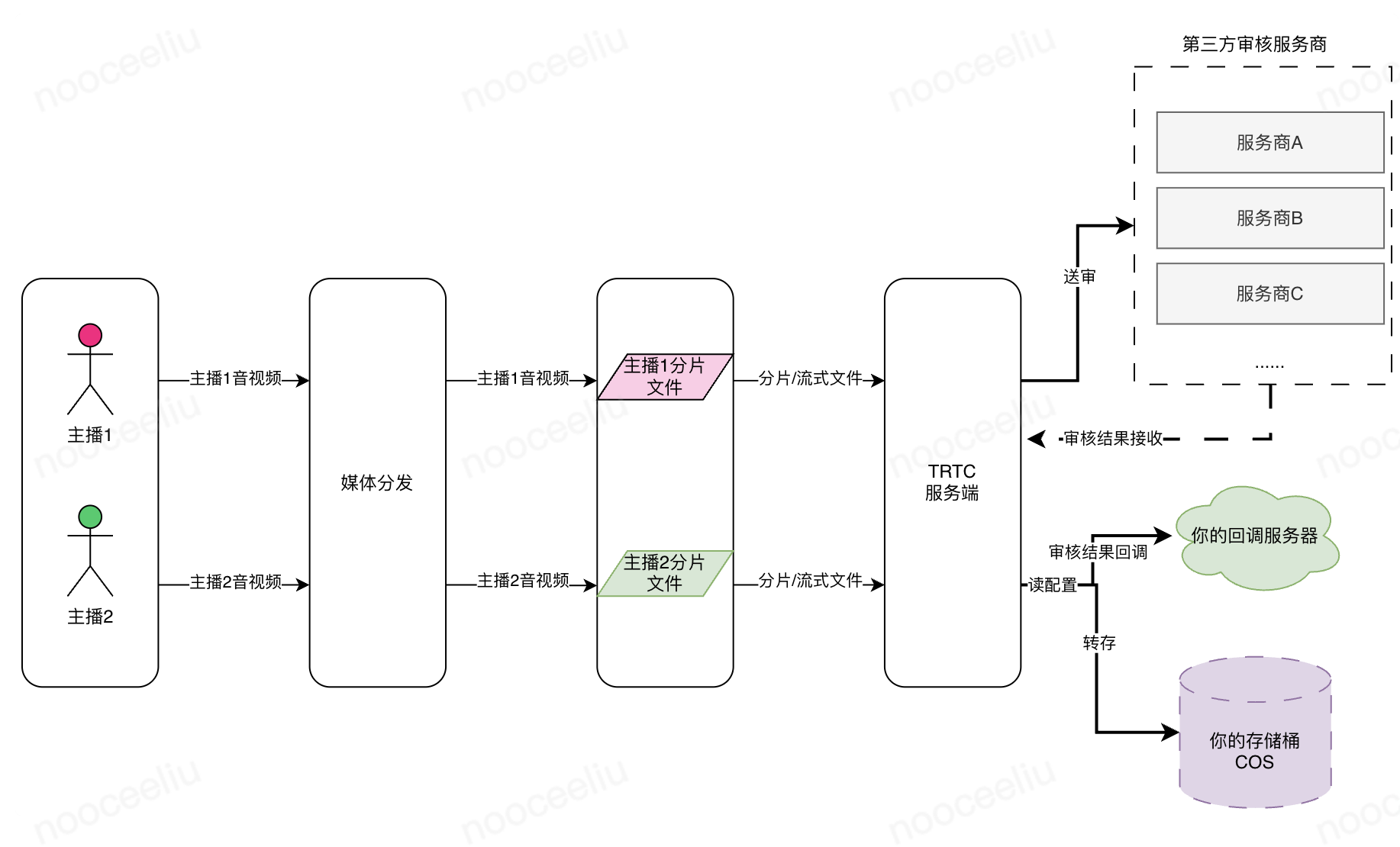
Using the Cloud Content Understanding feature of TRTC, you can slice the audio and video streams of each user in the room on the cloud and send them to third-party service providers for content understanding, without requiring client-side processing. Based on the cloud content understanding request you initiate and the third-party service provider information provided in the request (you need to activate or purchase the third-party service in advance), the audio and video content in the cloud content understanding task is delivered to the third-party content processing service provider for handling via the Cloud Moderation API. The cloud content understanding process is as follows. For details, see Achieve Cloud-Based Content Understanding.


Chat Content Understanding

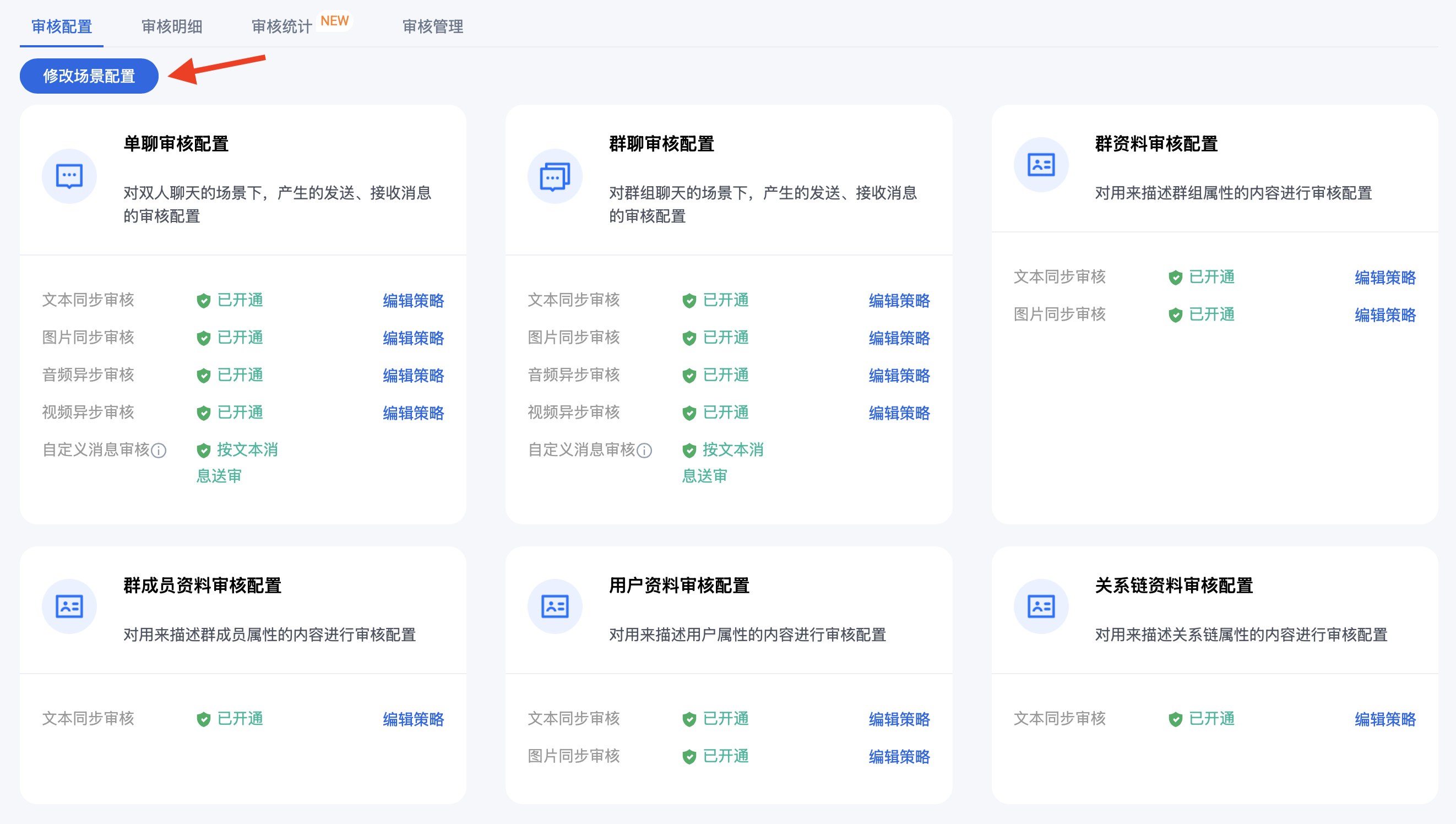
The Chat content understanding capability can be directly used for Live room bullet screen message and user information review. It also supports one-to-one chat review, group chat review, group profile review, and group member profile review. After you go to Chat Console > Cloud Review to activate the cloud review service, the review feature for six common scenarios is enabled for you by default. You can also click Modify Scenario Configuration to custom adjust or disable review scenarios and policies. For more Chat content understanding scenario policies and recognition result configurations, see Configuration Audit Scenarios and Policies and Configuration Audit Scenarios and Policies.

Note:
This feature is currently available only to allowlist users. You need to contact us to have the allowlist permission granted before you can access it.

Chat/Push Development Practices

In the Web3 and pan-financial interactive business ecosystem, real-time interactions within the live room (bullet screen, likes, gifts, market data/copy trading broadcasts) are handled by Live (AtomicXCore). Chat / Push, on the other hand, are responsible for KOL community operations, red packets/transfers, second-level market data delivery, official accounts, and customer service outside the live room, serving as the core communication infrastructure beyond the live room.
In-room interaction: Process bullet screen messages, likes, gifts, and market data/copy trading broadcasts using the BarrageStore / LikeStore / GiftStore modules encapsulated by AtomicXCore, ensuring high synchronization between audio/video and messages (for details, see Business Core Feature Development Practices above).
Out-of-room communication: For KOL communities, intelligent customer service, official accounts, and push notifications, it is recommended to directly use Chat / Push to achieve more comprehensive instant messaging feature support. It is also recommended to establish an independent ChatService module outside the AtomicXCore Store system, responsible for global Chat status monitoring and message processing beyond the live room dimension.

KOL Fan Community Operations

KOL fan communities are one of the most critical private domain operation strongholds in the Web3 and pan-financial industries. Leading KOLs typically manage hundreds to tens of thousands of highly active communities, continuously enhancing user retention and transaction conversion through real-time interactions, market updates, and investment insights dissemination. Typical operation scenarios include:
Live Streaming Preheating and Recall: Before going live, reservation cards, countdown reminders, and live stream links are automatically pushed to target communities to guide fans to reserve in advance and watch on time, thereby increasing live room traffic and conversion rates.
Market Information Sharing: Real-time market updates are sent via custom messages, which can carry candlestick chart thumbnails, price change data, research report summaries, and external navigation links, helping users quickly obtain market information.
Copy Trading and Strategy Dissemination: The KOL's current holdings, transaction records, or investment strategies are encapsulated into visual cards and shared to communities with one click, making it convenient for fans to view and follow the operations, thereby enhancing community trust and user stickiness.
Real-time Discussion on Hot Topics: Quickly initiate group chat discussions, voting interactions, and opinion polls around hot topics such as price fluctuations of mainstream assets like BTC and ETH, macroeconomic events, project launches (TGE), and airdrop activities to enhance community engagement.
Event Operations and User Incentives: By integrating operational game modes such as check-in tasks, airdrop events, point systems, and referral rewards, user activity and community engagement are continuously enhanced, achieving a conversion loop from attention to transaction.

Managing Communities

Community is a group type that supports up to 1 million members per group, meeting the capacity requirements for rapid user base expansion. It adopts a three-tier hierarchy of "Community - Group - Topic", supports member grouping and permissions configuration for viewing / speaking / management, making it suitable for ultra-large-scale fan operations and organized collaboration. For specific client-side APIs related to managing communities, see Community Management, Topic Management, and Topic Messages.

Asset Showcase

An "Asset Showcase" entry can be configured in the upper-right corner of the group chat, and the mapping relationship between the group and the asset list is maintained via Group Attributes. After entering the group chat, users can quickly access pages for Tokens, trading strategies, Launchpad projects, DeFi products, NFTs, or operational activities recommended by the group owner, achieving a closed loop of content dissemination, community operations, and transaction conversion.

Card Messages

When a KOL shares current holdings, transaction records, or investment strategies within a community, it is recommended to encapsulate them into visual card messages for easier viewing and follow-up actions by fans. These card messages are delivered via Chat custom messages (TIMCustomElem): the message body is constructed using createCustomMessage(data, description, extension) and then sent by calling sendMessage. After parsing, the group member client renders them as visual cards.
Step 1: Construct a Custom Message Body
Taking the example of a KOL sharing a strategy/holding card, the JSON structure example for the data field is as follows:
{
"businessID": "strategy_card", // Business type, used by the receiver to route to the corresponding card renderer
"kol": { "name": "Alice Investment Research", "winRate": "78%", "followerCount": 12030 },
"strategy": {
"title": "BTC Swing Strategy · Buy on Pullback",
"symbol": "BTC/USDT",
"side": "long", // Long; 'short' indicates short.
"leverage": 5, // Leverage multiplier (fill in only for products that support leverage)
"entryPrice": "67200.0",
"pnlRate": "+4.2%" // Floating profit and loss (for display purposes)
},
"deeplink": "myapp://copytrade/follow?strategyId=stg_001", // Click to navigate to the in-app copy trading page
"expireAt": 1773321389000 // Expiration time (in milliseconds). After expiration, it degrades to plain text.
}
Step 2: Send a Group Custom Message
Sender: The KOL client calls createCustomMessage to encapsulate the card message, and then calls the send message API to send it to the community.
Step 3: Parse and Render the Custom Message
Receiver: The group member client listens for relevant custom messages via the receive message API, parses them, and renders them as visual cards in the group message list.

Red Packet/Transfer Best Practices

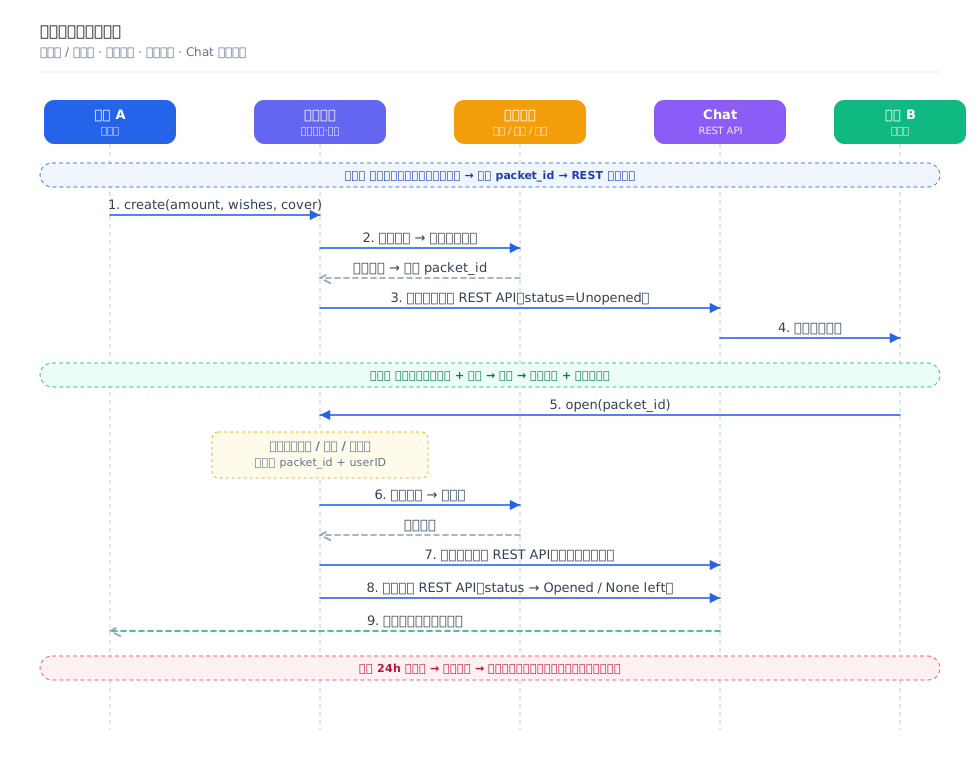
Red packets and transfers are effective tools for Web3 and pan-financial industry apps to achieve new user acquisition and card-binding conversion. They can be used to guide users who have not bound a card to complete card binding before withdrawal, increase user funds deposited within the App, and activate community engagement. The solution supports two scenarios: one-to-one red packets (sent to a single user in a private Chat) and group red packets (where multiple members in a group participate in claiming). The core approach is to leverage Chat's custom message, message change, and message extension capabilities, in conjunction with the business side's red packet system and payment system, to complete the entire process of sending, claiming, status synchronization, and notification for red packets. For details, refer to Red Packet Best Practices.

Overall Architecture

The red packet feature is implemented through the collaboration of four core components. The business side's red packet system serves as the control core, while the server side ensures the security and consistency of the red packet business.

Component
Responsibilities
Client (Sender / Receiver)
Initiate send red packet / open red packet requests; render red packet card UI.
Chat Service
Message delivery, status update, claim record storage, claim notification push
Red packet system (business-built)
Red packet lifecycle management: creation, validation, opening, amount calculation
Payment system (business-built)
Fund management: deduction, transfer, refund

Core Data Structures

Red packets are carried by Chat's custom message (TIMCustomElem). The key fields of the Data field are as follows:
Field
Type
Description
BusinessID
String
Identifies the message type. For red packet messages, it is fixed as red_packet.
packet_id
String
The unique identifier of the red packet. It is generated by the red packet system after a successful deduction and is written into the custom message via the REST API, thereby binding the message to the red packet.
money_amount
Number
The amount of the red packet (for one-to-one red packets).
best_wishes
String
Best wishes
cover
String
The URL of the red packet cover image
status
String
Red packet status: Unopened (not claimed) / Opened (claimed) / None left (all claimed)
quantity
Number
The number of red packets (for group red packets only)
total
Number
The total amount of the red packet (for group red packets only)
random_amount
Boolean
Whether it is a lucky money red packet (random amount) (for group red packets only)
Example of the Data field for a group red packet custom message:
{
"BusinessID": "red_packet",
"total": 2.00,
"quantity": 3,
"random_amount": true,
"best_wishes": "Happy New Year!",
"cover": "https://example.com/cover.png",
"status": "Unopened",
"packet_id": "rp_20260301_xyz789"
}
Claim records are stored via Chat's message extension data. Each claim record is stored as a key-value pair (key = userID, value = amount, timestamp). The client can read the extension data to render the claim list on the details page.

Core Mechanism: Message Change + Message Extension

The red packet solution relies on two key capabilities of Chat. By working together, these capabilities enable real-time synchronization of red packet statuses and distributed storage of claim records:
Capability
Use (Red Packet Scenario)
One-on-One Chat Message Locator Parameter
Group Chat Message Locator Parameter
Message modification
Updates the red packet status (Unopened > Opened > None left), and the change is visible to all clients.
From_Account + To_Account + MsgKey
GroupId + MsgSeq
Message extension
Attaches claim record KV without modifying the original message, and the change is synchronized to all clients in real time.
From_Account + To_Account + MsgKey
GroupId + MsgSeq
Note:
Due to the capacity limitation of message extension data, a group red packet supports a maximum of 300 claims.
To enable extension data for a message, you must set SupportMessageExtension to 1 when sending the message.

One-to-One Red Packet Process

1. Sending: The client collects the amount, best wishes, and cover image. The red packet system then calls the payment system's deduction interface to deduct funds from the sender and transfer them to the red packet fund management account. After a successful deduction, a packet_id is generated. Finally, the red packet system server, acting as the sender, uses the Send Private Message REST API to send the red packet as a custom message.
2. Claiming: The recipient clicks Open > The red packet system checks the status (whether it has been claimed or has expired) > It calls the payment system's transfer interface to transfer the amount from the fund management account to the recipient > After a successful transfer, the red packet system server performs the following actions in sequence: it writes the claim record via the Set Private Message Extension REST API, updates the status to Opened via the Modify Private Message History REST API, and pushes a XX claimed your red packet notification to the sender via a REST API.
3. Details Page: It displays the cover image, sender, best wishes, total amount, and claim list. The data for the claim list is sourced from message extension data.

Group Red Packet Process

Group red packets are largely consistent with one-to-one red packets. The differences are as follows:
To send the message, use the Send Ordinary Message in Group REST API. Add the quantity / total / random_amount fields to Data.
When a member opens a red packet, the red packet system checks whether funds remain / whether the user has already claimed. Under the Lucky Draw mode, the amount is randomly allocated from the remaining funds (commonly using the double average algorithm to ensure fairness), and the last claimant receives all remaining funds.
Claim records are saved via the Set Group Message Extension REST API. After all red packets are claimed, the status is updated to None left via the Modify Group Message History REST API.
The claimant with the highest amount is labeled as "Best Luck" on the details page. Claimant avatars / nicknames are retrieved via the batch Get Group Member Profiles API.

Online Conversation (Desk) / Smart Customer Service

Customer service for Web3 and the broader financial industry heavily relies on online conversations and demands high timeliness and professionalism. In such scenarios, users often have needs such as pre-sales consultation, order inquiries, dispute resolution, and risk event handling. This solution recommends building an intelligent customer service system based on Tencent Cloud Desk. It integrates AIChatbot (Intelligent Bot) + Live Agent (Human Agent) into a one-stop product: the bot automatically responds to high-frequency queries 24/7, and with one click, escalates to a human agent when complex or sensitive scenarios are encountered. The solution is ready to use out of the box, eliminating the need to build a customer service backend from scratch.


Product Components

Desk consists of three modules, which are designed for end users, administrators, and agents respectively:
Module
Entries
Responsibilities
User end
(Client)
Web / H5 / App (Web, iOS, Android UIKit)
Serves as the user inquiry entry point, where inquiries are first handled by a chatbot and can be transferred to a human agent with one click. Supports text, multimedia, and card messages.
Management end
(Management Panel)
desk.tencentcloud.com (password-free login for super administrators)
Configure chatbot knowledge base/task flows, conversation flows and routing rules, service modes, queuing and working hours, team/role management, and data dashboards.
Agent workspace
(Agent Workspace)
desk.tencentcloud.com (login with agent email + password)
Agent reception and session closure, session transfer, proactive session initiation, satisfaction rating, internal agent chat

Quick Activation

You can quickly get Desk up and running by following these three steps. For details, refer to the Desk Guide.
Step
Operation
① Create a Desk Application.
In the Cloud Contact Center console, select Desk to claim a 7-day free trial. To integrate with conversation data, you can associate a Tencent Chat application.
② Experience Client Capabilities.
Go to Admin Console (super administrator password-free login), directly experience the full process of sending messages, chatbot responses, and transferring to human agents in the "Client Configuration" section, and obtain the user end link / QR code / access code.
③ Go to the Workbench to Experience.
In the Admin Console, click "Go to Workspace" to handle sessions transferred to human agents as an agent.

AIChatbot Smart Bot

The bot is configured on the management console and automatically responds when a match is found in the knowledge base. It serves as the first line of defense to offload pressure from human agents. Its core capabilities are listed below. For more capabilities, refer to Q&A Library Configuration.
Capability
Description
Web3 / General Finance Use Cases
Q&A database
(Q&A Database)
Configure standard questions, similar queries, and answers, supporting manual addition / batch import / editing.
Transaction fees, contract rules, KYC procedures, deposit/withdrawal, and other common issues
Task flow
(Task Flow)
Orchestrate multi-turn conversations and guide users step by step based on their input.
Guided KYC, account recovery, and appeal process
Chitchat library
(Chitchat)
Respond to greetings and chitchat to enhance the user experience.
Opening greetings and waiting reassurance
QA optimization
(QA Optimization)
Cluster questions, collect unrecognized queries, and continuously enrich the knowledge base.
Discover high-frequency uncovered issues and iterate.
The bot provides two modes: Standard Bot (exact matching based on the knowledge base) and Agent (automatic responses based on a large language model, capable of handling casual conversation). If you have built your own AI or procured a third-party large language model, you can disable the built-in bot on the management console and connect your own model. After connection, the AI and agent conversations are integrated, allowing agents to view the AI conversation history after a transfer.

Agent Workflow

After a transfer to a human agent, the agent handles the session on the workbench. For the complete set of capabilities, refer to the Workbench Operation Manual > Online Conversation Volume.
Stage
Description
Reception and session closure
Agents accept queued user sessions and complete the response / end the session.
Session transfer
Complex issues (such as disputes and risk control) are transferred to more specialized agents or agent groups and assigned by routing rules.
Initiate session proactively
Agents can proactively initiate consultations with designated users (such as risk event alerts and KYC follow-ups).
Satisfaction survey
The end of a session triggers user rating, which accumulates service quality data.
Data dashboard
The management console views real-time reception, Conversation Analytics, agent performance, and historical sessions (exportable).
In Web3 and broader financial business scenarios, it is recommended to use AIChatbot to handle high-frequency standardized queries such as pre-sales consultation, KYC guidance, and deposit/withdrawal status inquiries. For sensitive scenarios like transfer disputes and risk control events, dedicated agent groups and task flows should be configured. When such scenarios are triggered, sessions are directed to human agents, balancing efficiency and regulatory compliance.

Best Practices for Official Accounts

Official Accounts provide Web3 and broader financial businesses with capabilities for subscriber-oriented content creation, targeted operations, and long-term interaction, addressing the limitations of instant messaging in content accumulation and service extension. Account owners can push graphic and text content to subscribers and view historical posts. After subscribing, users automatically obtain updates and can interact with the account. In Web3 and broader financial scenarios, it is suitable for project announcements, market research reports, airdrop and event notifications, compliance disclosures, KOL investment research content accumulation, and more. Tencent Chat offers three types of Official Account setups. For details, refer to the Official Account Best Practices.

Form Comparison and Selection

Comparison Dimension
WeChat Official Account-like
WhatsApp Channel-like
Platform Official Account
Applicable Scope
Open to external project parties / organizations; the merchant end and user end must be separated into two identities (two apps or dual-mode switching).
Open to external project parties / organizations; within the same App / Web, a publisher and a user identity can be held simultaneously.
Only builds the platform's own official account, not open to external publishers.
Implementation Base
Chat native official account capability
Chat Community (Community)
Chat native official account capability
Management Feature
Requires building a publisher management backend
Operate directly in the console.
Message Interaction
Broadcast messages (one-to-many posts) + private chat messages (one-to-one private messages)
Group chat messages (one-to-many posts) + Emoji reactions (adding emojis to posts)
Broadcast messages + private chat messages
Subscription Scale
Calculated based on the number of official account subscribers
Single account: 100,000 - 1,000,000 (community capacity)
Calculated based on the number of official account subscribers
Based on the common features of Web3 Apps, we recommend adopting a dual-mode combination: "WhatsApp Channel-like as the primary mode + the platform's official account pinned at the top".
Primary Mode: WhatsApp Channel-like: It hosts the vast majority of channels (from project teams, KOLs, institutions) within the App. Accounts can be created within the same App, with a single account supporting 100,000 to 1,000,000 subscribers, featuring one-way publishing + Emoji reactions. This setup best fits the "project Channel" model.
Official Information: Platform Official Account: Platform-owned real-time news / official announcements can be set up directly in the console without building a separate backend. This account serves as a privileged account with "pinned" / "verified" status in the Feed information stream.

WhatsApp Channel-Like Form

This model uses Community to host Official Accounts: Creating an Official Account creates a Community. When users join the group, they subscribe. Account owners and administrators can send group chat messages (posts), while ordinary subscribers only receive them and can respond with Emojis. A single Official Account supports 100,000 - 1,000,000 subscribers, making it suitable for Web3 project teams / exchanges to set up a "Project Channel" within their App.
Official Account Action
Underlying Implementation
Key APIs
Create Official Account
Create a Community group (groupType=Community), mark it as an "Official Account" via a group custom field, distinguishing it from regular groups.
Subscribe / Unsubscribe
Join / leave a community. After subscription, use conversation grouping to separately display unread messages from official account conversations and regular chats.
Obtain Official Account List
Pull the list of joined communities, then filter out communities marked as official accounts based on group custom fields.
Publish posts
Official account owners / administrators invoke group chat to send messages, supporting text, rich media, and custom messages (such as market quote cards, research report cards).
Subscriber interaction
Subscribers react to posts with Emoji.

Official Platform Account Form

When a platform's own official account does not need to be opened to external publishers, you can directly create, edit, and delete Official Accounts and compose/publish posts (supporting graphic/image-only/text-only formats, with the ability to insert hyperlinks and preview in real time) in the Chat Console, without building a separate management backend. Client integration is implemented based on Chat's native Official Account capabilities:
Subscribe / Unsubscribe: The client calls subscribeOfficialAccount / unsubscribeOfficialAccount and receives subscription, profile change, and termination notifications through listeners such as onOfficialAccountSubscribed.
Sending and Receiving Messages: Official Accounts push posts to all subscribers via Official Account User Broadcast Message. For one-to-one private messages with subscribers, the subscriber side uses sendMessage (with the receiver field filled with the Official Account ID), while the administrator on the Official Account side uses Send Private Message to a Single User (with From_Account filled with the Official Account ID and To_Account filled with the subscriber ID).

Push Service

Push is a one-stop App message push solution. Without investing significant R&D costs to build infrastructure, you can obtain cross-platform, highly reliable message delivery capabilities, ensuring stable message delivery both online and offline. In Web3 and broader financial scenarios, Push is suitable for time-sensitive scenarios such as real-time market pushes, airdrop preheating, order and deposit notifications, risk control alarms, and AMA live stream start reminders. It also provides end-to-end data statistics to evaluate reach and conversion effectiveness.


Core Value of Push

Benefits
Description
Zero-maintenance status
The platform automatically identifies user online/offline status, switches between the self-built online channel and vendor offline channels according to the default full-coverage policy, and eliminates the need for businesses to maintain a user status system themselves.
Global high availability
Globally, over 3200 acceleration nodes are accessed nearby, which, combined with the self-developed optimal routing algorithm for intelligent path selection, effectively reduces cross-border transmission latency and packet loss, with service reliability exceeding 99.99%.
Ultra-fast delivery
Leveraging persistent connections to achieve millisecond-level precise delivery, 10 million messages can be fully delivered within 30 seconds, ensuring critical messages such as market data and risk alerts reach users at the first opportunity.
Simplified integration
Download and import the JSON configuration from the console to enable one-click integration with various vendor channels, while the SDK automatically handles registration, Token reporting, and data statistics. It already covers all mainstream offline channels, including APNs, FCM, Huawei, Honor, Xiaomi, OPPO, VIVO, and Meizu.
Full-stack coverage
A single capability uniformly adapts to mainstream development platforms such as Android / iOS / Flutter / uni-app / React Native / HarmonyOS / Unity / Unreal Engine.
Compliant and trustworthy
Offers optional overseas data centers in multiple locations such as Singapore, Jakarta, Seoul, Tokyo, Frankfurt, Silicon Valley, and Riyadh, supports encrypted data transmission/storage, privacy compliance, and global security certifications, and meets the compliance requirements for global financial services.

Five Push Methods

Push provides five basic push methods, covering all scenarios from broad reach to precise targeting, and further to deep integration with business messages.
Push Method
Description
Typical Use Cases
Broadcast push
System-level reach to all users
Sharp price rise alerts, platform announcements, and version updates
Tag-based push
Push notifications grouped by holding position / language / region
Market Alert, airdrop preheating, and event push
Push to specified UserIDs
Batch push to a specified user list
Risk control alarm, personalized operation, and targeted recall
Chat message push
Offline push triggered by instant messaging messages
Private messages, group chats, and customer service replies
Voice and video call push
Push notification triggered by a Call
AI digital human interview invitations and KOL 1v1 investment advisory calls

Quick Integration Steps

Push follows the process of "Activate in Console → Integrate and Register SDK → Initiate Push", which can be completed in as little as 3 minutes. The table below outlines the general integration steps. For details on SDK integration for each platform, refer to Quick Start:
Step
Operation
Key Notes
① Activate Service
Create an application and enable Push in the console. New users can claim a full-feature trial version twice, each lasting for 7 days.
Obtain the SDKAppID and client secret AppKey
② Configure Vendor Channels
Download the JSON configuration file from the console and import it into your project to complete the configuration for APNs / FCM and various Android vendor push notifications with one click.
The plugin automatically handles registration, Token reporting, and data statistics.
③ Integrate SDK and Register
Import TIMPush and call registerPush(SDKAppID, appKey) to register. Upon success, you can receive online push notifications and obtain the unique device push identifier RegistrationID via getRegistrationID().
The RegistrationID changes upon uninstallation and reinstallation. To link it with the Chat UserID, use setRegistrationID(userID) to bind them.
④ Initiate Push
Call initiate all-user/Tag push or single-user push from the server side, or deliver it visually in the console.
During the joint debugging phase, you can first specify the RegistrationID to perform online push verification.
⑤ Click to Navigate
Register the onNotificationClicked(ext) callback on the client side, parse the ext to navigate to the business page. For details, see Custom Click Navigation.
It is recommended to register during Application/AppDelegate startup.
Note:
The API call frequency for broadcast / Tag-based push is limited to 1 call per second. The daily call quota is 10 calls per day for the Free / Trial edition and 100 calls per day for the Pro edition. The API call frequency for single-user push is limited to 10 calls per second for the Free / Trial edition and 30 calls per second for the Pro edition, with no daily call quota limit. For high-frequency operational scenarios, you must evaluate your subscription plan and frequency control requirements in advance.

Push Delivery Effect Tracking and Full-Link Diagnosis

Push provides a complete end-to-end data visualization tool that covers the entire lifecycle from push delivery to user conversion. We recommend that you routinely use the following capabilities in your production environment:
Capability
Description
Benefits
Push data conversion funnel
Statistics are performed in stages based on "Sendable Count → Sent Count → Delivered Count → Click Count", and the Actual Send Rate / Delivery Rate / Click Rate are provided.
Pinpoint the stage with the most severe churn and optimize accordingly.
Push record query
Search historical pushes (retained for the last 7 days) by time window / task ID / sender/receiver UserID.
Post-event audit and issue review
Message link query
Perform end-to-end tracing of a single message (Chat server → vendor server → terminal device → user click) using the Push ID / Task ID.
Quickly answer the question "Why wasn't this message received?".
Push loss analysis
Perform interval-based, layered attribution for "Sendable Count → Sent Count" and "Sent Count → Delivered Count" (such as vendor rejection, Token invalidation, notification bar disabled, user uninstall, and so on).
Reduce ineffective deliveries and optimize costs.
Full lifecycle data statistics
Provides complete metrics from push delivery to client-side display and click, supporting categorized viewing by vendor dimension.
Evaluate ROI by integrating business data.
Push troubleshooting tool
Automatically diagnoses issues in all stages of access and delivery, and provides clear resolution guidance.
Reduce Ops investment.
The server side can configure Broadcast/Tag/Single-User Callback to return push results to the App business backend in real time. The callback distinguishes the three stages of "send / reach / click" via the PushStage field and carries fields such as TaskId, To_Account, and PushPlatform. This enables the business side to integrate the push delivery chain with its own risk control and conversion systems for closed-loop attribution. For more details, refer to Push Data Statistics.


Web3 Practice: Market Alert System

Market Alert is a high-frequency scenario in Web3 and pan-financial businesses: price fluctuations, airdrop preheating, risk control alarms, and interest rate changes require delivery to corresponding users within seconds. It comprehensively utilizes the aforementioned Tag-based targeting, server-side push, offline fallback, and conversion tracking capabilities. The end-to-end delivery chain can be constructed as follows:
Step
Implementation Key Points
① Market data ingestion
The business side connects to the exchange/market data source WebSocket and monitors threshold rules (price change/volume/on-chain events, such as large transfers, contract calls, airdrop openings).
② User classification
Multi-dimensional classification based on Chat Tag/attribute system, according to held currencies/watchlist stocks/language/risk preference/region
③ Push and Deliver
Call Pushing to All/Tagged Users to precisely target users based on Condition; enable rate-limited push during peak hours to avoid instantaneous traffic surges impacting the business backend.
④ Offline Fallback
Users who are offline use the vendor's offline channel; Android devices without vendor certificates configured are covered by a 7-day offline message storage mechanism.
⑤ Conversion Tracking and Data Collection
The Ext field carries business identifiers (such as alert_id/campaign_id). After the client clicks, it writes back conversion logs, which are then combined with push callbacks to form a complete data statistics pipeline.

Key Web3 Terminology

Term
English / Full Name
Meaning in This Solution
Web3
Web 3.0
A decentralized network paradigm based on blockchain, with the core feature of user-held assets and identity.
CEX / DEX
Centralized / Decentralized Exchange
Centralized Exchange / Decentralized Exchange
KYC
Know Your Customer
Identity verification process, which is a mandatory requirement for licensed businesses in most jurisdictions.
AMA
Ask Me Anything
A 1:N interactive livestream format between project teams and communities, commonly seen on exchanges, with KOLs, and among protocol teams.
KOL
Key Opinion Leader
Key opinion leaders, who are content creators and opinion shapers within communities.
Meme Coin
Meme Coin
A cryptocurrency that originates from internet memes or community culture (e.g., DOGE / SHIB), typically characterized by high volatility and strong community attributes.
MemeFi
Meme + DeFi
A form that builds upon Meme Coin by adding DeFi capabilities such as staking, profit sharing, and governance.
LiveFi
Live + Finance
A financialized game mode deeply integrated with livestreaming (such as livestream tipping, livestream copy trading, and livestream on-chain interaction).
GameFi
Game + Finance
Gamified finance, a "play-to-earn" model, often driven by NFT assets / token rewards.
NFT
Non-Fungible Token
Non-fungible tokens, each with uniqueness, commonly used for digital collectibles / credentials / identity.
SBT
Soulbound Token
Soulbound tokens, non-transferable on-chain identity and achievement credentials.
POAP
Proof of Attendance Protocol
Proof of Attendance Protocol, commonly used as on-chain proof for event / livestream participation.
Tokenomics
Token Economics
Token economics, encompassing designs for total supply, distribution, release schedule, termination, incentives, and more.
Smart Contract
Smart Contract
Smart contracts, self-executing code deployed on a blockchain.
On-chain Reputation
On-chain Reputation
A credibility score comprehensively evaluated based on the public behaviors of a wallet address (such as transaction history, protocol interactions, contract deployments, and so on), commonly used for airdrop eligibility determination.
Airdrop
Airdrop
A user acquisition and incentive method where the project party distributes tokens / NFTs for free to target users.
Stablecoin
Stablecoin
A cryptocurrency pegged to fiat currency (mostly USD), such as USDT / USDC / DAI.
Custodial Wallet
Custodial Wallet
A wallet whose private keys are custodied by the platform, commonly found in exchange-built-in wallets.
Social Trading / Copy Trading
Social trading / Copy trading
A trading form that subscribes to signal source anchor policies and automatically replicates orders.
txHash
Transaction Hash
The unique identifier for an on-chain transaction, usable for cross-end verification and auditing.
Confirmations
Confirmations
The cumulative number of confirmations for a transaction by the blockchain, where a higher number of confirmations makes the transaction more irreversible.
Note:
This glossary is intended solely as a reference for concept alignment and does not constitute investment advice or a compliance conclusion. The compliance requirements for forms such as Meme Coin, MemeFi, LiveFi, GameFi, and derivatives copy trading vary significantly across different jurisdictions. It is recommended that you consult your local legal and compliance team before launching.

Ajuda e Suporte

Esta página foi útil?

comentários