tencent cloud

Marketplace

Release Notes
Product Introduction
Overview
Application Dashboard Introduction
Purchase Guide
User Guide
Getting Started
App Store Application Operation Guide
Application Dashboard Operation Guide
Service Provider Guide
Overview of the Listing Process
Marketplace Onboarding Process
Making and Managing Installation Packages
Product Management
Order Management
User Application Instance
FAQs
User-Related Issues
Marketplace Policy
Privacy Policy
Data Processing And Security Agreement
Tencent Cloud Marketplace User Agreement
Tencent Cloud Marketplace Products Cooperation Agreement
Tencent Cloud Marketplace End User License Agreement(Standard Version)
Marketplace Product Cancellation and Refund Rules
Contact Us
Glossary

Application Usage Guide

PDF
Focus Mode
Font Size
Last updated: 2026-01-30 17:09:51

Access Installed Applications

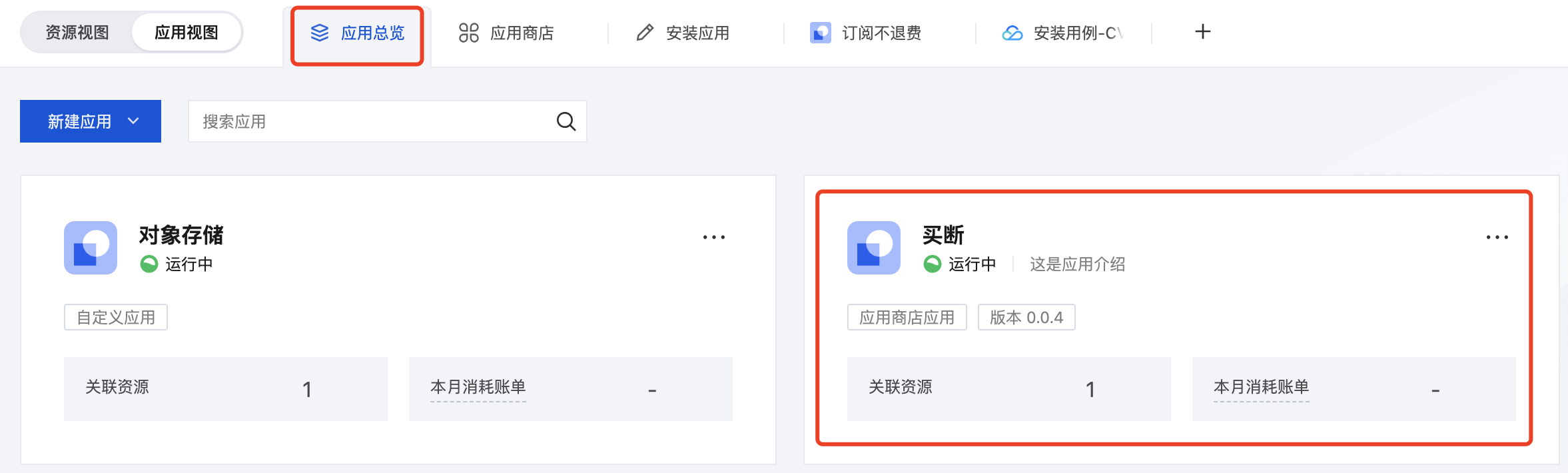
1. After the application is installed, click Application View on the Tencent Cloud Console page. By default, enter the Application Overview page. Click the application card you want to view to go to the application details page.


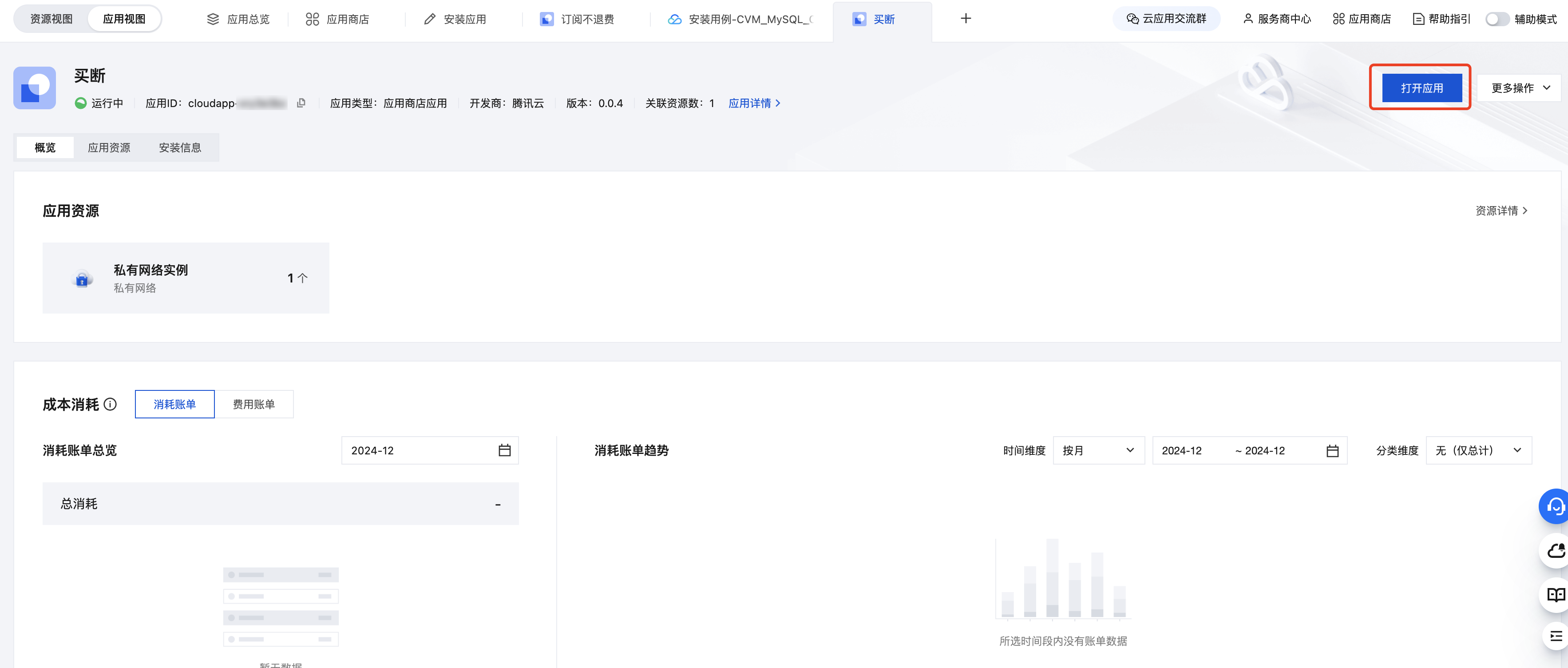
2. In the upper right corner of the page click Open the App to access the installed application normally.


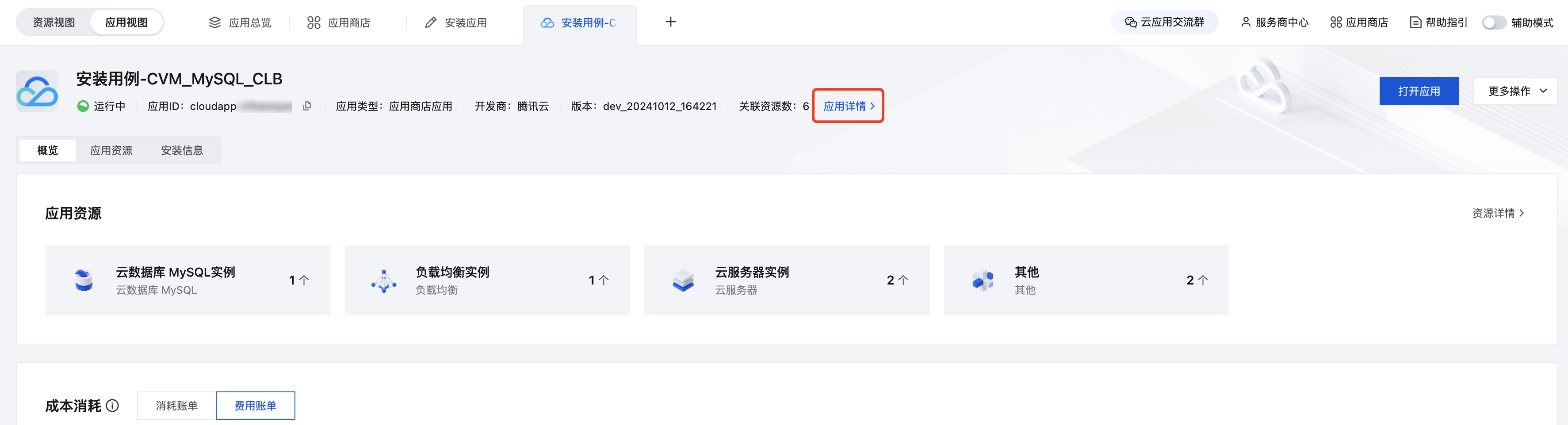
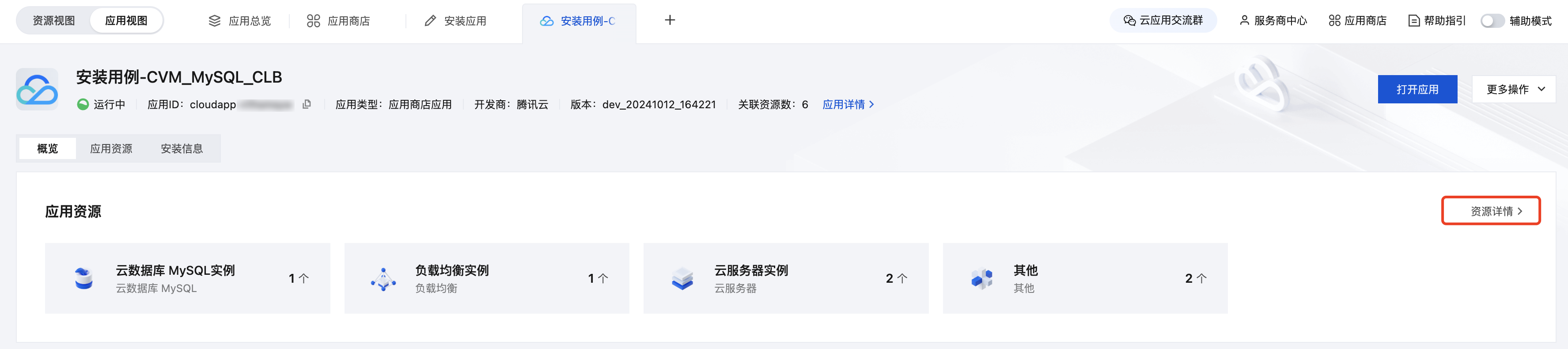
3. You can learn about application details, associated cloud resources, cost consumption, application alarms in the last 7 days, installation information, etc., in the application details.
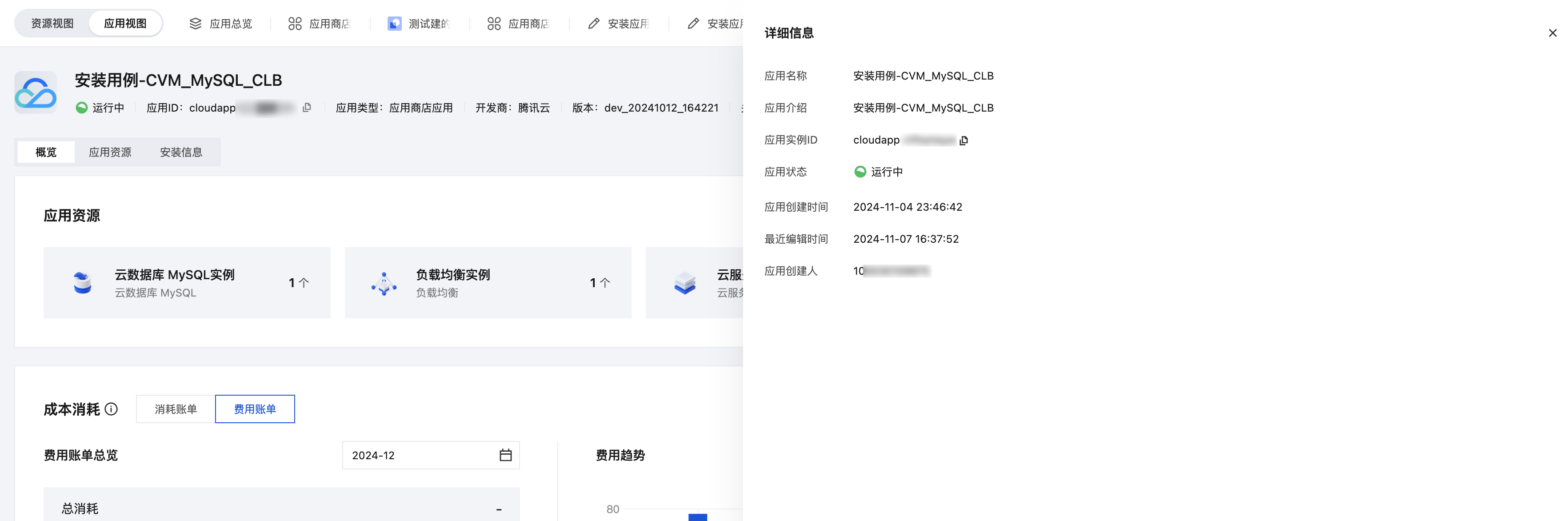
3.1 Detailed application information: click Application Details to learn more basic application information from the drawer that pops up on the right.


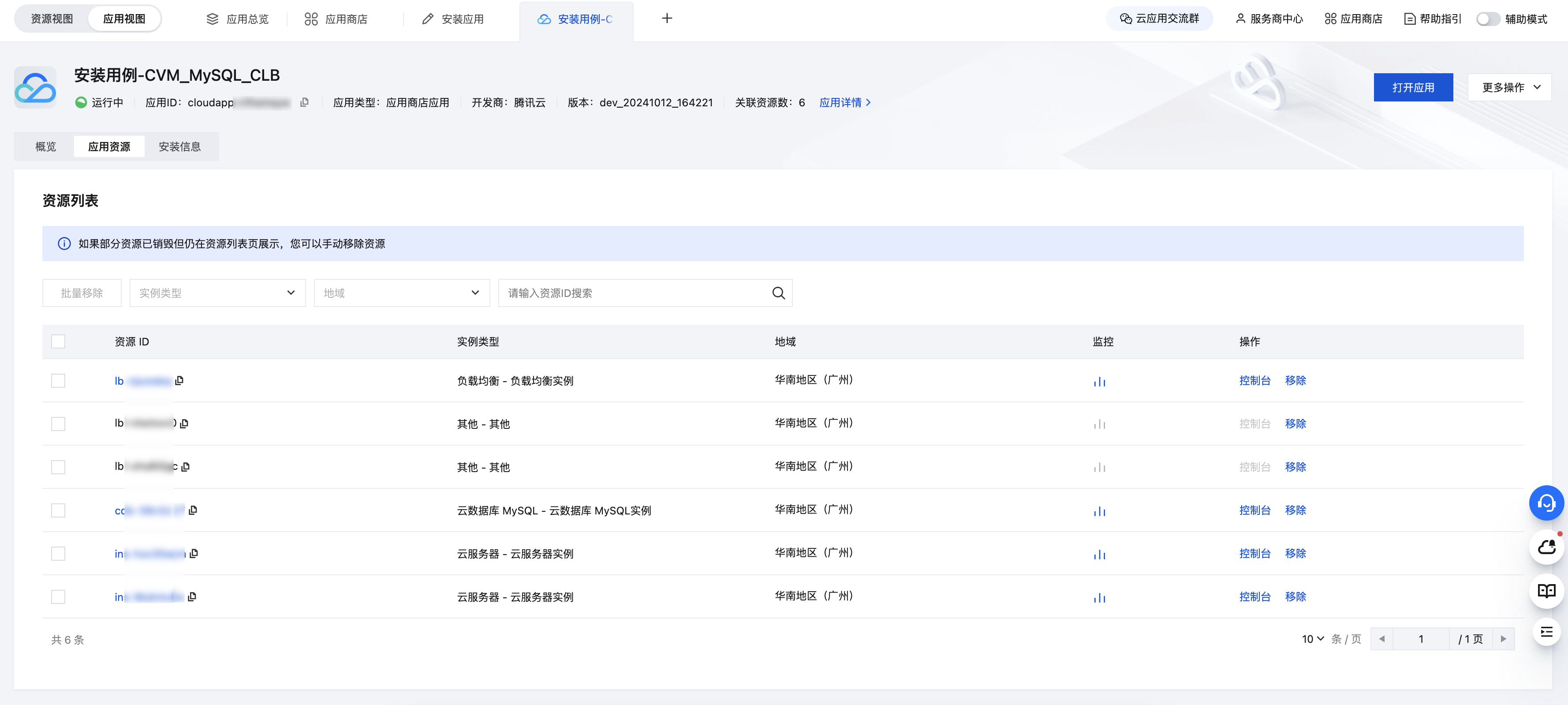
3.2 Application Resource List: The overview page will display information such as cloud resource names. Click detailed resource information to view specific resource ID, instance type, region, etc. You can also filter resources by resource type, region, or directly search for resources to view.


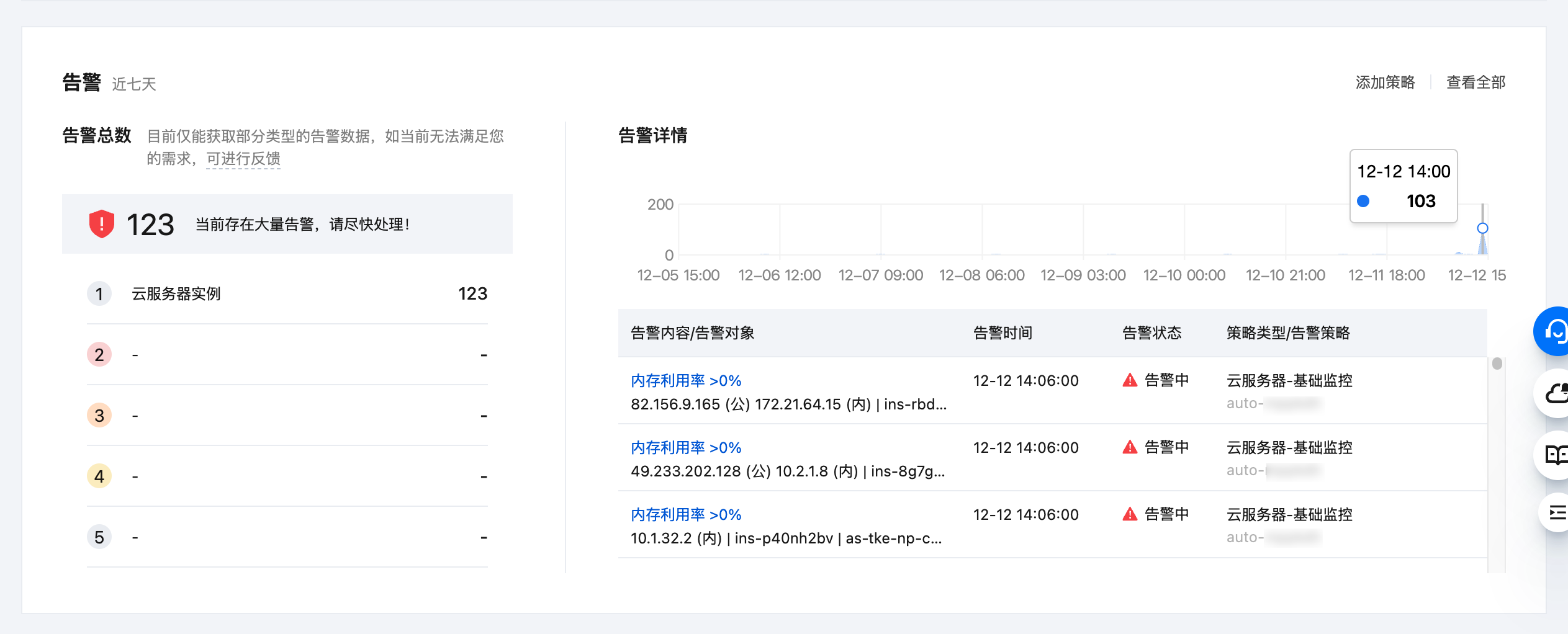
3.3 Alarms in the last 7 days: Learn about alarm data and alarm content of cloud resources for timely handling.


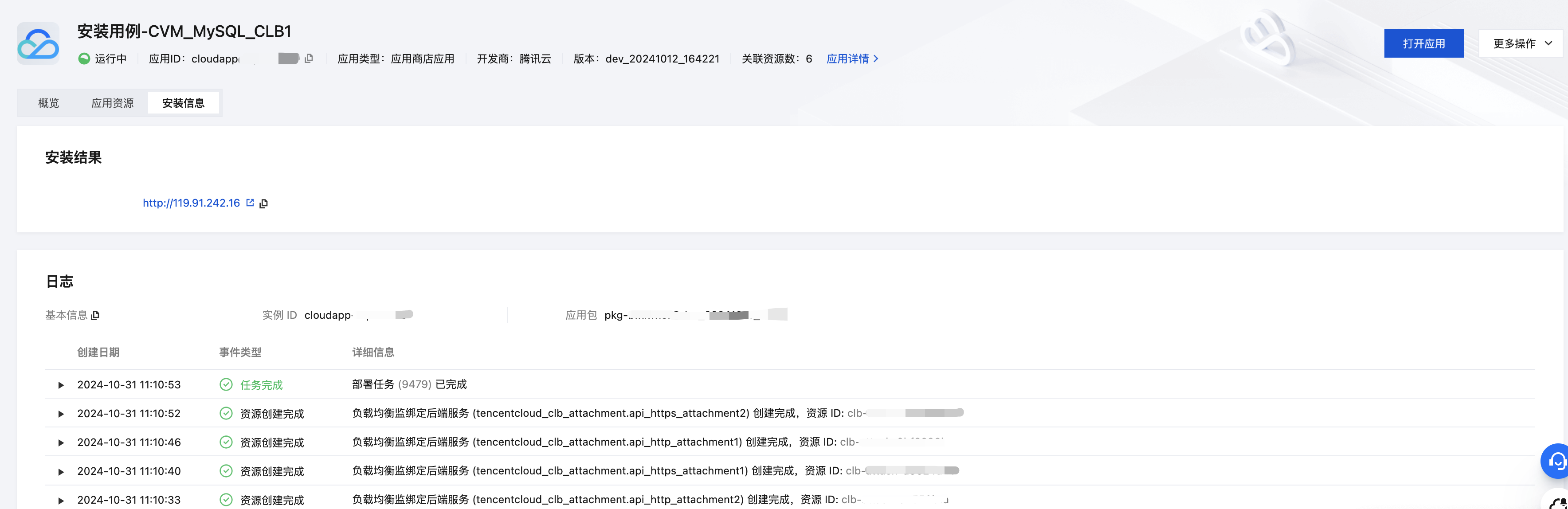
3.4 Installation information: The installation result will show the user's access address, account password (defined by the service provider to be passed through to the user), as well as the log information during the application installation process.


Editing Application Information

1. Go to the application details page and select More Actions > Edit Application Information in the top right corner of the page to edit the basic application information.


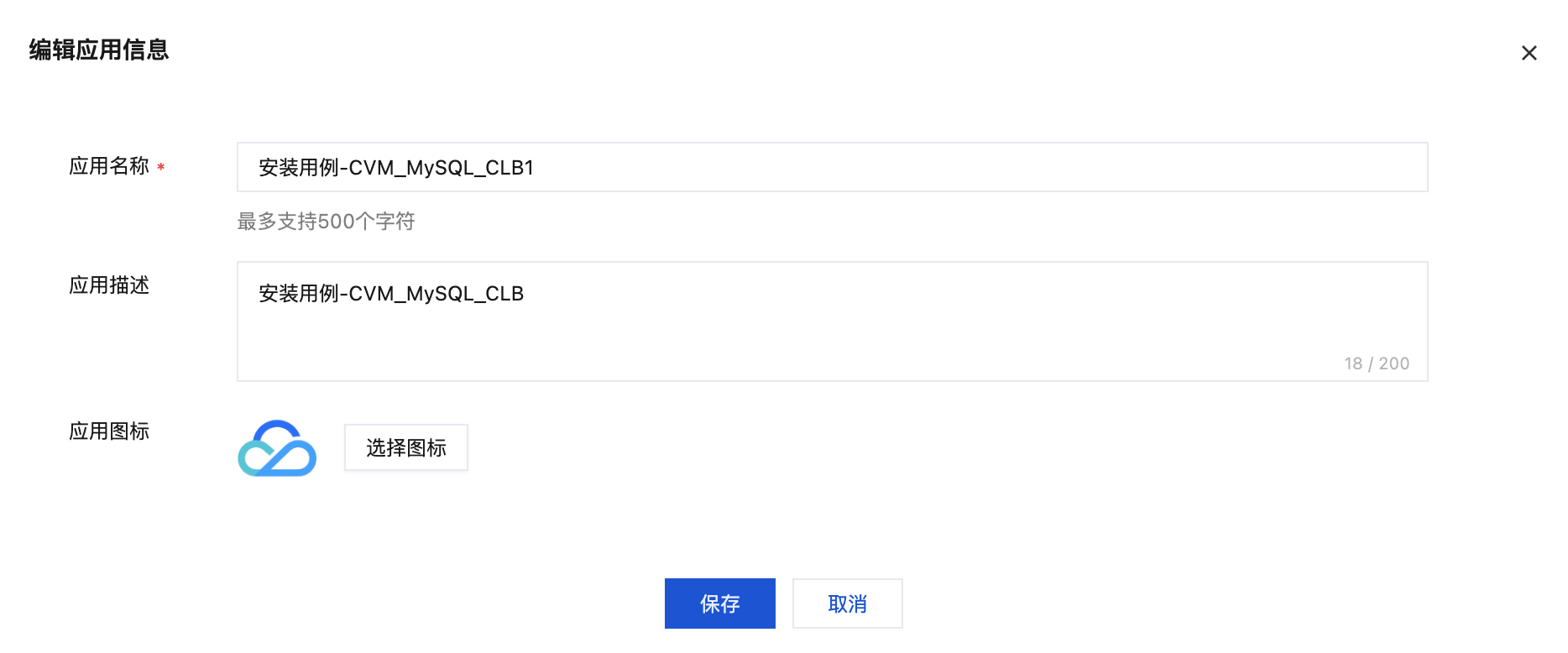
2. Edit and save
The edit pop-up window supports you to edit the application name, application description, and application icon. After editing, click Save to successfully modify the information.


Uninstall Reinstall Application

Logic Description

Uninstall refers to clearing the cloud resources that the application depends on. The software is not involved.
Upon success of uninstall, you need to select cloud resource configuration again and reinstall.
Upon success of uninstall, a refund will be made based on the usage of cloud resources. For subscription resources, the fee for the unused part will be refunded. For pay-as-you-go resources, charges will be deducted based on actual usage.
Note:
All data generated by cloud resources will be deleted after successful uninstall. Operate with caution or back up in a timely manner.

Operation Instructions

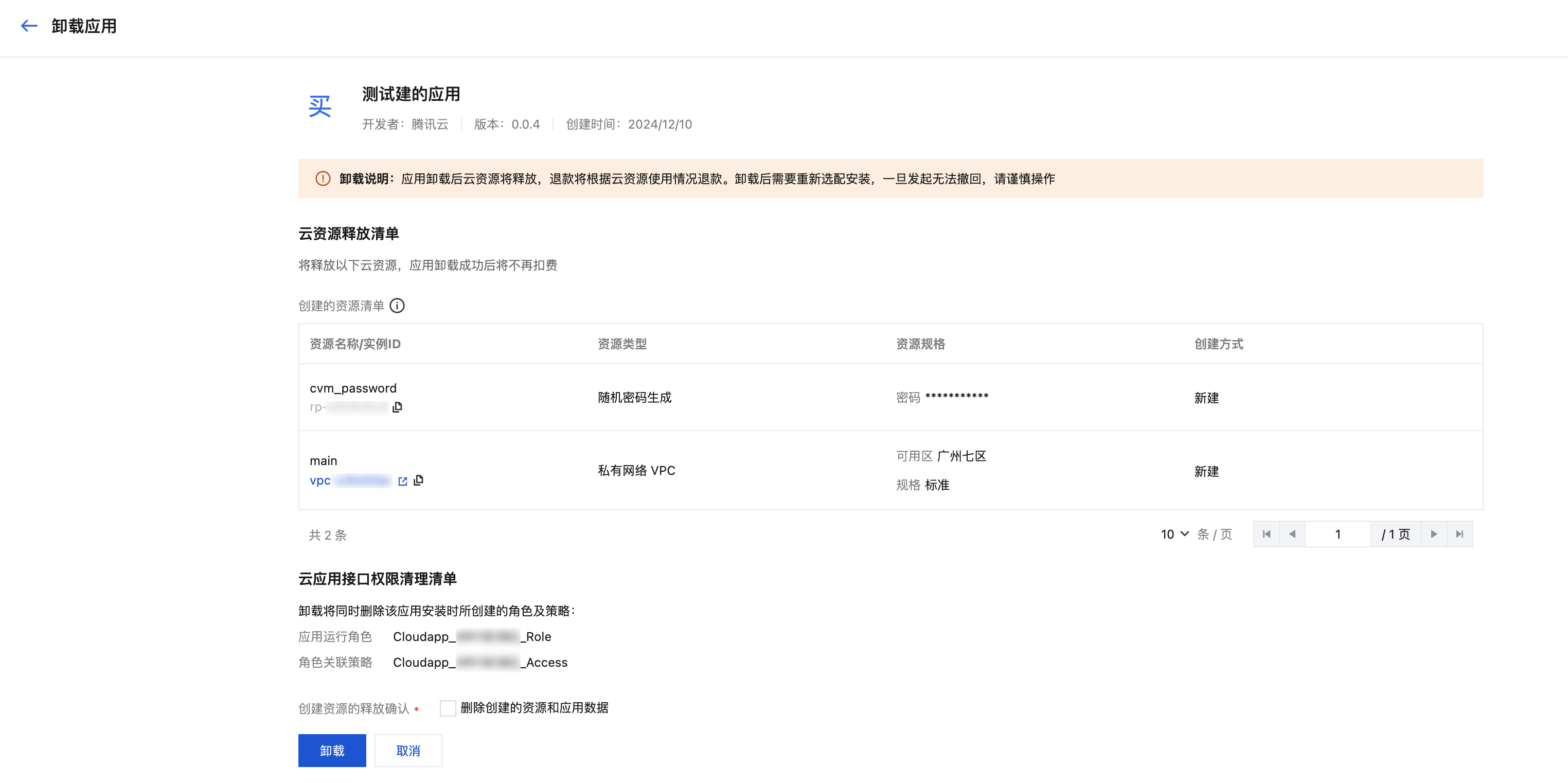
1. Enter the application details page. Select More Actions > Uninstall and Reinstallation in the top right corner of the page to initiate uninstallation secondary confirmation.


2. You need to confirm again whether to execute the uninstallation task. The page will display the cloud resource list associated with this application. Click Uninstall to execute the uninstallation process.


3. Uninstallation Result
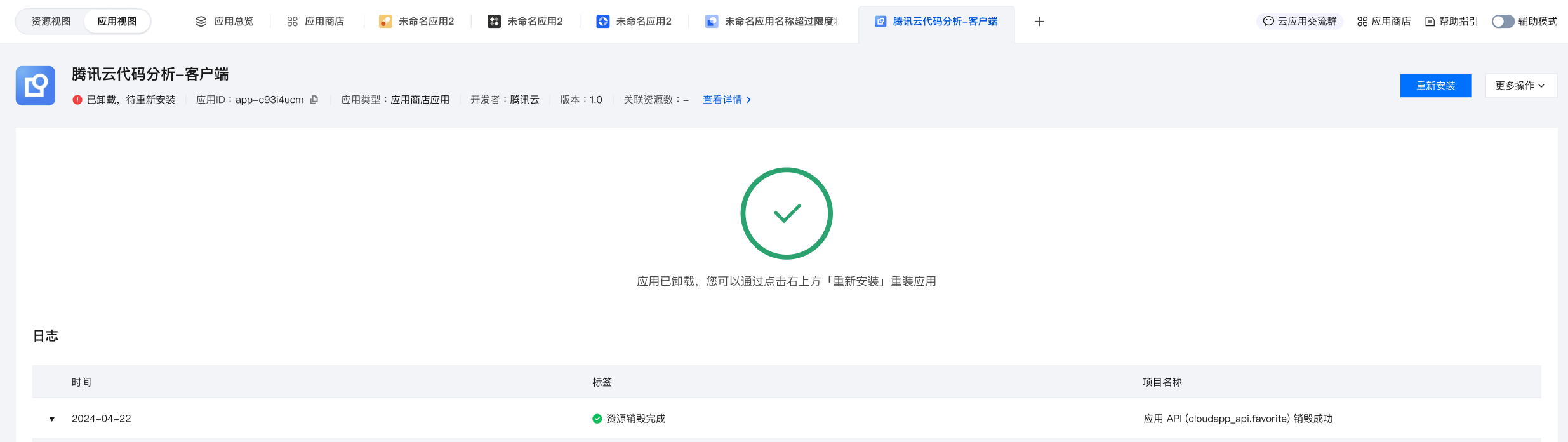
The application is uninstalled successfully.
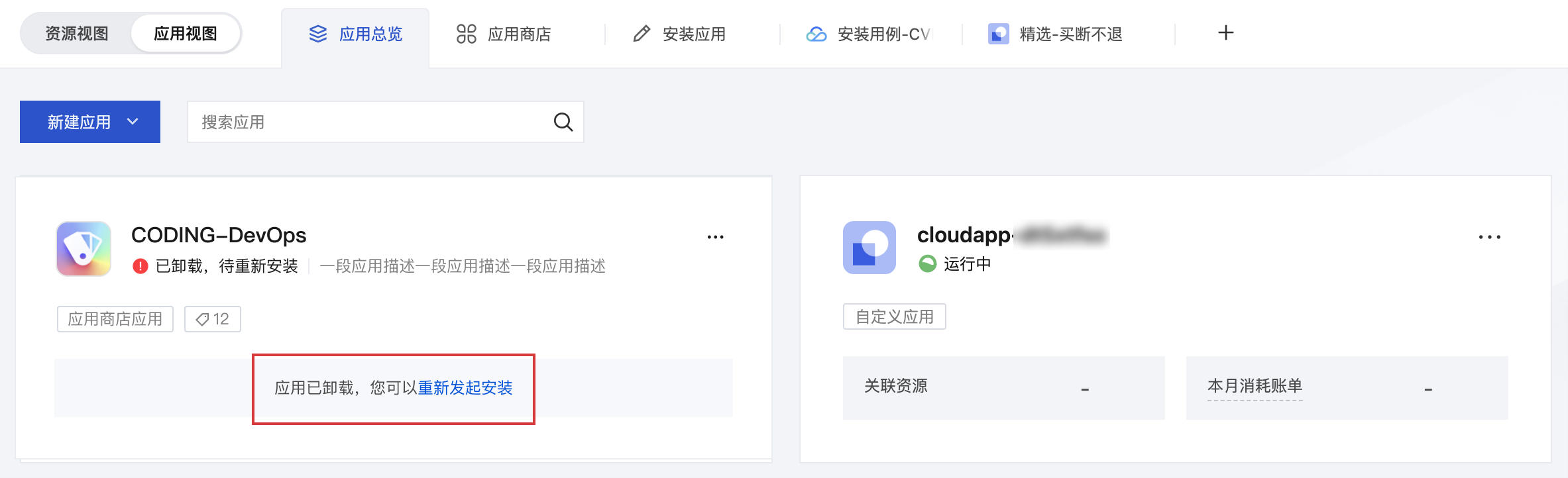
After successful uninstallation, you can go back to the application view to find the uninstalled application. The application status will change to "Uninstalled, Pending Reinstallation". You can retry the installation process through the card prompt in the application overview or the Reinstall in the upper-right corner of the application details page.


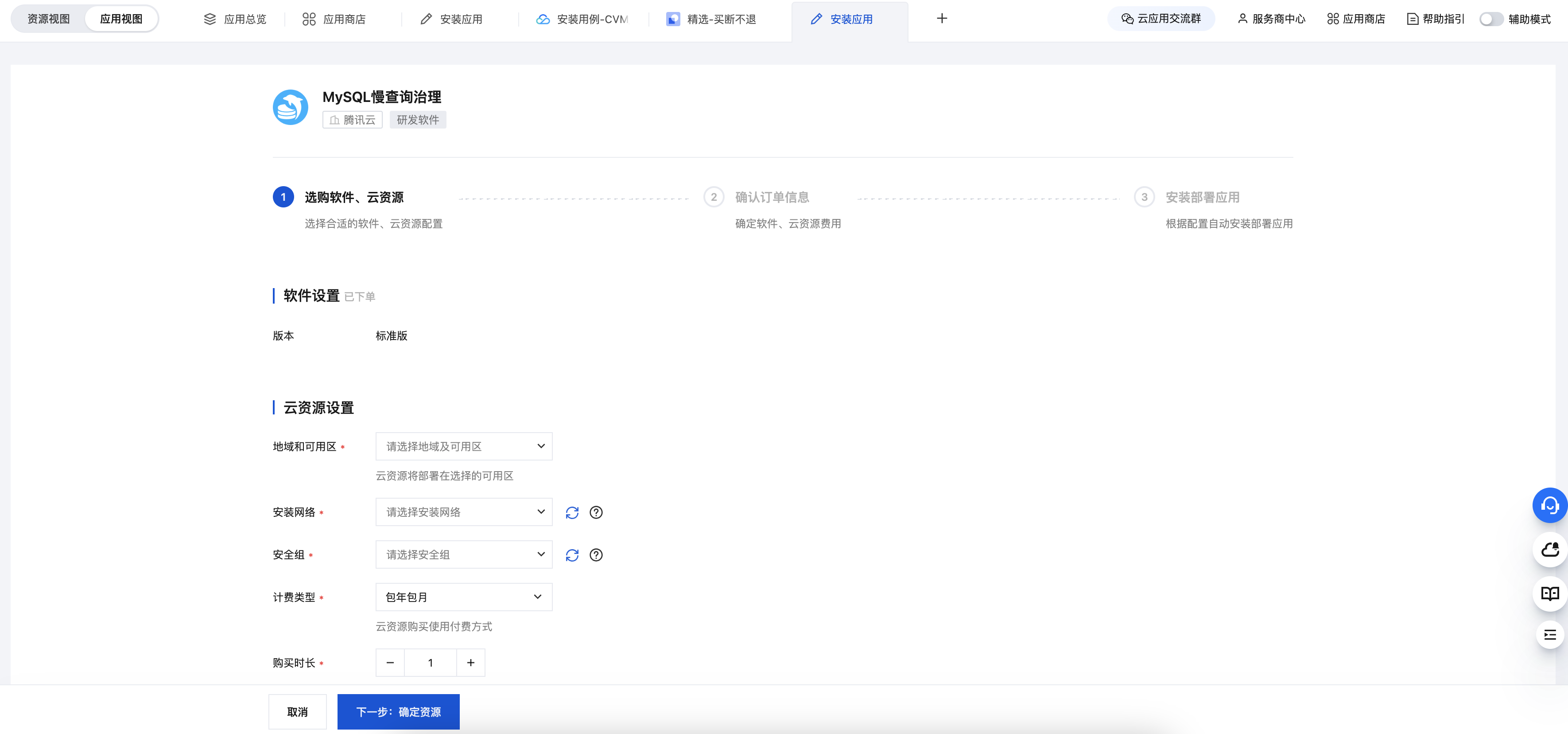
click Reinstall. You need to reselect the configuration of cloud resources. The subsequent process is the same as the installation process after purchasing software. For details, see Purchase Installation Instructions.


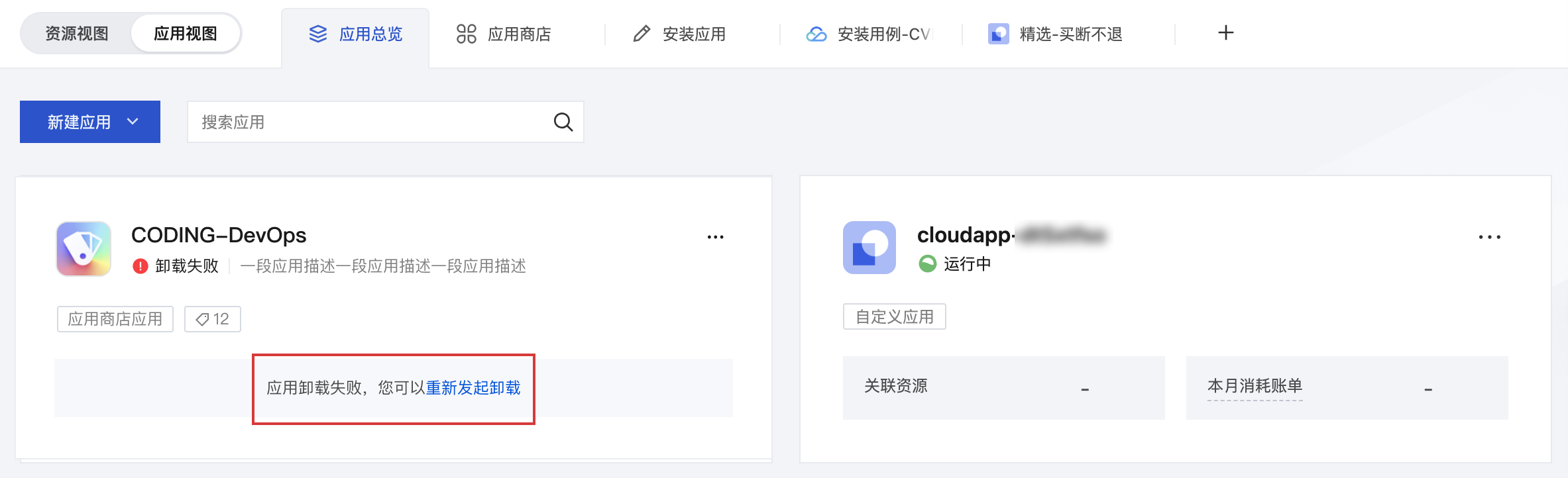
Uninstallation Failed
The uninstallation may fail during the uninstalling process due to network issues.
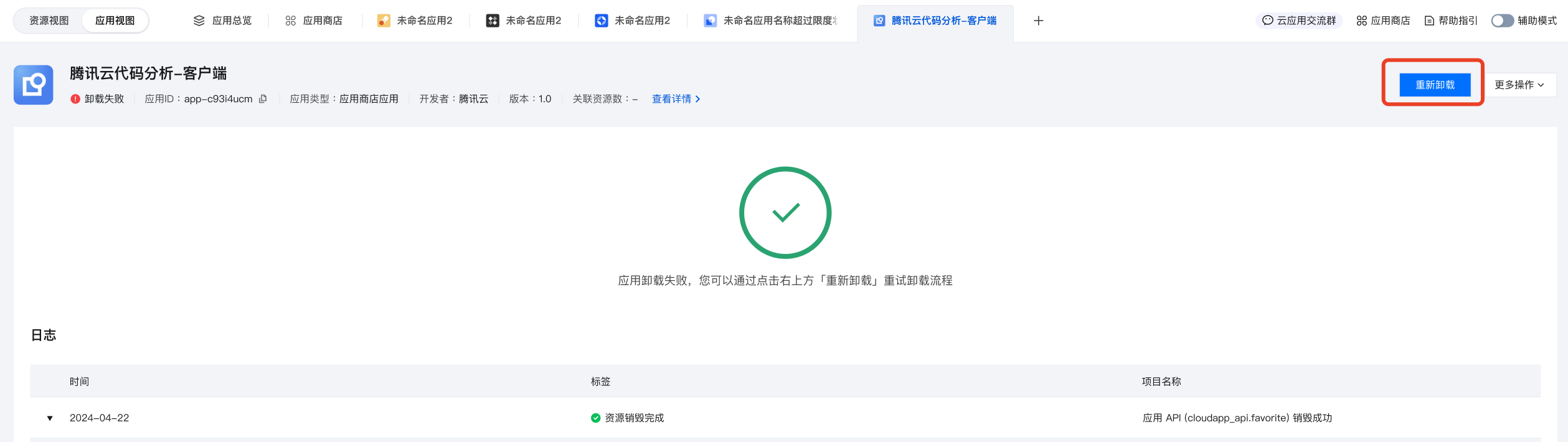
After the uninstallation fails, you can go back to the application view to find the failed application. The application status will change to "Uninstallation Failed". You can retry the uninstallation process through the card prompt in the application overview or the Reinstall in the upper-right corner of the application details page.

Terminate Application

Logic Description

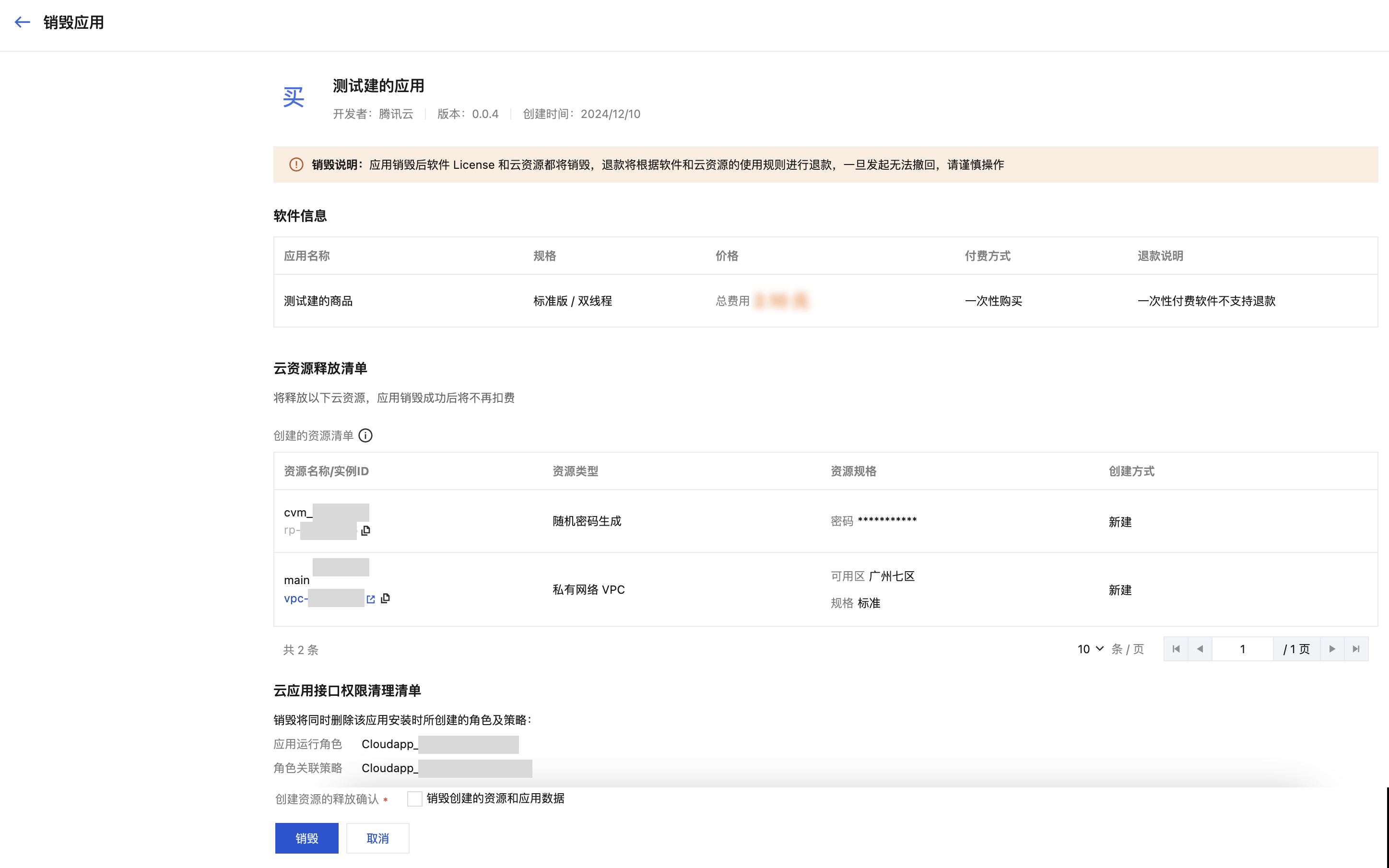
Destruction refers to cleaning up and deleting both software and cloud resources.
Upon success of destruction, you need to place an order for software and cloud resources again.
Upon success of uninstall of cloud resources, a refund will be made based on the usage of resources. For subscription resources, the fee for the unused part will be refunded. For pay-as-you-go resources, charges will be deducted based on actual usage.
Note:
All data generated by software and cloud resources will be deleted after successful termination. Operate with caution and back up in a timely manner.

Operation Instructions

1. Go to the application details page. Select More Actions > Terminate Application in the top right corner of the page to perform termination secondary confirmation.


2. You need to confirm again whether to execute the termination task. The page will display the software associated with this application and the cloud resource list. Click Terminate to execute the termination process.

3. Termination Result
Successful termination
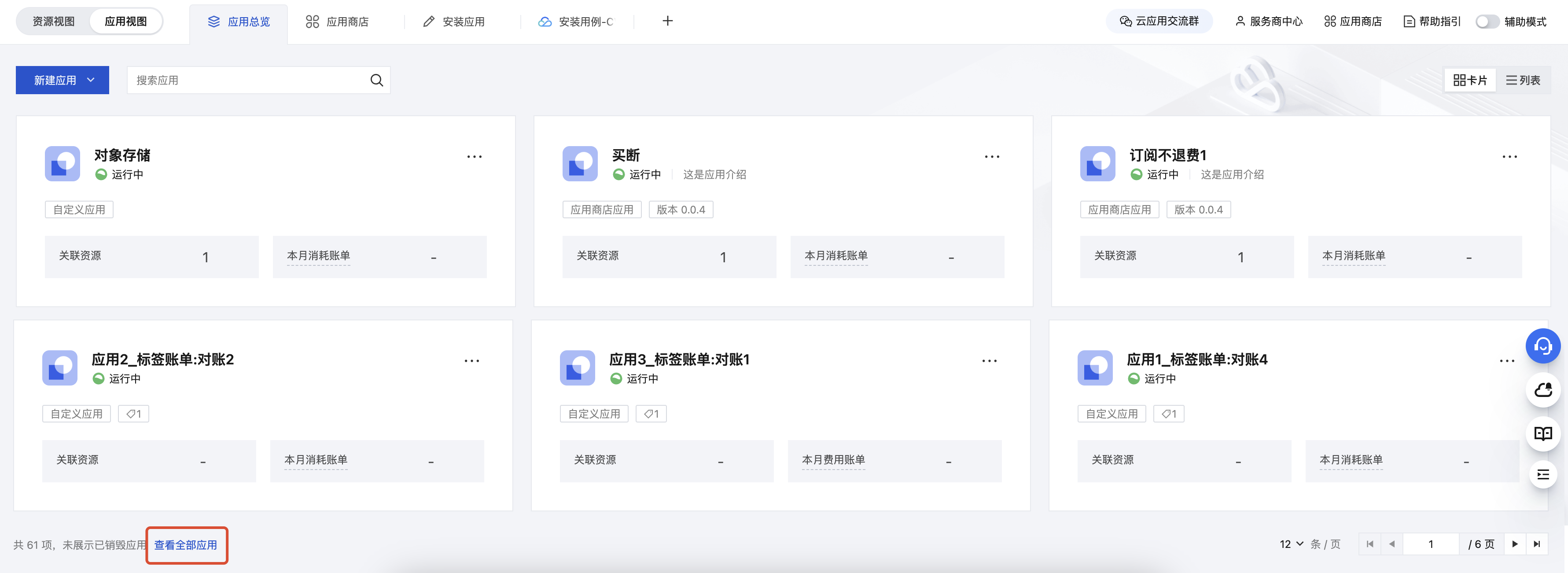
After successful termination, the application status will change to "terminated". However, terminated applications are not displayed by default in the application overview. You can scroll to the bottom-left corner of the page and click View All Applications to find terminated applications.


Destruction failure
Destruction may fail during the destruction process due to network issues.
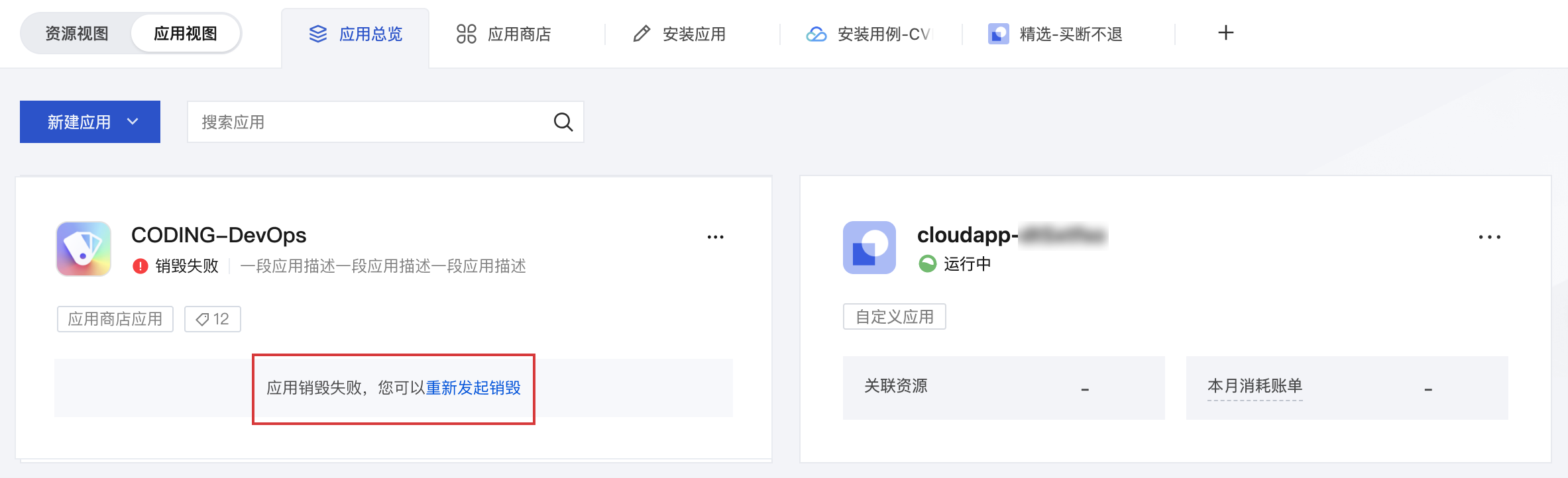
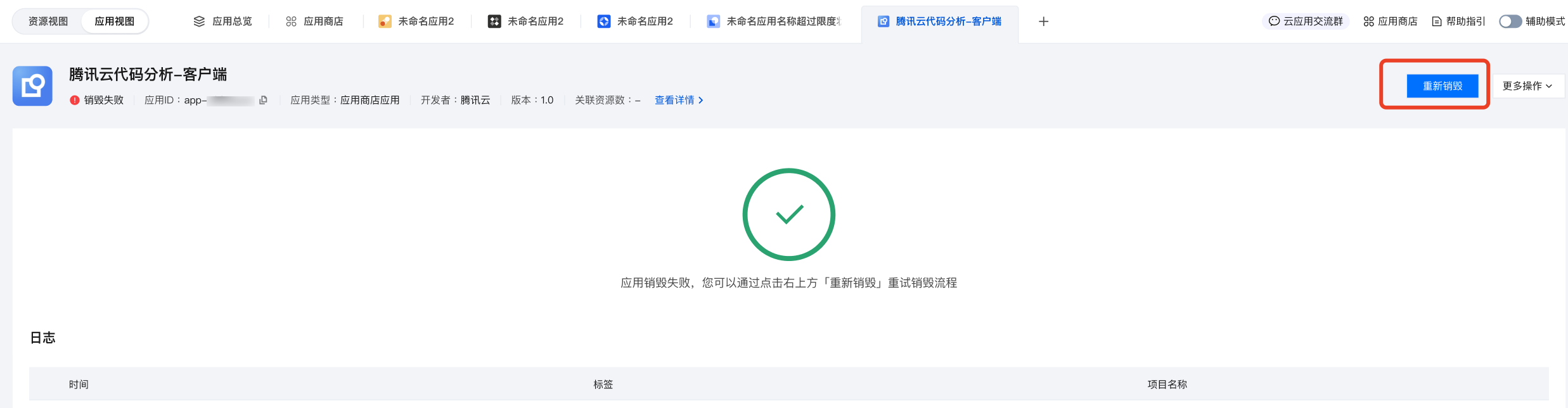
You can retry the termination process through the card prompt in the application overview or Redestroy in the upper-right corner of the application details page.

Delete Application

Logic Description

Currently, only applications in the "terminated" state can be deleted.
Note:
Applications deleted cannot be recovered or retrieved. Operate with caution.

Operation Instructions

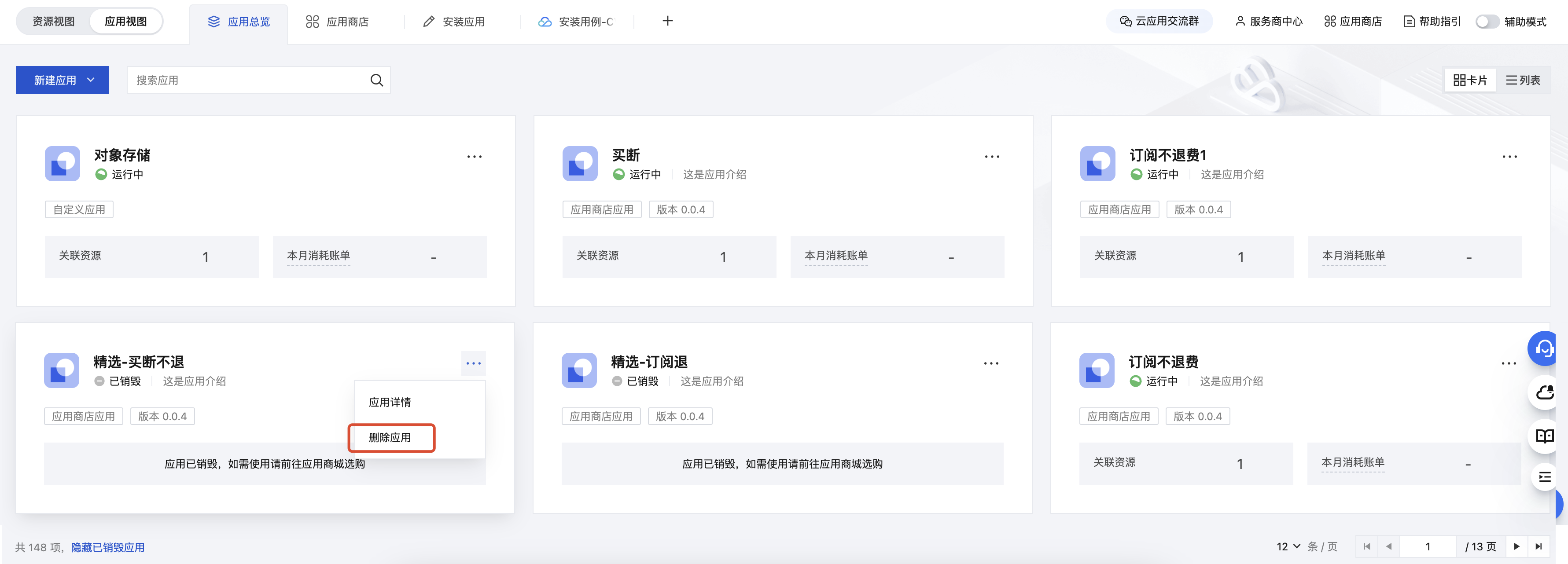
You can find Delete Application in the "..." in the upper-right corner of the application card, or delete it through More Actions > Delete Application in the upper-right corner of the application details page. A secondary popup confirmation is required after clicking.


Help and Support

Was this page helpful?

Help us improve! Rate your documentation experience in 5 mins.

Feedback