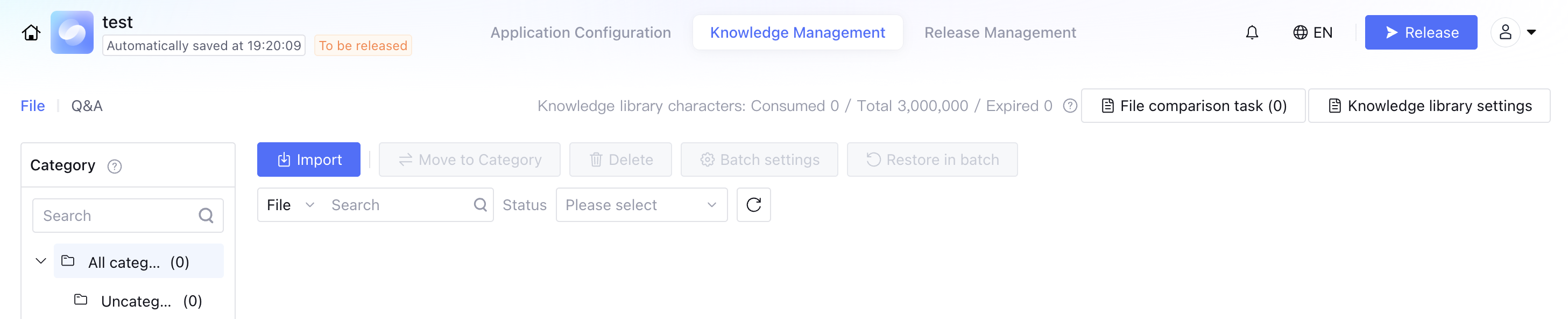
Offline Documentation: Offline documentation mainly refers to the Documents and Q&A under Knowledge Management in the Intelligent Agent development platform.
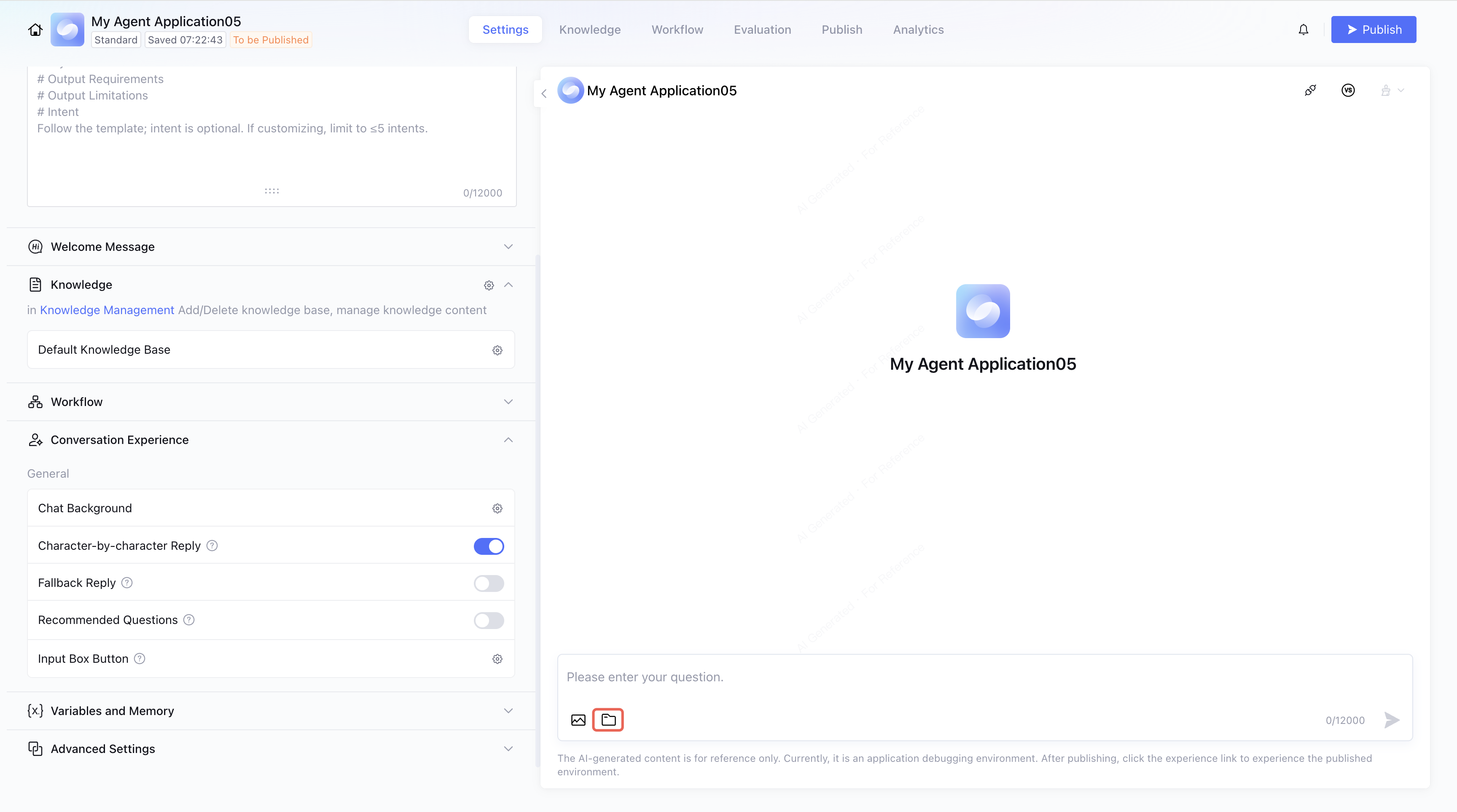
Real-time Documents: Real-time documents mainly refer to the upload of documents in the conversation interface.
Operations
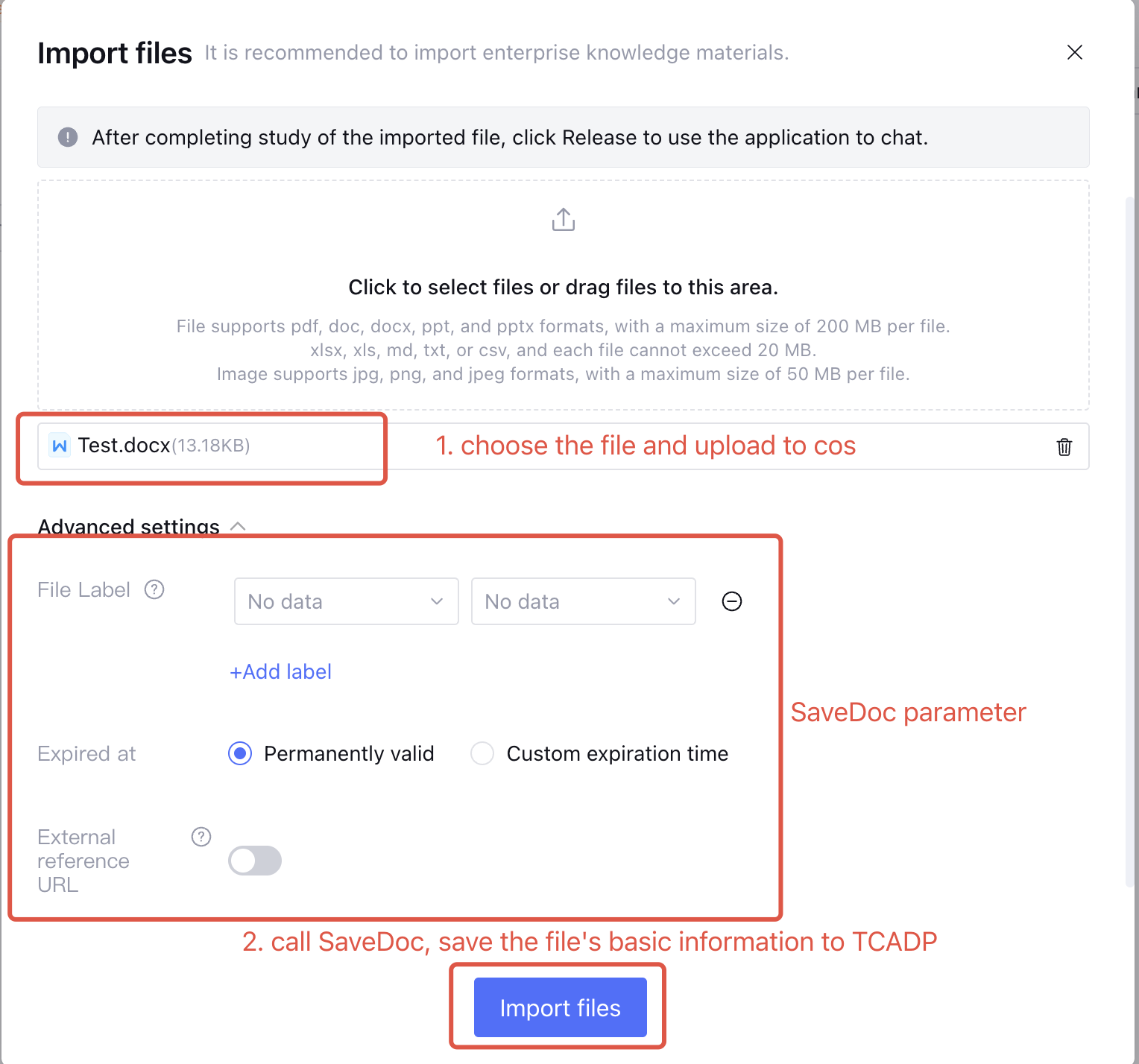
Offline file upload requires three steps [the first two are also applicable to real-time documentation]:
1.1 Add the FileType request parameter. FileType is the file name suffix as normal, such as xlsx, pdf, docx, png.
Fill in the FileType field, the obtained key has only upload permission, and the return parameters use UploadPath.
If the FileType field is not filled in, the obtained key only has download permission.
TypeKey distinguishes between offline files and real-time files.
BotBizID is a required field.
Each file upload needs to obtain a different temporary key, and the temporary key has a validity period.
Note:
Note that TypeKey values should not be mixed: "offline" applies to offline document uploads, while "realtime" applies to real-time document uploads; defaults to "offline" when empty.
1.2 Request parameters add IsPublic (case-sensitive for public or private scenarios)
Example:
Public scenario: /public/12332323/21321321321/image/1.png
IsPublic is used to select the scenario when files or images are uploaded. For offline document uploads, IsPublic is false. For real-time document uploads, if the file is an image, IsPublic is true; for other file types, IsPublic is false.
The following parameters returned by the API are used in subsequent steps.
Parameter Name
Description
Bucket
Bucket location [Offline Documentation and real-time documents differ here]
TmpSecretId
Temporary secretID
TmpSecretKey
Temporary secretKey
Token
token for uploading
UploadPath
Used in next steps, in conjunction with upload to cos
1. The TmpSecretId, TmpSecretKey, Token, and UploadPath from Step 1 are required.
2. File upload to cos[putObject] cannot directly copy code from API-Explorer. The following two have code differences when files are uploaded via code. For details, refer to the following code example (demo):
API-Explorer uses fixed secret keys.
Upload via code uses temporary secret keys.
3. Note that the corresponding key for COS API upload is the UploadPath returned by obtaining temporary secret keys.