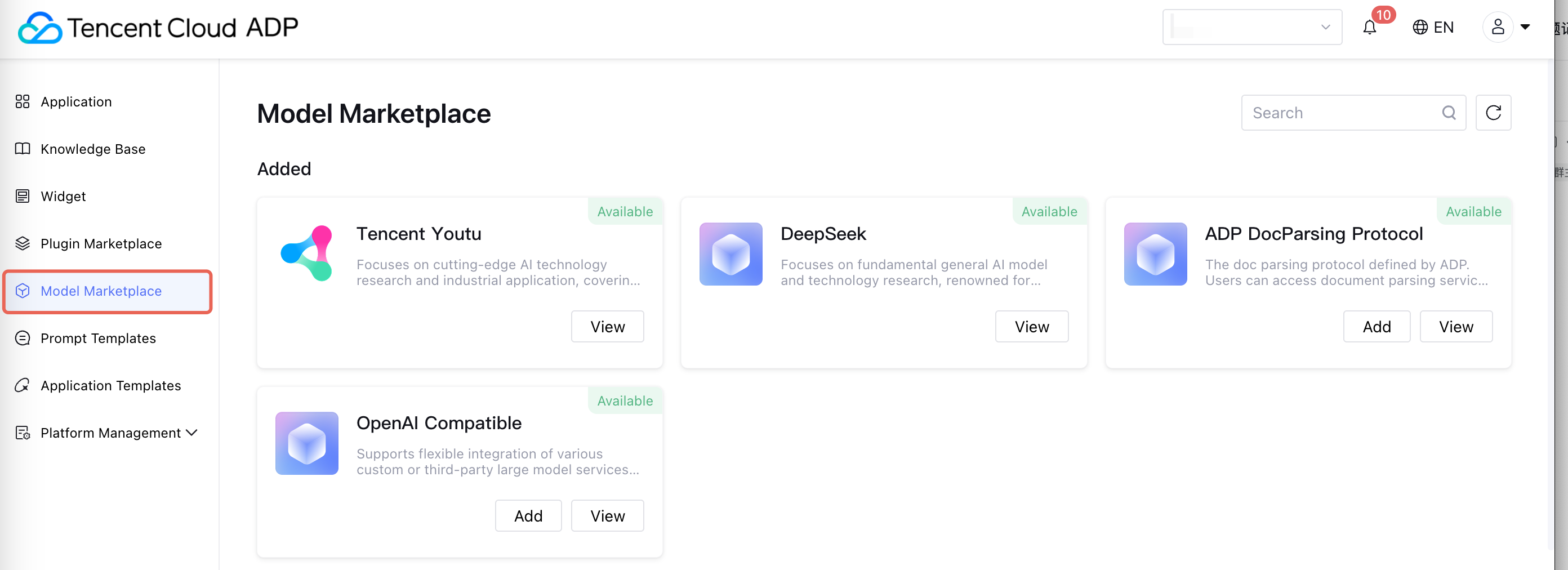
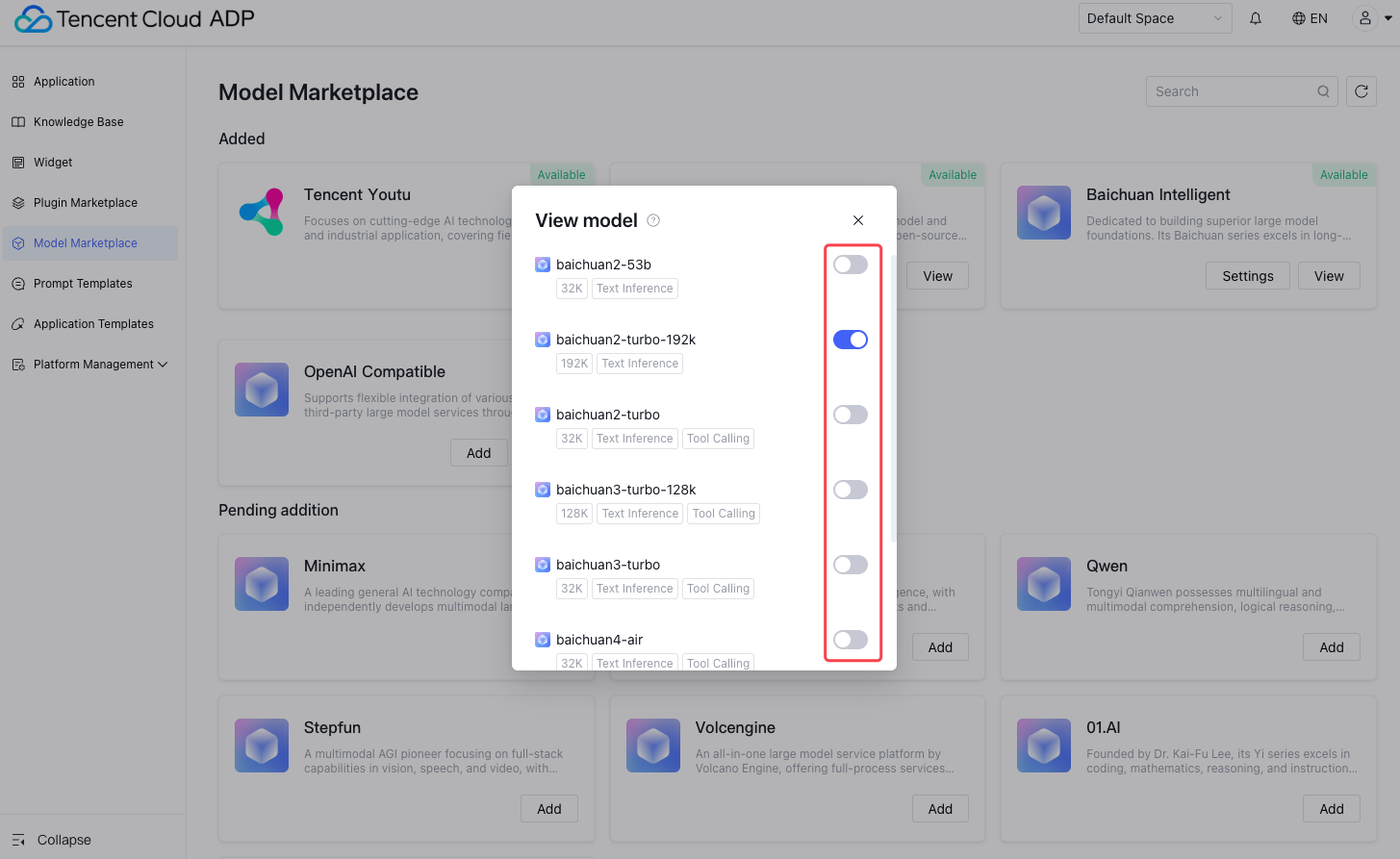
Tencent Cloud Agent Development Platform offers various underlying model call options. Settings can be done in Model Marketplace.
Model Introduction
Preset Model
Tencent Cloud Agent Development Platform provides preset high-performance Tencent YouTu large model and DeepSeek model for users. These models can be directly used in the platform with no additional configuration required.
Third-Party Model
Model Plaza supports users to flexibly access multiple mainstream third-party large model services via configuration of API Key, expanding the boundary of Intelligent Agent capacity. Directions:
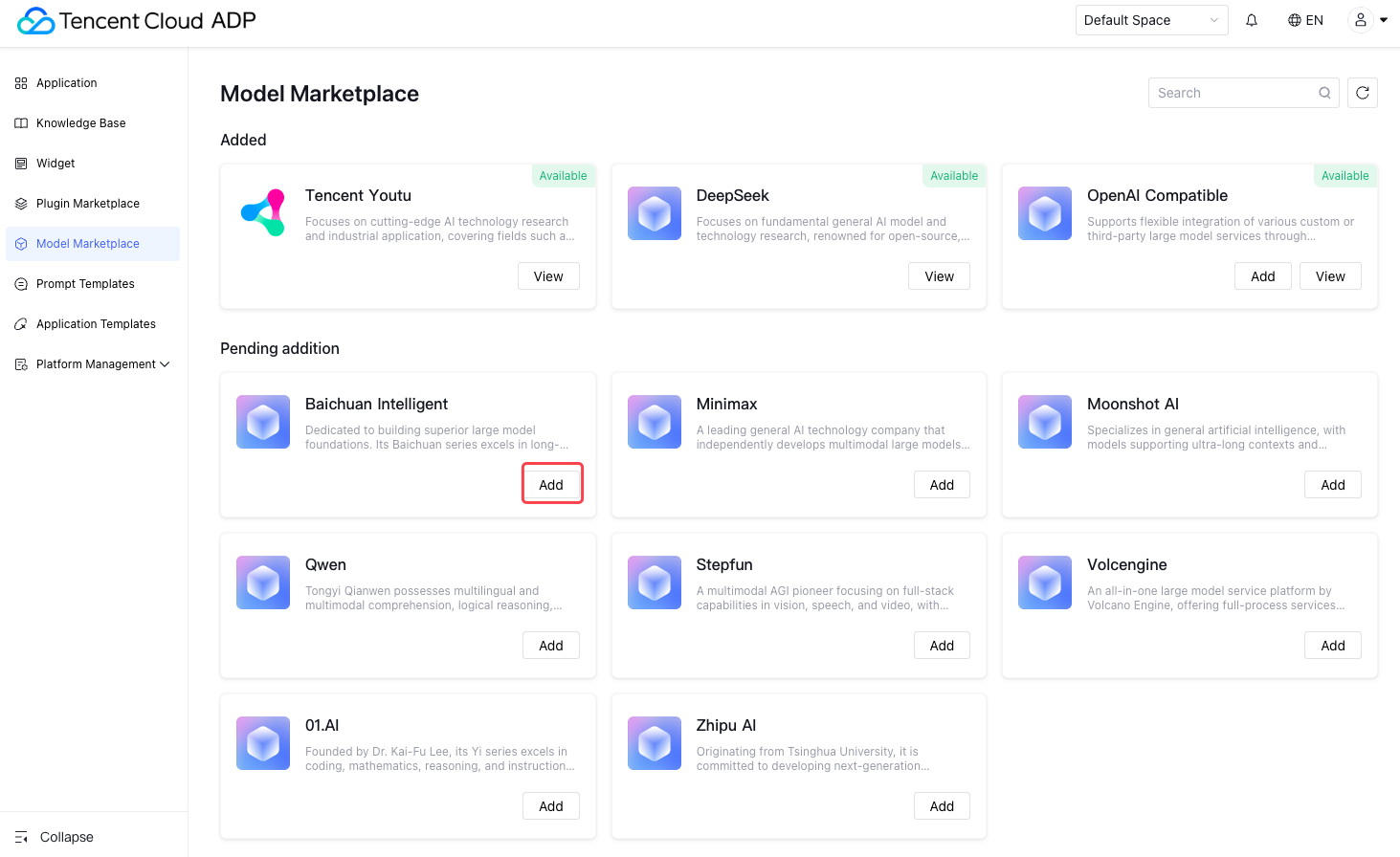
1. Enter Model Marketplace, select the model provider to be used, click Add: Performance and parameter type may not be the same as for different models. Based on your business scenario requirements, choose appropriate model providers, then on the Model Plaza page, find the third-party model provider card you want to integrate, and click below Add.
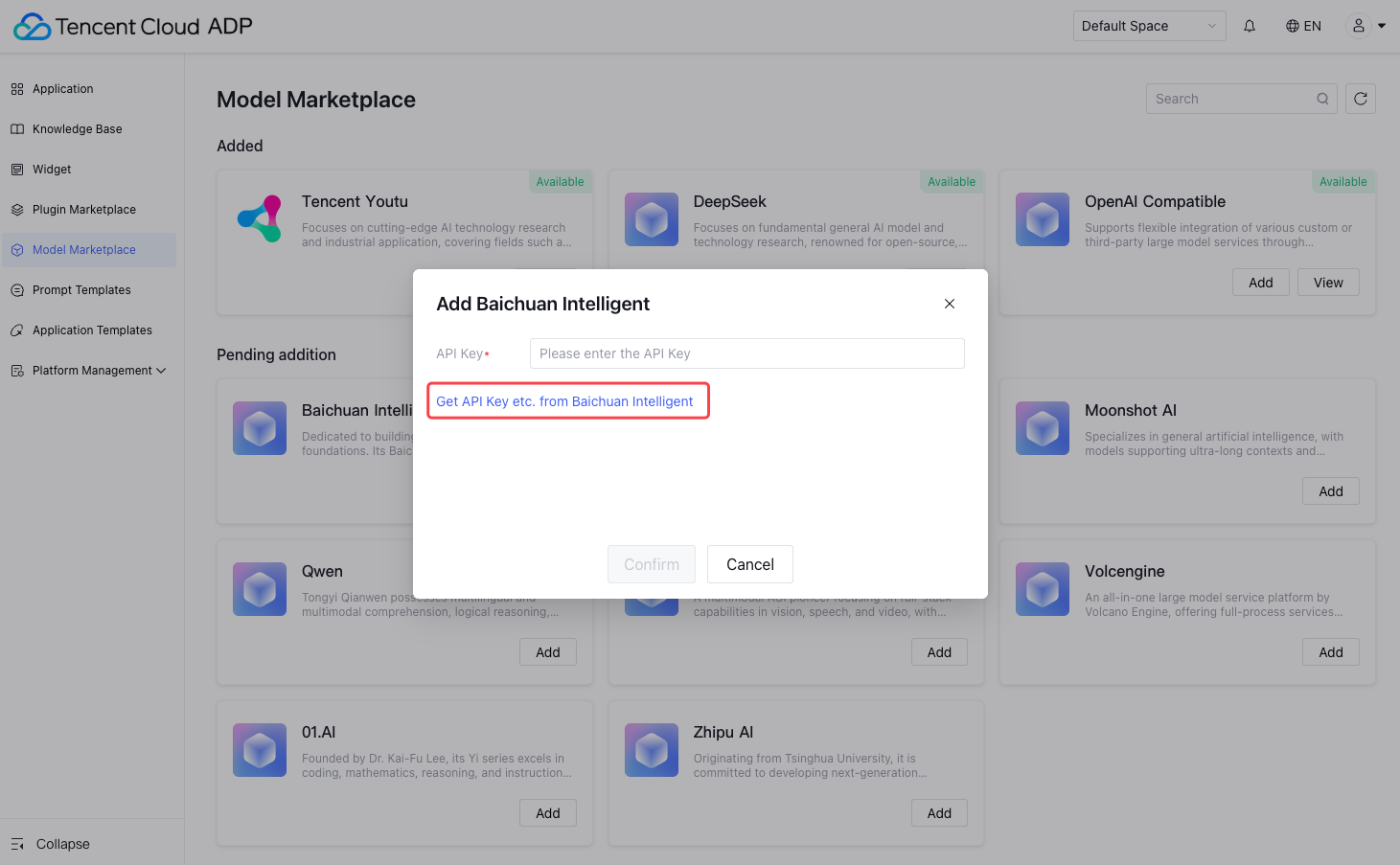
2. Obtain API Key: According to the pop-up prompt, visit the official website of the third-party model provider, register and obtain your API Key. The method for obtaining API Key may vary for different models. Please refer to the official documentation for guidance.
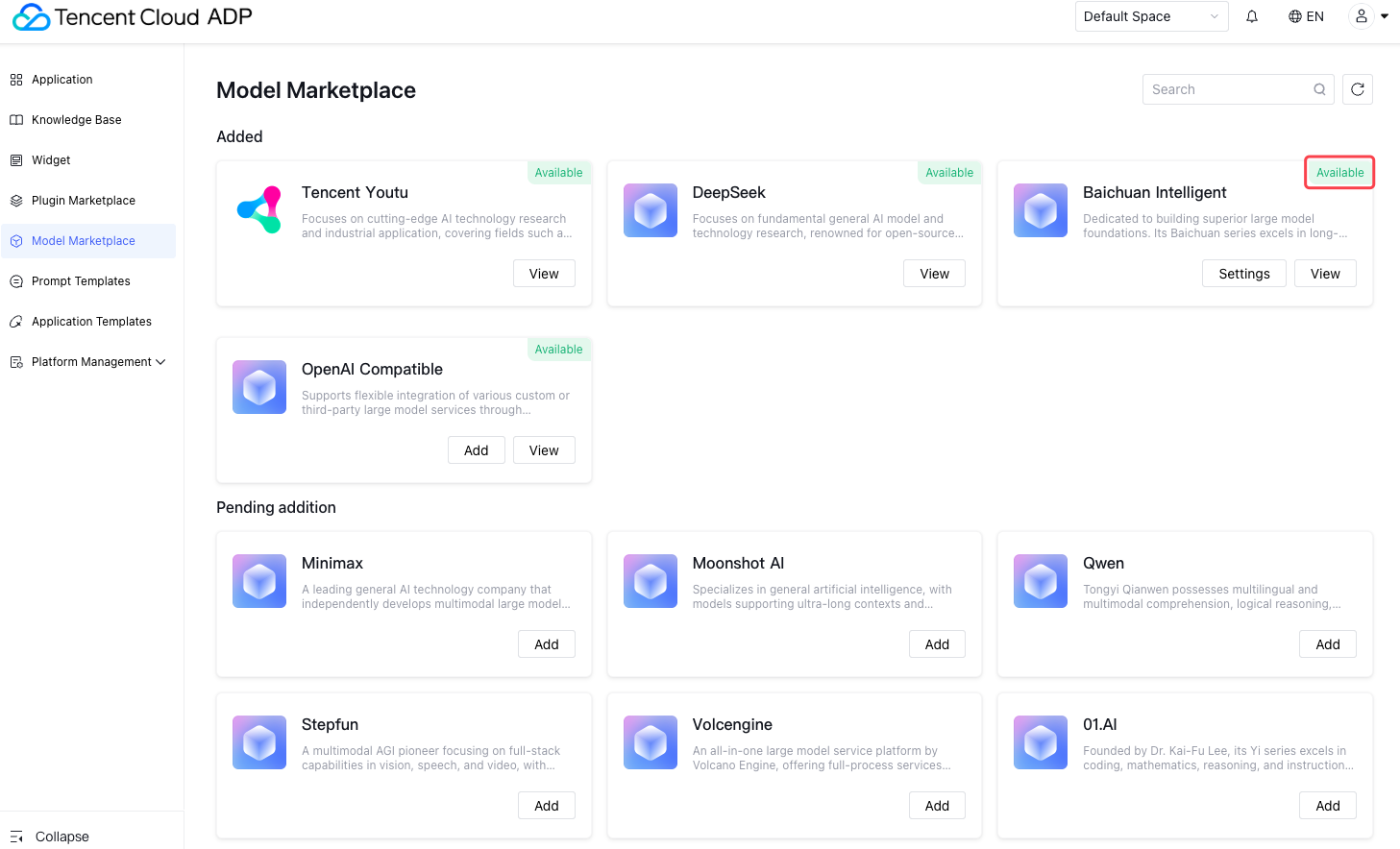
3. Configure API Key: Paste the obtained API Key in the corresponding input box in the settings interface, click Confirm to complete the configuration. After successful configuration, this third-party model provider will display as "Available" status in your Model Plaza.
4. Manage Model
For configured or preset models, click the drop-down list or relevant button on the model card. You can choose to enable or disable this model. Enabled models will be displayed and available for selection in the model list during application development. After disabling, they will not be displayed.
Customize Model
Add OpenAI Protocol-Compatible LLM Model
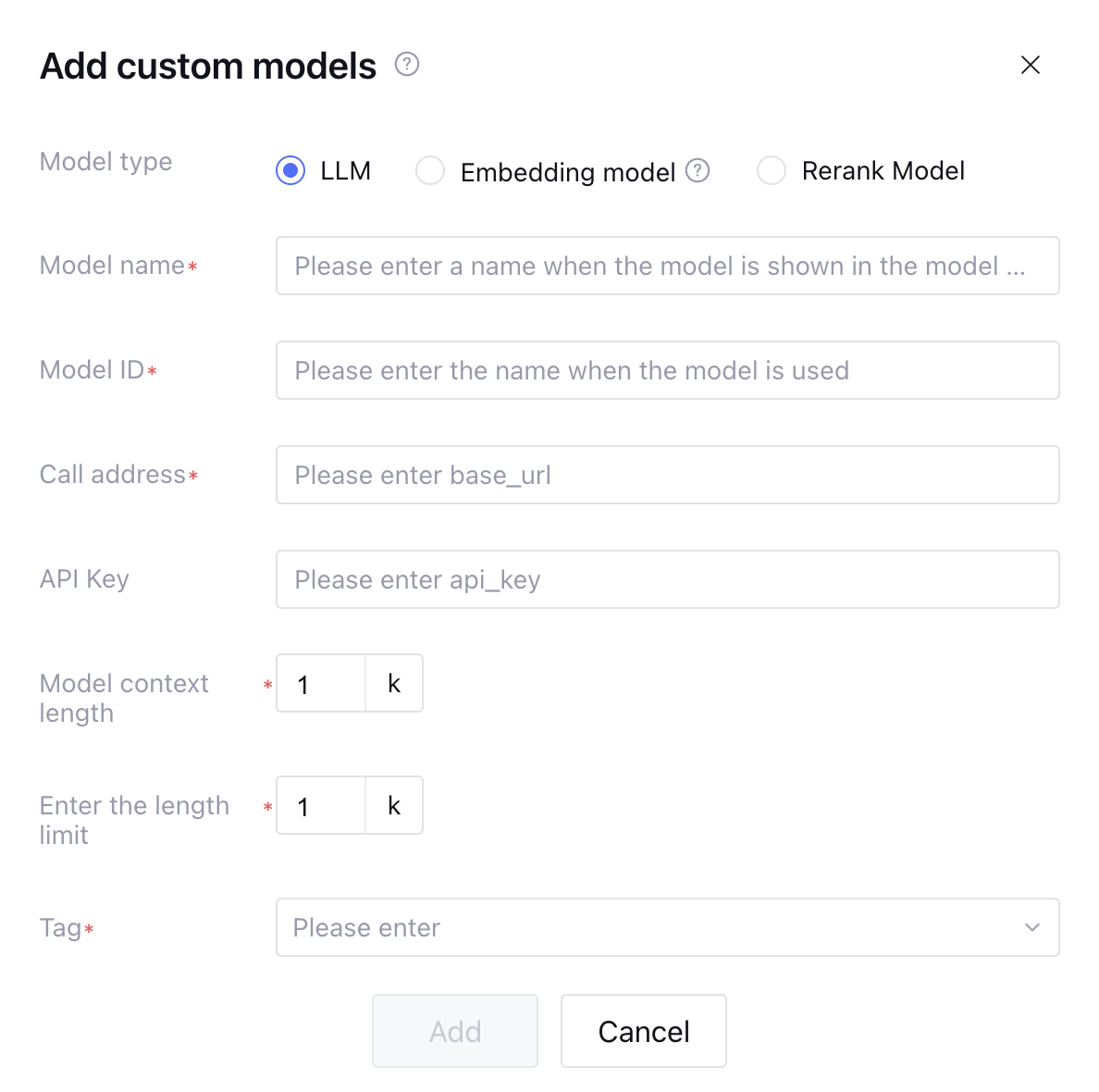
In addition to preset models and third-party models, Model Plaza also provides an access entrance for custom models. Users can deploy or train models on their own and connect them to the platform via OpenAI-compatible APIs, enabling highly customized Intelligent Agent development. Directions:
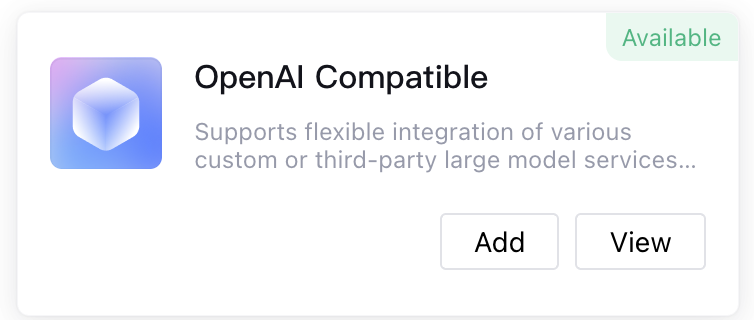
1. Click the OpenAI Compatible card to add.
2. Select LLM, fill in the corresponding parameters, and click OK to complete the model addition.
Custom Addition of Vector Model
Model Plaza supports users through the OpenAI Compatible card to add custom vector models. Please note, currently only support 1024-dimensional text vector models.
Custom Addition of Reorder Model
Model Plaza supports user customization to add reorder models. Tencent Cloud ADP provided standard protocol for reorder model API. User-customized reorder models must adhere to ADP-defined protocol requirements.
The Rerank API is used to perform relevance ranking on the document list, scoring and sorting multiple documents based on the query statement, and returning the most relevant document.
Basic Information
Project
Content
API path
$BASE_URL/rerank
Request method
POST
Content-Type
application/json
Authorization
Bearer $API_KEY
Request parameters.
Parameter Name
Type
Required
Description
model
string
Yes
model name
query
string
Yes
Query statement used for document relevance matching
documents
array[string]
Yes
Document list to be sorted
top_n
integer
No
Return the top N most related documents, or return all if not specified
Request Example
curl -X POST https://your-domain/v1/rerank \\
-H "Content-Type: application/json" \\
-H "Authorization: Bearer your-api-key" \\
-d '{
"model":"rerank-model-v1",
"query":"AI application scenarios"
"documents":[
"AI is increasingly used in the healthcare field"
"Machine learning is an important branch of AI."
"The weather is excellent today, suitable for going out."
"Deep learning technology promoted the development of computer vision."
"AI can help enterprises improve productivity"
],
"top_n":3
}'
Response Parameters
Parameter Name
Type
Description
id
string
Request ID
model
string
model name
usage
object
Token usage statistics
usage.prompt_tokens
integer
Input Token count
usage.total_tokens
integer
Total Token count
results
array[object]
Sort the result list by relevance score in descending order
results[].index
integer
The document's index position in the original list (starting from 0)
results[].relevance_score
float
Relevance score, typically ranging from 0-1, the higher the score the more relevant
Response Example
{
"id":"50660fc3-2c85-4000-842f-a62a311c8ca3",
"model":"rerank-model-v1",
"usage":{
"prompt_tokens":150,
"total_tokens":150
},
"results":[
{
"index":2,
"relevance_score":0.95
},
{
"index":0,
"relevance_score":0.89
},
{
"index":1,
"relevance_score":0.85
}
]
}
Using Models in Application Development
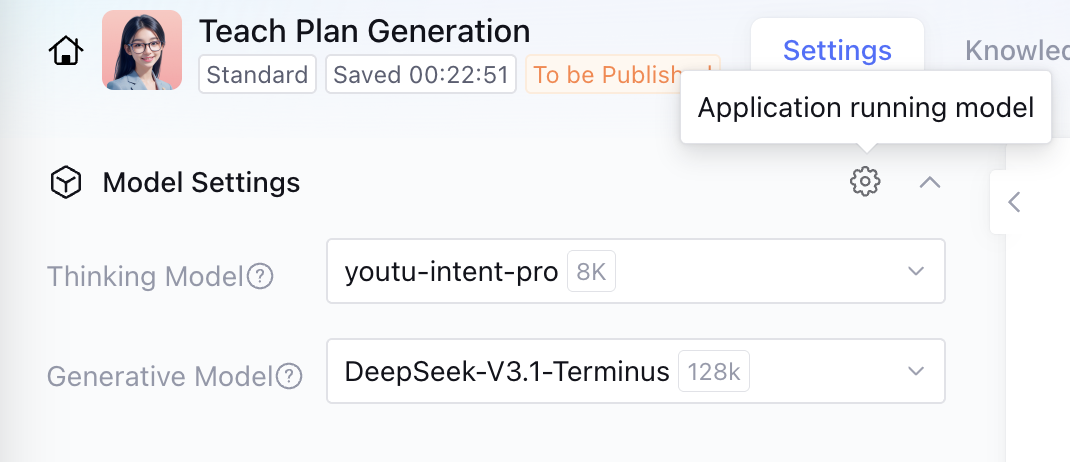
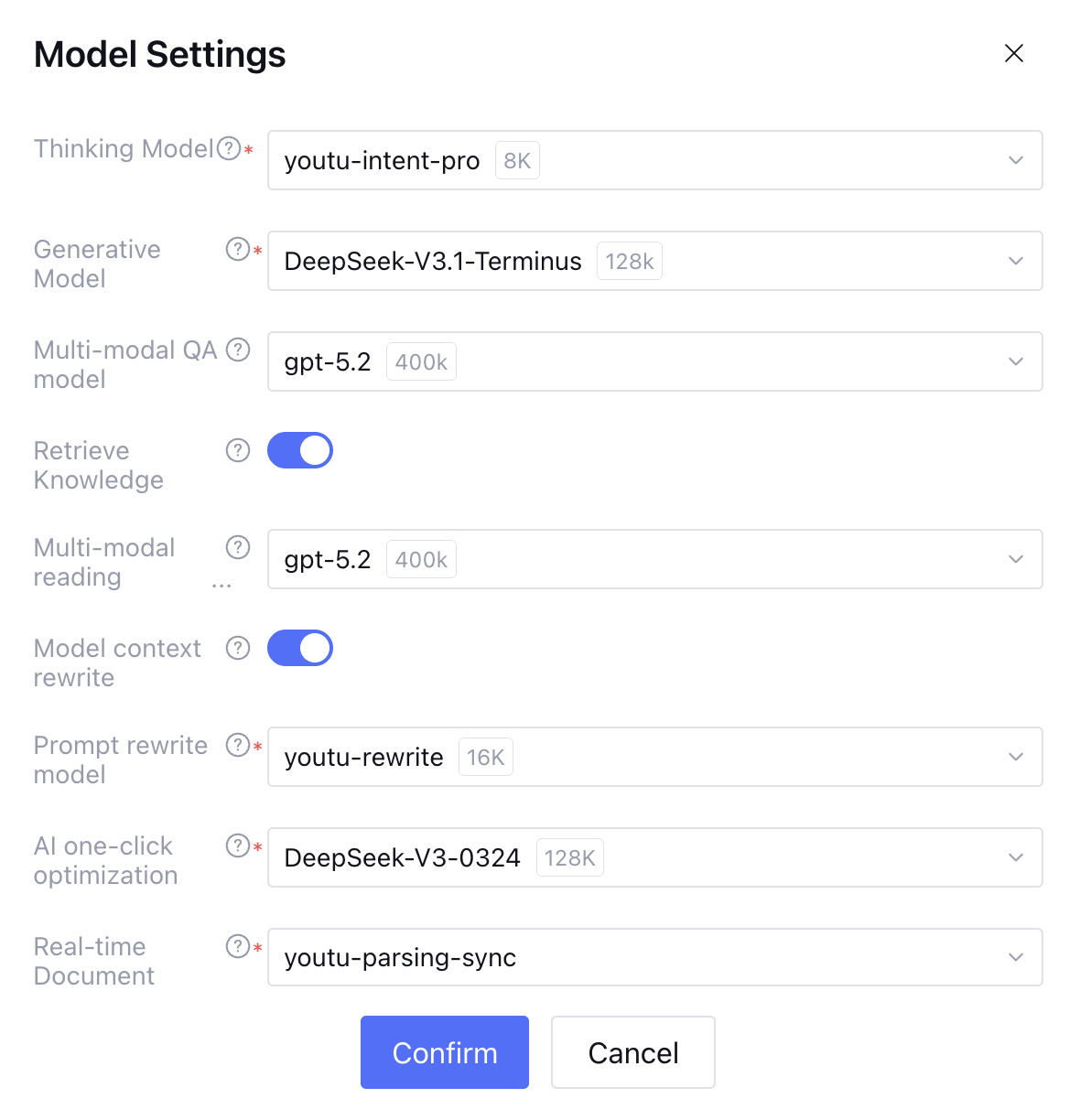
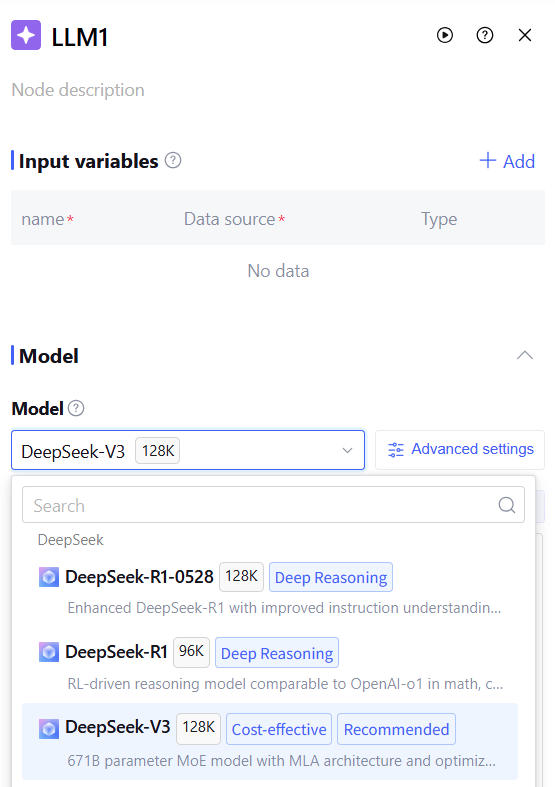
When you enable the desired model in Model Plaza, you can select and use them during the Intelligent Agent application development process. In the model settings or selection step, you will see ALL models enabled in Model Plaza in the model list. Select the model you want to use and configure the feature for further application development.
The application running model in standard mode app settings supports selecting third-party model services configured in Model Plaza. You can go to App Settings Overview - Model Settings to view the detailed usage guide.
The standard mode knowledge processing model supports selecting third-party model services configured in Model Plaza. You can go to Knowledge Processing Model Settings to view the detailed usage guide.
The Multi-Agent mode application model supports selecting third-party model services configured in Model Plaza. You can go to Multi-Agent Settings to view the detailed operation guide.
Large model related nodes in the workflow support selecting third-party model services configured in Model Plaza. You can go to Large Model Node to view the detailed operation guide.
Through these steps, you can flexibly manage and use various models in the model plaza. If you require the model comparison and debugging feature, you can go to Dialogue Debugging to view the guide.
Third-Party Models and User Custom Models Support Viewing and Usage by Workspace
Under the same root account (UIN), preset models on the platform are viewable and usable across workspaces. Third-party models and user custom models support viewable and usable by Workspace.