tencent cloud

Tencent Cloud Agent Development Platform

Release Notes and Announcements
Release Notes
Product Announcement
Product Introduction
Product Overview
Advantages
Use Cases
Model Introduction
Purchase Guide
Package Subscription
Previous Version
Getting Started
Agent Application and Its Three Modes
Creating a "Content Summary Assistant" in Standard Mode
Creating a “Webpage Scraping Assistant” in Single Workflow Mode
Creating a “Stand-up Comedy Content Creation Assistant” in Multi-Agent Mode
Operation Guide
Application Development
Workflow
Multi-Agent
Knowledge Base
Widget
Plugin Marketplace
Model List 
Prompt Templates
Application Templates
Platform Management
Business, Workspace and Permissions
API Documentation
History
API Category
Making API Requests
Atomic Capability APIs
Operation Optimization APIs
Document Library APIs
Q&A Database APIs
Knowledge Tag APIs
Application Management APIs
Enterprise Management APIs
Billing APIs
Release Management APIs
Dialogue Endpoint APIs
Data Statistics APIs
Data Types
Error Codes
Application API Documentation
Dialogue API Overview
Dialog API Documentation (WebSocket)
Dialog API Documentation (HTTP SSE)
Image Chat or File Chat (Real-time Document Parsing + Chat)
Offline Document Upload
Tencent Cloud Agent Development Platform Operation COS Guide
ADP Document Parsing Protocol
FAQs
Product FAQs
Technical FAQs
Related Agreements
Tencent Cloud Agent Development Platform Service Level Agreement
Tencent Cloud Agent Development Platform Service Specific Terms
Tencent Cloud Agent Development Platform Privacy Policy
Tencent Cloud Agent Development Platform Data Processing and Security Agreement
Open-Source License Statement
Lighthouse OpenClaw Connector Plugin Service Agreement
Contact Us
Glossary

Advanced Settings

PDF
포커스 모드
폰트 크기
마지막 업데이트 시간: 2026-02-03 17:42:26

Function Positioning

Advanced Agent Setting is used to fine-tune the thinking logic and output method of the Agent. Users can choose appropriate policies for diverse business scenarios, thereby optimizing Agent performance and improving result accuracy or response speed.

Applicable Scenarios

Complex task processing: tasks that require multi-step reasoning or depend on multiple tool calls, such as data analysis and knowledge Q&A.
Rapid response scenario: tasks with high requirements for response validity, such as simple query and status check.
Structured output requirement: scenarios where results require standardized format for other Agent calls or workflow node reference.
Visual interaction requirement: scenarios where results need to be displayed to users via interface or user operation feedback needs to be collected.

Setting Method

In the "..." menu at the top right corner of the Agent card, click Advanced Settings.


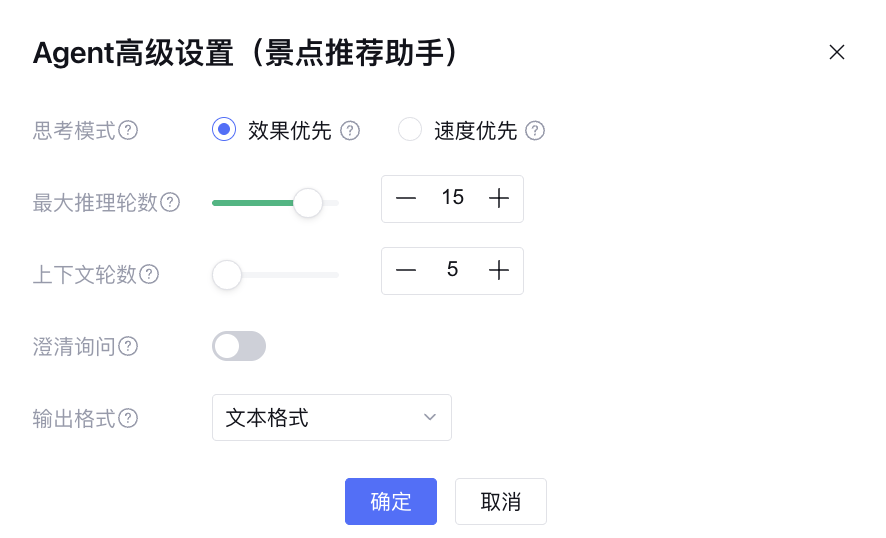
Click to open the advanced settings popup.


The description and recommendations for configuration items are as follows:
Advanced Setting
Recommended Configuration
Thinking Mode
Thinking Mode is for configuration of the Agent's thinking process, supporting selection between effect precedence and speed precedence.
In effect precedence mode, the Agent first performs adequate thinking before calling a tool, delivering more robust performance suitable for most scenarios.
In speed precedence mode, the Agent skips the thinking process to call tools directly, saving token consumption and time consumed, but the effect may decrease, good for handling simple tasks.
Note:
If selected a Reasoning Model similar to DeepSeek-R1, speed precedence mode is not supported.
Max Inference Rounds
Max Inference Rounds is used to control the maximum number of times the "thinking + tool call" loop occurs when the Agent is executing task. Settings can be done based on business scenario.
The larger the value means higher thinking depth of the Agent, making it more suitable for complex tasks but increasing token consumption and execution time.
A smaller value improves execution efficiency, better for simple tasks or latency-sensitive scenarios.
Context Turns
It's used to set the context round input to the large model, so as to control the dialogue memory length of the Agent. The default is 5 rounds.
A larger value retains more historical conversations, making it easy to handle multi-round complex tasks, but increases token consumption.
A smaller value retains the most recent dialogue, improving execution efficiency, better for short tasks or latency-sensitive scenarios.
Clarifying Questions
Clarifying Questions is used to control whether the Agent proactively communicates with users to collect missing info, default off.
Enable: The Agent will automatically ask the user to supplement required information when it lacks necessary info, suitable for complex tasks requiring multi-round interaction. After enabling clarify and ask, you can select the following rendering methods:
Clarify and ask in text form.
Widget: Present the clarification and ask content in widget form. For details, see Clarification and Ask Widget.
Closed: The Agent will not interact with users and directly utilize existing info to execute tasks, suitable for single-process automated task scenarios.
Output Format
The Agent supports various output formats. Choose the following rendering method:
Text format: Ordinary text output, suitable for rapid information display, simple communication, or scenarios without structured data.
JSON format: Supports configuration of JSON Schema, with results output in specified format to reduce upper-layer system integration complexity. Meanwhile, the output of Agent nodes in workflow scenarios supports standardization for easier reference by subsequent nodes.
Widget: Output in widget form, suitable for visualization or scenarios where users are advised to provide operational feedback. For details, see Agent Output Widget.


도움말 및 지원

문제 해결에 도움이 되었나요?

피드백