The Smart Desk is a one-stop assistant for enterprise employees who use the Tencent Cloud Agent Development Platform. It connects enterprise knowledge bases with various tools to meet customized business needs. Capable of handling complex scenarios, it generates task plans, executes them according to task lists, and automatically completes complex workflows. This eliminates the need to manually create agents or workflows, offering an out-of-the-box solution.
Usage Instructions
Usage Limits: The Smart Desk is available to users with Team or Enterprise edition subscriptions. For subscription details, see Billing Overview (Package Subscription).
Billing Instructions
Billing Item
Billing Logic
Model
Invoking models to execute tasks within the Smart Desk consumes Credits. Please note that model token consumption in Smart Desk is relatively high; we advise you to monitor your resource pack's Credit balance closely. For details on the billing methods of different models, please refer to the Billing Overview (Package Subscription).
Running Tasks in Smart Desk
Smart Desk task execution is billed based on the actual runtime of the task. Billing starts when the user issues a task command and stops after the agent outputs all results. The time spent waiting for the user's next round of reply messages is not billed. For each round of conversation, a runtime of less than one minute is billed as one minute.
Note:
The time-limited free public beta will end at 24:00 on Friday, July 31, 2026. After that, billing will be based on task runtime duration using a pay-as-you-go model. The detailed pricing will be announced separately in advance. Please stay tuned for relevant announcements and plan your future usage accordingly.
Risk Notice: The time required for the agent to analyze, process, and execute your instructions may vary depending on factors such as task complexity, model reasoning depth, and the response speed of external services. As a result, completion times are subject to uncertainty.
Tool Call
Invoking certain Skills, connectors and tools, knowledge base searches, and similar operations consumes Credits. For the billing methods of different tools, see Billing Overview (Package Subscription).
Note:
1. Credit is a universal unit used for consumption settlement in certain billing scenarios of the Tencent Cloud Agent Development Platform, where 1 Credit = 0.001 USD. For details, see Billing Overview (Package Subscription).
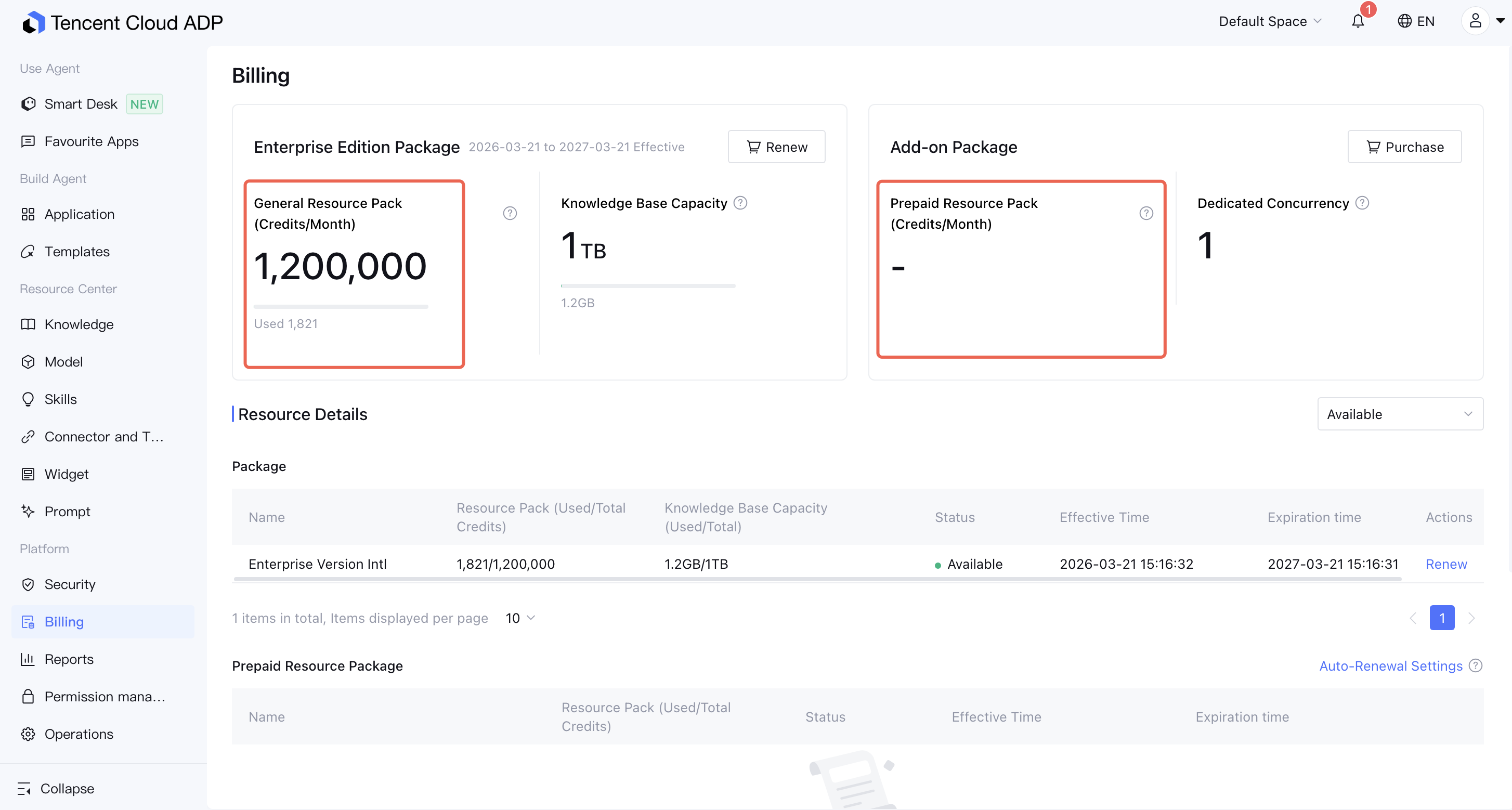
2. You can view your Credit balance in Platform > Billing.
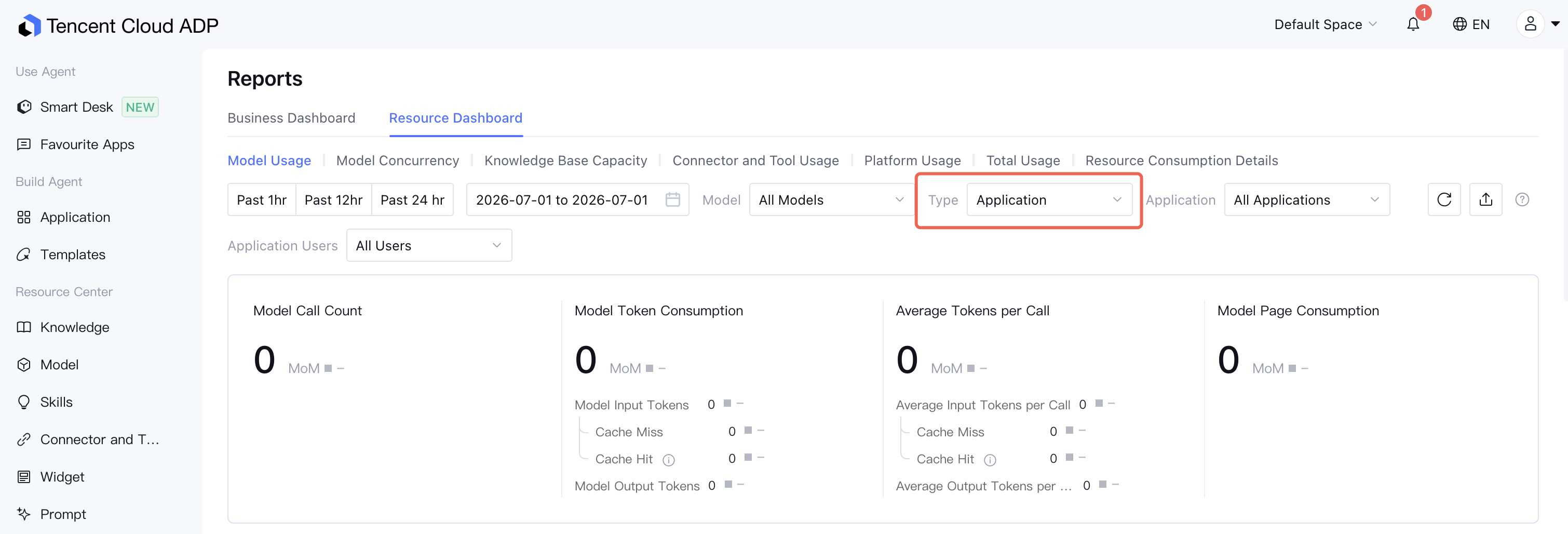
3. You can view data on the consumption of models, tool invocations, and task runtime duration for the current space in the Smart Desk on the Platform > Reports > Resource Dashboard.
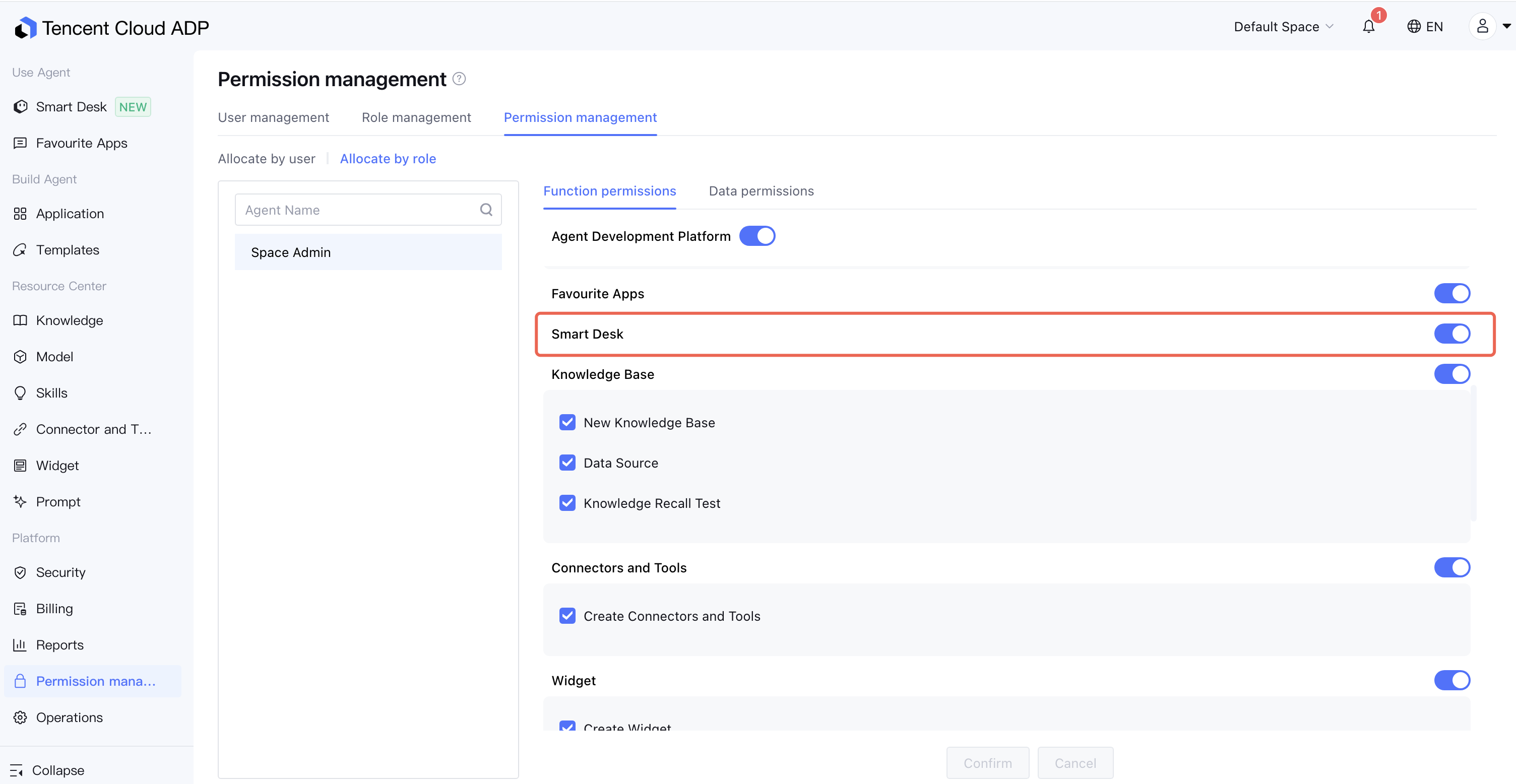
Permission Description: To use this feature, users must first have the Smart Desk feature permission added in the platform's User Management. (Permissions are effective at the space level. Users newly added to a space have this permission by default.)
Feature Overview
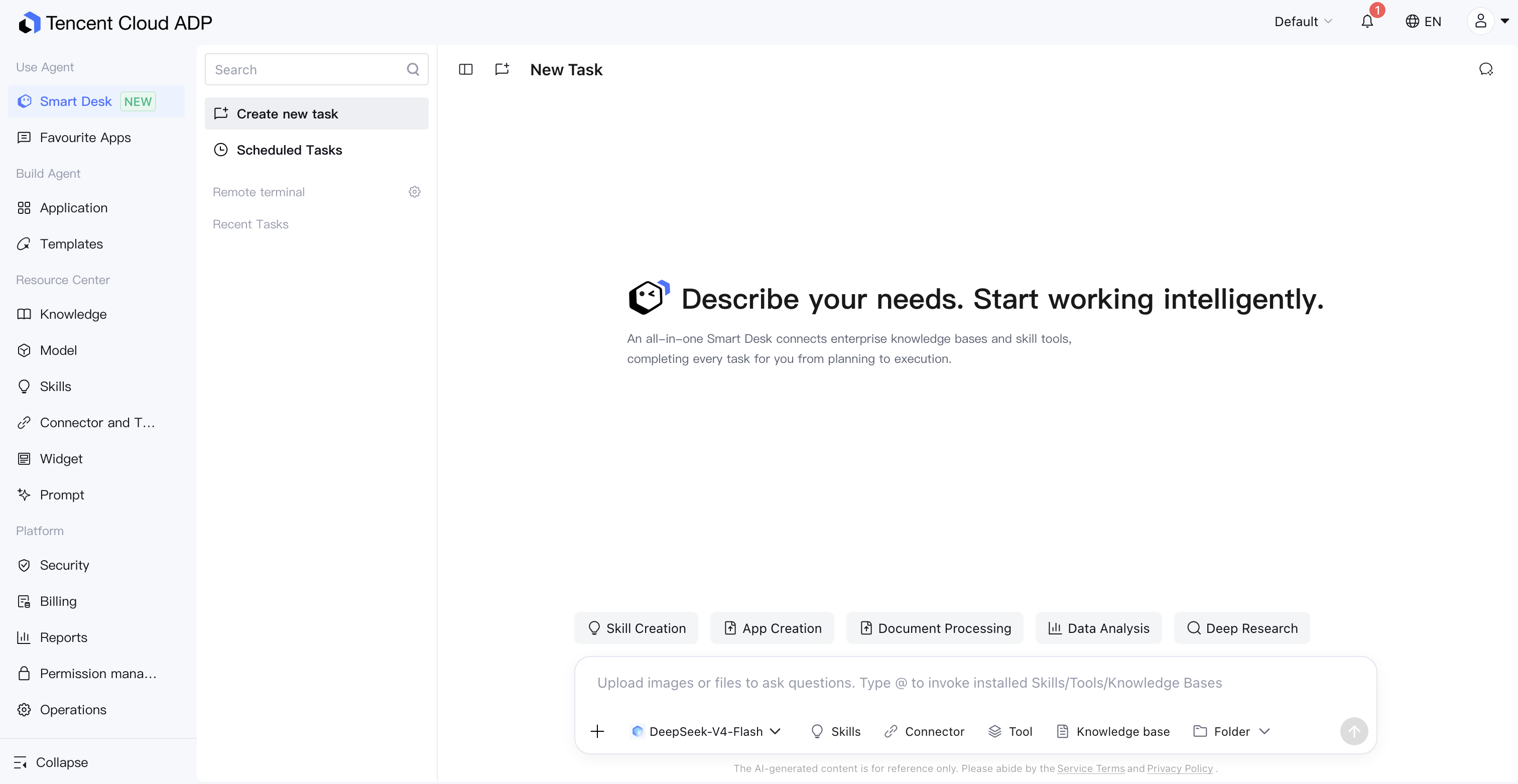
Go to the Tencent Cloud Agent Development Platform and click Smart Desk in the sidebar to enter the conversation page. In the dialog box, you can input a task description. The built-in agent will automatically break down the task and complete it step by step. Furthermore, you can view historical tasks in the task list area for further optimization.
Conversation Feature
File Upload: The built-in agent can reference the documents you upload to execute tasks. It supports uploading images, documents, or Tencent Docs.
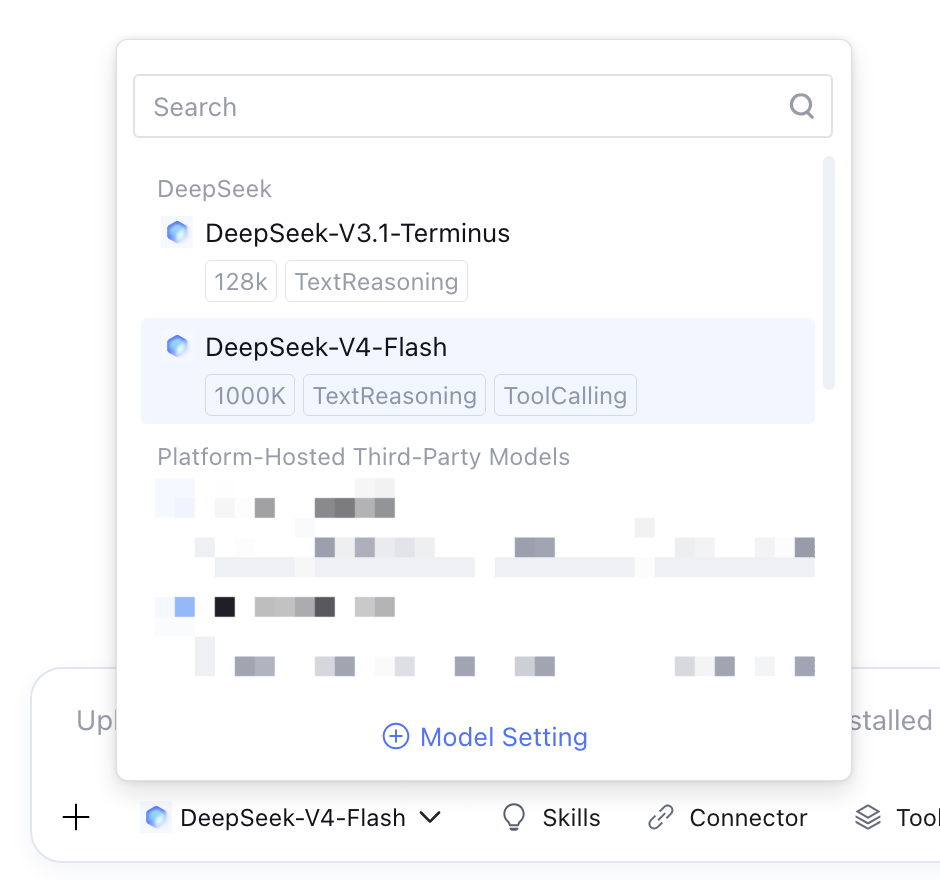
Model Settings: You can select from the models built into the Smart Desk. Invoking a model consumes Credit resources, and the consumption varies by model. For details, see Billing Overview (Package Subscription)..
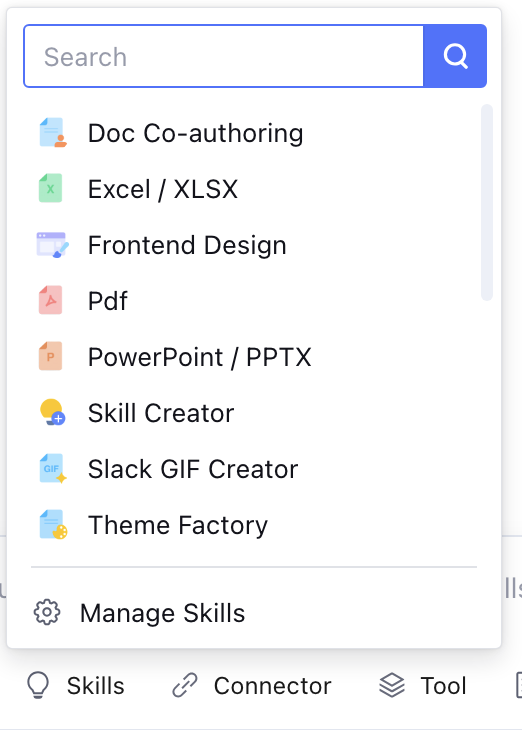
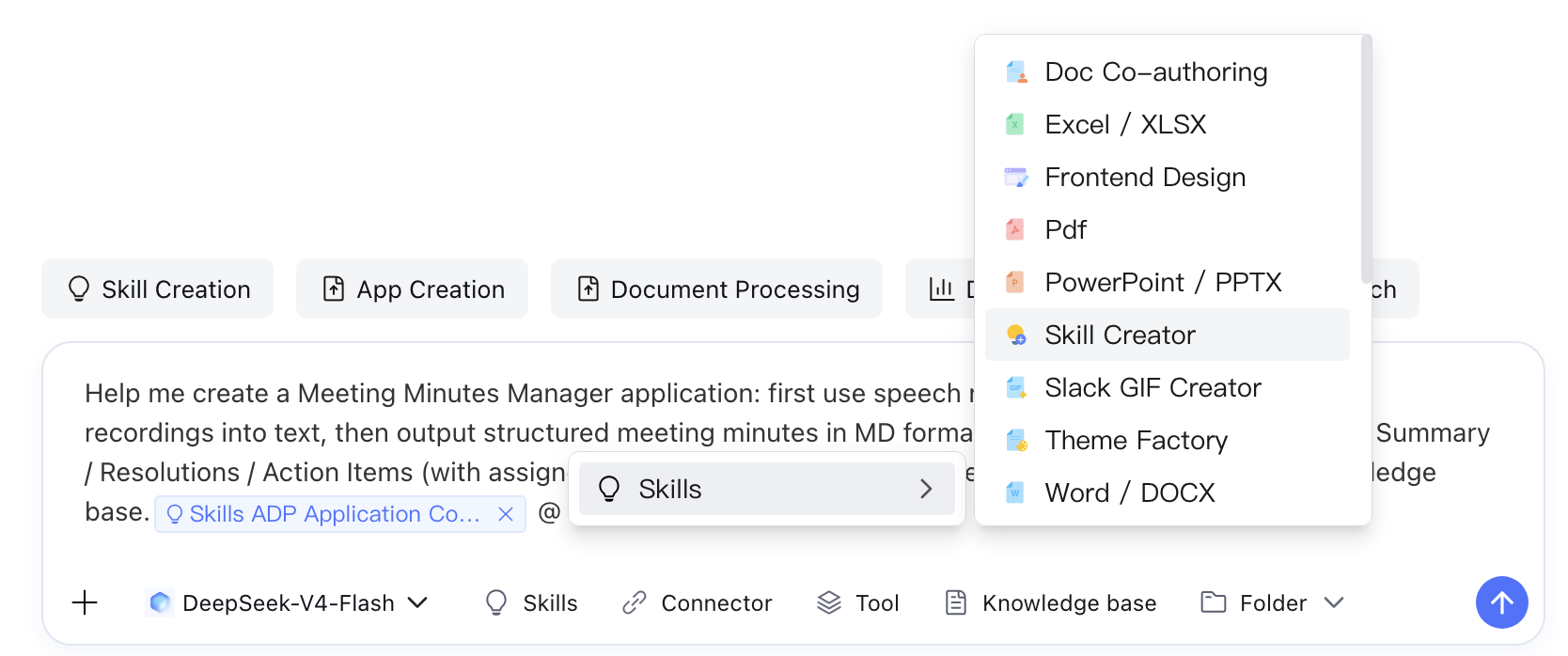
Skills List: The Skills list displays the Skills available in the current Smart Desk. You can click a Skill to quickly reference it.
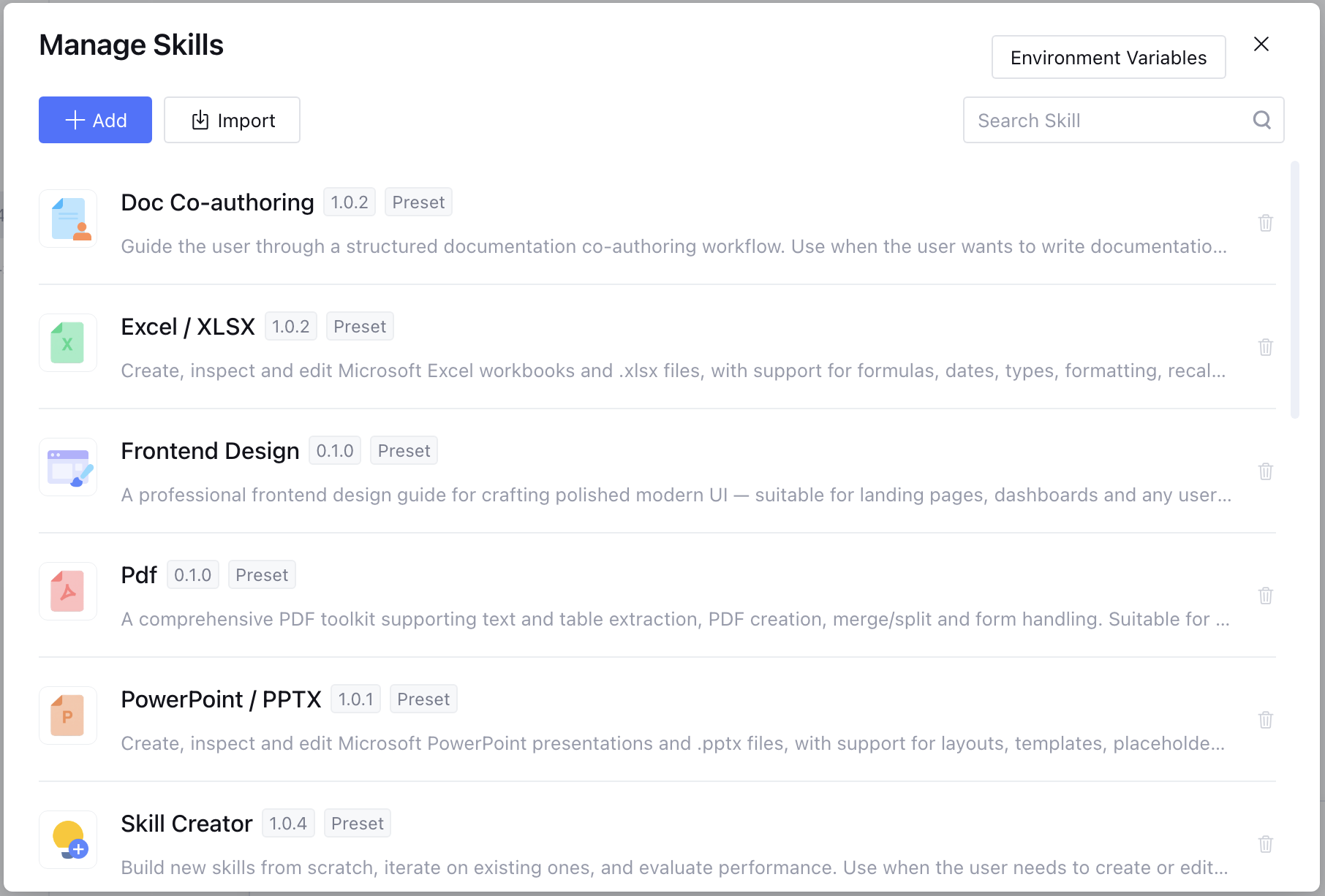
Manage Skills: You can add or delete Skills used by the Smart Desk in the current space. It supports adding platform official Skills, enterprise shared Skills, or custom Skills. The platform has preconfigured common Skills, and these preconfigured Skills cannot be deleted.
Note:
You can add environment variables on the Manage Skills page. Environment variables refer to secrets such as API keys used in configuring a Skill.
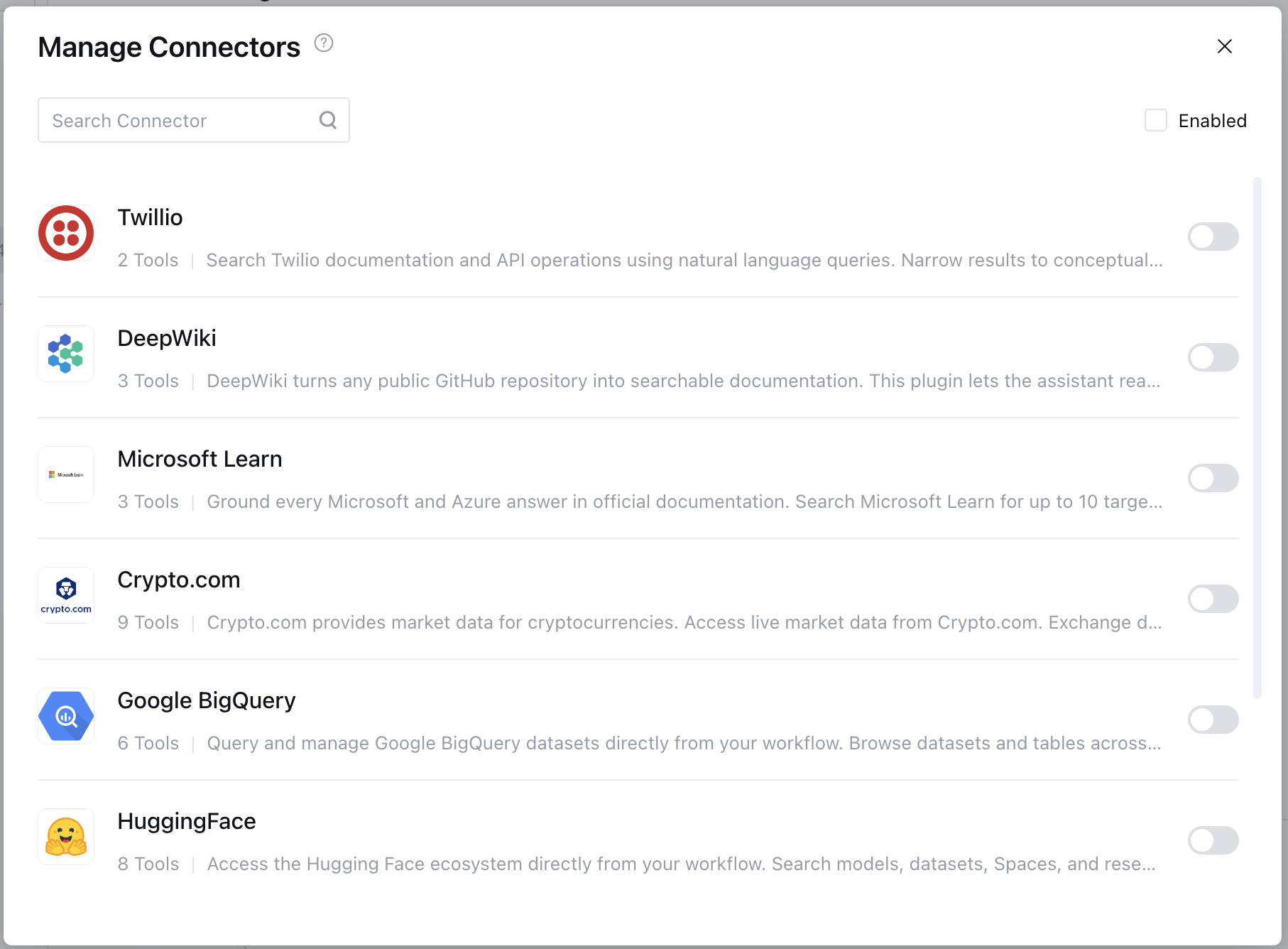
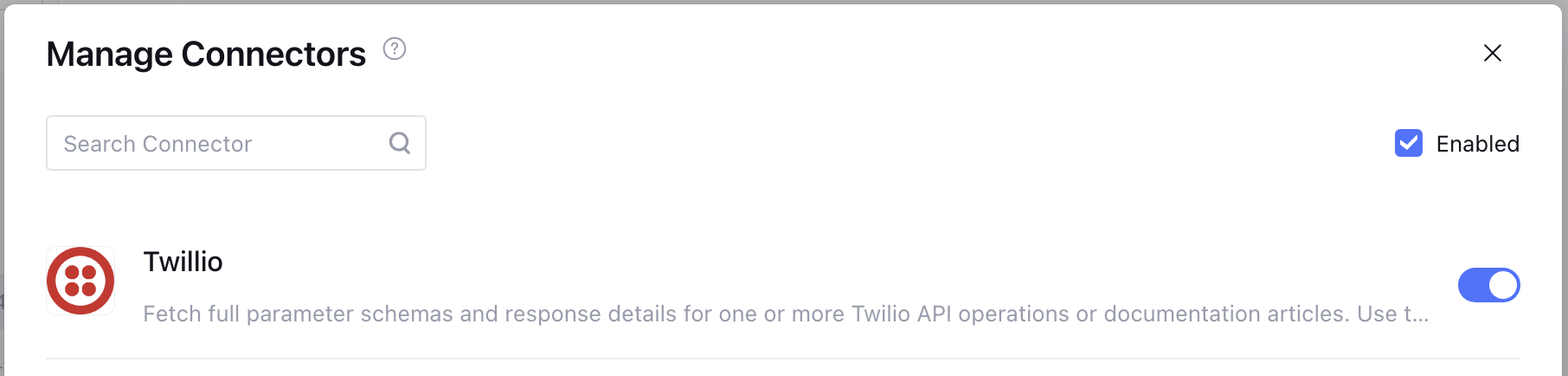
Connector Configuration: You can enable connectors to connect to third-party SaaS or enterprise systems, thereby obtaining or operating business data within the scope of user authorization.
Select "Enabled" to display the currently enabled connectors. You can click the toggle to disable a connector.
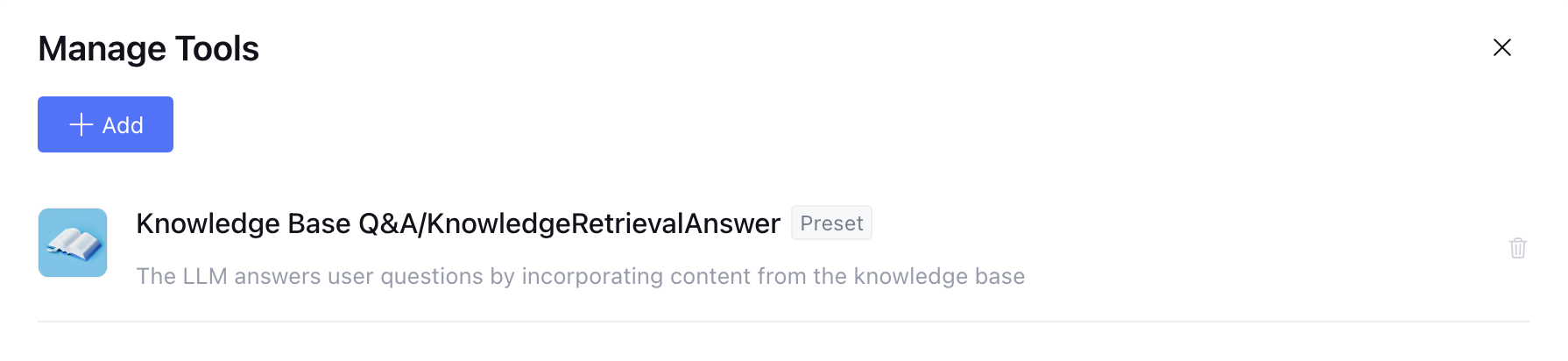
Tool Configuration: You can configure the tools used by the workbench. The system has preconfigured common tools, and these preconfigured tools cannot be deleted.
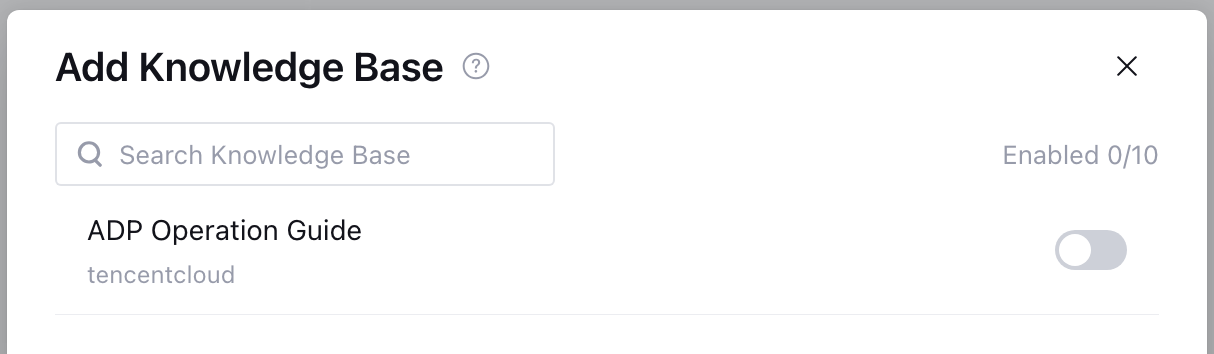
Add Knowledge Base: You can select a knowledge base within your permission scope for conversation. The model can reference your enterprise knowledge to complete tasks.
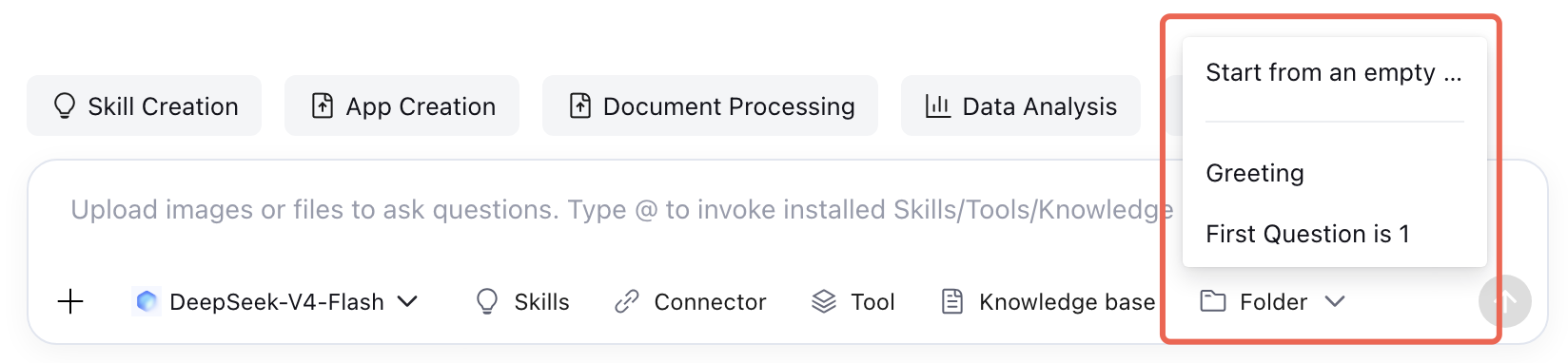
Select Folder: You can select a folder created in a previous task, or select an empty folder to execute the task. When you select a specific folder, the agent can read the existing files within it and refine or modify them based on that content.
In the input box, you can use the "@" key to quickly input a tool or skill.
Task List
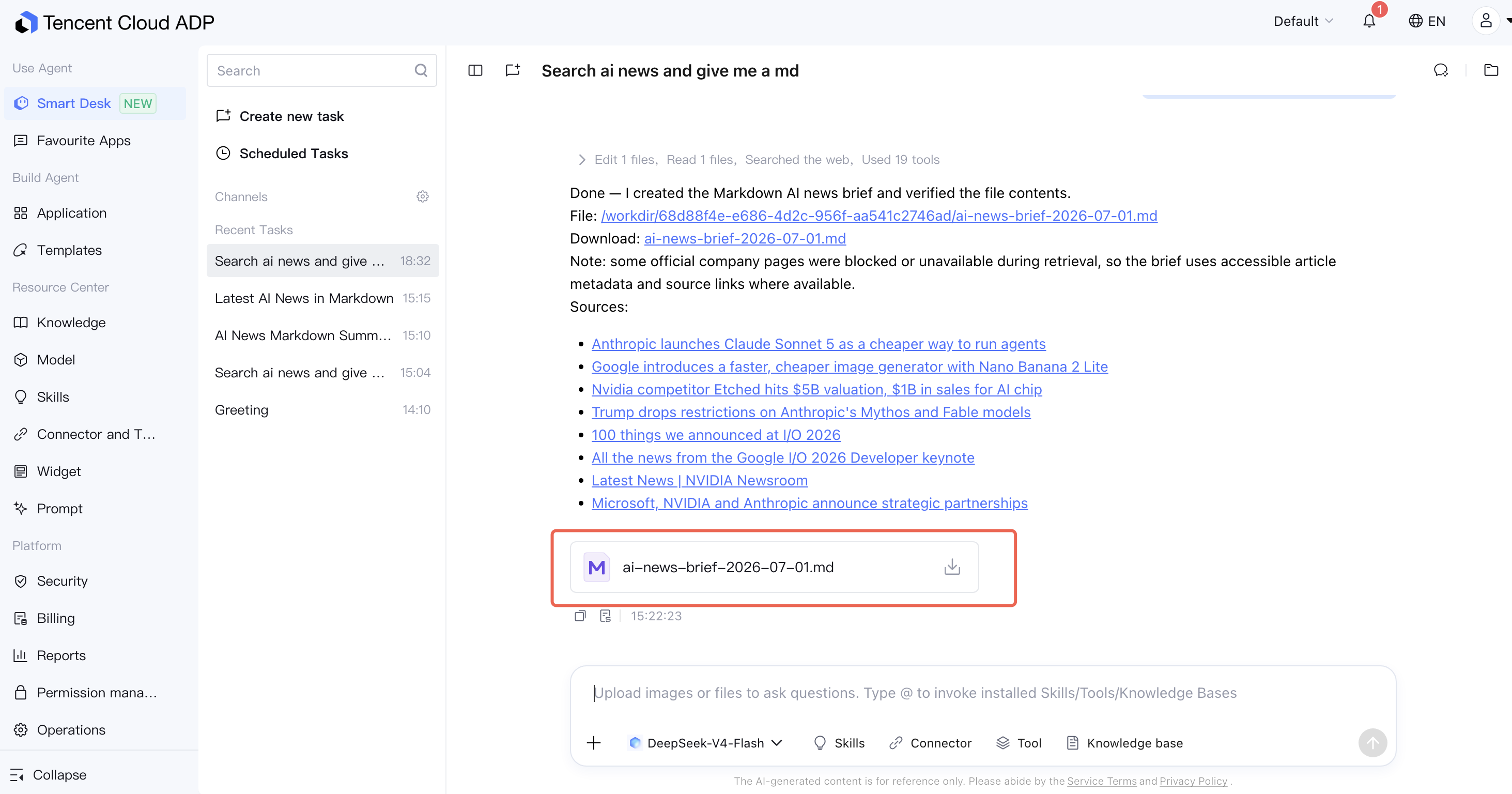
The task list stores previously executed tasks, including complete task dialogues and workflows. You can click a specific task in the list to view its deliverables and directly download the generated files. It supports creating new tasks, deleting, or renaming existing tasks.
Workspace
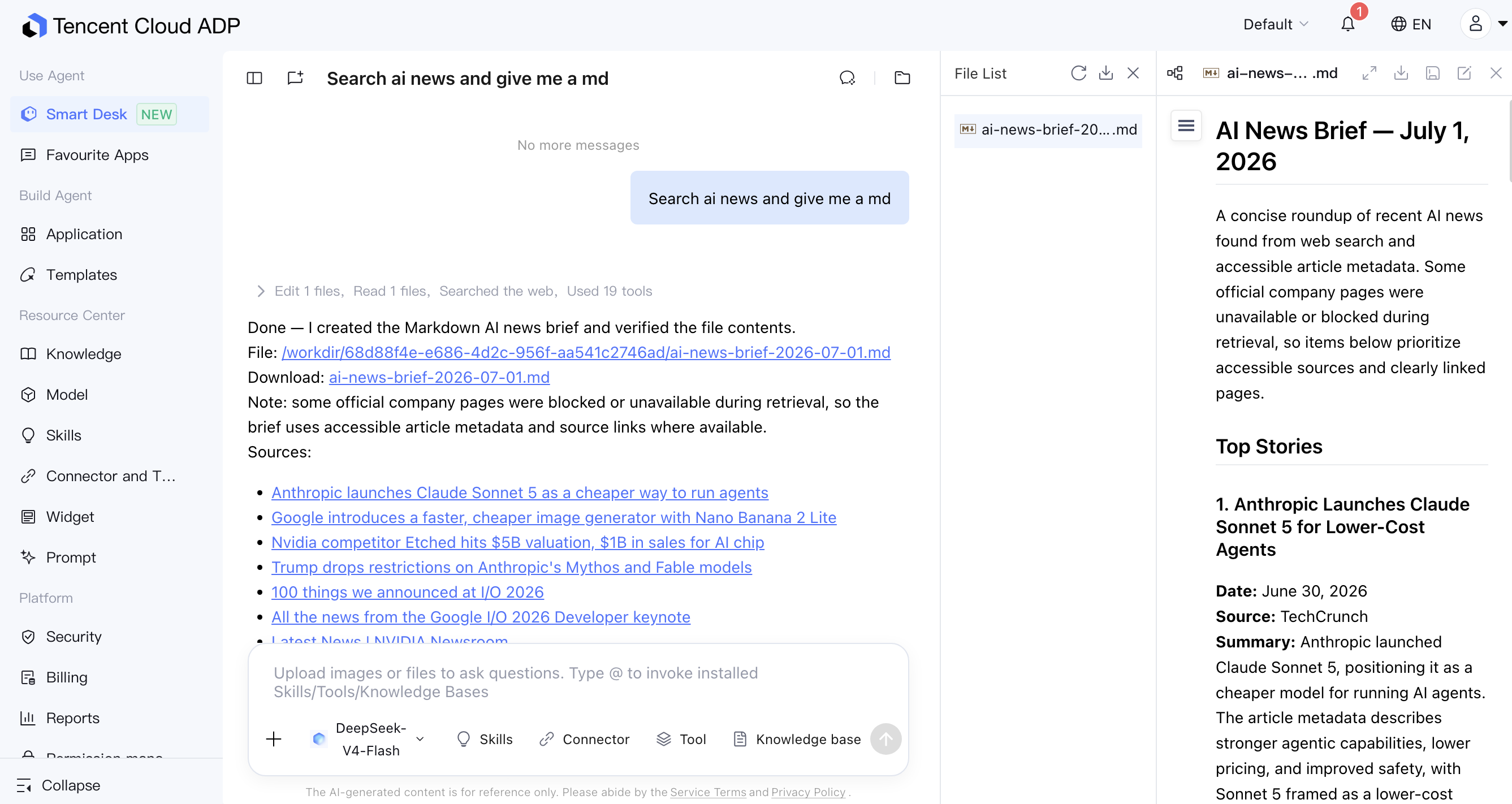
A workspace is an integrated development environment where code is created, executed, modified, and deleted. You can preview AI-generated files here.
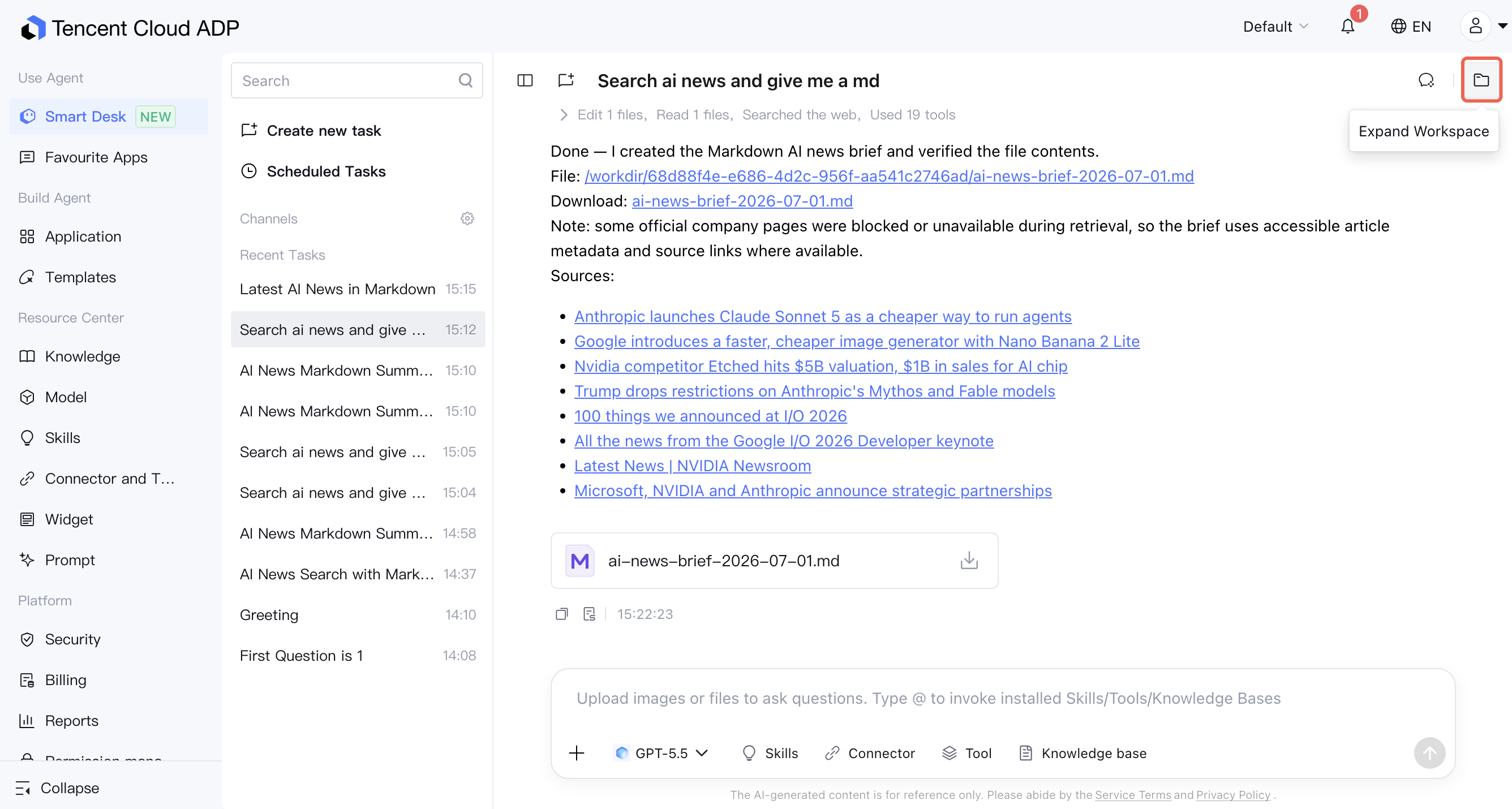
Open Workspace: Click the workspace button in the upper-right corner of the page. The workspace will then be displayed in the sidebar.
Preview Workspace Files: You can preview the project structure and code within the workspace. The system also supports previewing HTML web pages.
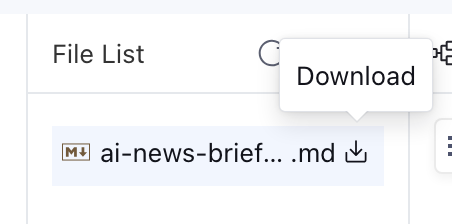
Download: You can download all or individual files from the file list for local testing, deployment, and development.
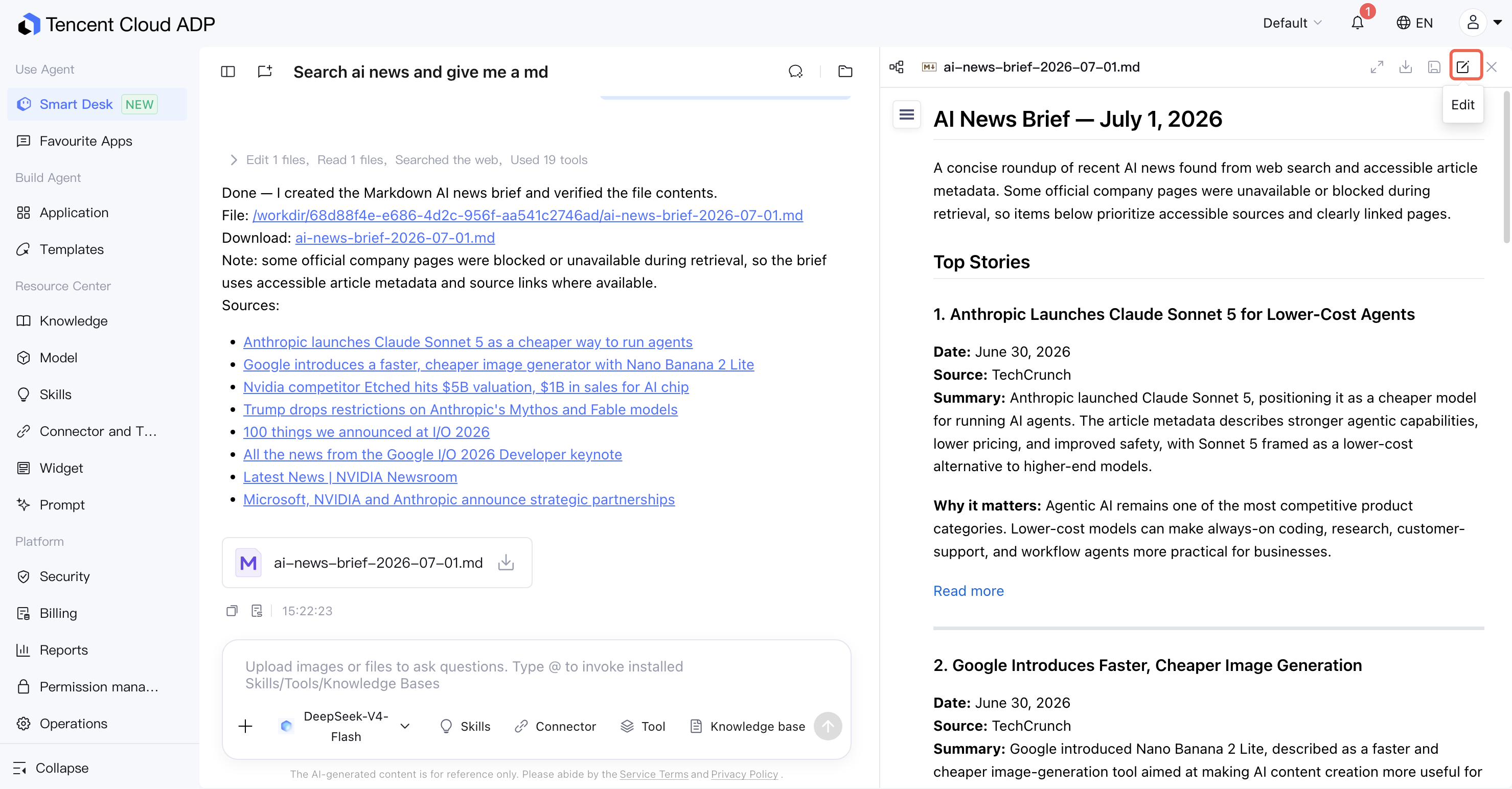
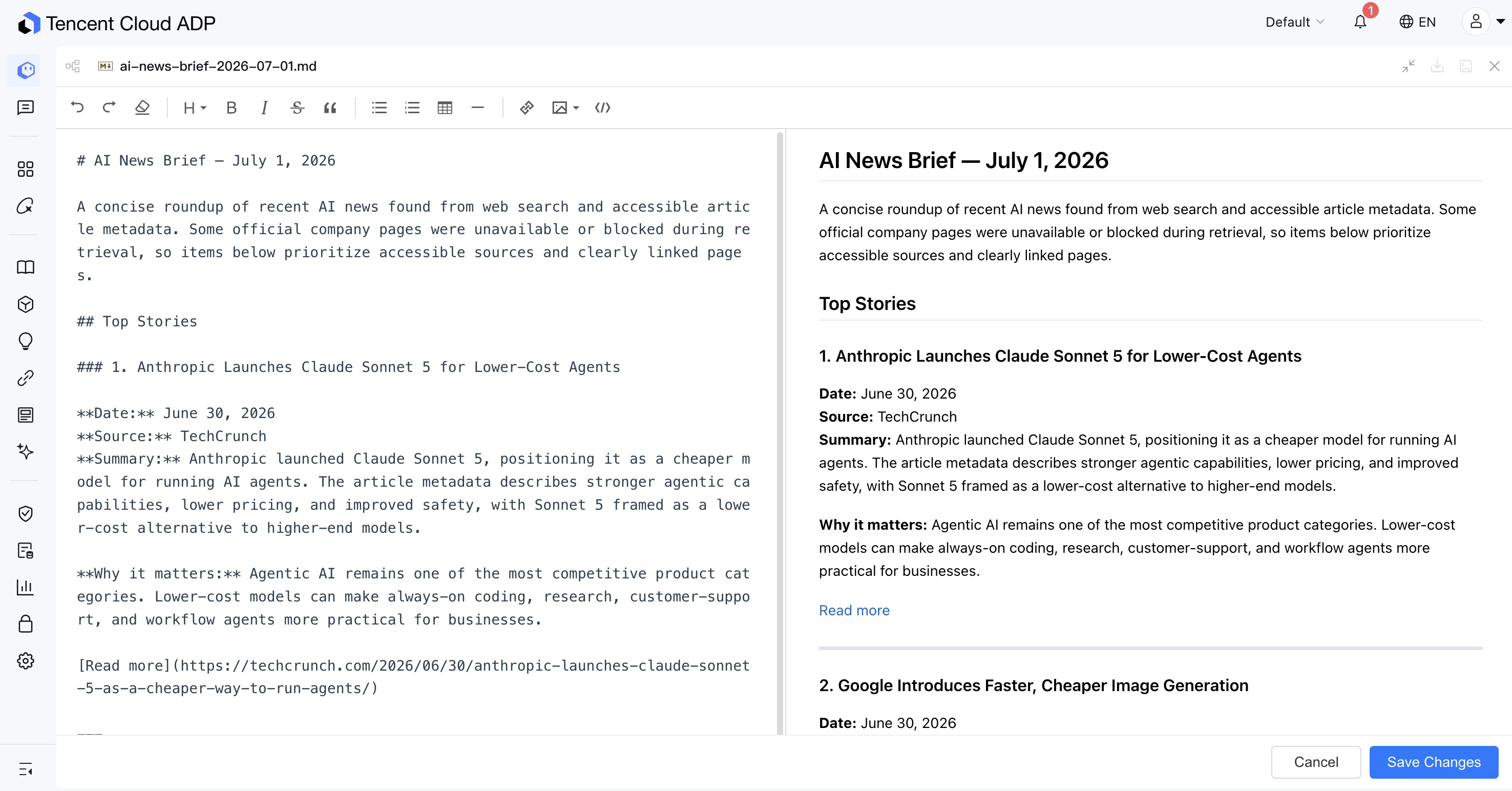
Edit: It supports online editing of text format files such as .md, .txt, and .json.
Note:
After a file is edited, the model may use memories from historical file versions, which can affect subsequent outputs. When conversing with the model, explicitly state that the file has been updated.
It supports dual-pane Markdown editing, where you write source code on the left and preview it in real-time on the right. After editing, click Save Changes.
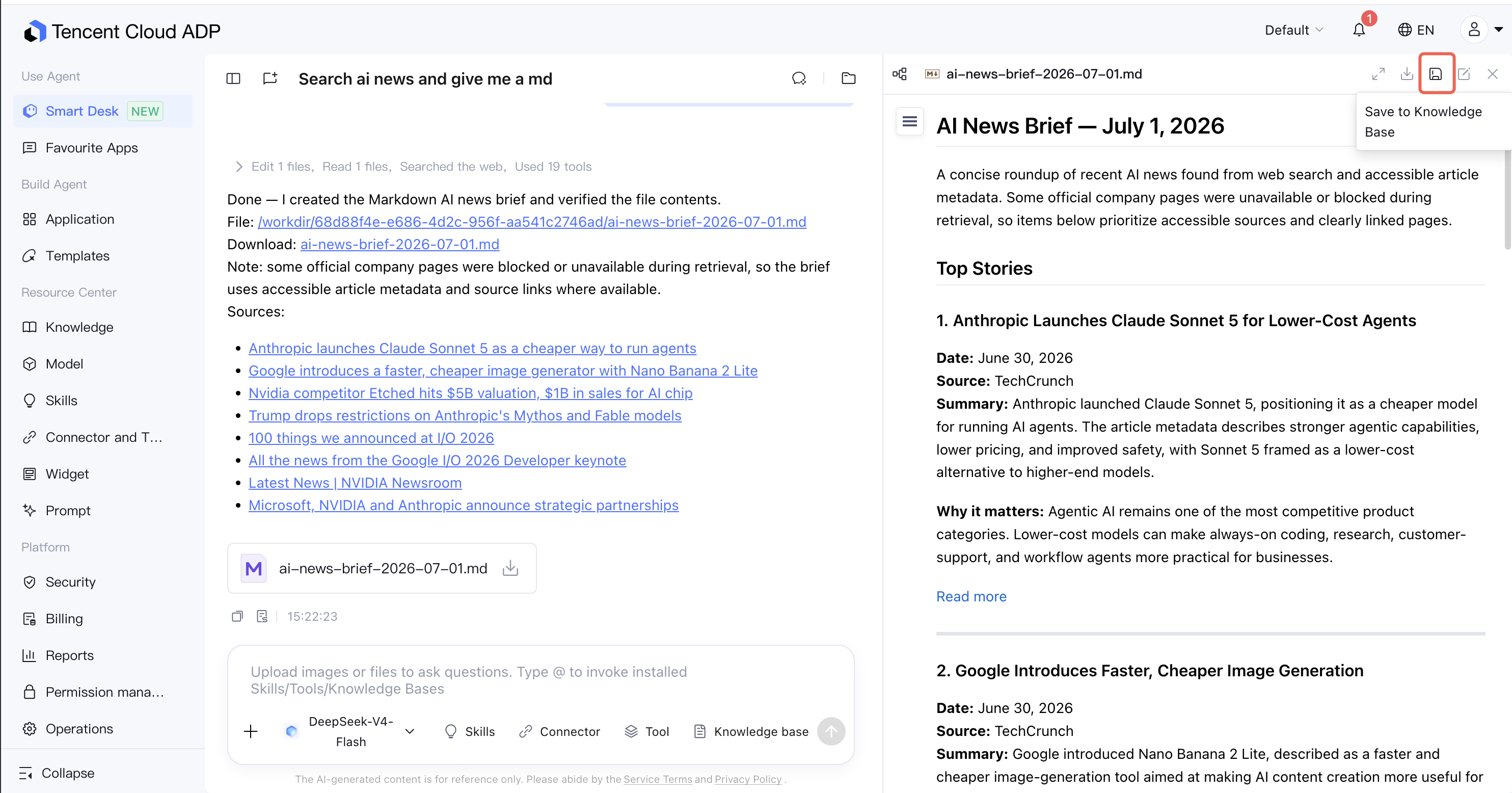
Save to Knowledge Base: You can save the output to the knowledge base.