You can publish applications from the Agent Development Platform to DingTalk bots for use. Users can search for the bot name in DingTalk to initiate a conversation, enabling scenarios such as knowledge Q&A and business consultation.
Use Cases
Users send messages to a DingTalk one-on-one bot to obtain knowledge base Q&A results.
Users ask questions by @Robot in a group chat.
Use Limits
Limit
Description
Message reply frequency
Each bot can send a maximum of 20 messages per minute.
Streaming output
DingTalk does not support the streaming output feature (unlike the WeCom intelligent bot).
Message body type
Replies support plain text, rich text, and Markdown formats.
Application binding
A DingTalk channel supports binding to only one application. To change the bound application, first go to the Service Status section of the original application to unbind the channel.
Operation Guide
Step 1: Log In to the DingTalk Open Platform and Create an Internal Application
2. Select Internal Enterprise Application and click Create Application.
3. Fill in the basic application information (such as the application name, Logo, and description), and then click Save.
Step 2: Adding Bot Capabilities
1. Go to the details page of the application you just created, and choose Add Application Capability > Bot in the left sidebar.
2. Enable bot configuration, fill in the bot information, and click Publish.
Step 3: Publishing an Application Version
Select Version Management and Release in the left sidebar, click Create New Version, fill in the version information, and then publish it.
Note:
The credential information can only take effect and be used after the application is successfully deployed.
Step 4: Obtaining Credentials
1. Switch to the left sidebar menu and select Credentials and Basic Information.
2. Copy the Client ID and Client Secret.
Note:
The Client ID and Client Secret are authentication credentials for the DingTalk application. Keep them secure and do not disclose them to unauthorized personnel.
Step 5: Creating a DingTalk Bot Channel in the Agent Development Platform
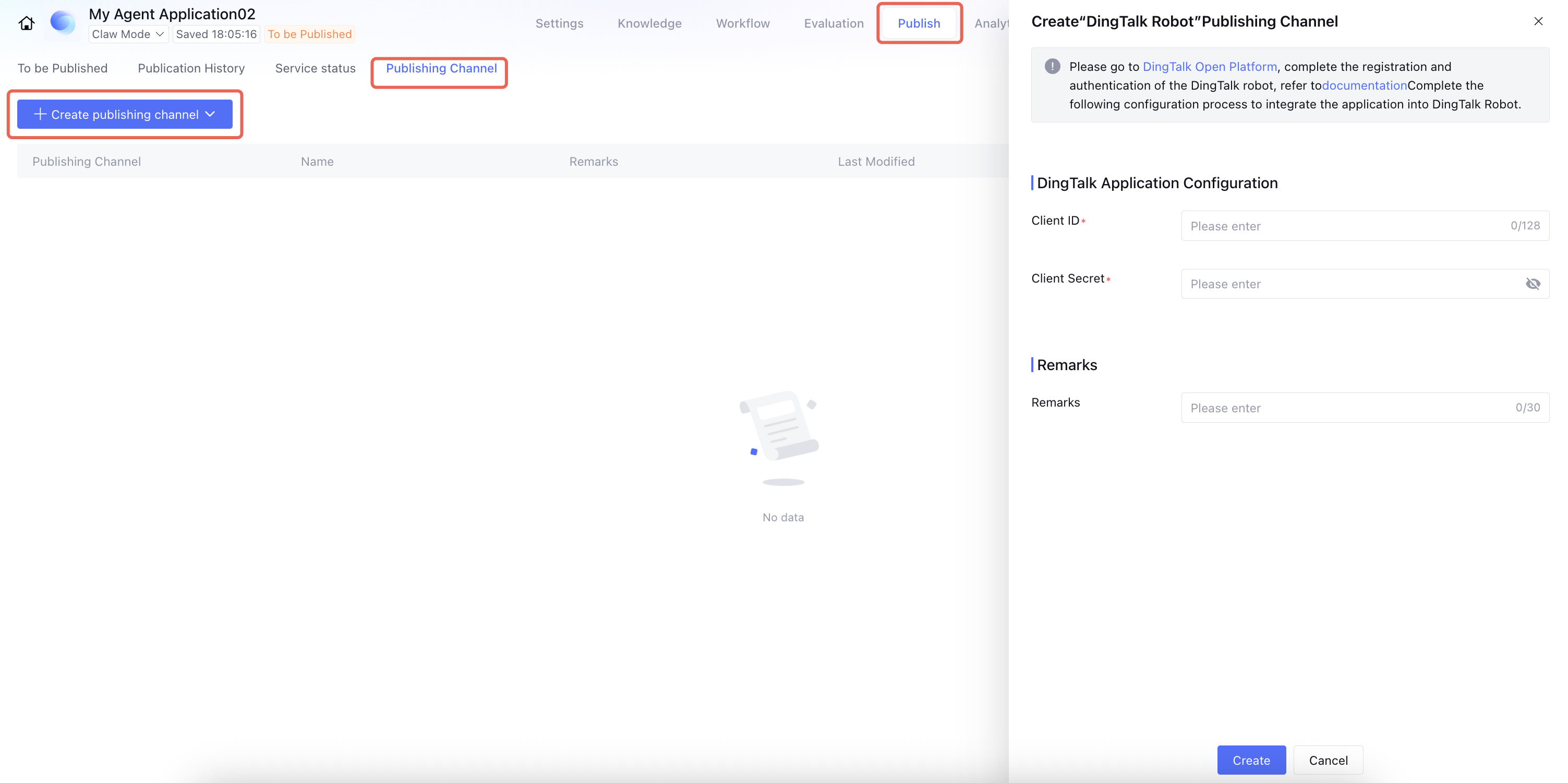
2. Go to the target application, locate Publish > Publishing Channel, click Create publishing channel, and select DingTalk.
3. Fill in the configuration information:
Configuration Item
Description
Client ID*
Required. Enter the Client ID obtained from the DingTalk Open Platform in Step 4.
Client Secret*
Required. Enter the Client Secret obtained from the DingTalk Open Platform in Step 4.
Remarks
Optional. Add a remark identifier for this channel.
4. Click Create. The channel is successfully created when you receive a creation success notification.
Step 6: Publishing the Application to the DingTalk Bot Channel
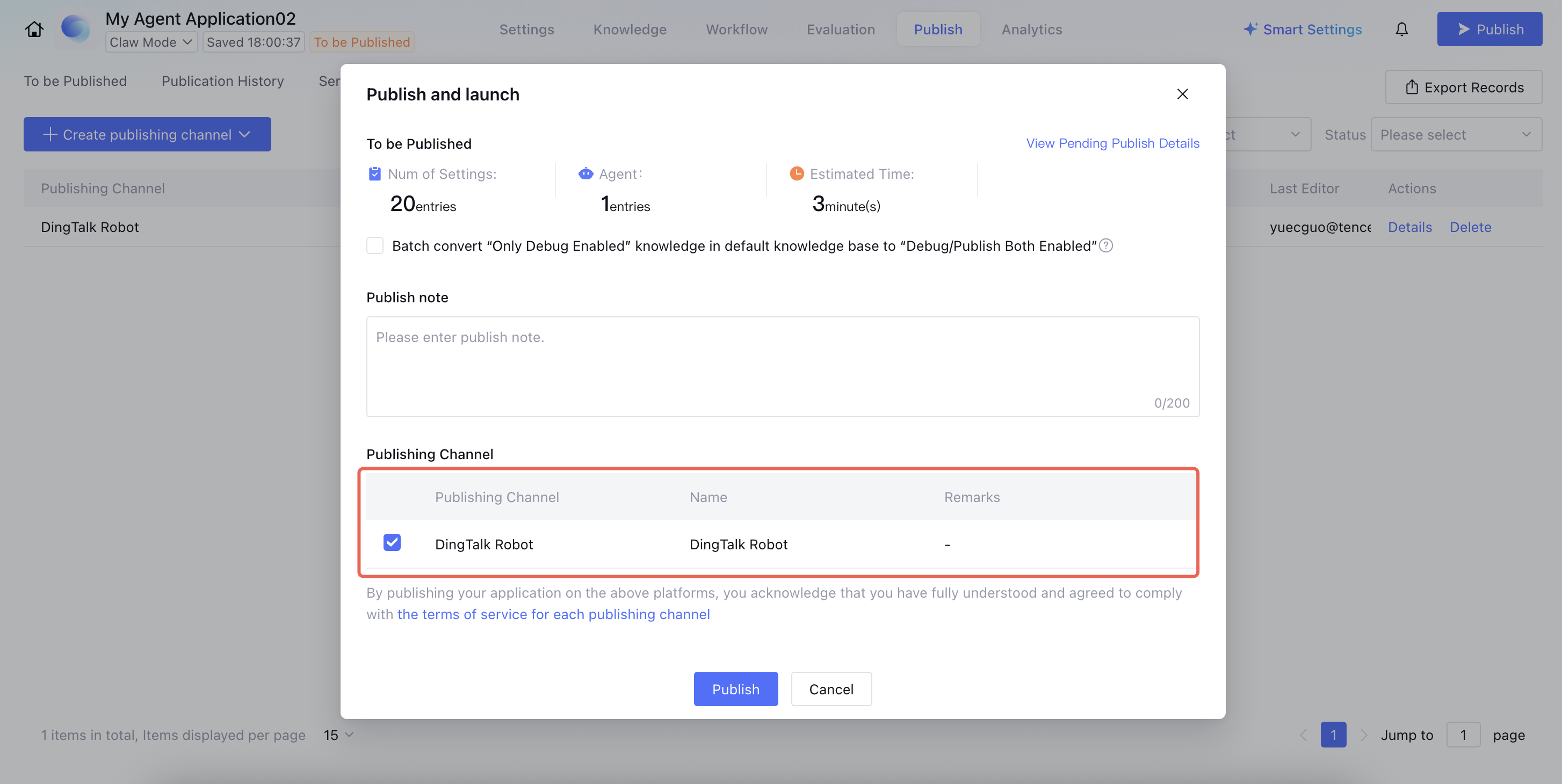
1. After the channel is created, return to the Application Release page, click the Publish button, and select the DingTalk Bot channel from the release channel list.
2. Click Publish and wait for the publishing process to complete.
Note:
1. If the channel has been bound to another application, you must unbind it before you can proceed with publishing.
2. After the application is successfully published, the channels that are not selected will no longer be effective.
Step 7: Checking the Service Status and Experiencing the Conversation
1. After publishing is complete, go to Application Release > Service Status to check the operation status of the DingTalk channel. A status displayed as Running indicates a successful publication.
2. Open the DingTalk client and enter the bot name in the search box to initiate a conversation.
3. You can view the conversation records in Application Operations > Conversation Records on the Agent Development Platform.
Users can send the following types of messages in DingTalk:
Message Type
Whether Supported
Text
Supported
Figure
Supported
File
Not supported
In the DingTalk conversation window, you can use the following commands to control the creation of new conversations and the clearing of context:
Command
Trigger Scenario
Effect
Clear Context Association
Private Chat / Group Chat @Bot
Clears context association information but keeps the conversation ID unchanged.
Create a new conversation
Private Chat / Group Chat @Bot
Creates a new conversation ID and clears historical conversation records.
After execution, the bot will return a system message:
[System Message] Context association has been cleared. / This is a new conversation.
FAQs
Q1: Why Does the DingTalk Channel I Created Show "Already Bound to Another Application"?
A: A DingTalk channel can be bound to only one application at a time. To rebind it, first go to Application Release > Service Status of the currently bound application to unbind this DingTalk bot channel, and then bind it in the new application.
Q2: How to Confirm Whether the DingTalk Bot Configuration Is Effective
A: Open the DingTalk client and enter the bot name in the search box:
If the bot can be found in the search, the configuration is active and you can directly initiate a conversation.
If the bot cannot be found, please check the following:
Whether the DingTalk application version has been published.
Whether the ADP side has completed the application publication and the service status shows "Running".
Q3: Can a DingTalk Bot Connect to Multiple Knowledge Bases Simultaneously?
A: Yes. The knowledge base configuration for the DingTalk channel is consistent with other channels, depending on which knowledge bases the application itself is associated with. Knowledge base management is uniformly handled in Knowledge Management, independent of the release channel.
Q4: How to Obtain User DingTalk Identity Information
A: The DingTalk channel supports obtaining the userId when receiving message events. This field is mapped to the visitor biz id in ADP and can be used for user permission control on the application side and user identification in workflows.
Q5: How to Distinguish Conversation Records from Different Channels
A: On the Application Operations > Conversation Records page, select "DingTalk Bot" in the invocation methods filter to view conversation records from the DingTalk channel only.