You can quickly start using the enhanced Hyperledger Fabric blockchain network through this document. Meanwhile, you can go to Hyperledger Fabric Operation Guide for more information.
2. On the Blockchain Network page, click the corresponding card to enter the network details page. After the purchased Chang'an Chain·ChainMaker blockchain network is deployed, click the card to enter the network details page.
3. Select the Contract Management tab, enter the corresponding page, select the Channel ID, switch to the channel that needs to create a contract, and click Create Contract..
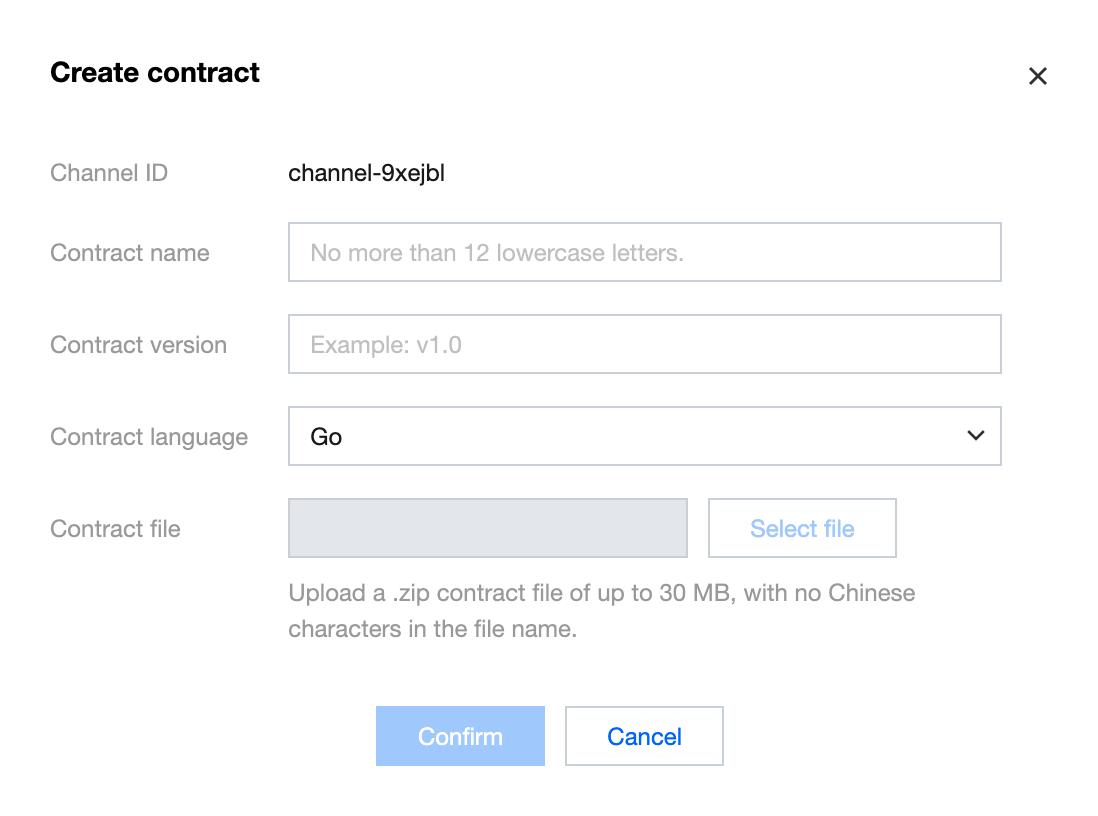
4. Fill in the corresponding contract name, version, etc., and upload the contract file on the Create Contract page. As shown below:
5. Click Confirm to complete creation.
Note
Fabric contracts support three languages: Go, Java, NodeJs.
For detailed development instructions of Fabric contracts, please see Development Guide.
Install, Instantiate a Contract
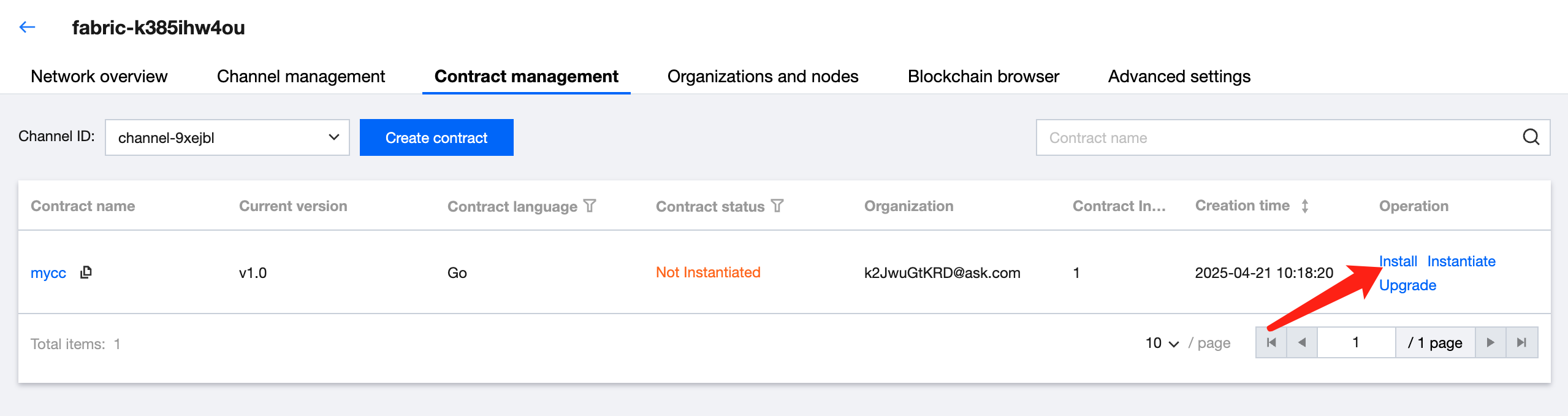
The newly created contract needs to be installed on the Peer Node and instantiated before it can be called. After creating a contract on the Contract Management page, you can see the newly created contract in the contract list. Its status is "not instantiated". Click Install in the list operation column. Select the Peer Node to be installed in the pop-up. After checking, click Install to complete. As shown below:
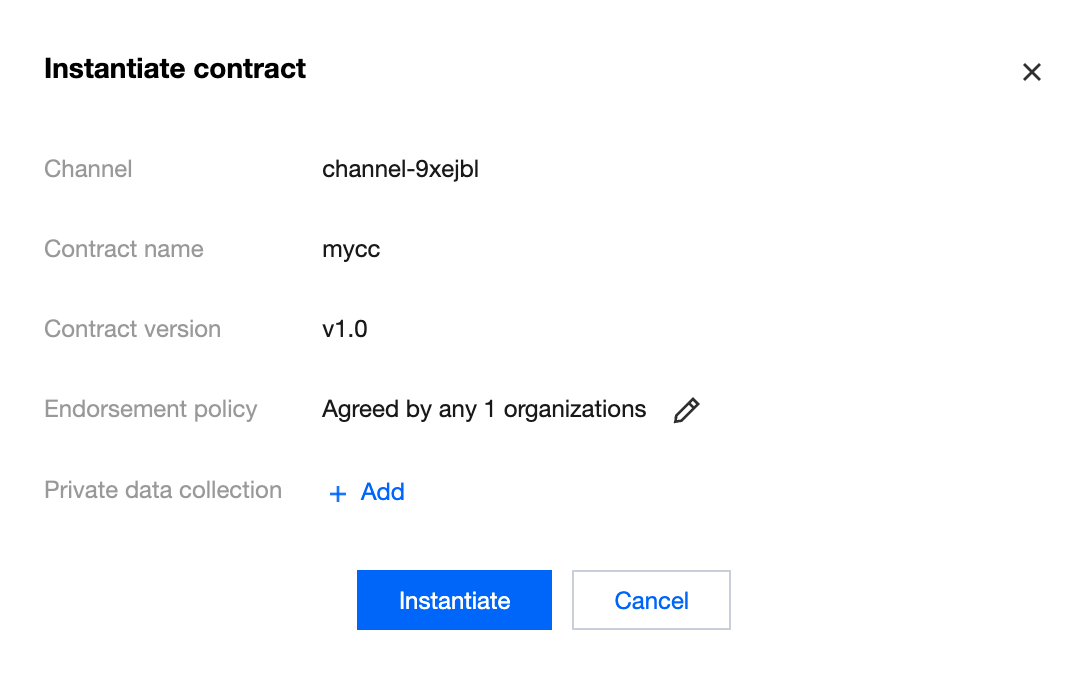
The installed contract can be instantiated. On the Contract Management page, click Instantiate in the list operation column of the contract list. In the instantiation pop-up, you can set the endorsement policy, private data set and other information as needed. After confirmation, you can start instantiation. As shown below:
Click the name of the contract in the contract list to access the contract details page of the corresponding contract. You can view the basic information, installed nodes, contract logs and other information of the contract.
Step 4: Apply for and Download Certificate
TBaaS supports two methods of connection to the blockchain via Changan Chain SDK and TencentCloud API. If you use the TencentCloud API method for connection, this step can be skipped directly. For detailed connection process, see Step 5.
1. In the TBaaS Console, select Fabric > Blockchain Network in the left sidebar to enter the network card page, and click the corresponding card to enter the network details page.
2. On the network details page, select the Advanced Configuration > Certificate Management tab. After entering the corresponding page, click Apply for a Certificate. Fill in the certificate identifier in the popup and upload the CSR files of the user certificate and TLS certificate. After confirmation, the certificate will be generated. You can download the certificate in the certificate list. For the generation method of the CSR file, please see Certificate Application CSR Generation Guide.
Step 5: Application Development and Integration
TBaaS supports two methods of integration with the blockchain via Fabric SDK and TencentCloud API. For detailed integration development process, please refer to the Integration instructions chapter in the development guide.
Step 6: View On-Chain Data in Browser
TBaaS provides a blockchain browser, which is user-friendly for real-time viewing or retrieving the data on the chain. The operation method is as follows:
1. In the TBaaS Console, select Fabric > Blockchain Network in the left sidebar to enter the network card page, and click the corresponding card to enter the network details page.
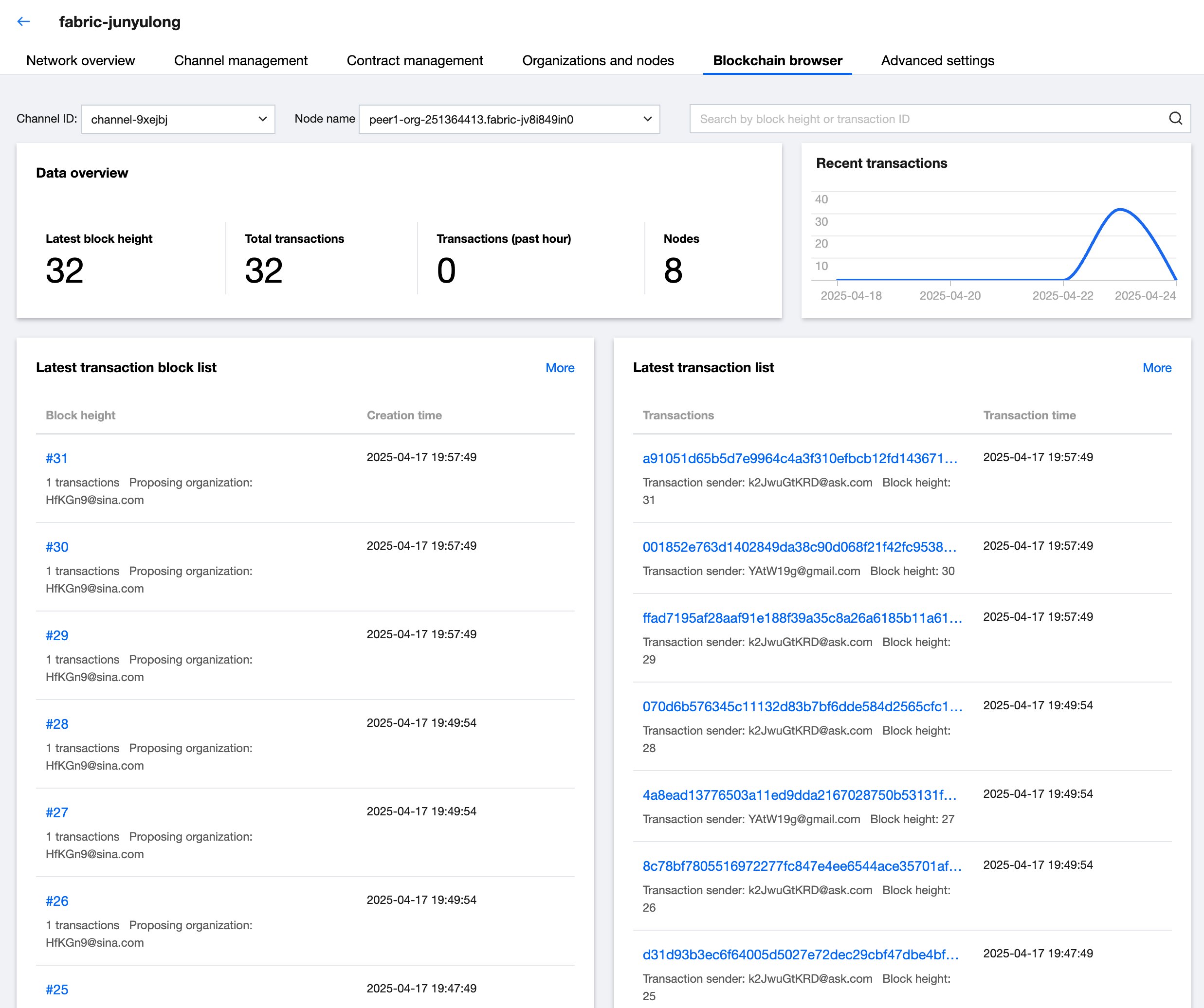
2. On the network details page, select the Blockchain Browser tab to enter the corresponding page and view or retrieve block information, transaction information and other data in real time. You can also switch different Channel IDs to view the on-chain data of different channels. As shown below: