2. Portal 2: If you have applied for BI trial use, you can access the BI Console and click Buy Now on the right side of the overview page.
Entering the Purchase Page
1. Read purchase notes
The purchase notes present the billing rules and other notes for BI. We recommend that you read the notes before purchase.
2. Select configurations
Package edition: BI has currently two editions, Basic Edition and Professional Edition. The differences between the editions are mainly reflected in the number of users who can use the BI product and product features (for feature comparison, see the table on the purchase page). Generally, small and medium-sized enterprises are recommended to purchase the Basic Edition, while medium and large-sized enterprises the Professional Edition. After purchase, edition upgrades are supported. For details, refer to the Upgrade Instructions document.
Purchase duration: One-year or two-year options are available. After purchase, you can extend the usage duration through renewal. For details, refer to the Renewal Instructions document.
Number of packages: The number of packages corresponds to the number of purchased users. If you purchase the Basic Edition, 10–50 users can be authorized. If you purchase the Professional Edition, 50–30,000 users can be authorized.
3. Select other configurations
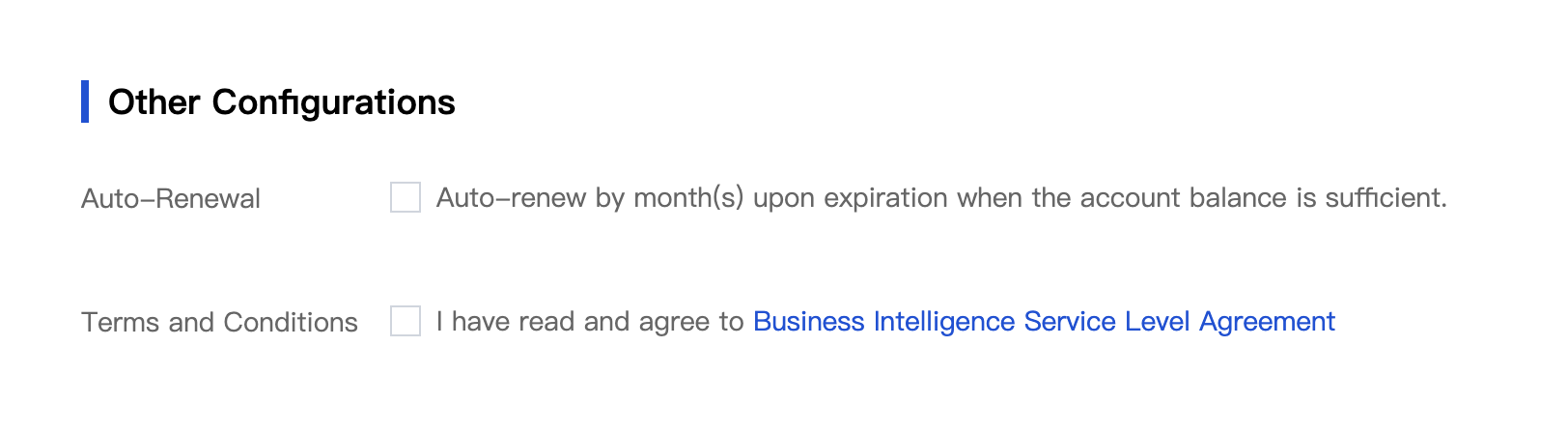
Auto-renewal: To automatically renew your BI upon expiration to avoid service unavailability or resource termination due to untimely renewal, select this option (optional).
Agreement terms: Selecting this option means that you have fully read, understood, and accepted all terms of the agreement. This option is required. Purchases cannot proceed if this option is unselected.
4. Confirm fees
When the configuration is completed, you can confirm the configuration fees at the bottom. The strikethrough price is the original price, and the orange highlight price is the discount price and also the settlement price. After confirming that the information is correct, click purchase now to go to the order confirmation page.
Entering the Order Confirmation Page
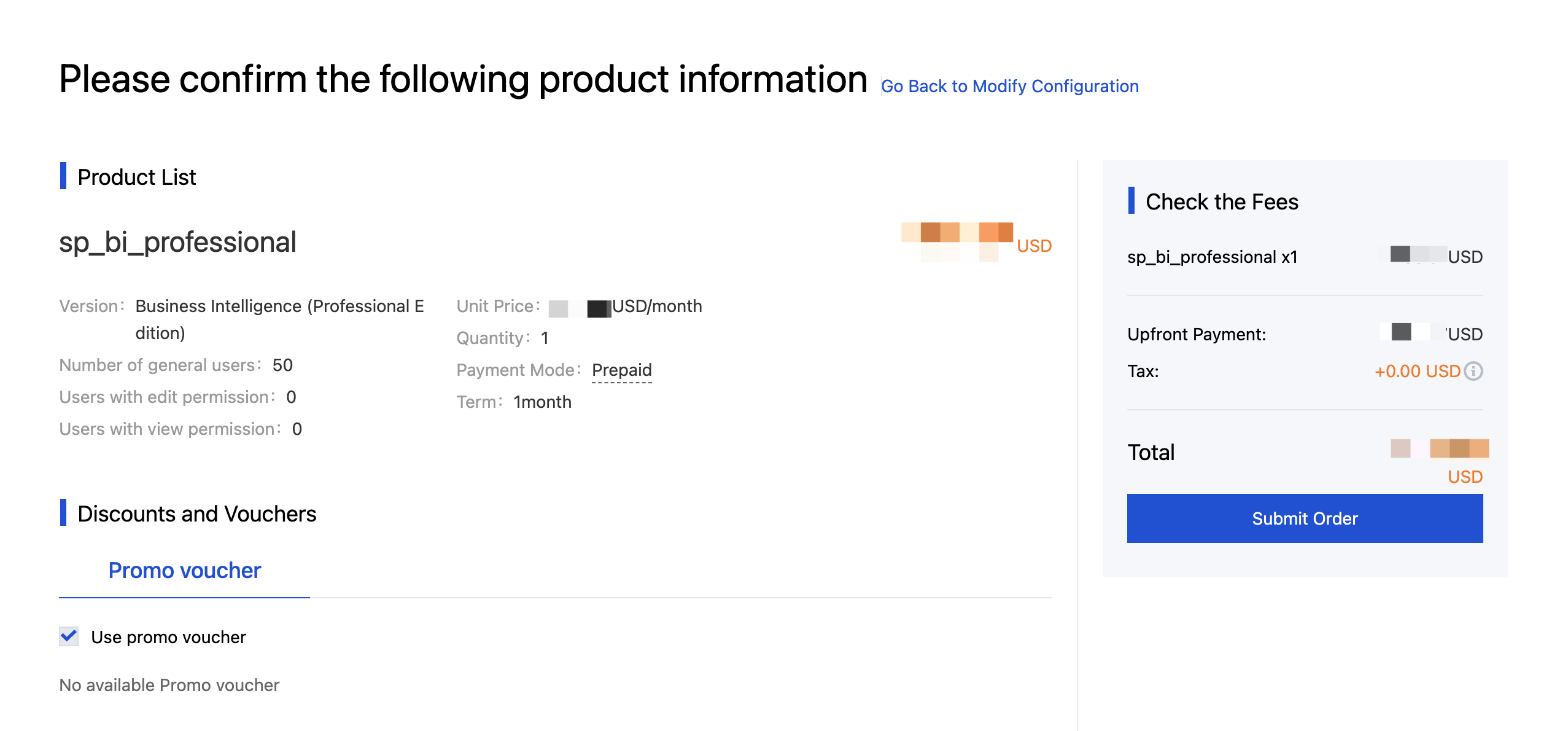
On this page, you can further confirm the content and price of your purchase, and choose whether to use the promo voucher in your account. After confirming that the information is correct, click Submit Order to make a payment.
In case of order submission failure, it means you have purchased BI and can only renew or upgrade. Repeat purchase is not allowed.
Purchase Successful
After payment is successful, you will go to the success page. You can now click Go to Console to navigate in the BI Console and get started.
If you want to enter the BI Console again, click Get Started on the product introduction page (need to use a purchased account to log in. Otherwise, "Free Trial" will be displayed for accounts not logged in or not purchased) or log in here.