When the user's working environment is DingTalk, the user can easily subscribe to report push notifications through the DingTalk Robot. To use the DingTalk Robot for push notifications, the robot information needs to be registered on the platform beforehand.
This document introduces the following operations:
Obtaining the DingTalk Robot Webhook URL.
Adding the DingTalk Robot in BI
Enabling or disabling the DingTalk Robot
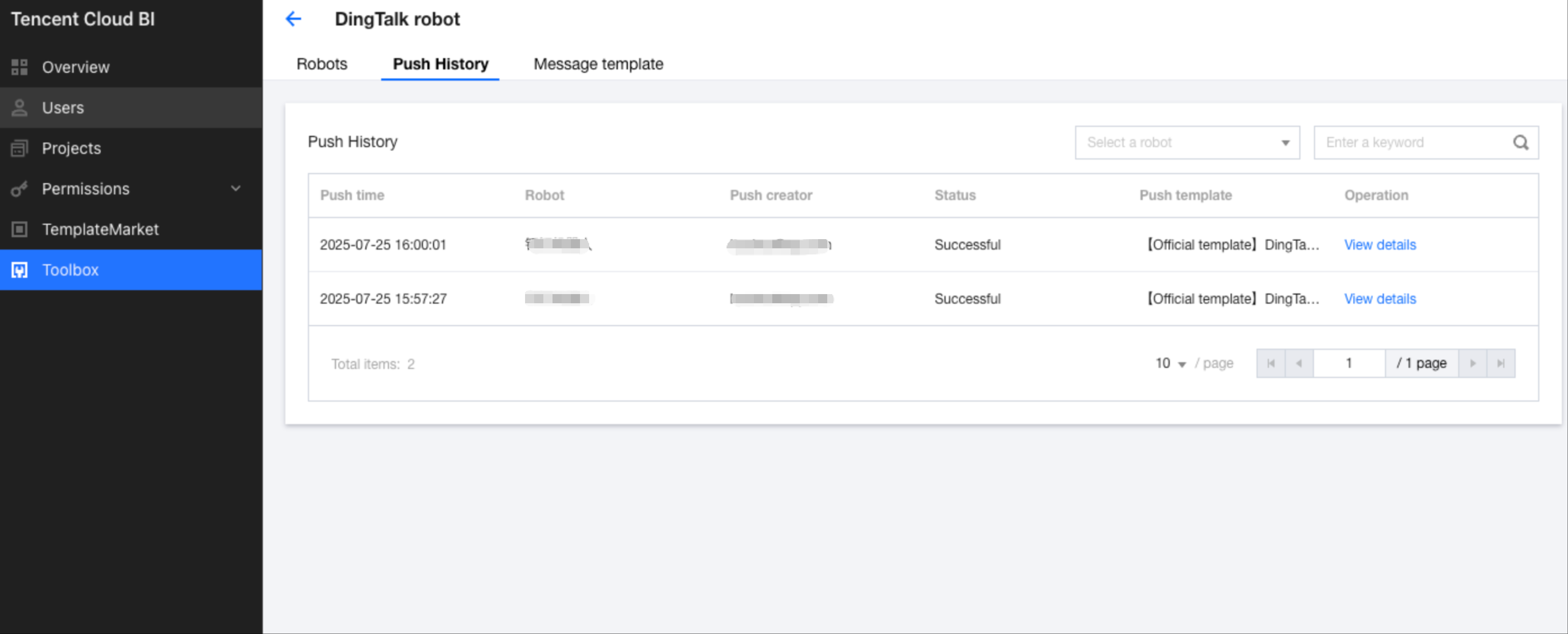
Viewing push records
Obtaining the DingTalk Robot Webhook URL
1. Prerequisite: The DingTalk administrator needs to first register and log in to the DingTalk Open Platform. For detailed instructions, refer to the relevant documentation on the DingTalk Open Platform.
2. Log in to the DingTalk Open Platform > App Development > DingTalk Apps (Internal Enterprise Apps) > Create App.
3. Enter the required app information, save the information, and proceed to the next step.
4. Select the app capability type as "Robot".
5. Complete the information in the robot configurations.
6. Publish the robot.
7. Create a group in DingTalk and add the robot to the group.
In the group settings, select Robot.
Add the robot.
Select the internal enterprise app robot created earlier.
8. Obtain the robot URL.
In the group, open the robot's profile card to access the robot's homepage.
Copy the webhook URL.
Adding the DingTalk Robot in BI
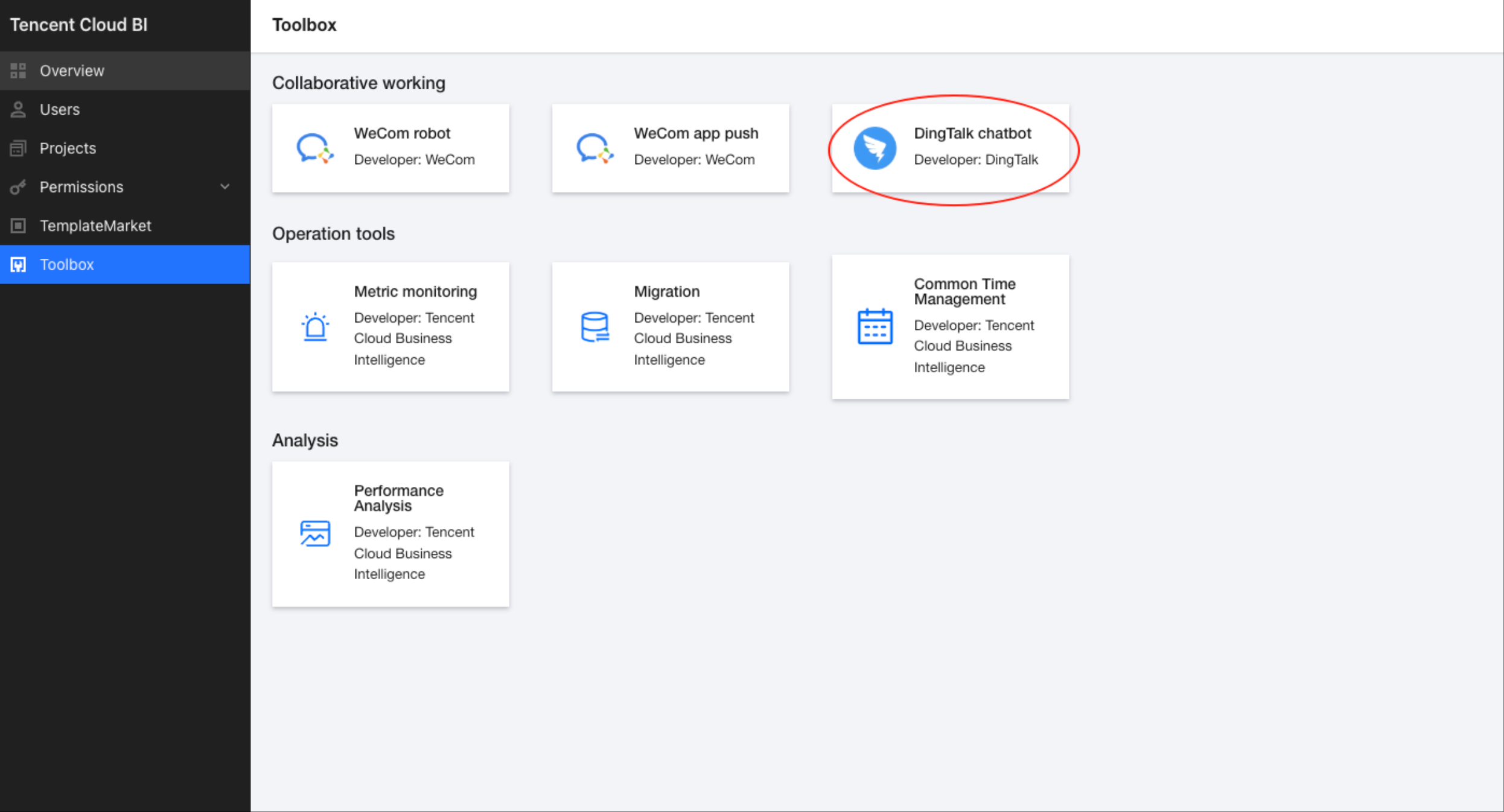
1. Go to the Business Intelligence (BI) console > Toolbox > DingTalk Robot.
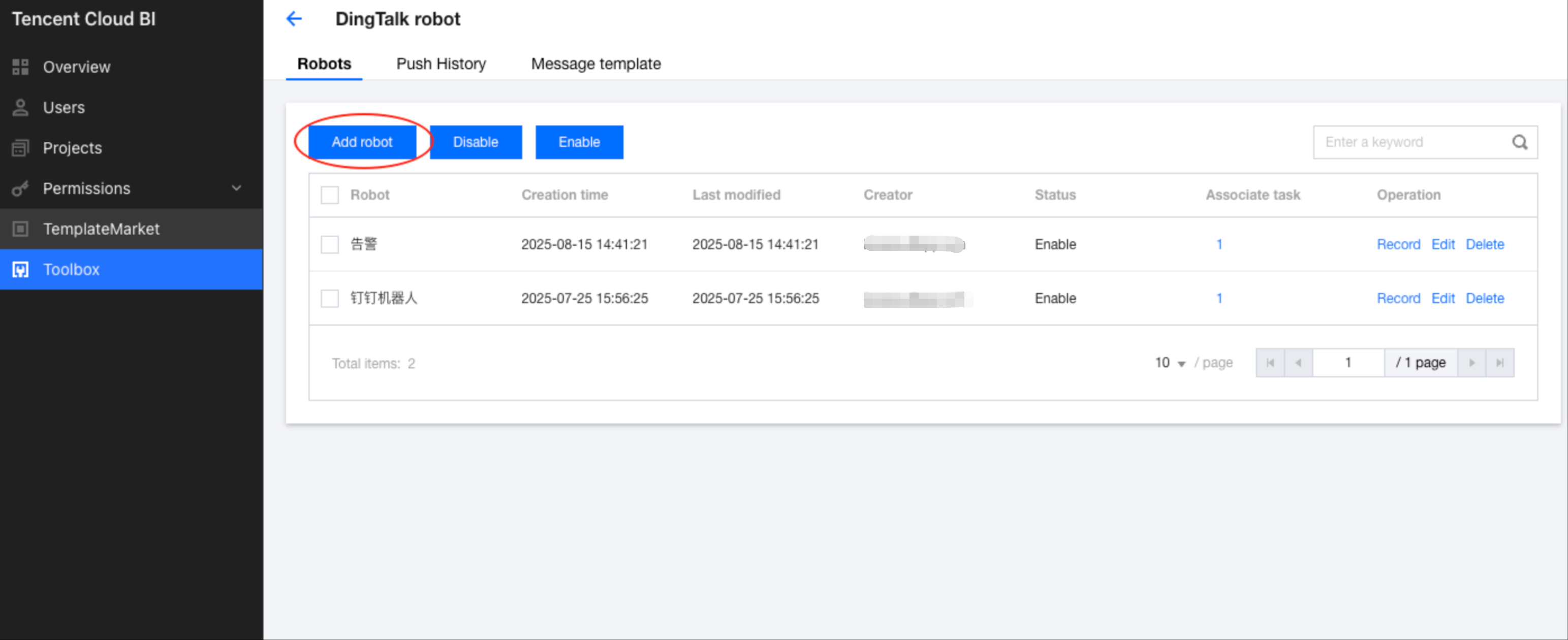
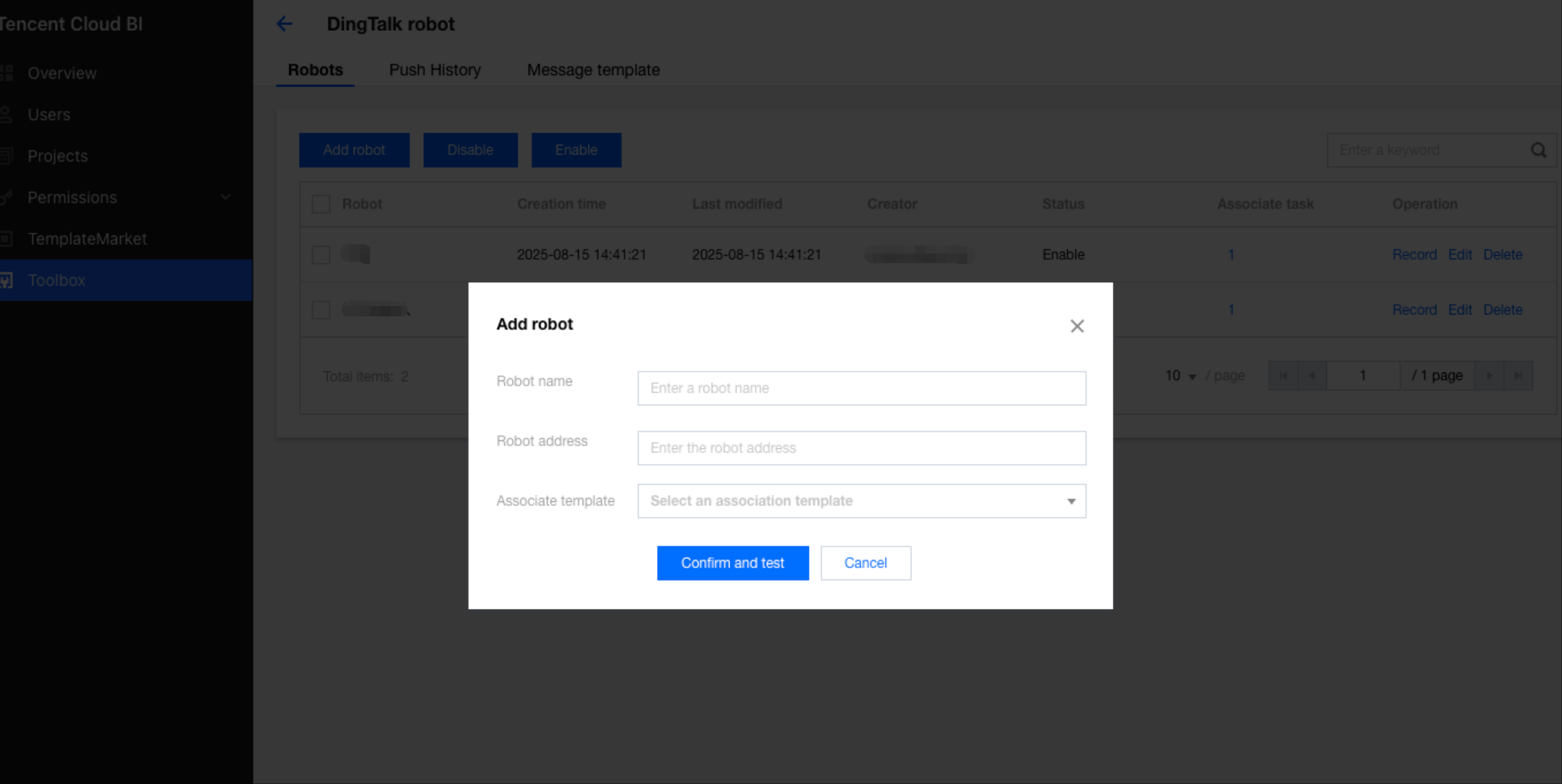
2. Add the robot.
Associate a template with the robot (the template determines the push content) and enter the robot URL obtained earlier.
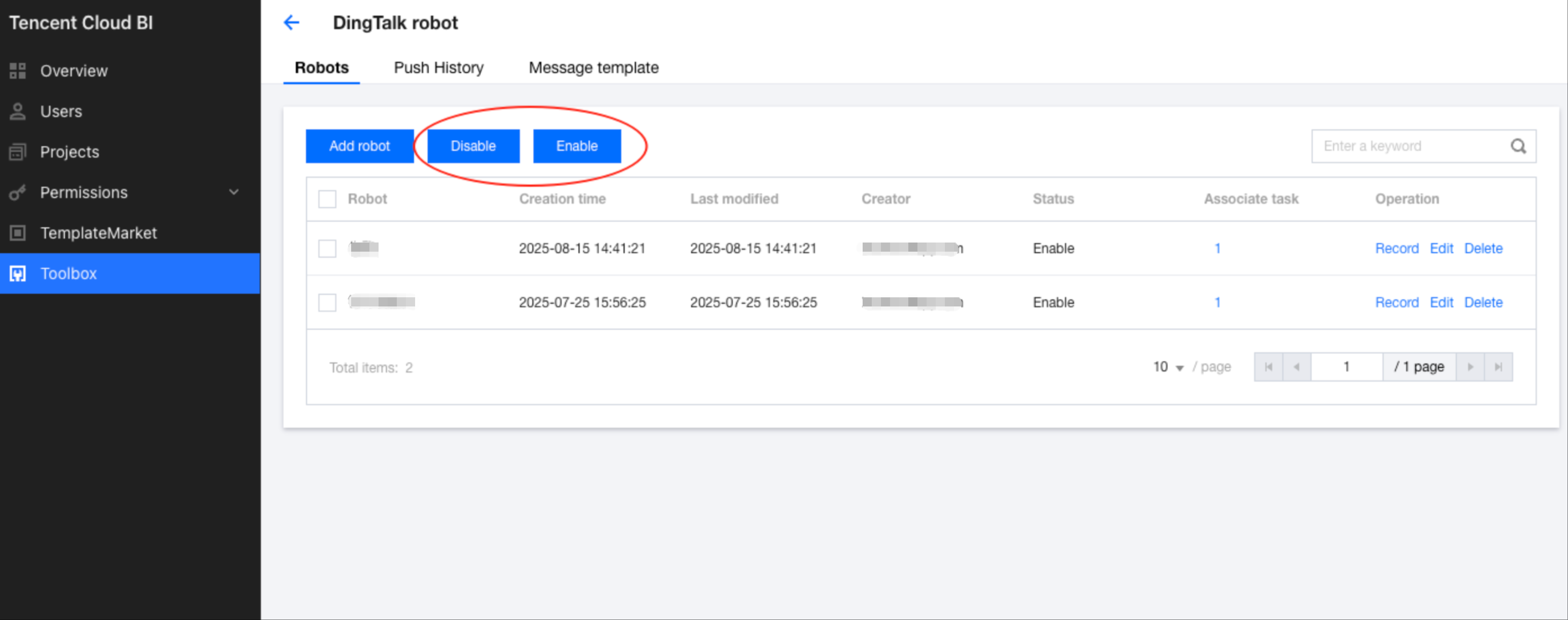
Enabling or Disabling the DingTalk Robot
Users can enable or disable the robot as needed. When the robot is disabled, the robot will not send any messages.
Viewing Push Records
Go to Push Records to view the results of all DingTalk Robot pushes. Users can filter the records by keywords, including robot name and template name.
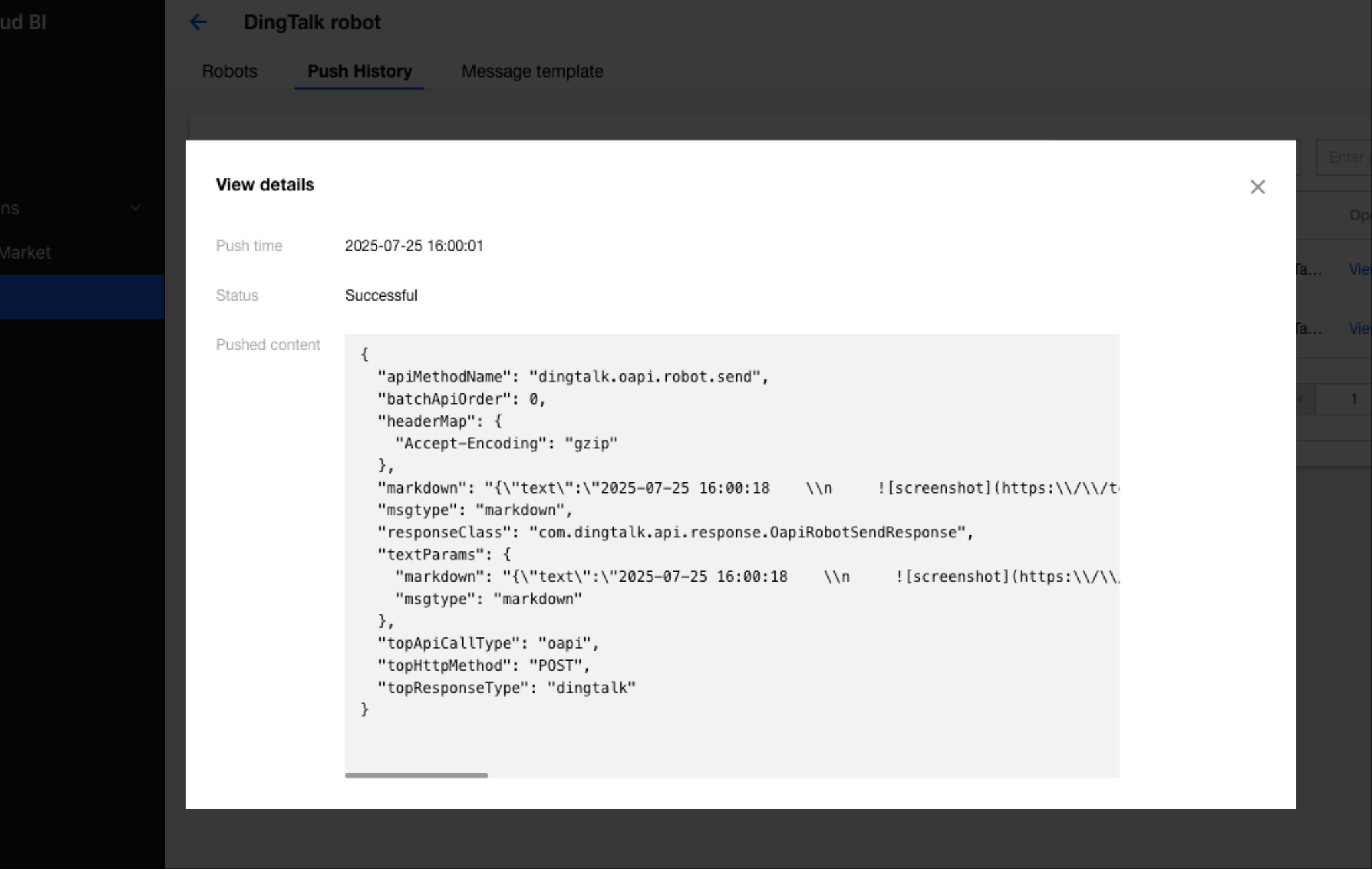
Click View Content to check the content sent this time (including the template content).