This document describes how to connect cloud data sources and self-built data sources on Tencent Cloud.
Note:
Currently, accessing database configurations used by Tencent Cloud through Direct Connect (DC) for non-Tencent Cloud database resources is not supported.
If you connect a non-Tencent Cloud data source through DC, you need to deploy a load balancer (LB) in the Tencent Cloud Virtual Private Cloud (VPC) network to proxy the traffic of the data source. Tencent Cloud Business Intelligence (BI) will then connect to your configured LB address for accessing the non-Tencent Cloud data source.
If your data source is a cloud database resource purchased on Tencent Cloud or a self-built data source on the Tencent Cloud Virtual Machine (CVM) instance, it is recommended to use this method for accessing.
Operation Steps
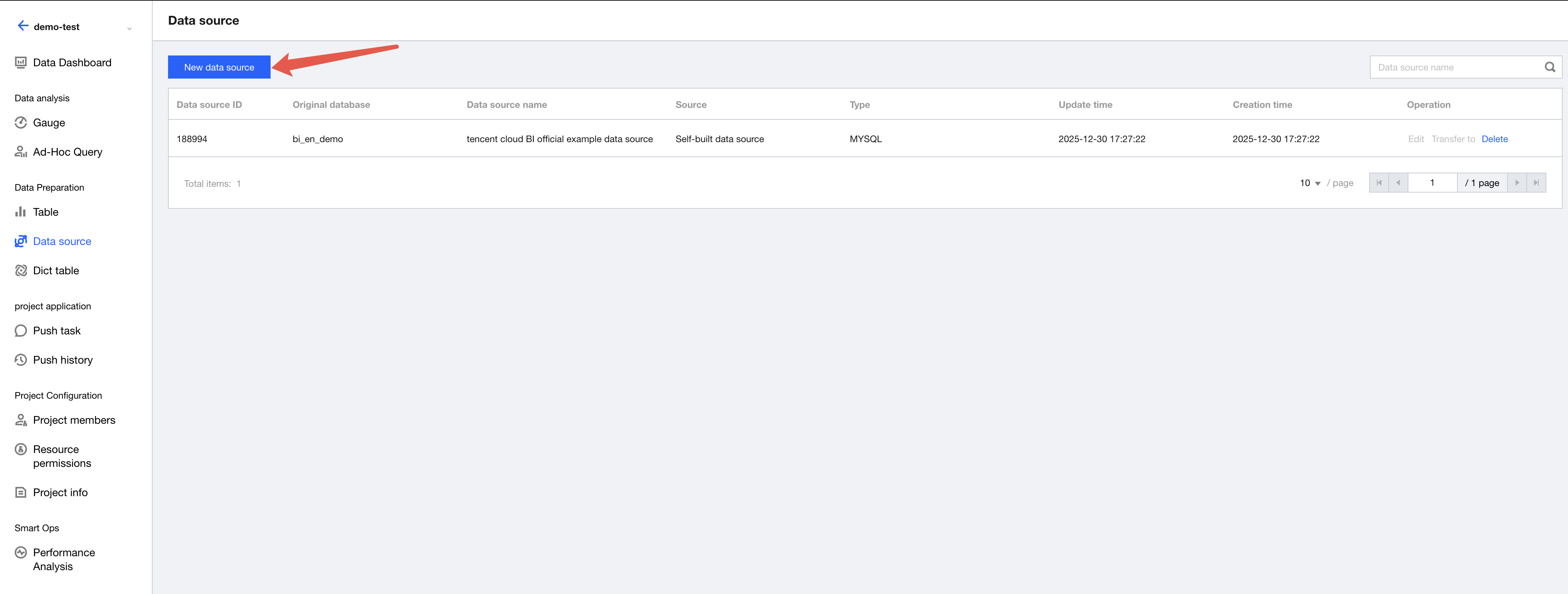
1. After creating a project, click Create Data Source under Data Source.
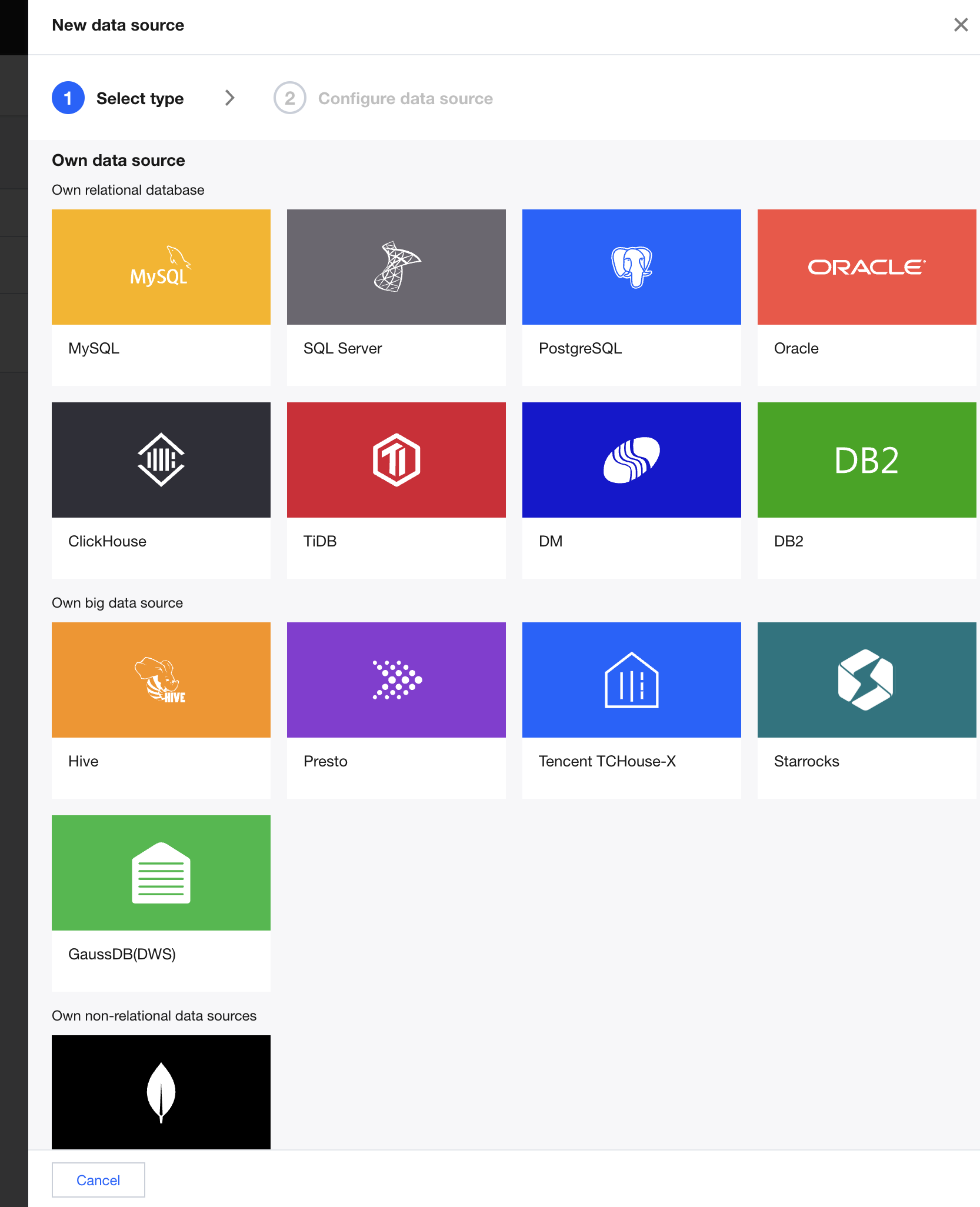
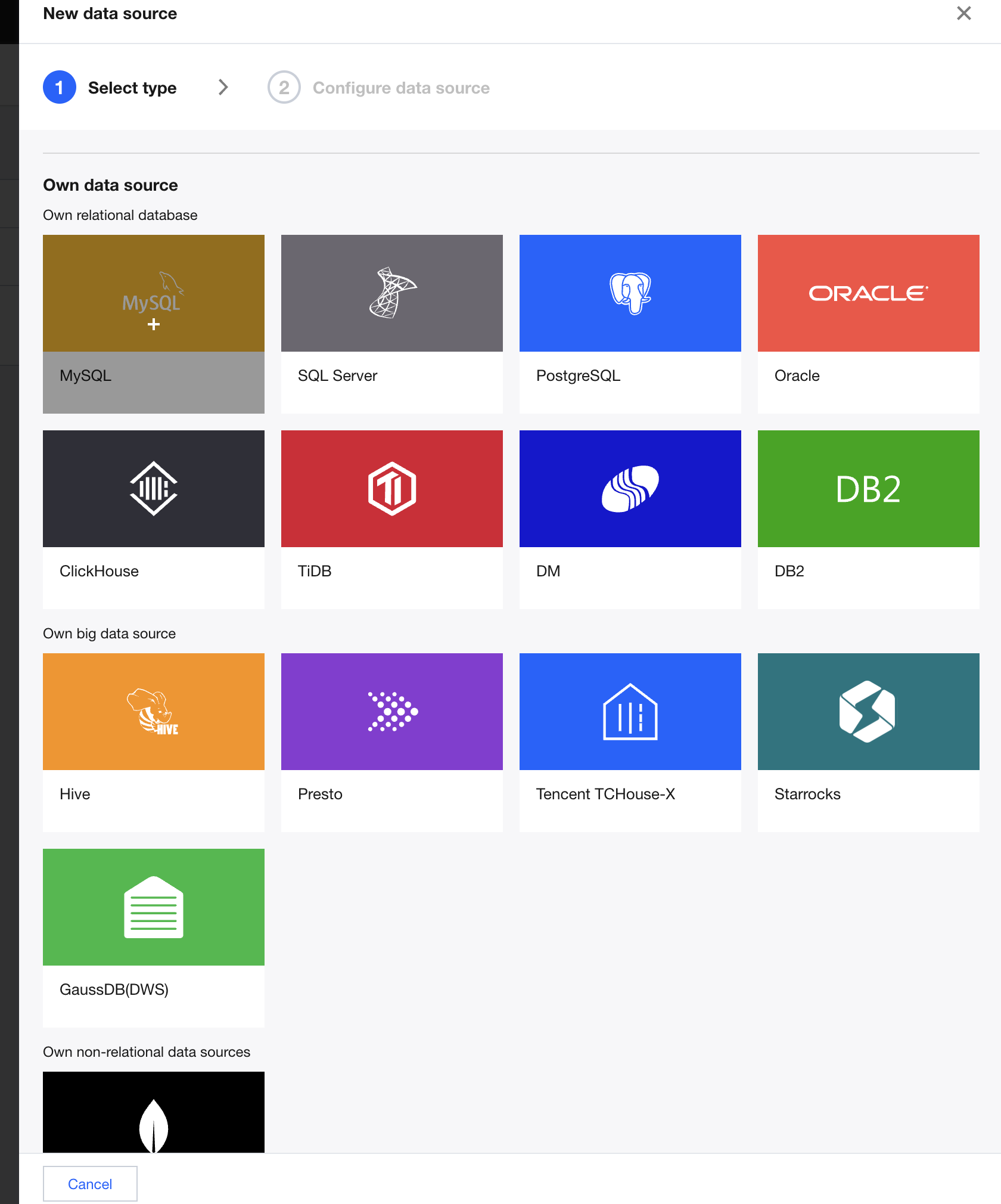
2. Click and select the self-built data source type to connect, either a self-owned data source or a self-owned big data source.
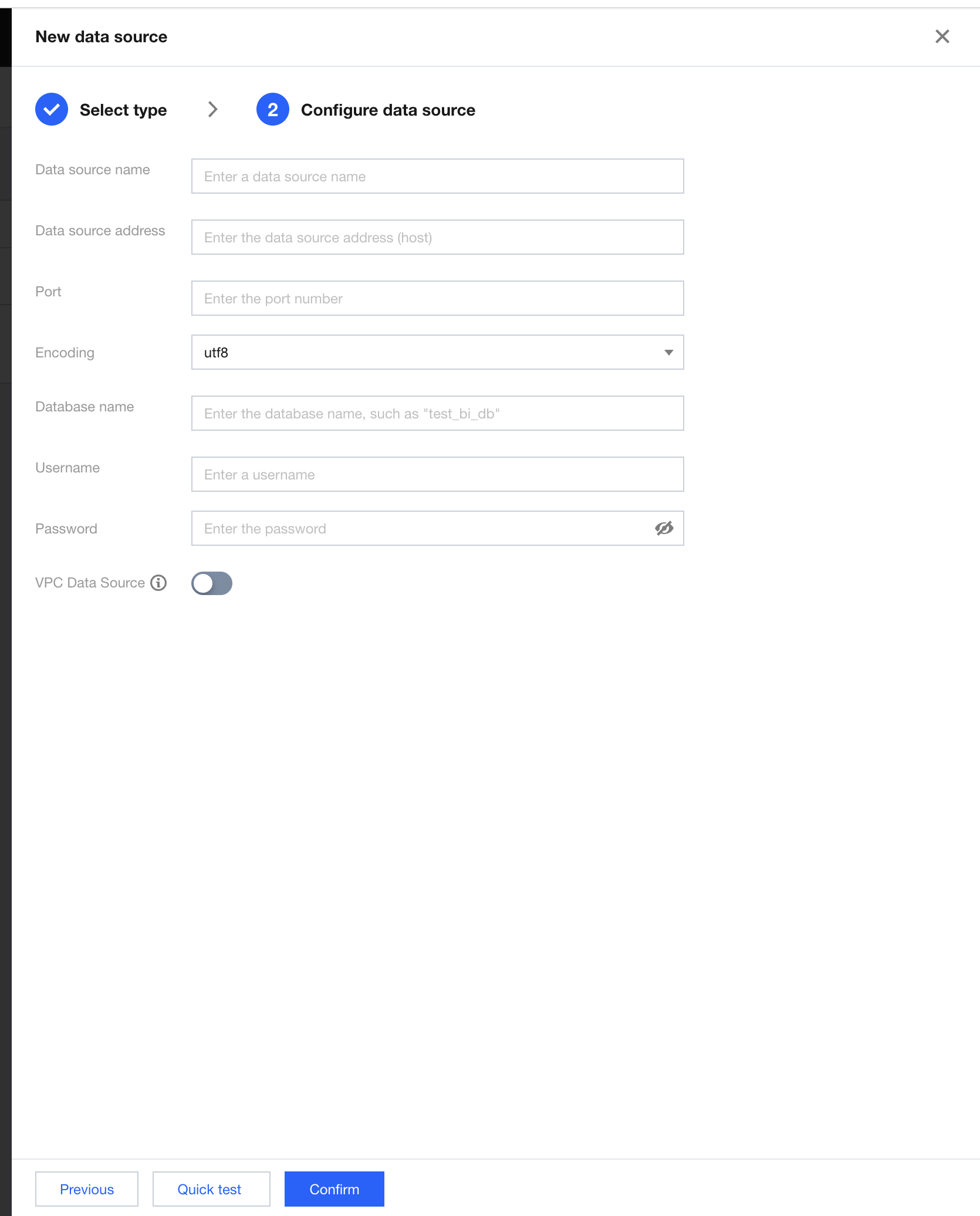
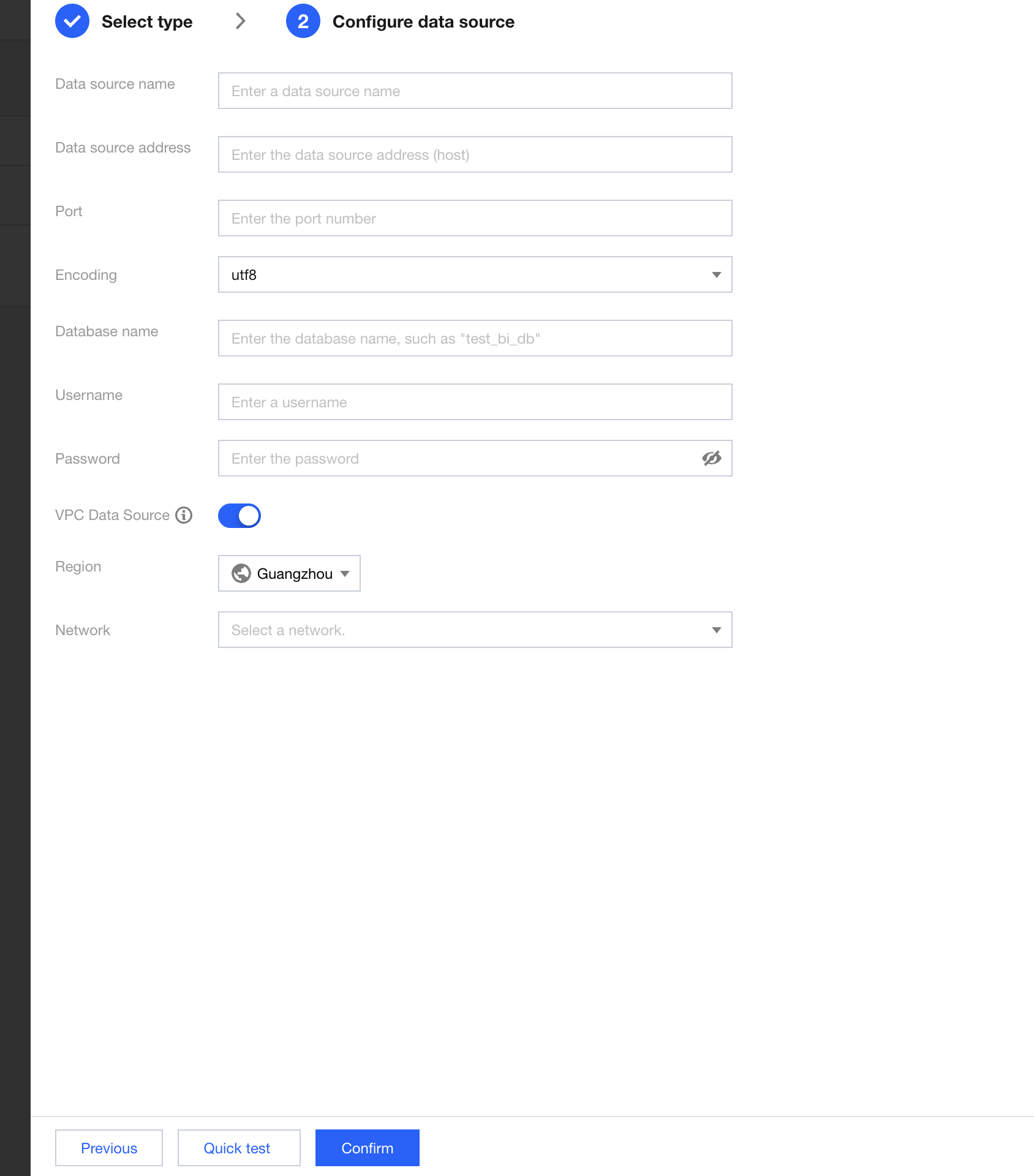
3. The parameters to be entered vary slightly depending on the data source type. Taking the MySQL type as an example, the definitions of each parameter are as follows:
Data Source Display Name: Name displayed in BI with a maximum length of 45 characters.
Data Source Address: IP address of the database, such as a public network address in the format of cdb-2dhmvx6s.bj.tencentcdb.com. Private network addresses in formats like 49.232.129.87 are not supported. If the database is purchased on Tencent Cloud and is a cloud database supported by BI, you can use the method described in Data Access - Creating Cloud Data Sources for connection. If it is a cloud database not supported by BI, you can enable the public network address and connect through your own data source.
Port: Port number of the database, such as 3306.
Encoding: Encoding format of the database. Currently, three formats are supported: UTF-8, GBK, and Latin-1.
Database Name: Name of the database.
Username and Password: Username and password for the database.
VPC Data Source: Enable VPC data source connection. When you turn on this switch, the data source address must be switched to the private IP address of the VPC network. After enabling VPC, you need to select the VPC network where the data source IP address resides.
When you choose to enable the VPC data source, if there are security group policies, configure the security group allowlist IP range 169.254.0.0/16. Once the VPC data source is enabled, the database resources will be accessed through the private network.
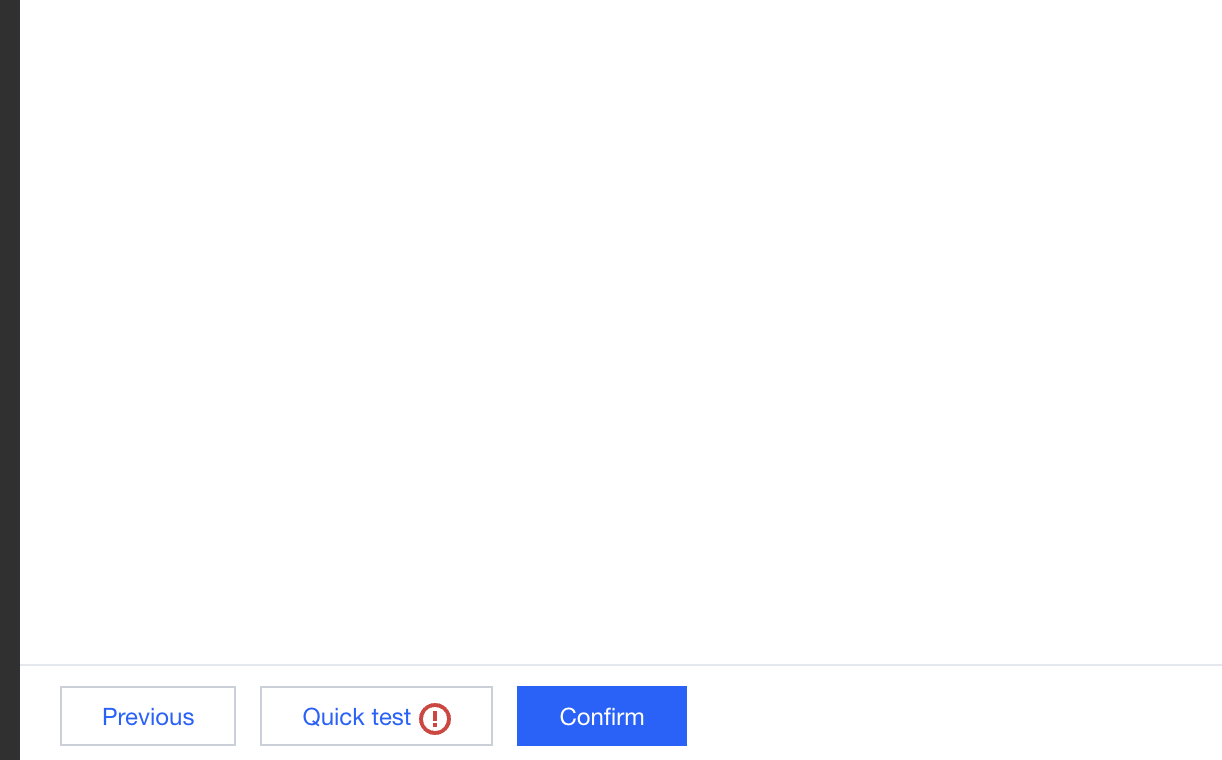
4. After entering all the information, you can click One-Click Testing at the bottom to perform a connectivity test. If a prompt indicating a data source connectivity exception appears as shown below, the connection fails. In this case, check whether the connection information, such as the username and password, is entered correctly.
If the information is correct, the failure may be due to security settings on your data source blocking BI's public network egress IP address. In this case, add BI's egress IP addresses to the allowlist on the database server. You can click here to view the specific IP address list.
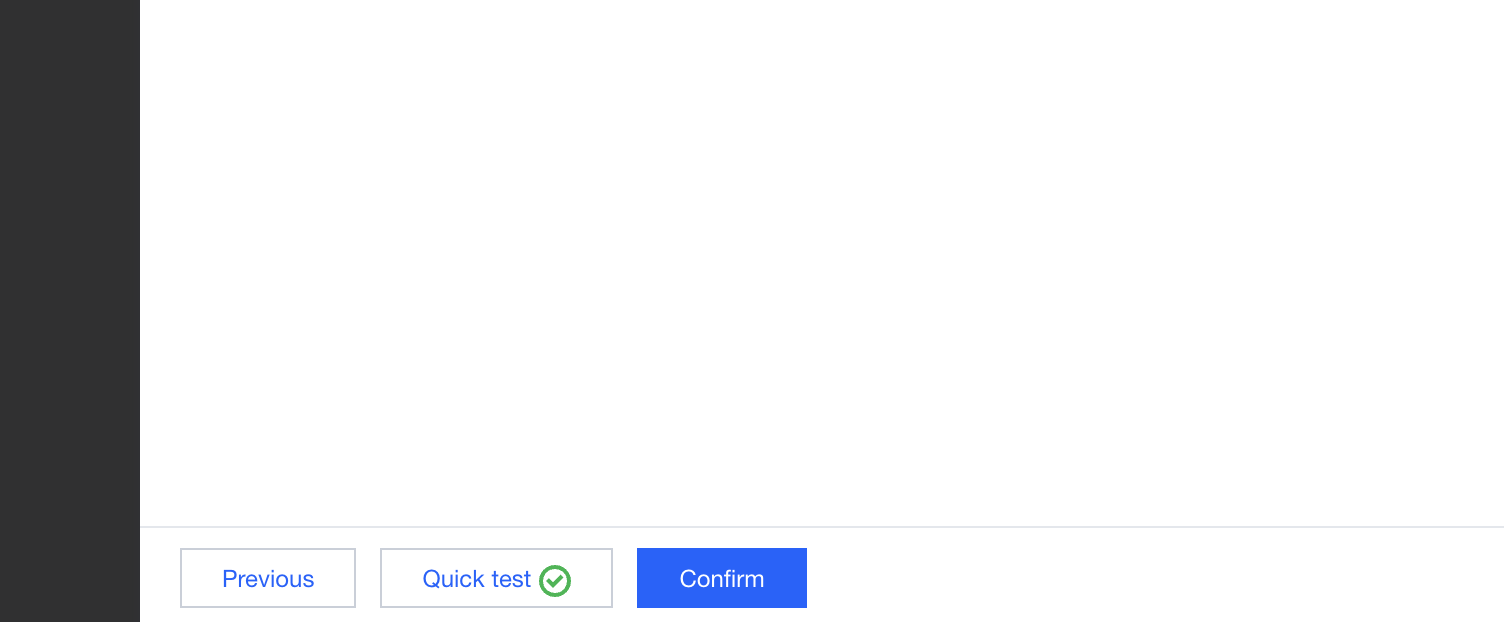
If the connection is successful, a prompt will appear as shown below. You can then click OK to proceed with the creation.
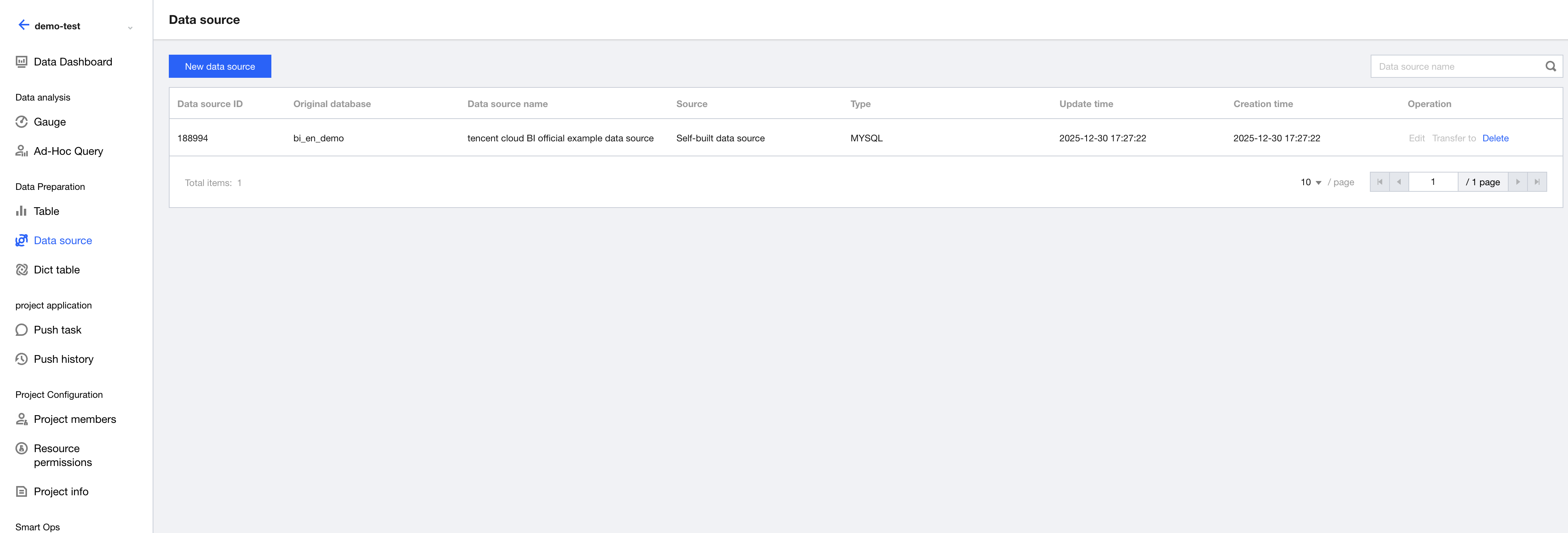
5. After creation, a new record will be added to the list as shown below, indicating the process is completed. If you need to modify any information, click Edit.
6. After the creation is completed, you can proceed to create a data table. For details, see Data Table Creation.