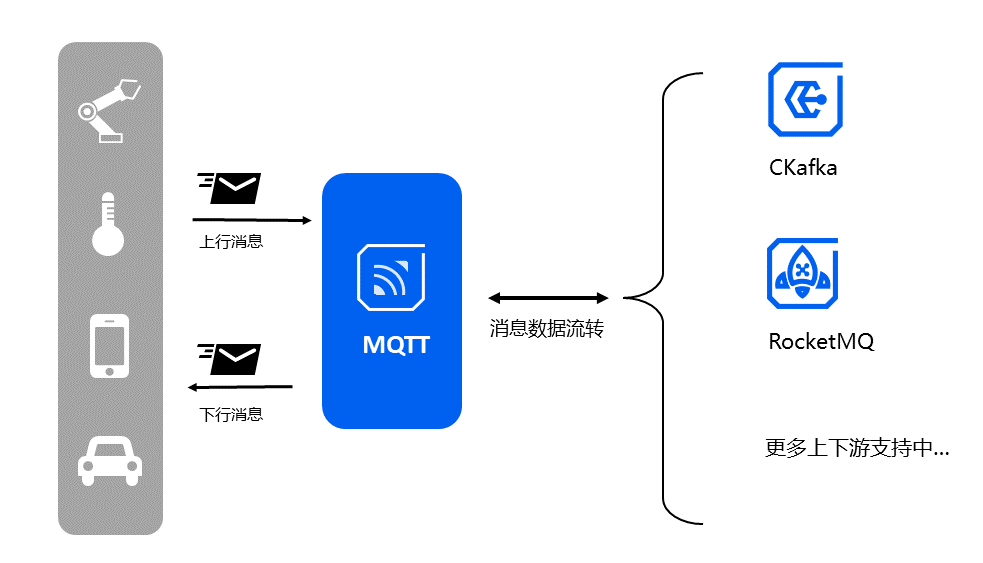
TDMQ for MQTT supports delivering message data from MQTT clusters to other products on Tencent Cloud, thereby achieving data circulation and integration, making it easy for customers to further store and process subsequent data.
By configuring message replication tasks, data is synchronized between different products (within the same region or across different regions). Currently, message integration and interoperability between MQTT and Message Queue CKafka/RocketMQ are already supported. Subsequently, data integration channels between MQTT and more cloud products will be connected.
You can copy messages of A Topic in TDMQ cluster A to A Topic in another message queue product cluster B by Topic dimension. When copying messages of A certain Topic, you can start and stop the message replication task at will, and supports monitoring the progress and health of replication tasks.
Notes:
This feature is supported only in the professional edition.
Billing Rules
The cross-cluster message replication feature is currently free. Before charging starts, Tencent Cloud will notify customers multiple times a month in advance through Message Center, SMS, and email. The traffic generated by replicating messages will occupy the TPS specification of the cluster. Therefore, if there are large-scale message replication tasks, it is required to expand the cluster capacity in advance to ensure normal production and consumption of messages.
Directions
The operation process is illustrated using the example of message transfer from MQTT to a RocketMQ cluster. For message circulation between MQTT and CKafka, please refer to the CKafka Connector Management section.
Creating Tasks
1. Log in to the RocketMQ Console, and click Cross-Cluster Replication in the left sidebar.
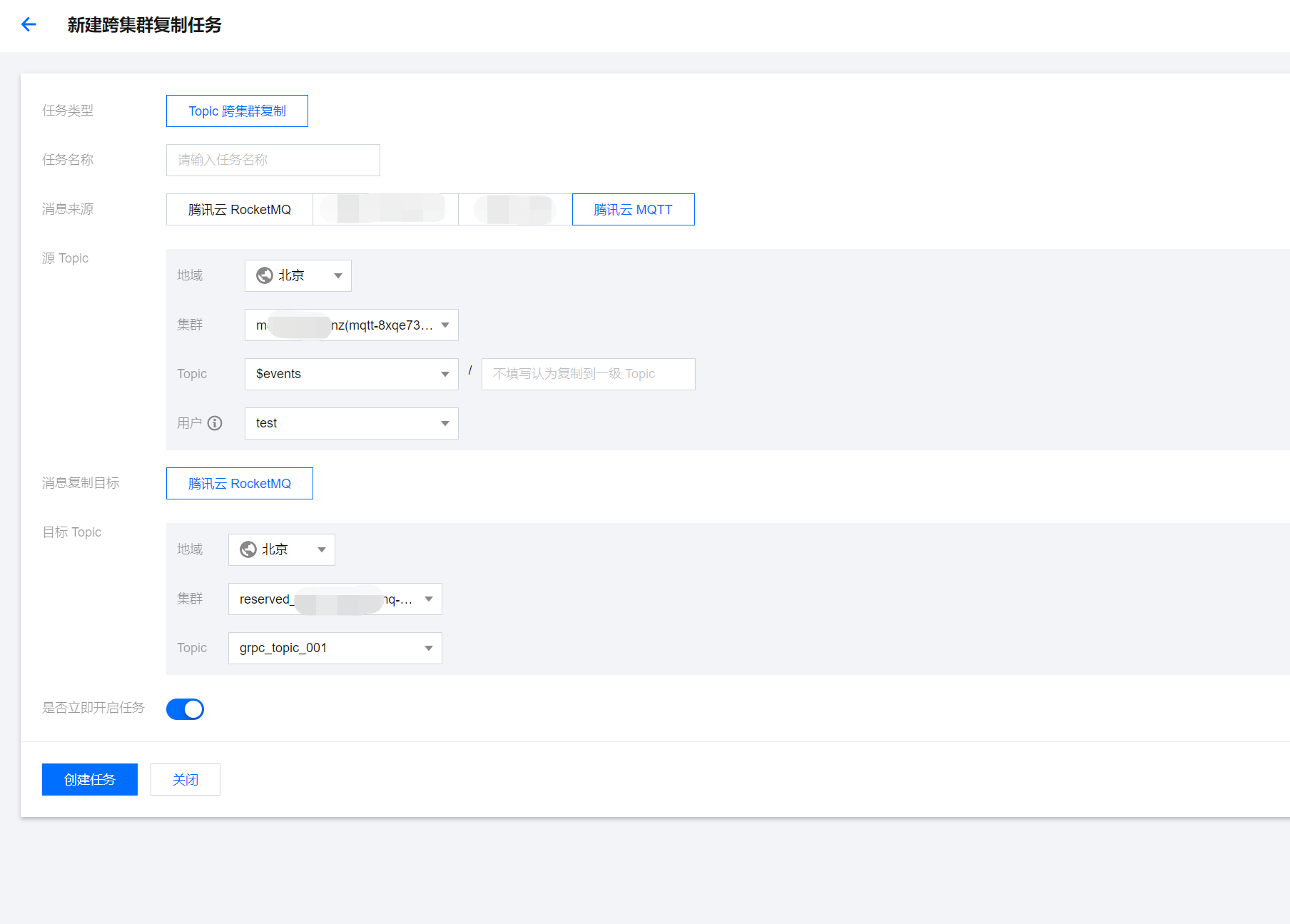
2. Enter the Cross-Cluster Replication page, click Create Task at the top of the page, and complete the following fields as required:
Task name: 3-64 characters, can only contain digits, letters, "-", and "_".
Message source: Select Tencent Cloud MQTT.
Source Topic: Select region, cluster, topic, and user in sequence from the drop-down menus. If the required cluster or topic cannot be found, create a new one on the cluster list page. MQTT cluster topics also support system topics (such as the default event topic $events/+). The user needs to have a role with message consumption and production permissions to perform replication tasks. To ensure smooth progress, ensure the selected user role has permission for message consumption and production (corresponding policies have been configured).
Target Topic: Select the region, cluster, and topic in turn from the drop-down menus. If you cannot find the required cluster or topic, you can create a new one on the cluster list page.
Whether to start the task immediately: If this option is enabled, replication will begin based on the current task configuration after the task is created.
After you click Create Task, the task list page will be displayed. After the task initialization is complete, the task is created.
The replication task you create is one-way, that is, if you create a replication task from Topic A to Topic B, the messages in Topic A will be automatically replicated to Topic B. If you need a two-way replication task, you need to create a new replication task from Topic B to Topic A.
Viewing Task Details
After the task is created, you can see the newly added replication task on the task list page and quickly check the task status. Click Start/Pause in the Operation column. You can quickly start and pause the task.
The configuration of an ongoing task cannot be modified. If you want to modify the configuration of a replication task, pause the task first, then click Edit in the Operation column, or go to the task details page and click Edit in the upper right corner of the Basic Information page, to modify the task information.
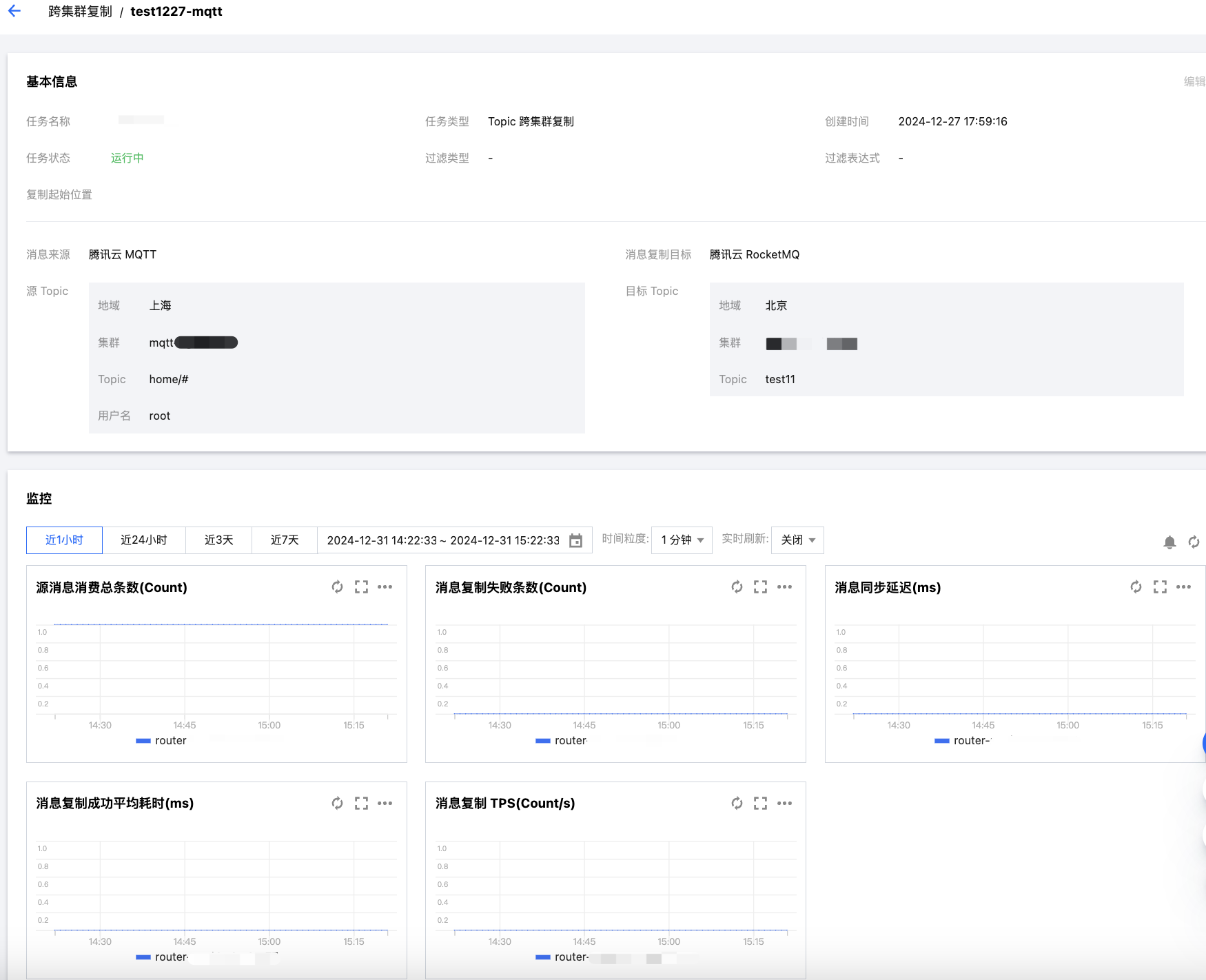
You can click the task name to go to the task details page to view the detailed configuration of the task, such as filtering rules and start time. In the monitoring section, you can view real-time monitoring data of the current message replication task, such as the total number of consumed messages in the source topic, the number of message replication failures, and the message synchronization delay.
Exception Handling
Under normal circumstances, the status bar displays "running" or "paused". If the status is "startup failed", you need to check the task running status and whether the task configuration is correct, such as whether the SQL expression is correct. Hovering over a failed state will show the specific cause of failure.
If the task status fails, you can click the Edit button in the operation bar, or go to the task details page and click Edit under "Basic Information" to correct the task information.