Home Overview
Unduh
Mode fokus
Ukuran font
Note:
Home provides features such as convenient operations, enterprise initialization handling, and information browsing. We recommend that users read this article before using Tencent eSign for the first time to work more efficiently on the Tencent eSign system.
Home
Entry
After you log in to Tencent eSign, you will be automatically redirected to the Home. If you are currently on another Tencent eSign page, you can choose Top Navigation Bar > Home.
Feature Introduction
The Tencent eSign Home features a left-right layout, as shown in the following figure:
The left side is the Functional Operation Area, which covers the main operational features: the To-Do Center (Action Required, Waiting For Others, Expiring Soon) and Envelope Sending (Upload File & Starter Envelopes). This is also the area you will primarily use in your subsequent work.
The right side is the Information Content Area, which includes Personal Information (the name, email, and personal signature of the currently logged-in account) and Frequently Asked Questions. You can selectively browse this content as needed.
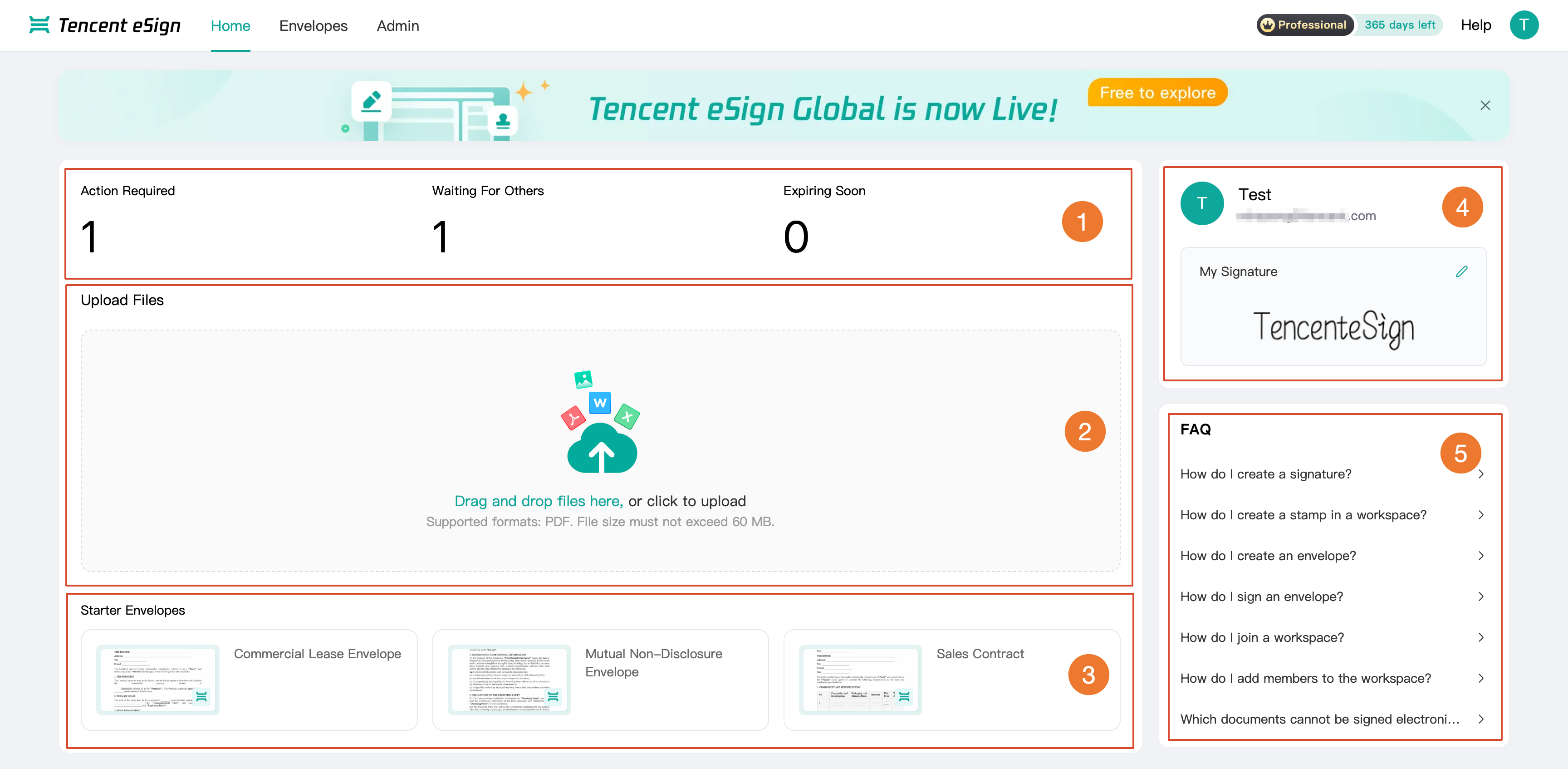
No. | Module Name | Description |
1 | To-do Center | The To-Do Center displays three types of envelopes: Action Required, Waiting for Others, Expiring Soon. You can process or review Envelope signing, approval matters, and other items related to you.  Click the number to jump to the Envelops List page. You can switch the matter type on the left. 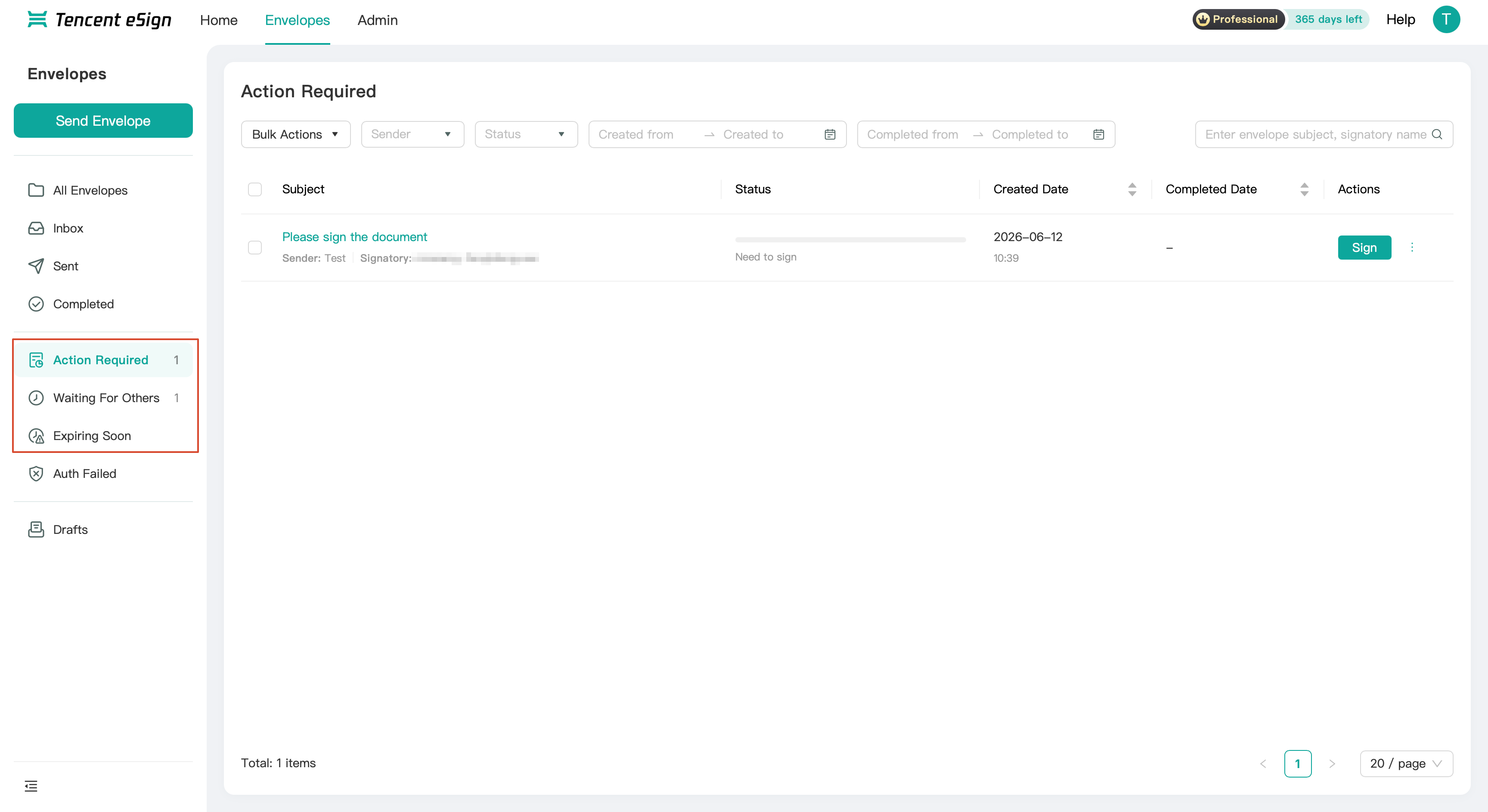 |
2 | Uploads files. | Drag or click to upload your local PDF file, which can quickly initiate envelope signing and supports a maximum size of 60 MB. For detailed file initiation operations, refer to Envelope Sending. |
3 | Start Agreement | Multiple predefined envelope templates are provided here to help you select an appropriate template for sending a envelope. Clicking a predefined template will use that template as the file and redirect you to the Envelope Sending page. For detailed steps, refer to Envelope Sending. 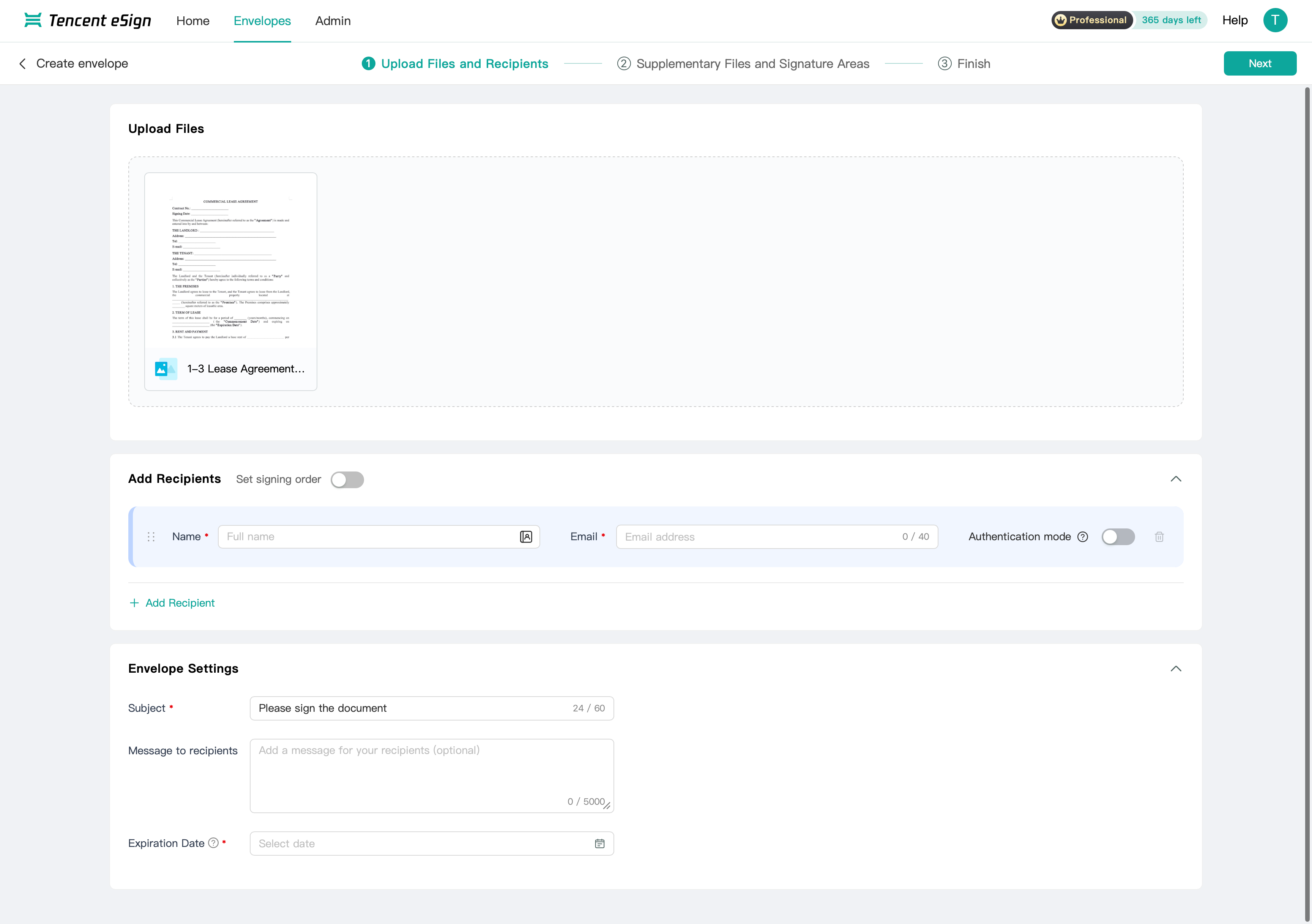 |
4 | Personal Information | The name, email, and personal signature of the currently logged-in account are displayed. You can click the pencil icon next to the personal signature to generate or edit your personal signature. 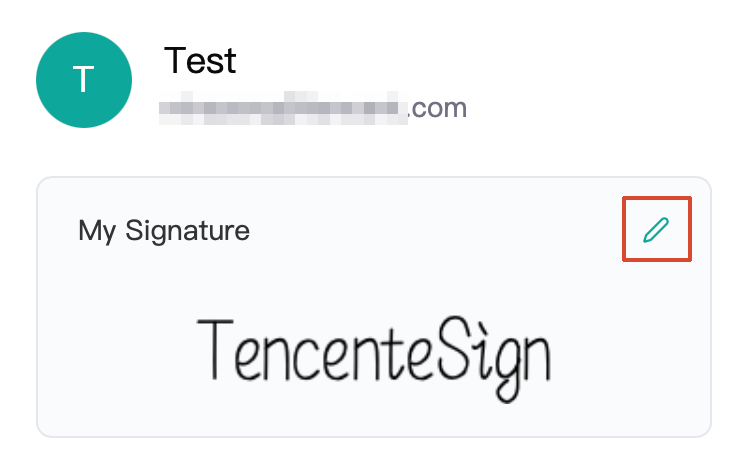 Generate Signature: Click the pencil icon to open the Personal Signature pop-up window. Then, enter your name in the Name field to generate your personal signature. 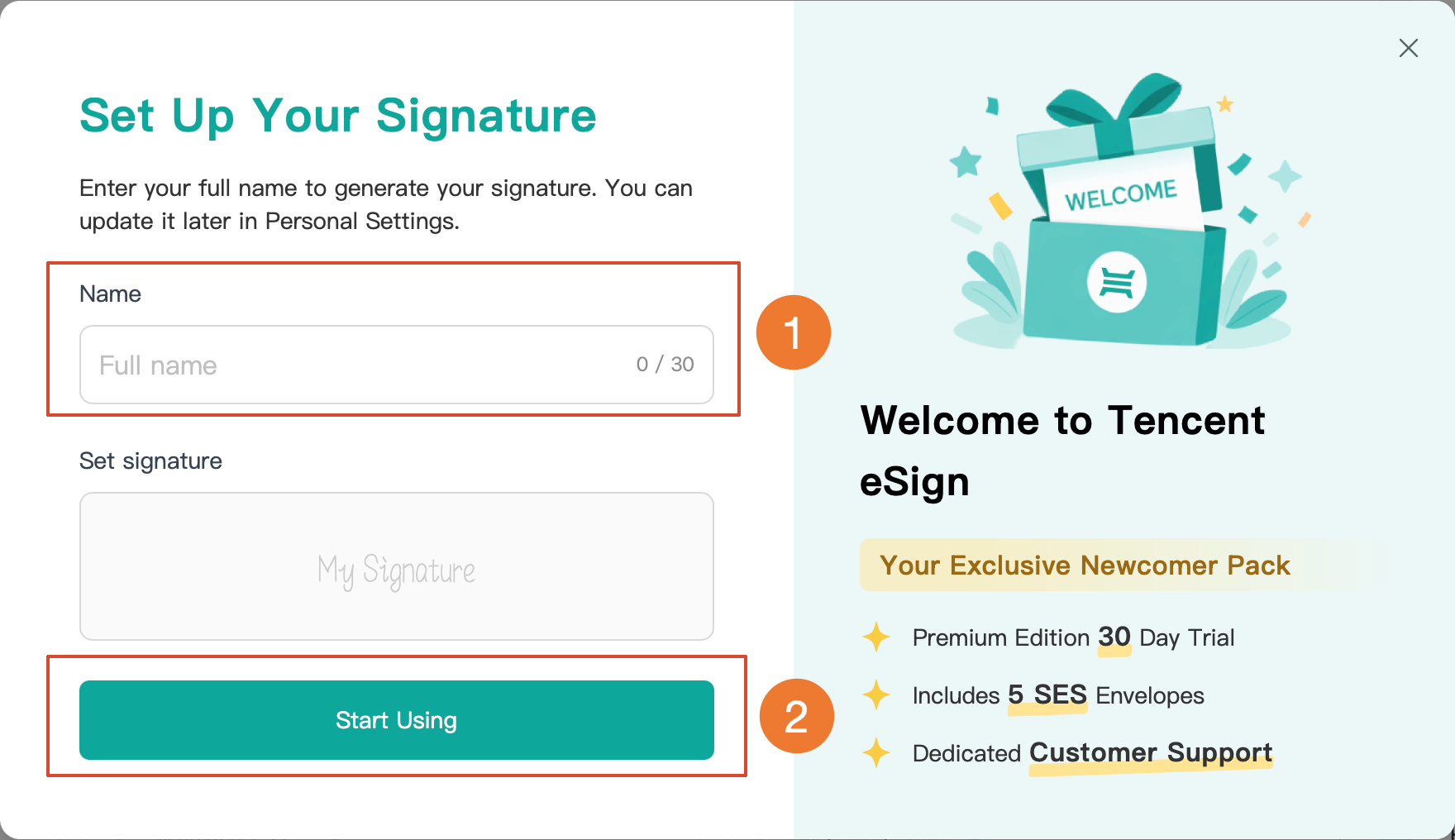 Edit Signature: After you have a personal signature, clicking the pencil icon again opens the Signature Edit pop-up window. You can edit your name and signature style within the pop-up window. 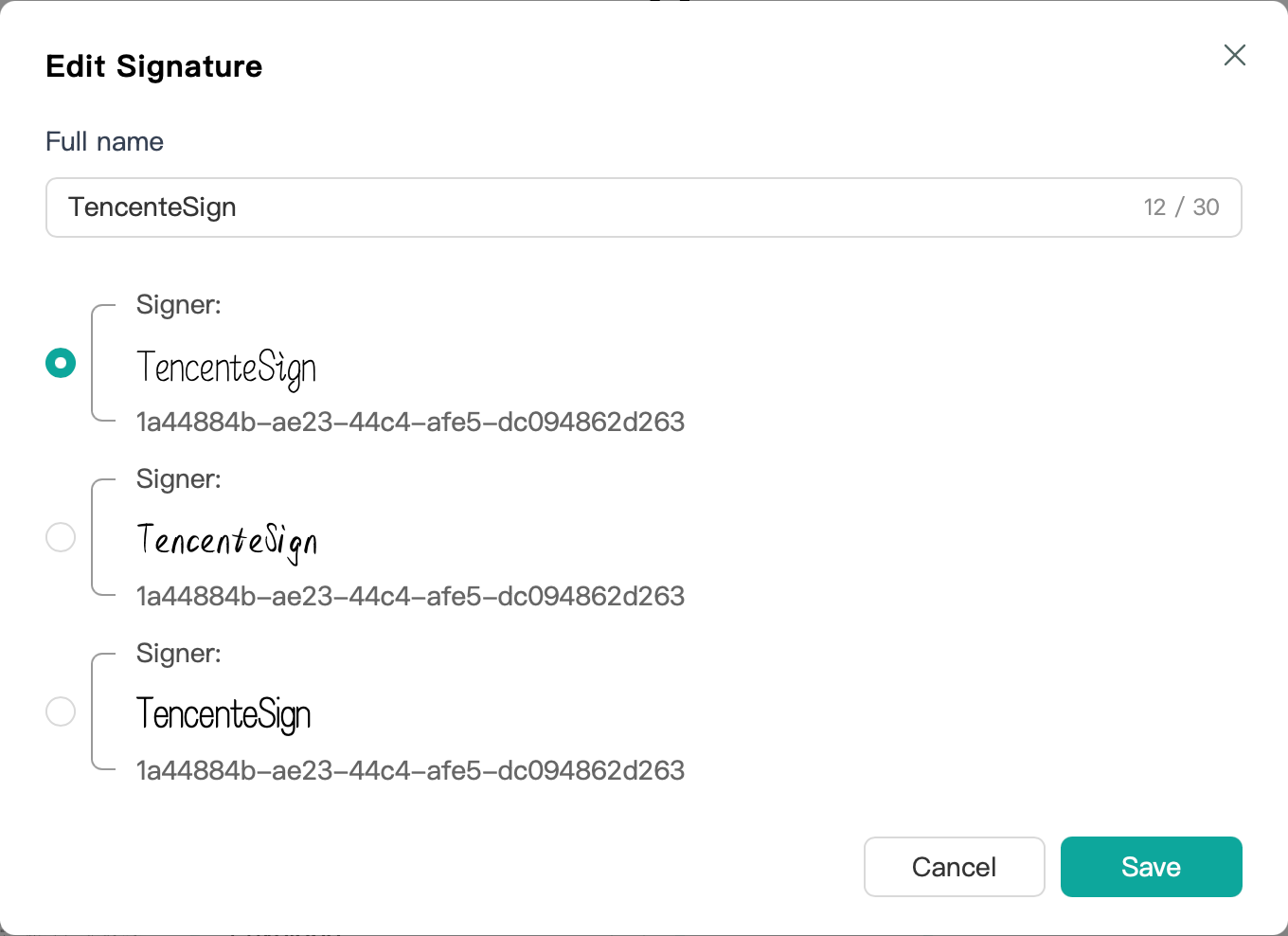 |
5 | FAQs | Contains frequently asked user questions. You can click a question to view its answer, such as those related to creating signatures, creating stamps, and sending envelopes. |
Navigation Bar
Entry
After you log in to Tencent eSign, you will see the top navigation bar, as shown in the following figure:
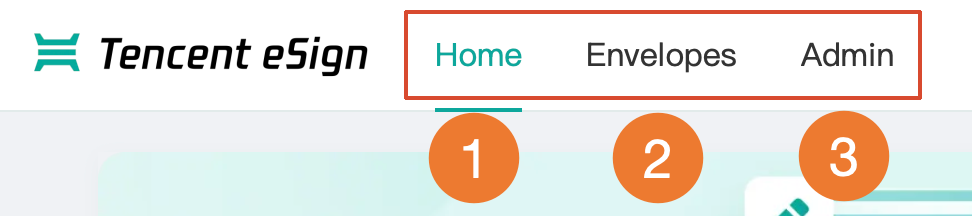
Feature Introduction
No. | Button Name | Description |
1 | Home | It is the default page for logging into Tencent eSign. After clicking, it redirects to the Home page, which aggregates convenient entry points for all major features. |
2 | Envelopes | Click to jump to the Envelopes page, where you can view the Envelope List and perform related operations such as Envelope Sending and Envelope Signing. |
3 | Admin | Click to jump to the Admin page. This module contains three sub-features: Workspace, Member Management, and Stamps Management. |
Bantuan dan Dukungan
Apakah halaman ini membantu?
Anda juga dapat Menghubungi Penjualan atau Mengirimkan Tiket untuk meminta bantuan.
masukan