Implementing Security Protection with WAF and DDos
Download
Focus Mode
Font Size
Use Cases
Cloud. Native Gateway can integrate with WAF and Anti-DDoS Pro to provide users with comprehensive security protection.
WAF provides real-time protection to intercept web attacks effectively and ensure secure business data and information.
Anti-DDoS Pro provides 100 Gbps-level anti-DDoS to cope with DDoS attacks easily and ensure stable business operations.
This document describes how Cloud Native Gateway implements gateway security protection by integrating with WAF and Anti-DDoS Pro.
Operation Steps
Note:
Step 1 and Step 2 have no strict sequential order. You can complete the configurations based on your habit.
Step 1: Configuring WAF
Cloud Native Gateway supports both domain name access and object access. Security protection is enabled at the gateway instance level through object access. For more granular protection, you can use domain name access by configuring protected domain names to achieve precise resource protection. You can also configure both protection policies simultaneously. The order in which these protections take effect is as follows:
Precise domain name access protection: It has the highest priority, and this security protection policy takes effect preferentially after the domain name hits.
Object access protection: For traffic not hitting any domain name protection policy, the default object access protection policy is executed.
Note:
Object access: WAF object access is supported only in the Enterprise Edition and later editions.
Domain name access: Different WAF versions support different numbers of domain names. For details, see WAF Package and Version Description.
1. Log in to the WAF console and select Access Management in the left sidebar.
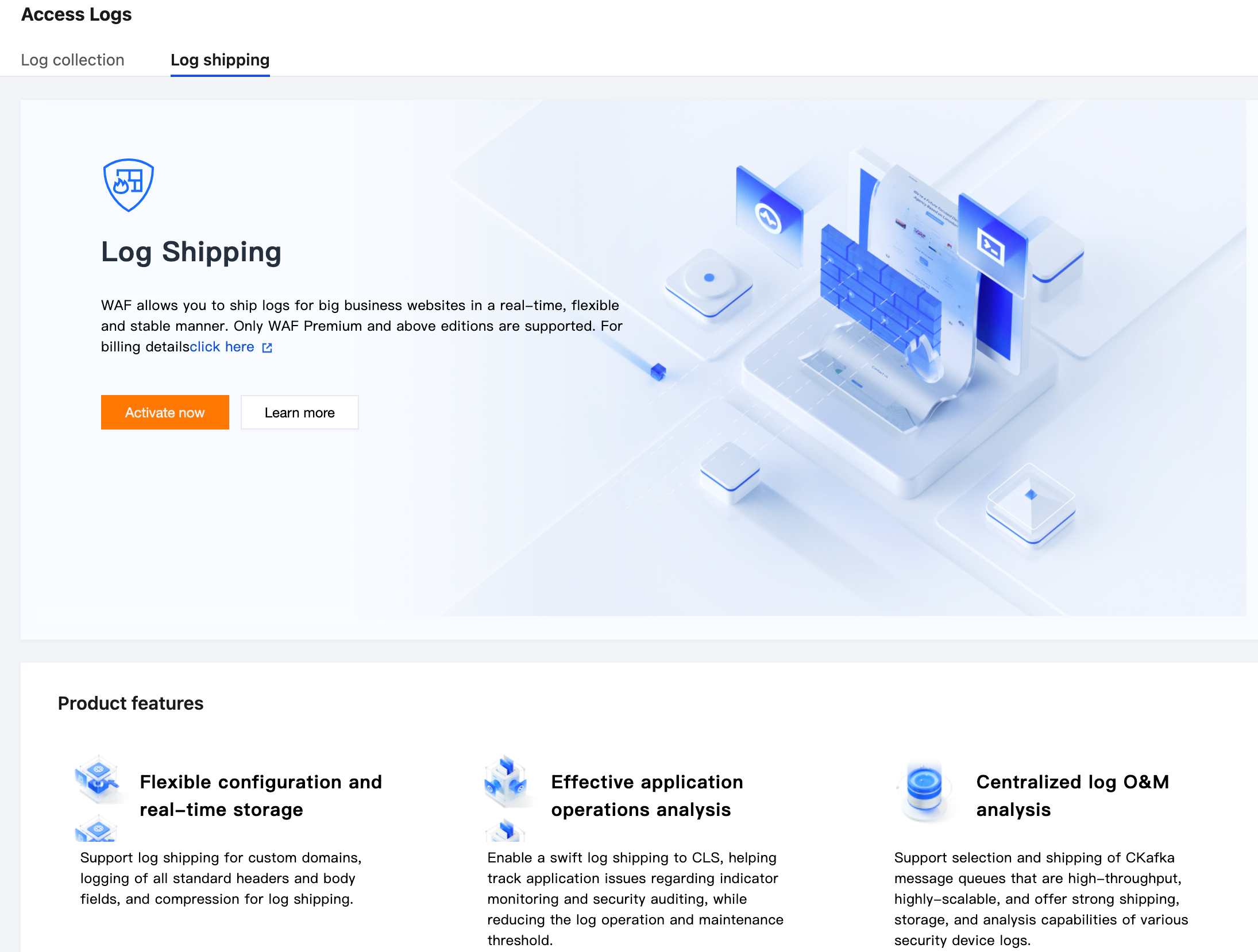
2. On the Object Access tab, select the Cloud Native Gateway instance for which you want to enable object access and enable the WAF switch.
1. Log in to the WAF console and select Access Management in the left sidebar.
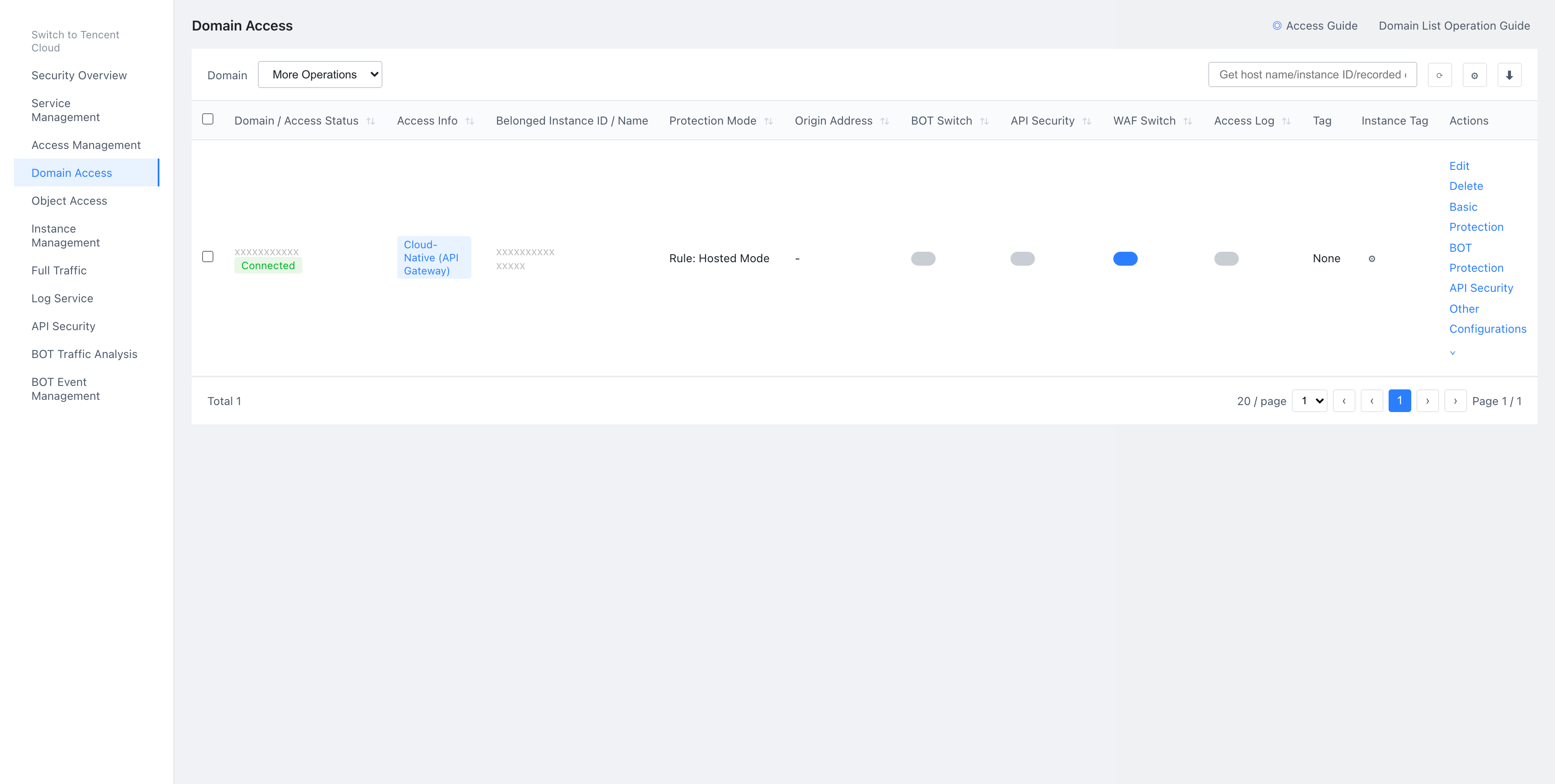
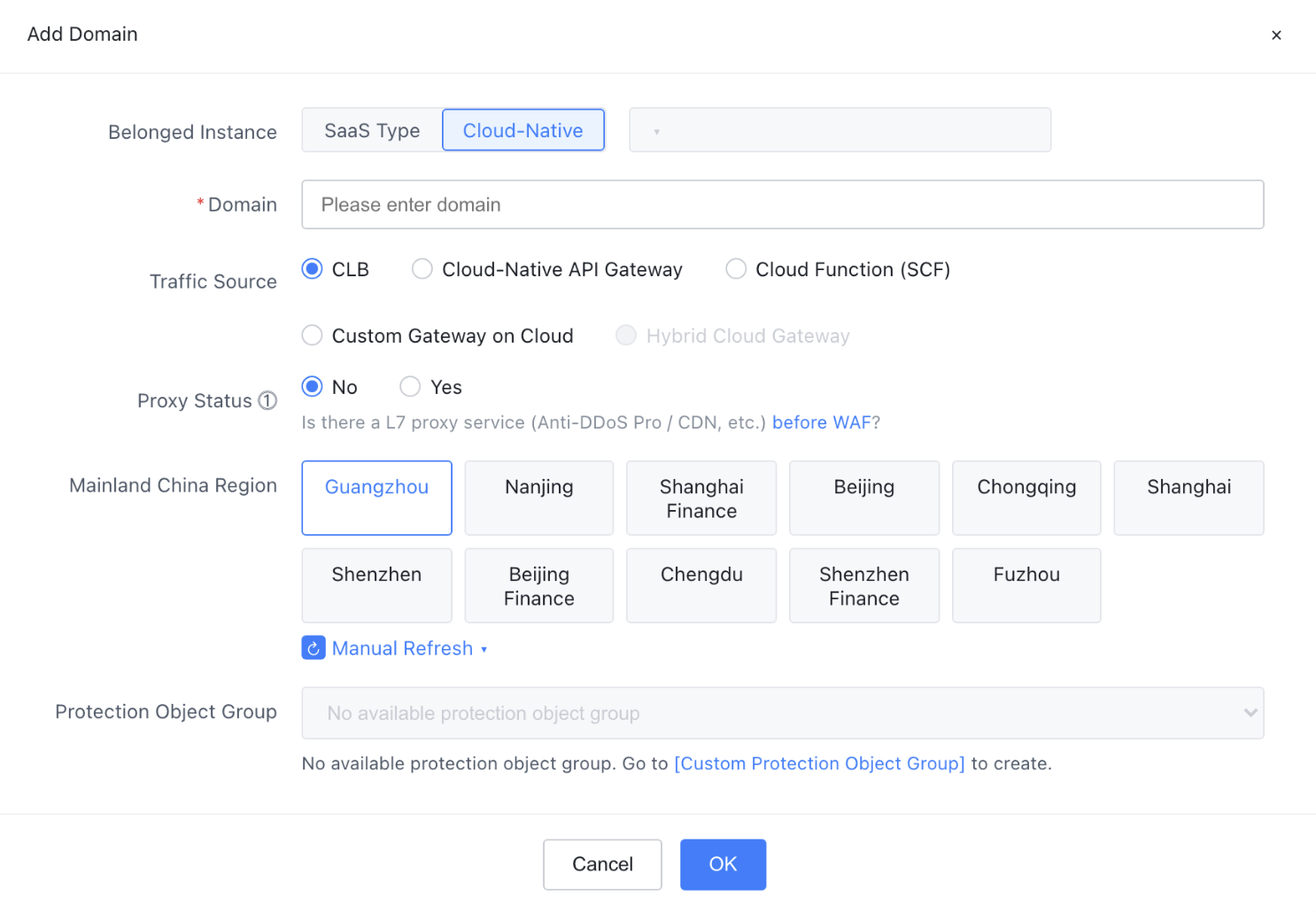
2. On the Domain Name Access tab, click Add Domain, specify relevant parameters, and click Confirm.
Instance: Select Cloud Native.
Domain Name: Enter the domain name to be protected.
Traffic Source: Cloud Native Gateway.
Proxy: Select whether to enable proxy. If you select "Yes", WAF obtains the client's real IP address from the XFF field as the source address. Selecting this option may introduce the risk of source IP address spoofing.
Region: Select the region to be protected.
Step 2: Configuring Anti-DDoS Pro
1. Log in to the Anti-DDoS console and select Cloud Asset List in the left sidebar.
2. On the Cloud Asset List page, select the Cloud Native Gateway instance to be protected and click Enable Protection in the Actions column.
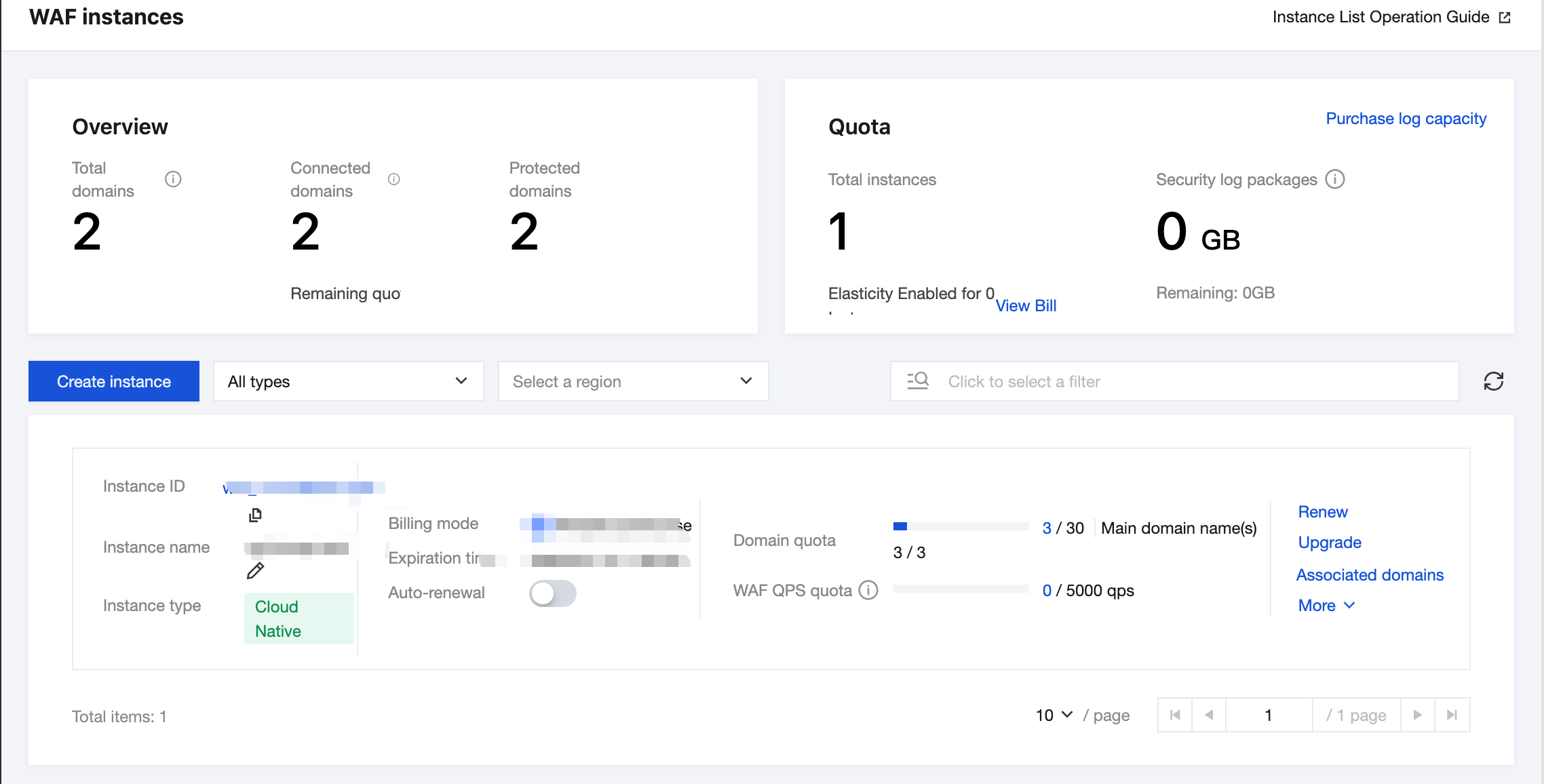
3. In the Enable Protection dialog box, select the Anti-DDoS Pro to bind and click OK.
4. Confirm that in the asset list, the protection type has been updated to Anti-DDoS Pro, and the maximum protection capability is Full Protection.
Step 3: Configuring the Cloud Native Gateway
Note:
If you use object access, this step can be ignored. If you use domain name access, add a domain name by referring to the following steps.
1. Log in to the Cloud Native Gateway console, click the target instance to go to its details page, and then select Security Protection in the left sidebar.
2. Go to the WAF Protection tab, click Add Domain in the Domain Protection module, and enter the domain name to be protected.
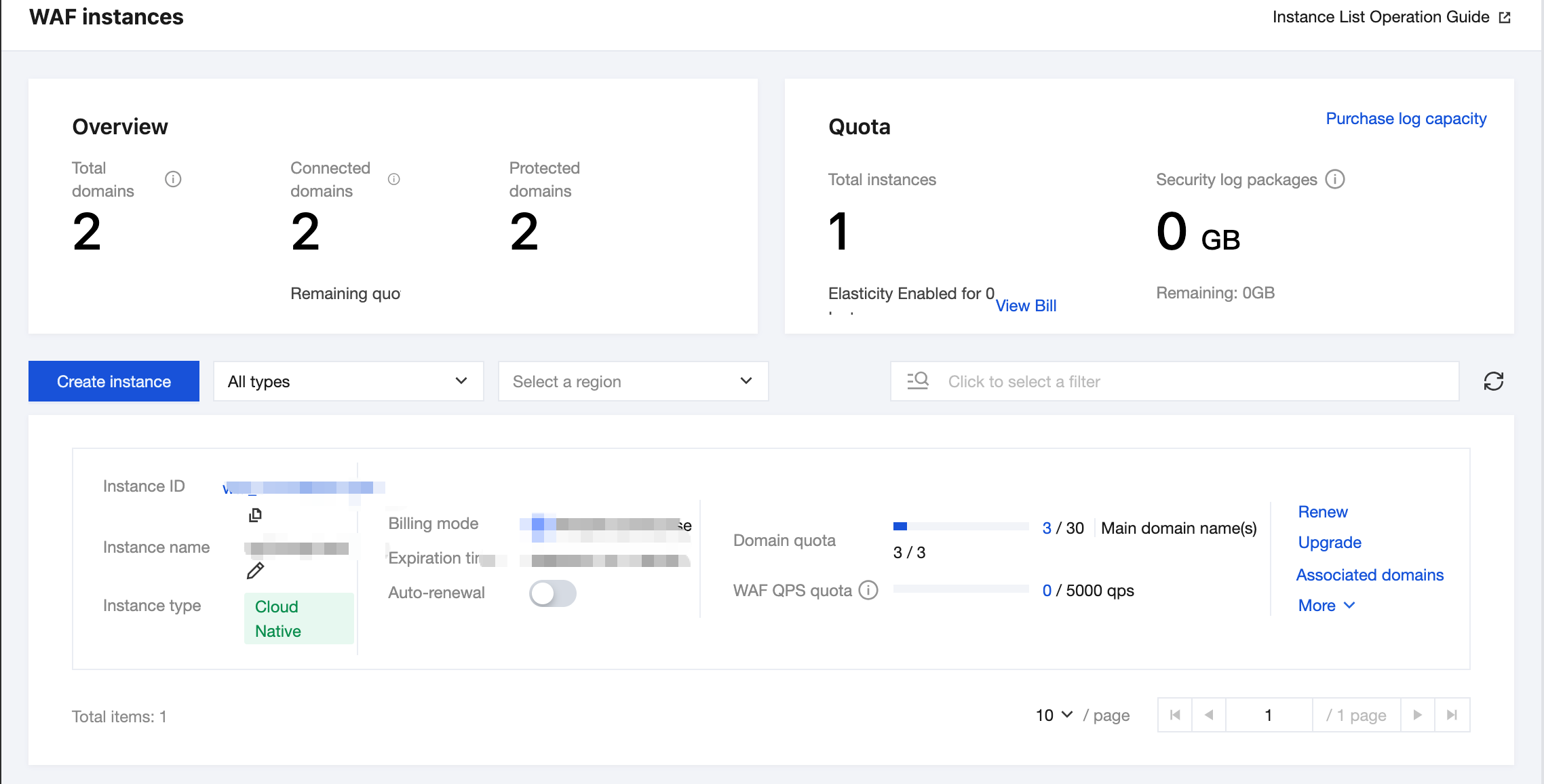
3. Select the services or routes to be protected and click Enable Protection.
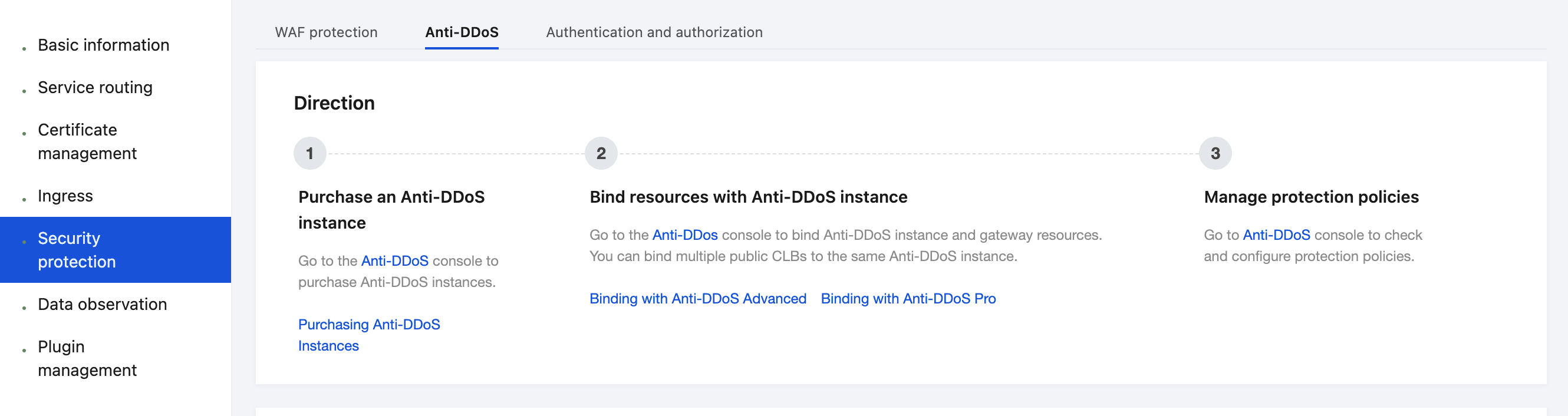
Step 4: Testing and Verifying the Protection Status
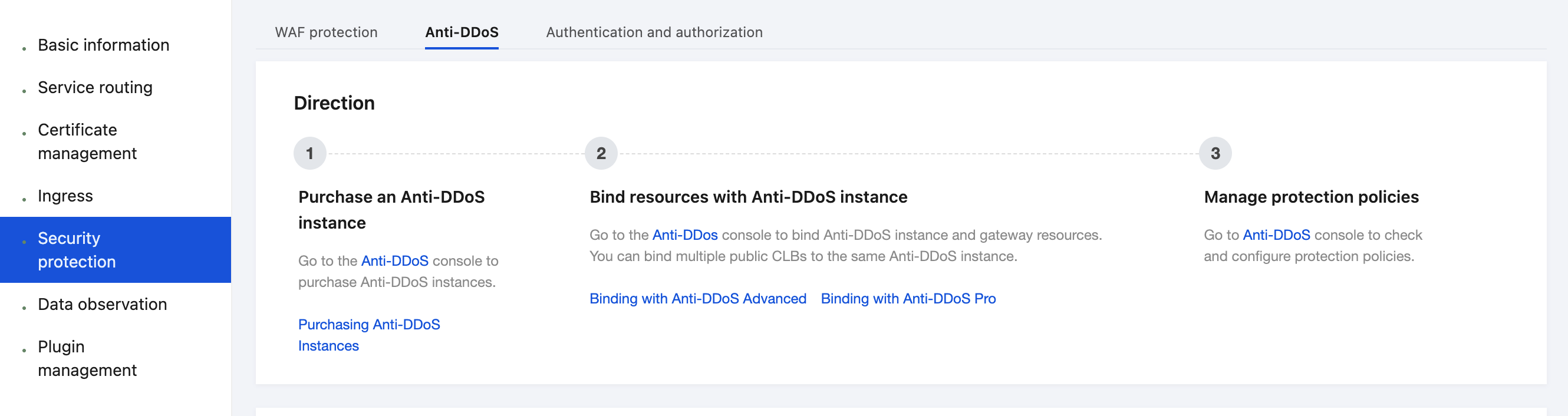
1. Log in to the Cloud Native Gateway console, click the target instance to go to its details page, and then select Security Protection in the left sidebar.
2. Go to the Anti-DDoS Tab and confirm that the current gateway is associated with a protection instance.
3. Go to the WAF Protection tab and check that protection is enabled.
In the Object Protection module, check that object protection is enabled.
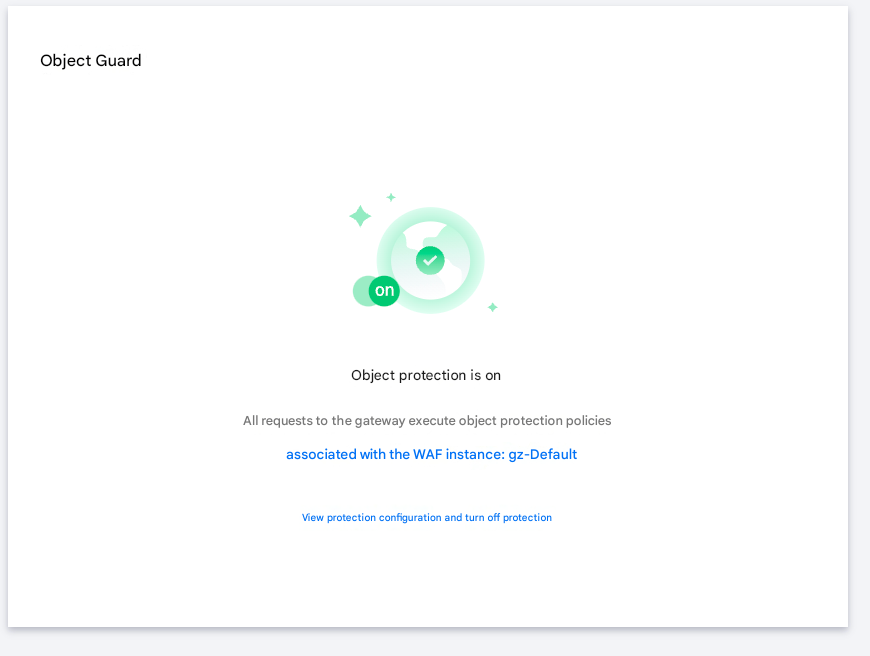
Check that the domain name protection status is Partially enabled or All enabled.

4. Enter
http://<gateway domain name or IP address>/?test=alert(123) in the address box of the browser to visit the gateway. The browser displays the blocking page, indicating that WAF protection is normal.Help and Support
Was this page helpful?
You can also Contact sales or Submit a Ticket for help.
Help us improve! Rate your documentation experience in 5 mins.
Feedback