Cloud Native Gateway is a commonly used API Gateway for managing and protecting backend services. To ensure the continuous service of your business, Cloud Native Gateway (Kong) groups (Standard Edition, Professional Edition) provide node deployment across dual AZs within the same city. This deployment protects your applications from being affected by unexpected situations, such as AZ failures or temporary node outages caused by certain special scenarios. For this purpose, the Chaos Engineering Platform provides a node restart fault exercise action for Cloud Native Gateway (Kong) groups. You can use the Chaos Engineering Platform to perform this fault exercise, simulating fault scenarios like AZ failures or temporary node outages. This helps verify the resilience of your business system, identify and mitigate potential risks in a timely manner, thereby ensuring your business can provide services continuously and stably.
Must-Knows
Before using the fault exercise, you must have purchased the TSA - Chaos Engineering service.
The node restart fault can be injected to Default Group or Other Groups (group ID should be specified). If Other Groups is selected and the fault needs to be injected into multiple gateway instances, it is recommended that each gateway instance perform an action group.
If the number of nodes is less than 2 in the target group, the node restart fault cannot be injected into the group.
To simulate the node restart fault, a node is selected randomly from a group to restart. It is expected that the restart takes 3 to 5 minutes. During the fault period, persistent connections to the restarted node may be disconnected. The business department should provide the connection retry mechanism.
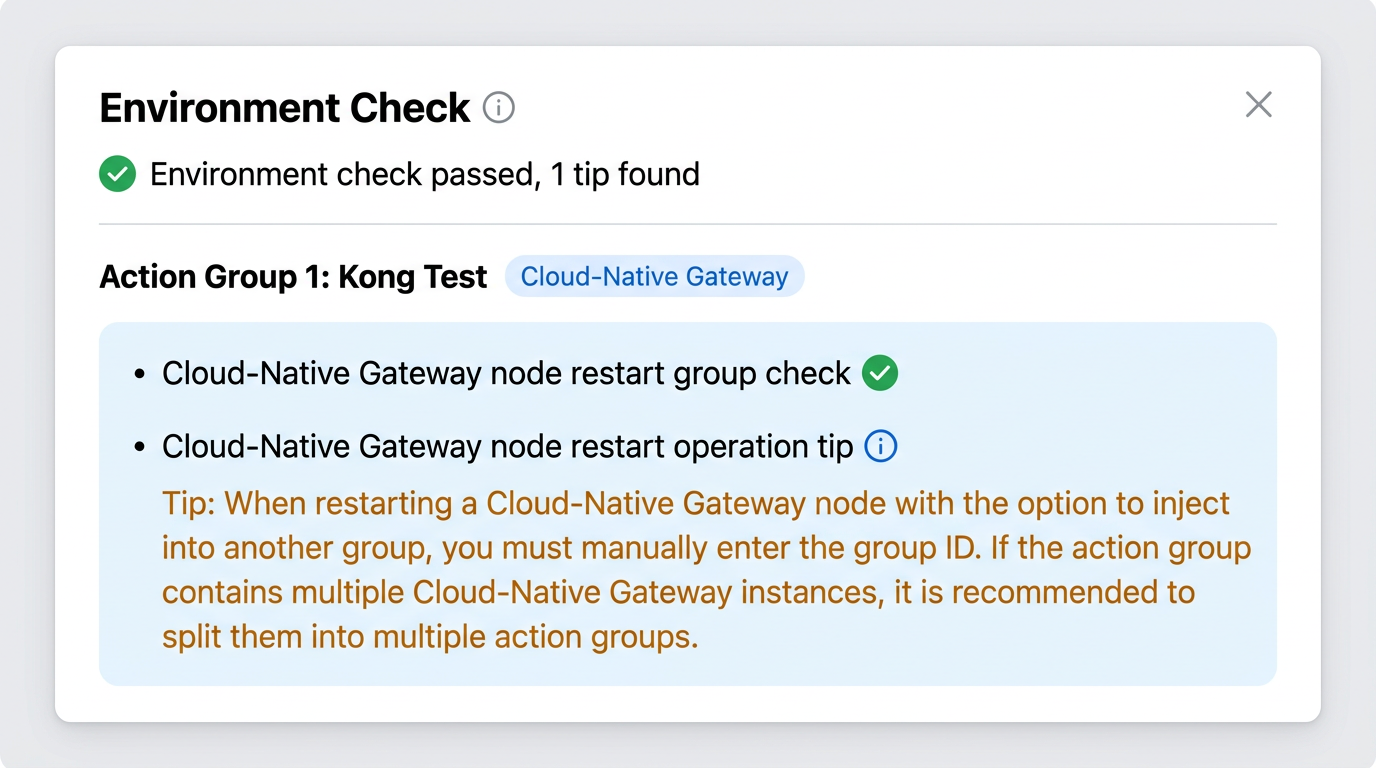
The environment check verifies the group status, number of nodes, and injection group type of the gateway instance. If the check fails, adjust the configuration or check the fault settings as prompted. You can log in to the Chaos Engineering Console to view the environment check results during exercise orchestration, as shown in the following figure:
Experiment Execution
Step 1: Preparing an Experiment
Prepare a Cloud Native Intelligent Gateway instance that contains at least one group with 2 or more nodes. If you have not created a gateway instance and nodes, refer to Create Gateway to create the instance, and ensure the group has at least 2 nodes.
Step 2: Orchestrating the Experiment
1. Log in to the Chaos Engineering Console, go to the Exercise Management page, and click New Cloud Architecture Visualization Exercise.
2. Fill in the basic exercise information, and then click Next.
3. Select Cloud Native Gateway as the object type, click Add Instance, and add the instance that needs to be exercised.
4. After selecting an instance, click Add Now in the Exercise Action module.
5. Add the Gateway Node Restart (Group) fault action, and then click Next.
6. Configure action parameters. Select Default Group to inject the fault, and click Confirm.
Attention:
If Other Groups is selected, manually enter the group ID.
7. Click Next to go to the global configuration. For details, see Quick Start.
8. After confirmation, click Submit.
Step 3: Executing the Experiment
Note:
This step involves operations across two platforms: Execute exercise actions (such as clicking Execute or viewing logs) on the Chaos Engineering Console, and view the group node status and results of the gateway instance before and after the exercise on the Tencent Cloud Microservices Platform Console. Switch between the two platforms as needed to view the information.
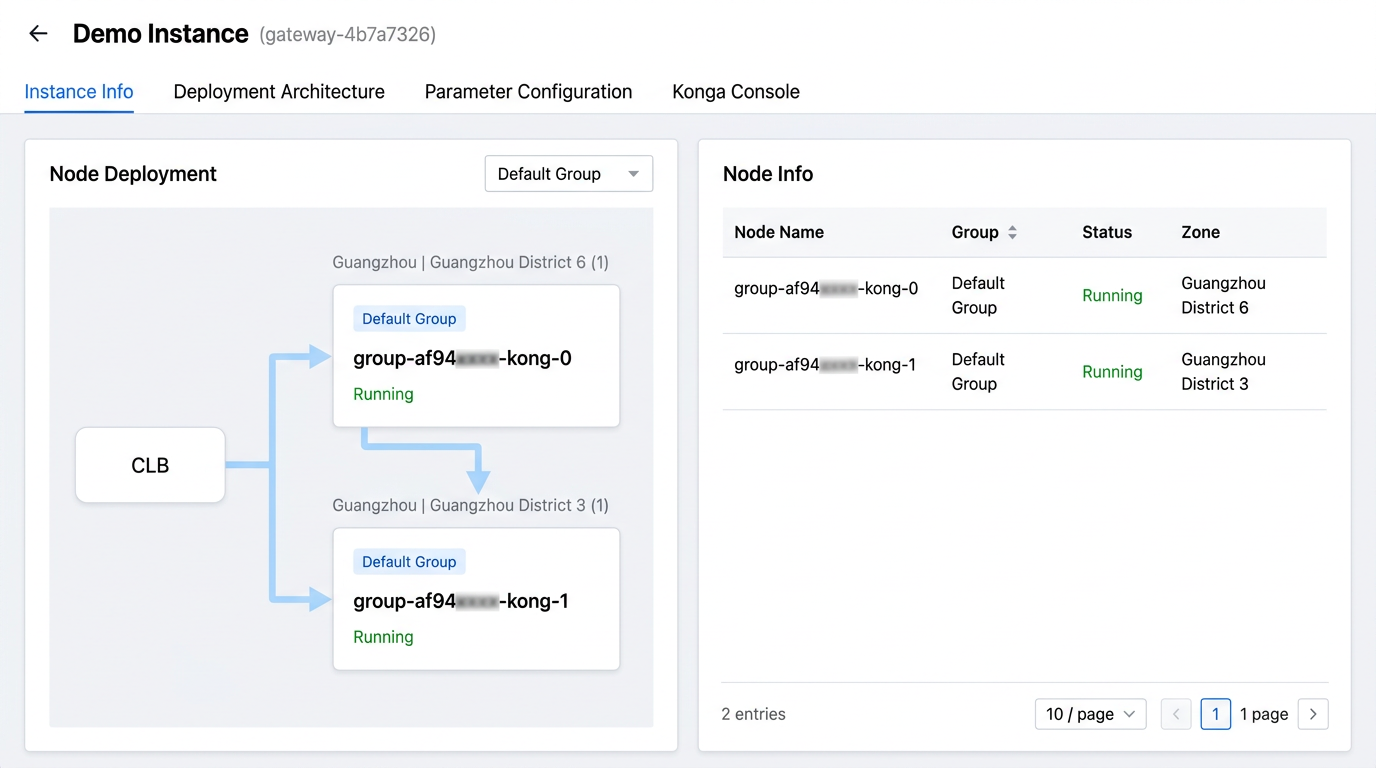
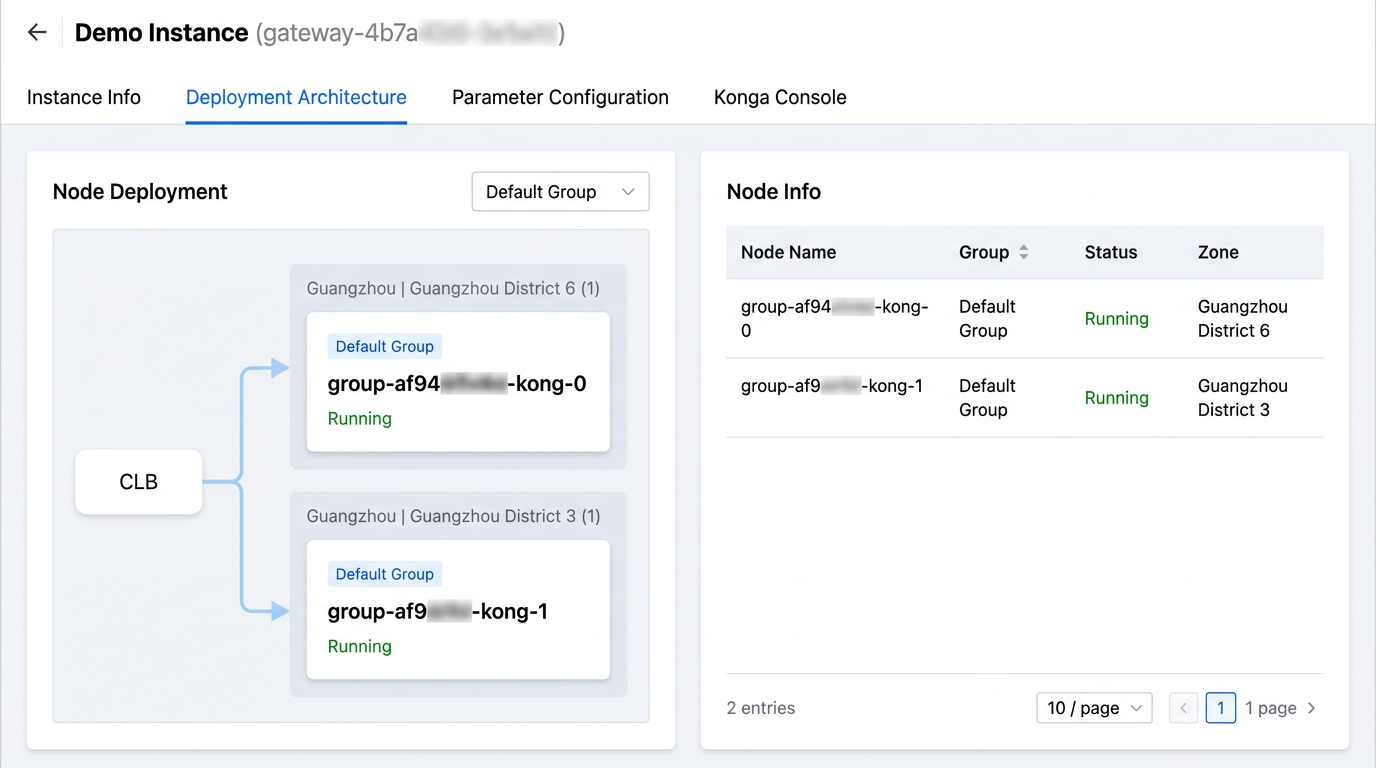
2. On the gateway instance basic information page, click Deployment Architecture. Observe the group node information data of the instance before the exercise. You can see that the default group of the instance before the exercise has two nodes, located in Guangzhou Zone 6 and Guangzhou Zone 3 respectively.
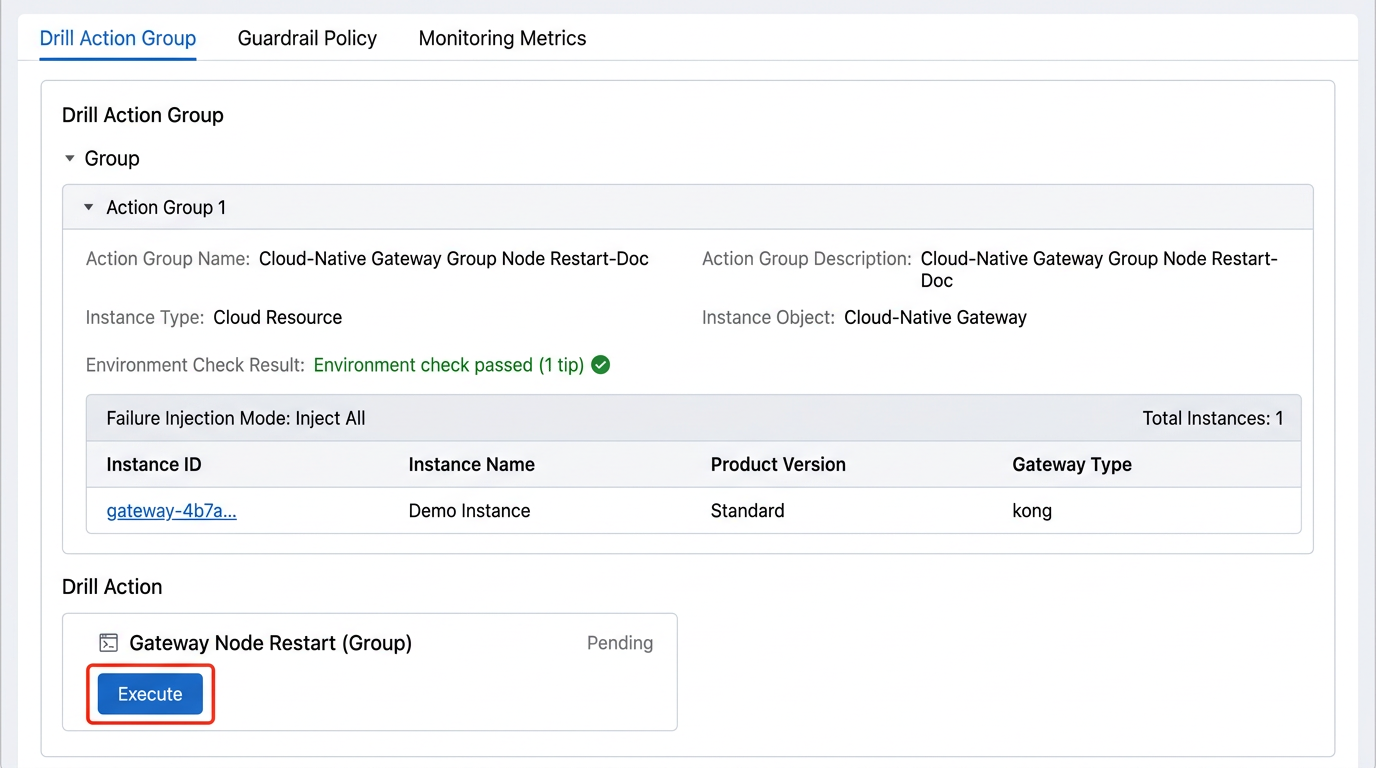
3. As the experiment is manually executed, the fault action should be executed manually. Click Execute to inject the fault.
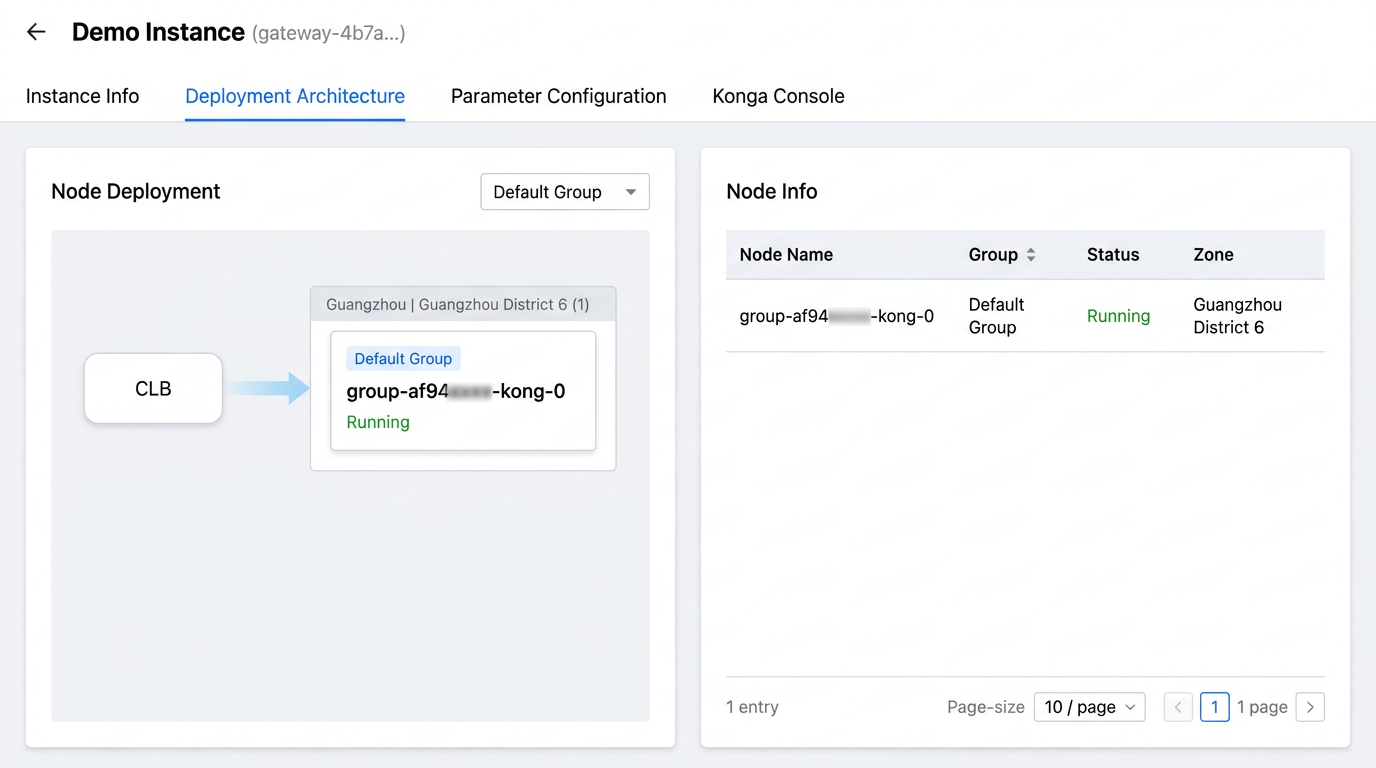
4. During fault injection, you can view the node status of the instance group on the Deployment Architecture tab on the TSF platform.
During the fault: The node in Guangzhou Zone 3 under the default group is taken offline due to a restart.
After the fault: The node in Guangzhou Zone 3 under the default group is back online.
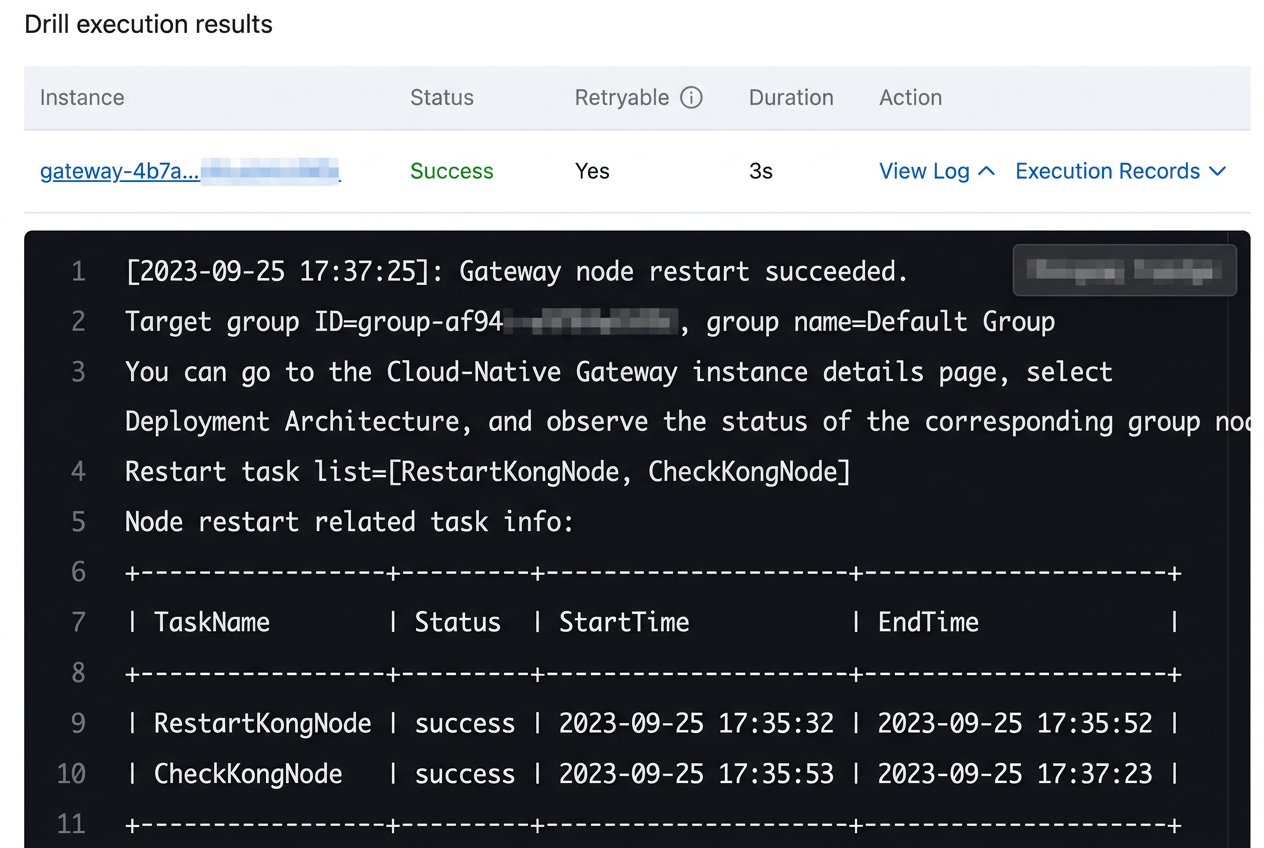
5. Click View Logs to view the fault exercise logs.