tencent cloud

Cloud Native Intelligent Gateway

DocumentationCloud Native Intelligent GatewayCloud Native GatewayMigration GuideMigrating Configurations from the Self-Built Cloud Native API Gateway to Tencent Cloud

Migrating Configurations from the Self-Built Cloud Native API Gateway to Tencent Cloud

Download
Focus Mode
Font Size
Last updated: 2026-09-22 18:32:12
AI-Translated
Note:
Currently, Cloud Native Gateway supports new purchases via allowlist only for microservices scenarios. New access is not supported for other scenarios. If you need to make a new purchase, submit a ticket for processing.

Scenarios

This document describes how to use the official Cloud Native API Gateway tool decK to migrate configurations from a self-built Cloud Native API Gateway to Cloud Native API Gateway of Tencent Cloud.

Prerequisites

After purchasing and creating a gateway instance, refer to the Operation Guide and configure admin-api.
A self-built Cloud Native API Gateway is available, and services, routes, and plugins are configured.
decK is installed on the terminal. Visit the Cloud Native API Gateway official website, download decK, and install it on your terminal.

Operation Steps

Step 1: Exporting Configurations of the Self-Built Cloud Native API Gateway Using decK

1. Start the terminal and run the following command to export the configurations of the self-built Cloud Native API Gateway:
# Replace kong-zj with the IP address or domain name of the self-built Cloud Native API Gateway.
deck --kong-addr http://kong-zj:8001/ dump
2. Check the generated kong.yaml file.
# Note that the kong.yaml content will be different from the actual situation.
cat kong.yaml
_format_version: "1.1"
plugins:
- config:
per_consumer: false
enabled: true
name: prometheus
protocols:
- grpc
- grpcs
- http
- https
services:
- connect_timeout: 60000
host: 127.0.0.1
name: admin-api
path: /
port: 8001
protocol: http
read_timeout: 60000
retries: 5
routes:
- https_redirect_status_code: 426
name: admin-api
path_handling: v1
paths:
- /admin-api
preserve_host: false
protocols:
- http
- https
regex_priority: 0
request_buffering: true
response_buffering: true
strip_path: true
write_timeout: 60000
- connect_timeout: 60000
host: www.tencent.com
name: tencent
path: /
port: 80
protocol: http
read_timeout: 60000
retries: 5
routes:
- https_redirect_status_code: 426
id: 040b0c62-4d31-4286-a595-1832e55bf568
path_handling: v1
paths:
- /
preserve_host: false
protocols:
- http
- https
regex_priority: 0
request_buffering: true
response_buffering: true
strip_path: true
write_timeout: 60000

Step 2: Importing Configurations to the Cloud Native API Gateway Kong Using decK

1. Start the terminal and run the following command to view the configuration differences between Kong.yaml and Cloud Native API Gateway.
# Replace kong-tencent with the proxy address of Cloud Native API Gateway.
deck --kong-addr http://kong-tencent/admin-api diff
creating service tencent
creating route 040b0c62-4d31-4286-a595-1832e55bf568
creating plugin prometheus (global)
Summary:
Created: 3
Updated: 0
Deleted: 0
2. Run the following command to import the configurations in Kong.yaml into Cloud Native API Gateway.
# Replace kong-tencent with the proxy address of Cloud Native API Gateway.
deck --kong-addr http://kong-tencent/admin-api sync
creating service tencent
creating route 040b0c62-4d31-4286-a595-1832e55bf568
creating plugin prometheus (global)
Summary:
Created: 3
Updated: 0
Deleted: 0
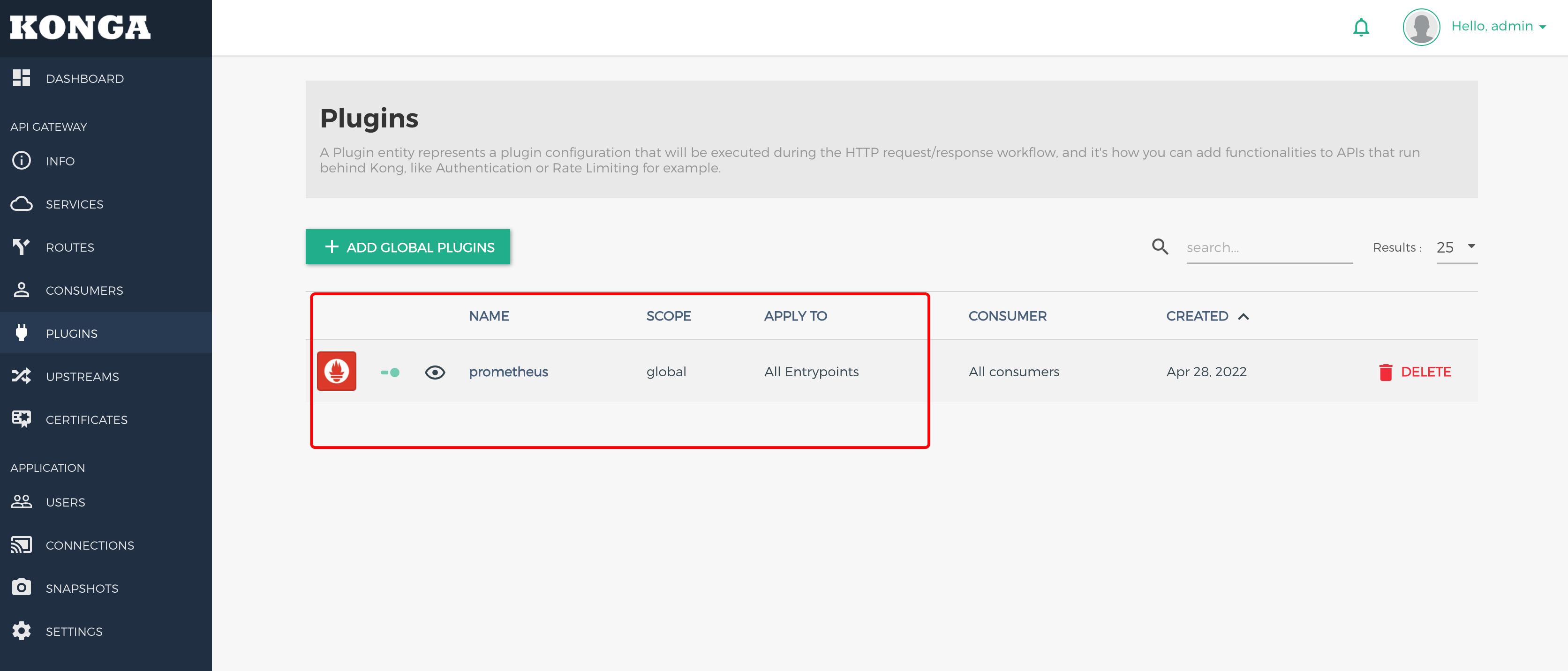
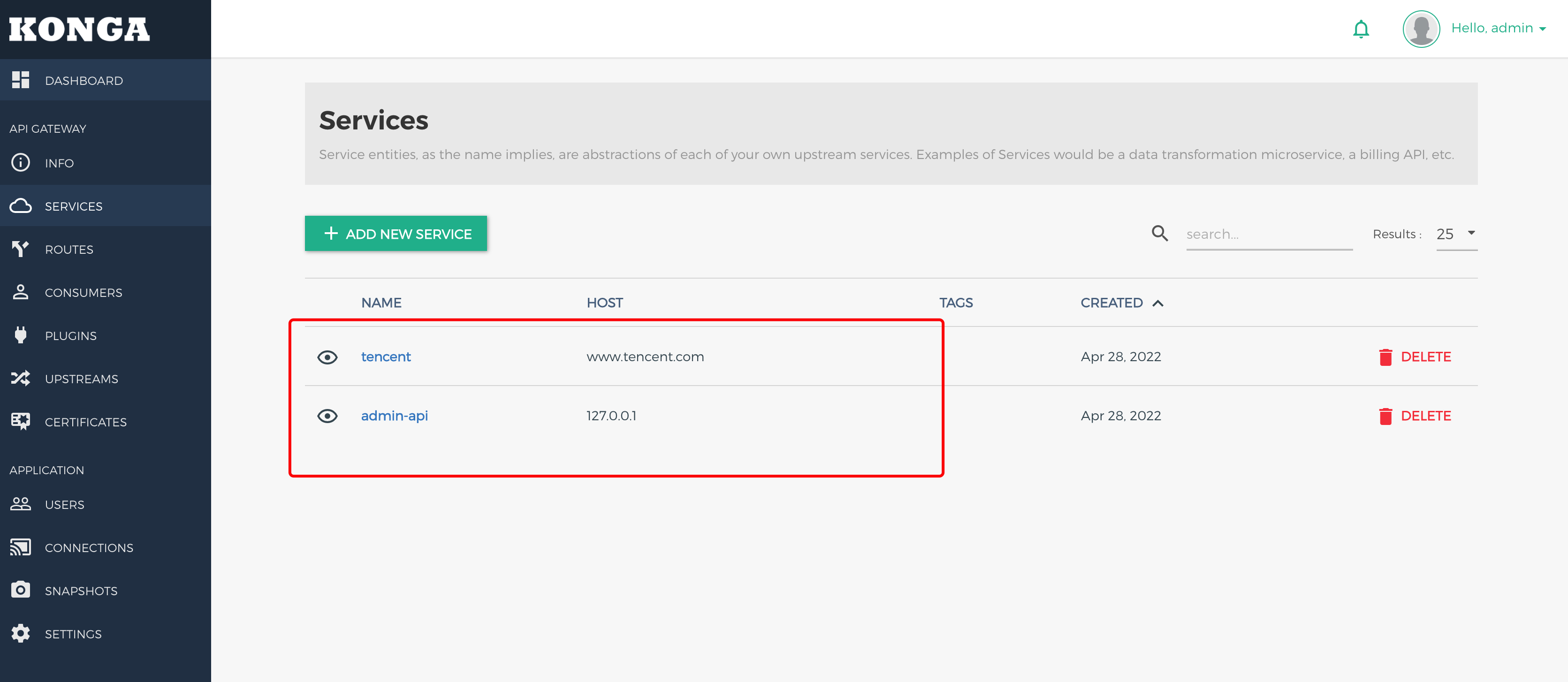
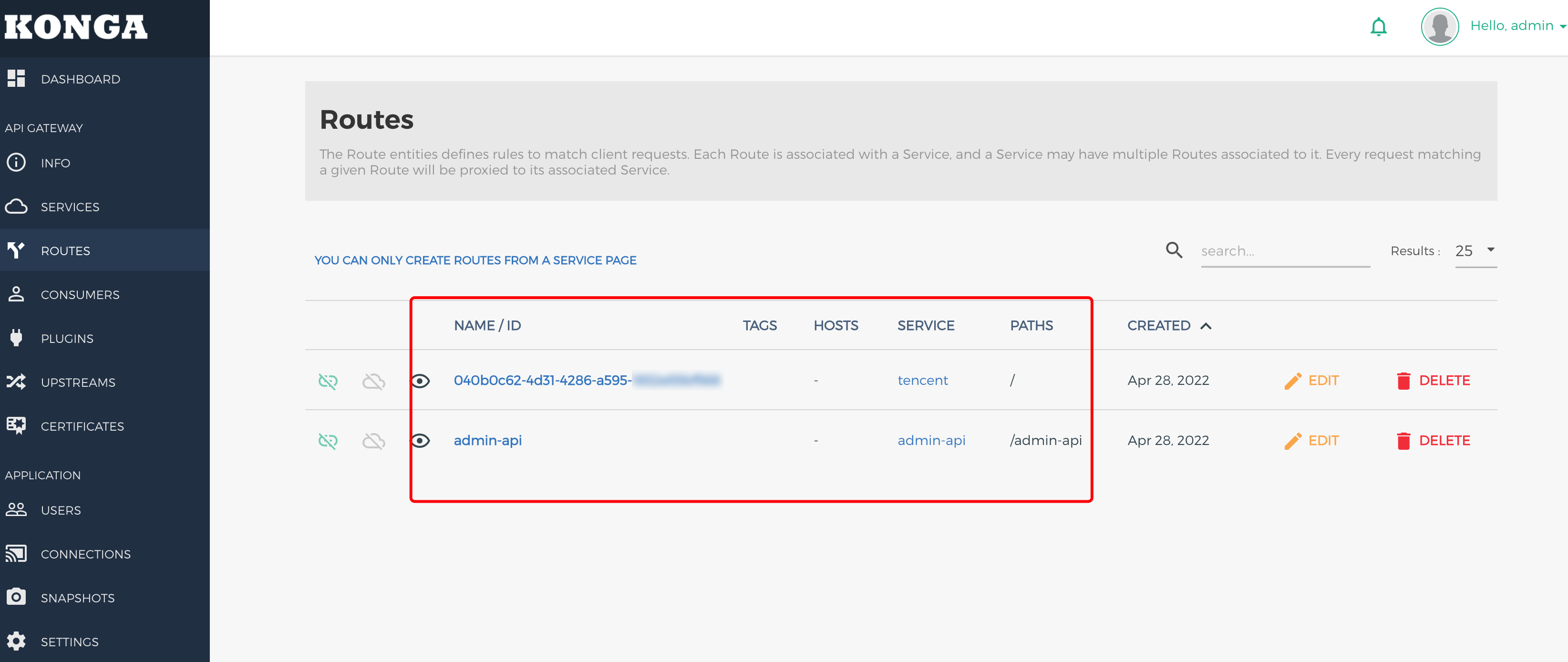
3. Open the console of Cloud Native API Gateway to check whether the configurations are imported successfully.


Must-Knows

For operational convenience, the security authentication plugin is not enabled for admin-api. It is strongly recommended that you enable the security authentication plugin for admin-api after the configuration synchronization is complete.
References

For details, see the decK Reference Document.

Help and Support

Was this page helpful?

Help us improve! Rate your documentation experience in 5 mins.

Feedback