Log Shipping to CLS
Download
Focus Mode
Font Size
Scenarios
If you need persistent log storage for scenarios such as troubleshooting and auditing, it is recommended to enable the CLS log service to ship gateway logs to CLS. Before enabling it, confirm that you have activated the CLS log service. The log service is provided by CLS and incurs fees. For specific billing items, see Billing Details.
Prerequisites
Enabling Log Shipping
1. Log in to the Microservices Platform console. In the left sidebar, select AI Gateway to go to the instance list.
2. On the instance list page, click the ID of the gateway instance you want to configure to go to its basic information page.
3. In the left sidebar, click Data Observation > Log Shipping.
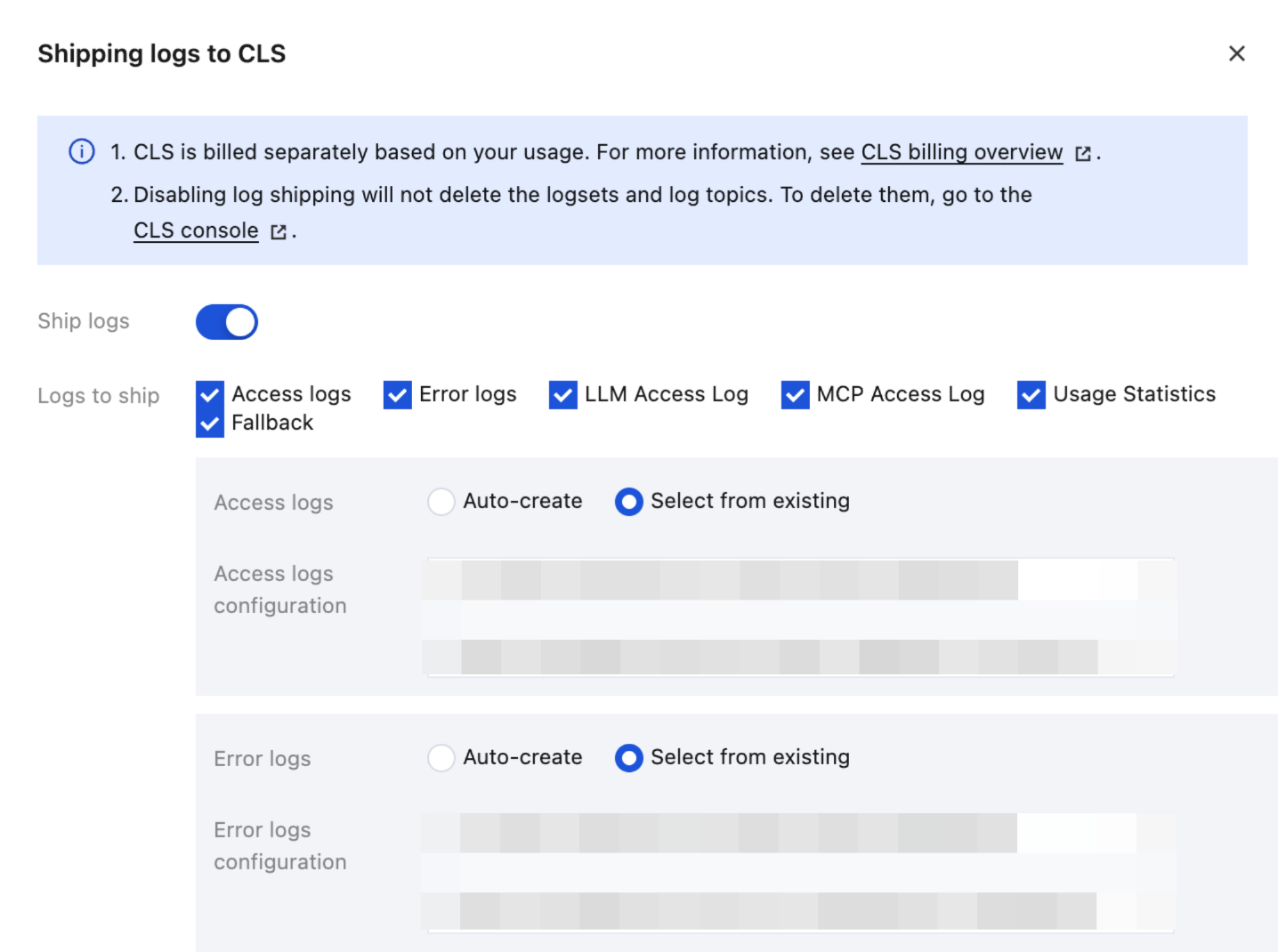
4. On the CLS Log Shipping page, click Enable Now. In the dialog box, enable the Ship Logs button, select the log items to ship, and choose to automatically create or select existing logsets and log topics. After you click OK, log shipping starts.
Attention:
Disabling log shipping will not delete logsets or log topics. To delete them, go to the CLS console for operations.
5. After configuration, you can click the associated log topic URL to automatically redirect to the gateway-shipped log database to view logs.
Editing CLS Log Rules
On the Log Shipping page, click Edit Log Rules in the upper right corner to modify the CLS log rules. You can choose to continue using the default rules or customize the log rules according to your business requirements.
Attention:
Logs shipped to CLS use the same log rules as the default logs. After the CLS log rules are modified, the default log rules are also modified. Proceed with caution.
Editing Log Shipping to CLS
On the Log Shipping page, click Edit Log Shipping in the upper right corner and modify the log shipping rules in the displayed dialog box.
Help and Support
Was this page helpful?
You can also Contact sales or Submit a Ticket for help.
Help us improve! Rate your documentation experience in 5 mins.
Feedback