Model Gallery
Download
Focus Mode
Font Size
Scenarios
Model Square is a unified aggregation view of large models provided by AI Gateway, centrally displaying all model services published to Model Square. Through Model Square, you can browse, search, and filter models, view complete information such as capabilities, versions, prices, and sources of each model, and quickly locate and select the appropriate model.
Prerequisites
An AI Gateway instance has been activated.
Existing model services have been published to Model Square. The publishing entry is Model Management > Model Services > Target Model Service > More > Publish to Model Square.
Only model services of specified models can be published to Model Square.
Operation Steps
Step 1: Entering Model Gallery
1. Log in to the AI Gateway console and click AI Gateway > Instance List in the left sidebar.
2. After entering the target instance details page, click AI Capability Market > Model Square in the left sidebar to go to the Model Square page.
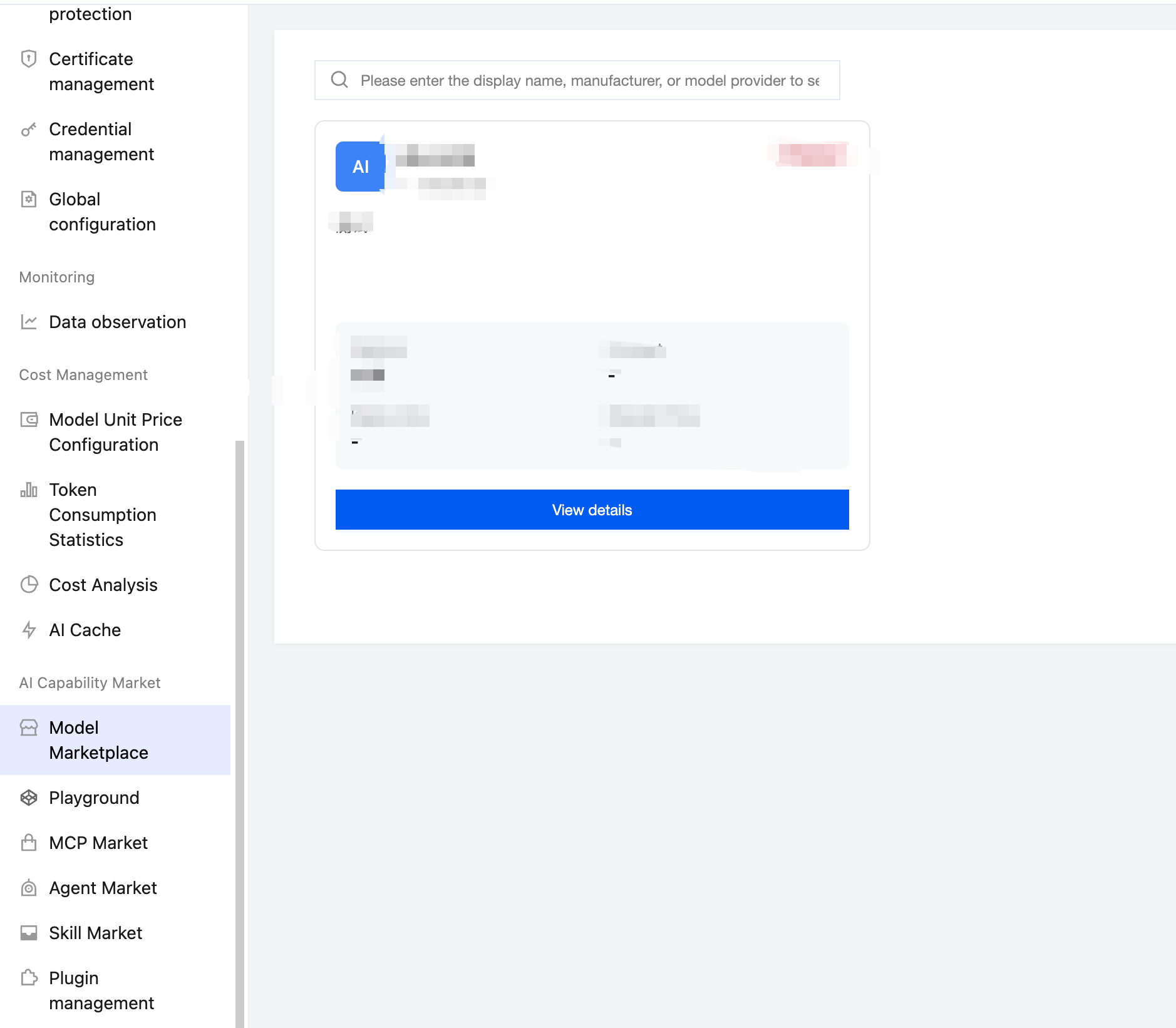
Step 2: Searching and Filtering Models
The Model Square page supports search, categorization, and sorting, allowing you to quickly view information about specified models:
Search: You can search for model cards by model name, vendor, or model provider.
Category: Select a model category in the category filter. Available options: All, Text Generation, Code Generation, Visual Understanding, Image Generation, ASR, and Vector Generation, Others.
Sort: Select a sorting method from the sorting drop-down list. Available options: Publish Time (Newest) and Publish Time (Oldest).
Step 3: Viewing Model Cards
Model Square displays all eligible model services in a card grid, with each card showing the following information:
Badges: Hot, Recommended, New.
Model icon and name.
Vendor Model Provider.
Description.
Feature tags (such as Fast Response, 128K Context, Function Call, and so on).
Information grid: Context Length, Version, Input Price, Output Price.
View Details button.
Step 4: Viewing Model Details
Click View Details on the model card to see the information entered during publishing on the right.
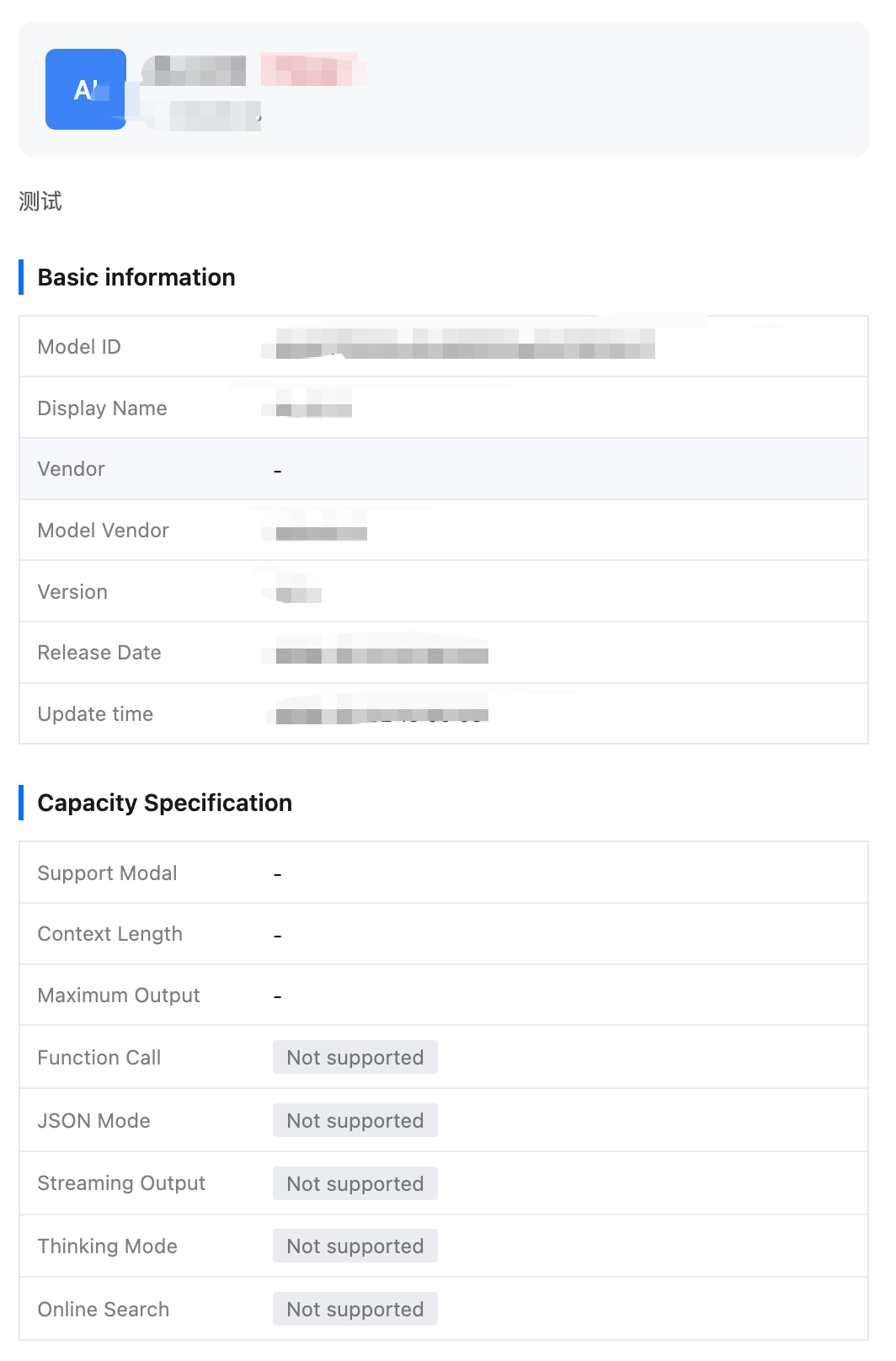
Help and Support
Was this page helpful?
You can also Contact sales or Submit a Ticket for help.
Help us improve! Rate your documentation experience in 5 mins.
Feedback