tencent cloud

Quick Start

Download
Focus Mode
Font Size
Last updated: 2026-09-08 20:00:48
AI-Translated
iOA consists of the admin console (server) and the employee client. After iOA is activated, enterprise administrators need to perform basic operations in the admin console, such as configuring the organizational structure, distributing client installation packages, and setting security protection policies. This document provides basic feature usage steps to help enterprise administrators get started quickly.


Step 1: Configure Organizational Structure

This section describes how to configure the enterprise organizational structure and members without a third-party data source. You can also import accounts from a third-party data source. For details, see Identity and Authentication Integration.

Scenario 1: Quick Product Experience/Testing Scenario

To quickly experience iOA features during the testing phase, WeChat QR code login is recommended. You only need to install the client (see Client Operation Guide) and then scan the QR code to enter. The system automatically creates the "WeChat Temporary Organization" directory and WeChat authentication source upon first login.
Note:
Restrictions on WeChat QR Code Login
Security mechanism: This method cannot verify the user's organizational structure information, and anyone can enter by scanning the QR code.
Usage recommendation: This method is recommended only for temporary quick experience during the testing phase and should not be used as a long-term login solution.
User limit: A maximum of 10 users can log in by scanning the QR code.
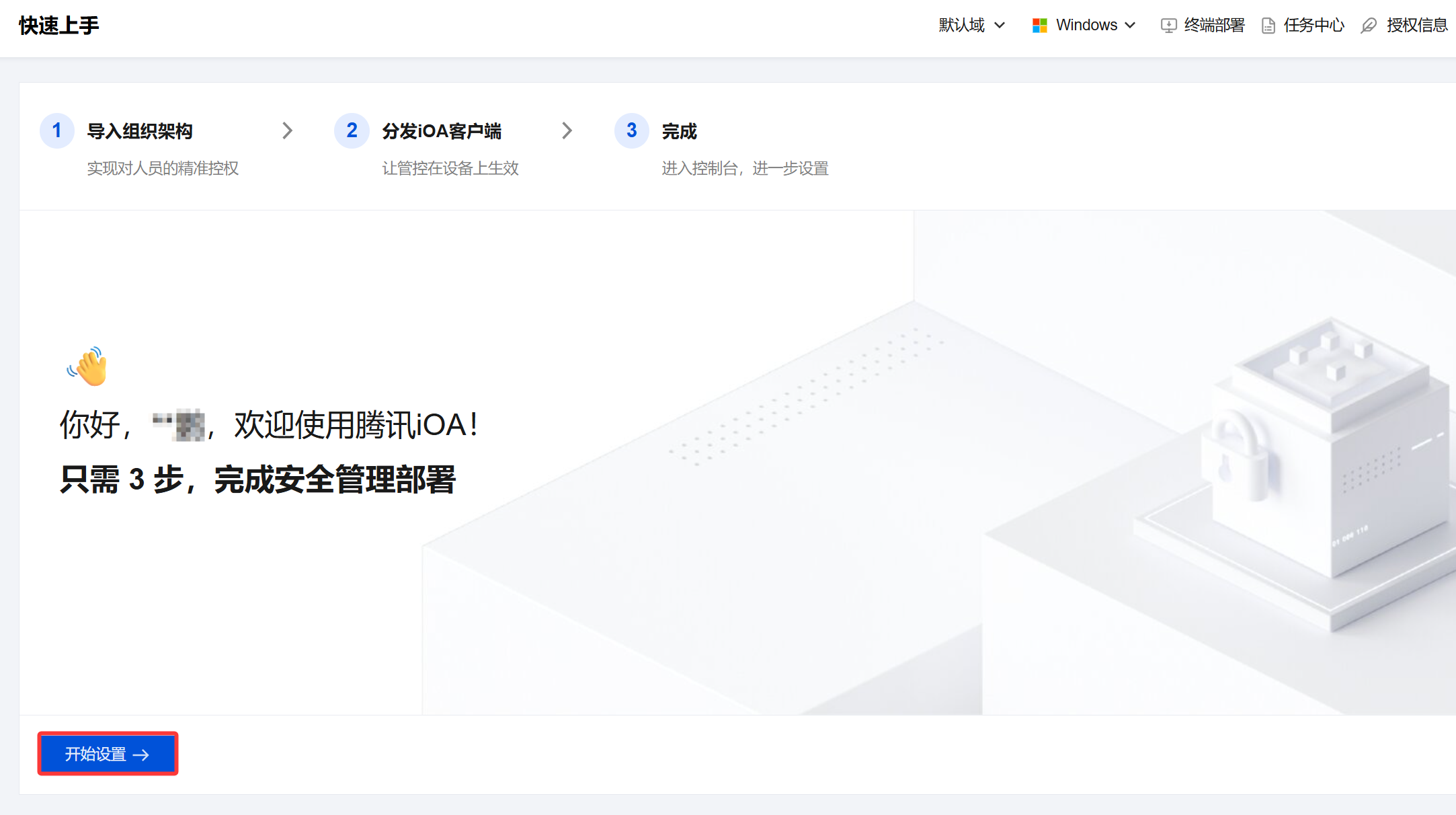
1. Log in to the Tencent iOA Zero Trust Security Management System console, choose Quick Start in the left sidebar, and click Start setting.

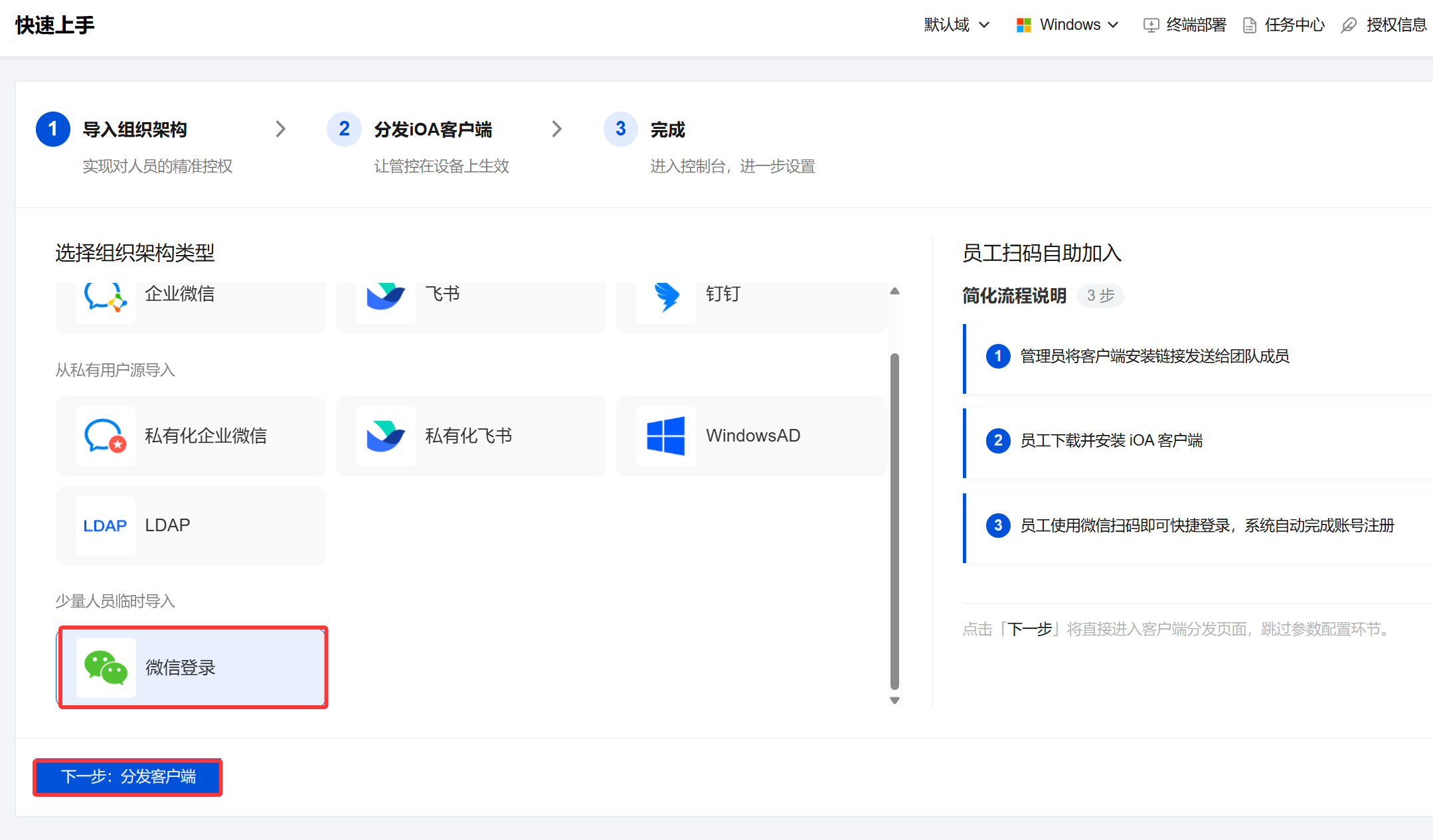
2. Click Import Organizational Structure, select WeChat-based Login, and click Next: Deploy the client.

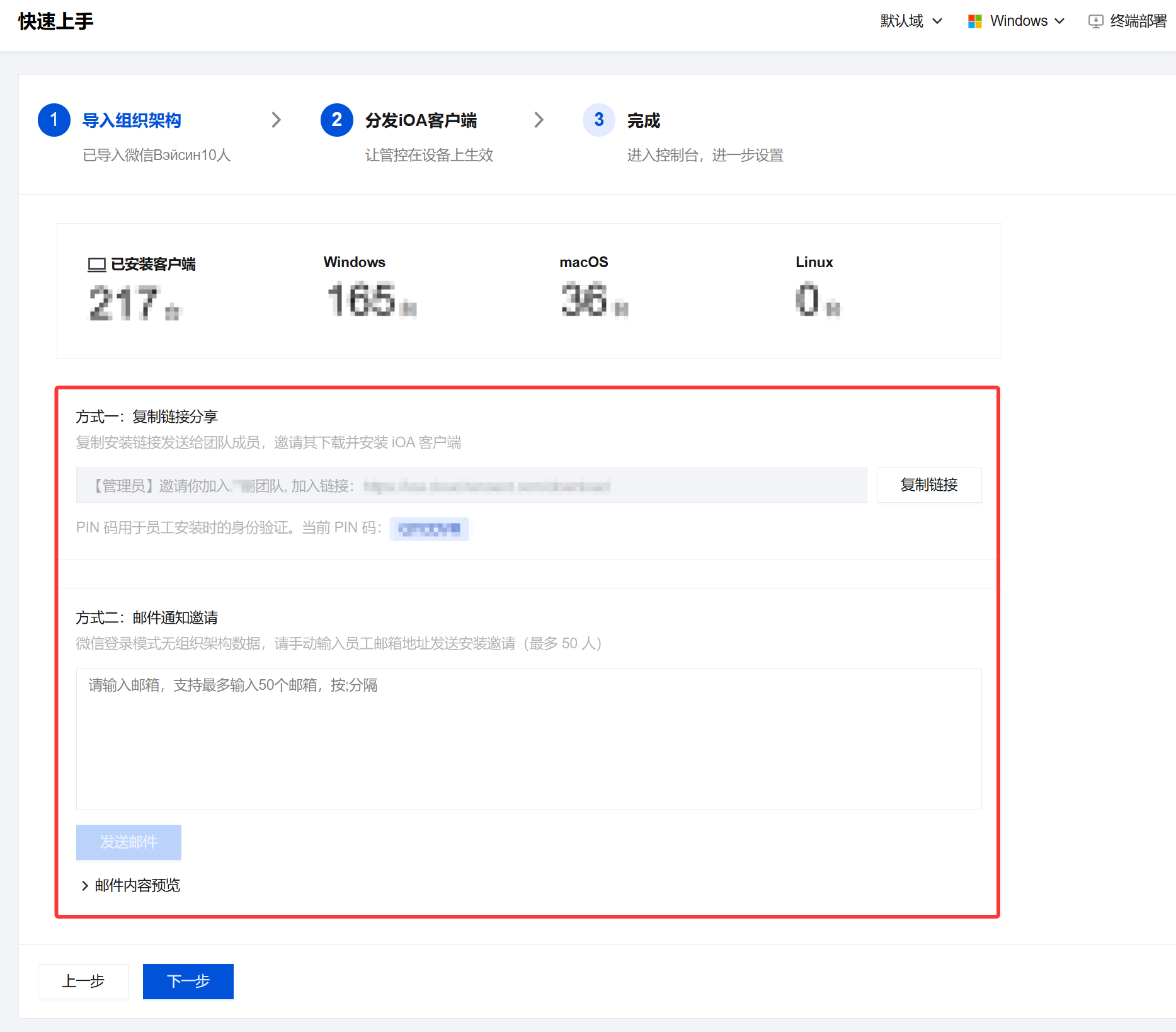
3. Send the following client link to the people you want to invite.

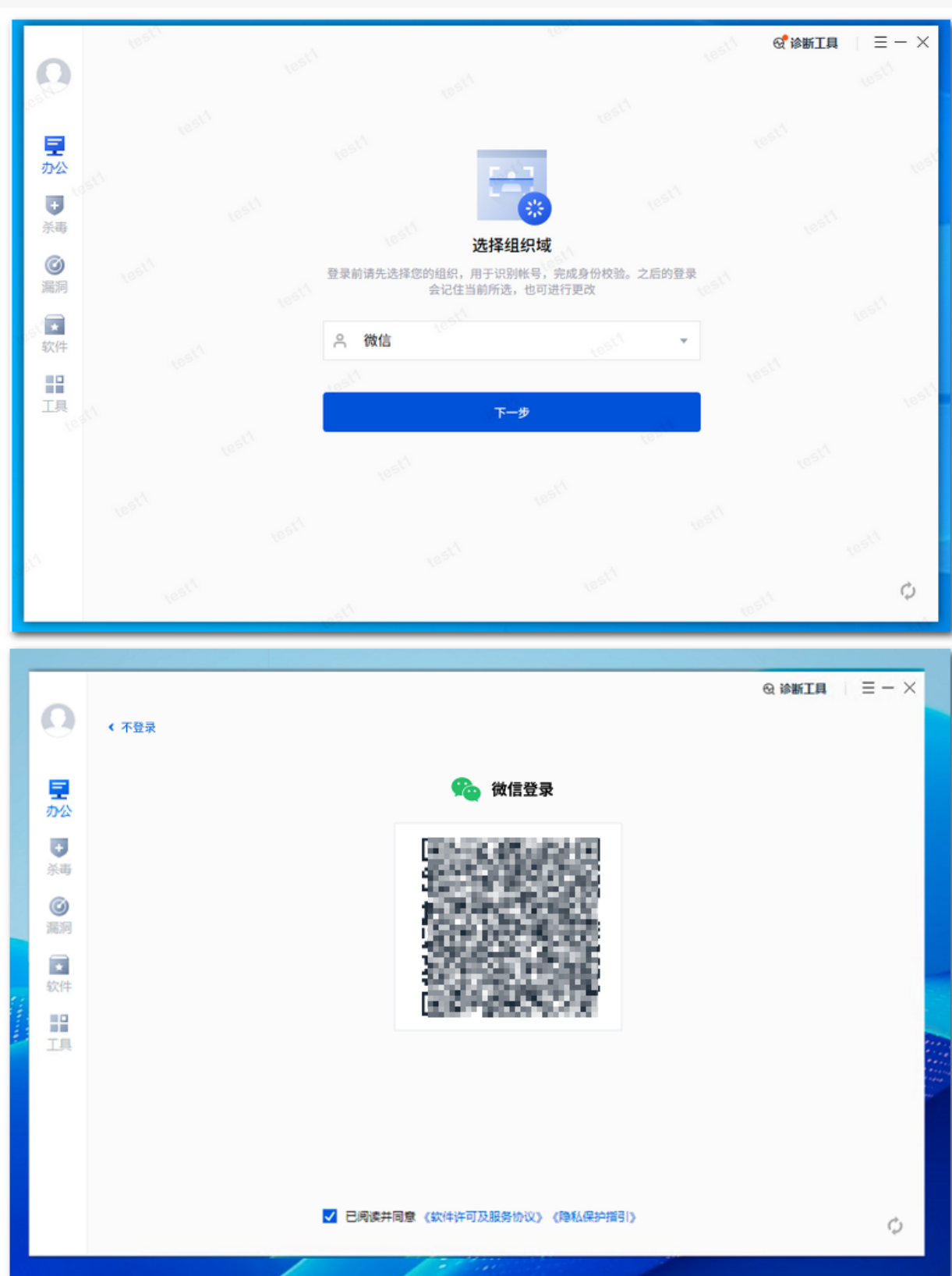
4. After installing the client, employees open the client and select the authentication source: WeChat QR code login.
Note:
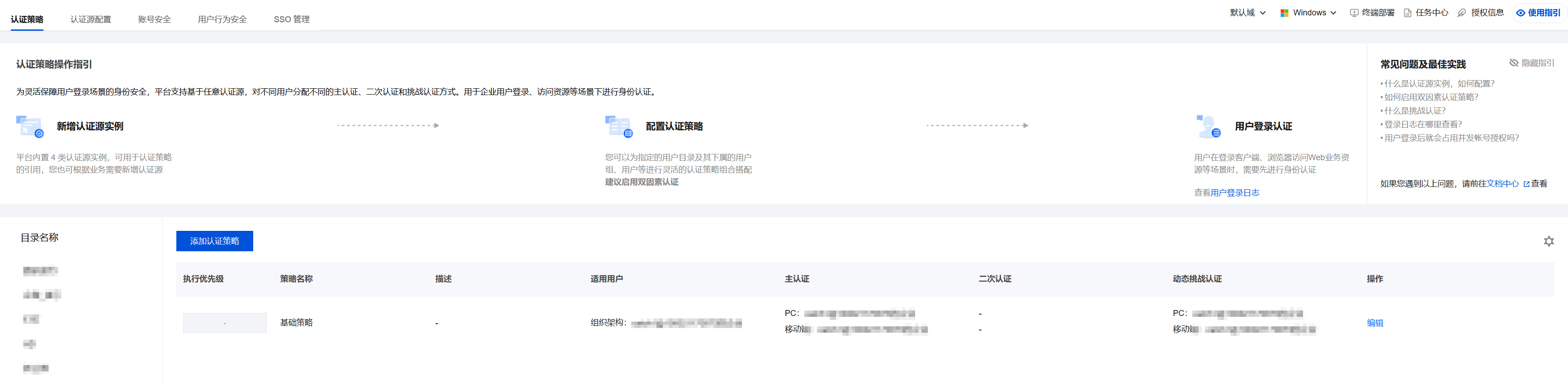
If no directories other than WeChat and self-built directories exist under the enterprise user directory, the enterprise default authentication policy is set to WeChat QR Code.

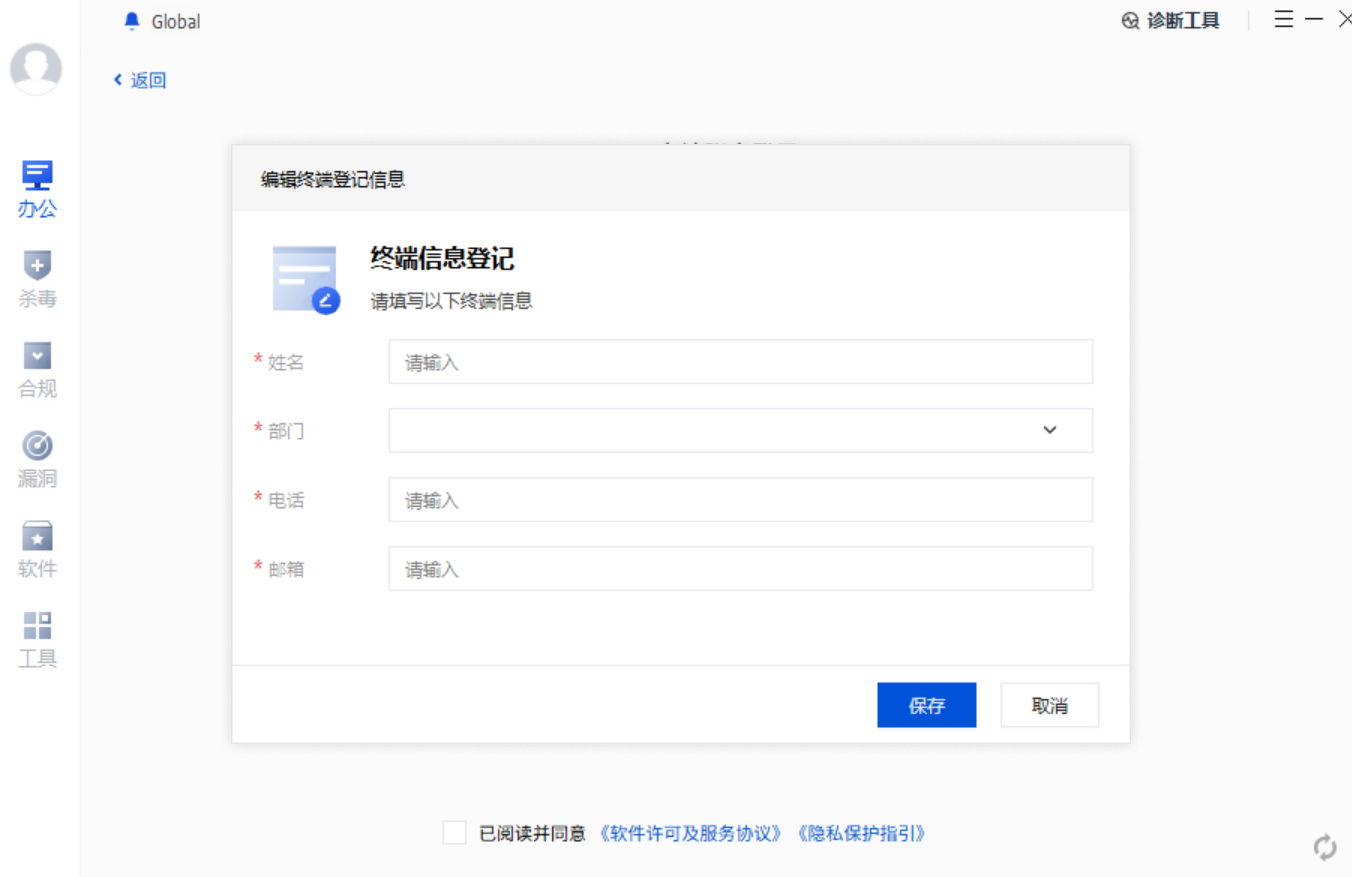
5. After scanning the QR code, you need to register your personal information as required. Click Save.

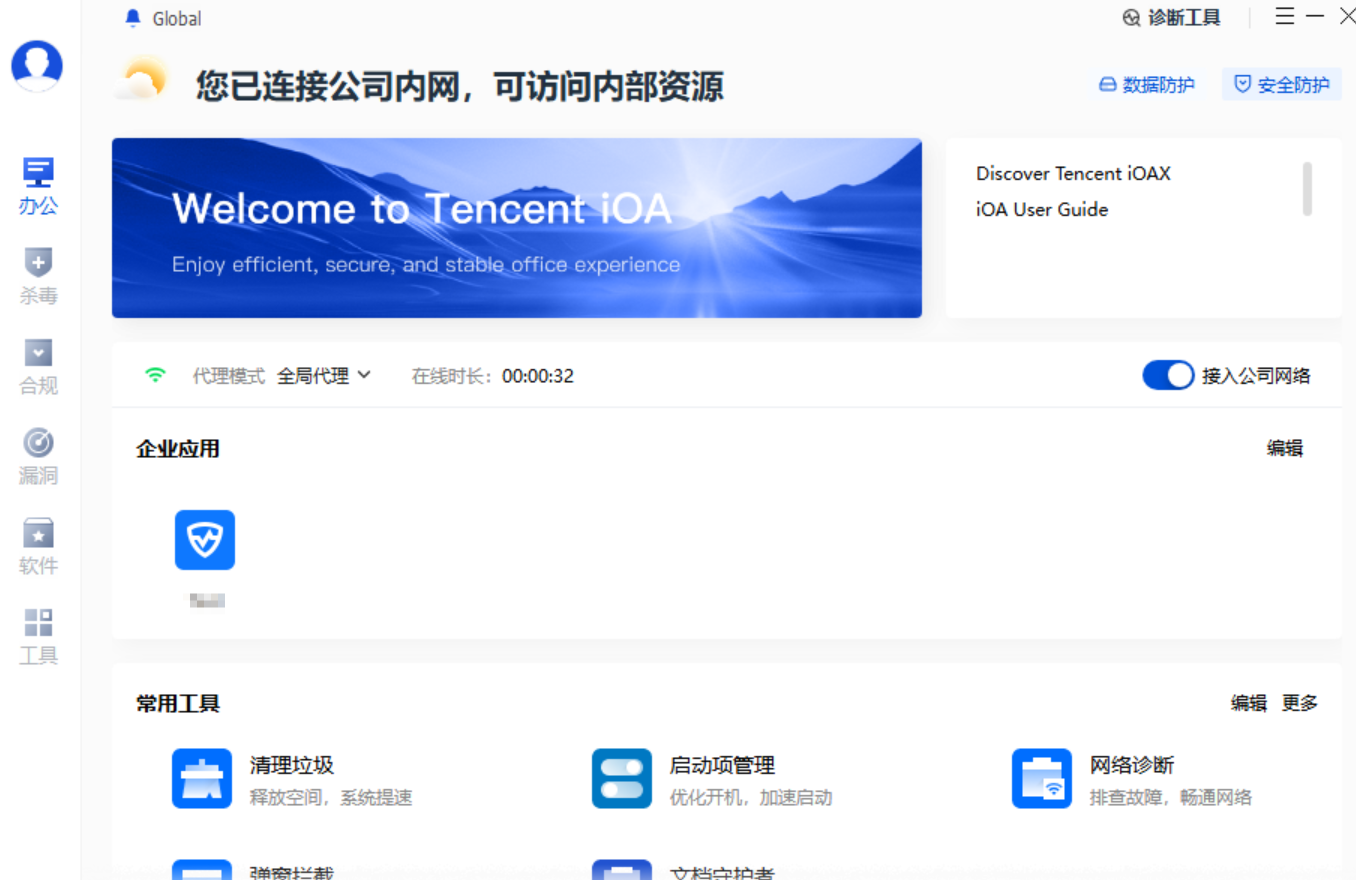
6. After registering your personal information, you will complete the iOA login.

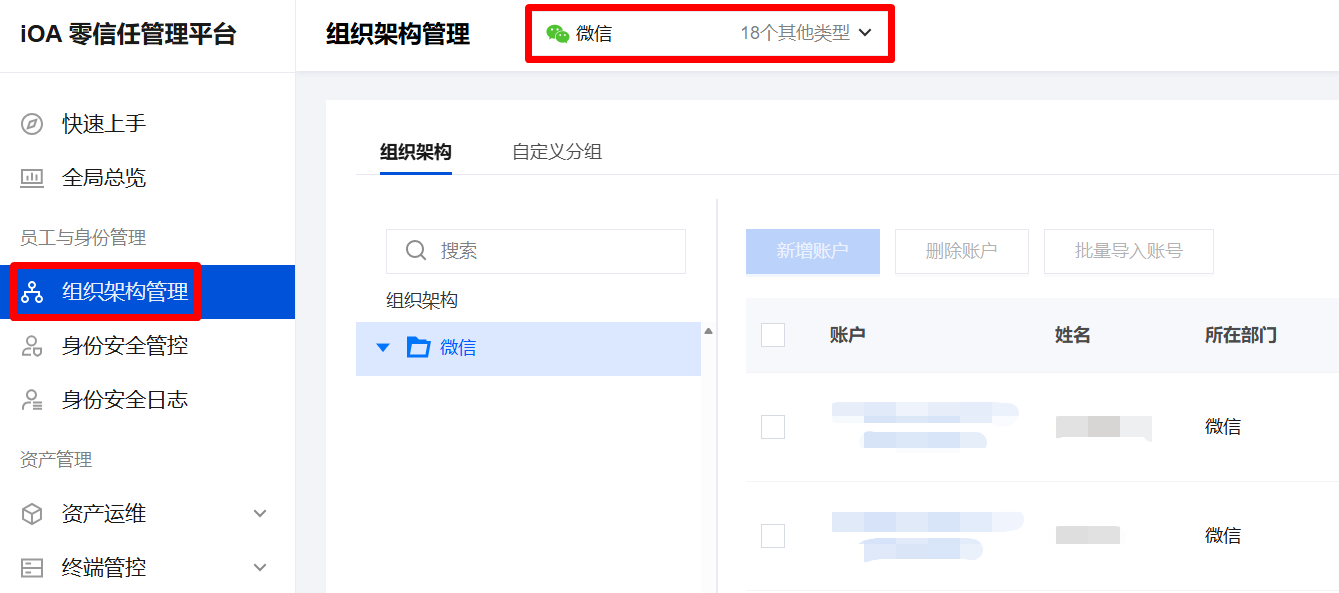
7. After employees complete QR code login in the client, the "WeChat Temporary Organization" directory is automatically created in the iOA console under Employee and Identity Management > Organizational Structure Management.
Administrators can view and manage employee account information in this directory.

When the "WeChat Temporary Organization" directory is created, a WeChat authentication source is automatically created.


Scenario 2: Manually Create an Organizational Structure

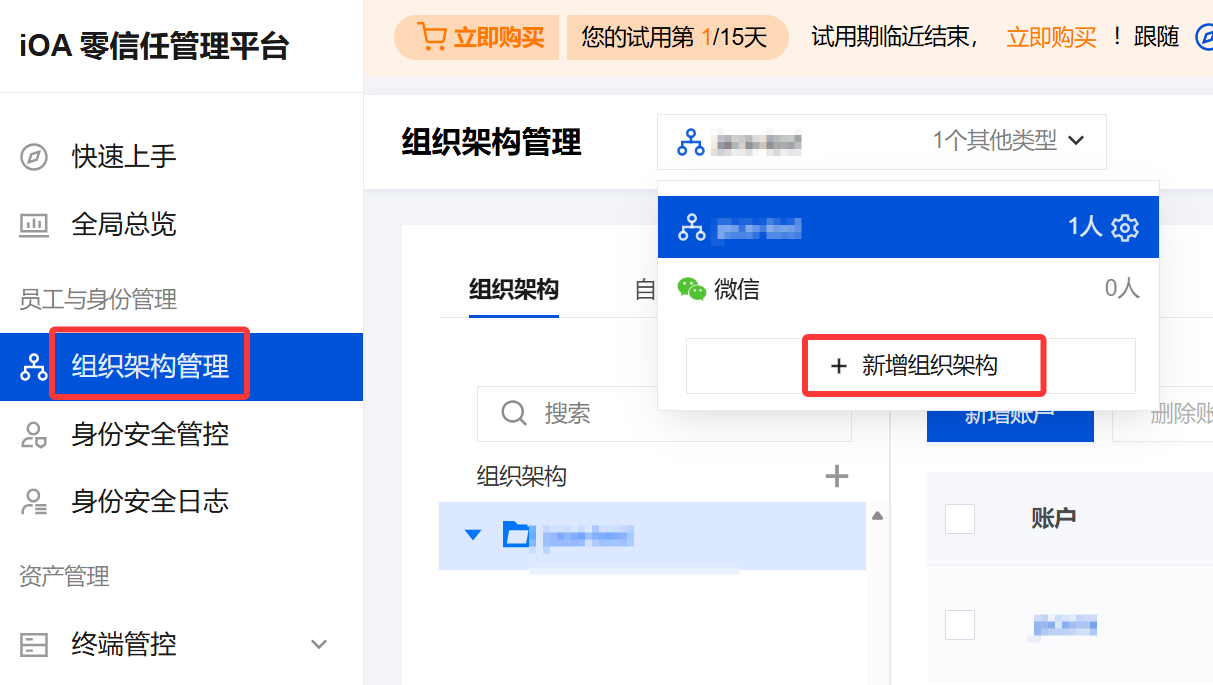
2. From the drop-down list, select Add Organizational Structure.

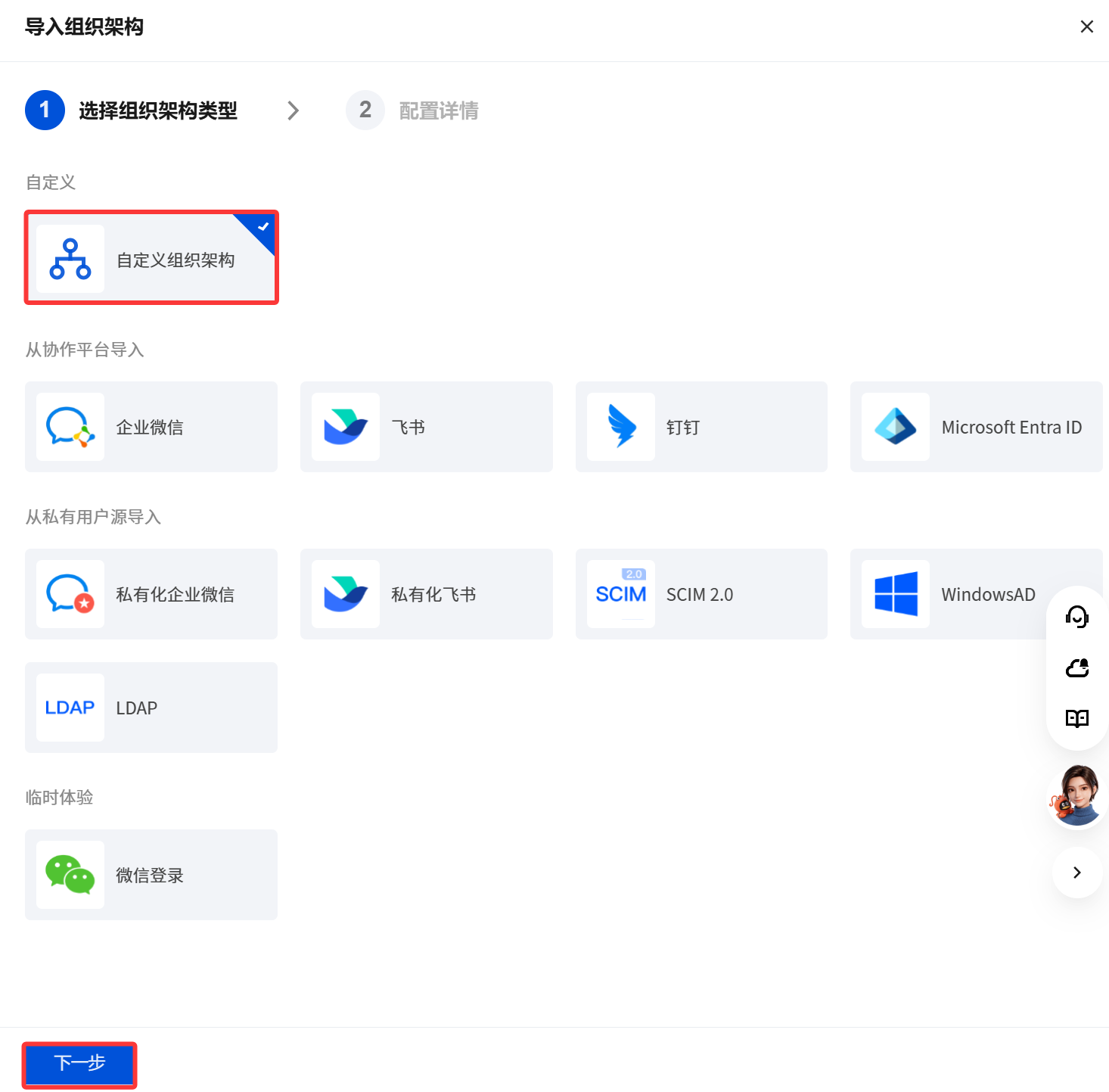
3. On the Import Organizational Structure page, select Custom Organizational structure, and click Next.

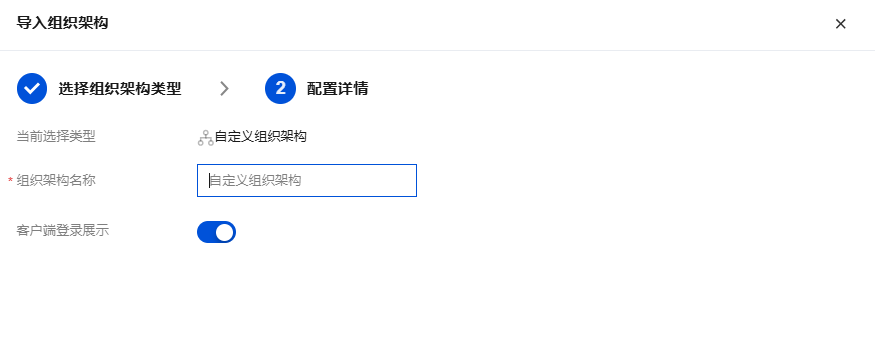
4. After entering the organization name, click Completed.

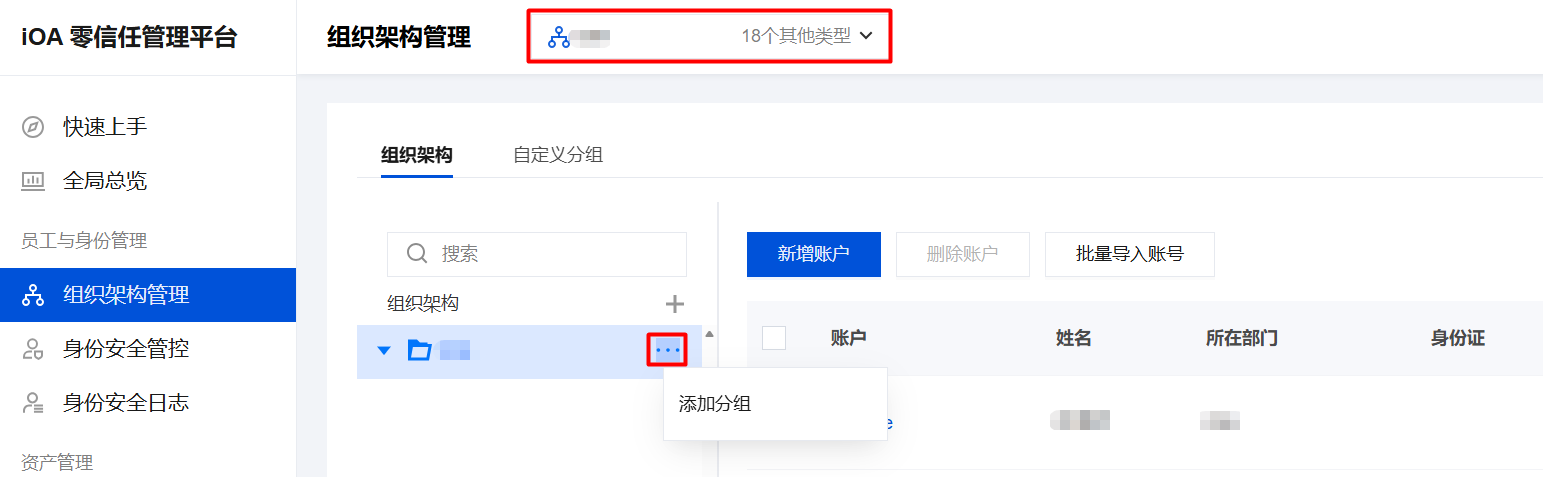
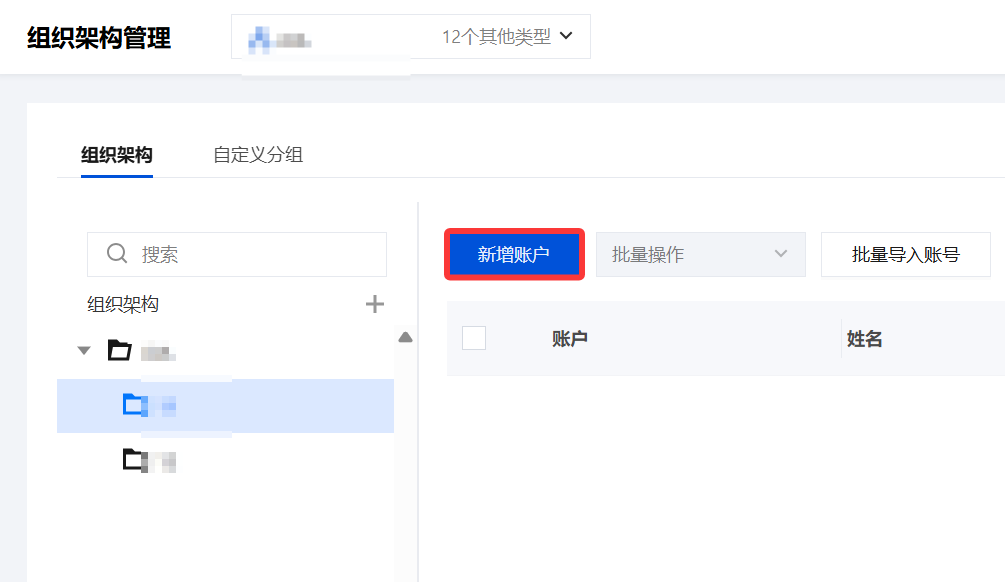
5. On the Employee and Identity Management > Organizational Structure Management page, the account groups and account status under the directory organizational structure are displayed. Click Add Group to create a sub-group under this group.

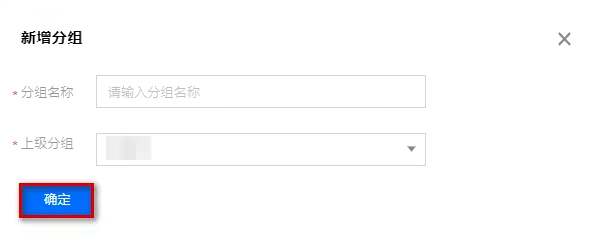
6. In the Add Group dialog, enter the group name, select the parent group, and click Confirm.

7. After creating the group, you can create accounts under it by clicking Add Account.

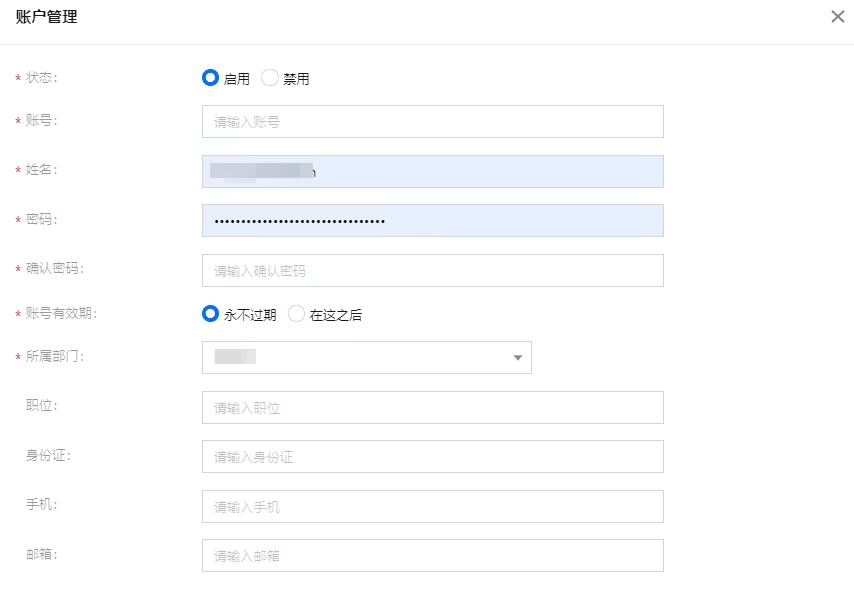
8. On the Account Management page, configure the parameters and click Confirm.

9. Open the client and enter your self-created account and password to complete the login.

Step 2: Distribute the iOA Client

Note:
iOA client distribution provides the following four deployment options (Employee Self-Service Deployment, Manual Package Deployment, Desktop Management Distribution, and Domain Controller Environment Deployment). Choose the one that best fits your business scenario.

Scenario 1: Self-Service Deployment for Employees

For computers that allow employee self-service installation, notify employees to install the client through invitations or corporate announcements.
1. Log in to the Tencent iOA Zero Trust Security Management System console, and in the left sidebar, select Quick Start.
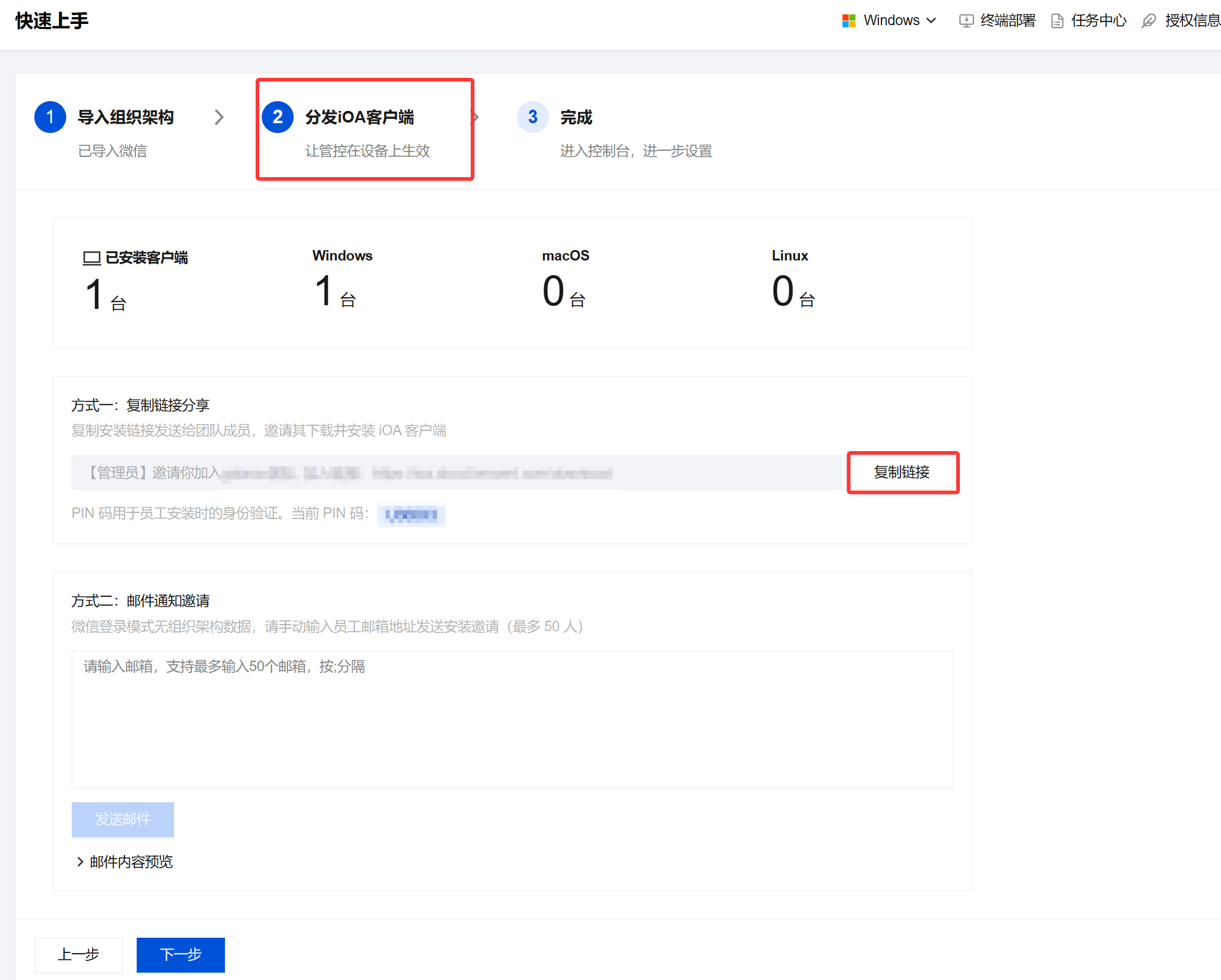
2. In the iOA client distribution step, the system provides a default client download URL. Enterprise admins can send the client download URL directly/email to employees. Employees can then click Copy Link to download the iOA client.

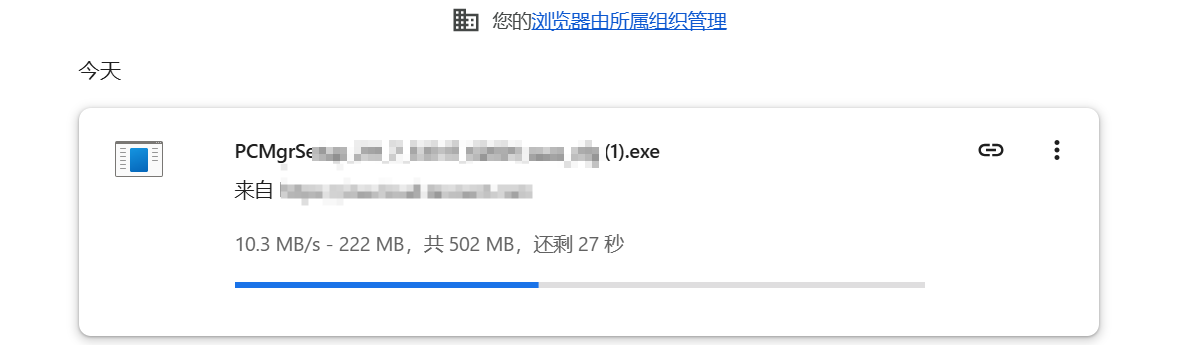
3. After copying the link into the browser, download the iOA client, and then double-click to install it once the download is complete.

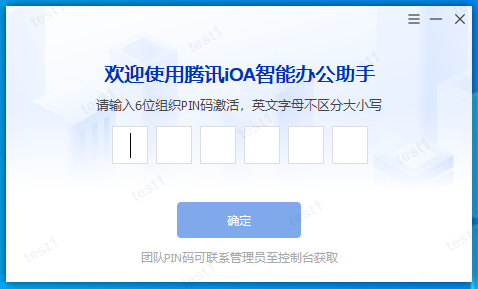
4. After the installation is complete, enter the PIN, and the client will then be associated with the corresponding console.


Scenario 2: Manual Package Deployment

Suitable for computers that require manual installation by an administrator, such as public or unattended computers.
1. Log in to the Tencent iOA Zero Trust Security Management System console, and in the left sidebar, select Quick Start.
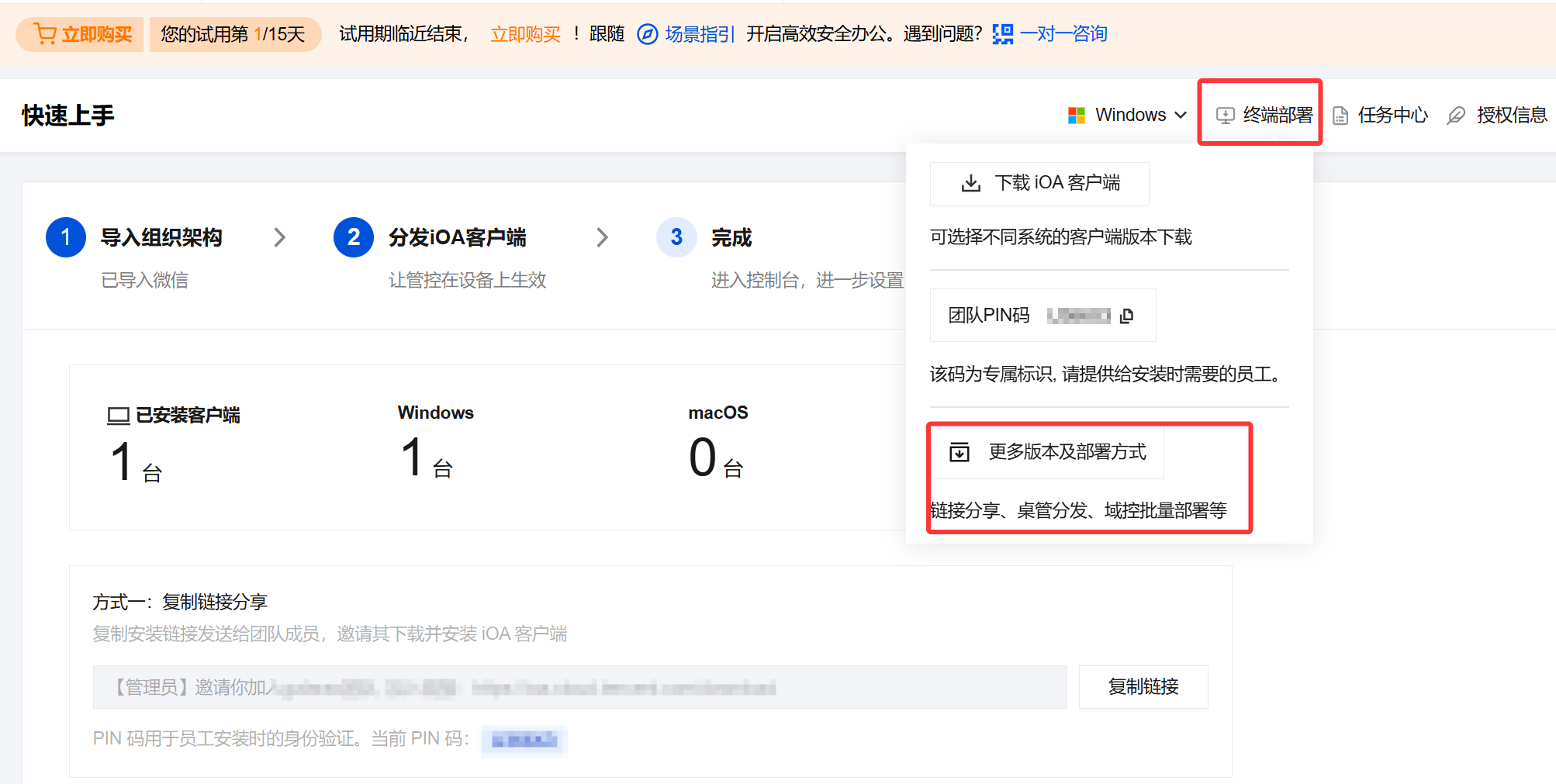
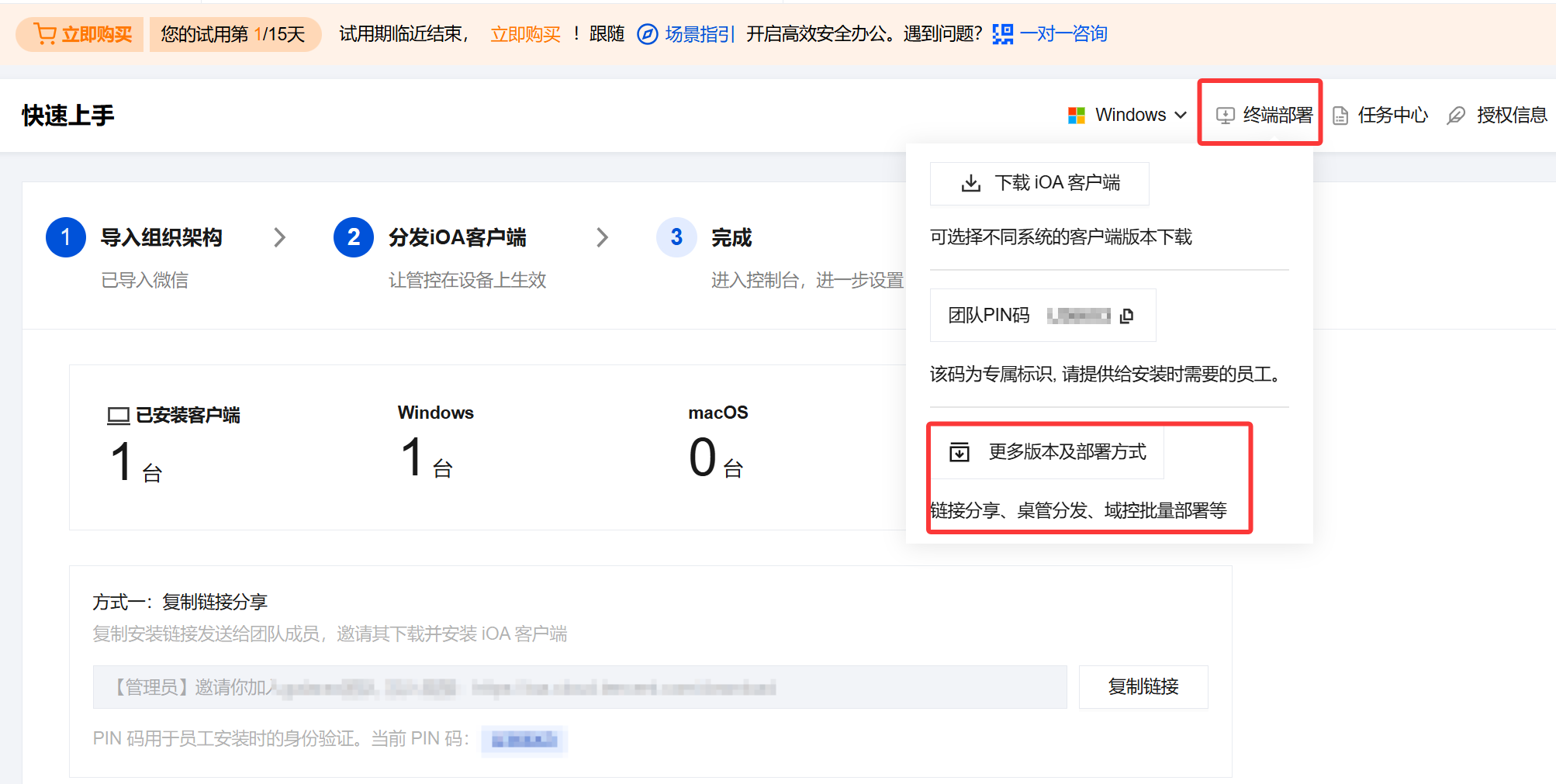
2. On the Quick Start page, select Terminal Deployment and click More versions and deployment methods.

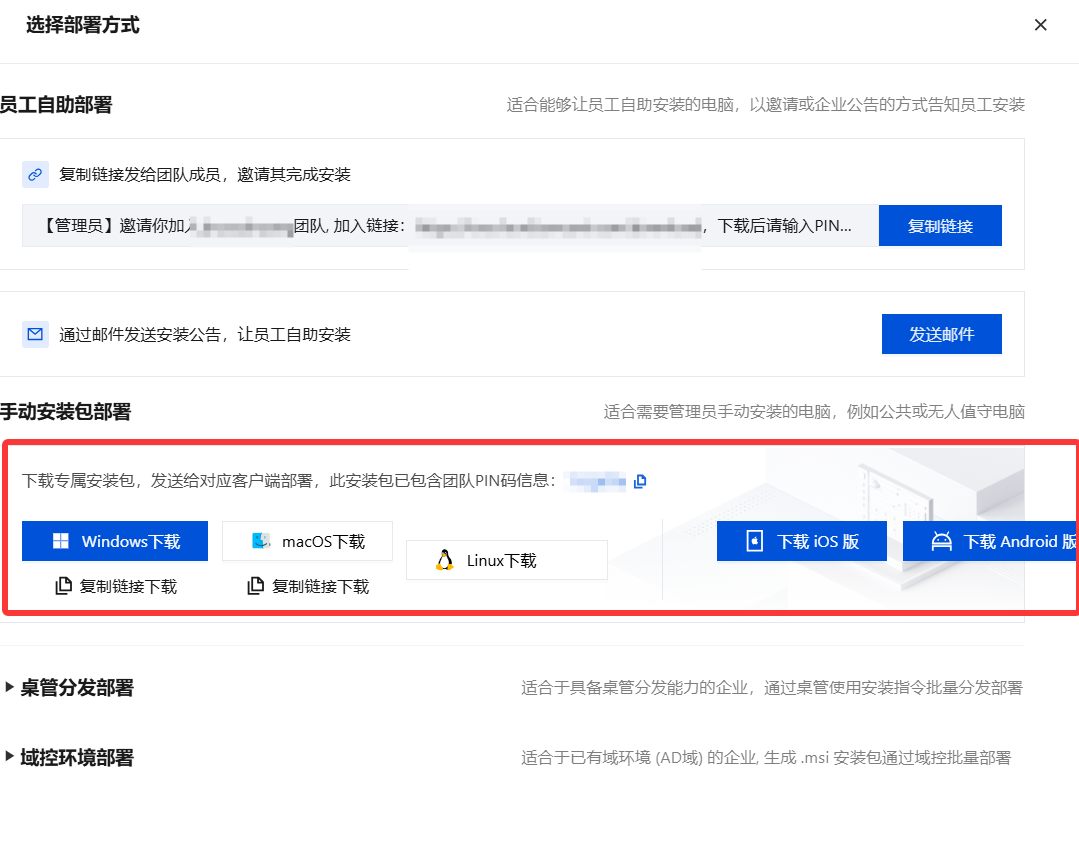
3. Click Windows Download, or click macOS or Linux Download to download the corresponding installation package.

4. After the download is complete, double-click to install the iOA client. The installation package includes a PIN, so the client is automatically associated with the console without requiring manual entry.

Scenario 3: Desktop Management Distribution and Deployment

Some enterprises already have desktop management products. They can use the software distribution feature of the desktop management software to distribute the iOA installation package uniformly. After employee terminal devices receive the iOA installation package, employees can install it with one click.
Here is an example using Tencent PC Manager (Small Team Edition):
1. Log in to the Tencent iOA Zero Trust Security Management System console, and in the left sidebar, select Quick Start.
2. On the Quick Start page, select Terminal Deployment and click More versions and deployment methods.

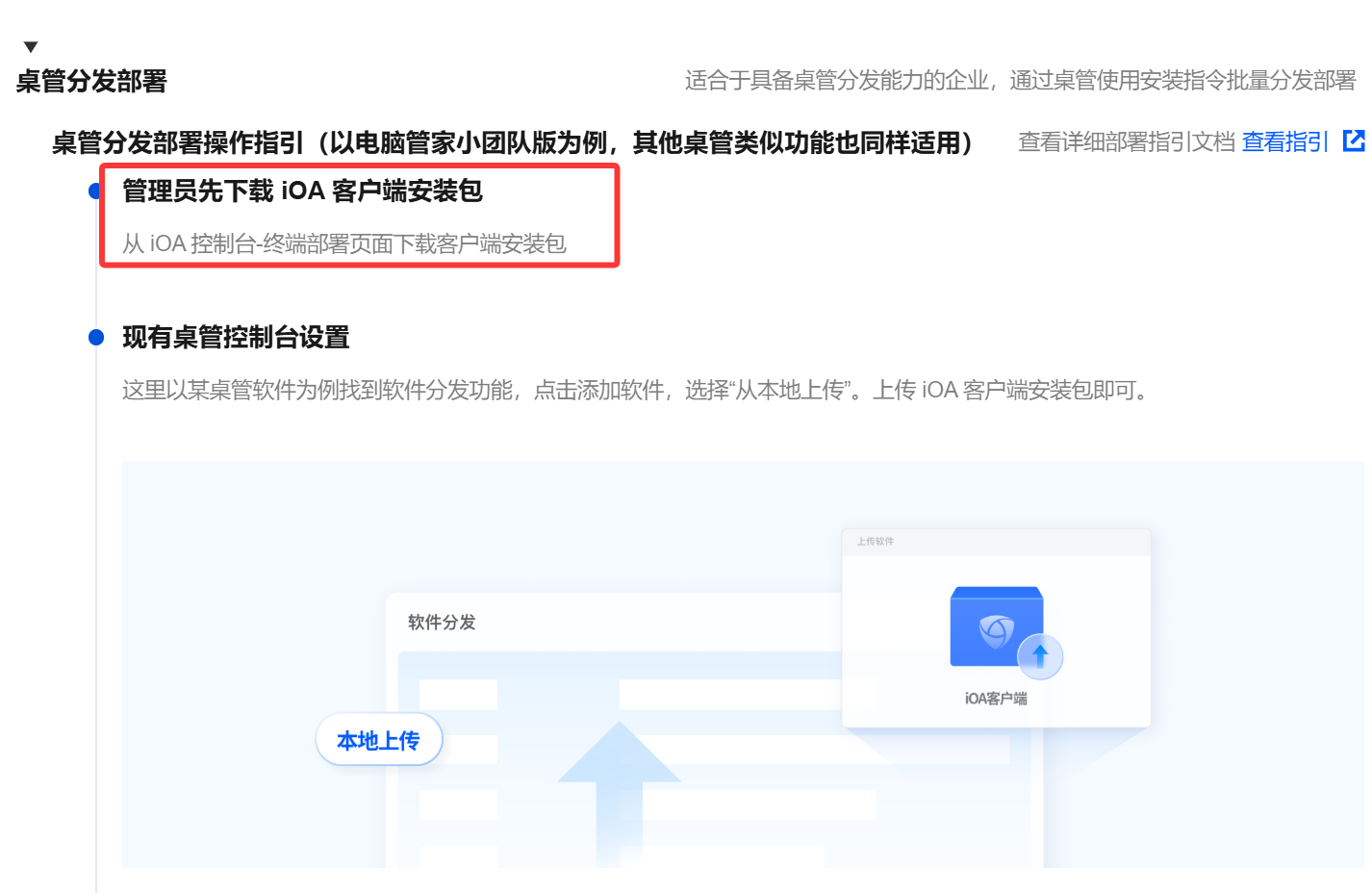
3. Select desktop management distribution deployment, and the administrator downloads the iOA client installation package first.

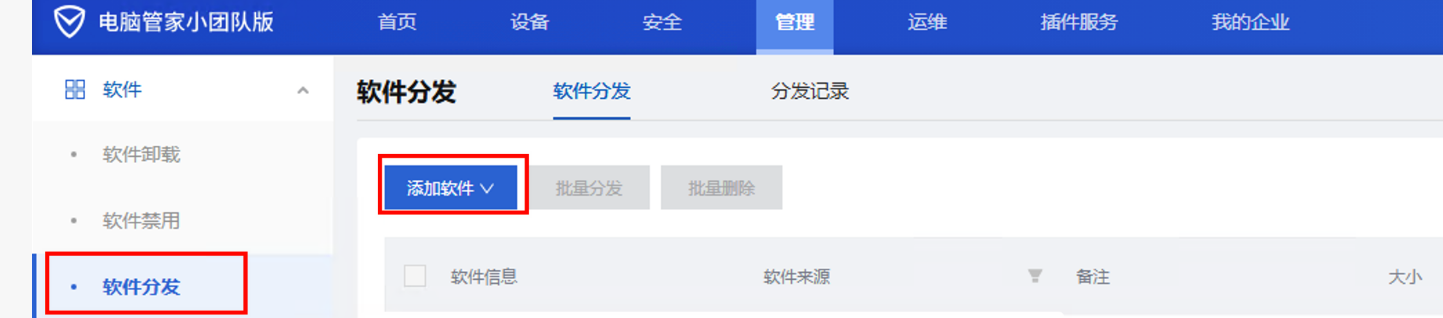
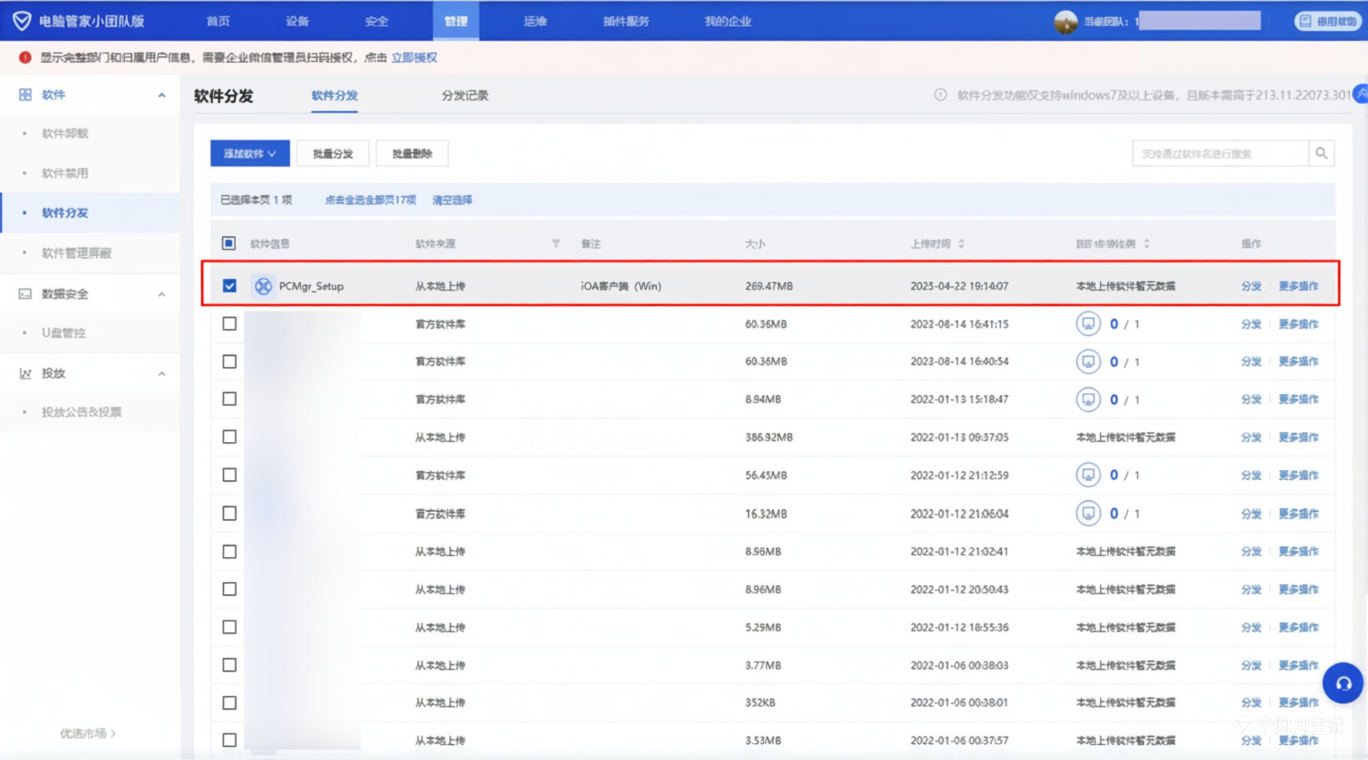
4. Log in to the Tencent PC Manager (Small Team Edition) console, and in the left sidebar, select Software distribution and click Add software.

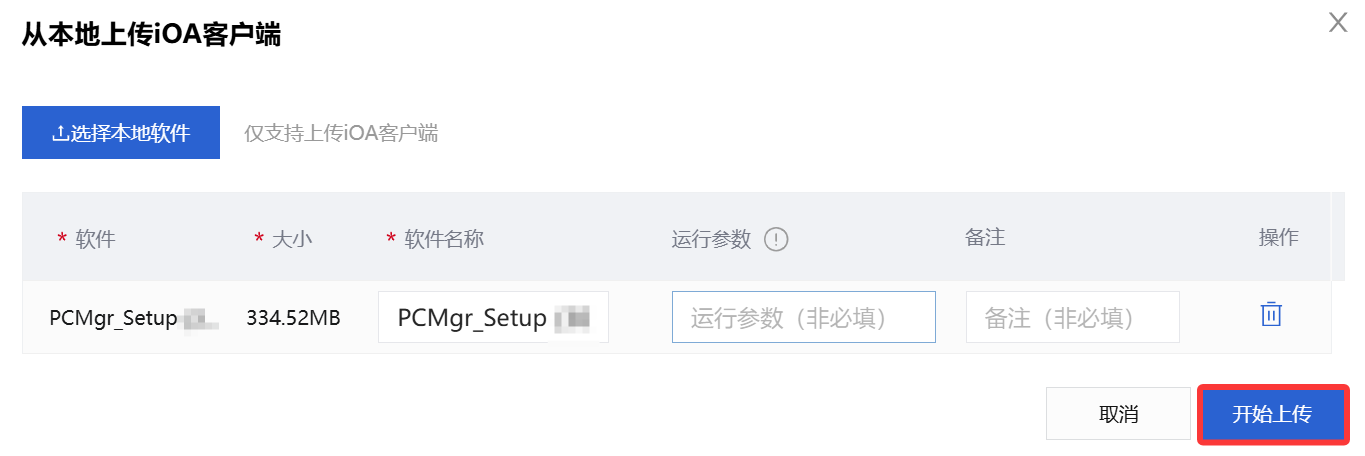
5. Select to upload the iOA client from the local device. For the client silent installation parameter (recommended): /s ##qqpcmgr=0, click Start uploading.

6. After the upload is successful, distribute it to the specified PCs. Once the upload succeeds, you can see the iOA client on the Software Distribution page. Select the target client and click Distribute in the operation column to distribute it to the specified PCs.

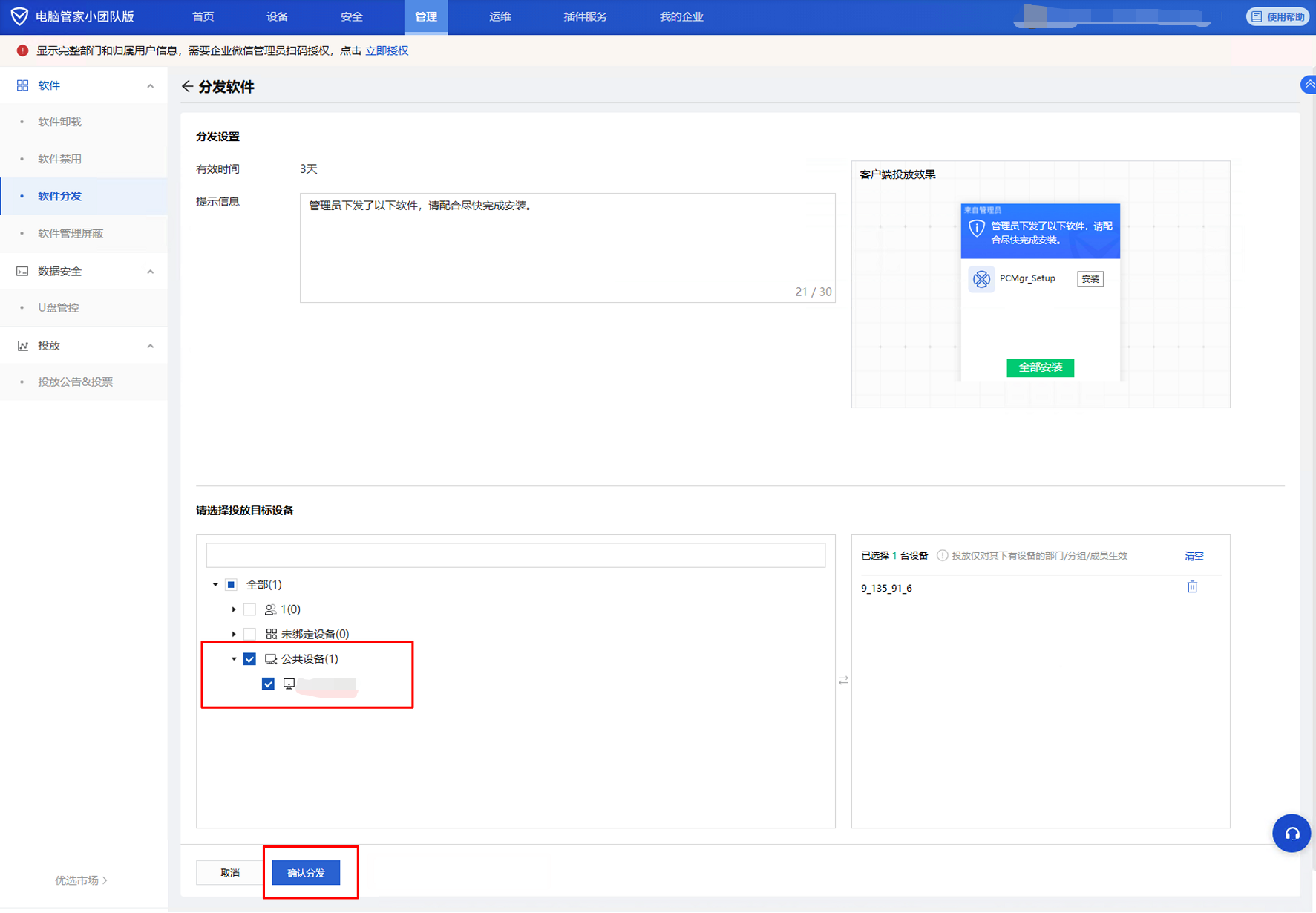
7. Select the specified devices and click Confirm Distribution.

8. The PC receives the installation package distributed by the administrator. Click Install Now to enter the iOA client installation process, which completes the client distribution and installation.

Scenario 4: Deployment in a Domain Controller Environment

Many customers have adopted AD domains to manage enterprise PCs, so they can use this platform for client promotion. Two AD domain-related promotion plans are provided here. For details, see iOA Client Domain Controller Promotion Plan.


Help and Support

Was this page helpful?

Help us improve! Rate your documentation experience in 5 mins.

Feedback