iOA SaaS Private Network Client Proxy Solution
ダウンロード
フォーカスモード
フォントサイズ
Scenarios
In a standard network environment, after the iOA client is installed on a terminal, the terminal automatically registers with the iOA console and enables features such as policy reception and log upload without additional configuration. For terminals on a private network that cannot directly connect to the internet, you can deploy a proxy server to use iOA's management and security features. You need to prepare a server that can connect to the internet and set up a local SOCKS5 proxy service.
Note:
If the SOCKS5 proxy server has internet access, the iOA client can access the iOA management console through the proxy server.
If the SOCKS5 proxy server has limited internet access, you need to allow access to the iOA management console address. Please contact us to obtain the address list.
Operation Steps
1. In the iOA client, choose Setting > General Settings.
2. In General Settings, enter the address and port of the SOCKS5 proxy server.
Attention:
The client proxy supports only management and security features. Zero Trust access and DLP features do not support the web proxy solution.
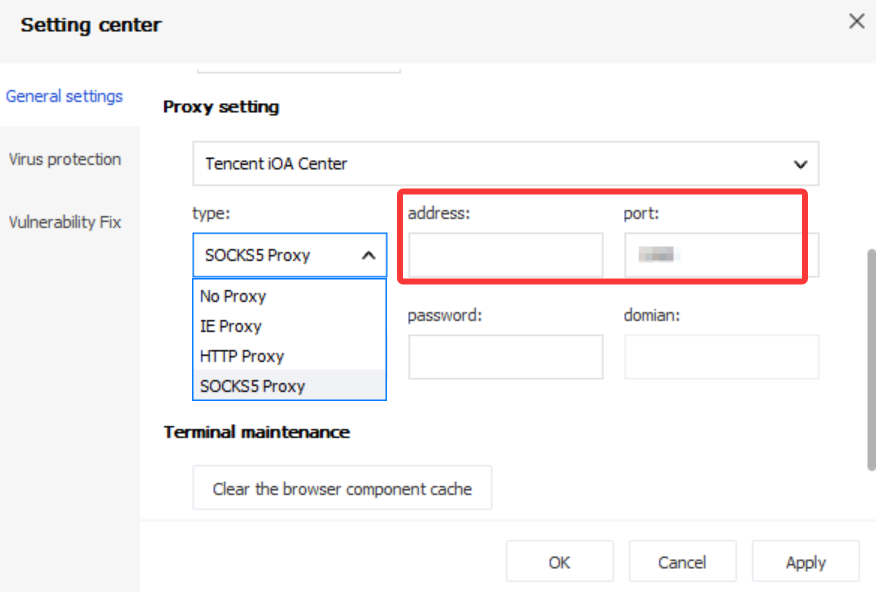
3. Proxy Settings > Control Center and Internet can be configured at the same time. To connect to the Control Center for policy reception, log upload, and internet cloud query engine access, configure the Control Center proxy server first and click Apply to take effect. Then configure the internet proxy server and click Apply to take effect.
Control Center: traffic to the iOA console.
Internet: traffic to all external addresses.
Note:
The proxy settings configured here take effect only on the client.
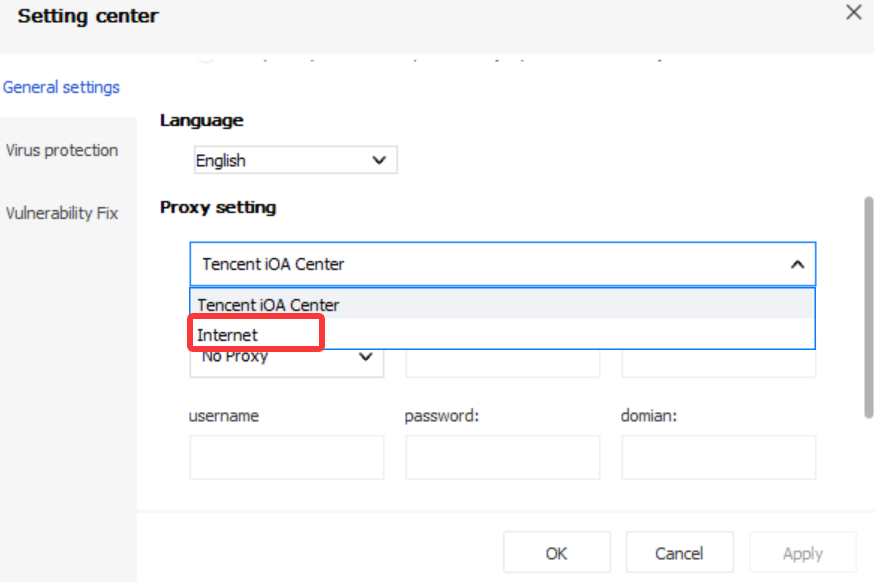
4. After confirming that the information is correct, click Apply > OK to complete the private network client proxy configuration.
フィードバック