Resource Access Error Guide
ダウンロード
フォーカスモード
フォントサイズ
Follow the instructions below to resolve errors that occur when iOA connector resources are accessed, including failed channel creation by the iOA connector, failed connection from the iOA connector to the cloud network, channel creation timeout on the iOA connector, the iOA connector being offline or not installed, timeout when the iOA connector accesses business servers, failed connection when the iOA connector accesses business servers, denied access to business by the iOA connector, and nonexistent L3 channels on the iOA connector.
Failure to Create a Channel for iOA Connector
Cause
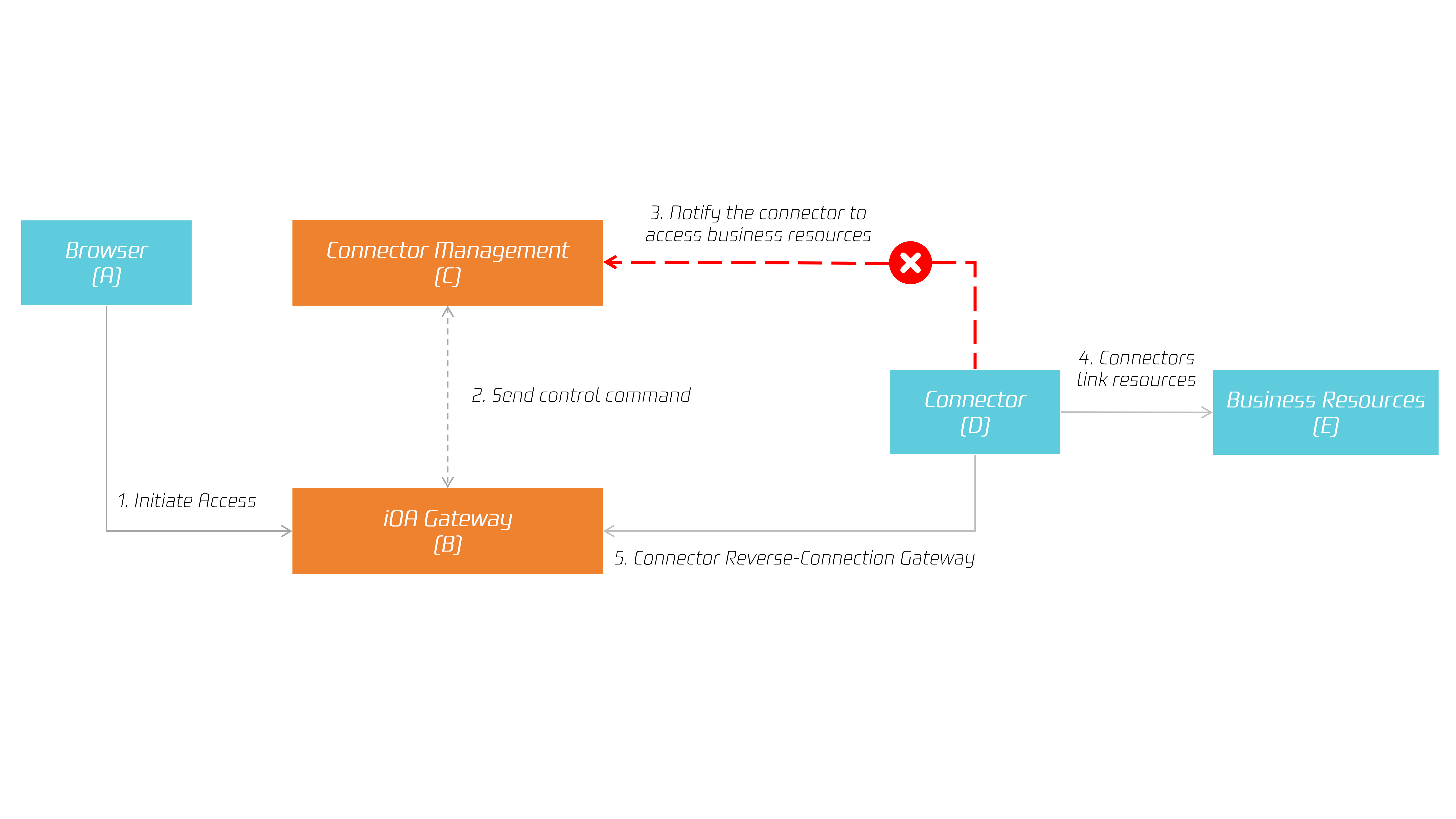
This issue occurs when the connector management service fails to notify a connector to access business resources. The failure is caused by an abnormal network connection between the connector (D) and connector management (C) on Tencent Cloud. On the Third-Party Cloud Services page, click Refresh Connectivity Status to obtain the latest connector status and check connection connectivity.
Solution
1. If the page shows that the connector status is abnormal, check the network connectivity between (D) and (C) and between (D) and (B).
2. Check steps:
2.1 Log in to the machine where the connector is installed, cd to the connector installation directory, and run the self-check command:
./connector -d2.2 If an error is reported in the previous check, fix it according to the error message.
2.3 If the check result is normal, run the Telnet command to check the connectivity from (D) to (C):
telnet ch1.channel.gateway.tencentwsd.cn 30226 This address is only an example. For the actual address, go to the Third-Party Cloud Services page and check the allowed address list in the description column.2.4 If an error occurs, troubleshoot it based on the error message reported by Telnet.
2.5 If the preceding steps are performed successfully, continue to check the connectivity from (D) to (B):
telnet ch2-{tenant id}.channel.gateway.tencentwsd.cn 30225. This address is only an example. For the actual address, go to the Third-Party Cloud Services page and check the allowed address list in the description column.2.6 If an error occurs, troubleshoot it based on the error message reported by Telnet.
2.7 If all the preceding steps are normal, try restarting the connector service to check whether the service recovers:
systemctl restart connectorFailure to Connect iOA Connector to Cloud Network
Cause
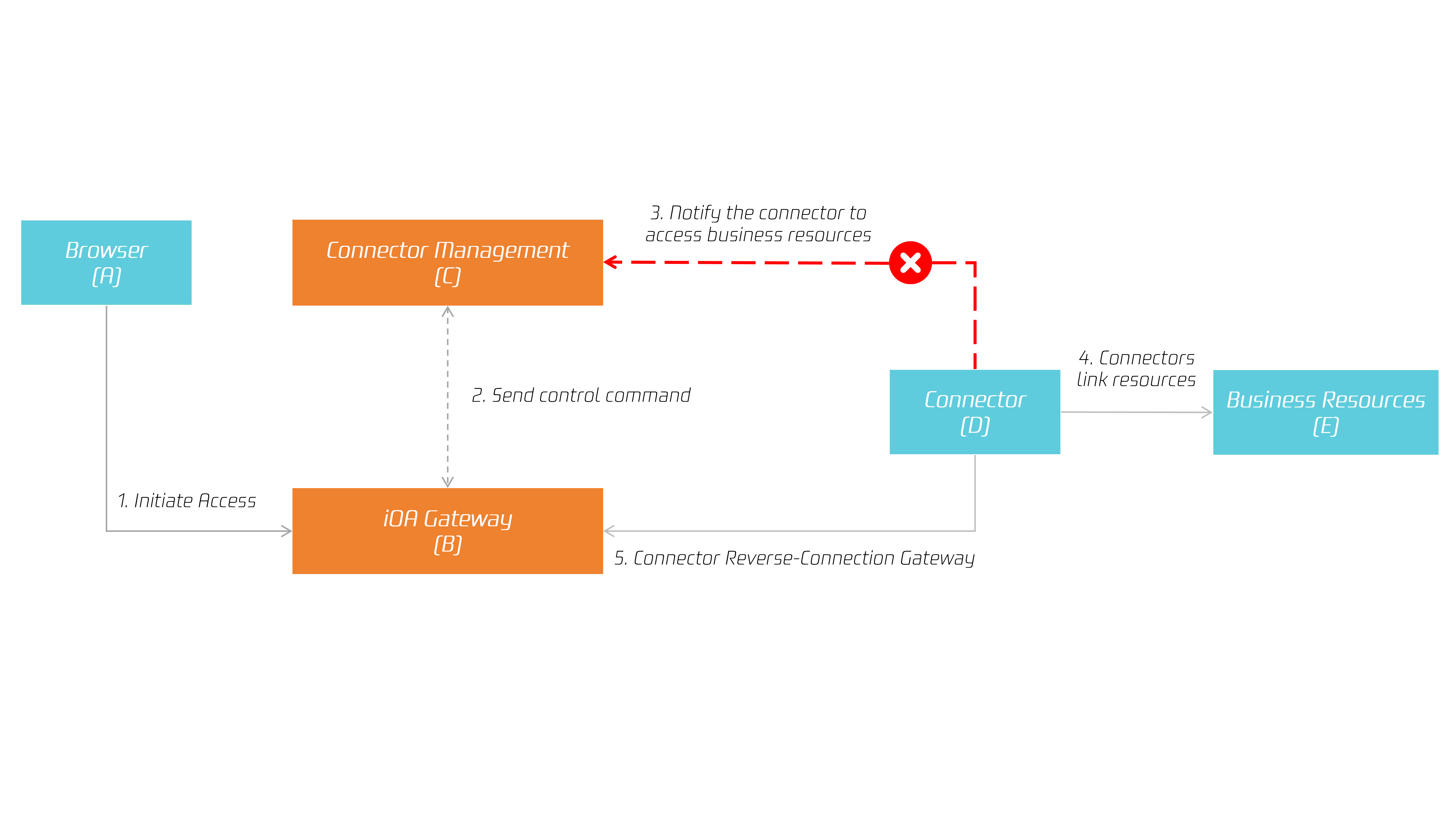
This issue occurs when the connector management service fails to notify a connector to access business resources. The failure is caused by an abnormal network connection between the connector (D) and connector management (C) on Tencent Cloud. On the Third-Party Cloud Services page, click Refresh Connectivity Status to obtain the latest connector status and check connection connectivity.
Solution
1. If the page shows that the connector status is abnormal, check the network connectivity between (D) and (C) and between (D) and (B).
2. Check steps:
2.1 Log in to the machine where the connector is installed, cd to the connector installation directory, and run the self-check command:
./connector -d2.2 If an error is reported in the previous check, fix it according to the error message.
2.3 If the check result is normal, run the Telnet command to check the connectivity from (D) to (C):
telnet ch1.channel.gateway.tencentwsd.cn 30226 This address is only an example. For the actual address, go to the Third-Party Cloud Services page and check the allowed address list in the description column.2.4 If an error occurs, troubleshoot it based on the error message reported by Telnet.
2.5 If the preceding steps are performed successfully, continue to check the connectivity from (D) to (B):
telnet ch2-{tenant id}.channel.gateway.tencentwsd.cn 30225. This address is only an example. For the actual address, go to the Third-Party Cloud Services page and check the allowed address list in the description column.2.6 If an error occurs, troubleshoot it based on the error message reported by Telnet.
2.7 If all the preceding steps are normal, try restarting the connector service to check whether the service recovers:
systemctl restart connectorTimeout When a Channel for iOA Connector Is Created
Cause
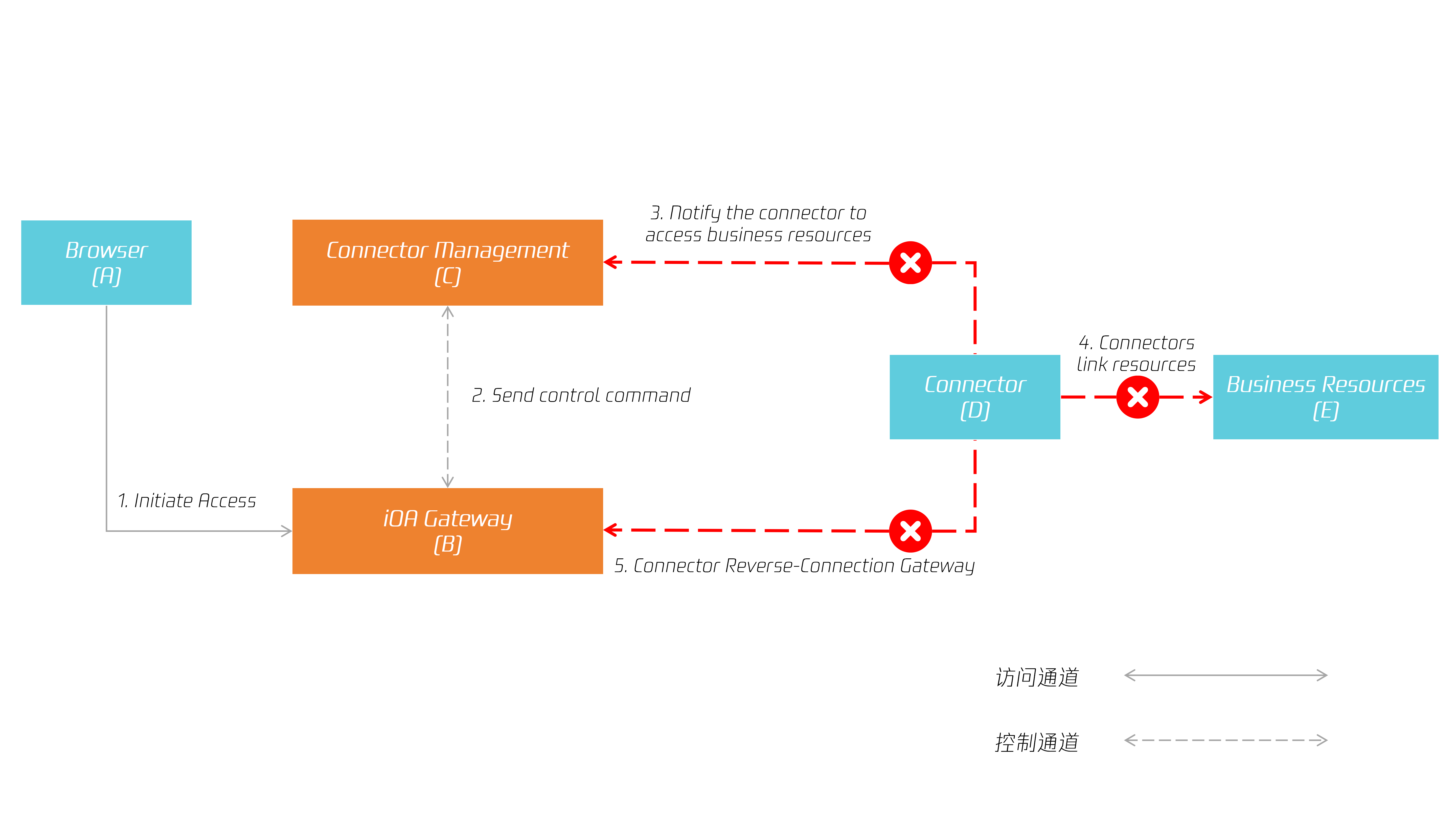
This issue is caused by an abnormal link between the connector and other services. On the Third-Party Cloud Services page, click Refresh Connectivity Status to obtain the latest connector status and check connection connectivity.
Solution
1. If the page shows that the connector status is abnormal, check the connector network status.
2. Check steps:
2.1 Log in to the machine where the connector is installed, cd to the connector installation directory, and run the self-check command:
./connector -d2.2 If an error is reported in the previous check, fix it according to the error message.
2.3 If the check result is normal, run the Telnet command to check the connectivity from (D) to (C):
telnet ch1.channel.gateway.tencentwsd.cn 30226This address is only an example. For the actual address, go to the Third-Party Cloud Services page and check the allowed address list in the description column.2.4 If an error occurs, troubleshoot it based on the error message reported by Telnet.
2.5 If the preceding steps are performed successfully, continue to check the connectivity from (D) to (B):
telnet ch2-{tenant id}.channel.gateway.tencentwsd.cn 30225This address is only an example. For the actual address, go to the Third-Party Cloud Services page and check the allowed address list in the description column.2.6 If an error occurs, troubleshoot it based on the error message reported by Telnet.
2.7 If all the preceding steps are normal, try restarting the connector service to check whether the service recovers:
systemctl restart connectoriOA Connector Offline or Not Installed
Cause
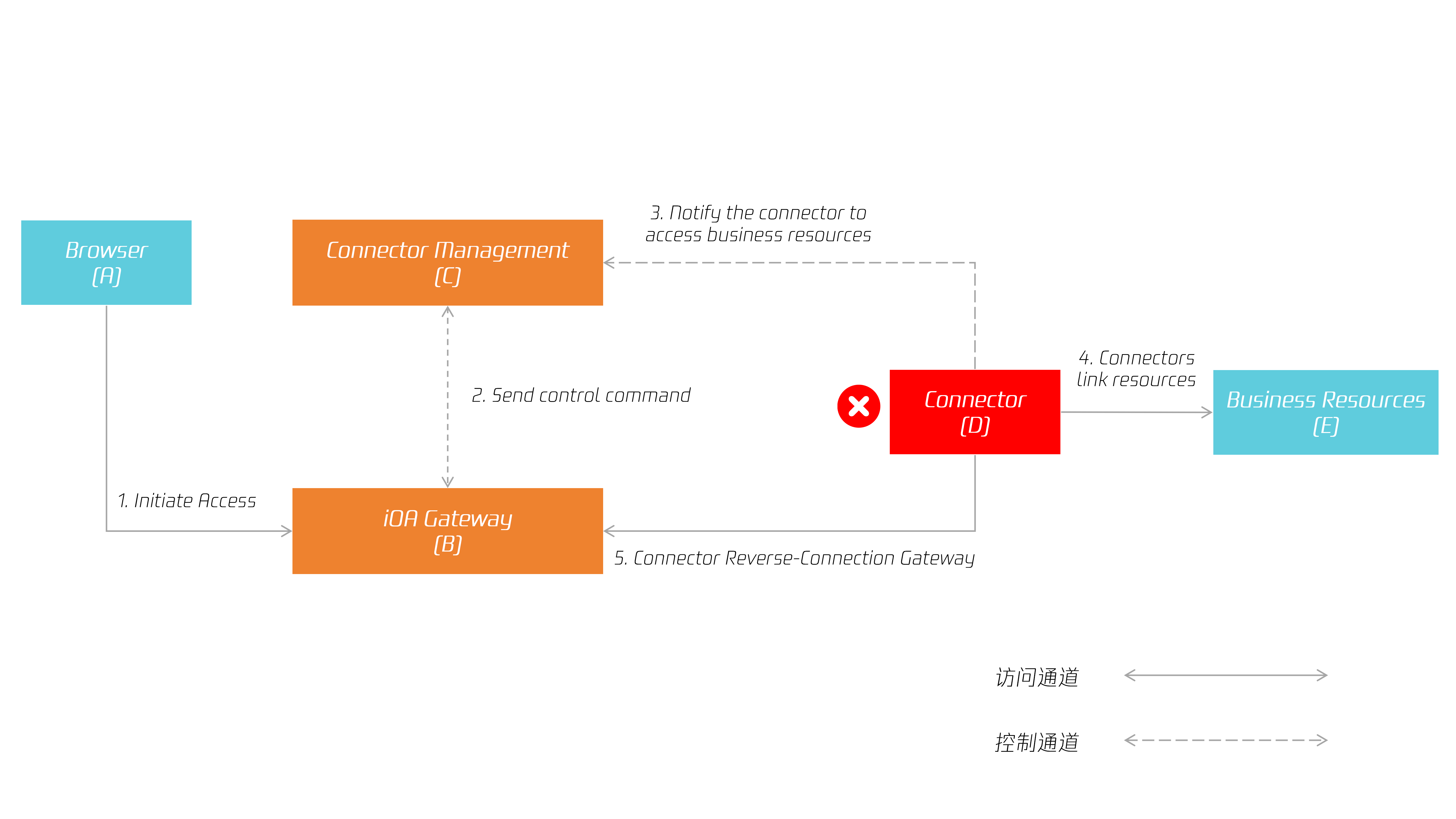
This issue is caused by the connector not being started or not being installed. On the Third-Party Cloud Services page, click Refresh Connectivity Status to obtain the latest connector status and check connection connectivity.
Solution
1. If the page shows that the connector status is abnormal, check the running status of the connector service.
2. Check steps:
2.1 Check whether the connector service is installed. If not, install the connector by following the instructions in Connector Deployment.
2.2 If the connector is already installed, log in to the machine where the connector resides, cd to the connector installation directory, and run the self-check command:
./connector -d.2.3 If an error is reported in the previous check, fix it according to the error message.
2.4 If all the preceding steps are normal, try restarting the connector service to check whether the service recovers:
systemctl restart connectorTimeout When a Business Server Is Accessed via iOA Connector
Cause
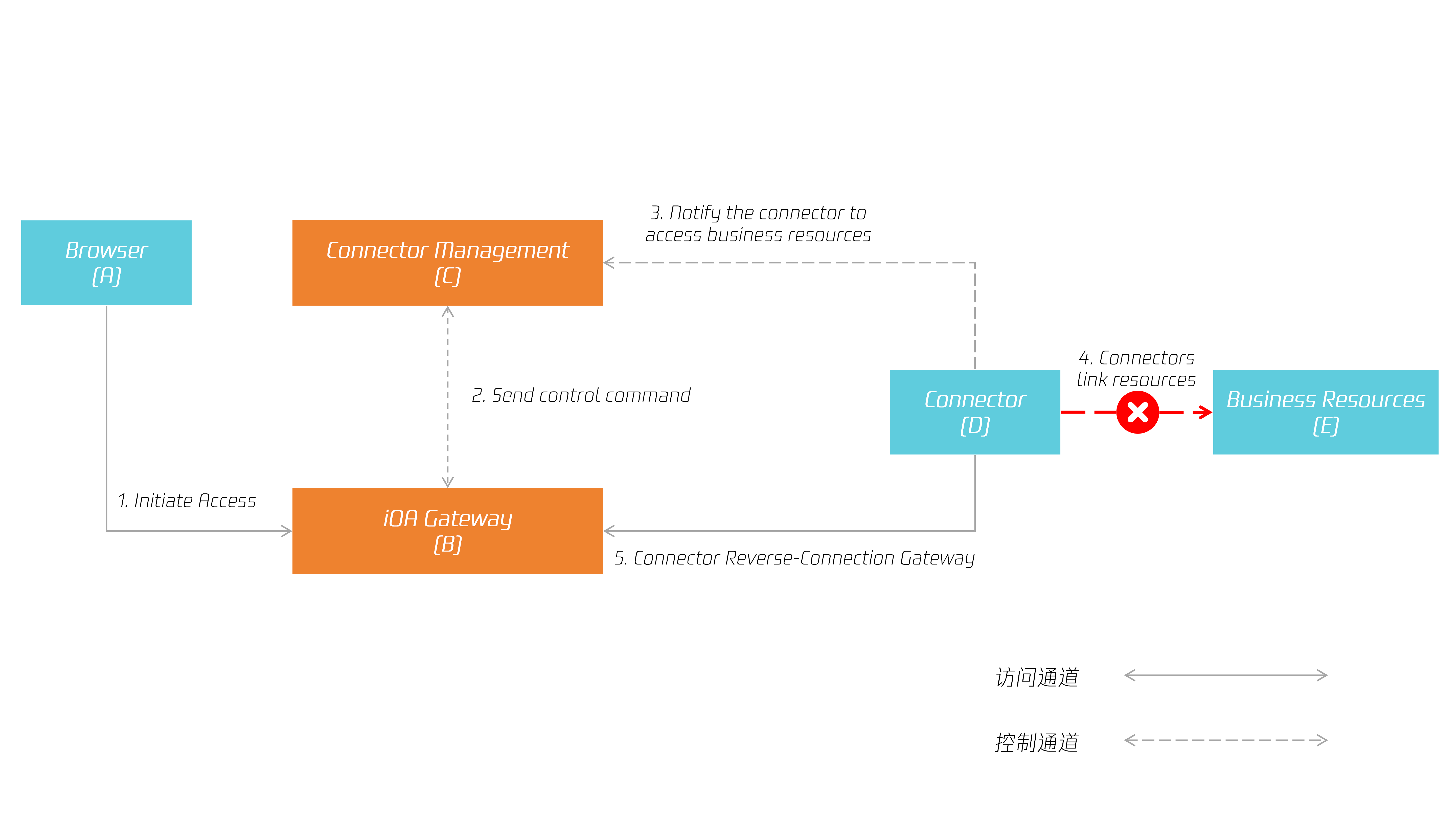
This issue is caused by a connectivity failure between the connector and the business service.
Solution
1. Log in to the machine where the connector resides.
2. Run the curl command to check (D) to (E):
curl "http://business-address.com". This address is only an example. Use the real private business address when performing the check.3. If an error occurs, troubleshoot it based on the error message reported by curl.
4. If all the preceding steps are normal, try restarting the connector service to check whether the service recovers:
systemctl restart connectorConnection Failure When a Business Server Is Accessed via iOA Connector
Cause
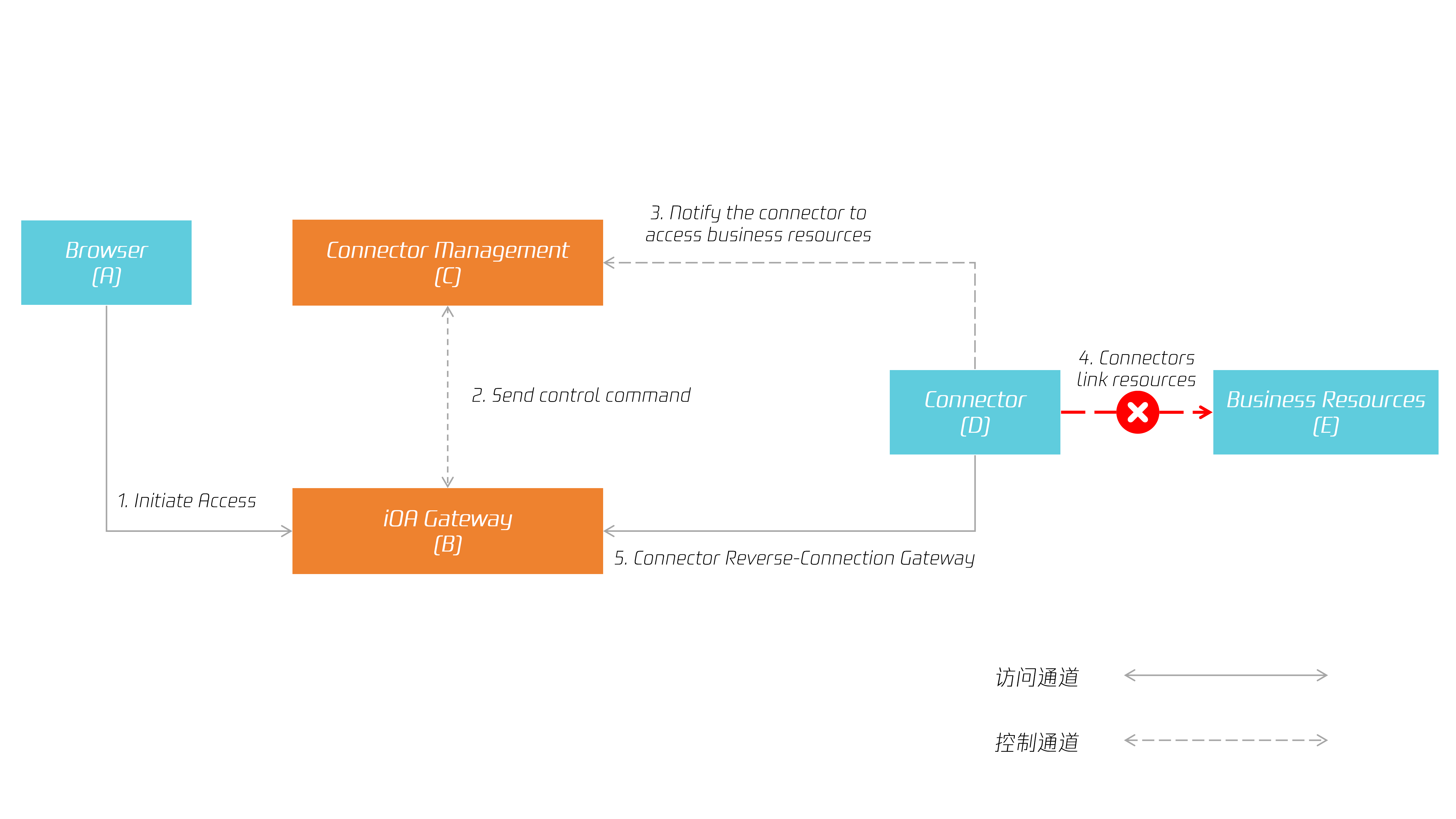
This issue is caused by a connectivity failure between the connector and the business service.
Solution
1. Log in to the machine where the connector resides.
2. Run the curl command to check (D) to (E):
curl "http://business-address.com". This address is only an example. Use the real private business address when performing the check.3. If an error occurs, troubleshoot it based on the error message reported by curl.
4. If all the preceding steps are normal, try restarting the connector service to check whether the service recovers:
systemctl restart connectorAccess to Business Denied via iOA Connector
Cause
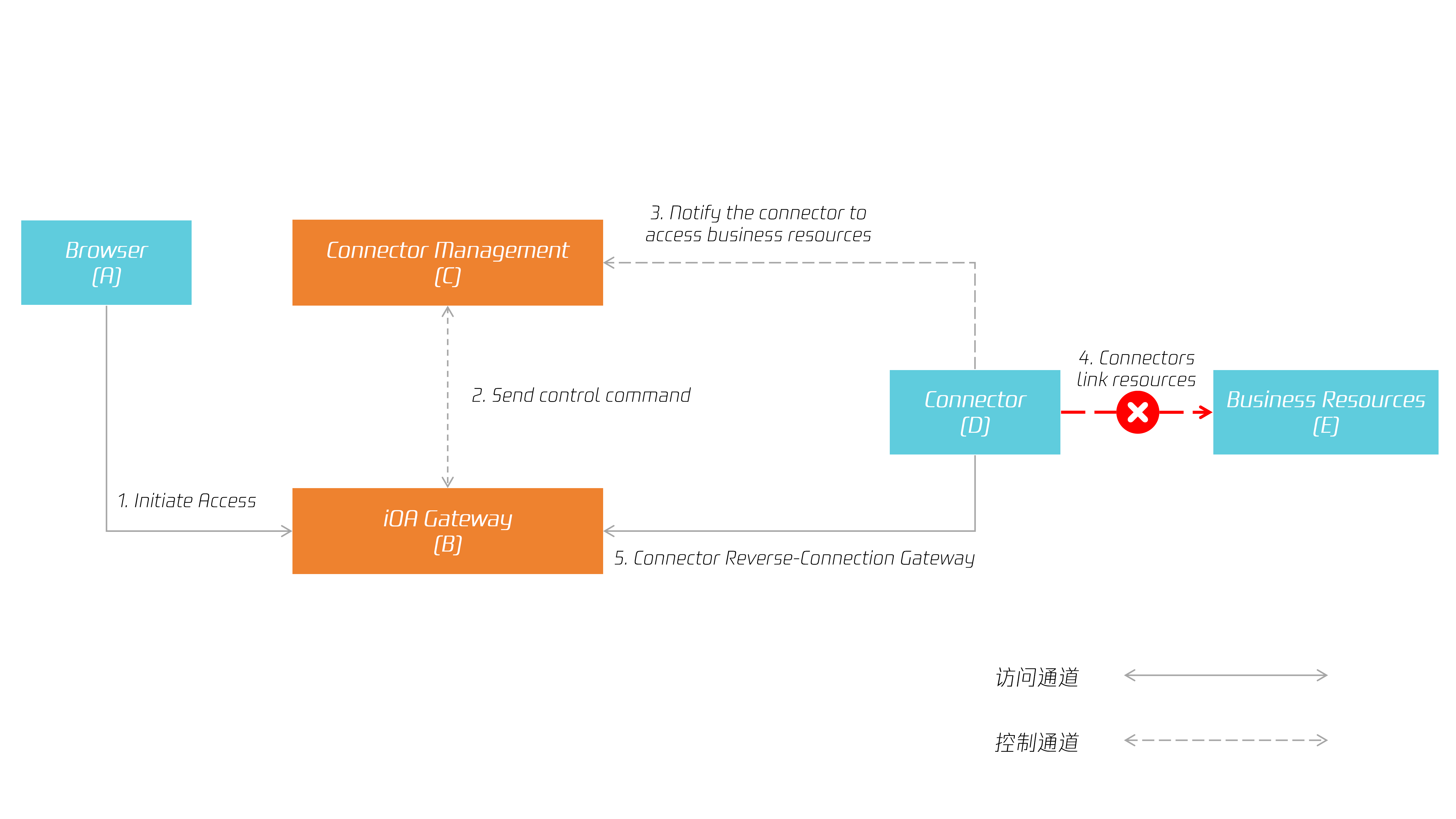
This issue is caused by a connectivity failure between the connector and the business service.
Solution
1. Log in to the machine where the connector resides.
2. Run the curl command to check (D) to (E):
curl "http://business-address.com". This address is only an example. Use the real private business address when performing the check.3. If an error occurs, troubleshoot it based on the error message reported by curl.
4. If all the preceding steps are normal, try restarting the connector service to check whether the service recovers:
systemctl restart connectorL3 Tunnel Not Found for iOA Connector
Cause
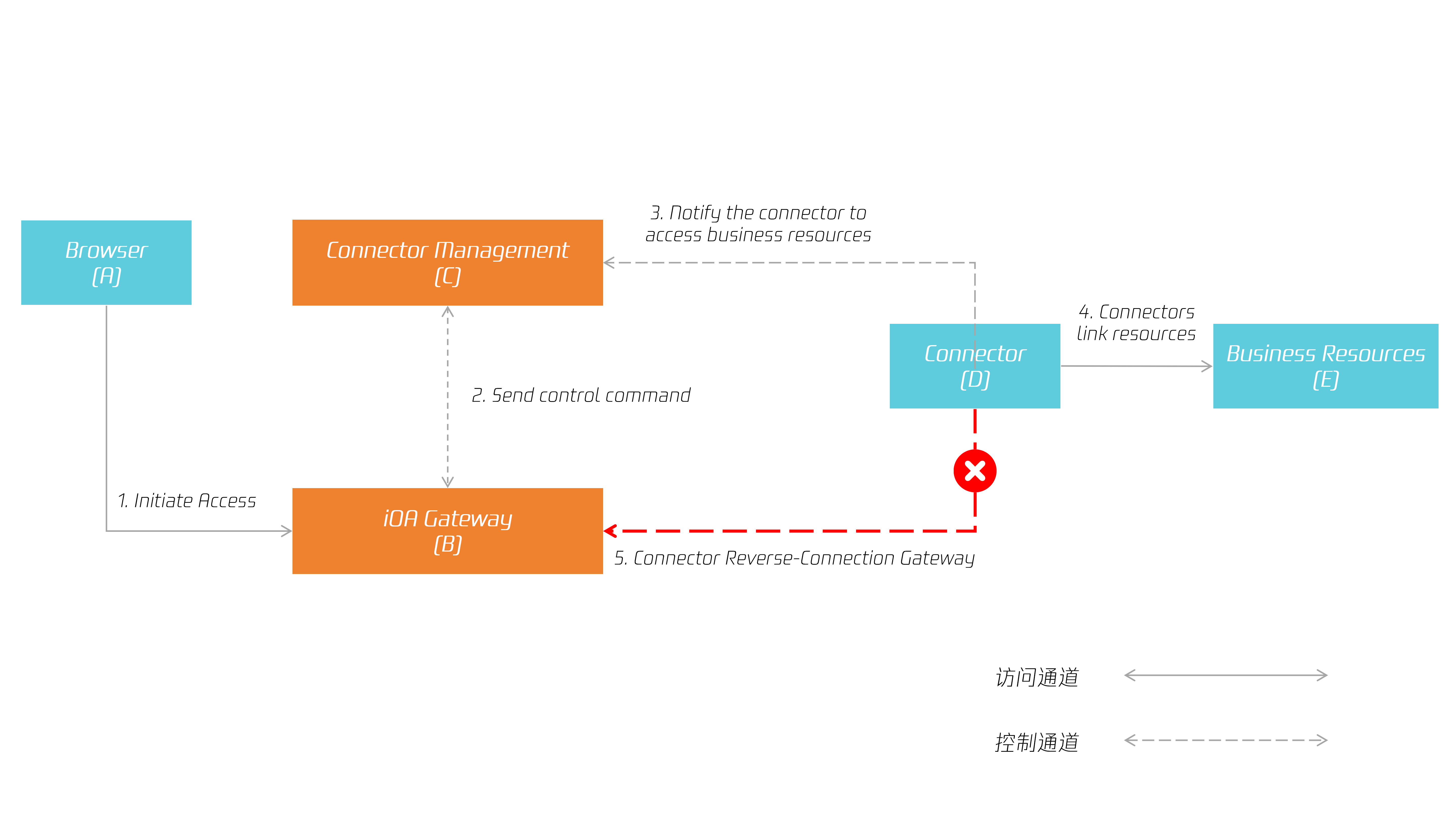
This issue is caused by a UDP connectivity failure between the connector and the iOA gateway.
Solution
1. If you are using the connector for the first time, check whether the IP address and port from the connector to the domain
wg1.channel.gateway.tencentwsd.cn:13303 are accessible.2. If business access was previously normal, log in to the connector server, cd to the connector installation directory, and run the following command to check the connector network status:
./connector -d3. If an error is reported in the previous check, fix it according to the error message.
4. If all the preceding steps are normal, try restarting the connector service to check whether the service recovers:
systemctl restart connector
フィードバック