Creating a Task
Download
Focus Mode
Font Size
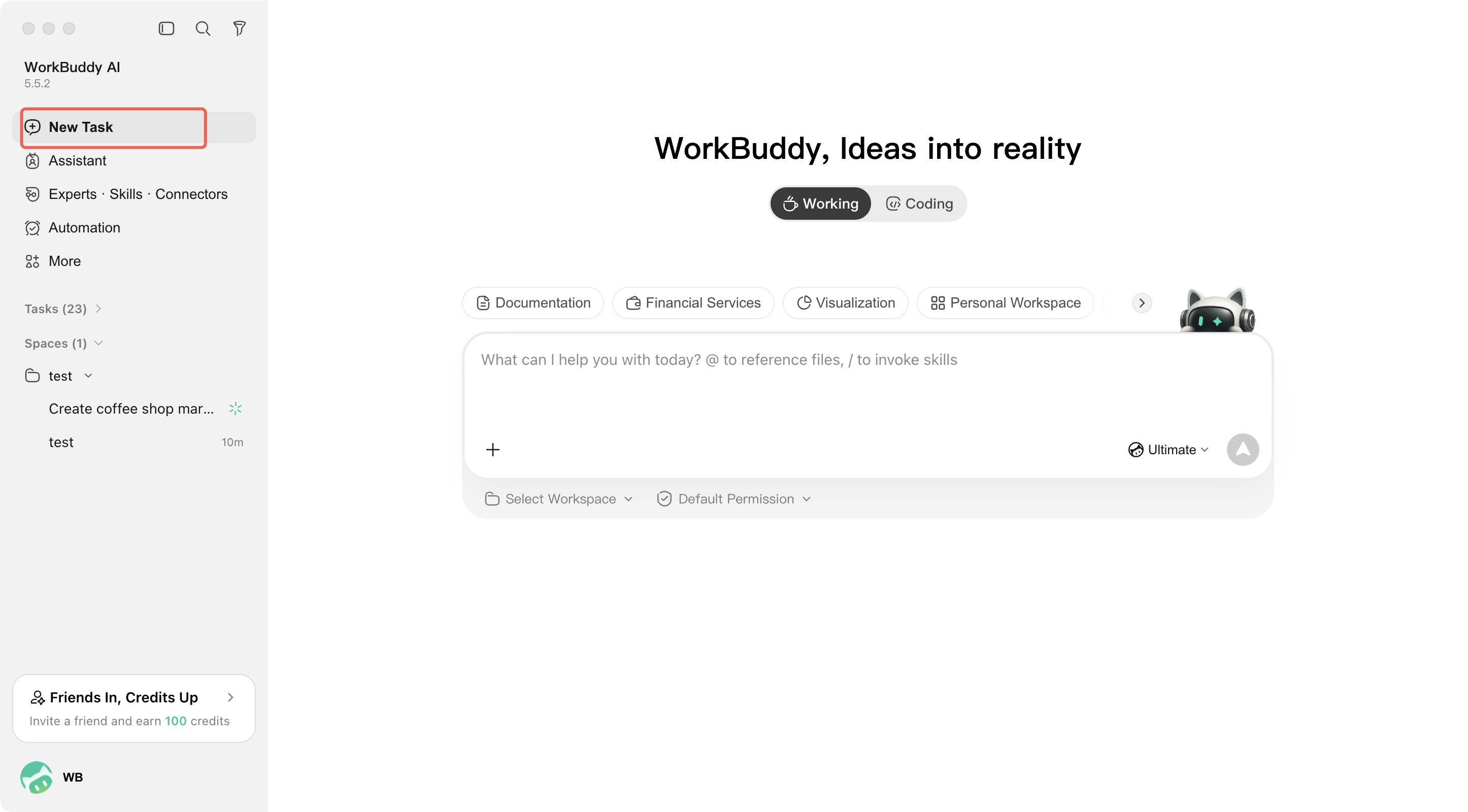
1. Describing a Task in One Sentence
WorkBuddy AI's core strength is understanding natural language. Describe what you need in a single sentence, and it will plan and carry out the work on its own.
Example:
''Generate an analysis report with charts based on this sales data.''
''Organize the images in the Downloads folder and categorize them by date.''
''Generate a PPT based on these meeting minutes.''
''Analyze this resume and extract key information to generate a table.''
''Research the AI industry trends in 2026 and write a report.''
2. Selecting a Workspace
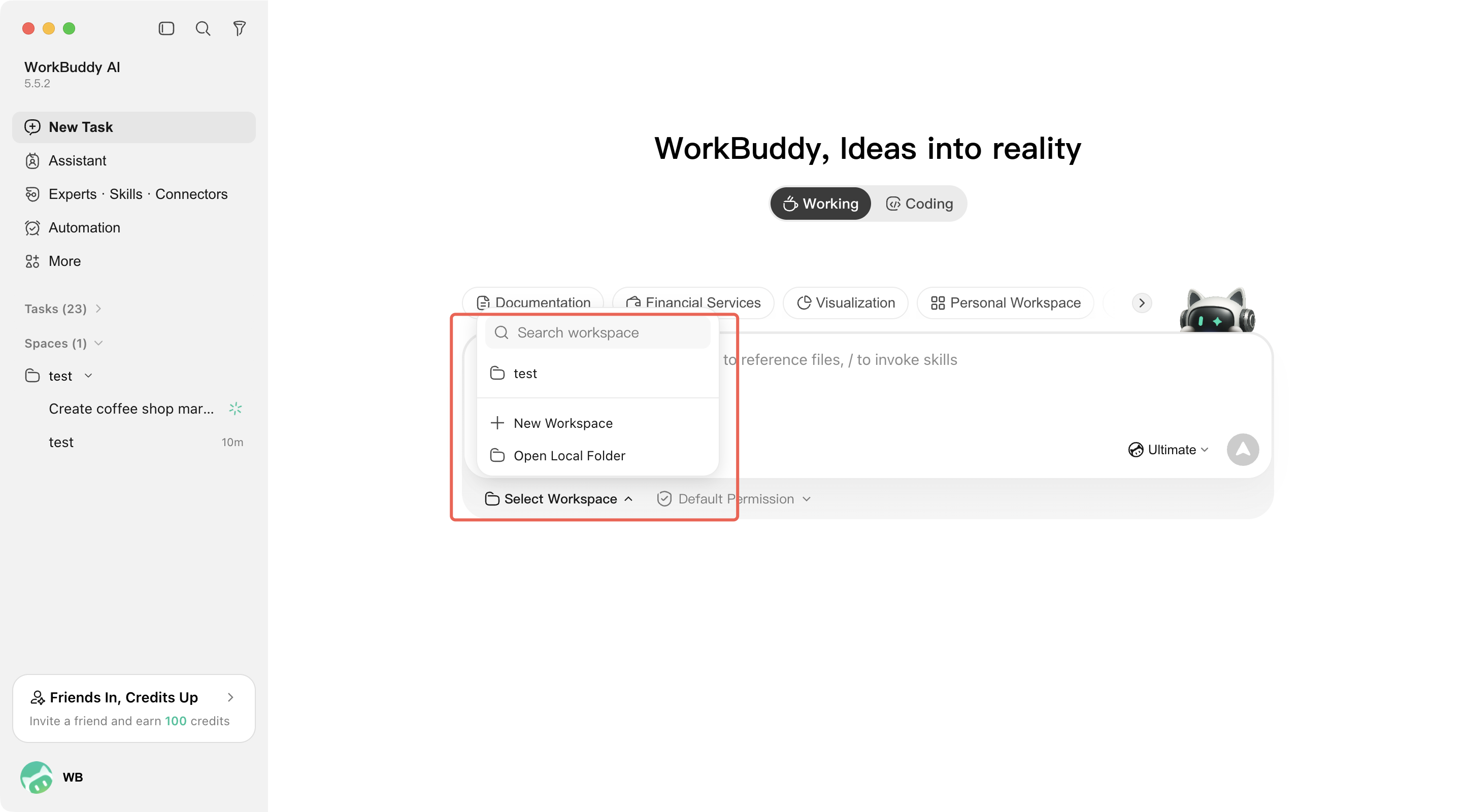
You can specify a workspace for a task:
Click Select Workspace below the input box, and then select the workspace for the current task in the expanded panel.
A search box is provided in the panel for quickly finding existing workspaces by name.
You can also click New Workspace to create a workspace, or click Open Local Folder to select a directory on your computer.
After the selection is complete, WorkBuddy AI reads and processes files based on the workspace.
You can also start the task directly, and WorkBuddy AI will generate the results in the default directory.
3. Adding Context
When creating a task, you can provide additional context to help WorkBuddy AI understand your requirements more quickly:
Method | Description |
Referencing context | Reference files and other information from the conversation using @. |
Calling skills and commands | Call skills and commands using /. |
Pasting a screenshot | Paste images from the clipboard directly using Ctrl/Cmd + V. |
Uploading a file | Click the + button in the lower left corner of the input box, or drag and drop files directly into the input box. |
Remarks | Specify the goals, scope, constraints, and expected outputs in the task description. |
It is recommended to provide the following information first:
What is the goal: what content to generate, or what files to process
What is the input: data to analyze and documents to reference
Output format: Do you want Word, Excel, PPT, or another format?
Constraints: style requirements, word quantity limits, deadlines, and so on.
4. After the Task Starts
After the task is created successfully:
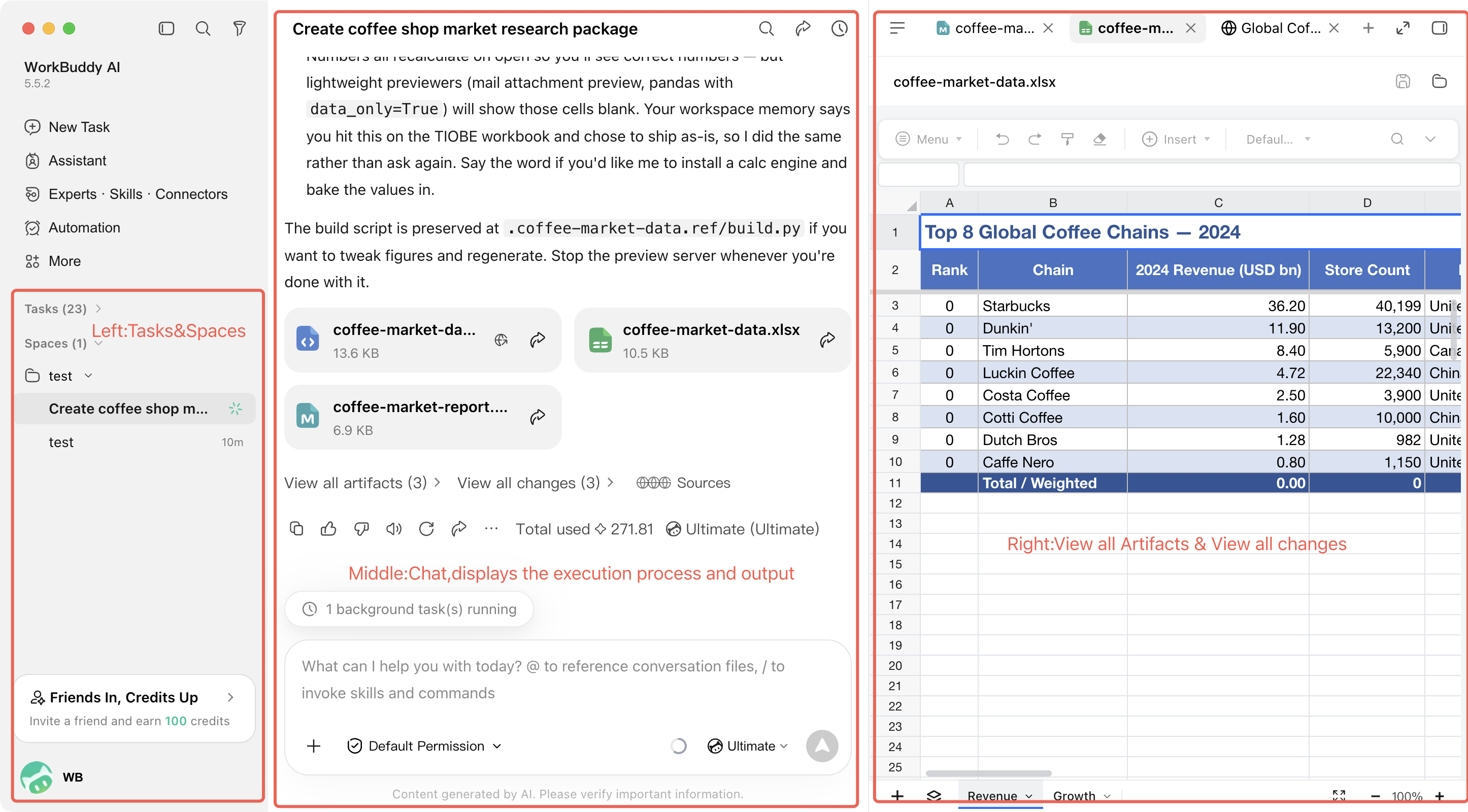
1. New tasks appear in the Tasks list on the left.
2. The conversation area continuously displays the execution process and output of WorkBuddy AI.
3. The result area on the right displays artifacts, all files, changes, and previews based on the task type.
4. The conversation area provides entries for viewing all artifacts and viewing all changes, allowing quick navigation.
5. You can continue to add messages, or create other tasks in parallel.
Help and Support
Was this page helpful?
You can also Contact sales or Submit a Ticket for help.
Help us improve! Rate your documentation experience in 5 mins.
Feedback