Task Conversations
Download
Focus Mode
Font Size
I. How the conversation works
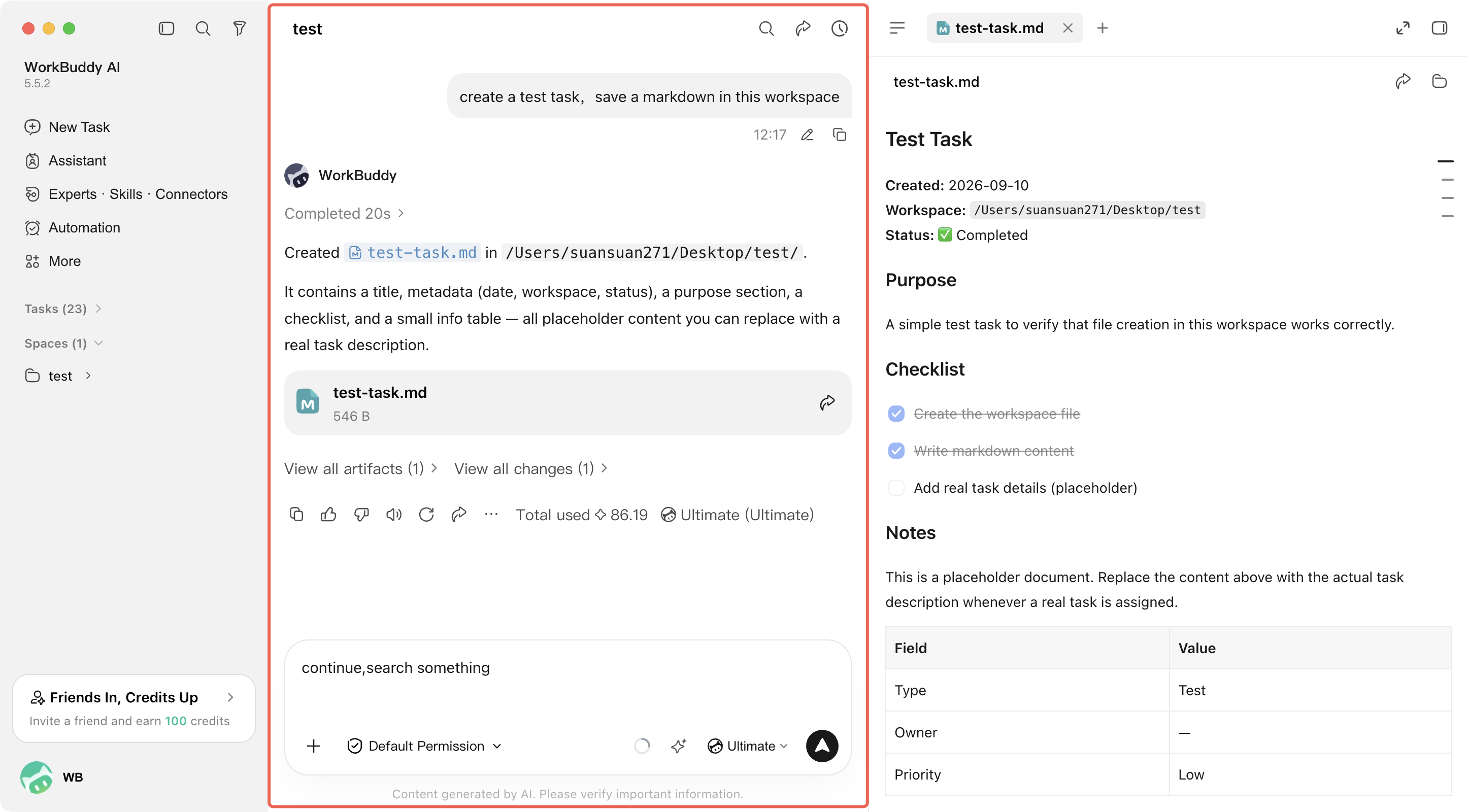
Once a task is created, you work with WorkBuddy AI in the middle area of the window. Everything here revolves around describing what you need, adding context, watching the work happen, and asking follow-up questions.
Common operations include:
Typing a request or additional details in the input box
Clicking the send button or pressing Enter to send a message
Asking follow-up questions in an existing task, so WorkBuddy AI continues from where it left off
Watching replies, results, and intermediate steps as the task runs
II. Top bar actions
Along with the current task title, the top of the conversation area provides four actions.
1. Search within conversation (Cmd + F / Ctrl + F): Find keywords in the conversation content of the current task.
2. Share: Share the current task with others.
3. History: View previous conversation records within the task. Click to jump to a specific record.
4. Artifacts panel: Opens the right sidebar to view artifacts, all files, file changes during the conversation, and the built-in browser.

III. Sending messages and following up
You can send a new message at any time using the input box at the bottom of the conversation area.
Content suitable for sending directly includes:
New request: For example, "Add another pie chart" or "Make the font larger."
Revision suggestions: For example, "Sort the table by sales amount" or "Add an executive summary to the report."
Follow up: For example, "Export it as a PDF for me" or "Analyze the period-over-period change."
WorkBuddy AI continues processing based on the previous conversation context, so you do not need to repeat the background information.
IV.Uploading files and images
In addition to entering text directly, you can also provide files or images as context:
Paste screenshot: Press Ctrl/Cmd + V to directly paste an image from the clipboard.
Upload files: Click the upload button or drag and drop files directly into the input box area.
Add local context: Combine files, images, and text descriptions to help WorkBuddy AI understand the issue more quickly.
V. Watching the work happen
When executing tasks, WorkBuddy AI displays key steps and results in the conversation area, allowing you to track progress at any time.
You will typically see the following:
The response from WorkBuddy AI
In-progress stage descriptions (such as "Analyzing data" and "Generating report")
Generated result summary
Intermediate steps that can be expanded for viewing
The benefit of this approach is that you can continuously view the input, process, and output in one place without leaving the current task.
VI. Interruption and Resumption
If a task is running, a stop option appears in the input box area, allowing you to interrupt the current execution at any time.
After interruption, you can still:
Continue adding new instructions.
Adjust the requirements and resend.
Continue advancing the task based on the existing content.
The key is to maintain a continuous conversation rather than starting over each time.
Help and Support
Was this page helpful?
You can also Contact sales or Submit a Ticket for help.
Help us improve! Rate your documentation experience in 5 mins.
Feedback