Adding an NVR Device to the Platform Based on the Existing Network
Download
Focus Mode
Font Size
Last updated: 2026-10-26 11:04:25
AI-Translated
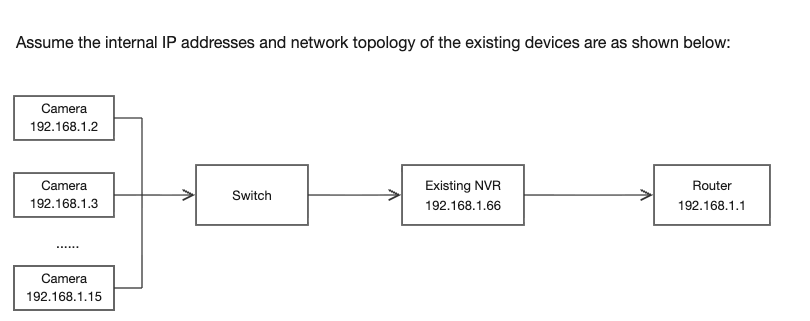
The store currently has a video surveillance system (see the networking diagram below), with data stored in the NVR. As the business grows, the customer has raised the following requirements:
Stores are dispersed nationwide, and the headquarters needs centralized management and control, with the ability to access device videos from each store at any time.
The local DVR has insufficient storage capacity and urgently needs to be scaled out to support retrospective review by store staff.
Incidents such as device theft and data tampering occur from time to time. Data must also be backed up to the cloud, with guaranteed integrity during cloud migration and storage reliability.
Do not change the current network topology to avoid impacting existing services.
Solution
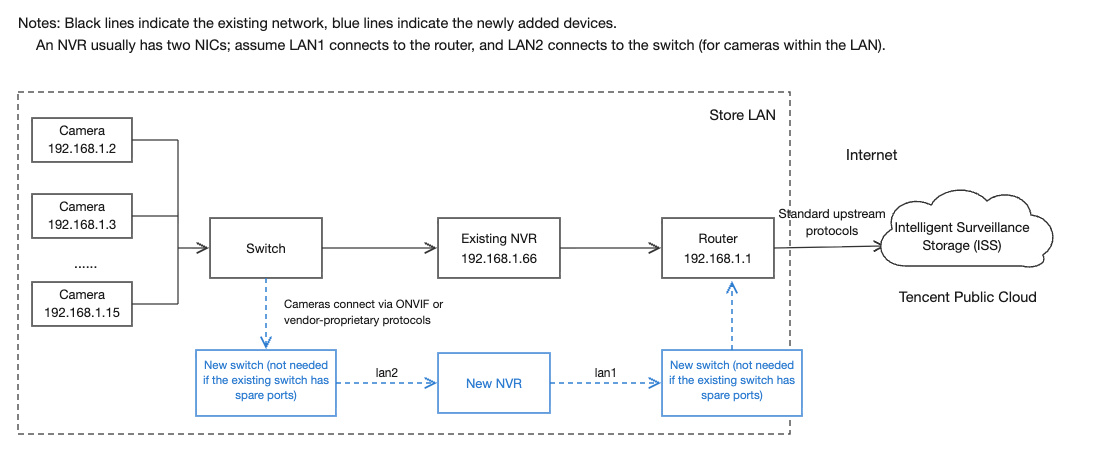
Based on the above background, the store needs to add one NVR device to extend the local storage period through bypass network integration. At the same time, the device connects to the platform over the internet to enable cloud aggregation of devices nationwide.
Management and cloud backup storage.
Operation Steps
Step 1: Install the New Device and Connect It to Existing Cameras
1. According to the plan, install the new NVR first (Hikvision is used as an example below) and set up the network.
2. Determine the private IP address of the new NVR and log in to its configuration page.
Note:
There are three ways to find the private IP address of a device: use the vendor's private network device search tool, log in to the router configuration page to search, or directly connect a monitor to the new NVR to log in and obtain the IP address.
3. Configure the device network parameters.
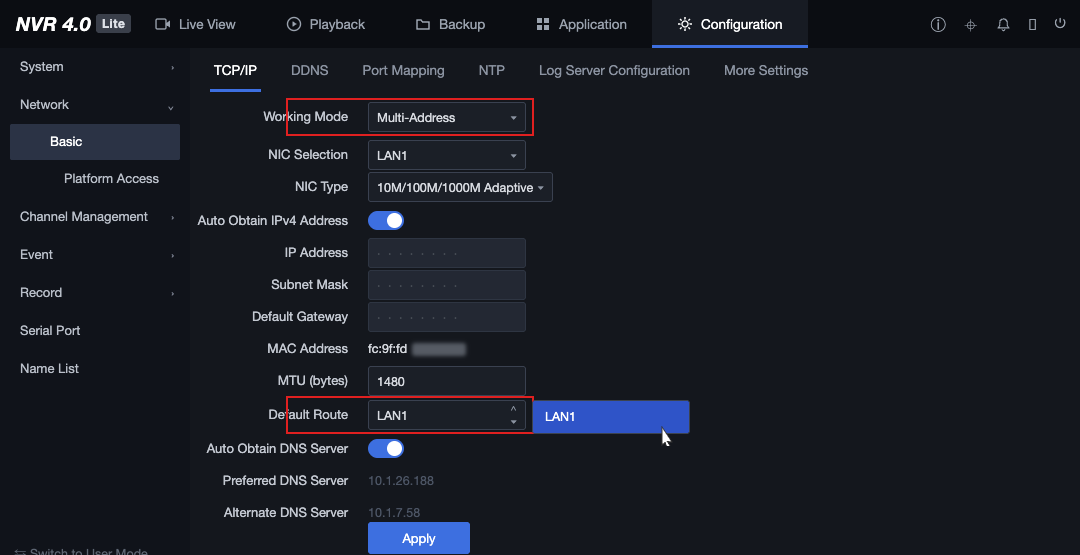
Go to the Network Configuration > Basic Configuration page, change the Working Mode to Multi-Address Setting, select LAN1 for NIC Selection, set the IP address of LAN1 to be obtained automatically, enable automatic DNS server acquisition, select LAN1 for Default Route, and click Apply.
Note:
In Multi-Address Setting mode, the parameters of the two NICs are independent of each other and do not affect each other.
The default route refers to the route through which data is forwarded when the system actively connects to an external network after selection. Since LAN1 will be used to access the public network, it is selected as the default route.
When LAN2 is selected as the NIC, you need to assign a private IP address to LAN2, for example, 192.168.1.100.
Because LAN2 needs to connect to cameras on the local area network, it must remain on the same network segment as the cameras. However, avoid IP address conflicts, otherwise the cameras cannot be connected.
4. Connect existing cameras.
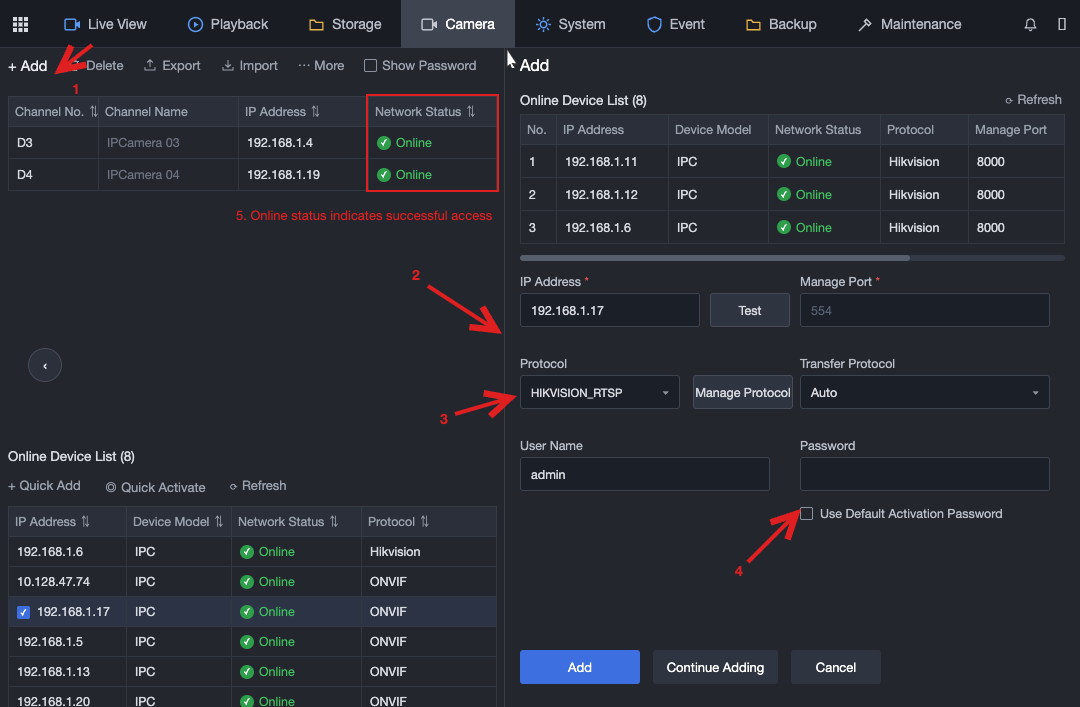
Go to the Device Access page. The NVR will then automatically obtain information about all cameras on the local area network, allowing you to connect the cameras.
You can select a suitable protocol for access. Generally, multiple access protocols are supported, such as GB28181. The password in the figure refers to the login password on the camera configuration side. A camera has multiple streams, and accessing it here does not affect stream retrieval by its existing monitoring system.
Step 2: Connect to the Cloud Platform Using the GB28181 Protocol
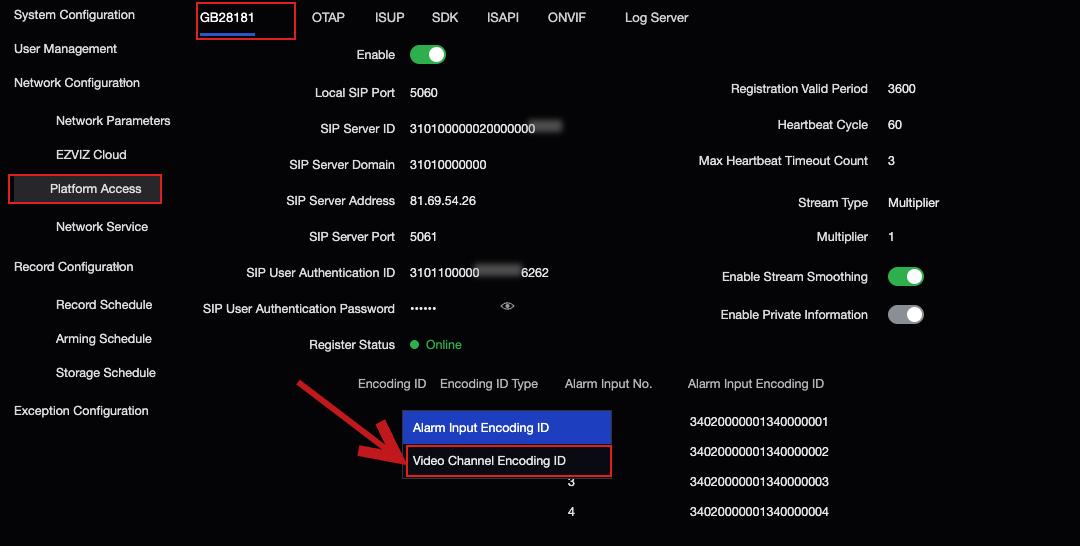
Configure the GB/T 28181 information on the Network Configuration > Platform Access > GB28181 page to connect new devices to the cloud platform. For detailed operations, see GB/T 28181 Protocol Access Practice.