Live Streaming
Download
Focus Mode
Font Size
Scenarios
With the live streaming feature, you can play live views from the video channels of connected devices.
Prerequisites
The ISS service has been activated.
Device access has been completed, and the device/channel is online.
Operation Steps
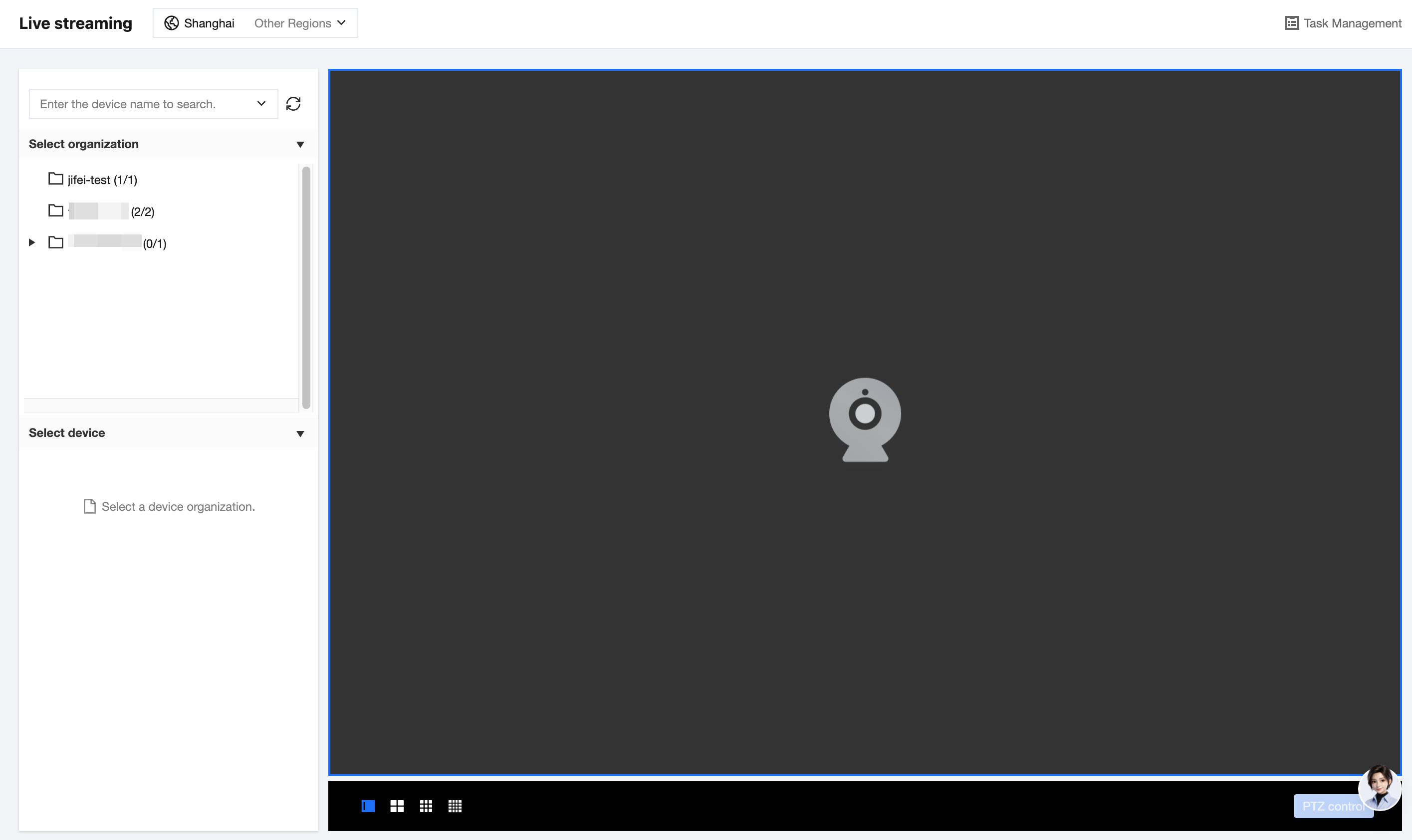
Selecting a Device and Playing Live Streaming
1. In the Select Organization area on the left, click the target organization. The device list under this organization will be displayed in the Select Device area below. The number in parentheses after the organization name indicates the number of online channels/total channels under the organization. For example,
(2/8) indicates that 2 of the 8 channels are online.2. In the Select Device area, click a device with an expand arrow (such as NVR) to expand and view the channel list under the device. Standalone camera channels can be operated directly. Online devices/channels are marked with blue icons.
3. Click the target channel, and the player starts pulling streams and playing the live view in the corresponding window. The channel information is displayed in the upper-left corner of the window, including the device/channel name, encoding format, bitrate (Kbps), and frame rate (fps).
Note:
Live streaming uses an on-demand stream pulling mechanism. Click a video channel to start pulling streams, and close the player to stop pulling streams.
The console player uses the HTTP-FLV protocol for playback.
You can also enter a device name keyword in the search box on the left to quickly locate the target device.
Multi-Window Playback and Layout Switching
1. Click the split-screen switch button at the bottom of the player to use a 1/4/9/16 grid layout. After the layout is switched, the currently playing views are automatically arranged into the front windows.
2. Continue clicking other channels to play multiple live views in the subsequent windows in sequence.
Using Playback Window Tools
Hover over the playing window, and the window toolbar displays the following features. Each window can be operated independently:
Function | Description |
Single Screenshot | Capture a single screenshot of the current frame. |
Multiple Screenshots | Capture multiple screenshots of the current frame consecutively. |
Regional Digital Zoom | Select a local area of the frame for digital zoom viewing. |
Copy Stream Playback URL | Copy the stream playback URL of the current window to the clipboard. |
Full Screen | Play the current window in full screen. Perform the operation again to exit full screen. |
Disabled | Close the current window and stop this pull streaming. |
PTZ Control
After selecting a playing window, click PTZ Control in the lower-right corner of the player. The PTZ control panel expands on the left, and you can perform the following operations on devices that support PTZ control:
Area | Description |
Direction Adjustment | Eight-direction button, controls the pan-tilt rotation direction. |
Zoom | Adjust lens zoom (zoom in/out). |
Focus | Adjust lens focus. |
Iris | Adjust lens iris. |
Preset | Supports presets -1 to -10. You can call configured presets, or add or delete them. |
Note:
The platform does not validate PTZ parameters. If the feature does not work properly, first check whether the device supports the PTZ feature.
Help and Support
Was this page helpful?
You can also Contact sales or Submit a Ticket for help.
Help us improve! Rate your documentation experience in 5 mins.
Feedback