Watermark Template
ダウンロード
フォーカスモード
フォントサイズ
Scenarios
A watermark template is used to preset the content and presentation style of watermarks, including the text content source, font, color, size, opacity, and layout. The template itself does not take effect directly. It must be associated with a watermark configuration before it can take effect on the video channels and video features bound to that configuration.
Note:
The watermark feature is currently available to some users through an allowlist. To use it, please contact us.
Prerequisites
The ISS service has been activated, and the permission to use the watermark feature has been obtained.
Operation Steps
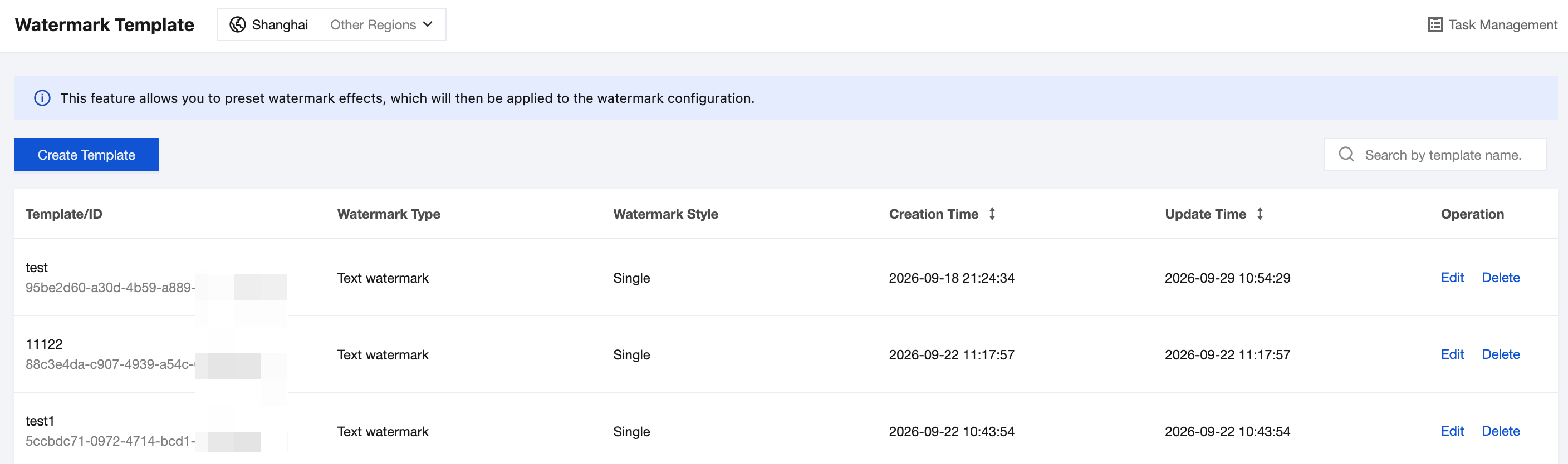
Creating a Watermark Template
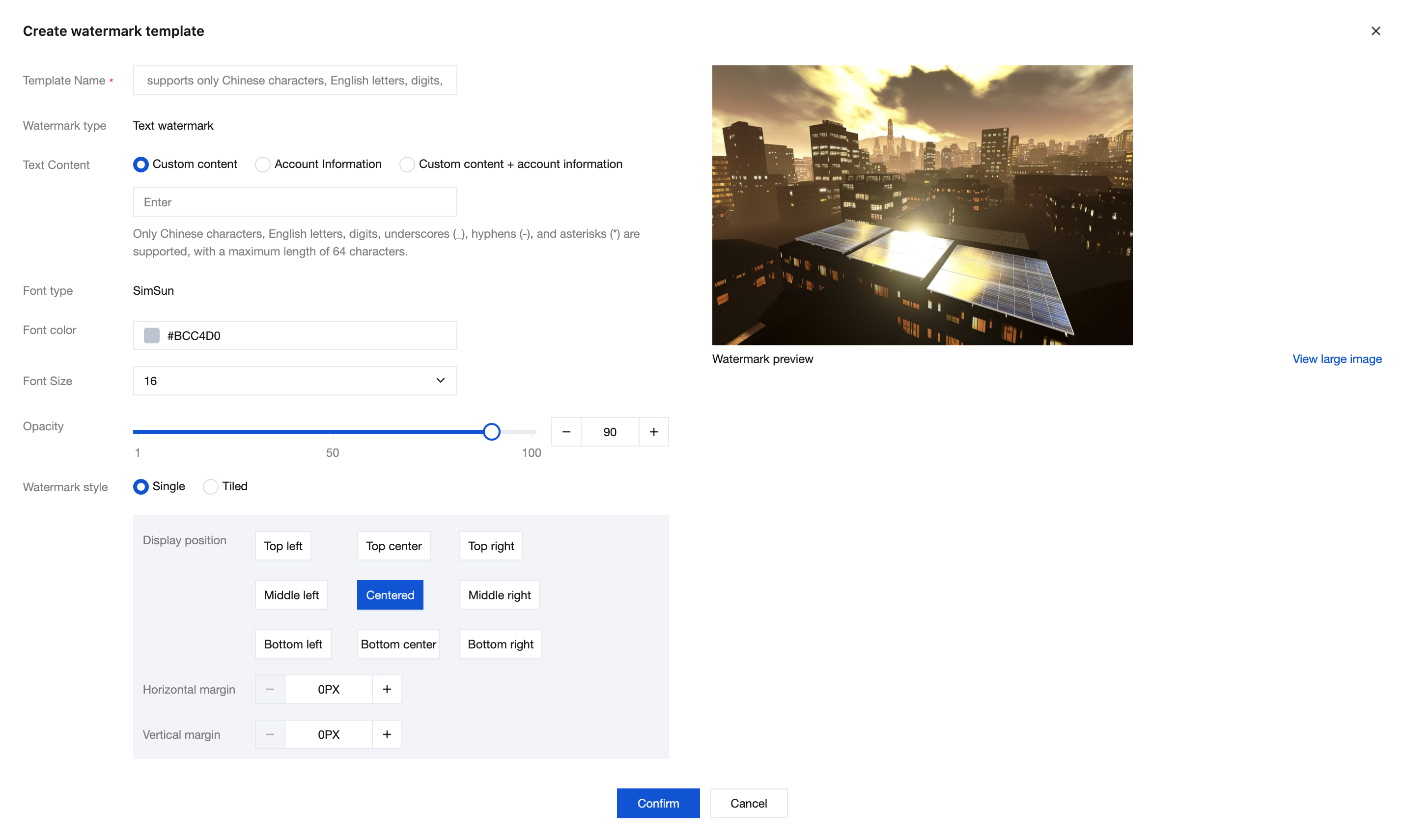
1. Click Create Template and configure the following parameters in the dialog box that appears.
Parameter | Required | Description |
Template Name | Yes | Only Chinese characters, English letters, digits, underscores (_), and hyphens (-) are supported. The length cannot exceed 32 characters. |
Watermark Type | - | Currently, only text watermark is supported. |
Text Content | Yes | Select the source of the watermark text: Custom content: manually enter fixed text. Only Chinese characters, letters, digits, underscores (_), hyphens (-), and asterisks (*) are supported, and the length cannot exceed 64 characters. Account information: automatically filled in by the platform with the requester's account information, and no manual input is required. Custom content + account information: appends the requester's account information after the custom text. |
Font type | - | Currently fixed as SimSun. |
Font color | Yes | Customize it through the color picker or directly enter a hexadecimal color value. The default value is #BCC4D0. |
Font size | Yes | You can select 12, 14, 16, 18, 20, 22, 24, 26, 28, or 36. The default value is 16. |
Opacity | Yes | The value ranges from 1 to 100. You can drag the slider or directly enter a value. The default value is 90. A smaller value makes the watermark more transparent. |
Watermark Style | Yes | Single: displays one watermark at a specified position on the video feed. Tile: the entire video feed is filled with repeated, tilted watermark content. |
Note:
To trace the viewer of a video feed through watermarks, it is recommended to select Account Information or Custom Content + Account Information for Text Content. The platform will overlay the actual viewer's account information on the video feed.
2. Configure the corresponding layout parameters based on the selected watermark style.
When Single is selected, configure the following parameters.
Parameter | Description |
Display Position | Select the watermark position in the frame from the nine-grid. Available positions include top left, top center, top right, middle left, center, middle right, bottom left, bottom center, and bottom right. The default position is center. |
Horizontal Margin | Distance between the watermark and the horizontal edge of the frame, in pixels. Default value: 0px. |
Vertical Margin | Distance between the watermark and the vertical edge of the frame, in pixels. Default value: 0px. |
When Tile is selected, configure the following parameters.
Parameter | Description |
Tilt Angle | Rotation angle of the watermark text. Default value: 330°. |
Note:
After Tile is selected, the display position and margin parameters no longer apply, and the watermark fills the video feed at the specified tilt angle.
3. View the watermark effect in the Watermark Preview area on the right. Click View Larger to zoom in and confirm the details.
4. Click OK to complete the creation. After the template is created, it appears in the template list. The template takes effect only after it is associated with a watermark configuration.
Viewing Watermark Templates
1. In the template list on the Watermark Templates page, view the information of created templates, including Template Name/ID, Watermark Type, Watermark Style, Creation Time, and Modification Time.
2. Enter a template name keyword in the search box in the upper-right corner to quickly locate the target template. Click the sort icon in the Creation Time or Modification Time column to sort the list by time.
Editing a Watermark Template
1. On the Watermark Templates page, click Edit in the operation column of the target template.
2. Modify the watermark parameters in the dialog box that appears. The parameter descriptions are the same as those during creation. After making changes, click OK.
Note:
After a template is modified, all watermark configurations associated with the template apply the new style, and the watermarks on the corresponding channels change accordingly. Before making changes, confirm that the modification does not affect services that are using the template.
Deleting a Watermark Template
1. On the Watermark Templates page, click Delete in the operation column of the target template.
2. In the dialog box that appears, confirm the prompt message and click Delete.
Warning:
Once a template is deleted, it cannot be recovered or referenced by watermark configurations.
Related Documentation
After creating a watermark template, you need to create a watermark configuration on the Video Watermark > Watermark Configuration page and associate it with the template. Specify the applicable features and the video channels where the watermark takes effect. The watermark will then be displayed when users view video feeds.
フィードバック