Network Configuration Guide
Download
Focus Mode
Font Size
There are two common network managers for network management: the traditional network-scripts and NetworkManager, which meets modern network requirements. TencentOS Server V4 uses NetworkManager by default.
Configuring Networks with NetworkManager (Recommended)
NetworkManager is the default network manager and supports multiple network configuration methods. This document describes how to configure the network using the command line tool nmcli, the text interface configuration tool nmtui, and ifcfg files.
1.1 Configuring Networks with nmcli
1.1.1 Viewing Network Devices
Run the following command to view network device information:
nmcli device status
This command displays the name, type, status, and associated network connection of the current network device.
A network device in the unmanaged state is not managed by NetworkManager, so configuring it through NetworkManager does not take effect.
1.1.2 Viewing Network Connections
Run the following command to view all network connections:
nmcli connection show
This command displays the current list of network connections, including connection names, types, and device information.
Multiple network connections can map to a single network device, but device information is displayed only for active connections.
Run the following command to view detailed information about a network connection, using ens18-connection as an example:
nmcli connection show ens18-connection
1.1.3 Creating a Network Connection with a Dynamic IP Address
Run the following command to create a new dynamic network connection, using ens18-connection as an example:
nmcli connection add con-name ens18-connection ifname ens18 type ethernet ipv4.method auto
This command creates a new connection named ens18-connection, which uses the ens18 device and Ethernet type to automatically obtain IP address information.
1.1.4 Creating a Network Connection with a Static IP Address
Run the following command to create a new static network connection, using ens18-connection as an example:
nmcli connection add con-name ens18-connection ifname ens18 type ethernet ipv4.method manual ipv4.addr 192.168.1.2/24 ipv4.gateway 192.168.1.1 ipv4.dns 192.168.1.1
This command creates a new connection named ens18-connection, which uses the ens18 device and Ethernet type. It also configures the IPv4 address as 192.168.1.2, the subnet mask as /24, the gateway as 192.168.1.1, and the DNS server address as 192.168.1.1.
1.1.5 Editing Network Connections
Option 1:
Run the following command to open the interactive editor for editing network connections:
nmcli connection edit ens18-connection
This command opens an interactive editor that allows users to edit detailed connection information, such as IP address, gateway, DNS, and routes, as shown below:
nmcli> set ipv4.addr 192.168.1.2/24nmcli> set ipv4.gateway 192.168.1.1nmcli> set ipv4.dns 192.168.1.1nmcli> set ipv4.routes 192.168.2.0/24 10.0.0.1nmcli> savenmcli> quit
After editing, apply the configuration changes by using the
nmcli command. See Applying Configuration Changes. Modify the IPv4 address of the ens18 device to 192.168.1.2, the subnet mask to /24, the gateway to 192.168.1.1, and the DNS server address to 192.168.1.1. Direct traffic from the 192.168.2.0/24 subnet on ens18 to the gateway 10.0.0.1.Option 2:
Users can also use the following non-interactive command to edit network connections:
nmcli connection modify ens18-connection ipv4.addr 192.168.1.2/24nmcli connection modify ens18-connection ipv4.gateway 192.168.1.1nmcli connection modify ens18-connection ipv4.dns 192.168.1.1nmcli connection modify ens18-connection +ipv4.routes "192.168.2.0/24 10.0.0.1"
After editing, apply the configuration changes by using the
nmcli command. See Applying Configuration Changes.Option 3:
Users can also directly edit network configuration files to modify network connections. The configuration files created by the
nmcli command are located in the /etc/NetworkManager/system-connections directory. After editing, apply the configuration changes by using the nmcli command. See Applying Configuration Changes.
1.1.6 Deleting Network Connections
Run the following command to delete a network connection:
nmcli connection delete ens18-connection
This command deletes the connection named ens18-connection.
1.1.7 Applying Configuration Changes
If you modify the network configuration (create or change), reload the network connections by running the following command first:
nmcli connection reload
This command only makes NetworkManager aware of any configuration changes made by the user, but it does not apply the changes to established connections.
You can apply configuration changes by deactivating and reactivating the network connection, or by using the following command. For example, for ens18:
nmcli dev reapply ens18
ens18 is the name of the network device to which the configuration changes will be applied.
1.1.8 Activating/Deactivating Network Connections
Use the following command to activate the connection and connect to the network:
nmcli connection up ens18-connection
This command activates the network connection configuration named ens18-connection.
Use the following command to disconnect:
nmcli connection down ens18-connection
This command disconnects the network connection named ens18-connection.
1.1.9 Configuring NetworkManager to Manage or Ignore Devices
For devices not managed by NetworkManager, you can use the following command to temporarily configure them to be managed by NetworkManager:
nmcli device set ens18 managed yes
ens18 is the name of the configured network device.
For devices managed by NetworkManager, you can use the following command to temporarily configure them as unmanaged devices:
nmcli device set ens18 managed no
ens18 is the name of the configured network device. This command is configured as a temporary configuration, and the configuration will be lost after the NetworkManager service or the system is restarted.
1.2 Configuring Networks with nmtui
nmtui provides a text-based UI. Users can use nmtui to create and modify network connections without having to remember complex commands or options.
nmtui is not installed by default in the OS. To use nmtui, you must first install the NetworkManager-tui software package:
dnf instll -y NetworkManager-tui
Basic nmtui operations:
Use the arrow keys to navigate.
Select the button and press Enter to press the button.
Use Space to select or clear check boxes.
1.2.1 Creating a Network Connection with a Dynamic IP Address
1. If you do not know the name of the network device to use for the new connection, you can first use nmcli to view network device information and find an available device.
2. Run
nmtui on the command line.3. On the page, press
Edit a connection.4. Press
Add.5. Select
Ethernet from the network type list and press it. 6. (Optional) Enter a custom name for the network connection to be created.
7. Enter the network device name in the
Device field.8. Press the
OK button to create and automatically activate the new connection.9. Press the
Cancal button to return to the main menu.10. Press
Quit to close the nmtui application.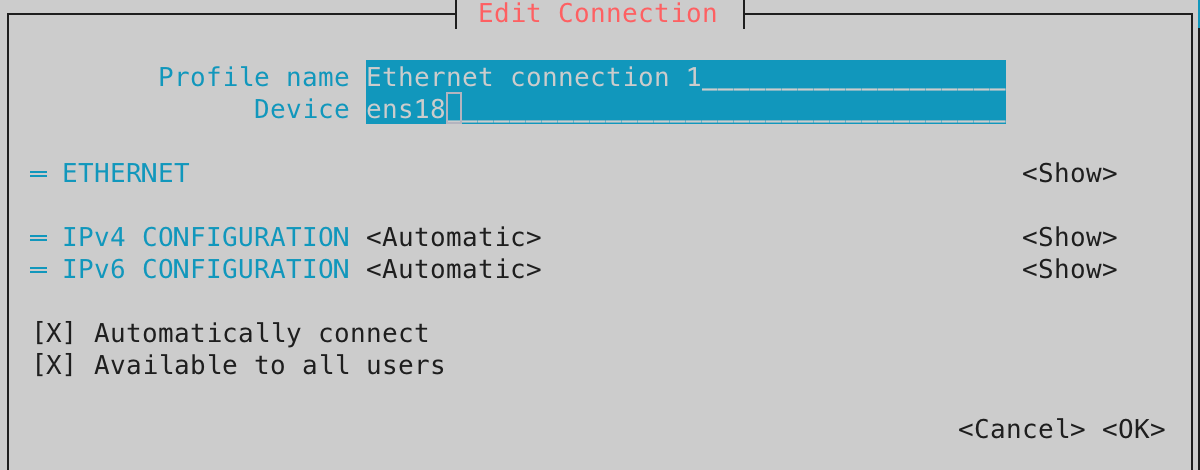
1.2.2 Creating a Network Connection with a Static IP Address
1. If you do not know the name of the network device to use for the new connection, you can first use nmcli to view network device information and find an available device.
2. Run
nmtui on the command line.3. On the page, press
Edit a connection.4. Press
Add.5. Select
Ethernet from the network type list and press it.6. (Optional) Enter a custom name for the network connection to be created.
7. Enter the network device name in the
Device field.8. Configure IPv4 and IPv6 addresses in
IPv4 CONFIGURATION and IPv6 CONFIGURATION:8.1 Press
Automatic, and then select Manual from the displayed list.8.2 Press the
show button next to the protocol to be configured, and other fields are displayed.8.3 Enter the IP address and subnet mask in
Address. If no subnet mask is specified, NetworkManager sets a /32 subnet mask for IPv4 addresses and a /64 subnet mask for IPv6 addresses.8.4 Enter the default gateway address in
Gateway.8.5 Enter the DNS server address in
DNS Servers.8.6 Enter the DNS search domain in
Search domains.9. Press the
OK button to create and automatically activate the new connection.10. Press the
Cancal button to return to the main menu.11. Press
Quit to close the nmtui application.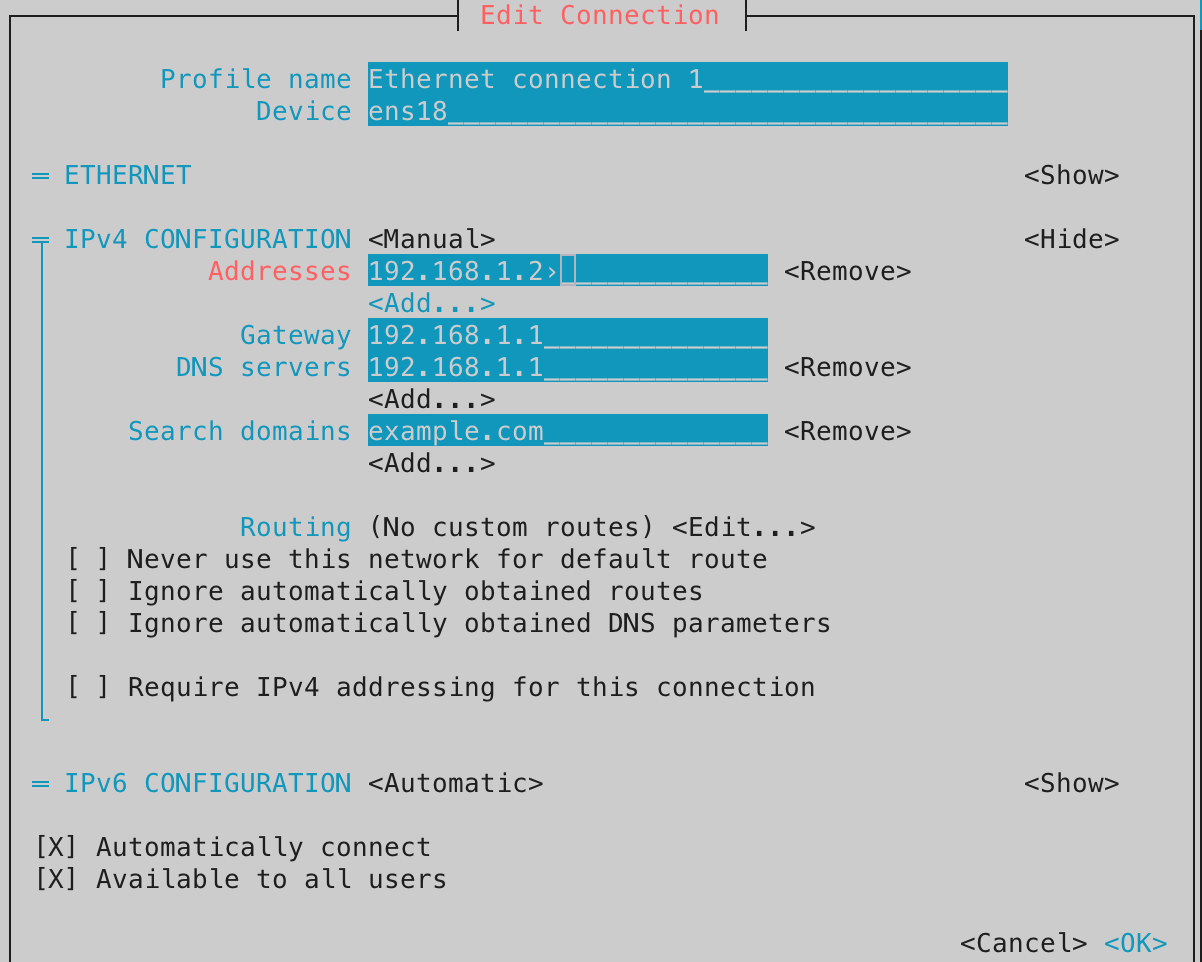
1.2.3 Editing Network Connections
1. Run
nmtui on the command line.2. On the page, press
Edit a connection.3. Select the network connection to edit.
4. Edit the network connection.
5. Press the
OK button to update and automatically activate the new connection.6. Press the
Cancal button to return to the main menu.7. Press
Quit to close the nmtui application.
1.2.4 Activating and Deactivating Network Connections
1. Run
nmtui on the command line.2. On the page, press
Activate a connection.3. Select the network connection to activate or deactivate, and press
Activate on the right to activate it, or press Deactivate to deactivate it.4. Press the
Back button to return to the main menu.5. Press
Quit to close the nmtui application.
1.3 Configuring Networks with ifcfg Files
NetworkManager is also compatible with ifcfg configuration files from network-scripts.
Network connections configured with ifcfg files can also be recognized and configured by nmcli and nmtui.
1.3.1 Creating a Network Connection with a Dynamic IP Address
Users can edit network configuration files in the
/etc/sysconfig/network-scripts/ directory to configure a static IP address for a network device.For example, to edit the ifcfg-ens18 file, add the following content:
DEVICE=ens18BOOTPROTO=dhcpPEERDNS=yesONBOOT=yes
ens18 is the name of the network device. dhcp indicates that a dynamic address is obtained through DHCP. PEERDNS=yes indicates that the DNS server address obtained from the DHCP server will be used. ONBOOT=yes indicates that the network interface will be automatically brought up during system boot.
To use specific DNS server addresses instead of those obtained from the DHCP server, change PEERDNS to PEERDNS=no and add the following lines to the ifcfg file:
DNS1=192.168.1.1DNS2=192.168.2.1
192.168.1.1 is the preferred DNS server to configure, and 192.168.2.1 is the alternate DNS server to configure (optional).
After saving the file, apply the network configuration by using the
nmcli command, or restart NetworkManager to apply the network configuration.
1.3.2 Creating a Network Connection with a Static IP Address
Users can create network configuration files in the
/etc/sysconfig/network-scripts/ directory to configure a static IP address for a network device.For example, edit the ifcfg-ens18 file and add the following content:
DEVICE=ens18BOOTPROTO=staticIPADDR=192.168.1.2NETMASK=255.255.255.0GATEWAY=192.168.1.1DNS1=192.168.1.1DNS2=192.168.2.1ONBOOT=yes
ens18 is the name of the network device. static indicates a static IP address. 192.168.1.2 is the static IP address to configure. 255.255.255.0 is the network mask. 192.168.1.1 is the gateway address. ONBOOT=yes indicates that the network interface will be automatically brought up during system boot. 192.168.1.1 is the preferred DNS server to configure, and 192.168.2.1 is the alternate DNS server to configure (optional).
After saving the file, apply the network configuration by using the
nmcli command, or restart NetworkManager to apply the network configuration.
1.3.3 Configuring Static Routes
To make static routes persist after a system reboot, users can create a route configuration file in
/etc/sysconfig/network-scripts/. The file name format is route-xxx, where the characters after route- must match the characters after ifcfg- in the network configuration file name. For example, if the network configuration file is named ifcfg-ens18, the route configuration file should be named route-ens18.Add the following lines to the route configuration file:
ADDRESS0=192.168.2.1NETMASK0=255.255.255.255GATEWAY0=10.0.0.1ADDRESS1=192.168.2.0NETMASK1=255.255.255.0GATEWAY1=10.0.0.1
Direct traffic from the host 192.168.2.1 on the network device to the gateway 10.0.0.1.
Direct traffic from the 192.168.2.0/24 subnet on the network device to the gateway 10.0.0.1.
ADDRESS0=192.168.2.1 is the network address of the remote network or host to access.
Note:
ADDRESS0=192.168.2.1 is the network address of the remote network or host to access.
NETMASK0=255.255.255.255 is the subnet mask for the network address defined by ADDRESS0=192.168.2.1.
GATEWAY0=10.0.0.1 is the gateway.
Subsequent static routes must be numbered sequentially without skipping any values. For example: ADDRESS0, ADDRESS1, ADDRESS2, and so on.
1.4 NetworkManager Service Configuration
1.4.1 Network Device Management
Except for the lo device and special network devices for which the udev device manager sets NM_UNMANAGED to "1" or "true", all other network devices are managed by NetworkManager by default. Network configurations take effect only when they are applied through NetworkManager to devices managed by NetworkManager.
The NM_UNMANAGED configuration information is in the
/usr/lib/udev/rules.d/85-nm-unmanaged.rules file.Note: The lo device is typically used for local communication and does not require network configuration. The udev device manager configures certain special devices as unmanaged by NetworkManager by default for various reasons. It is not recommended to change the default NetworkManager unmanaged devices to be managed by NetworkManager. If you are certain that modification is required, you can temporarily configure it using the
nmcli command.For devices managed by NetworkManager, you can use the
nmcli command to temporarily configure them as unmanaged by NetworkManager. For permanent configuration, create the /etc/NetworkManager/conf.d/99-unmanaged-devices.conf file with the following content:
To configure a specific network device as unmanaged, add the following:
[keyfile]unmanaged-devices=interface-name:xxxxx
To configure a network device with a specific MAC address as unmanaged, add the following:
[keyfile]unmanaged-devices=mac:xx:xx:xx:xx:xx:xx
To configure all network devices of a specific type as unmanaged, add the following:
[keyfile]unmanaged-devices=type:ethernet
To configure multiple devices as unmanaged, separate the entries in the
unmanaged-devices parameter with semicolons.After the creation is complete, use the
systemctl reload NetworkManager command to reload the NetworkManager service.
If you use the
nmcli command to view network device information and find that a device that should be managed by NetworkManager by default is in the unmanaged state, the device may have been temporarily configured as unmanaged by using the nmcli command or permanently configured as unmanaged in a NetworkManager configuration file. You can use the following methods to restore the device to NetworkManager management:1. Use the
systemctl restart NetworkManager command to restart the NetworkManager service.2. If the device automatically returns to NetworkManager management after a restart, the unmanaged state was caused by a temporary configuration.
3. If the device remains in the unmanaged state after a restart, find and remove the permanent configuration from the NetworkManager configuration file.
4. Find the permanent configuration that configures the device as unmanaged in the following directories and files, delete it, and then use the
systemctl reload NetworkManager command to reload the NetworkManager service./etc/NetworkManager/conf.d//usr/lib/NetworkManager/conf.d//etc/NetworkManager/NetworkManager.conf
1.4.2 DNS Management
When the NetworkManager service is running, it determines who manages DNS based on the state of the
/etc/resolv.conf file:/etc/resolv.conf is a symbolic link pointing to /run/systemd/resolve/stub-resolv.conf or /run/systemd/resolve/resolv.conf, with DNS managed by systemd-resolved. When systemd-resolved is installed and /etc/resolv.conf does not exist, this symbolic link is generated by default./etc/resolv.conf is a symbolic link pointing to /run/NetworkManager/resolv.conf, with DNS managed by NetworkManager.If
/etc/resolv.conf does not exist or is a regular file, DNS is managed by NetworkManager.
When DNS is managed by systemd-resolved, the DNS resolution path is as follows: the user sends a DNS resolution request to the local DNS service provided by systemd-resolved, and systemd-resolved then forwards the request to the corresponding DNS server for resolution based on the DNS configuration information of the NetworkManager network connection.
When DNS is managed by NetworkManager, you can also configure DNS to be managed by the dnsmasq service or the
/etc/resolv.conf file.
Delegate to the dnsmasq service for management:
1. Install dnsmasq by using the following command:
dnf install dnsmasq
2. Set the dns parameter in the [main] section of the
/etc/NetworkManager/NetworkManager.conf file to dnsmasq:[main]dns=dnsmasq
3. Verify that
/etc/resolv.conf is a symbolic link pointing to /run/NetworkManager/resolv.conf. If it is not, use the following command to create the symbolic link:ln -sf /var/run/NetworkManager/resolv.conf /etc/resolv.conf
4. Use the
systemctl restart NetworkManager command to restart the NetworkManager service.With the preceding settings, user network access sends DNS resolution requests to the local DNS service provided by dnsmasq, which then forwards the requests to the corresponding DNS servers based on the DNS configuration of the NetworkManager network connection.
Delegate to the /etc/resolv.conf file for management:
1. Set the dns parameter in the [main] section of the
/etc/NetworkManager/NetworkManager.conf file to none:[main]dns=none
2. Verify whether
/etc/resolv.conf is a symbolic link. If it is, delete it.3. Edit the
/etc/resolv.conf file to configure the system-wide DNS server address information.4. Use the
systemctl restart NetworkManager command to restart the NetworkManager service.With the preceding settings, DNS resolution requests are sent to the DNS servers configured in the
/etc/resolv.conf file. Meanwhile, DNS configuration through NetworkManager does not take effect.
Configuring Networks with network-scripts
Compared with NetworkManager, which provides full-featured network management, network-scripts is more accurately described as a set of basic tools for configuring network interfaces rather than a network manager.
network-scripts does not provide a graphical user interface, does not support VPN connections, and does not support automatic detection and configuration of network devices, making it difficult to meet modern network requirements. In addition, NetworkManager is also compatible with network-scripts ifcfg configuration files, but users are not recommended to use network-scripts to configure networks.
NetworkManager is installed by default, while network-scripts is not. If you are certain that you want to use network-scripts, you can install and use it alongside NetworkManager.
2.1 Determining the Operating Mode
network-scripts has the following two operating modes:
Configure the network using NetworkManager in network-scripts compatible mode:
When you install and use network-scripts alongside NetworkManager, the system does not generate the network service by default. The network is still managed by the NetworkManager service, which is compatible with network-scripts commands. You can use network-scripts commands to configure the network.
Configure the network entirely with network-scripts:
If you are certain that you want to use network-scripts entirely instead of NetworkManager, run the following command to switch the network management service to the network-scripts network service. After you disable the NetworkManager service, the NetworkManager network configuration becomes invalid.
systemctl stop NetworkManagersystemctl disable NetworkManagersystemctl enable networksystemctl start network
2.2 Configuring the Network
After determining the operating mode of network-scripts, use ifcfg configuration files to configure the network. For instructions on editing these files, see Configuring the Network with ifcfg Files in NetworkManager.
After saving the configuration file, use the following network-scripts commands to disable and then re-enable the network device to apply the network configuration.
ifdown ens18ifup ens18
Configuring the Network with the ip Command
You can use the ip command to configure temporary network connections, but the configured network connection information will be lost after a system restart. Use it with caution.
3.1 Viewing IP Addresses of Network Devices
Run the following command to view the IP address of the network device:
ip addr show dev ens18
ens18 is the name of the network device to view.
3.2 Assigning IP Addresses to Network Devices
Use the following command to assign an IP address to the network device:
ip addr add 192.168.1.2/24 dev ens18
ens18 is the name of the network device. 192.168.1.2 is the static IP address to configure. /24 is the subnet mask. The ip command for assigning addresses can be run multiple times to assign multiple addresses.
3.3 Removing IP Addresses from Network Devices
Run the following command to delete the IP address from the network device:
ip addr del 192.168.1.2/24 dev ens18
ens18 is the name of the network device. 192.168.1.2 is the static IP address to delete. /24 is the subnet mask.
3.4 Configuring Default Gateways and Static Routes
Use the following command to configure the default gateway:
ip route add default via 192.168.1.1 dev ens18
ens18 is the name of the network device. 192.168.1.1 is the default gateway address to configure.
Use the following command to add a static route:
ip route add 192.168.2.1 via 10.0.0.1 dev ens18ip route add 192.168.2.0/24 via 10.0.0.1 dev ens18
Direct traffic from the host 192.168.2.1 on ens18 to the gateway 10.0.0.1.
Direct traffic from the 192.168.2.0/24 subnet on ens18 to the gateway 10.0.0.1.
Use the following command to delete the static route:
ip route del 192.168.2.1ip route del 192.168.2.0/24
3.5 Enabling/Disabling Network Devices
Use the following command to enable the network device:
ip link set ens18 up
ens18 is the name of the network device to enable.
Use the following command to disable the network device:
ip link set ens18 down
ens18 is the name of the network device to disable.
Configuring the Network with the ifconfig Command
You can use the ifconfig command to configure temporary network connections, but the configured network connection information will be lost after a system restart. Use it with caution.
The ip command provides more features and options. It is recommended to use the ip command to configure temporary network connections, and the use of ifconfig is not recommended.
4.1 Viewing IP Addresses of Network Devices
Run the following command to view the IP address of the network device:
ifconfig ens18
ens18 is the name of the network device to view.
4.2 Setting IP Addresses for Network Devices
Use the following command to set the IP address of the network device:
ipconfig ens18 192.168.1.2 netmask 255.255.255.0
ens18 is the name of the network device. 192.168.1.2 is the static IP address to configure. 255.255.255.0 is the subnet mask.
4.3 Configuring Default Gateways or Static Routes
Use the following command to configure the default gateway:
route add default gw 192.168.1.1 dev ens18
ens18 is the name of the network device. 192.168.1.1 is the default gateway address to configure.
Use the following command to add a static route:
route add -host 192.168.2.1 gw 10.0.0.1 dev ens18route add -net 192.168.2.0/24 gw 10.0.0.1 dev ens18
Direct traffic from the host 192.168.2.1 on ens18 to the gateway 10.0.0.1.
Direct traffic from the 192.168.2.0/24 subnet on ens18 to the gateway 10.0.0.1.
Use the following command to delete the static route:
route del 192.168.2.1route del 192.168.2.0/24
4.4 Enabling/Disabling Network Devices
Use the following command to enable the network device:
ifconfig ens18 up
ens18 is the name of the network device to enable.
Use the following command to disable the network device:
ifconfig ens18 down
ens18 is the name of the network device to disable.
Help and Support
Was this page helpful?
You can also Contact sales or Submit a Ticket for help.
Help us improve! Rate your documentation experience in 5 mins.
Feedback