tencent cloud

Cloud Virtual Machine

Release Notes and Announcements
Release Notes
Public Image Release Notes
Official End of Support Plan for the Operating System
Announcements
Product Introduction
CVM Overview
Strengths
Basic Concepts
Regions and Zones
Tutorial
Service Regions and Service Providers
Billing
Billing Overview
Billing Modes
Billing Items
Billing Mode Conversion Overview
Purchasing Instances
Configuration Adjustment Billing Guide
Overdue Payments
Getting Started
Purchasing a Customized Linux Instance
Purchasing a Customized Windows Instance
User Guide
Operation Guide Overview
Use Limits
Instances
Spot Instances
Reserved Instances
Images
Storage
Backup and Restoration
Network
Security
Passwords/Keys
Monitoring and Alarms
Ops Management
Convenience Features
Migrating a Server
Online Migration
Migration Consultation
Troubleshooting
CVM Login Failures
Windows Instance Login Failures
Linux Instance Login Failures
Other Login Failures
Instance Running Failures
Linux Instance Memory Failures
Network Failures
Use Cases
Suggestions on CVM Model Selection
Environment Building
Website Building
Application Building
Visual GUI Building
Uploading Local Files to CVM
Network Performance Test
Other Practical Tutorials
API Documentation
History
Introduction
API Category
Making API Requests
Region APIs
Instance APIs
Cloud Hosting Cluster APIs
Image APIs
Instance Launch Template APIs
Placement Group APIs
Key APIs
Security Group APIs
Network APIs
Data Types
Error Codes
Security and Compliance
CAM
Network
FAQs
Regions and Zones
Billing
Instances
Storage
Images
Server Migration
Network
Security
Operating Systems
Ops and Monitoring
CAM
NTP Service
Scenarios
Agreements
CVM Service Level Agreements
Red Hat Enterprise Linux Image Service Agreement
Public IP Service Level Agreement
Glossary
DocumentationCloud Virtual MachineRelease Notes and AnnouncementsAnnouncementsTemporary Solution for the Windows Blue Screen Issue Caused by CrowdStrike Security Software on July 19, 2024

Temporary Solution for the Windows Blue Screen Issue Caused by CrowdStrike Security Software on July 19, 2024

PDF
Focus Mode
Font Size
Last updated: 2024-07-19 21:19:11

Background

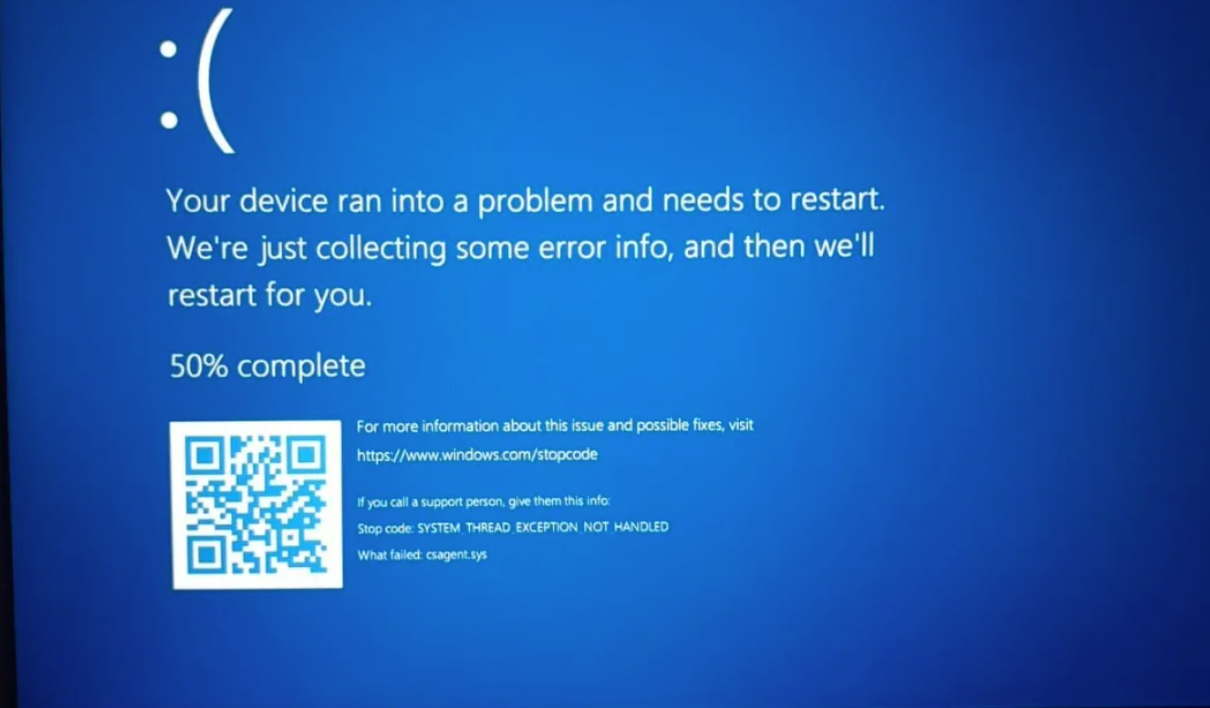
On July 19, 2024, Beijing Time (UTC+8), Tencent Cloud monitor derected an abnormal restart issue in CVM. The community disclosed a Windows operating system blue screen issue, initially traced to an update issue with third-party security company CrowdStrike's Falcon Sensor software, causing csagent.sys errors in user hosts.
Note
If your host uses CrowdStrike security software, it may be affected.


Impact Range Explanation

The affected services include SharePoint Online, OneDrive for Business, Microsoft Defender, and Microsoft 365 Admin Center.

Temporary Solution

Note
Please note that this temporary solution may cause the CrowdStrike security software to become ineffective. It is recommended that you assess the risks before proceeding.
Rename or delete the CrowdStrike-related files that are causing the blue screen via WinPE or rescue mode.
If it is a Tencent Cloud machine, you can repair it via rescue mode.
1. Log in to the CVM Console, find your Windows server, and click More > OPS and Check > Enter Rescue Mode. For detailed guidance, see Rescue Mode.
2. Rename the CrowdStrike files via resource mode.
2.1 Install the NTFS software package.
yum -y install ntfs*
2.2 For directory mounting, please confirm which partition the c:\\windows of the Windows file system belongs to. If unsure, you can try mounting each partition to locate the windows/system32 directory. Use the lsblk command to view the current partitions.
mount -t ntfs /dev/vda2 /mnt/
2.3 Navigate to the location of the target file.
cd /mnt/Windows/System32/drivers/
2.4 Rename the CrowdStrike folder (CrowdStrike_newname as the new name defined by yourself).
mv CrowdStrike CrowdStrike_newname
2.5 After renaming, uninstall the file system to release resources.
umount /mnt
3. Exit Rescue Mode. The entry location is the same as entering rescue mode. Click Exit to exit the rescue mode.
4. Reboot the machine after exiting rescue mode to resume operations.

More Help

For your local Windows host and others, refer to the following handling methods:
1. Boot Windows into the security mode or the Windows recovery environment.
2. Navigate to the C:\\WindowsSystem32\\drivers directory.
3. Find the file that matches Crowdstrike, and rename or delete it.
4. Restart the host.
If you need assistance from an engineer, please consult by submitting a ticket.
Help and Support

Was this page helpful?

Help us improve! Rate your documentation experience in 5 mins.

Feedback