tencent cloud

Direct Connect

Release Notes and Announcements
Release Notes
Announcements
Product Introduction
Overview
Features
Application Scenarios
Use Limits
Connection Access Point
Relevant Products
Network Planning
Purchase Guide
Billing Overview
Purchasing in the Console
Renewing Connections
Getting Started
Operation Guide
Connections
Direct Connect Gateways
Dedicated Tunnels
Monitoring and Alarming
MACsec Encryption
Cloud Exchange
Cloud Access Management
Overview
Access Policy Types
Access Policy Syntax
Practical Tutorial
Connecting a Local IDC to CVM by Using a VPC NAT Gateway and Direct Connect
Hybrid Cloud Primary/Secondary Communication (DC and VPN)
Best Practices on Direct Connect High Availability and Hybrid Cloud Network
Migrating Cross-Region Dedicated Tunnel to CCN
Migrating IDC to the Cloud Through CCN
Accelerating Routing Convergence Through BGP+BFD (Layer 3)
IDC Local Configuration
Establishing Direct Connect Between Tencent Cloud and Various Cloud Vendors Through Equinix
API Documentation
History
Introduction
API Category
Making API Requests
Direct Connect APIs
Data Types
Error Codes
FAQ
Basic FAQs
Billing Issues
Function Issues
Troubleshooting
General Troubleshooting Solutions
Access Failure and Packet Loss
Agreements
Tencent Cloud Direct Connect Service Level Agreement
Tencent Cloud Direct Connect Service Agreement
Tencent Cloud Direct Connect Review Standards
Contact Us
Glossary

Purchasing in the Console

PDF
Focus Mode
Font Size
Last updated: 2024-12-04 10:26:13
This document describes how to purchase the Tencent Cloud DC service.

Purchasing a Connection

1. Log in to the Direct Connect console.
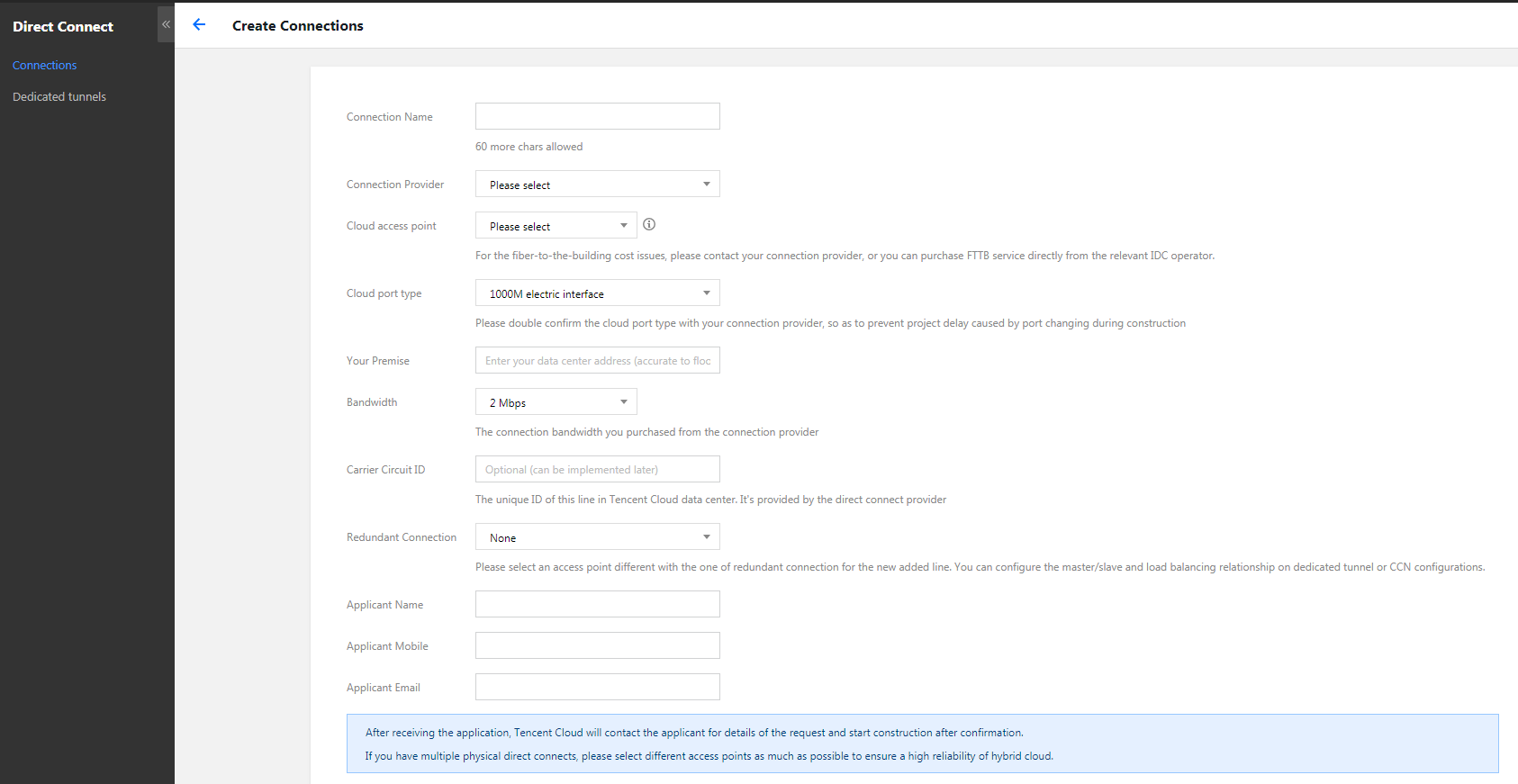
2. Click +New on the Connections page.
3. On the New connection page, complete the fields and click OK to submit the application. Make the payment when the application is approved.
Note:
For more details, see Applying for a Connection.

Purchasing a Dedicated Tunnel

1. Log in to the Direct Connect console.
2. Select Dedicated Tunnels from the left sidebar.
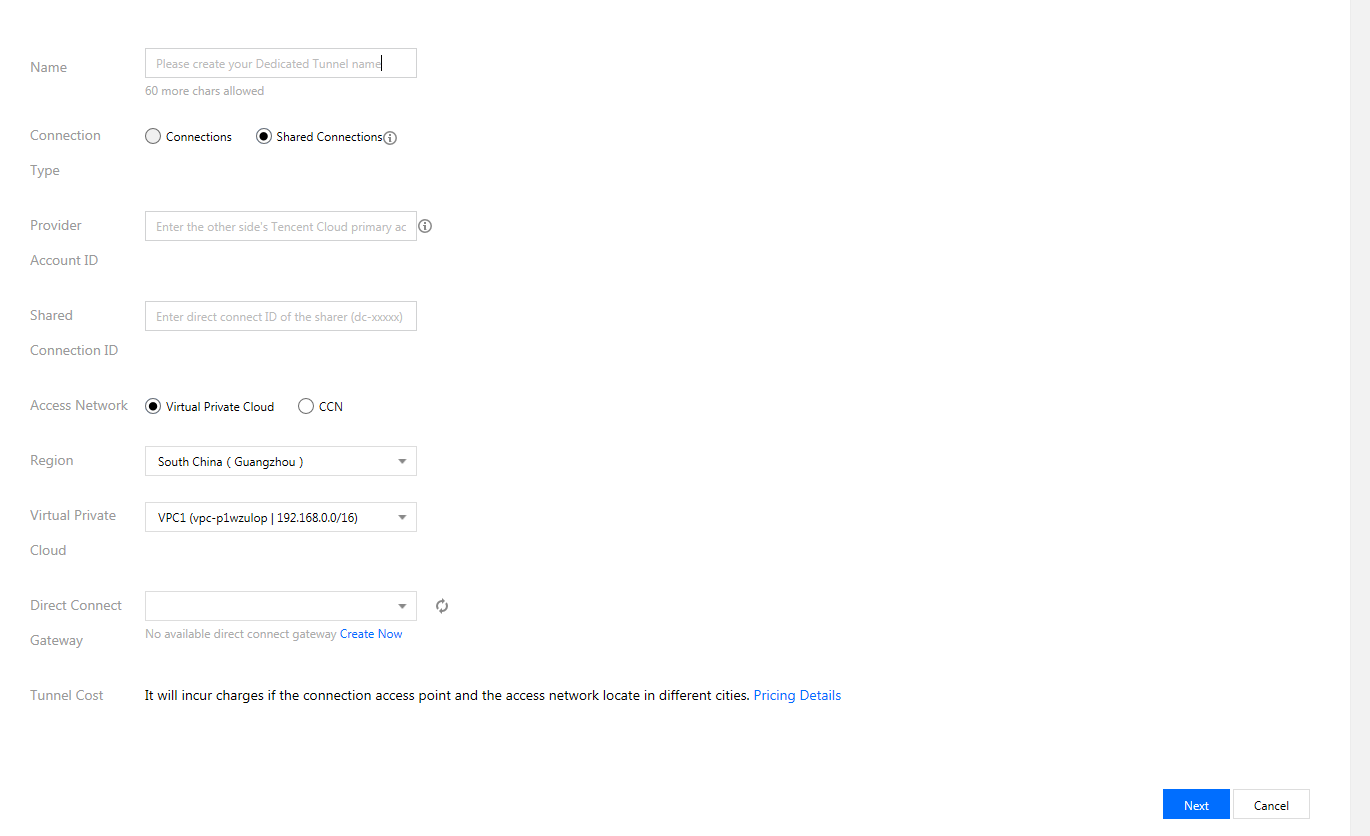
3. Click +New on the Dedicated Tunnels page.
4. Complete fields in the pop-up and click Next.
5. Complete advanced settings and IDC device configuration.

Note:
For more details, see Applying for a Tunnel.

Help and Support

Was this page helpful?

Help us improve! Rate your documentation experience in 5 mins.

Feedback