Log Shipping
Download
Focus Mode
Font Size
TencentDB for MySQL's SQL Insight (Database Audit) provides the log shipping feature. Through log shipping, it can collect audit logs from TencentDB for MySQL instances and ship them to CLS (Cloud Log Service) for centralized management and analysis. It also supports shipping to Ckafka message queues. After shipping, you can perform real-time stream computing on logs in the Ckafka message queue console. It also supports shipping to COS object storage for archive storage of log data. This document describes how to configure the log shipping feature for SQL Insight (Database Audit) via the console.
Prerequisites
If you need to ship to CLS, the prerequisites are as follows.:
Before using this feature, make sure you have activated CLS.
Already enabling the audit service.
The instance status is Running.
If you need to ship logs to TDMQ for CKafka, the prerequisites are as follows:
Under the Ckafka instance, add a routing policy.
Already enabling the audit service.
The instance status is Running.
Prerequisites for shipping logs to COS:
Before using this feature, make sure you have activated COS.
Already enabling the audit service.
The instance status is Running.
Supported Versions and Architecture
MySQL 5.6 20180101 and later versions.
MySQL 5.7 20190429 and later versions.
MySQL 8.0 20210330 and later versions.
Instance architectures include two-node, three-node, and cloud disk versions.
Billing Overview for Log Shipping
The feature of shipping SQL Insight (Database Audit) logs to CLS for TencentDB for MySQL involves the third-party independently billed cloud product CLS. For billing standards, see CLS > Billing Overview.
The feature of shipping SQL Insight (Database Audit) logs to Ckafka message queue for TencentDB for MySQL involves the third-party independently billed cloud product Ckafka message queue. For billing standards, see Ckafka Billing Overview.
The feature of shipping SQL Insight (Database Audit) logs to COS object storage for TencentDB for MySQL involves the third-party independently billed cloud product COS object storage. For billing standards, see Billing Overview.
After the SQL Insight (Database Audit) log shipping feature is enabled for TencentDB for MySQL, traffic fees will be incurred based on the volume of shipped logs. For details, see the table below.
Note:
After the log shipping feature is enabled, traffic fees are incurred. However, regardless of whether you enable one or more log shipping paths (CLS, CKafka, or COS), the system only charges traffic fees incurred by this feature as a whole.
Billable Item: Audit Log Traffic | |
Chinese Mainland (USD/GB) | Hong Kong (China), other countries and regions (USD/GB) |
0.05882353 | 0.08823529 |
Description of Log Shipping Traffic Monitoring
After enabling the log shipping, you can learn about the real-time shipping traffic generated by log shipping through the monitoring feature.
Monitoring Metric Name | Callable Metric Name | Unit | Metric Description |
Shipping traffic | AuditDeliverRate | MB | Shipping traffic generated by the log shipping |
You can find instances with the log shipping feature enabled in Audit Instance List. Under the Log Shipping field, you can click the monitoring icon to view the monitoring status of the shipping traffic.
Description of Log Shipping Status
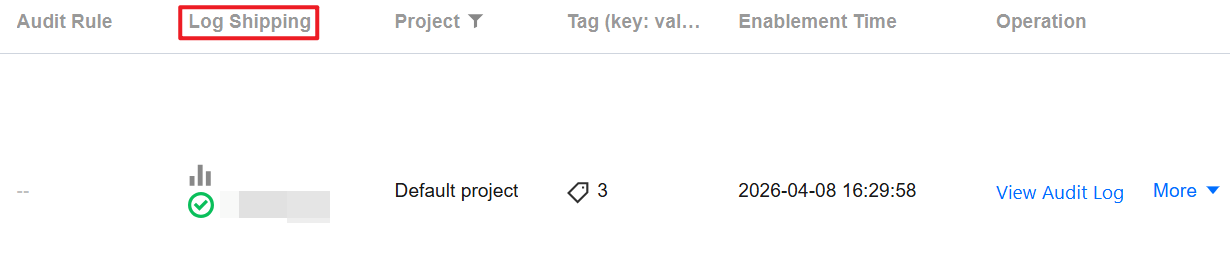
As shown above, on the Database Audit page of the TencentDB for MySQL, the shipping status of the corresponding instance regarding audit logs will be displayed under the Log Shipping field. The specific descriptions for each shipping status are as follows.
Ckafka: Indicates that the SQL Insight (Database Audit) feature of the current instance has enabled log shipping to the Ckafka message queue.
CLS: Indicates that the SQL Insight (Database Audit) feature of the current instance has enabled log shipping to CLS.
Disabled: Indicates that the SQL Insight (Database Audit) feature of the current instance has not been configured for log shipping.
COS: Indicates that the SQL Insight (Database Audit) feature of the current instance has enabled log shipping to COS.
Related Documentation
For shipping database audit logs to CLS, to Ckafka message queues, and to COS, see the steps in the following tabs.
Enabling Log Shipping to CLS
1. Log in to the TencentDB for MySQL console.
2. Select SQL Insight (Database Audit) in the left sidebar.
3. Select a region at the top. On the Audit Instance page, click Audit Log Storage Status, and select the Enabled option to filter instances with audit enabled.
4. Find the target instance in the audit instance list (or search for the instance by resource attributes in the search box), and choose More > Configure Log Shipping in the Operation column.

5. (Skip this step if CLS has already been activated.) Click go to activate in the pop-up sidebar to activate CLS.
6. (Skip this step if CLS has already been activated.) Return to the console after activation and click Activation Completed in the pop-up window for activation confirmation.
Note:
During the activation process, the system will verify whether activation is successful. If the system prompts that activation has failed, wait for a while and try again.
7. (Skip this step if COS has already been authorized.) In the sidebar, click Go to Authorization. Then, in the Service Authorization pop-up window, click Grant.
Note:
During the authorization process, the system will verify whether the service role authorization is successful. If the system prompts that authorization has failed, wait for a while and try again.
8. Click Enable Now in the Ship to CLS area in the sidebar.
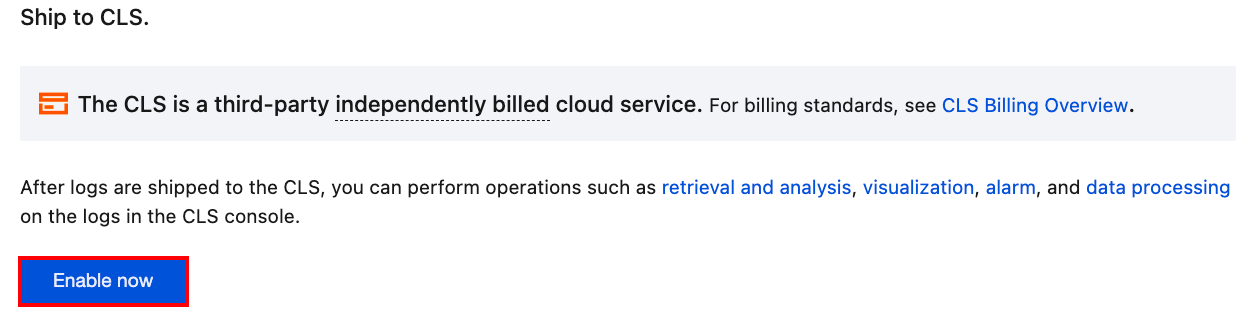
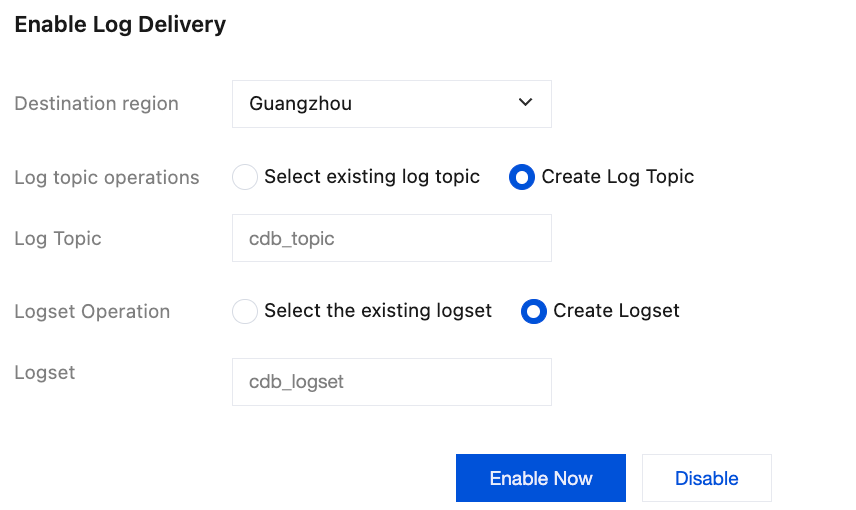
9. Complete the following configurations in the pop-up window and click Enable Now.
Parameter | Description |
Destination region | Select the region for log shipping. If CLS supports the region where the database instance resides, this item will default to the instance region (you may select other available regions). If CLS does not support the database instance region, you can select other regions supported by CLS. |
Log topic operations | It supports selecting an existing topic or creating one. |
Select existing log topic | If the log topic is set to select an existing topic, you need to further select the existing logsets and log topics. Logset: Logsets classify log topics to facilitate log topic management. You can filter existing logsets in the search box. Log topic: A log topic is the basic unit for collecting, storing, retrieving, and analyzing log data. You can filter log topics of the selected logset in the search box. Note: Log topics that can be selected in this step should be those created with the Create Log Topic option selected for log topic operations when enabling log shipping in the console. Log topics created in the CLS console cannot be selected. |
Create Log Topic | If the log topic is set to create a log topic, you need to further customize the log topic and then assign it to an existing logset or a created logset. Log topic: A log topic is the basic unit for collecting, storing, retrieving, and analyzing log data. You need to create a log topic. Select the existing logset: The log topic to be created will be added to an existing logset. If you select this option, you can filter existing logsets in the search box. Create logset: The log topic to be created will be added to a newly created logset. If you select this option, you need to create a logset. |
Viewing Log Shipping to CLS
After the SQL Insight (Database Audit) feature of shipping logs to CLS is enabled for an instance, you can view the current log shipping status to CLS (view the logset and log topic for log shipping).
1. Log in to the TencentDB for MySQL console.
2. Select SQL Insight (Database Audit) in the left sidebar.
3. Select a region at the top. On the Audit Instance page, find the target instance (or search for the instance by resource attributes in the search box), and choose More > Configure Log Shipping in the Operation column.
4. In the pop-up sidebar, view the current log shipping information.
5. Click the logset name, log topic name, or Search & Analysis to jump to the CLS console to view the details of log shipping.
Disabling Log Shipping to CLS
Note:
After disabling log shipping, the shipping of the current instance's Database Audit logs will be stopped. Note that after disabling, only the shipping of newly generated database audit logs will be stopped, and logs shipped to CLS will continue to be stored in the log topic until expiration. During this period, storage fees will be generated continuously. If you want to delete one or more log topics, please go to Log Topic Management.
1. Log in to the TencentDB for MySQL console.
2. Select SQL Insight (Database Audit) in the left sidebar.
3. Select a region at the top. On the Audit Instance page, find the target instance (or search for the instance by resource attributes in the search box), and choose More > Configure Log Shipping in the Operation column.
4. Click Disable Shipping in the upper right corner of the Shipping to CLS Log area in the pop-up sidebar.
5. Read the precautions in the pop-up window, select Disable, and click OK.
Enabling Log Shipping to TDMQ for CKafka
1. Log in to the TencentDB for MySQL console.
2. Select SQL Insight (Database Audit) in the left sidebar.
3. Select a region at the top. On the Audit Instance page, click Audit Log Storage Status, and select the Enabled option to filter instances with audit enabled.
4. Find the target instance in the audit instance list (or search for the instance by resource attributes in the search box), and choose More > Configure Log Shipping in the Operation column.

5. (Skip this step if CKafka has already been activated.) Click go to activate in the pop-up sidebar to activate CKafka.
6. (Skip this step if CLS has already been activated.) Return to the console after activation and click Activation Completed in the pop-up window for activation confirmation.
Note:
During the activation process, the system will verify whether activation is successful. If the system prompts that activation has failed, wait for a while and try again.
7. (Skip this step if COS has already been authorized.) In the sidebar, click Go to Authorization. Then, in the Service Authorization pop-up window, click Grant.
Note:
During the authorization process, the system will verify whether the service role authorization is successful. If the system prompts that authorization has failed, wait for a while and try again.
8. Click Enable immediately in the Ship to TDMQ for Ckafka area in the pop-up sidebar.
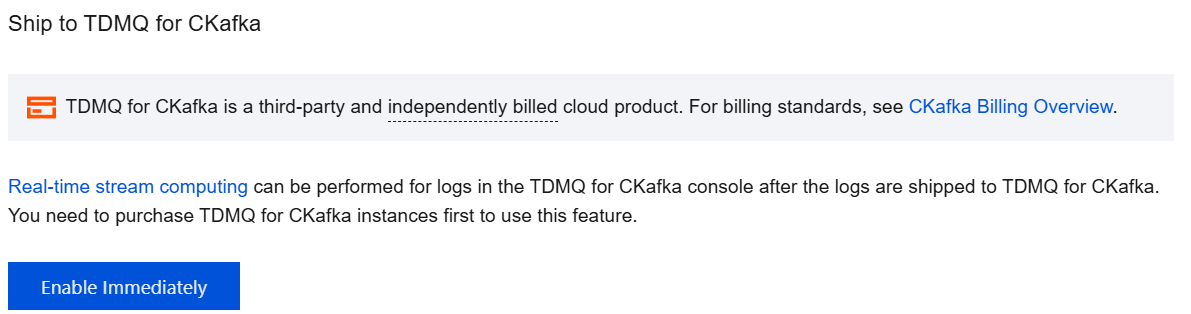
9. In the Shipping to Ckafka Message Queue pop-up window, complete the following configurations and click OK.
Parameter | Description |
Target Region | Select the region for log shipping. If the region where the database instance is located is supported on the TDMQ for CKafka, the location of the instance will be selected by default. You can also choose other available regions; if the region where the database instance is located is not supported on the TDMQ for CKafka, you can choose other regions supported by the TDMQ for CKafka. |
CKafka Instance | Select a CKafka instance in the target region. Note: Note: Audit log shipping is supported only in CKafka 2.4.1 and later versions. CKafka instances of other versions do not support it. |
Topic | Select a topic to ship. If there is no available topic, you can also create one. For operations, view Creating Topic. |
Viewing Log Shipping to TDMQ for CKafka
After enabling log shipping to the Ckafka message queue for the SQL Insight (Database Audit) feature of the instance, you can view the current shipping status to the Ckafka message queue (including the Ckafka instance, Ckafka Topic ID/name, region, and creation time).
1. Log in to the TencentDB for MySQL console.
2. Select SQL Insight (Database Audit) in the left sidebar.
3. Select a region at the top. On the Audit Instance page, find the target instance (or search for the instance by resource attributes in the search box), and choose More > Configure Log Shipping in the Operation column.
4. In the pop-up sidebar, view the current log shipping information.
5. Click the CKafka instance ID, CKafka topic ID/name, and Message Query button to view instance details and query messages in the CKafka console.
Modifying Shipping
After log shipping to the Ckafka message queue for the SQL Insight (Database Audit) feature of the instance is enabled, if you need to change the destination Ckafka instance, region, or topic (Ckafka Topic ID/name), refer to the following operations.
1. Log in to the TencentDB for MySQL console.
2. Select SQL Insight (Database Audit) in the left sidebar.
3. Select a region at the top. On the Audit Instance page, find the target instance (or search for the instance by resource attributes in the search box), and choose More > Configure Log Shipping in the Operation column.
4. Click Modify Shipping in the upper right corner of the Ship to TDMQ for Ckafka area in the pop-up sidebar.
5. Select another CKafka instance, region, or topic (CKafka topic ID/name) in the pop-up window and click OK.
Disabling Log Shipping to TDMQ for CKafka
Note:
After log shipping is disabled, database audit logs for the current instance will no longer be shipped. Note that only new logs will stop being shipped; existing logs will remain stored in the Ckafka message queue until expiration, during which storage fees will continue to be incurred. To delete messages, go to the Message Queue Console to configure.
1. Log in to the TencentDB for MySQL console.
2. Select SQL Insight (Database Audit) in the left sidebar.
3. Select a region at the top. On the Audit Instance page, find the target instance (or search for the instance by resource attributes in the search box), and choose More > Configure Log Shipping in the Operation column.
4. Click Disable Shipping in the upper right corner of Ship to TDMQ for Ckafka area in the pop-up sidebar.
5. Read the notes in the pop-up window, select Disable, and click OK.
Enabling Log Shipping to COS
1. Log in to the TencentDB for MySQL console.
2. Select SQL Insight (Database Audit) in the left sidebar.
3. Select a region at the top. On the Audit Instance page, click Audit Log Storage Status, and select the Enabled option to filter instances with audit enabled.
4. Find the target instance in the audit instance list (or search for the instance by resource attributes in the search box), and choose More > Configure Log Shipping in the Operation column.
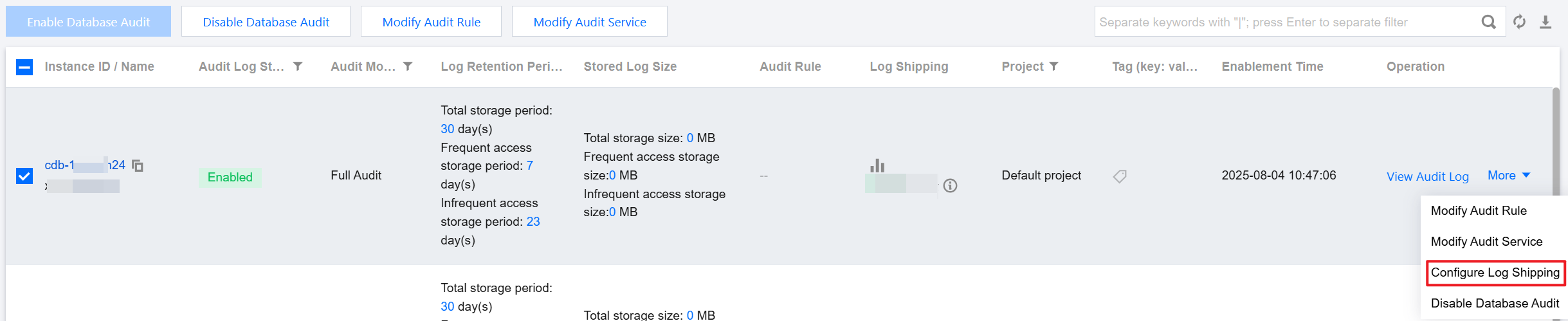
5. (Skip this step if COS has already been authorized.) In the sidebar, click Go to Authorization. Then, in the Service Authorization pop-up window, click Grant.
Note:
During the authorization process, the system will verify whether the service role authorization is successful. If the system prompts that authorization has failed, wait for a while and try again.
6. In the pop-up sidebar, click Enable Immediately below Shipping to Cloud Object Storage (COS).
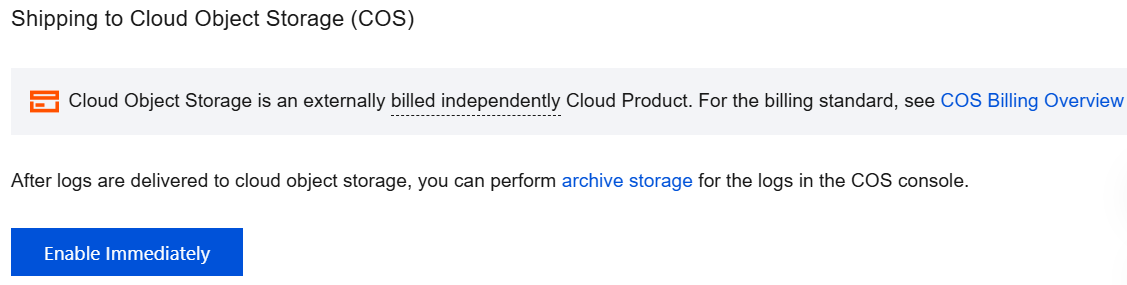
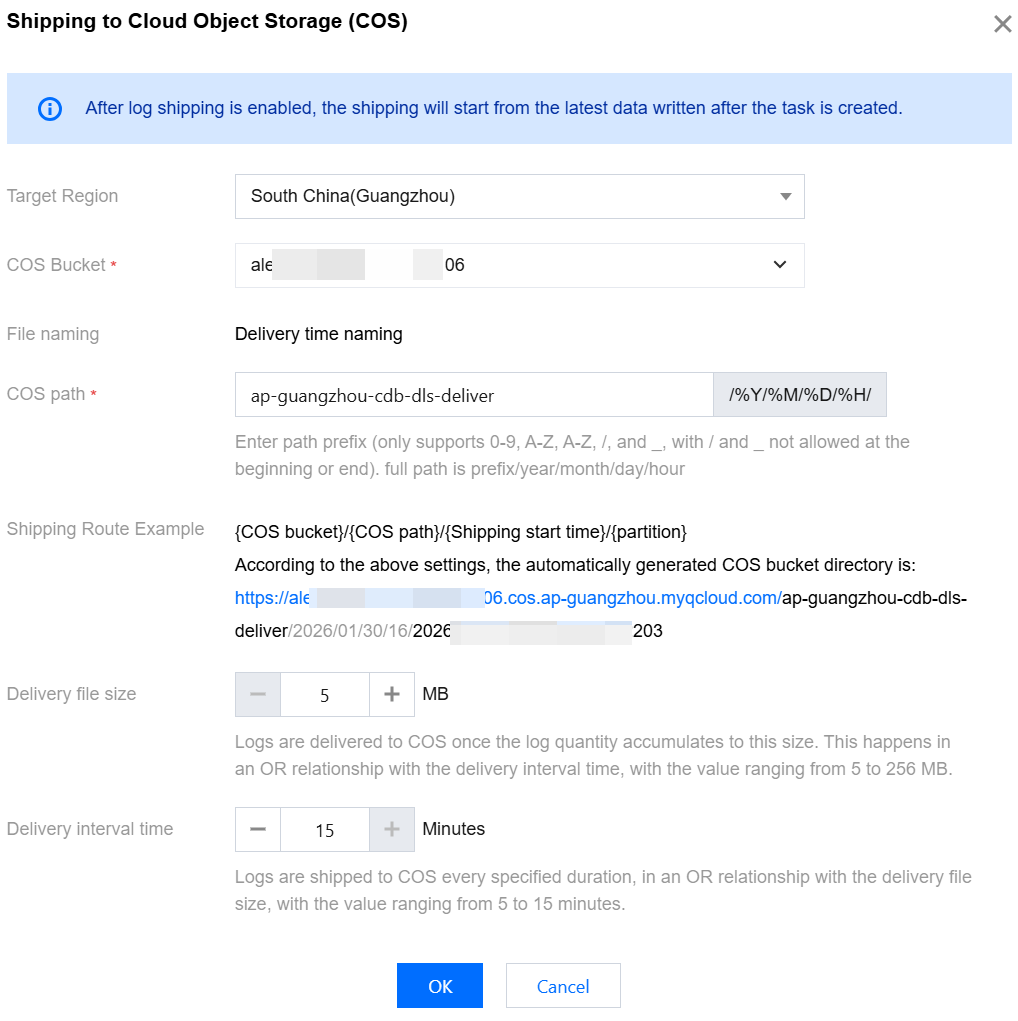
7. In the Shipping to COS pop-up window, complete the following configurations, and click OK.
Parameter | Description |
Target Region | Select the region for log shipping. If the region where the database instance resides is supported by COS, this field defaults to that region. You can also choose another available region. If the region where the database instance resides is not supported by COS, you can select another region supported by COS. |
COS Bucket | Select an existing COS bucket. The dropdown list supports quick search. If no COS bucket exists, you can select Create Bucket in the dropdown list. If you have not activated COS, the system guides you to activate it during the bucket creation process before you can proceed to complete the bucket creation operation. |
File naming | Name the shipping file. By default, the file is named based on the shipping time. |
COS Path | Enter a COS path prefix here (Only 0-9, A-Z, a-z, /, and _ are allowed. The / and _ characters cannot be used at the beginning or end of the prefix). Complete path format: prefix/year/month/day/hour. This is the address within your COS bucket where shipped audit log files will be stored. |
Shipping Route Example | Automatically generate a COS bucket directory based on the settings of the previous field. You can know the set COS bucket directory as displayed by this field. |
Delivery file size | Set the shipping file size in MB. It is used together with the shipping interval. If any of the conditions are met, the file is compressed and shipped to COS according to the corresponding rule. Default value: 5. Value range: 5 to 256. For example, you set the size to 256 MB and the interval to 15 minutes. If the file size reaches 256 MB in 5 minutes, the file size condition is met, which triggers a shipping task. |
Delivery interval time | Specify the interval to trigger a shipping task in minutes. It is used together with the file size. If any of the conditions are met, the file is compressed and shipped to COS according to the corresponding rule. Default value: 15. Value range: 5 to 15. For example, you set the size to 256 MB and the interval to 15 minutes. If the file size is only 200 MB after 15 minutes, the shipping interval is met, which triggers a shipping task. |
Viewing Log Shipping to COS
After log shipping to COS is enabled for SQL Insight (Database Audit) of the instance, you can view the current shipping status to COS (including the destination COS bucket, region, creation time, and so on).
1. Log in to the TencentDB for MySQL console.
2. Select SQL Insight (Database Audit) in the left sidebar.
3. Select a region at the top. On the Audit Instance page, find the target instance (or search for the instance by resource attributes in the search box), and choose More > Configure Log Shipping in the Operation column.
4. In the pop-up sidebar, view the current log shipping information.
5. Click the COS bucket name to navigate to the file list details page of the corresponding bucket. Click Archive Storage to navigate to the COS console and view the stored shipping file.
Modifying Shipping
After SQL Insight (Database Audit) log shipping to COS is enabled for an instance, you can refer to the following steps to modify the shipping configuration.
1. Log in to the TencentDB for MySQL console.
2. Select SQL Insight (Database Audit) in the left sidebar.
3. Select a region at the top. On the Audit Instance page, find the target instance (or search for the instance by resource attributes in the search box), and choose More > Configure Log Shipping in the Operation column.
4. In the pop-up sidebar, click Modify Delivery on the right of Shipping to Cloud Object Storage (COS).
5. In the Shipping to COS pop-up window, re-select the required configurations, and click OK.
Disabling Log Shipping to COS
Note:
After log shipping is disabled, database audit log shipping of the current instance stops. Note: After disabling, only the shipping of newly added logs stops, while logs already shipped to COS are retained until expiration. During this period, storage fees are incurred continuously. If you want to delete logs, go to the COS console for configuration.
1. Log in to the TencentDB for MySQL console.
2. Select SQL Insight (Database Audit) in the left sidebar.
3. Select a region at the top. On the Audit Instance page, find the target instance (or search for the instance by resource attributes in the search box), and choose More > Configure Log Shipping in the Operation column.
4. In the pop-up sidebar, click Disable Delivery on the right of Shipping to Cloud Object Storage (COS).
5. Read the notes in the pop-up window, select Disable, and click OK.
Appendix 1: Adding a Routing Policy
To ship database audit logs to TDMQ for CKafka (CKafka), you need to add a routing policy for the CKafka instance first. Otherwise, an error may occur during log shipping configuration, indicating that CKafka has no routing policy with the route type of Supporting Environment and the access mode of PLAINTEXT. Follow the steps below to add a routing policy.
1. Log in to the CKafka console.
2. Click Instance List in the left sidebar and click the ID/name of the target instance to go to the basic information page.
3. On the Basic Information page, click Add a routing policy in the Access Method section.
4. In the pop-up window, select Supporting Environment as the route type, select PLAINTEXT as the access method, and click Submit.
Appendix 2: Creating a Bucket
When enabling log shipping to COS, you need to select a COS bucket. If no COS bucket exists, you can follow the steps below to create a bucket and then select it.
1. Click Create Bucket in the dropdown list.
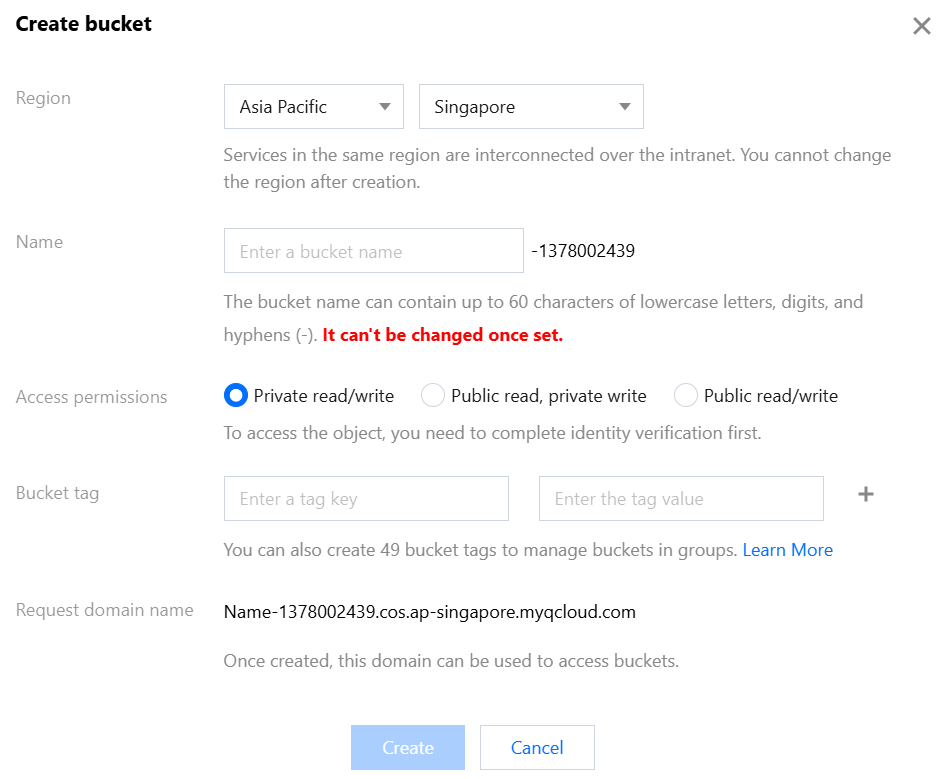
2. In the pop-up window, complete the following configurations, and click Create.
Parameter | Description |
Region | Select a region of the bucket. You should select a COS region corresponding to the physical region where your business is mainly located for communication with other Tencent Cloud services in the same region via the private network. The region cannot be modified after creation. |
Name | Enter a custom bucket name. Only lowercase letters, digits, and hyphens (-) are supported. The total number of characters in the domain name cannot exceed 60. The bucket name cannot be modified once set. |
Access Permission | Select the access permission. By default, a bucket is provided with three access permissions: private read/write, public read/private write, and public read/write. The permission can be modified after setting. For details, see ACL. |
Bucket tag | Bucket tags are used as identifiers for bucket management. You can set tags for buckets to facilitate group-based bucket management. For details, see Setting Bucket Tags. |
Request domain name | This field displays the request domain name after the settings are completed. You can use this domain name to access the bucket. |
References
Related CLS documents are as follows.:
Related documents of TDMQ for CKafka are as follows:
Relevant COS documents:
Help and Support
Was this page helpful?
You can also Contact sales or Submit a Ticket for help.
Help us improve! Rate your documentation experience in 5 mins.
Feedback