This document introduces the Transparent Data Encryption (TDE) feature for TencentDB for SQL Server.
Feature Overview
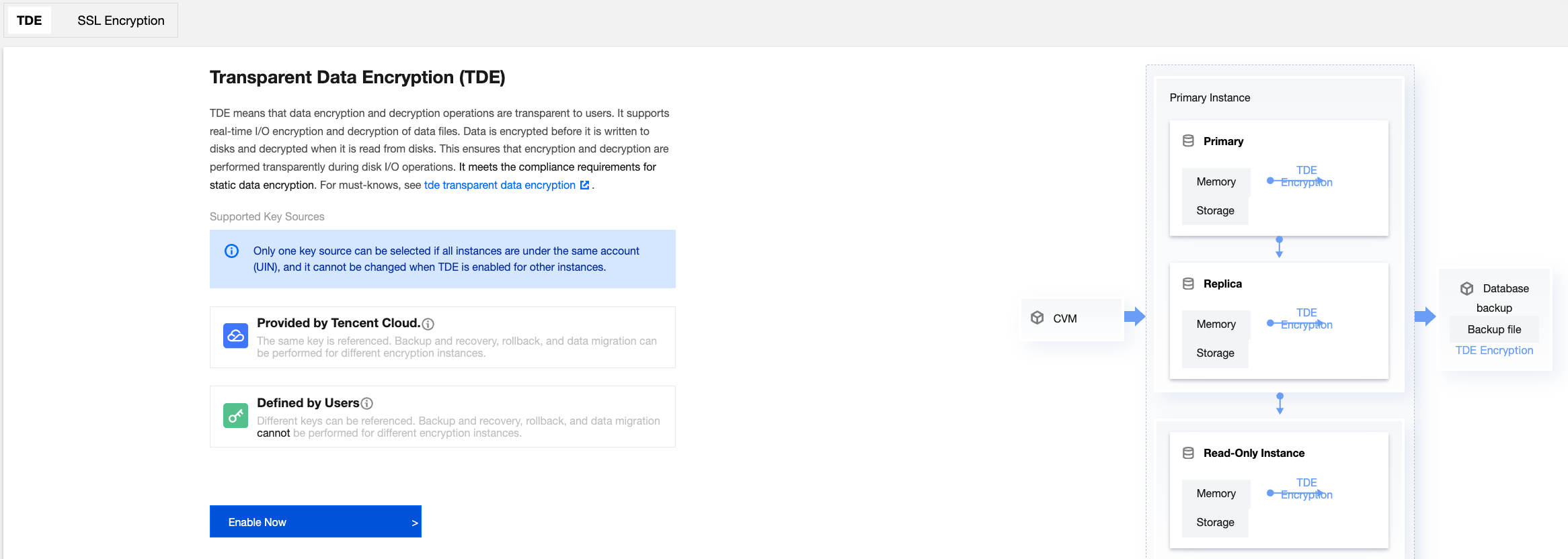
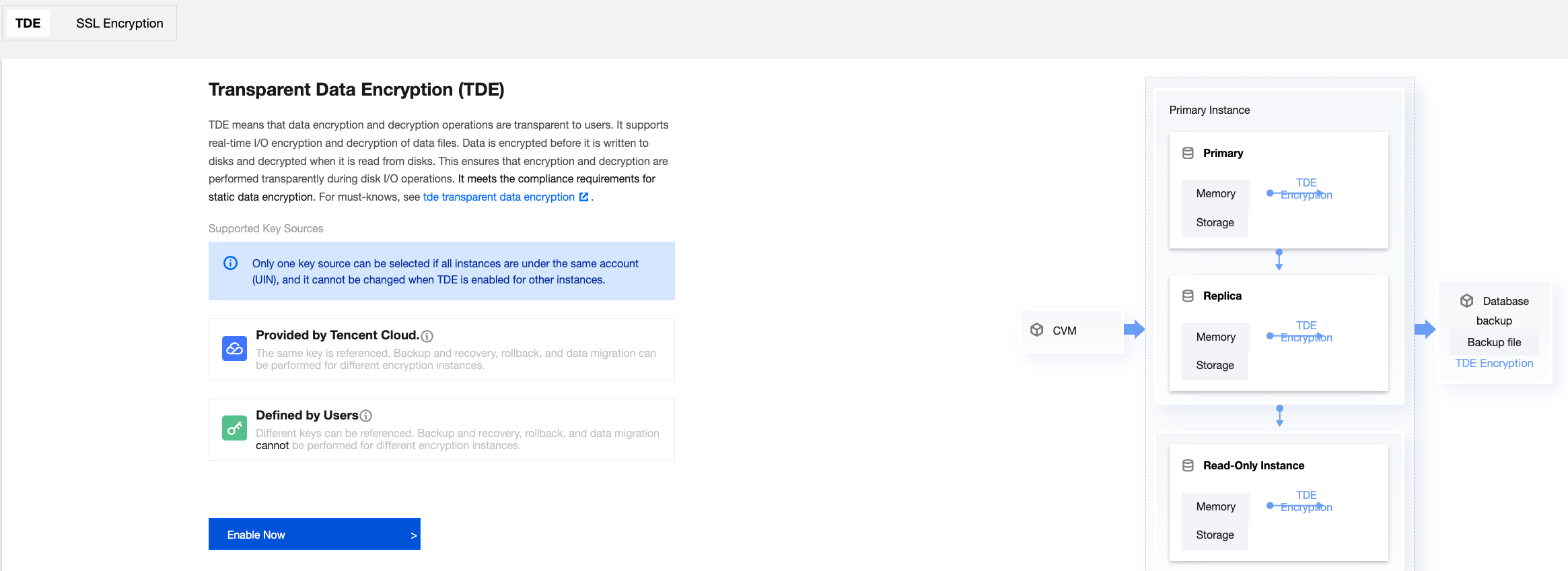
The Transparent Data Encryption (TDE) feature makes data encryption and decryption operations transparent to users. TDE provides file-level encryption, supporting real-time I/O encryption and decryption for data files. This ensures transparency to upper-layer database applications, eliminating the need for users to modify business code. Data is encrypted before it is written to disk, and the data stored on disk remains encrypted. When data is read from disk into memory, it is decrypted. In other words, TDE transparently encrypts and decrypts data during disk read and write operations. TDE does not increase the size of data files and can meet compliance requirements for static data encryption.
Use Cases
The Transparent Data Encryption (TDE) feature is commonly used to address security and compliance requirements, such as meeting the static data protection mandates of standards like PCI DSS and Multi-Level Protection Scheme (MLPS).
Note
When enabling Transparent Data Encryption (TDE), you need to select a key source. Currently, the supported options are "provided by Tencent Cloud" and "user-customized". If you choose "user-customized", you should have already enabled the Key Management Service (KMS). If not, you can enable the service during the TDE enabling process by following the instructions. Additionally, you need to grant KMS key permissions. If not granted, you can authorize them during the TDE enabling process as guided.
Billing Instructions
The TDE feature for TencentDB for SQL Server does not incur additional charges. However, if the key source is "user-customized," the keys are generated and managed by the Key Management Service (KMS), which may result in additional fees. For more details, see Billing Overview.
Encryption Algorithms
Before April 28, 2026, the default TDE encryption algorithm is AES_128. After April 28, 2026, TencentDB for SQL Server upgraded the TDE encryption algorithm, and its default value is AES_256.
Feature Limitations
Keys cannot be downloaded.
Instance-level TDE can only be enabled and cannot be disabled. Once TDE is enabled, the keys on the instance cannot be deleted. Database-level TDE can be enabled or disabled.
Backup, recovery, and rollback operations between instances are only possible if all instances under the same account (UIN) use the same encryption key.
All instances under the same account (UIN) can only use the same key source. That is, you can either select "provided by Tencent Cloud" for all instances or "user-customized" for all instances. For a detailed comparison of the two key sources, see Key Source Description.
For backup, recovery, and rollback operations between instances under different accounts (UINs), the key source should be set to "provided by Tencent Cloud," and the same key should be referenced.
Business intelligence service instances do not support the TDE feature.
Key Source Description
Comparison Parameters
Key Source
Provided by Tencent Cloud
User-customized
Definition
After TDE is enabled, the key is generated by Tencent Cloud.
For instances under the same account (UIN), the referenced keys need to be consistent.
For instances under the same account (UIN), the referenced keys can be the same or different.
Key reference across different accounts (UINs)
For instances under different accounts (UINs), the referenced keys can be the same or different.
For instances under different accounts (UINs), the referenced keys need to be different.
Feature limitations
If backup, recovery, rollback, or data migration operations are required between different encrypted instances, it is recommended to select "provided by Tencent Cloud" as the key source.
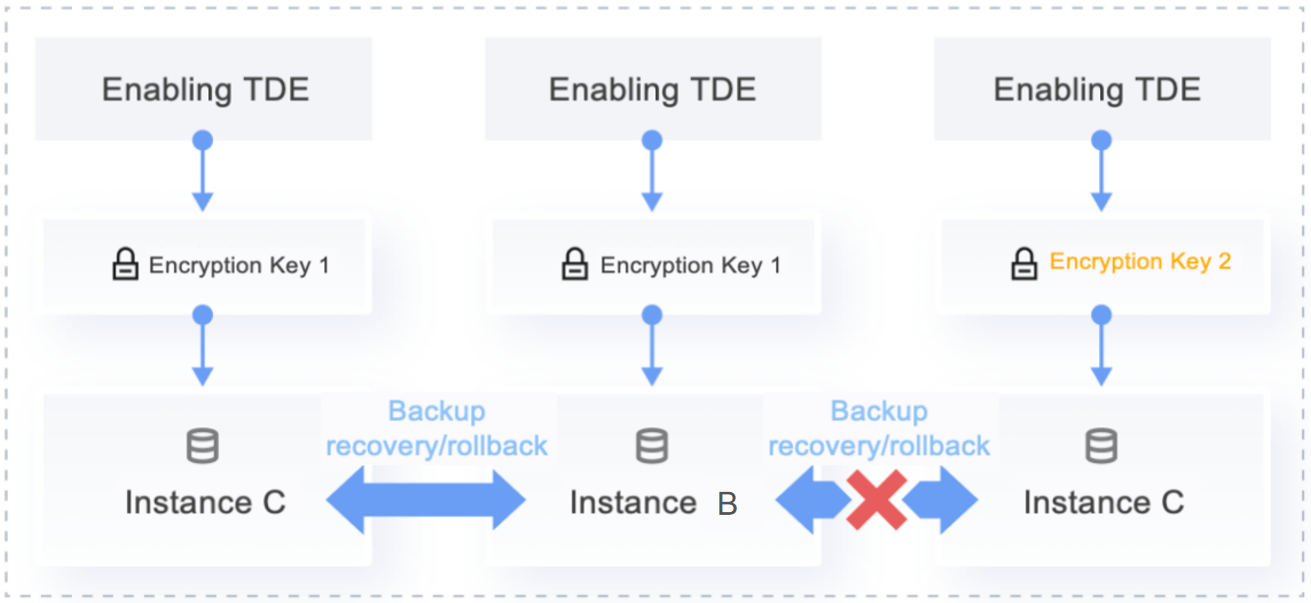
If different instances under the same account (UIN) reference different keys, backup, recovery, rollback, or data migration operations cannot be performed. If the same key is referenced, these operations are allowed. Operations between instances under different accounts (UINs) are not possible due to the inability to reference the same key.
Key Scenario Architecture Diagrams
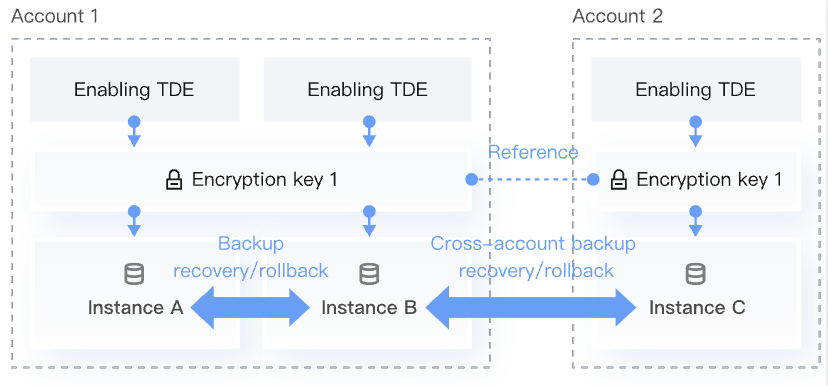
Architecture Diagram for Key Scenario: Provided by Tencent Cloud
Architecture Diagram for Key Scenario: User-Customized
Feature Overview
For instances referencing the same encryption certificate, during backup, recovery, or data migration, if the source database uses TDE encryption and the target instance does not have instance-level TDE enabled, under the same account (UIN), the target instance will automatically enable instance-level TDE. This operation does not affect business operations.
If TencentDB for SQL Server instances are distributed across different accounts (UINs) and cross-account backup and recovery operations are required, when enabling TDE, select Provided by Tencent Cloud > Reference Key from Another Account as the key source. This ensures that the same key is used across different accounts. A single primary account (UIN) can only have one key, which may be used by multiple primary accounts (UINs).
If an instance is associated with read-only instances, you only need to enable the TDE feature for the primary instance. The transparent data encryption for its read-only instances will be enabled automatically.
To enable or disable the TDE feature at the database level for an instance with a two-node architecture, the instance should not be associated with read-only instances or publish/subscribe relationships. You need to first delete the read-only instances or publish/subscribe relationships before enabling or disabling the TDE feature at the database level, and then re-add them. To enable or disable the feature at the database level for an instance with a multi-node architecture, regardless of whether the read-only capability of the secondary node is enabled, it is not required to delete the read-only nodes first.
After the TDE feature is enabled, you cannot use backup files to restore data offline. To restore data to a local environment, you must first disable the TDE feature, then create a manual backup, and finally restore the data using the backup file.
Databases encrypted offline cannot be directly migrated to TencentDB for SQL Server instances. You must first disable the database-level TDE feature on the offline database before proceeding with the migration.
Enabling TDE can enhance data security. However, it also impacts the read/write performance when encrypted databases are accessed and significantly increases instance CPU utilization. Therefore, you should carefully consider enabling TDE. Furthermore, enabling TDE is not recommended for instances with fewer than 4 CPU cores.
Enabling or disabling the database-level TDE feature may take a considerable amount of time. During this process, do not perform the following operations on the instance. Otherwise, enabling or disabling the database TDE may fail. It is recommended to perform this operation during off-peak hours. The operations include but are not limited to:
Modify or delete databases, take databases offline, or detach databases.
Set the database or filegroup to READ ONLY.
Database backup.
Database rollback/restore.
Change Data Capture (CDC).
Change Tracking (CT).
Shrink the database.
Database clone.
Modify database permissions.
Note:
If a user has multiple primary accounts (UINs) and all require the TDE feature, and cross-account backup, recovery, migration, or rollback operations are needed between these accounts, ensure that all primary accounts reference the same key. For example, after enabling TDE for instances in Account 1, when enabling TDE for instances in Accounts 2, 3, and 4, the key source needs to select "provided by Tencent Cloud" and the encryption key from Account 1 needs to be referenced. Otherwise, cross-account operations (including but not limited to cross-account rollback, backup, recovery, and migration) will not be possible.
Enabling Instance-Level TDE
Scenario 1: No Instances Under the Current Account Have TDE Enabled
2. Select the region and in the instance list, click Instance ID or Manage in the Operation column for the instance where you want to enable TDE.
3. On the Instance Management page, select Data Security > TDE
4. Select the key source, and click Enable Now.
Note:
All instances under the same account (UIN) need to use the same key source. That is, you can either select "provided by Tencent Cloud" for all instances or "user-customized" for all instances. This cannot be changed when enabling TDE for other instances.
Operation Reference for Key Source: Provided by Tencent Cloud
Operation Reference for Key Source: User-Customized
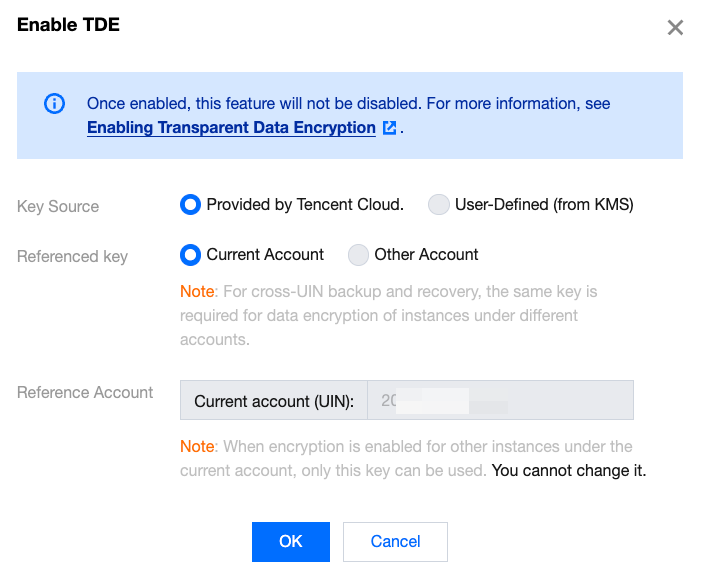
1. Select the key source, which can be the current account or another account.
2. If you select the current account, the key will default to the key under the current account. And then click OK.
Note:
If you need to support cross-account backup and recovery, instances under different accounts need to use the same key.
When you enable encryption for other instances under the current account, only this key can be used and cannot be changed.
3. If you select another account as the key source, after referencing the key, select the target key under the other account, and then click OK.
Note:
If you need to support cross-account backup and recovery, instances under different accounts need to use the same key.
When you enable encryption for other instances under the current account, only this key can be used and cannot be changed.
1. Click go to activate to enable the KMS service. Skip this step if it has already been activated.
2. Click Go to Authorization to perform KMS key authorization. Skip this step if it has already been authorized.
3. Select the key region, choose the key, and click OK. If you need to use other custom keys, go to create.
Note:
If you need to support backup and recovery, rollback, and migration under the same account (UIN), the keys for different instances need to be consistent.
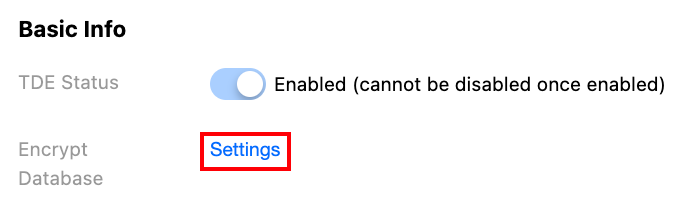
5. After you successfully enable TDE, the TDE encryption status will display Enabled (cannot be disabled once enabled).
Scenario 2: Existing Instances Under the Current Account Have TDE Enabled with Key Source as "Provided by Tencent Cloud"
2. Select the region and in the instance list, click Instance ID or Manage in the Operation column for the instance where you want to enable TDE.
3. On the Instance Management page, select Data Security > TDE.
4. Since instances under the current account have already enabled TDE with the key source as "provided by Tencent Cloud," the key source will default to this option. You can directly click Enable Now.
5. Confirm the key in the pop-up window and click OK.
Note:
In this step, there is no need to select a referenced key for the current account (UIN) or another account (UIN), as the referenced key will default to the one used by the existing instance with TDE enabled under the current account.
6. After you successfully enable TDE, the TDE encryption status will display Enabled (cannot be disabled once enabled).
Scenario 3: Instances Under the Current Account Already Have TDE Enabled with Key Source as "User-Customized"
2. Select the region and in the instance list, click Instance ID or Manage in the Operation column for the instance where you want to enable TDE.
3. On the Instance Management page, select Data Security > TDE.
4. Since instances under the current account have already selected "user-customized" as the key source when you enable encryption, the key source will default to this option. You can directly click Enable Now.
5. In the pop-up window, if the KMS service has been enabled and KMS key permissions have been granted, you can select the key region, choose the key, and click OK. If KMS enabling or authorization was previously canceled, follow the prompts to re-enable and reauthorize, then select the key region, choose the key, and click OK.
6. After you successfully enable TDE, the TDE encryption status will display Enabled (cannot be disabled once enabled).
Enabling or Disabling Database Encryption
Note:
To enable/disable TDE at the database level for an instance, ensure that the instance is not associated with any read-only instances or release/subscription. You need to first remove these associations before enabling/disabling TDE at the database level, and finally re-add the read-only instances and release/subscription.
2. Select a region and in the instance list, click the Instance ID or Manage in the Operation column for the target instance.
3. On the Instance Management page, select Data Security > TDE, and then click Settings after encrypting the database.
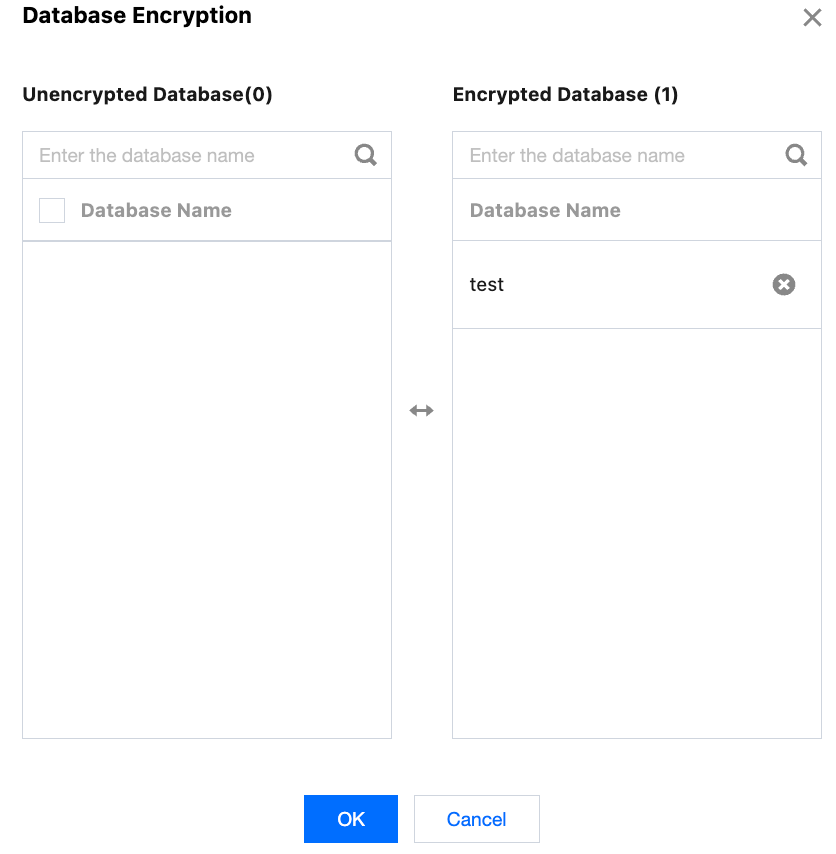
4. In the pop-up window, select the databases to be encrypted from the left panel (unencrypted databases) to enable encryption, or delete databases from the right panel (encrypted databases) to disable encryption. After making the necessary changes, click OK.
5. After enabling TDE at the database level for specific databases, you can view the encryption status of databases under database management by using the TDE Status field.
Viewing Tasks
When enabling instance-level TDE or enabling/disabling database encryption, you can check the current task progress by using the task icon in the upper-right corner of the console.
Restrictions for Cloud Databases with TDE Enabled During Rollback, Backup/Recovery, Migration, and Database Cloning
Feature
Features
Description
Rollback
Roll back to source instances
Rollback is allowed if the keys on the same instance are consistent.
Roll back to other existing instances under the same account (UIN)
For different instances under the same account (UIN), the key source needs to be either "provided by Tencent Cloud" or "user-customized." Rollback is allowed if the keys on the source and target instances are consistent, or if the source database has encryption disabled, or if the target instance has encryption enabled with consistent keys.
Cross-region rollback
For instances with cross-region backup enabled, cross-region backup files are encrypted. When using encrypted cross-region backups for rollback in a different region, the keys for instances in different regions under the same account need to be initialized consistently to support cross-region rollback. Rollback is allowed if the keys on the source and target instances are consistent, or if the source database has encryption disabled, or if the target instance has encryption enabled with consistent keys.
Database cloning
Clone to source instances
Cloning is allowed if the keys on the same instance are consistent.
Backup/recovery (cold migration)
Backup/recovery to source instances
Backup/recovery is allowed if the keys on the same instance are consistent.
Backup/recovery to other existing instances under the same account (UIN)
For encrypted files, backup/recovery requires the source backup file encryption to be disabled or the target instance encryption to be enabled. Therefore, if the source database has TDE enabled and the target instance does not have instance-level TDE enabled, and if the key source is "provided by Tencent Cloud," the system will automatically enable instance-level TDE for the target instance since the keys are consistent under the same account. If the key source is "user-customized," the user needs to manually enable TDE for the target instance and ensure the key matches the source instance.
Backup/recovery to instances under a different account (UIN)
For encrypted files, backup/recovery requires the source backup file encryption to be disabled or the target instance encryption to be enabled. Therefore, if the source database has TDE enabled and the target instance does not have instance-level TDE enabled, and if the accounts (UINs) of the source database and target instance reference the same key, the system will automatically enable instance-level TDE for the target instance. If the accounts reference different keys, the source database needs to have encryption disabled or the target instance needs to have encryption enabled with the same key before backup/recovery can proceed.
Note:
Backup/recovery to instances under cross-accounts (UINs) is only supported when the key source is "provided by Tencent Cloud." It is not supported when the key source is "user-customized."
DTS
(Live migration)
DTS migration to source instances
Migration is allowed if the keys on the same instance are consistent.
DTS migration to other existing instances under the same account (UIN)
For encrypted files, data migration requires the source backup file encryption to be disabled or the target instance encryption to be enabled. Therefore, if the source database has TDE enabled and the target instance does not have instance-level TDE enabled, and if the key source is "provided by Tencent Cloud," the system will automatically enable instance-level TDE for the target instance since the keys are consistent under the same account (UIN). If the key source is "user-customized," the user needs to manually enable TDE for the target instance and ensure the key matches the source instance.
DTS migration to instances under different accounts (UINs)
For encrypted files, data migration requires the source backup file encryption to be disabled or the target instance encryption to be enabled. Therefore, if the source database has TDE enabled and the target instance does not have instance-level TDE enabled, if the accounts (UINs) of the source database and target instance reference the same key, the system will automatically enable instance-level TDE for the target instance. If the accounts reference different keys, the source database needs to have encryption disabled or the target instance needs to have encryption enabled with the same key before migration can proceed.
Note:
DTS migration to instances under different accounts (UINs) is only supported when the key source is "provided by Tencent Cloud." It is not supported when the key source is "user-customized."
Publishing/subscription
Link from source instances to other existing instances in the same region
During release/subscription, the system will verify that the keys on the source and target instances are consistent, or that the source database encryption is disabled, or that the target instance encryption is enabled with consistent keys before allowing release/subscribe operations.